At-a-glance inspection of all 68 learning strands and 408 learning steps. Review the 6-part pedagogical anatomy, identify missing external practice links, and align authentic classroom lesson ideas.
To create and follow precise step-by-step instructions for everyday tasks.
Unit: How the World WorksConcept: FormProfile: Inquirer
⚡
Spark Hook (Zoom In):
"Look closely at these steps for making toast. Is any step out of order or missing?"
🎮
Learn Simulator:DiagramBuilderSimulator • Level 1
An algorithm is a step-by-step set of instructions to solve a problem or complete a task. Computers need instructions to be completely precise and in the exact right order. If a step is missing or in the wrong order, the algorithm fails. In computing, clear sequences enable predictable outcomes. As you explore the interactive Diagram Builder Simulator below, focus on how to create a precise 5-step unplugged algorithm for an everyday task without missing steps.
🛠️
Independent Practice Task:
Order Everyday Algorithms
▫️ Identify the goal in your workspace to establish the foundational setup for unplugged sequences.
▫️ Arrange steps in logical order carefully, checking your settings and controls as you build your project.
▫️ Check for missing actions and verify that your output meets the target goal for unplugged sequences.
To trace directional algorithms on grid maps and predict where a robot will land.
Unit: How the World WorksConcept: FunctionProfile: Communicator
⚡
Spark Hook (See Think Wonder):
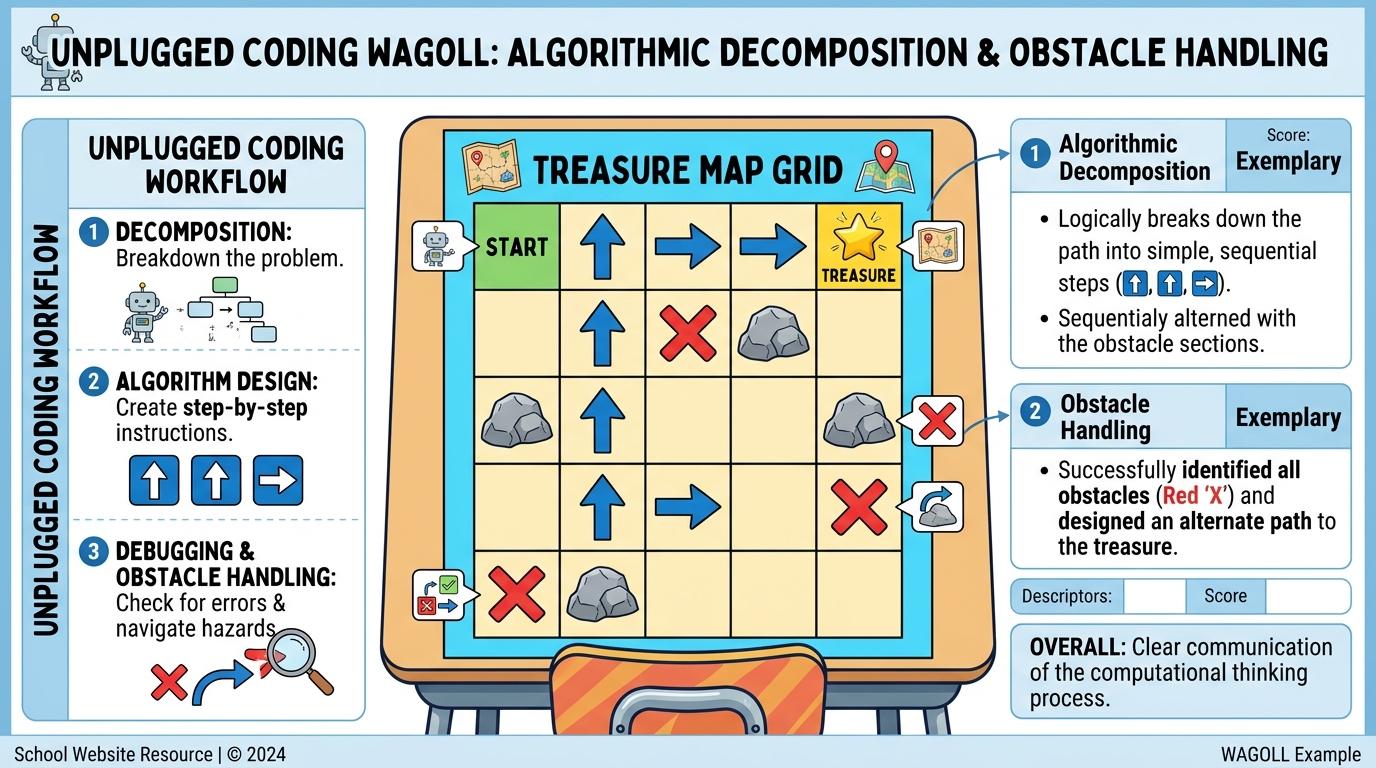
"Where will the robot land if it follows these four movement arrows?"
🎮
Learn Simulator:DiagramBuilderSimulator • Level 2
Robots follow directional algorithms using commands like Forward, Turn Left, and Turn Right. Tracing algorithms on a grid map allows us to test instructions before running them on physical or virtual robots. As you explore the interactive Diagram Builder Simulator below, focus on how to write an efficient directional algorithm to navigate a maze grid around obstacles.
🛠️
Independent Practice Task:
Navigate the Grid Maze
▫️ Read starting position in your workspace to establish the foundational setup for robot paths & maps.
▫️ Trace arrow commands step-by-step carefully, checking your settings and controls as you build your project.
▫️ Avoid grid obstacles and verify that your output meets the target goal for robot paths & maps.
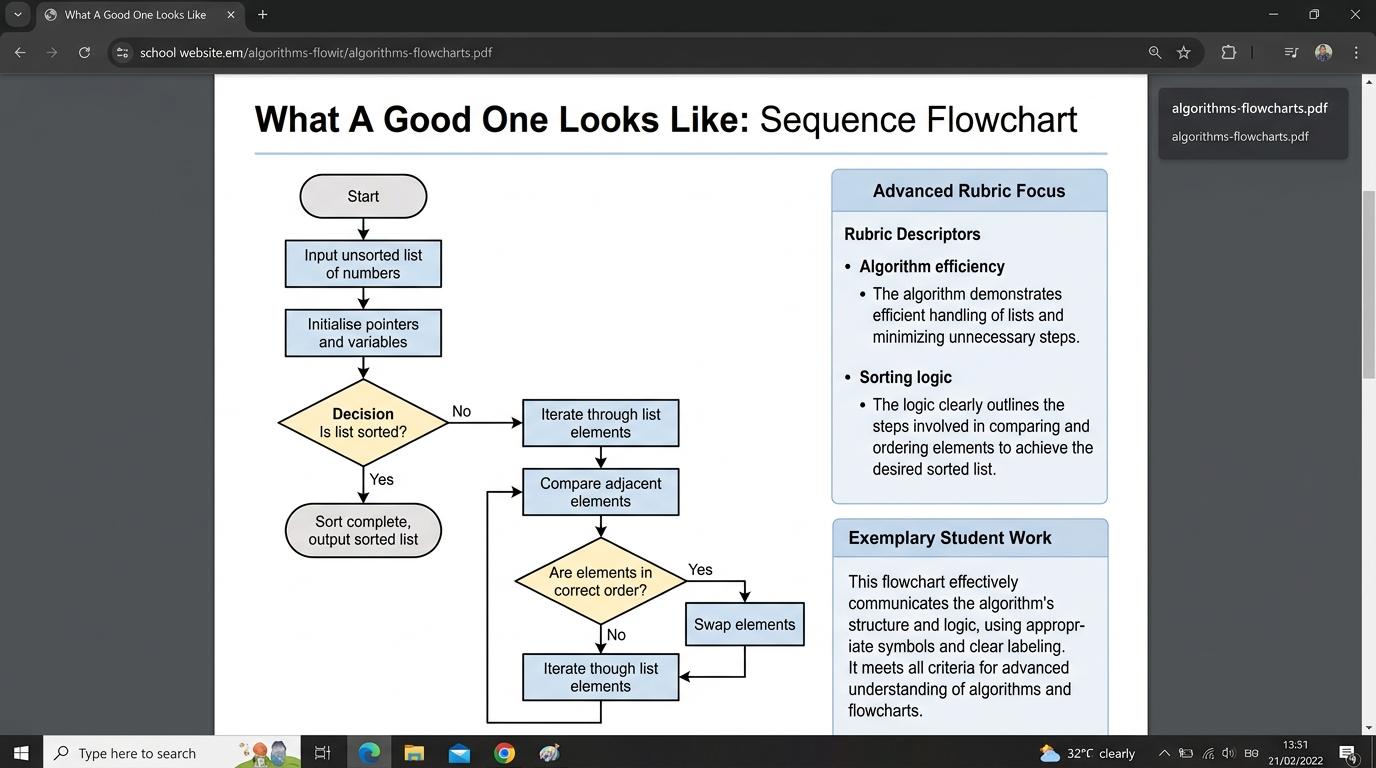
To read and construct flowcharts using standard oval, rectangle, and diamond symbols.
Unit: How We Organize OurselvesConcept: ConnectionProfile: Thinker
⚡
Spark Hook (SplitScreenSimulator):
"Compare the written instructions to the flowchart diagram. Which is easier to follow?"
🎮
Learn Simulator:DiagramBuilderSimulator • Level 3
Flowcharts use standardized geometric symbols connected by directional arrows: Ovals represent Start/End points, Rectangles represent Actions or Processes, and Diamonds represent Decisions with Yes/No outcomes. In computing, standard symbols represent logical flow and decision points. As you explore the interactive Diagram Builder Simulator below, focus on how to construct a complete flowchart for a decision process using standard symbols correctly.
🛠️
Independent Practice Task:
Build a Decision Flowchart
▫️ Place Start/End ovals in your workspace to establish the foundational setup for flowcharts & decisions.
▫️ Insert Action rectangles carefully, checking your settings and controls as you build your project.
▫️ Add Decision diamonds and verify that your output meets the target goal for flowcharts & decisions.
To write structured pseudocode using standard keywords like IF, THEN, ELSE, and REPEAT.
Unit: How We Express OurselvesConcept: ChangeProfile: Principled
⚡
Spark Hook (BeforeAfterSlider):
"Slide between the visual flowchart and the structured pseudocode text."
🎮
Learn Simulator:DiagramBuilderSimulator • Level 4
Pseudocode is structured plain text that describes an algorithm without relying on specific programming syntax. It uses standard logical keywords like IF, THEN, ELSE, and REPEAT to plan program logic before writing real code. In computing, pseudocode bridges visual diagrams and formal programming languages. As you explore the interactive Diagram Builder Simulator below, focus on how to converts a flowchart with decision branching into formal IF/THEN/ELSE pseudocode.
🛠️
Independent Practice Task:
Write Pseudocode Logic
▫️ Define input conditions in your workspace to establish the foundational setup for pseudocode & logic.
▫️ Use capital keywords (IF, THEN, ELSE) carefully, checking your settings and controls as you build your project.
▫️ Indent nested blocks and verify that your output meets the target goal for pseudocode & logic.
To measure algorithm efficiency and compare linear search with binary search.
Unit: How the World WorksConcept: PerspectiveProfile: Knowledgeable
⚡
Spark Hook (ClassroomWalkthrough):
"Guess a hidden number between 1 and 100. Is checking 1, 2, 3... as fast as splitting in half?"
🎮
Learn Simulator:DiagramBuilderSimulator • Level 5
Not all algorithms are created equal. Linear search checks every item one by one from start to finish. Binary search works on sorted lists by checking the middle item and cutting the remaining search area in half each time, requiring far fewer steps. In computing, algorithmic efficiency minimizes computational time and steps. As you explore the interactive Diagram Builder Simulator below, focus on how to execute a binary search on a sorted list by repeatedly dividing the search space in half.
🛠️
Independent Practice Task:
Compare Search Algorithms
▫️ Test Linear Search on 20 items in your workspace to establish the foundational setup for efficiency & searching.
▫️ Test Binary Search on 20 sorted items carefully, checking your settings and controls as you build your project.
▫️ Count comparison steps and verify that your output meets the target goal for efficiency & searching.
To test algorithms against edge cases and evaluate how algorithmic bias impacts society.
Unit: Sharing the PlanetConcept: ReflectionProfile: Reflective
⚡
Spark Hook (See Think Wonder):
"If a facial recognition algorithm was only trained on light skin tones, what happens when it meets dark skin tones?"
🎮
Learn Simulator:DiagramBuilderSimulator • Level 6
Algorithms reflect the data and assumptions of the humans who build them. Algorithmic bias occurs when computer programs produce unfair decisions due to incomplete or biased training data. Rigorous testing with edge cases ensures algorithms are fair, reliable, and secure.
🛠️
Independent Practice Task:
Audit Algorithms for Bias
▫️ Identify algorithm inputs in your workspace to establish the foundational setup for algorithmic bias & optimization.
▫️ Test extreme edge cases carefully, checking your settings and controls as you build your project.
▫️ Analyze training data diversity and verify that your output meets the target goal for algorithmic bias & optimization.
Understand how to drag, snap, and detach visual coding blocks to create a linear sequence of movements.
Unit: How the World WorksConcept: FormProfile: Inquirer
⚡
Spark Hook (See Think Wonder):
"Look at these color-coded puzzle pieces. What happens when you snap two of them together?"
🎮
Learn Simulator:BlockCodingSimulator • Level 1
In block-based programming environments like ScratchJr, instructions are shaped like visual puzzle pieces. Motion blocks move sprites across the screen, and trigger blocks start the action when tapped. In computing, digital code uses structured blocks to communicate instructions to sprites. As you explore the interactive Block Coding Simulator below, focus on how to independently snaps motion blocks in correct order and runs the script to move a character.
🛠️
Independent Practice Task:
Connect Movement Blocks
▫️ Open ScratchJr in your workspace to establish the foundational setup for drag & snap.
▫️ Drag a Start on Green Flag block carefully, checking your settings and controls as you build your project.
▫️ Snap a Move Right block onto it and verify that your output meets the target goal for drag & snap.
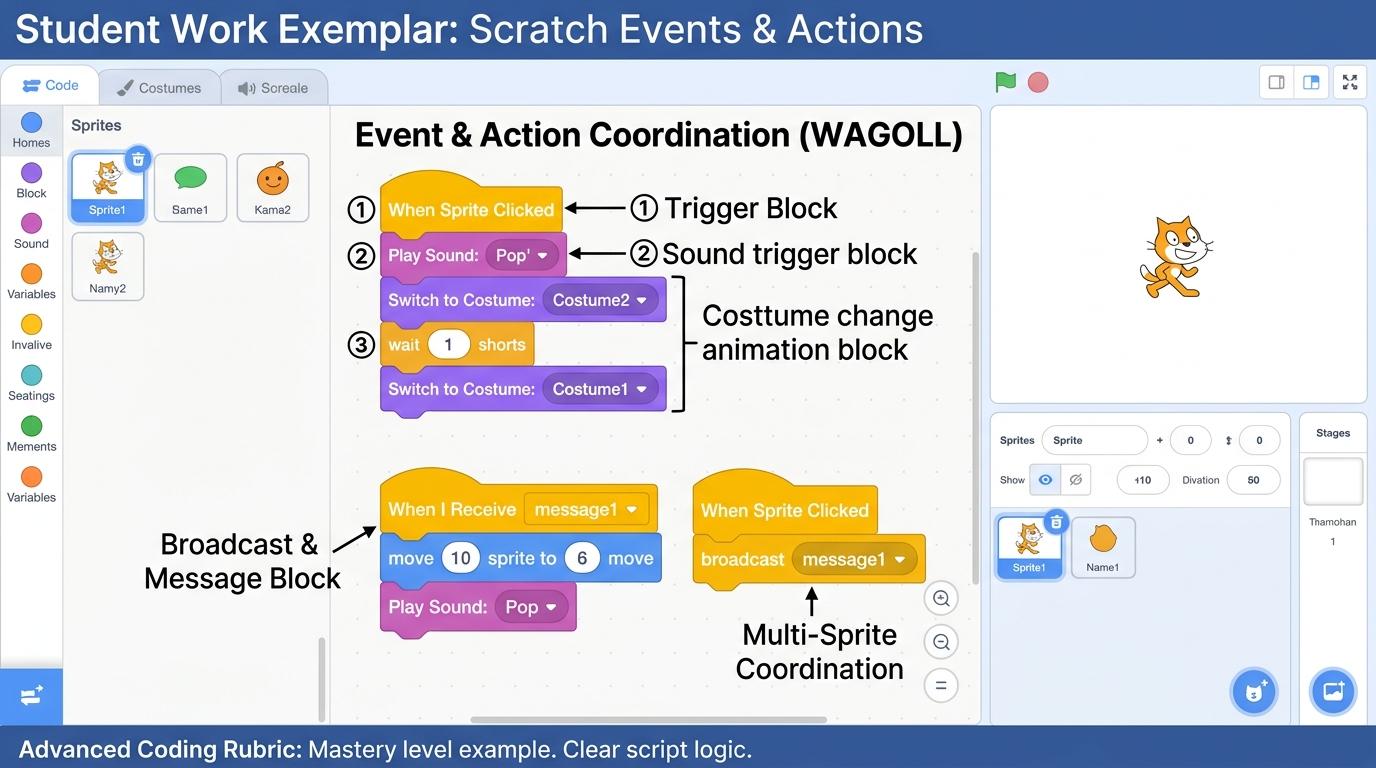
Learn how event blocks trigger specific scripts when keys are pressed or characters are clicked.
Unit: How the World WorksConcept: FunctionProfile: Communicator
⚡
Spark Hook (Zoom In):
"Notice how event blocks have a rounded hat top. Why do you think no blocks can snap above them?"
🎮
Learn Simulator:BlockCodingSimulator • Level 2
Event blocks act as program starters. Because they trigger scripts based on user input—such as clicking a flag, pressing a key, or tapping a sprite—they always sit at the top of a block stack. In computing, events allow digital programs to respond instantly to user interactions. As you explore the interactive Block Coding Simulator below, focus on how to create interactive scripts using 'when space key pressed' and 'when this sprite clicked'.
🛠️
Independent Practice Task:
Create Interactive Events
▫️ Open Scratch in your workspace to establish the foundational setup for events & actions.
▫️ Add a 'when space key pressed' event block carefully, checking your settings and controls as you build your project.
▫️ Attach a 'play sound until done' block and verify that your output meets the target goal for events & actions.
Use repeat loops and costume switching blocks to create smooth character walking animations.
Unit: How We Express OurselvesConcept: ChangeProfile: Thinker
⚡
Spark Hook (Before After Slider):
"Compare a sprite moving without costume changes versus one switching costumes inside a repeat loop."
🎮
Learn Simulator:BlockCodingSimulator • Level 3
To make a sprite look like it is walking, we switch between its costume poses inside a repeat loop. Adding a tiny 'wait' block prevents the animation from playing too fast for the human eye. In computing, iteration and costume changes create realistic movement and animation cycles. As you explore the interactive Block Coding Simulator below, focus on how to construct an animated walking script using 'repeat (10)', 'next costume', and 'wait (0.1) secs'.
🛠️
Independent Practice Task:
Animate a Walking Sprite
▫️ Select a sprite with multiple costumes in your workspace to establish the foundational setup for loops & costumes.
▫️ Add a 'repeat 10' block carefully, checking your settings and controls as you build your project.
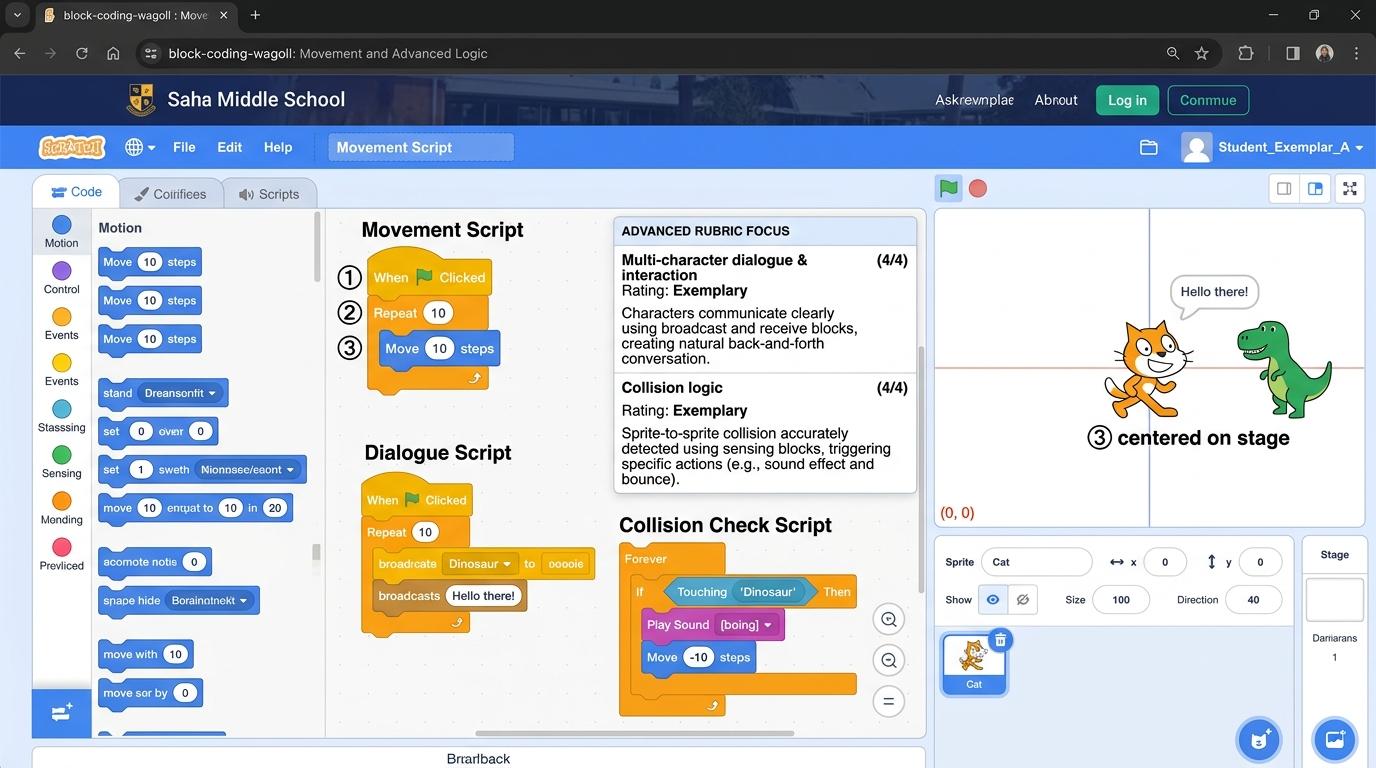
Understand how 'broadcast message' and 'when I receive message' blocks coordinate actions across multiple sprites.
Unit: How We Express OurselvesConcept: ConnectionProfile: Principled
⚡
Spark Hook (Chalk Talk):
"How do actors on a stage know when it's their turn to speak? How do Scratch sprites do the same?"
🎮
Learn Simulator:BlockCodingSimulator • Level 4
Broadcast blocks send invisible signal messages across a Scratch project. When Sprite A sends 'broadcast [message1]', Sprite B hears it via its 'when I receive [message1]' event block and starts its response. In computing, inter-sprite communication enables synchronized storytelling and scene changes. As you explore the interactive Block Coding Simulator below, focus on how to build a synchronized two-character dialogue story using broadcast messages.
🛠️
Independent Practice Task:
Create a Synchronized Dialogue
▫️ Create Sprite A and Sprite B in your workspace to establish the foundational setup for broadcast & messages.
▫️ Sprite A speaks then 'broadcast [your turn]' carefully, checking your settings and controls as you build your project.
▫️ Sprite B uses 'when I receive [your turn]' to speak back.
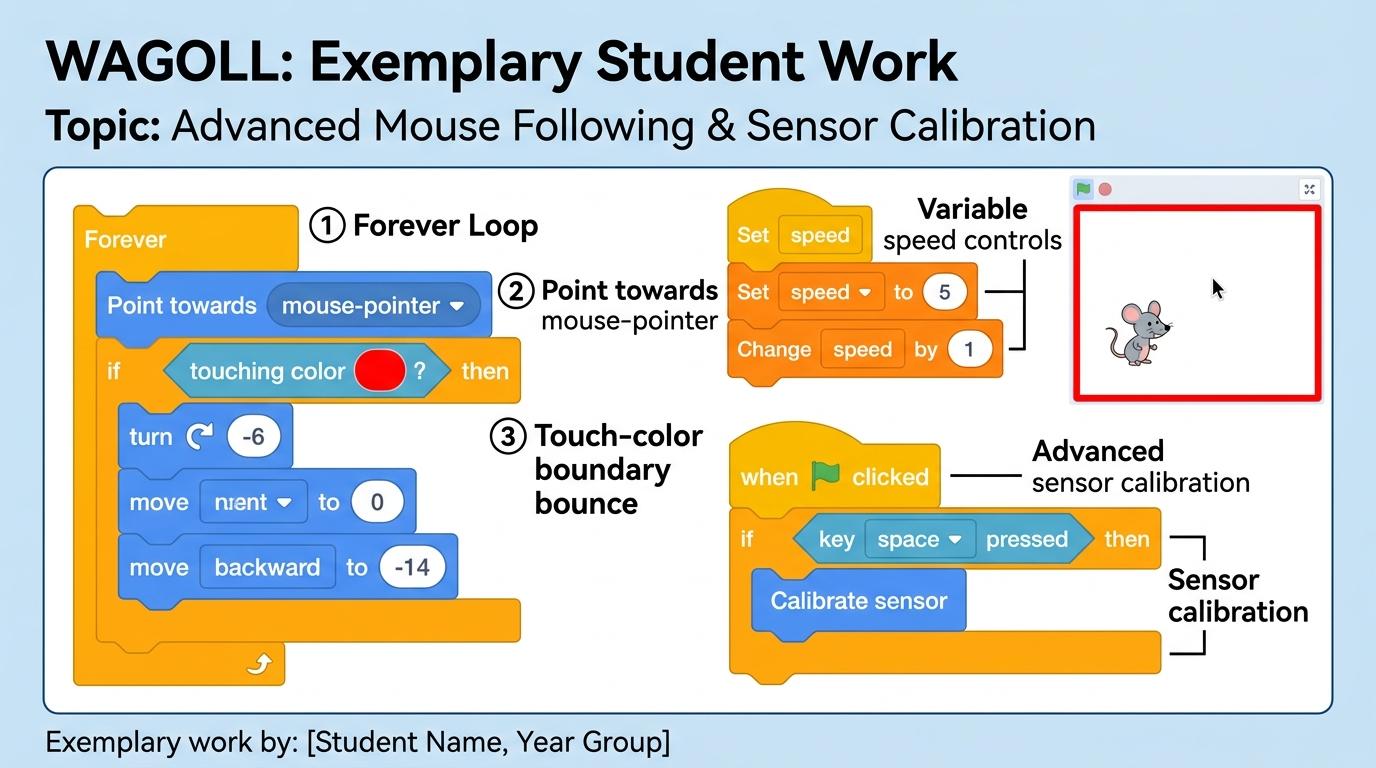
Apply 'if-then' blocks and sensing blocks ('touching sprite?', 'key pressed?') to detect game collisions.
Unit: How the World WorksConcept: PerspectiveProfile: Knowledgeable
⚡
Spark Hook (See Think Wonder):
"Look at this maze game script. What happens the moment the sprite touches the red wall color?"
🎮
Learn Simulator:BlockCodingSimulator • Level 5
Sensing blocks return TRUE or FALSE answers. When placed inside an 'if-then' C-block inside a 'forever' loop, the program constantly checks for conditions—like touching a goal, hitting an obstacle, or pressing a key. In computing, conditional sensing enables games to detect collisions, boundaries, and scores. As you explore the interactive Block Coding Simulator below, focus on how to program a maze game where touching a wall restarts the character at the beginning.
🛠️
Independent Practice Task:
Program Maze Collision Logic
▫️ Build a maze backdrop with colored walls in your workspace to establish the foundational setup for sensing & conditionals.
▫️ Place 'forever' loop around an 'if touching color [wall]' block.
▫️ Inside IF, add 'go to x: start, y: start' and verify that your output meets the target goal for sensing & conditionals.
Create custom 'My Blocks' (procedures) and manage dynamic sprite cloning for advanced game mechanics.
Unit: How the World WorksConcept: ReflectionProfile: Reflective
⚡
Spark Hook (Deconstruct):
"Examine a rain simulation in Scratch. How can one sprite produce hundreds of falling raindrops?"
🎮
Learn Simulator:BlockCodingSimulator • Level 6
Cloning allows a single master sprite to spawn multiple independent copies on demand during gameplay. Custom 'My Blocks' allow developers to group repetitive scripts into clean, reusable custom blocks with parameters. In computing, cloning and procedural abstraction allow scalable game engines and modular code. As you explore the interactive Block Coding Simulator below, focus on how to define a custom 'My Block' procedure to modularize repetitive jump or particle physics code.
🛠️
Independent Practice Task:
Build a Particle / Obstacle Spawner
▫️ Define a custom 'SpawnObstacle' block in your workspace to establish the foundational setup for cloning & custom blocks.
▫️ In 'forever' loop, call 'create clone of myself' and wait.
▫️ Program 'when I start as a clone' to move and 'delete this clone'.
Identify when a simple sequence fails and fix the incorrect instruction.
Unit: How the World WorksConcept: FormProfile: Inquirer
⚡
Spark Hook (See Think Wonder):
"Look at this robot path where the robot hit a wall. What went wrong?"
🎮
Learn Simulator:SplitScreenSimulator • Level 1
Compare a broken sequence where a sprite turns the wrong way with a corrected sequence. Debugging starts by observing where what the program actually does diverges from what you intended it to do. In computing, digital instructions must be precise for systems to work as expected. As you explore the interactive Split Screen Simulator below, focus on how to correct the erroneous step to ensure the sequence finishes successfully.
🛠️
Independent Practice Task:
Spot the Bug
▫️ Run sequence in your workspace to establish the foundational setup for spotting errors.
▫️ Identify wrong turn carefully, checking your settings and controls as you build your project.
▫️ Swap direction card and verify that your output meets the target goal for spotting errors.
Trace code line-by-line or block-by-block to predict where a bug occurs.
Unit: How the World WorksConcept: FunctionProfile: Communicator
⚡
Spark Hook (Zoom In):
"Zoom in on block #3 in this Scratch script. Why did the sprite jump unexpectedly?"
🎮
Learn Simulator:ShortcutSimulator • Level 2
Use a step-execution tool to run code one block at a time. Stepping slowly through an algorithm lets you watch each instruction execute in order and pinpoint the exact line where a bug occurs. In computing, tracing code step-by-step reveals where intent diverges from execution. As you explore the interactive Shortcut Simulator below, focus on how to trace a 5-block script manually and highlights the exact block containing the bug.
🛠️
Independent Practice Task:
Trace the Code
▫️ Click Step button in your workspace to establish the foundational setup for step tracing.
▫️ Watch block highlight carefully, checking your settings and controls as you build your project.
▫️ Record sprite position and verify that your output meets the target goal for step tracing.
Compare a script with a broken snap connection to a script with a logic error like `score = score - 1`. Syntax and connection bugs stop blocks from running, whereas logic bugs run without crashing but produce the wrong result. In computing, programs fail differently depending on whether rules were broken or logic was flawed. As you explore the interactive Troubleshooting Simulator below, focus on how to categorize a list of 6 bugs as either syntax or logic errors and resolves both types.
🛠️
Independent Practice Task:
Classify and Fix
▫️ Examine bug in your workspace to establish the foundational setup for logic vs syntax.
▫️ Label as Syntax or Logic carefully, checking your settings and controls as you build your project.
▫️ Apply correct fix and verify that your output meets the target goal for logic vs syntax.
Isolate problematic code sections using temporary block disconnection and variable say blocks.
Unit: How the World WorksConcept: ChangeProfile: Principled
⚡
Spark Hook (ShortcutSimulator):
"Practice disconnecting scripts and inserting `say (variable)` blocks to inspect live values."
🎮
Learn Simulator:FolderTreeSimulator • Level 4
Debug a multi-sprite project by testing each sprite's script independently. Isolating modules and broadcast messages one at a time prevents you from getting overwhelmed when troubleshooting complex programs. In computing, isolating code components systematically exposes hidden errors. As you explore the interactive Folder Tree Simulator below, focus on how to use 'say variable' blocks and temporary script detachment to pinpoint the exact broken block.
🛠️
Independent Practice Task:
Isolate and Resolve
▫️ Detach suspicious script in your workspace to establish the foundational setup for isolation methods.
▫️ Test remaining code carefully, checking your settings and controls as you build your project.
▫️ Insert 'say' block and verify that your output meets the target goal for isolation methods.
Create comprehensive test tables covering standard inputs, zero values, negative numbers, and rapid inputs.
Unit: How the World WorksConcept: PerspectiveProfile: Knowledgeable
⚡
Spark Hook (See Think Wonder):
"A quiz program works for age 10, but crashes when someone types '-5' or 'ten'. Why?"
🎮
Learn Simulator:BlockCodingSimulator • Level 5
Learn how boundary values (0, negative numbers, maximum values, and empty inputs) stress-test code logic. Professional programmers test edge cases to make sure their programs never crash on unexpected user input. In computing, robust software requires rigorous testing against extreme and unexpected inputs. As you explore the interactive Block Coding Simulator below, focus on how to construct a complete test matrix with boundary inputs, unexpected characters, and concurrent events.
🛠️
Independent Practice Task:
Build a Test Matrix
▫️ Define expected inputs in your workspace to establish the foundational setup for edge case testing.
▫️ Identify boundary values carefully, checking your settings and controls as you build your project.
▫️ Test extreme cases and verify that your output meets the target goal for edge case testing.
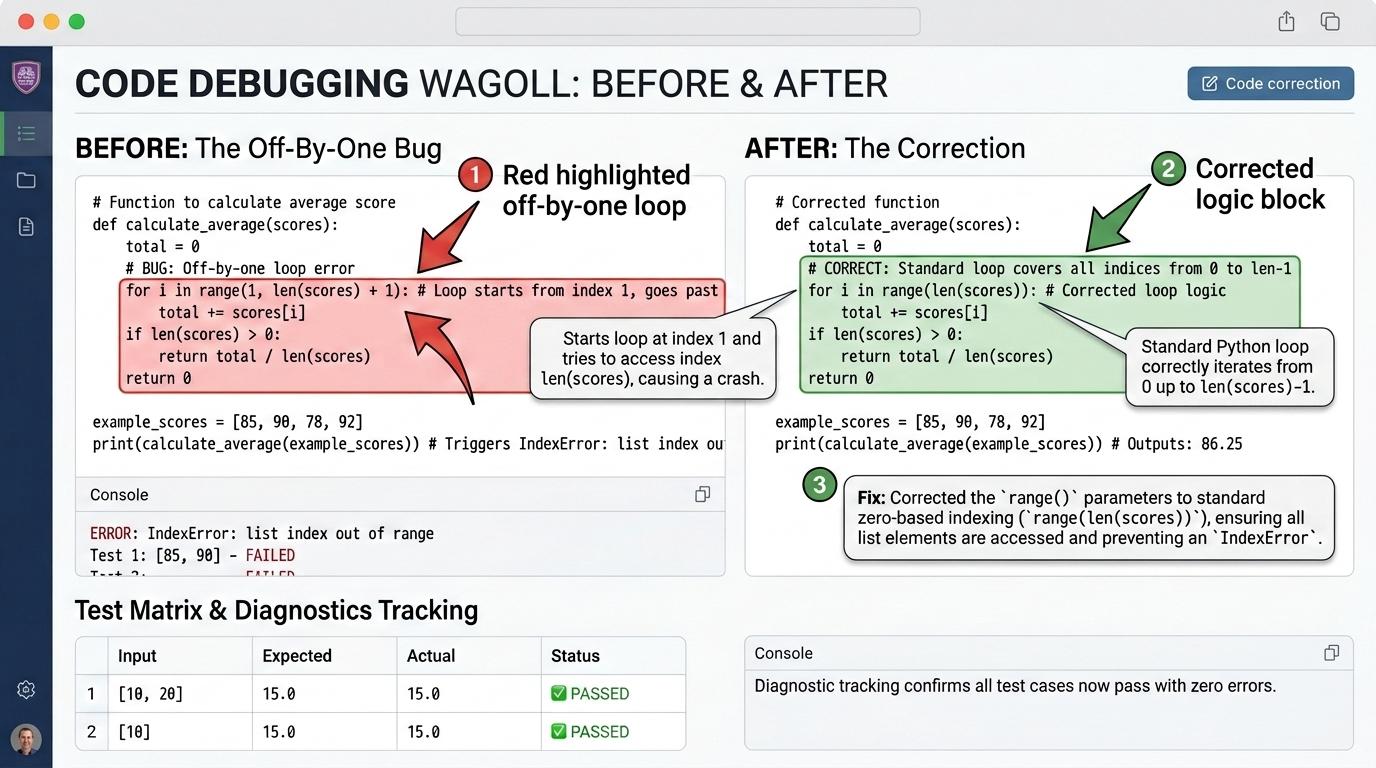
Read error messages and stack traces to identify line numbers and error types in text-based or block code.
Unit: How the World WorksConcept: ReflectionProfile: Reflective
⚡
Spark Hook (Zoom In):
"Look closely at this Python error message: `IndexError: list index out of range on line 14`. What is it telling us?"
🎮
Learn Simulator:PythonConsoleSimulator • Level 6
Deconstruct stack trace structures: Error Name, Description, File Name, and Line Number. Reading error messages systematically turns scary red console warnings into a direct map to fix your code. In computing, developer diagnostics and error logs provide precise maps to software fixes. As you explore the interactive Python Console Simulator below, focus on how to interpret stack traces, identifies exception types (e.g., IndexOutOfBounds, TypeError), and fixes runtime faults.
🛠️
Independent Practice Task:
Console Diagnostics
▫️ Run program in your workspace to establish the foundational setup for console & stack traces.
▫️ Read error console carefully, checking your settings and controls as you build your project.
▫️ Identify error type & line number and verify that your output meets the target goal for console & stack traces.
Deconstruct familiar everyday activities into individual component steps.
Unit: How the World WorksConcept: FormProfile: Inquirer
⚡
Spark Hook (See Think Wonder):
"Look at this picture of a robot trying to make a sandwich. What small steps did it forget?"
🎮
Learn Simulator:DiagramBuilderSimulator • Level 1
Decomposition means breaking a big problem or task into smaller, easier steps. When making hot cocoa, you do not just get a drink instantly—you get a mug, heat milk, mix powder, and stir! Breaking tasks down makes them easier to understand and code. In computing, complex activities are made of small, simple steps. As you explore the interactive Diagram Builder Simulator below, focus on how to breaks down an everyday task into a complete sequence of sub-steps.
🛠️
Independent Practice Task:
Deconstruct a Routine
▫️ Choose a daily routine in your workspace to establish the foundational setup for simple tasks.
▫️ Break it into 4 separate action steps carefully, checking your settings and controls as you build your project.
▫️ Check steps in correct order and verify that your output meets the target goal for simple tasks.
Separate a complex digital animation or story scene into individual backgrounds, characters, and sound effects.
Unit: How the World WorksConcept: FunctionProfile: Communicator
⚡
Spark Hook (Zoom In):
"Look closely at this animated forest scene. How many different moving parts can you spot?"
🎮
Learn Simulator:DiagramBuilderSimulator • Level 2
Digital projects look like one big picture, but coders decompose them into distinct parts: Backgrounds (where it happens), Sprites (who moves), and Sounds (what we hear). By breaking a scene down into these elements, you can code each part separately. In computing, digital creations are built by combining separate visual and sound parts. As you explore the interactive Diagram Builder Simulator below, focus on how to deconstruct an animated story scene into a full inventory of independent assets.
🛠️
Independent Practice Task:
Scene Breakdown Challenge
▫️ Open the sample project in your workspace to establish the foundational setup for picture decomposition.
▫️ List all active sprite characters carefully, checking your settings and controls as you build your project.
▫️ Identify the background backdrop and verify that your output meets the target goal for picture decomposition.
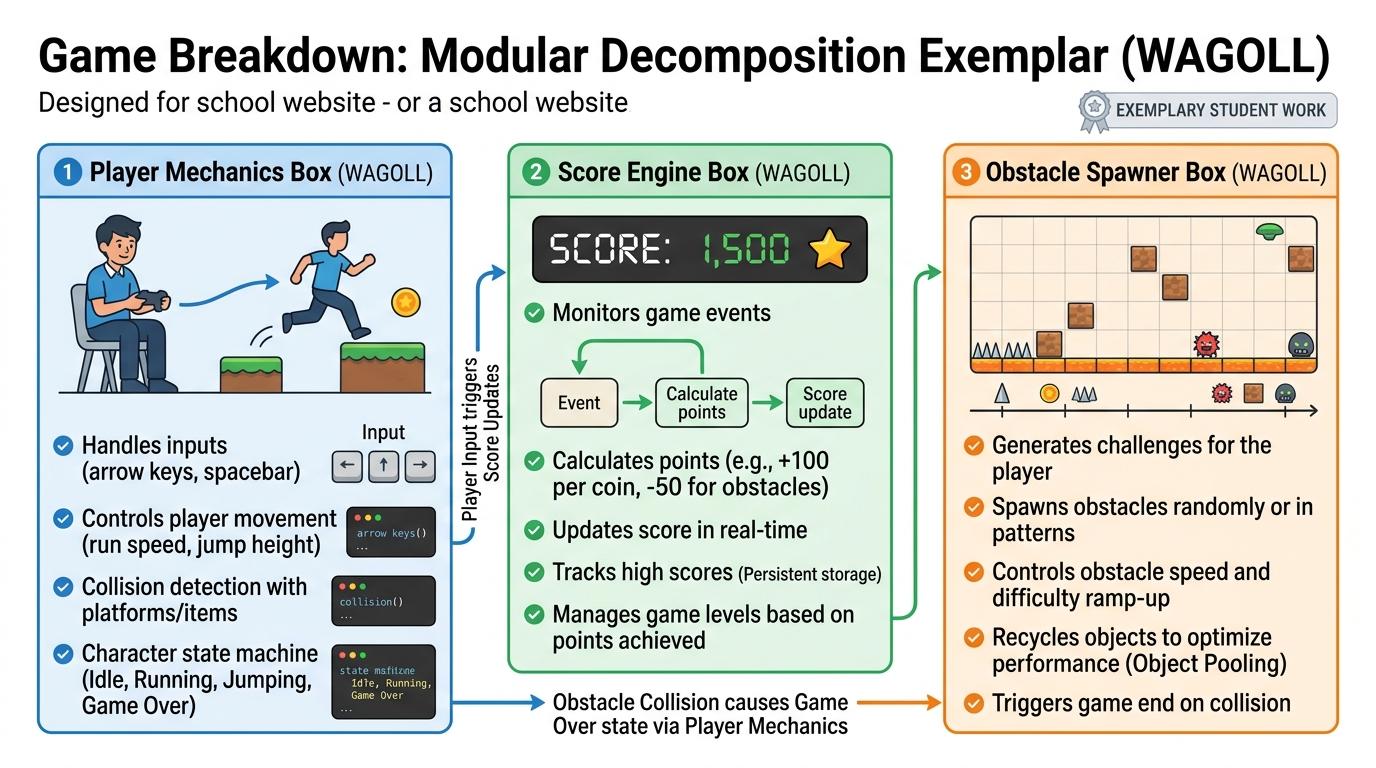
Break down a game concept into independent sub-tasks: player movement, score keeping, and collision rules.
Unit: How the World WorksConcept: ConnectionProfile: Thinker
⚡
Spark Hook (See Think Wonder):
"When playing a maze game, what different jobs is the computer doing all at the same time?"
🎮
Learn Simulator:DiagramBuilderSimulator • Level 3
Building a complete computer game can feel overwhelming! Experienced programmers decompose games into three key sub-problems: 1) Player Movement, 2) Obstacles & Enemies, and 3) Score & Win Conditions. Solving these one by one makes game development manageable.
🛠️
Independent Practice Task:
Deconstruct a Catch Game
▫️ Identify the player control sub-task in your workspace to establish the foundational setup for game sub-tasks.
▫️ Identify the falling object sub-task carefully, checking your settings and controls as you build your project.
▫️ Define the scoring system rule and verify that your output meets the target goal for game sub-tasks.
Plan a multi-step project by dividing it into independent modular components and assigning sub-goals.
Unit: How the World WorksConcept: ResponsibilityProfile: Principled
⚡
Spark Hook (See Think Wonder):
"How do building blocks help architects build huge skyscrapers without them collapsing?"
🎮
Learn Simulator:DiagramBuilderSimulator • Level 4
Modular design means organizing code into neat, self-contained sections called modules. Instead of writing one huge continuous script, coders build separate scripts for separate tasks (e.g. movement script, sound script, health bar script). This makes code easier to read, test, and update.
🛠️
Independent Practice Task:
Build a Modular Plan
▫️ Define the main project objective in your workspace to establish the foundational setup for modular planning.
▫️ Divide the project into 3 distinct functional modules.
▫️ Assign sub-goal labels to each module and verify that your output meets the target goal for modular planning.
Deconstruct complex applications into parallel interactive subsystems and document their inputs and outputs.
Unit: How the World WorksConcept: PerspectiveProfile: Knowledgeable
⚡
Spark Hook (Zoom In):
"In an online shopping app, what different sub-systems work behind the scenes when you click "Buy"?"
🎮
Learn Simulator:DiagramBuilderSimulator • Level 5
Large software systems (like smartphone OSs or online games) consist of multiple sub-systems running in parallel. System decomposition analyzes how these sub-systems interact: what inputs they take, what outputs they generate, and how they share state data without interfering with one another.
🛠️
Independent Practice Task:
Deconstruct a Quiz System
▫️ Identify the Questions sub-system in your workspace to establish the foundational setup for system sub-systems.
▫️ Identify the Timer sub-system carefully, checking your settings and controls as you build your project.
▫️ Map the User Input interface and verify that your output meets the target goal for system sub-systems.
Apply top-down design methodology to decompose a large software application into modular, reusable procedural abstractions.
Unit: How the World WorksConcept: ReflectionProfile: Reflective
⚡
Spark Hook (See Think Wonder):
"How do professional software engineers build apps with millions of lines of code without getting lost?"
🎮
Learn Simulator:DiagramBuilderSimulator • Level 6
Top-Down Design is an engineering method where you start at the highest abstraction level (the overall system goal) and recursively break it down into lower-level functional modules until each piece performs a single, specific task. This approach creates clean, reusable custom blocks and scalable software architecture.
🛠️
Independent Practice Task:
Architect a Simulation App
▫️ Create a top-level system goal statement in your workspace to establish the foundational setup for architectural breakdown.
▫️ Decompose into 3 main functional modules carefully, checking your settings and controls as you build your project.
▫️ Sub-decompose each module into helper functions and verify that your output meets the target goal for architectural breakdown.
Identify basic event triggers like clicking a green flag or tapping a sprite to start code execution.
Unit: How We Express OurselvesConcept: FormProfile: Inquirer
⚡
Spark Hook (See-Think-Wonder):
"What happens on screen when you tap the green flag vs when you tap the sprite?"
🎮
Learn Simulator:BlockCodingSimulator • Level 1
An EVENT is an action that happens (like tapping a key or clicking a sprite). An ACTION is what the computer does in response (like playing a sound or moving). In computing, digital signals convert physical user actions into visible screen behavior. As you explore the interactive Block Coding Simulator below, focus on how to create code sequences that execute when triggered by specific user clicks.
🛠️
Independent Practice Task:
Task Checklist
▫️ Add a Green Flag event block in your workspace to establish the foundational setup for 1: cause & effect.
▫️ Attach a Motion block to move 10 steps carefully, checking your settings and controls as you build your project.
▫️ Test by clicking the flag and verify that your output meets the target goal for 1: cause & effect.
Program separate event scripts triggered by specific arrow key presses and mouse clicks.
Unit: How the World WorksConcept: FunctionProfile: Communicator
⚡
Spark Hook (Think-Pair-Share):
"How does a game controller know which button you pressed?"
🎮
Learn Simulator:BlockCodingSimulator • Level 2
Different keys generate different event signals. By creating separate scripts for 'Up Arrow', 'Down Arrow', 'Left Arrow', and 'Right Arrow', you give your sprite full 2D movement! In computing, input devices generate distinct event codes to control digital systems. As you explore the interactive Block Coding Simulator below, focus on how to build a complete 4-way arrow key navigation system for a character sprite.
🛠️
Independent Practice Task:
Task Checklist
▫️ Create a script for When Right Arrow Pressed in your workspace to establish the foundational setup for 2: key & click.
▫️ Add a change x by 10 block carefully, checking your settings and controls as you build your project.
▫️ Create matching scripts for Left, Up, and Down arrows.
Program collision event scripts using 'touching sprite' and 'touching color' sensing blocks.
Unit: How We Express OurselvesConcept: ConnectionProfile: Thinker
⚡
Spark Hook (I Used to Think... Now I Think...):
"How does a game know when a ball hits a paddle or wall?"
🎮
Learn Simulator:BlockCodingSimulator • Level 3
Collision detection constantly checks if two sprites or colors overlap. When a collision occurs, it fires an action like playing a sound, adding points, or hiding the sprite! In computing, collisions between digital elements trigger dynamic system changes. As you explore the interactive Block Coding Simulator below, focus on how to design collision mechanics like collecting items or resetting player position on obstacle touch.
🛠️
Independent Practice Task:
Task Checklist
▫️ Add a forever loop with an IF block in your workspace to establish the foundational setup for 3: sprite collisions.
▫️ Insert a touching sprite sensing block carefully, checking your settings and controls as you build your project.
▫️ Add a play sound block inside the IF condition and verify that your output meets the target goal for 3: sprite collisions.
Coordinate multi-sprite dialogues, level changes, and game state transitions using broadcast messages.
Unit: How We Express OurselvesConcept: ResponsibilityProfile: Principled
⚡
Spark Hook (Connect-Extend-Challenge):
"How do walkie-talkies let people communicate across distances?"
🎮
Learn Simulator:BlockCodingSimulator • Level 4
Broadcasting is like making an announcement over a school loudspeaker. One sprite shouts 'broadcast Level 2', and any sprite listening for 'when I receive Level 2' instantly runs its code! In computing, broadcast signals enable asynchronous coordination across independent software modules. As you explore the interactive Block Coding Simulator below, focus on how to construct multi-scene animated stories and multi-level games using broadcast signals.
🛠️
Independent Practice Task:
Task Checklist
▫️ Create a broadcast message named next_scene in your workspace to establish the foundational setup for 4: broadcast messages.
▫️ Send broadcast when character finishes speaking carefully, checking your settings and controls as you build your project.
▫️ Program second sprite with When I Receive next_scene.
Program custom event triggers that activate automatically when variables cross numerical thresholds.
Unit: How the World WorksConcept: PerspectiveProfile: Knowledgeable
⚡
Spark Hook (3-2-1 Bridge):
"Name 3 real-life devices that wait for a number threshold before turning on (e.g., thermostat, alarm)."
🎮
Learn Simulator:BlockCodingSimulator • Level 5
Custom event listeners monitor background system states (like timer countdowns, health points, or loudness). When the value crosses your target number, the event fires immediately! In computing, system state thresholds trigger automated background monitoring routines. As you explore the interactive Block Coding Simulator below, focus on how to program automated game-over and win-condition listeners based on variable thresholds.
🛠️
Independent Practice Task:
Task Checklist
▫️ Add a When [timer > 30] hat block in your workspace to establish the foundational setup for 5: custom event listeners.
▫️ Attach a Broadcast Game Over block carefully, checking your settings and controls as you build your project.
▫️ Test by letting the timer run past 30 seconds and verify that your output meets the target goal for 5: custom event listeners.
Design and optimize complex event-driven projects handling multiple simultaneous user inputs without thread lockup.
Unit: Sharing the PlanetConcept: ReflectionProfile: Reflective
⚡
Spark Hook (What If...?):
"What if a video game stopped responding to your controller every time background music played?"
🎮
Learn Simulator:BlockCodingSimulator • Level 6
Modern software is event-driven and asynchronous. Multiple events (clicks, network data, audio loops) happen concurrently. Decoupling event handlers ensures your user interface stays smooth and fast! In computing, asynchronous event architectures power concurrent, multi-threaded modern digital applications. As you explore the interactive Block Coding Simulator below, focus on how to build responsive multi-input applications with decoupled event controllers and state managers.
🛠️
Independent Practice Task:
Task Checklist
▫️ Create a master Event Manager sprite in your workspace to establish the foundational setup for 6: asynchronous event systems.
▫️ Separate input listeners from rendering loops carefully, checking your settings and controls as you build your project.
▫️ Test simultaneous multi-key combinations without input lag.
Students will identify physical input mechanisms (buttons, keys, touch surfaces) and explain how pressing an input triggers an instant digital response.
Unit: How the World WorksConcept: FormProfile: Inquirer
⚡
Spark Hook (See-Think-Wonder):
"What happens inside a controller or device when you press a button?"
🎮
Learn Simulator:KeyboardMouseSimulator • Level 1
An input is how humans give instructions or data to a computer. When you press a keyboard key, tap a touchscreen, or click a mouse button, you create an input signal that tells the device what to do. In computing, digital devices respond to human physical inputs. As you explore the interactive Keyboard Mouse Simulator below, focus on how to explain that pressing a physical button sends an input signal to the computer.
🛠️
Independent Practice Task:
Interactive Input Hunt
▫️ 1. Find 3 physical input buttons on your device.
▫️ 2. Test pressing each button and record the digital action triggered.
Computers continuously check for user input events. In block coding, 'When Key Pressed' or 'When Sprite Clicked' blocks act as listeners that run your code only when the matching input occurs. In computing, interactive software relies on structured user input events. As you explore the interactive Microcontroller Simulator below, focus on how to program scripts that combine mouse position tracking with click events.
🛠️
Independent Practice Task:
Build an Input Controller
▫️ 1. Create 4 key press scripts for Arrow Up, Down, Left, and Right.
▫️ 2. Set sprite position changes for each key input.
▫️ 3. Add a mouse-click script that changes sprite color.
Students will use sensing blocks (touching color, touching sprite, distance to pointer) within conditional loops to trigger software events.
Unit: How the World WorksConcept: ConnectionProfile: Thinker
⚡
Spark Hook (Connect-Extend-Challenge):
"How does a maze game know when your character bumps into a wall?"
🎮
Learn Simulator:HardwareSimulator • Level 3
Sensing blocks act like the digital senses of your code. They return boolean true/false values (like 'touching wall?') or numerical values (like 'distance to mouse') that your code evaluates continuously inside loops. In computing, digital characters react dynamically when sensing their environment. As you explore the interactive Hardware Simulator below, focus on how to program collision detection where touching a specific color resets a sprite position.
🛠️
Independent Practice Task:
Build a Maze Runner
▫️ 1. Draw a maze backdrop with black walls.
▫️ 2. Code a sprite to move with arrow keys.
▫️ 3. Add a sensing block if touching color [black] then go to start.
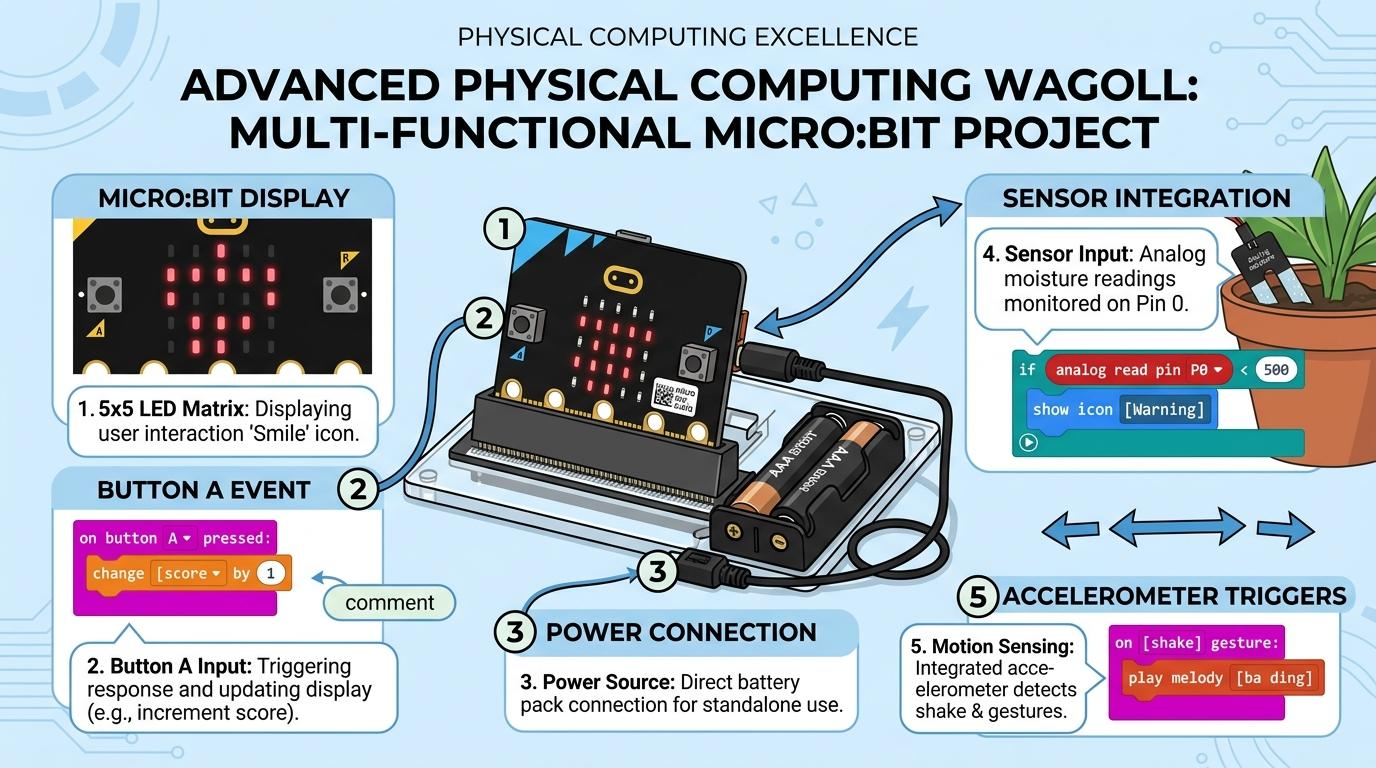
Microcontrollers like the BBC micro:bit contain built-in physical sensors: accelerometers detect motion and tilt, light sensors measure brightness, and thermistors measure temperature. They convert physical energy into digital numbers. In computing, external hardware sensors collect real-world physical data for digital systems. As you explore the interactive Microcontroller Simulator below, focus on how to use accelerometer tilt sensor inputs (tilt left/right/up/down) to control game movement.
🛠️
Independent Practice Task:
Program a Digital Compass & Alarm
▫️ 1. Code Button A to display a compass heading reading.
▫️ 2. Code an accelerometer shake sensor to trigger a sound effect.
▫️ 3. Test light level sensing to activate an alert when dark.
Unlike digital inputs (which are on or off), analog sensors provide a continuous range of numbers. Programmers define 'threshold values'—specific cut-off numbers—that trigger automated responses when environmental conditions change. In computing, environmental sensors enable automated monitoring and sustainable interventions. As you explore the interactive Microcontroller Simulator below, focus on how to program threshold logic (e.g. IF moisture < 300 THEN turn on water pump motor).
🛠️
Independent Practice Task:
Build a Smart Weather Station
▫️ 1. Connect a temperature sensor and read continuous data values.
▫️ 2. Determine baseline room temperature and set a heat alert threshold.
▫️ 3. Program an automated alarm when temperature exceeds the threshold.
Students will build IoT data-logging pipelines that record sensor streams at timed intervals, store dataset tables, and analyze trends.
Unit: How the World WorksConcept: ReflectionProfile: Reflective
⚡
Spark Hook (PMI (Plus, Minus, Interesting)):
"How do modern smart cities monitor traffic, air quality, and flood risks in real time?"
🎮
Learn Simulator:PythonConsoleSimulator • Level 6
The Internet of Things (IoT) connects physical sensors to cloud networks. Automated sensors gather environmental data continuously, log historical trends, and allow remote monitoring and automated decision-making across global infrastructure. In computing, connected sensor networks transform raw physical environmental data into actionable insights. As you explore the interactive Python Console Simulator below, focus on how to export logged sensor datasets to CSV format and generates trend graphs.
🛠️
Independent Practice Task:
Design an Environmental IoT Logger
▫️ 1. Program a 10-second sampling loop for light and sound sensors.
▫️ 2. Append sensor timestamps and values into a data table.
▫️ 3. Export data to CSV and evaluate peak readings and anomalies.
Identify repeating physical actions and count repetition cycles in routines.
Unit: How We Express OurselvesConcept: FormProfile: Inquirer
⚡
Spark Hook (Think-Pair-Share):
"Clap your hands three times, stomp twice, then repeat! How many times did we repeat the pattern?"
🎮
Learn Simulator:BlockCodingSimulator • Level 1
A loop is an instruction that tells us to repeat an action. Instead of saying 'clap, clap, clap', we can say 'repeat 3 times: clap'. This makes instructions shorter and easier to follow! In computing, repeating actions allow humans and machines to perform routines efficiently. As you explore the interactive Block Coding Simulator below, focus on how to identify repeating loops in physical routines and state the repeat count.
🛠️
Independent Practice Task:
Create a Physical Loop Routine
▫️ Identify 2 distinct physical actions in your workspace to establish the foundational setup for y1 — physical repetition.
▫️ Group the actions into a repeatable sequence carefully, checking your settings and controls as you build your project.
▫️ Assign a repeat count number to the loop sequence and verify that your output meets the target goal for y1 — physical repetition.
In block coding, a 'repeat [N]' block wraps around other blocks like a sandwich. Any blocks inside the repeat loop will execute N times before moving to the next block below. In computing, count-controlled loops execute precise repetitions in digital algorithms. As you explore the interactive Audio Soundboard Simulator below, focus on how to use count-controlled repeat loops to draw regular geometric shapes or repeat multi-block movement scripts.
🛠️
Independent Practice Task:
Program a Square Walk Pattern
▫️ Place a repeat 4 block in the script in your workspace to establish the foundational setup for y2 — count-controlled loops.
▫️ Add 'move forward' and 'turn right 90 degrees' inside the loop.
▫️ Run the script to verify the square path and verify that your output meets the target goal for y2 — count-controlled loops.
Utilize 'forever' loops to maintain continuous sprite animations and ongoing condition checking.
Unit: Where We Are in Place and TimeConcept: ChangeProfile: Thinker
⚡
Spark Hook (Think-Pair-Share):
"How do non-player characters in video games keep moving or dancing continuously without stopping?"
🎮
Learn Simulator:AnimationSimulator • Level 3
A 'forever' loop runs continuously until the program is stopped manually. It is used for ongoing tasks like costume animations, background scrolling, or constantly checking if a key is pressed. In computing, infinite loops allow programs to run background tasks continuously. As you explore the interactive Animation Simulator below, focus on how to construct forever loops that continuously monitor game conditions or animate backgrounds.
🛠️
Independent Practice Task:
Animate a Flying Bird Sprite
▫️ Create a forever loop under 'when green flag clicked'
▫️ Add costume switch and short delay inside the loop
▫️ Add edge-bouncing movement so the sprite flies indefinitely
Build scripts using 'repeat until' loops governed by touch or sensing conditions.
Unit: Sharing the PlanetConcept: ConnectionProfile: Principled
⚡
Spark Hook (Think-Pair-Share):
"How can we code a robot to keep driving forward UNTIL it detects a wall in front of it?"
🎮
Learn Simulator:SpreadsheetSimulator • Level 4
A 'repeat until [condition]' loop evaluates its condition before every iteration. It repeats the enclosed actions continuously until the condition evaluates to true, then stops looping and moves to the next block. In computing, conditional loops enable dynamic algorithmic responses based on real-time environmental data. As you explore the interactive Spreadsheet Simulator below, focus on how to program game sprites to move continuously until hitting an obstacle or reaching a target.
🛠️
Independent Practice Task:
Program an Obstacle-Stopping Vehicle
▫️ Add a 'repeat until <touching obstacle>' block in your workspace to establish the foundational setup for y4 — repeat until conditionals.
▫️ Place 'move 5 steps' inside the loop carefully, checking your settings and controls as you build your project.
▫️ Add 'play sound' below the loop to trigger upon stopping.
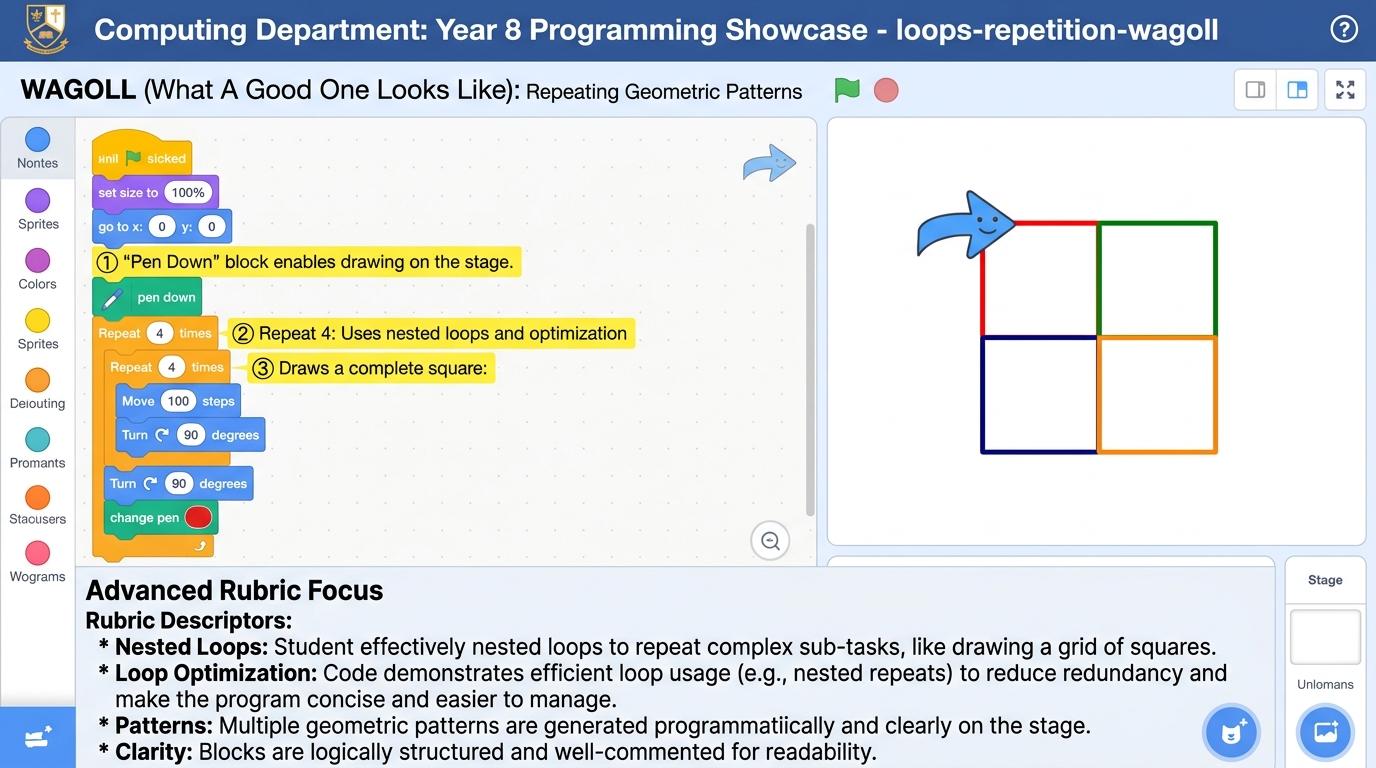
Design algorithms with nested loops to create 2D grid layouts and complex geometric patterns.
Unit: How We Organize OurselvesConcept: PerspectiveProfile: Knowledgeable
⚡
Spark Hook (Think-Pair-Share):
"To draw one square we repeat 4 times. How would we code drawing a row of 5 squares?"
🎮
Learn Simulator:PythonConsoleSimulator • Level 5
Nested loops occur when one loop (the inner loop) is placed entirely inside another loop (the outer loop). For every single pass of the outer loop, the inner loop completes all of its iterations. In computing, nested loops enable the automated generation of complex multi-dimensional patterns and structures. As you explore the interactive Python Console Simulator below, focus on how to use nested loops with pen blocks to draw complex tiled patterns or generate 2D grid coordinates.
🛠️
Independent Practice Task:
Draw a Grid of Geometric Shapes
▫️ Create an outer loop to repeat for each row (e.g. 3 times)
▫️ Create an inner loop to draw a shape (e.g. repeat 4 times)
▫️ Add a position shift block inside the outer loop after the inner loop finishes
In text coding like Python, `for i in range(10):` runs a loop a fixed number of times, while `while condition:` repeats as long as a condition remains True. Proper indentation defines the code inside the loop body. In computing, loop optimization and iteration structures are fundamental to efficient software execution. As you explore the interactive Microcontroller Simulator below, focus on how to construct text-based while loops with counter variables and condition updates.
🛠️
Independent Practice Task:
Build a Python Countdown Loop
▫️ Write a `while counter > 0:` loop in Python in your workspace to establish the foundational setup for y6 — loop optimization & text loops.
▫️ Decrement the counter inside the loop body carefully, checking your settings and controls as you build your project.
▫️ Print 'Blastoff!' after the loop completes and verify that your output meets the target goal for y6 — loop optimization & text loops.
Students will identify physical computing devices (e.g., floor robots, microcontrollers) and explain that software code controls physical movement and lights.
Unit: How the World WorksConcept: FormProfile: Inquirer
⚡
Spark Hook (See-Think-Wonder):
"Look at this floor robot. What physical parts can you touch, and how does it know where to move?"
Physical computing bridges the digital world and the physical world. Hardware includes the physical parts you can touch (buttons, wheels, lights), while software is the invisible code telling the hardware what to do. In computing, digital instructions control physical machines in our everyday environment. As you explore the interactive Microcontroller Simulator below, focus on how to explain that software instructions written by humans make physical hardware move and light up.
🛠️
Independent Practice Task:
Hardware Explorer
▫️ Identify physical buttons on the device in your workspace to establish the foundational setup for y1: physical hardware.
▫️ Press buttons to set a physical movement pattern carefully, checking your settings and controls as you build your project.
▫️ Observe how software commands trigger physical movement.
Microcontrollers like the micro:bit have built-in physical outputs. An 5x5 LED matrix lights up individual pixels using code coordinates, while a piezoceramic speaker produces physical sound vibrations. In computing, physical devices communicate information through visual light displays and sound signals. As you explore the interactive Microcontroller Simulator below, focus on how to program code that sequences LED icons and plays musical notes on a physical buzzer.
🛠️
Independent Practice Task:
LED & Sound Composer
▫️ Program an LED matrix to display a heart icon in your workspace to establish the foundational setup for y2: displays & sound.
▫️ Create a custom 5x5 grid pattern carefully, checking your settings and controls as you build your project.
▫️ Add a sound output block to play a melody and verify that your output meets the target goal for y2: displays & sound.
Buttons and touch pins act as physical switches. When pressed, they complete an electrical circuit, sending a HIGH signal to the microcontroller processor, which triggers the corresponding event code. In computing, human input interfaces turn physical touch into digital actions. As you explore the interactive Microcontroller Simulator below, focus on how to construct conditional logic using Button A, Button B, and combined A+B inputs to control a digital counter.
🛠️
Independent Practice Task:
Physical Game Controller
▫️ Program on button A pressed to show a score in your workspace to establish the foundational setup for y3: hardware buttons.
▫️ Program on button B pressed to reset carefully, checking your settings and controls as you build your project.
▫️ Test combined A+B button trigger and verify that your output meets the target goal for y3: hardware buttons.
Hardware sensors measure physical properties. Accelerometers detect movement and gravity forces along X, Y, and Z axes, while light sensors detect ambient room brightness. In computing, physical sensors measure environmental phenomena and convert them into digital data. As you explore the interactive Microcontroller Simulator below, focus on how to program an IF-THEN conditional loop that measures ambient light level and turns on an LED nightlight when dark.
🛠️
Independent Practice Task:
Smart Sensor Alarm
▫️ Program on shake event to pick a random number in your workspace to establish the foundational setup for y4: hardware sensors.
▫️ Read light level input into a variable carefully, checking your settings and controls as you build your project.
▫️ Set a conditional light threshold for an automatic light.
Motors and actuators convert electrical energy into physical movement. Servo motors allow precise angular position control (0° to 180°) using Pulse Width Modulation (PWM) signals sent via GPIO pins. In computing, actuators and external circuits allow software to exert physical force and control automated systems. As you explore the interactive Microcontroller Simulator below, focus on how to program a 180-degree servo motor to rotate to specific angles based on sensor inputs.
🛠️
Independent Practice Task:
Robotic Barrier Engineer
▫️ Connect servo motor wires to Signal, VCC, and GND pins
▫️ Program servo write pin 0 to 0 degrees
▫️ Program servo write pin 0 to 90 degrees when button A is pressed
Students will program autonomous mobile buggies using dual motors, ultrasonic distance sensors, infrared line-trackers, and radio packet communication.
Unit: How the World WorksConcept: ReflectionProfile: Reflective
Autonomous robots rely on closed-loop feedback control. They constantly read sensor values (ultrasonic sonar distance, IR reflectance), evaluate code logic inside high-speed loops, adjust motor speeds instantly, and transmit telemetry via wireless radio frequencies.
🛠️
Independent Practice Task:
Autonomous Rover Developer
▫️ Program ultrasonic sensor distance check
▫️ Implement obstacle avoidance logic (turn right when distance < 15cm)
▫️ Set up radio send/receive channels for wireless remote control
Students learn to recognize typed programming commands and type basic text instructions accurately.
Unit: How We Express OurselvesConcept: FormProfile: Inquirer
⚡
Spark Hook (See-Think-Wonder):
"Compare a Scratch block with a line of typed Python code. What looks identical and what looks different?"
🎮
Learn Simulator:PythonConsoleSimulator • Level 1
Text-based coding uses typed words and punctuation instead of drag-and-drop blocks. Computers require exact spelling and matching symbols to execute instructions. In computing, written symbols and structured rules allow humans to communicate precise instructions to computers. As you explore the interactive Python Console Simulator below, focus on how to type text code statements without missing letters or quotes.
🛠️
Independent Practice Task:
Typing First Commands
▫️ Open the text editor in your workspace to establish the foundational setup for step 1: code typing.
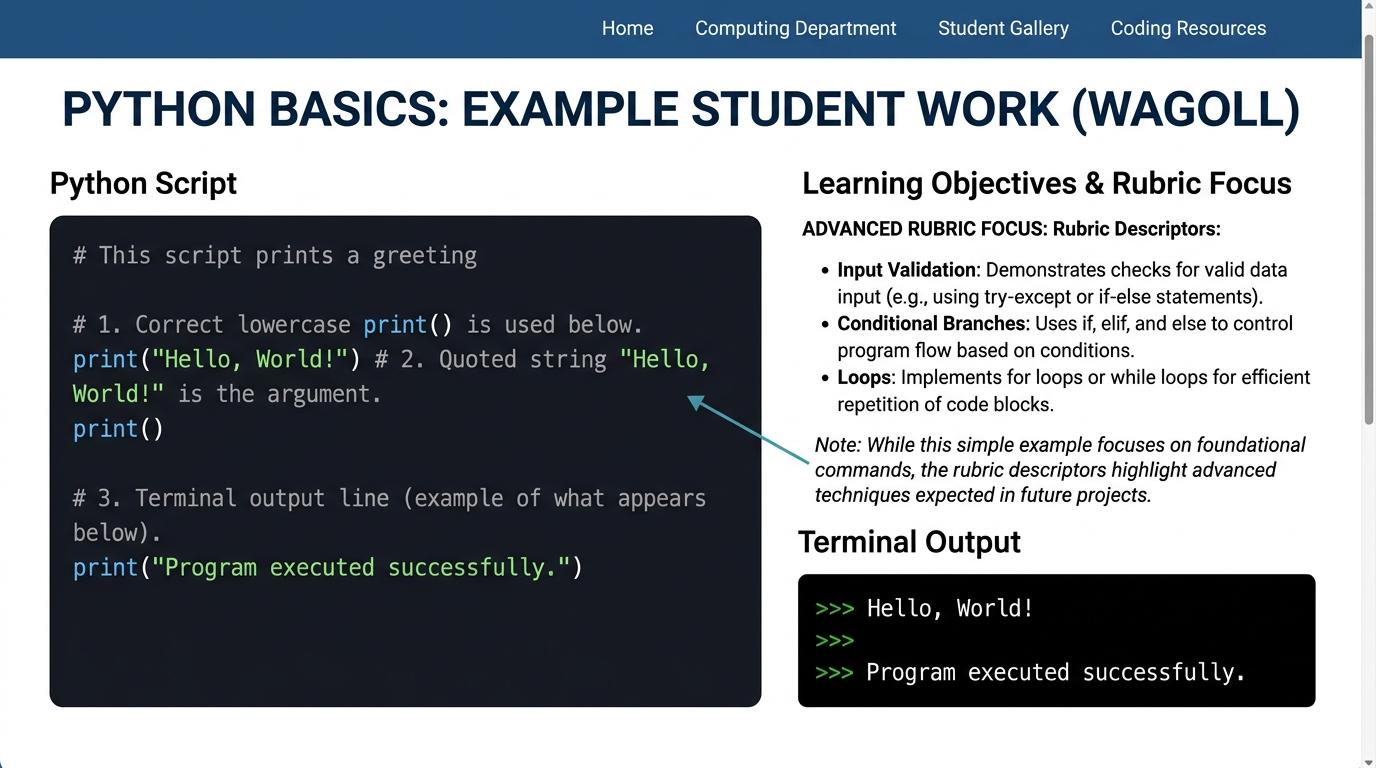
▫️ Type print('Hello World') carefully, checking your settings and controls as you build your project.
▫️ Run the script to verify output and verify that your output meets the target goal for step 1: code typing.
Students learn the core rules of text syntax including function names, parentheses, and string quotes.
Unit: How the World WorksConcept: FunctionProfile: Communicator
⚡
Spark Hook (Think-Pair-Share):
"Look at print('Hello') vs PRINT[Hello]. Why will only one of these work in Python?"
🎮
Learn Simulator:PythonConsoleSimulator • Level 2
Syntax is the grammar of programming languages. In Python, function names are case-sensitive, arguments sit inside parentheses (), and text strings must be enclosed in quotation marks. In computing, computer languages rely on strict syntax structures to interpret human logic consistently. As you explore the interactive Python Console Simulator below, focus on how to write syntactically correct output statements using proper punctuation.
🛠️
Independent Practice Task:
Fixing Syntax Errors
▫️ Examine three code lines in your workspace to establish the foundational setup for step 2: syntax rules.
▫️ Identify missing quotes or parentheses carefully, checking your settings and controls as you build your project.
▫️ Re-type the lines with correct syntax and verify that your output meets the target goal for step 2: syntax rules.
Students write multi-line text programs that execute sequence steps in precise order.
Unit: Where We Are in Place and TimeConcept: ChangeProfile: Thinker
⚡
Spark Hook (Predict & Verify):
"If line 1 says print('Step A') and line 2 says print('Step B'), what prints first? What happens if we swap them?"
🎮
Learn Simulator:PythonConsoleSimulator • Level 3
Text programs execute line by line, starting at line 1 and moving downward. Changing the order of lines changes the sequence of output actions. In computing, sequential code execution creates predictable outcomes in automated story narratives and calculations. As you explore the interactive Python Console Simulator below, focus on how to predict exact output sequence of complex multi-line text programs.
🛠️
Independent Practice Task:
Building a Dialogue Script
▫️ Write line 1 introducing Character A in your workspace to establish the foundational setup for step 3: sequential scripts.
▫️ Write line 2 with Character B response carefully, checking your settings and controls as you build your project.
▫️ Run the script and verify order and verify that your output meets the target goal for step 3: sequential scripts.
Students learn to create text variables, collect user inputs with input(), and output formatted responses.
Unit: Sharing the PlanetConcept: ConnectionProfile: Principled
⚡
Spark Hook (Connect-Extend-Challenge):
"How does a website remember your name after you log in? How can a single line of text code do the same?"
🎮
Learn Simulator:PythonConsoleSimulator • Level 4
Variables store values using an assignment operator (=), like name = 'Alex'. The input() function asks the user a question and saves their typed response into a variable for later use. In computing, storing dynamic information in variables enables personalized and interactive computer programs. As you explore the interactive Python Console Simulator below, focus on how to format string concatenation and f-strings to display dynamic personalized outputs.
🛠️
Independent Practice Task:
Building a Greeting Generator
▫️ Create a variable player_name using input() in your workspace to establish the foundational setup for step 4: variables & input.
▫️ Create a variable favorite_color carefully, checking your settings and controls as you build your project.
▫️ Print a personalized greeting combining both variables.
"How does a video game check if you have enough points to open a door? How do we write that check in text code?"
🎮
Learn Simulator:PythonConsoleSimulator • Level 5
Text-based decisions use if, elif, and else keywords followed by a colon (:). Code inside each decision branch MUST be indented (typically 4 spaces) to show it belongs to that branch. In computing, conditional structures allow text programs to make dynamic decisions based on varying criteria. As you explore the interactive Python Console Simulator below, focus on how to write conditional text programs using dynamic comparison conditions.
🛠️
Independent Practice Task:
Building a Passcode Checker
▫️ Prompt user for a secret password in your workspace to establish the foundational setup for step 5: conditionals & indent.
▫️ Write an if statement comparing input to correct secret.
▫️ Indent success and failure print statements and verify that your output meets the target goal for step 5: conditionals & indent.
Students define custom functions with def and implement text for/while loops to solve complex programming tasks.
Unit: How We Express OurselvesConcept: ReflectionProfile: Reflective
⚡
Spark Hook (Headline):
"Write a one-sentence headline describing how functions and loops give text programmers superpower efficiency!"
🎮
Learn Simulator:PythonConsoleSimulator • Level 6
Use `for i in range(n):` to repeat code `n` times, or `while condition:` for continuous execution. Use `def function_name():` to wrap reusable code blocks into custom named functions. In computing, functions and loops allow text programmers to build modular, efficient, and scalable software solutions. As you explore the interactive Python Console Simulator below, focus on how to define custom functions with parameters to eliminate repeated code.
🛠️
Independent Practice Task:
Building a Mini Text Game Engine
▫️ Define a custom function show_menu() in your workspace to establish the foundational setup for step 6: loops & functions.
▫️ Write a while loop for game turn loop carefully, checking your settings and controls as you build your project.
▫️ Include a for loop to calculate high scores and verify that your output meets the target goal for step 6: loops & functions.
To direct a partner through a floor grid using printed arrow cards (Forward, Left, Right, Stop) without talking.
Unit: How the World WorksConcept: FormProfile: Inquirer
⚡
Spark Hook (See Think Wonder):
"Watch your partner act like a robot! What happens if you give them a vague command like 'go over there'?"
🎮
Learn Simulator:BlockCodingSimulator • Level 1
Computers need exact physical or written commands. A 'human robot' must follow only the arrow cards placed on the floor grid: Forward (1 step), Turn Left (90 degrees), Turn Right (90 degrees), and Stop. In computing, structured rules and clear commands guide physical movement and logical sequences. As you explore the interactive Block Coding Simulator below, focus on how to create a complete step-by-step physical command sequence to guide a partner through a 3x3 grid.
🛠️
Independent Practice Task:
Human Robot Grid Navigation
▫️ Lay out a 3x3 tape grid on the floor in your workspace to establish the foundational setup for physical sequences.
▫️ Place start and end target cards carefully, checking your settings and controls as you build your project.
▫️ Arrange arrow cards in order and verify that your output meets the target goal for physical sequences.
To identify repeated action patterns in physical routines and represent them using loop multiplier cards.
Unit: How the World WorksConcept: FunctionProfile: Communicator
⚡
Spark Hook (Zoom In):
"Look at this long line of 8 'Forward' cards. How could we say this much faster using just two cards?"
🎮
Learn Simulator:DiagramBuilderSimulator • Level 2
Instead of laying down 8 separate Forward cards, we use a Loop Card! A Loop Card tells the robot: 'Repeat the enclosed action N times'. This makes our unplugged code cleaner and easier to read. In computing, pattern recognition allows us to simplify complex actions into efficient loops. As you explore the interactive Diagram Builder Simulator below, focus on how to use loop cards (Repeat Nx) to streamline long physical command sequences.
🛠️
Independent Practice Task:
Fitness Loop Coding
▫️ Create a physical workout algorithm in your workspace to establish the foundational setup for physical loops.
▫️ Identify repeating moves (e.g. 4 Jumping Jacks) carefully, checking your settings and controls as you build your project.
▫️ Insert a 'Repeat 4x' loop card and verify that your output meets the target goal for physical loops.
To play a physical card game that executes different actions based on IF (condition) THEN (action) ELSE (action) rules.
Unit: How the World WorksConcept: ConnectionProfile: Thinker
⚡
Spark Hook (See Think Wonder):
"IF the traffic light turns RED, THEN cars stop. What is the ELSE rule for cars when the light is GREEN?"
🎮
Learn Simulator:BlockCodingSimulator • Level 3
Conditionals allow algorithms to make decisions! An IF statement checks a condition: IF (Red Card drawn) THEN (Touch your toes) ELSE (Clap your hands). Only one branch is executed based on whether the condition is TRUE or FALSE. In computing, logical conditions allow algorithms to react dynamically to changing environments. As you explore the interactive Block Coding Simulator below, focus on how to construct and plays custom physical card games using accurate IF-THEN-ELSE logical branches.
🛠️
Independent Practice Task:
Card Game Conditionals
▫️ Draw a playing card from the deck in your workspace to establish the foundational setup for offline conditionals.
▫️ Check the rule: IF (Card is Red) THEN (Stand Up) ELSE (Sit Down).
▫️ Execute the correct action immediately and verify that your output meets the target goal for offline conditionals.
A Sorting Network is a physical graph painted on the ground. Unsorted numbers (students) enter at one end. When two students meet at a comparison square, they compare numbers: the SMALLER number follows the left path, and the LARGER number follows the right path. At the end, everyone emerges perfectly sorted!
🛠️
Independent Practice Task:
Chalk Sorting Network Challenge
▫️ Draw a 6-entry sorting network in chalk on the playground.
▫️ Give 6 students random number cards (1-99) carefully, checking your settings and controls as you build your project.
▫️ Step forward together to comparison squares and verify that your output meets the target goal for sorting networks.
To perform the 'Parity Magic Trick' by setting up parity check rows/columns and identifying a flipped card.
Unit: How the World WorksConcept: PerspectiveProfile: Knowledgeable
⚡
Spark Hook (See Think Wonder):
"How can a computer know if a file downloaded over noisy Wi-Fi has a single corrupted zero or one?"
🎮
Learn Simulator:SpreadsheetSimulator • Level 5
Computers send data in binary bits (0s and 1s). To prevent errors, computers add a Parity Bit to each row and column so the count of 1s is always EVEN. If a bit flips during transmission, the row AND column count become ODD — pointing directly to the broken bit!
🛠️
Independent Practice Task:
Parity Card Magic Trick
▫️ Lay out a 4x4 grid of cards with black or white sides up
▫️ Add a 5th row and column (Parity Cards) so every line has an EVEN number of black cards
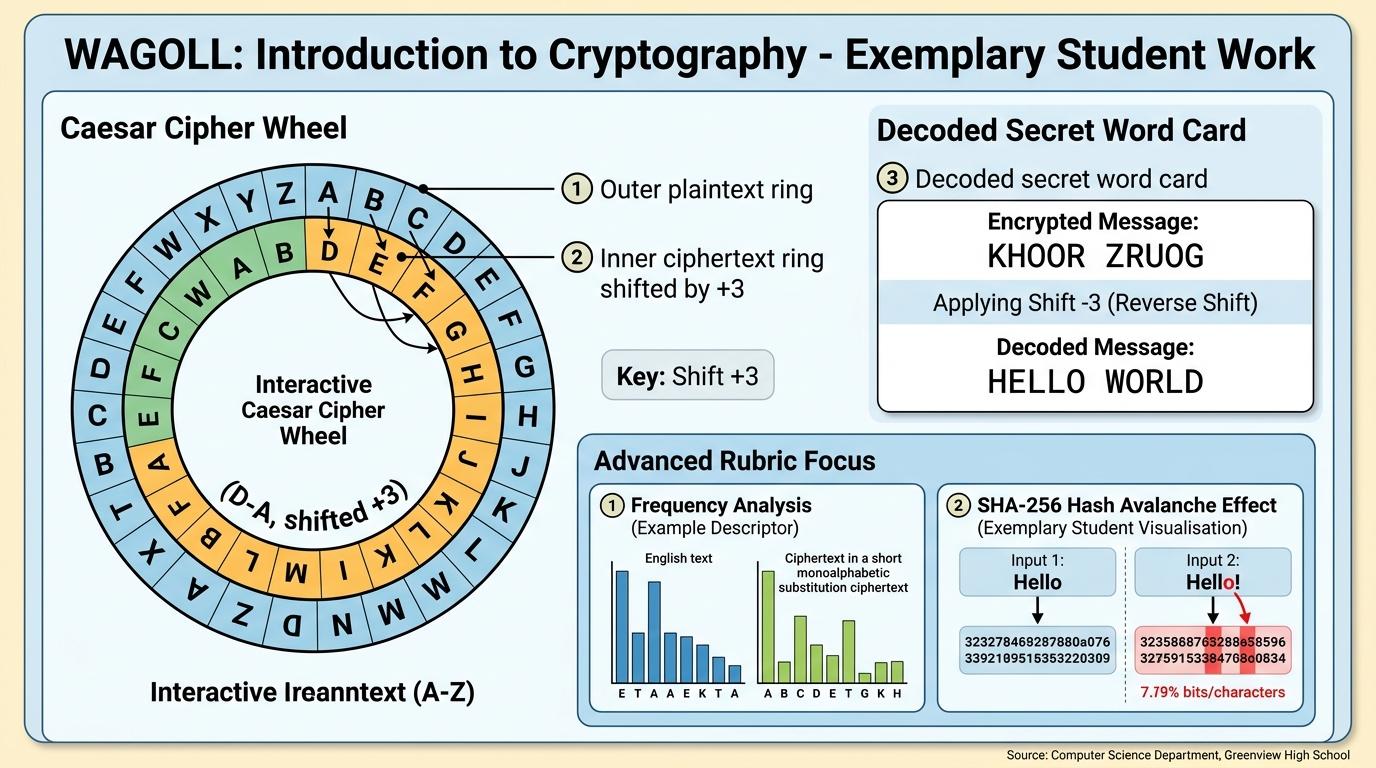
To construct paper Caesar Cipher wheels, shift plaintext characters by a secret key (+N), and decode secret messages.
Unit: How the World WorksConcept: ReflectionProfile: Reflective
⚡
Spark Hook (See Think Wonder):
"If you write a secret note in class, how can you ensure ONLY your intended recipient can read it?"
🎮
Learn Simulator:HardwareSimulator • Level 6
Cryptography protects data! A Caesar Cipher shifts every letter in a message by a fixed number key (+3: A -> D, B -> E). The original message is Plaintext, the encrypted message is Ciphertext, and the shift value is the Key. In computing, encryption algorithms protect private information by transforming readable data into secure ciphertext. As you explore the interactive Hardware Simulator below, focus on how to flawlessly encrypts and decrypts secret class messages using paper Caesar wheels and Pigpen cipher grids.
🛠️
Independent Practice Task:
Secret Agent Cipher Challenge
▫️ Assemble a paper concentric Caesar Cipher wheel in your workspace to establish the foundational setup for physical ciphers.
▫️ Set the inner wheel key shift (e.g. Key = +5) carefully, checking your settings and controls as you build your project.
▫️ Encrypt a secret message into Ciphertext and verify that your output meets the target goal for physical ciphers.
Students will understand that a variable is a named storage box in computer memory that holds values that can change during program execution.
Unit: How We Express OurselvesConcept: FormProfile: Inquirer
⚡
Spark Hook (See-Think-Wonder):
"Look at a game score counter changing from 0 to 10. How does the computer remember what your score is while you play?"
🎮
Learn Simulator:BlockCodingSimulator • Level 1
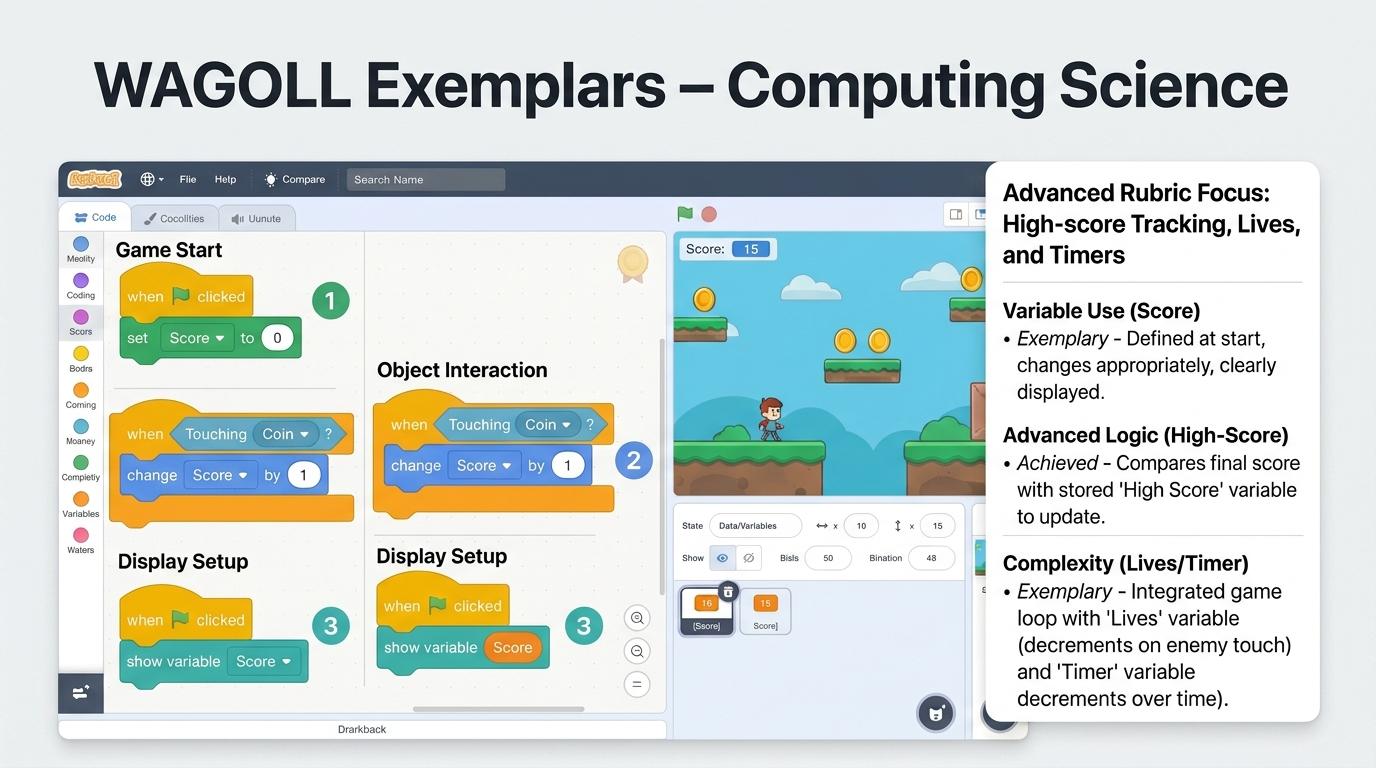
A variable is like a labelled box in computer memory. You give the box a name (like "score" or "lives") and put a value inside. Whenever something happens in your game, the computer opens the box, reads the number, or puts a new number inside. In computing, digital games and programs rely on memory containers to keep track of changing information. As you explore the interactive Block Coding Simulator below, focus on how to create and names a variable in block code to store a game score or counter.
🛠️
Independent Practice Task:
Create a Score Variable
▫️ 1. Create a new variable named "Score" in block code.
▫️ 2. Set the initial score value to 0 when the green flag is clicked.
▫️ 3. Test that the score variable displays on screen.
Students will program scripts to increase, decrease, and modify variable values dynamically in response to game events.
Unit: How the World WorksConcept: FunctionProfile: Communicator
⚡
Spark Hook (Think-Pair-Share):
"When a player catches a star in a game, what block should run to add 5 points to their total score?"
🎮
Learn Simulator:PythonConsoleSimulator • Level 2
To update a variable, we use math blocks. "Change score by 1" adds 1 to whatever is currently in the box. "Change lives by -1" subtracts 1. We can also set a timer variable to decrease every 1 second inside a repeat loop. In computing, interactive programs update stored values in response to user actions and game events. As you explore the interactive Python Console Simulator below, focus on how to program automatic variable increments for score tracking and countdown timers.
🛠️
Independent Practice Task:
Build a Score & Timer System
▫️ 1. Add a "change score by 10" block when your sprite touches a collectible target.
▫️ 2. Build a repeat loop that decreases a "timer" variable by 1 every second.
Students will identify and convert between core computer data types: integers, decimals (floats), text strings, and Boolean true/false values.
Unit: How We Organize OurselvesConcept: ChangeProfile: Thinker
⚡
Spark Hook (Sort & Classify):
"Group these items: 42, "Dragon", True, 3.14, "Game Over", False. What makes each group different?"
🎮
Learn Simulator:SpreadsheetSimulator • Level 3
Computers store different kinds of data: Integers are whole numbers (0, 5, -12). Floats are decimal numbers (3.5, 99.9). Strings are text inside quotes ("Alex", "Winner!"). Booleans are simple logical flags that are either True or False. In computing, computers categorize information into specific data types to process numbers, text, and logical decisions correctly. As you explore the interactive Spreadsheet Simulator below, focus on how to select appropriate data types for variables (e.g. integer for score, string for player name, Boolean for game_over).
🛠️
Independent Practice Task:
Data Type Sorting Challenge
▫️ 1. Create a string variable for "Player Name".
▫️ 2. Create an integer variable for "Health Points".
▫️ 3. Create a Boolean variable "is_shield_active" set to True or False.
Students will capture user responses using input prompts, store inputs in variables, and join strings to generate personalized messages.
Unit: Where We Are in Place and TimeConcept: ConnectionProfile: Principled
⚡
Spark Hook (See-Think-Wonder):
"When a game asks "What is your name?" and later says "Welcome, Maya!", how did the computer remember your name?"
🎮
Learn Simulator:BlockCodingSimulator • Level 4
When you use an "ask [What is your name?] and wait" block, the computer stores the user's answer in a temporary variable called `answer`. We immediately copy `answer` into a custom variable like `player_name`, then use "join" blocks to build personalized phrases like "Hello " + `player_name` + "!"
🛠️
Independent Practice Task:
Build an Interactive Chatbot
▫️ 1. Ask the user for their name and favorite color using prompt blocks.
▫️ 2. Store both answers in separate named variables.
▫️ 3. Have the sprite say a joined response using both variables.
A list (or array) is a single container that holds multiple items in order. Each item has an index number starting at 1 (or 0 in text code). You can add items to the end, insert items at a specific index, delete items, or search if a list contains a specific value.
🛠️
Independent Practice Task:
Build an Inventory System
▫️ 1. Create a list named "Inventory".
▫️ 2. Add blocks to append collected items (e.g. "Key", "Potion", "Shield") to the list.
▫️ 3. Write a loop that checks if "Key" is in the inventory before opening a locked door.
Students will write text code (Python) to define lists and key-value dictionaries, access nested data structures, and implement linear searching operations.
Unit: How We Express OurselvesConcept: ReflectionProfile: Reflective
⚡
Spark Hook (Think-Pair-Share):
"How does a contact list on a phone store both a name AND a phone number for each person using key-value pairs?"
🎮
Learn Simulator:SocialPrivacySimulator • Level 6
In text languages like Python, we use lists `[val1, val2]` for ordered sequences and dictionaries `{"key": "value"}` for named attributes. A dictionary allows you to look up values by name (e.g., `user["email"]`) rather than an index number. In computing, structuring complex data into key-value pairs and 2D matrices allows software systems to model real-world data effectively. As you explore the interactive Social Privacy Simulator below, focus on how to define Python dictionaries with key-value pairs `player = {"name": "Alex", "score": 100}`.
🛠️
Independent Practice Task:
Build a Python High-Score Database
▫️ 1. Define a list of player dictionary records in Python.
▫️ 2. Write a `for` loop to search for players with a score over 50.
About: 3D Spaces. To: Use AR triggers. To be: Curious.
Unit: Who We AreConcept: FormProfile: Inquirer
⚡
Spark Hook (See, Think, Wonder):
"Look at this flat drawing on paper. What happens when we view it through an AR camera? What do you wonder about 3D space?"
🎮
Learn Simulator:ThreeDViewerSimulator • Level 1
In the physical world, objects have three dimensions: Width (X), Height (Y), and Depth (Z). Augmented Reality (AR) uses your device's camera to place 3D virtual models right on your desk! In computing, technology helps us transform flat designs into spatial objects. As you explore the interactive Three DViewer Simulator below, focus on how to explain how x, y, and z axes define 3D height, width, and depth.
🛠️
Independent Practice Task:
Project your first AR model!
▫️ Open the AR viewer app in your workspace to establish the foundational setup for 2d to 3d ar.
▫️ Scan the trigger marker carefully, checking your settings and controls as you build your project.
▫️ Rotate around the 3D model to view all sides and verify that your output meets the target goal for 2d to 3d ar.
About: Layouts. To: Arrange 3D rooms. To be: Organized.
Unit: How We Organize OurselvesConcept: FunctionProfile: Communicator
⚡
Spark Hook (Zoom In):
"Look closely at this top-down floorplan. How does changing to a 3D perspective help us see if the room works well?"
🎮
Learn Simulator:ThreeDViewerSimulator • Level 2
Architects and interior designers use 3D tools like HomeDesigner and Tinkercad to plan spaces before building them. Arranging walls, doors, and furniture in 3D ensures people can walk through rooms comfortably. In computing, spatial layouts organize environments for human movement. As you explore the interactive Three DViewer Simulator below, focus on how to design a 3D room floorplan balancing space and accessibility.
🛠️
Independent Practice Task:
Design a 3D classroom layout!
▫️ Open the 3D room design canvas in your workspace to establish the foundational setup for 3d layouts.
▫️ Drag and drop walls to form a room carefully, checking your settings and controls as you build your project.
▫️ Place desks, chairs, and doors and verify that your output meets the target goal for 3d layouts.
About: CAD. To: Group 3D primitives. To be: Creative.
Unit: How the World WorksConcept: ConnectionProfile: Thinker
⚡
Spark Hook (Think, Puzzle, Explore):
"Look at a complex castle or skyscraper. How can it be broken down into basic cubes, cones, and cylinders?"
🎮
Learn Simulator:ThreeDViewerSimulator • Level 3
Complex 3D models are built using Constructive Solid Geometry (CSG). By adding basic shapes together (grouping) or subtracting shapes (using 'hole' tools), you can construct anything from a simple chair to a futuristic space station! In computing, engineers construct complex structures by grouping simple geometric shapes. As you explore the interactive Three DViewer Simulator below, focus on how to model a multi-room building or monument using grouping and hole cuts.
🛠️
Independent Practice Task:
Build a 3D architectural structure!
▫️ Launch the 3D CAD modeling software in your workspace to establish the foundational setup for 3d structures.
▫️ Place 3 primitive shapes (cube, cylinder, roof) carefully, checking your settings and controls as you build your project.
▫️ Use the Align tool to center them and verify that your output meets the target goal for 3d structures.
About: 3D Coding. To: Animate 3D objects. To be: Principled.
Unit: Who We AreConcept: ResponsibilityProfile: Principled
⚡
Spark Hook (See, Think, Wonder):
"Watch this 3D character walk when clicked. How does code turn a static 3D model into an interactive character?"
🎮
Learn Simulator:ThreeDViewerSimulator • Level 4
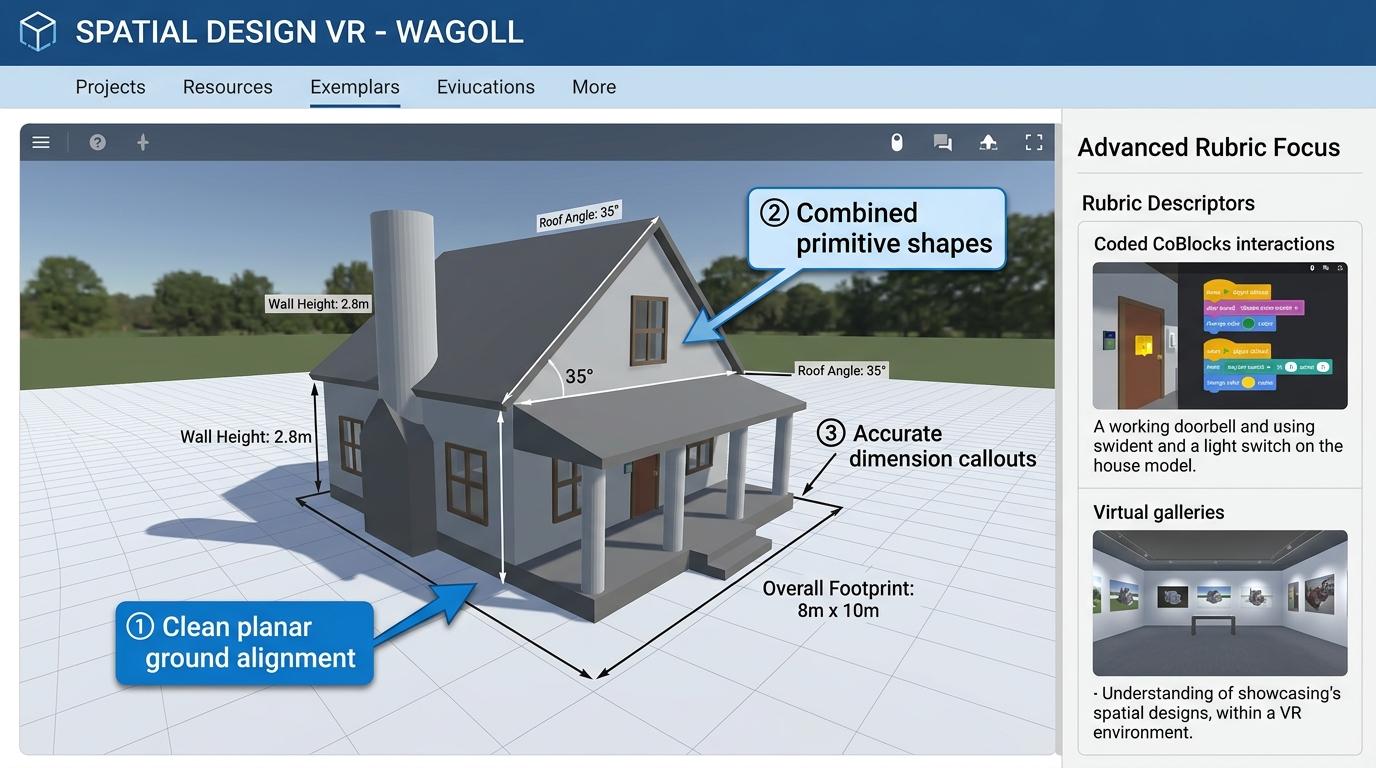
In CoSpaces Free Tier, you can build 3D virtual scenes and use CoBlocks (block-based code) to control your 3D objects. You must first right-click an object and toggle 'Use in CoBlocks' before your scripts can control it! In computing, coding allows virtual worlds to react dynamically to user actions. As you explore the interactive Three DViewer Simulator below, focus on how to code event triggers ('when object clicked') to trigger speech bubbles or movement.
🛠️
Independent Practice Task:
Code an interactive 3D character!
▫️ Create a new 3D Space in CoSpaces in your workspace to establish the foundational setup for cospaces intro.
▫️ Add a character and a speech target carefully, checking your settings and controls as you build your project.
▫️ Enable 'Use in CoBlocks' on the character and verify that your output meets the target goal for cospaces intro.
About: VR Immersion. To: Set spatial audio. To be: Empathetic.
Unit: How the World WorksConcept: PerspectiveProfile: Knowledgeable
⚡
Spark Hook (I used to think...):
"I used to think sound in games was just background music... Now I think spatial 3D audio works because..."
🎮
Learn Simulator:ThreeDViewerSimulator • Level 5
Virtual Reality (VR) tricks your brain into feeling present in a digital world. By attaching 'Spatial Sound' to 3D objects, the sound gets louder as your camera moves closer, mimicking real-life acoustics! In computing, immersive environments engage human senses through camera perspective and spatial audio. As you explore the interactive Three DViewer Simulator below, focus on how to build a guided VR tour with path-following camera movement and directional sound.
🛠️
Independent Practice Task:
Add spatial audio & VR camera paths!
▫️ Place a Camera object in your 3D environment in your workspace to establish the foundational setup for vr audio & camera.
▫️ Attach a sound file to a campfire or fountain model carefully, checking your settings and controls as you build your project.
▫️ Enable 3D Spatial Audio and verify that your output meets the target goal for vr audio & camera.
About: VR Showcase. To: Build a 3D exhibition. To be: Reflective.
Unit: Sharing the PlanetConcept: ReflectionProfile: Reflective
⚡
Spark Hook (Step Inside):
"Imagine being a visitor wearing a VR headset entering your 3D Virtual Museum. What story does your space tell?"
🎮
Learn Simulator:ThreeDViewerSimulator • Level 6
A Virtual Exhibition combines everything you have learned: 3D architectural design, coded interactive triggers, spatial audio, and information plaques. Users anywhere in the world can explore your project using a browser, tablet, or VR headset! In computing, shared virtual spaces allow global audiences to explore culture and ideas. As you explore the interactive Three DViewer Simulator below, focus on how to publish a complete VR Museum featuring interactive audio guides, 3D artifacts, and quizzes.
🛠️
Independent Practice Task:
Publish your Virtual Exhibition!
▫️ Design a 3-room virtual gallery space in your workspace to establish the foundational setup for vr exhibition.
▫️ Add 3D models with information plaques and audio guides.
▫️ Code a teleportation door between rooms and verify that your output meets the target goal for vr exhibition.
About: Persistence of Vision. To: Create frame loops. To be: Creative.
Unit: Who We AreConcept: FormProfile: Inquirer
⚡
Spark Hook (See, Think, Wonder):
"Look closely at these 5 drawings played quickly. What do you see? Why does the character appear to move?"
🎮
Learn Simulator:AnimationSimulator • Level 1
Animation is magic built from still pictures! When you take pictures of an object and move it just a tiny bit between each shot, playing them quickly makes it look like it's alive. In computing, technology helps us express stories visually. As you explore the interactive Animation Simulator below, focus on how to create a repeating animation loop using a tablet camera.
🛠️
Independent Practice Task:
Create a 5-frame animation loop!
▫️ Set up your character or drawing in your workspace to establish the foundational setup for moving pictures.
▫️ Capture frame 1 carefully, checking your settings and controls as you build your project.
▫️ Move character slightly and capture frame 2 and verify that your output meets the target goal for moving pictures.
About: Onion Skinning. To: Smooth movement. To be: Precise.
Unit: How We Organize OurselvesConcept: FunctionProfile: Communicator
⚡
Spark Hook (Zoom In):
"Look at this faint ghost shadow behind the character drawing. Why is seeing the previous picture helpful?"
🎮
Learn Simulator:AnimationSimulator • Level 2
Onion skinning lets you see a faint ghost of your previous picture! This helps you place your next drawing or figure in the exact right spot so the motion isn't jerky. In computing, sequencing frames creates smooth motion. As you explore the interactive Animation Simulator below, focus on how to create a 10-frame smooth movement sequence.
🛠️
Independent Practice Task:
Animate with onion skinning!
▫️ Turn on onion skinning overlay in your workspace to establish the foundational setup for onion skinning.
▫️ Draw or move character using the ghost guide carefully, checking your settings and controls as you build your project.
▫️ Capture 10 smooth frames and verify that your output meets the target goal for onion skinning.
About: Storyboarding. To: Plan animation sequences. To be: Organized.
Unit: How the World WorksConcept: ChangeProfile: Thinker
⚡
Spark Hook (Think, Puzzle, Explore):
"Why do professional animators draw storyboards before taking a single photo? What puzzles you about camera stability?"
🎮
Learn Simulator:AnimationSimulator • Level 3
Before shooting an animation, professionals plan every camera angle on a storyboard! Keeping your tablet locked on a tripod ensures your scene doesn't wobble while your story plays out. In computing, planning scenes ensures coherent narratives. As you explore the interactive Animation Simulator below, focus on how to set up a steady camera rig and background set.
🛠️
Independent Practice Task:
Plan and film a story scene!
▫️ Draw a 4-box storyboard with key actions in your workspace to establish the foundational setup for storyboards & sets.
▫️ Secure your tablet in a steady tripod/stand carefully, checking your settings and controls as you build your project.
▫️ Set up your paper or Lego background and verify that your output meets the target goal for storyboards & sets.
About: Sound Sync. To: Add voice & audio effects. To be: Expressive.
Unit: How the World WorksConcept: ConnectionProfile: Principled
⚡
Spark Hook (See, Think, Wonder):
"Watch this animation with no sound, then watch it with sound effects and music. How does your feeling change?"
🎮
Learn Simulator:AnimationSimulator • Level 4
Foley is the art of creating everyday sound effects for films! Adding footstep sounds, pops, and voiceover lines at the exact right frame turns a simple animation into a cinematic experience. In computing, audio enhances visual storytelling. As you explore the interactive Animation Simulator below, focus on how to sync sound effect clips to exact frame events.
🛠️
Independent Practice Task:
Add voice and sound effects!
▫️ Open your completed animation in your workspace to establish the foundational setup for audio & foley.
▫️ Record a short voiceover line carefully, checking your settings and controls as you build your project.
▫️ Import or record 2 foley sound effects (e.g. footsteps).
About: Keyframing. To: Animate vector paths. To be: Efficient.
Unit: Sharing the PlanetConcept: PerspectiveProfile: Knowledgeable
⚡
Spark Hook (I used to think...):
"I used to think you had to draw every single frame... Now I know that keyframing lets the computer calculate the movement between start and end points!"
🎮
Learn Simulator:AnimationSimulator • Level 5
Keyframing is digital magic! Instead of drawing 50 frames, you set a starting position at Keyframe 1 and an ending position at Keyframe 50. The computer automatically fills in the frames between (tweening)! In computing, digital tools automate repetitive motion tasks. As you explore the interactive Animation Simulator below, focus on how to animate scale, rotation, and position using automated motion paths (tweening).
🛠️
Independent Practice Task:
Create a keyframed motion path!
▫️ Select a vector graphic or sprite in your workspace to establish the foundational setup for keyframing & motion.
▫️ Set Keyframe 1 at the left edge carefully, checking your settings and controls as you build your project.
▫️ Move timeline to frame 30 and set Keyframe 2 at the right edge.
About: Compositing. To: Apply chroma key & 3D rigs. To be: Reflective.
Unit: Where We Are in Place and TimeConcept: ReflectionProfile: Reflective
⚡
Spark Hook (Step Inside):
"Imagine placing your claymation character inside outer space or deep underwater without leaving the classroom!"
🎮
Learn Simulator:AnimationSimulator • Level 6
Chroma Keying (Green Screen) allows you to isolate your animated characters and place them into any world! By knocking out the solid green color, you can layer animated sprites over custom digital backgrounds. In computing, combining techniques produces professional media. As you explore the interactive Animation Simulator below, focus on how to replace the green background with a custom digital environment.
🛠️
Independent Practice Task:
Produce a green screen composite film!
▫️ Shoot your character moving in front of a green screen.
▫️ Import the video into editing software carefully, checking your settings and controls as you build your project.
▫️ Apply Chroma Key to remove green and verify that your output meets the target goal for green screen & rigs.
About: the key features that make a website effective and easy to use. To: analyse websites and identify elements such as navigation, purpose, and target audience. To be: a curious digital explorer who can evaluate online spaces with a critical eye.
Unit: How We Express OurselvesConcept: FormProfile: Inquirer
⚡
Spark Hook (See, Think, Wonder):
"Look at this website screenshot. What do you SEE on the page? What do you THINK it is for? What do you WONDER about who made it?"
🎮
Learn Simulator:WebsiteBuilderSimulator • Level 1
Websites are like digital houses — every great one has a clear front door (the home page), easy-to-follow signs (navigation), and a reason for existing (its purpose)! The best websites know exactly who they are talking to — their audience — and design every page just for them. As you explore real websites today, put on your detective hat and hunt for the features that make them brilliant!
🛠️
Independent Practice Task:
Website Detective Mission
▫️ Visit two different websites (ask your teacher for suggested links).
▫️ For each site, write down: What is the PURPOSE of this website?
▫️ List THREE navigation links you can find on the site.
About: the concept of wireframing as a planning tool for website design. To: create a simple wireframe showing the layout and content of three web pages. To be: a thoughtful designer who plans before building to create better digital products.
Unit: How We Express OurselvesConcept: FunctionProfile: Thinker
⚡
Spark Hook (See, Think, Wonder):
"Here is a wireframe sketch for a website. What do you SEE in the boxes and labels? What do you THINK this website will look like when it is finished? What do you WONDER about why designers plan before they build?"
🎮
Learn Simulator:WebsiteBuilderSimulator • Level 2
Every incredible website you have ever visited started as a simple sketch! A wireframe is like an architect's blueprint — it maps out where everything will go BEFORE you start building. Professional web designers always wireframe first because it saves loads of time and helps them think clearly about what their visitors need. Today you will plan a 3-page site: a Home page that wows visitors, an About page that tells your story, and a Contact page so people can reach you!
🛠️
Independent Practice Task:
Blueprint Builder Challenge
▫️ Using pen and paper OR Google Drawings, sketch a wireframe for each of your three pages: Home, About, and Contact.
▫️ For EACH page, draw boxes to show where your navigation menu, heading, main content, images, and footer will go.
About: how Google Sites works as a free website builder tool with a simple drag-and-drop interface. To: create a multi-page Google Site with text, images, and working navigation links. To be: a confident digital builder who can turn a plan into a real, published website.
Unit: How We Express OurselvesConcept: ConnectionProfile: Risk-taker
⚡
Spark Hook (See, Think, Wonder):
"Here is the Google Sites editor screen. What do you SEE in the toolbar and the editing area? What do you THINK each button or panel does? What do you WONDER about how easy or hard it will be to build your first website?"
🎮
Learn Simulator:WebsiteBuilderSimulator • Level 3
You have planned, and now it is time to BUILD! Google Sites is a free, beginner-friendly website builder that lives right inside your Google account — no coding needed! You can add pages with a single click, drag images and text wherever you want them, and set up a navigation menu so visitors can explore your whole site. By the end of today you will have a real, published website that anyone in the world with the link can visit — how incredible is that?!
🛠️
Independent Practice Task:
Site Builder Sprint
▫️ Open Google Sites (sites.google.com) and create a new blank site — give it your project title.
▫️ Add three pages: Home, About, and Contact using the Pages panel on the right.
▫️ On EACH page, add a heading, at least one paragraph of text, and at least one image.
About: how Canva's website builder offers templates and drag-and-drop tools for professional-looking web design. To: select a template, customise sections, add original content, and preview a Canva website. To be: a creative visual designer who uses templates as a starting point and makes them uniquely their own.
Unit: How We Express OurselvesConcept: PerspectiveProfile: Communicator
⚡
Spark Hook (See, Think, Wonder):
"Look at these two websites — one built with Google Sites and one with Canva. What do you SEE that is different between them? What do you THINK makes Canva websites look the way they do? What do you WONDER about which tool is better for which type of website?"
🎮
Learn Simulator:WebsiteBuilderSimulator • Level 4
Canva is not just for posters and presentations — it is also a seriously powerful website builder! With Canva's drag-and-drop editor, you can choose from stunning ready-made templates and swap in your own words, photos, and ideas in minutes. Every section is like a design block you can move, resize, or swap out — giving you total creative freedom without needing to know any code. Get ready to design a website that looks like it was made by a professional!
🛠️
Independent Practice Task:
Canva Creator Challenge
▫️ Open Canva (canva.com) and choose 'Website' from the templates section — pick a template that suits your topic.
▫️ Change ALL placeholder text to your own content — every heading, subheading, and paragraph.
▫️ Swap or add at least THREE images using Canva's photo library or your own uploads.
Can open a Canva website template and change a piece of text with support.
Developing
Can choose a template, change the text on at least two sections, and add an image.
Secure (Target)
Can design a Canva website with customised text, images, and at least three distinct content sections, and preview it.
Mastering
Can produce a polished, visually consistent Canva website that uses multiple sections creatively and looks significantly different from the original template.
About: how branding elements like colour, fonts, and style create a consistent visual identity across a website. To: apply a theme, choose matching fonts and colours, and embed content to personalise their site. To be: a reflective designer who makes intentional choices to express their unique identity through their website.
Unit: How We Express OurselvesConcept: ReflectionProfile: Reflective
⚡
Spark Hook (See, Think, Wonder):
"Look at these three websites — each has a very different visual style. What do you SEE in their colours, fonts, and layout choices? What do you THINK each style says about the person or organisation behind it? What do you WONDER about how YOU want your website to look and feel?"
🎮
Learn Simulator:WebsiteBuilderSimulator • Level 5
A great website does not just share information — it has a PERSONALITY! Branding is the art of choosing colours, fonts, and a visual style that works together to give your site a clear identity. Think about your favourite brands — you can recognise them instantly from their colours alone! Today you get to be your own brand designer: pick your colour palette, choose fonts that match your vibe, and embed some cool content like a YouTube video or a Google Map to make your site truly come alive.
🛠️
Independent Practice Task:
Brand Identity Makeover
▫️ Choose a colour palette of 2-3 colours that represent your website's theme — apply them consistently across all your pages.
▫️ Select two fonts: one bold font for headings and one easy-to-read font for body text — use them throughout the site.
▫️ Apply a site-wide theme or background style so all pages feel connected and cohesive.
Can change the colour or font on one page with support.
Developing
Can apply a consistent colour scheme or theme across two or more pages.
Secure (Target)
Can create a visually consistent website with matching colours, fonts, and a theme applied across all pages, including at least one piece of embedded content.
Mastering
Can articulate clear branding decisions, apply them consistently throughout the site, and embed multimedia content that enhances the user experience.
About: the responsibilities and technical steps involved in publishing and sharing a website with an audience. To: configure sharing settings, publish a finished website, generate a share link, and test the mobile view. To be: a principled digital creator who shares their work responsibly and considers how their audience will experience it.
Unit: How We Express OurselvesConcept: ResponsibilityProfile: Principled
⚡
Spark Hook (See, Think, Wonder):
"Imagine your website is about to go live for the very first time. What do you SEE in the publishing and sharing settings options? What do you THINK happens when you click Publish — where does your website actually go? What do you WONDER about who might visit your site and what they will think?"
🎮
Learn Simulator:WebsiteBuilderSimulator • Level 6
This is it — the moment every website creator dreams of — LAUNCH DAY! Before you share your site with the world, you need to think carefully about your sharing settings: who should be able to see it, and how will you share the link? You also need to test it on a mobile device, because more than half of all web browsing happens on phones and tablets. Once everything looks perfect, you will publish your site, copy your unique share link, and officially become a published web designer — congratulations in advance!
🛠️
Independent Practice Task:
Launch Day Checklist
▫️ Do a final check of ALL pages — fix any spelling mistakes, broken links, or missing images you find.
▫️ Set your sharing/privacy settings: decide if your site should be viewable by 'Anyone with the link' or a more restricted audience.
▫️ Publish your site (or update the publish if you have already done it) and copy your unique share link.
Can publish a website with teacher support and copy the share link.
Developing
Can independently publish a website, set basic sharing settings, and share the link with a classmate.
Secure (Target)
Can publish a complete website, configure appropriate privacy and sharing settings, test it on a mobile device, and reflect on the outcome.
Mastering
Can publish a polished, fully complete website, thoughtfully choose sharing settings based on audience and purpose, test across devices, and present their work with a clear explanation of their design decisions.
About: Page Space. To: Position text & graphics. To be: Organised.
Unit: Who We AreConcept: FormProfile: Inquirer
⚡
Spark Hook (See, Think, Wonder):
"Look closely at these two poster pages. One is cluttered and overlapping, while the other has neat margins. What do you see?"
🎮
Learn Simulator:DrawingLayersSimulator • Level 1
A clean layout gives every element 'breathing room'! When text and images overlap or touch the page edge, readers get confused. Keeping clear space around pictures makes your work look neat and professional. In computing, arranging text and images clearly helps others understand our ideas. As you explore the interactive Drawing Layers Simulator below, focus on how to arrange a balanced layout with clear margins around elements.
🛠️
Independent Practice Task:
Balance your page layout!
▫️ Open a blank digital document in your workspace to establish the foundational setup for page balance.
▫️ Add a main title at the top carefully, checking your settings and controls as you build your project.
▫️ Insert an image below the title and verify that your output meets the target goal for page balance.
About: Alignment & Contrast. To: Align & style text. To be: Clear Communicators.
Unit: How We Organize OurselvesConcept: FunctionProfile: Communicator
⚡
Spark Hook (Zoom In):
"Look closely at this yellow text on a light white background. Is it easy to read? What happens when we change it to dark blue?"
🎮
Learn Simulator:DrawingLayersSimulator • Level 2
Two rules transform a design: Alignment and Contrast! Left-aligning body text along a straight vertical grid line makes scanning easy. High contrast (like dark text on light backgrounds) ensures everyone can read your message without straining. In computing, visual structure and contrast make communication effective. As you explore the interactive Drawing Layers Simulator below, focus on how to use high-contrast text colors and snap elements to an alignment grid.
🛠️
Independent Practice Task:
Align and contrast your design!
▫️ Open your poster project in your workspace to establish the foundational setup for alignment & contrast.
▫️ Align your title to the center and body text to the left.
▫️ Change text colors so they stand out clearly against the background.
About: Visual Hierarchy. To: Format headings & subheadings. To be: Logical Thinkers.
Unit: How the World WorksConcept: ConnectionProfile: Thinker
⚡
Spark Hook (Think, Puzzle, Explore):
"When you look at a newspaper or webpage, what does your eye look at first? Why doesn't all the text look identical?"
🎮
Learn Simulator:DrawingLayersSimulator • Level 3
Visual Hierarchy tells the reader's brain what to read first! The Main Title should be largest and boldest, Subheadings should be medium size, and Body Text smallest. Grouping related photos near their matching text is called Proximity. In computing, organizing information by importance guides the reader's journey. As you explore the interactive Drawing Layers Simulator below, focus on how to construct a clear 3-level visual hierarchy (Title, Subheading, Body) and group related items.
🛠️
Independent Practice Task:
Build a 3-level visual hierarchy!
▫️ Open your topic document in your workspace to establish the foundational setup for visual hierarchy.
▫️ Format the Main Title to 28pt bold carefully, checking your settings and controls as you build your project.
▫️ Format Subheadings to 18pt bold and verify that your output meets the target goal for visual hierarchy.
About: Multi-Column Media. To: Wrap text & set columns. To be: Principled Designers.
Unit: Who We AreConcept: ResponsibilityProfile: Principled
⚡
Spark Hook (See, Think, Wonder):
"Look at this magazine page. Notice how the text flows neatly around the circular photo and splits into two neat columns. How do you think that was set up?"
🎮
Learn Simulator:DrawingLayersSimulator • Level 4
When writing news reports or multi-page articles, single long lines of text across a wide page are hard to read. Splitting text into two columns and setting 'Wrap Text' around images creates newspaper-style layouts! In computing, media column layouts allow complex stories to fit neatly into shared spaces. As you explore the interactive Drawing Layers Simulator below, focus on how to design a 2-column newsletter layout with custom margins, gutters, and wrapped images.
🛠️
Independent Practice Task:
Create a 2-column newsletter!
▫️ Open a blank document in your workspace to establish the foundational setup for columns & wrapping.
▫️ Set page layout to 2 Columns carefully, checking your settings and controls as you build your project.
▫️ Insert a news article text and verify that your output meets the target goal for columns & wrapping.
About: Grid Systems. To: Apply master templates & grids. To be: Knowledgeable Creators.
Unit: Sharing the PlanetConcept: PerspectiveProfile: Knowledgeable
⚡
Spark Hook (I used to think...):
"I used to think graphic designers just placed items randomly on a blank page... Now I know they use underlying grid systems and color rules!"
🎮
Learn Simulator:DrawingLayersSimulator • Level 5
Professional designers rely on Grid Systems! A 12-column grid provides invisible vertical lines to align pictures, headers, and text blocks across every page. Pair your grid with a 3-color palette (Primary, Secondary, Accent) for brand consistency. In computing, consistent grid systems and color rules give publications professional identity. As you explore the interactive Drawing Layers Simulator below, focus on how to construct a multi-page publication using a 12-column alignment grid and a cohesive 3-color palette.
🛠️
Independent Practice Task:
Design with a grid and color palette!
▫️ Enable 'Show Gridlines' or column guides in your design tool.
▫️ Pick a 3-color brand palette carefully, checking your settings and controls as you build your project.
▫️ Align all text boxes and photo frames exactly to the grid lines.
About: Responsive Publishing. To: Export & adapt layouts. To be: Reflective Publishers.
Unit: Where We Are in Place and TimeConcept: ReflectionProfile: Reflective
⚡
Spark Hook (Step Inside):
"Imagine your school website layout viewed on a desktop monitor, a tablet, and a mobile phone screen. How must the layout flex so nothing gets cut off?"
🎮
Learn Simulator:DrawingLayersSimulator • Level 6
Publishing is multi-platform! Screen layouts must be responsive (stacking columns vertically on mobile phones). Print layouts require high-resolution assets (300 DPI) and Bleed margins so colors print right to the edge of cut paper. In computing, publishing work across global web and print platforms requires technical mastery. As you explore the interactive Drawing Layers Simulator below, focus on how to design responsive layout variations for desktop vs mobile screens and export print-ready PDFs with bleed/crop marks.
🛠️
Independent Practice Task:
Export print and mobile layout versions!
▫️ Design a desktop webpage/poster layout in your workspace to establish the foundational setup for responsive & export.
▫️ Rearrange the elements into a single-column vertical layout for mobile screens.
▫️ Check image resolution and verify that your output meets the target goal for responsive & export.
About: Slide Creation. To: Combine text & picture. To be: Communicative.
Unit: Who We AreConcept: FormProfile: Communicator
⚡
Spark Hook (See, Think, Wonder):
"Look closely at this slide. What makes the title stand out? What do you think the picture adds?"
🎮
Learn Simulator:PresentationSimulator • Level 1
A presentation is like a digital storybook! Each slide holds one main idea. Adding a clear title and a supporting picture helps your audience understand your message immediately. In computing, presenting ideas helps us connect with others. As you explore the interactive Presentation Simulator below, focus on how to create a 3-slide presentation with titles and pictures on each slide.
🛠️
Independent Practice Task:
Build your first 3-slide deck!
▫️ Open presentation software in your workspace to establish the foundational setup for simple slides.
▫️ Add a title slide with your name carefully, checking your settings and controls as you build your project.
▫️ Create slide 2 with a topic title and picture and verify that your output meets the target goal for simple slides.
About: Layout Selection. To: Format slides for clarity. To be: Organised.
Unit: How We Organize OurselvesConcept: FunctionProfile: Inquirer
⚡
Spark Hook (Zoom In):
"Look at this slide zoomed in. Is the text easy to read from the back of the classroom? Why or why not?"
🎮
Learn Simulator:PresentationSimulator • Level 2
Crowding slides with huge paragraphs confuses your audience! Using bullet points and high-contrast font colors lets your audience read key points quickly while listening to you speak. In computing, structured layouts help audiences read information easily. As you explore the interactive Presentation Simulator below, focus on how to maintain consistent font styles and high contrast across a 5-slide deck.
🛠️
Independent Practice Task:
Clean up a cluttered slide deck!
▫️ Apply the Title & Content layout in your workspace to establish the foundational setup for slide layouts.
▫️ Convert paragraph text into 3 key bullet points carefully, checking your settings and controls as you build your project.
▫️ Increase font size to 24pt and verify that your output meets the target goal for slide layouts.
About: Visual Flow. To: Add transitions & audio. To be: Engaging.
Unit: How the World WorksConcept: ConnectionProfile: Thinker
⚡
Spark Hook (Think, Puzzle, Explore):
"What happens when every slide has a wild, different transition? What puzzles you about keeping transitions subtle?"
🎮
Learn Simulator:PresentationSimulator • Level 3
Transitions control how one slide changes to the next. Subtle transitions like Fade keep your deck feeling professional, while embedded audio clips allow your presentation to explain itself automatically! In computing, transitions and media create engaging narratives. As you explore the interactive Presentation Simulator below, focus on how to apply uniform subtle transitions (e.g. Fade) across an entire presentation.
🛠️
Independent Practice Task:
Add transitions and voice narration!
▫️ Select a subtle transition like Fade in your workspace to establish the foundational setup for transitions & audio.
▫️ Apply to all slides in the deck carefully, checking your settings and controls as you build your project.
▫️ Record a 10-second voiceover on slide 1 and verify that your output meets the target goal for transitions & audio.
About: Object Sequencing. To: Animate elements on click. To be: Principled.
Unit: Sharing the PlanetConcept: ResponsibilityProfile: Principled
⚡
Spark Hook (See, Think, Wonder):
"Watch these bullet points appear one at a time. How does this help the speaker control the audience's focus?"
🎮
Learn Simulator:PresentationSimulator • Level 4
If all information appears at once, the audience reads ahead instead of listening to you! Animating bullet points to appear 'On Click' keeps your audience synchronized with your voice. In computing, sequencing visual elements guides audience focus. As you explore the interactive Presentation Simulator below, focus on how to animate bullet points to appear one by one 'On Click' to pace oral delivery.
🛠️
Independent Practice Task:
Pace your bullet points with animation!
▫️ Open the Animation Pane in your workspace to establish the foundational setup for object animations.
▫️ Apply 'Appear' or 'Fade' to a bulleted list carefully, checking your settings and controls as you build your project.
▫️ Set animation start condition to 'On Click' and verify that your output meets the target goal for object animations.
About: Design Systems. To: Build master templates. To be: Knowledgeable.
Unit: How We Express OurselvesConcept: PerspectiveProfile: Knowledgeable
⚡
Spark Hook (I used to think...):
"I used to think you had to format every single slide individually... Now I know that editing the Slide Master changes all slides at once!"
🎮
Learn Simulator:PresentationSimulator • Level 5
Editing 20 slides one-by-one takes forever! Modifying the Slide Master lets you update logos, background colors, and font styles across every slide in your deck instantly. In computing, consistent master design establishes professional branding. As you explore the interactive Presentation Simulator below, focus on how to design a cohesive 3-color palette and custom typography hierarchy across master layouts.
🛠️
Independent Practice Task:
Create a Master Theme for your class!
▫️ Open Slide Master / Theme Builder view
▫️ Place a school logo in the top corner of the Master slide
About: Interactive Pitching. To: Build hyperlinked decks. To be: Reflective.
Unit: Where We Are in Place and TimeConcept: ReflectionProfile: Reflective
⚡
Spark Hook (Step Inside):
"Imagine you are an investor being pitched a new eco-friendly invention. What makes an interactive, choice-driven presentation more persuasive than a linear deck?"
🎮
Learn Simulator:PresentationSimulator • Level 6
Linear decks force you to click through slides in exact order. Hyperlinks and Action Buttons turn your slide deck into a non-linear interactive hub, allowing you to jump straight to any topic your audience asks about! In computing, interactive navigation and persuasive pitching empower audience agency. As you explore the interactive Presentation Simulator below, focus on how to deliver a live 3-minute persuasive pitch using non-linear slide navigation based on audience questions.
🛠️
Independent Practice Task:
Build a non-linear interactive pitch deck!
▫️ Create an interactive Menu slide with 3 topic buttons
▫️ Link each button to its corresponding section slide
▫️ Add a 'Return to Menu' action button on every topic slide
Students will compare vague vs. detailed text prompts to see how specific adjectives change AI image and text generation.
Unit: How We Express OurselvesConcept: FormProfile: Communicator
⚡
Spark Hook (See, Think, Wonder):
"Look at these two AI pictures of a cat. One was created with 'cat' and one with 'a sleepy orange tabby cat wearing a party hat'. What differences do you notice?"
🎮
Learn Simulator:PromptStudioSimulator • Level 1
AI models are not mind readers! They need clear, descriptive instructions. When you give an AI tool specific details—like subject, action, color, and setting—it understands your ideas much better. In computing, language choice shapes creative outputs in human and digital tools. As you explore the interactive Prompt Studio Simulator below, focus on how to construct 3-element prompts specifying subject, color, and setting to get accurate AI outputs.
🛠️
Independent Practice Task:
Craft a Descriptive Prompt
▫️ Select a main subject in your workspace to establish the foundational setup for clear words for ai.
▫️ Add 2 descriptive adjectives carefully, checking your settings and controls as you build your project.
▫️ Add a background setting and verify that your output meets the target goal for clear words for ai.
Direct instruction on prompt structures: Subject + Modifiers + Style. Students test 1-word vs 5-word prompts in Canva or AutoDraw to observe how AI interprets ambiguity.
Students will assign specific roles (e.g., 'Act as a friendly tour guide') to an AI assistant to tailor explanation styles.
Unit: Who We AreConcept: PerspectiveProfile: Open-minded
⚡
Spark Hook (Zoom In):
"Compare an AI explanation of volcanoes written by 'a mad scientist' vs 'a gentle park ranger'. How does the tone change?"
🎮
Learn Simulator:PromptStudioSimulator • Level 2
You can tell an AI assistant WHO to pretend to be! Giving the AI a role (like 'Act as an astronaut') helps it choose the right words, enthusiasm, and detail level for your intended audience. In computing, perspective influences how information is framed and communicated. As you explore the interactive Prompt Studio Simulator below, focus on how to construct prompts specifying Role, Topic, Audience, and Tone (e.g., 'Act as a pirate explaining gravity to a 7-year-old').
🛠️
Independent Practice Task:
Role-Play Prompt Challenge
▫️ Pick a persona role in your workspace to establish the foundational setup for roles & personas.
▫️ State the topic to explain carefully, checking your settings and controls as you build your project.
▫️ Define the target audience and verify that your output meets the target goal for roles & personas.
Guided workshop on sensory and stylistic adjectives. Students select an art movement (e.g. watercolor, pixel art, origami) and incorporate it into prompt modifiers.
Students will include format rules (e.g., 'In 3 bullet points', 'Under 50 words') in prompts to control output structure.
Unit: How the World WorksConcept: FunctionProfile: Thinker
⚡
Spark Hook (Think, Puzzle, Explore):
"What happens when an AI gives you 5 pages of text when you only needed a quick 3-bullet summary? How can we prevent this?"
🎮
Learn Simulator:PromptStudioSimulator • Level 3
AI loves to talk! If you don't set boundaries, it might write far too much. By specifying exact constraints—like 'Format as a 3-column table' or 'Use exactly 4 bullet points and no jargon'—you get clean, organized results. In computing, setting structured parameters optimizes technology performance. As you explore the interactive Prompt Studio Simulator below, focus on how to combine format constraints: bullet lists, tables, negative constraints ('do not include...'), and word limits.
🛠️
Independent Practice Task:
Set Output Constraints
▫️ Specify output format (table or list) in your workspace to establish the foundational setup for constraints & formatting.
▫️ Set a max length constraint carefully, checking your settings and controls as you build your project.
▫️ Add one negative constraint ('do not use...') and verify that your output meets the target goal for constraints & formatting.
Iterative refinement sprint: Students inspect their first generation, identify 2 flaws (lighting, anatomy, composition), and tweak the prompt systematically.
Students will analyze an imperfect AI output and write follow-up corrective prompts to refine the result in stages.
Unit: How We Express OurselvesConcept: ChangeProfile: Reflective
⚡
Spark Hook (I used to think... Now I think...):
"I used to think a prompt was a one-shot attempt... Now I think prompting is a conversation! Why is iteration key?"
🎮
Learn Simulator:PromptStudioSimulator • Level 4
Prompting is a conversation, not a single button press! If the AI's first attempt misses the mark, don't start over from scratch. Reply with feedback like 'Make the tone more enthusiastic' or 'Simplify paragraph 2' to guide it. In computing, revision and feedback cycles improve creative and technological solutions. As you explore the interactive Prompt Studio Simulator below, focus on how to execute a 3-turn refinement conversation, adjusting details, tone, or corrections step-by-step.
🛠️
Independent Practice Task:
3-Step Refinement Ladder
▫️ Send initial broad prompt in your workspace to establish the foundational setup for iterative prompt refinement.
▫️ Review output and spot 1 weakness carefully, checking your settings and controls as you build your project.
▫️ Send targeted follow-up correction and verify that your output meets the target goal for iterative prompt refinement.
Students will cross-reference AI-generated facts against verified encyclopedias or textbooks to identify AI 'hallucinations'.
Unit: Sharing the PlanetConcept: ResponsibilityProfile: Inquirer
⚡
Spark Hook (3-2-1 Bridge):
"An AI confidently claims that 'Penguins fly to Australia every winter.' 3 reasons why AI sounds confident even when wrong?"
🎮
Learn Simulator:PromptStudioSimulator • Level 5
AI language models predict the next likely word—they do NOT 'know' facts like humans do! Sometimes AI creates completely fake facts that sound totally convincing. This is called a 'hallucination'. NEVER trust AI facts without double-checking! In computing, critical evaluation of information sources is essential in an automated world. As you explore the interactive Prompt Studio Simulator below, focus on how to conducts a systematic fact-check of an AI summary using 2 independent trusted sources.
🛠️
Independent Practice Task:
AI Hallucination Detective
▫️ Generate an AI summary on a topic in your workspace to establish the foundational setup for fact-checking & hallucinations.
▫️ Highlight 3 key factual claims carefully, checking your settings and controls as you build your project.
▫️ Cross-check each claim in a trusted library database.
AI Detective Station: Examining AI responses for factual hallucinations, cultural bias, and historical inaccuracies. Students write corrections using verified encyclopedia sources.
Students will formulate ethical AI use guidelines and properly cite AI tools used in research or creative projects.
Unit: Sharing the PlanetConcept: ReflectionProfile: Principled
⚡
Spark Hook (Step Inside):
"Imagine you spent 10 hours painting a picture, and someone entered an AI copy into an art contest. How would you feel?"
🎮
Learn Simulator:PromptStudioSimulator • Level 6
Using AI responsibly means being honest about how you used it! Using AI to brainstorm ideas or check grammar is great—passing off AI-written essays or artwork as entirely your own work is plagiarism. Always attribute AI assistance clearly. In computing, ethical technology use requires transparency, honesty, and respect for intellectual property. As you explore the interactive Prompt Studio Simulator below, focus on how to create a project disclosure statement detailing how AI was used (e.g., for brainstorming, editing, or image creation).
🛠️
Independent Practice Task:
Create an AI Disclosure Citation
▫️ List the AI tool name & model used in your workspace to establish the foundational setup for ethical prompting & attribution.
▫️ Record the exact prompt written carefully, checking your settings and controls as you build your project.
▫️ State clearly what part was AI-assisted vs human-created.
Publishing means taking your finished work and making it available for other people to read, see, or listen to! When you publish a digital story or ebook, your ideas can inspire your classmates and family. In computing, sharing our digital creations allows us to express our identity and ideas. As you explore the interactive Formatting Toolbar Simulator below, focus on how to share a digital story with peers or family in a class ebook gallery.
🛠️
Independent Practice Task:
Publish your first mini digital story!
▫️ Select a completed drawing or text document in your workspace to establish the foundational setup for sharing my work.
▫️ Add a title and your name as author carefully, checking your settings and controls as you build your project.
▫️ Export or share it to the class digital bookshelf and verify that your output meets the target goal for sharing my work.
About: eBook Layout. To: Combine text and audio. To be: Creative.
Unit: How We Organize OurselvesConcept: FunctionProfile: Inquirer
⚡
Spark Hook (Zoom In):
"Look at this small play button on the eBook page. What do you think will happen when you click it?"
🎮
Learn Simulator:SaveDialogSimulator • Level 2
Digital publishing lets you do things paper books cannot! You can add audio voice recordings to every page so readers can listen to you tell your story while turning the pages. In computing, e-publishing combines text, art, and voice to enrich storytelling. As you explore the interactive Save Dialog Simulator below, focus on how to combine multi-page text, images, and embedded audio voice recordings into an eBook.
🛠️
Independent Practice Task:
Create a 3-page interactive eBook!
▫️ Open Book Creator or Canva eBooks in your workspace to establish the foundational setup for ebook creators.
▫️ Create a cover page with title and author name carefully, checking your settings and controls as you build your project.
▫️ Add text and pictures to pages 2 and 3 and verify that your output meets the target goal for ebook creators.
About: Digital Blogging. To: Post and comment. To be: Principled.
Unit: How the World WorksConcept: ConnectionProfile: Reflective
⚡
Spark Hook (Think, Puzzle, Explore):
"What do you think happens after you submit a blog post to a teacher-moderated site? What puzzles you about leaving online comments?"
🎮
Learn Simulator:FileExtensionSimulator • Level 3
Blogging is a great way to publish reflections on your learning. Before a post goes public on a class blog, a teacher moderates it to ensure it is safe, kind, and accurate. When commenting on others' posts, always be encouraging and constructive! In computing, online blogs connect learning communities through peer feedback. As you explore the interactive File Extension Simulator below, focus on how to publish a blog post with a cover image and write constructive, kind peer comments.
🛠️
Independent Practice Task:
Write a blog reflection & leave 2 comments!
▫️ Draft a 3-sentence reflection about a recent class project.
▫️ Upload a featured image carefully, checking your settings and controls as you build your project.
▫️ Submit for teacher moderation and publication and verify that your output meets the target goal for class blogs & posts.
About: Web Publishing. To: Build a site. To be: Responsible.
Unit: Who We AreConcept: ResponsibilityProfile: Knowledgeable
⚡
Spark Hook (See, Think, Wonder):
"Look closely at this website header and navigation bar. How does the menu help visitors find different topics?"
🎮
Learn Simulator:WebsiteBuilderSimulator • Level 4
Building a webpage allows you to publish multi-media content in one organized hub. Google Sites lets you drag and drop text, header banners, image carousels, and embedded documents across multiple subpages! In computing, web design organizes information across navigation subpages. As you explore the interactive Website Builder Simulator below, focus on how to build a 2-page website with navigation menu and embedded Google Docs/Slides.
🛠️
Independent Practice Task:
Build a 2-page Inquiry Website!
▫️ Create a new site in Google Sites in your workspace to establish the foundational setup for google sites & pages.
▫️ Add a banner title and header image to the Home page.
▫️ Embed a Google Doc or Slide presentation and verify that your output meets the target goal for google sites & pages.
About: Portfolio Curation. To: Curate & reflect. To be: Open-minded.
Unit: How We Express OurselvesConcept: PerspectiveProfile: Reflective
⚡
Spark Hook (I used to think...):
"I used to think a portfolio was just a folder of finished work... Now I know it is a reflective journey showing how my thinking grew over time!"
🎮
Learn Simulator:UploadDownloadSimulator • Level 5
A digital portfolio is not just a collection of good grades—it is a story of your growth! By publishing 'before and after' work samples alongside reflective audio or written journal entries, you demonstrate how you overcome challenges and improve as a learner.
🛠️
Independent Practice Task:
Curate a PYP Unit Portfolio Entry!
▫️ Select a project draft and a final polished deliverable
▫️ Upload both to your Google Site / Seesaw Portfolio
▫️ Write a 4-sentence reflection explaining your learning journey
About: Digital Ethics. To: Attribute & license. To be: Principled.
Unit: Where We Are in Place and TimeConcept: ReflectionProfile: Principled
⚡
Spark Hook (Step Inside):
"Step inside the shoes of a photographer or artist. How would you feel if someone used your artwork in their published book without giving you credit?"
🎮
Learn Simulator:SecurityAuditSimulator • Level 6
As a digital author and creator, you must respect intellectual property! Copyright protects original works. When publishing, search for Creative Commons (CC) or Public Domain media, provide proper attribution (TASL: Title, Author, Source, License), and choose how others can re-use your own published creations!
🛠️
Independent Practice Task:
Publish an Open Project with CC License!
▫️ Gather media for a published report or site
▫️ Verify all media is Creative Commons or Public Domain
Typing on a computer starts with finding your letters! Use the Spacebar to separate words, Enter to start a new line, and Backspace to fix mistakes. In computing, digital writing helps us record and share our thoughts. As you explore the interactive Formatting Toolbar Simulator below, focus on how to type 2-3 complete sentences with capital letters.
🛠️
Independent Practice Task:
Type your first digital story!
▫️ Open a blank document in your workspace to establish the foundational setup for letters & words.
▫️ Type a sentence about your favorite animal carefully, checking your settings and controls as you build your project.
▫️ Use Spacebar between words and verify that your output meets the target goal for letters & words.
Text formatting makes important words stand out! Changing font size, color, or applying Bold and Italics helps guide your reader's eye. In computing, visual text formatting enhances clarity and emphasis. As you explore the interactive Formatting Toolbar Simulator below, focus on how to apply Bold, Italic, and Underline formatting purposefully.
🛠️
Independent Practice Task:
Format a poem or poster title!
▫️ Highlight the title in your workspace to establish the foundational setup for fonts & colours.
▫️ Change font size to 24pt carefully, checking your settings and controls as you build your project.
▫️ Apply Bold and a bright color and verify that your output meets the target goal for fonts & colours.
Clean alignment makes your document look professional. Center your titles, left-align body text, and adjust line spacing so sentences don't feel squished. In computing, consistent layout makes documents easier to read. As you explore the interactive Formatting Toolbar Simulator below, focus on how to configure page orientation and custom margins.
🛠️
Independent Practice Task:
Format a formal letter!
▫️ Center-align the document title in your workspace to establish the foundational setup for formatting & layout.
▫️ Left-align paragraph body carefully, checking your settings and controls as you build your project.
▫️ Set line spacing to 1.5 and verify that your output meets the target goal for formatting & layout.
Bulleted and numbered lists turn big walls of text into easy-to-read steps. Use numbers for ordered steps and bullets for items. In computing, structured lists help organize information logically. As you explore the interactive Formatting Toolbar Simulator below, focus on how to format multi-level nested lists and callout boxes.
🛠️
Independent Practice Task:
Create a structured recipe or guide!
▫️ Type a title in your workspace to establish the foundational setup for structure & lists.
▫️ Create a bulleted list of 4 items carefully, checking your settings and controls as you build your project.
▫️ Create a numbered list of 3 sequential steps and verify that your output meets the target goal for structure & lists.
Headings create a skeleton for long documents. Applying Heading 1 and Heading 2 styles lets the computer automatically generate a Table of Contents! In computing, document hierarchies allow readers to navigate long reports. As you explore the interactive Formatting Toolbar Simulator below, focus on how to generate an automated Table of Contents from headings.
🛠️
Independent Practice Task:
Build a multi-section research report!
▫️ Apply Heading 1 to main section titles in your workspace to establish the foundational setup for styles & headings.
▫️ Apply Heading 2 to sub-sections carefully, checking your settings and controls as you build your project.
▫️ Insert an automated Table of Contents at the top and verify that your output meets the target goal for styles & headings.
Real writers collaborate! Using Comments and Track Changes allows you and your classmates to give feedback and improve documents together. In computing, collaborative revision improves the quality of published work. As you explore the interactive Formatting Toolbar Simulator below, focus on how to co-author a document in real-time with peer review comments.
🛠️
Independent Practice Task:
Edit and review a classmate's draft!
▫️ Open a shared document in your workspace to establish the foundational setup for collaborate & review.
▫️ Add 2 constructive comments using the Comment tool carefully, checking your settings and controls as you build your project.
▫️ Turn on Suggesting / Track Changes and verify that your output meets the target goal for collaborate & review.
About: Browser Tabs. To: Open (+ / Ctrl+T) and close (x / Ctrl+W) tabs. To be: Caring.
Unit: Who We AreConcept: FormProfile: Inquirer
⚡
Spark Hook (See, Think, Wonder):
"Look at a browser window with 20 tiny squished tabs. What do you see? Why is it hard to find anything?"
🎮
Learn Simulator:SearchBrowserSimulator • Level 1
Browser tabs let you open multiple web pages inside one window! Click the '+' button or press Ctrl+T to open a new tab. When you are finished with a page, click the 'x' or press Ctrl+W to close it. In computing, organizing browser spaces helps keep our digital research clear and focused. As you explore the interactive Search Browser Simulator below, focus on how to reads tab titles and favicons to navigate between 3 open websites.
🛠️
Independent Practice Task:
Tab Opening & Closing Challenge
▫️ Open your web browser in your workspace to establish the foundational setup for opening & closing tabs.
▫️ Press Ctrl+T to open 3 new blank tabs carefully, checking your settings and controls as you build your project.
▫️ Search for 3 different educational topics and verify that your output meets the target goal for opening & closing tabs.
About: Tab Recovery. To: Restore closed tabs with Ctrl+Shift+T. To be: Principled.
Unit: How We Express OurselvesConcept: FunctionProfile: Communicator
⚡
Spark Hook (Zoom In):
"Oh no! You accidentally clicked the 'x' on the article you needed for your homework! How can Ctrl+Shift+T save the day?"
🎮
Learn Simulator:SplitScreenSimulator • Level 2
Accidentally closing a tab happens to everyone! Don't panic and try searching for the URL again—just press Ctrl+Shift+T (Cmd+Shift+T on Mac)! It reopens the last closed tab instantly, with all its history intact. In computing, recovery shortcuts prevent information loss during web exploration. As you explore the interactive Split Screen Simulator below, focus on how to restores an accidentally closed website using Ctrl+Shift+T.
🛠️
Independent Practice Task:
Tab Disaster Recovery Drill
▫️ Open an interesting news or science article in your workspace to establish the foundational setup for reopening closed tabs.
▫️ Close the tab on purpose using Ctrl+W carefully, checking your settings and controls as you build your project.
▫️ Press Ctrl+Shift+T to resurrect the lost tab immediately.
About: Bookmarks. To: Save web pages with Ctrl+D / Star icon. To be: Reflective.
Unit: How the World WorksConcept: ConnectionProfile: Thinker
⚡
Spark Hook (Think, Pair, Share):
"Instead of typing a long 50-character website address every day, how can a single click on your Bookmarks Bar open it instantly?"
🎮
Learn Simulator:SaveDialogSimulator • Level 3
Bookmarks are like digital ribbon markers in a book! Click the Star icon in your address bar (or press Ctrl+D) to save a website. Turn on your Bookmarks Bar (Ctrl+Shift+B) so your favorite school websites are always 1 click away! In computing, organizing web addresses streamlines daily access to digital resources. As you explore the interactive Save Dialog Simulator below, focus on how to toggles the Bookmarks Bar visible (Ctrl+Shift+B) and organizes 3 school links.
🛠️
Independent Practice Task:
Build Your School Bookmarks Bar
▫️ Press Ctrl+Shift+B to make your Bookmarks Bar visible
▫️ Visit your school learning portal or coding site
About: Tab Groups. To: Right-click tabs to create color-coded groups. To be: Principled.
Unit: How We Organize OurselvesConcept: ResponsibilityProfile: Knowledgeable
⚡
Spark Hook (Parts-Purposes-Complexities):
"You have 4 tabs for Science research and 4 tabs for History research. How can color-coded Tab Groups keep them separated?"
🎮
Learn Simulator:UploadDownloadSimulator • Level 4
When you have lots of tabs open for different subjects, group them! Right-click any tab and select 'Add tab to new group'. Give it a title like 'Math' and pick a color (e.g. Blue). You can click the group label to collapse or expand all those tabs at once! In computing, categorizing digital workspace tabs maintains mental focus during complex projects. As you explore the interactive Upload Download Simulator below, focus on how to group 6 open tabs into 2 distinct subject groups and collapses them to save space.
🛠️
Independent Practice Task:
Organize Your Research into Tab Groups
▫️ Open 4 tabs related to two different school subjects
▫️ Right-click the first tab and select 'Add tab to new group'
About: Browser Profiles. To: Switch profiles using the avatar icon. To be: Efficient.
Unit: Where We Are in Place and TimeConcept: ChangeProfile: Open-minded
⚡
Spark Hook (Connect-Extend-Challenge):
"What could go wrong if 3 different students share the same browser profile on a laptop?"
🎮
Learn Simulator:ShortcutSimulator • Level 5
Your Browser Profile is your personal digital locker! Clicking the profile avatar in the top-right corner lets you log into your school Google/Microsoft account. Your bookmarks, extensions, and history stay inside YOUR profile and won't mix with anyone else's!
🛠️
Independent Practice Task:
Verify Your School Profile
▫️ Click the circular Profile Avatar in top right of your browser
▫️ Verify you are signed into your official school email account
▫️ Check that Sync is turned ON so your school bookmarks save
About: Browser Security. To: Manage extension puzzle pieces and clear cache. To be: Reflective.
Unit: Sharing the PlanetConcept: PerspectiveProfile: Reflective
⚡
Spark Hook (I used to think...):
"I used to think installed browser extensions didn't affect computer speed... Now I know having 20 extensions running bogs down the browser..."
🎮
Learn Simulator:SafetyShieldSimulator • Level 6
Browser extensions (the Puzzle Piece icon) add cool features like dictionaries or dark mode. But too many extensions slow down your computer! You can also click the Padlock icon next to any URL to check camera/microphone permissions, or press Ctrl+Shift+Del to clear cached data if a page won't load properly.
🛠️
Independent Practice Task:
Browser Health & Security Audit
▫️ Click the Puzzle Piece extension icon and review installed tools
▫️ Pin 1 useful educational extension to your toolbar
▫️ Click the Padlock icon on a website to check site security
About: Select All. To: Press Ctrl+A to select all content. To be: Caring.
Unit: Who We AreConcept: FormProfile: Inquirer
⚡
Spark Hook (See, Think, Wonder):
"You have 5 pages of text to delete. Is dragging your mouse down 5 pages the fastest way? What secret key shortcut selects everything in 1 second?"
🎮
Learn Simulator:ShortcutSimulator • Level 1
Instead of dragging your mouse across a long screen, press Ctrl+A (or Cmd+A on Mac)! 'A' stands for 'All'. It highlights every piece of text, picture, or file in your window instantly. In computing, keyboard shortcuts simplify screen management and editing efficiency. As you explore the interactive Shortcut Simulator below, focus on how to use Ctrl+A to select everything and Delete to clear a page quickly.
🛠️
Independent Practice Task:
Select All Speed Test
▫️ Open a document with 3 paragraphs of text in your workspace to establish the foundational setup for select all & delete.
▫️ Press Ctrl+A (or Cmd+A) to highlight all text in blue.
▫️ Press Backspace to delete it all at once and verify that your output meets the target goal for select all & delete.
Copy (Ctrl+C) creates an exact duplicate of whatever you highlighted and stores it in memory. Paste (Ctrl+V) places that duplicate wherever your blinking cursor is pointing! 'C' stands for Copy, and 'V' stands for Velcro (sticking it down!). In computing, duplicating digital assets speeds up creative production and layout design. As you explore the interactive Formatting Toolbar Simulator below, focus on how to copies and pastes text and images smoothly between two different apps.
🛠️
Independent Practice Task:
Copy & Paste Duplication Challenge
▫️ Highlight the sentence 'Computers are amazing!' in your workspace to establish the foundational setup for copy & paste basics.
▫️ Press Ctrl+C (or Cmd+C) to copy carefully, checking your settings and controls as you build your project.
▫️ Click at the bottom of the page and verify that your output meets the target goal for copy & paste basics.
About: Undo & Redo. To: Reverse mistakes using Ctrl+Z and Ctrl+Y. To be: Reflective.
Unit: How the World WorksConcept: ConnectionProfile: Thinker
⚡
Spark Hook (Think, Pair, Share):
"You accidentally deleted your entire paragraph! Before you panic or cry, what 2-key shortcut acts like a time machine to bring it back?"
🎮
Learn Simulator:SplitScreenSimulator • Level 3
Ctrl+Z is the ultimate digital eraser and time machine! Pressing Ctrl+Z (Undo) steps back in time to reverse your last mistake. If you undo too far, press Ctrl+Y (Redo) to step forward again! In computing, digital systems allow non-destructive editing and instant error recovery. As you explore the interactive Split Screen Simulator below, focus on how to use Ctrl+Z multiple times to step backwards and Ctrl+Y to redo steps.
🛠️
Independent Practice Task:
Undo Time Machine Test
▫️ Type a paragraph and delete it by accident
▫️ Press Ctrl+Z (or Cmd+Z) to bring it back instantly
▫️ Change the font color, then press Ctrl+Z to undo the color change
About: Cut & Plain Paste. To: Move text with Ctrl+X and paste plain text with Ctrl+Shift+V. To be: Principled.
Unit: How We Organize OurselvesConcept: ResponsibilityProfile: Knowledgeable
⚡
Spark Hook (Parts-Purposes-Complexities):
"When you copy text from a website, it often brings ugly fonts and dark background colors with it. How can you paste ONLY the words without the formatting?"
🎮
Learn Simulator:SearchBrowserSimulator • Level 4
Ctrl+X (Cut) snips out text like a pair of scissors ('X' looks like scissors!), removing it from the original spot so you can move it. When pasting text from websites, use Ctrl+Shift+V (Paste as Plain Text) to strip away messy fonts and match your document style!
🛠️
Independent Practice Task:
Cut and Clean Paste Drill
▫️ Highlight a sentence in a paragraph and press Ctrl+X to cut it out
▫️ Move your cursor to the top and press Ctrl+V to paste it there
About: Clipboard History. To: Open Win+V to access multiple copied snippets. To be: Efficient.
Unit: Where We Are in Place and TimeConcept: ChangeProfile: Open-minded
⚡
Spark Hook (Connect-Extend-Challenge):
"Normally, copying a second item overwrites the first! What if your computer could remember the last 10 things you copied all at once?"
🎮
Learn Simulator:SaveDialogSimulator • Level 5
Windows Clipboard History (Win+V) gives your computer a multi-item memory bank! Instead of copying and pasting items one-by-one, you can copy several pictures and sentences, press Win+V, and choose which one to paste from a popup menu! In computing, multi-item memory stores enhance multitasking productivity during research. As you explore the interactive Save Dialog Simulator below, focus on how to open Clipboard History (Win+V) and selects which item to paste into a document.
🛠️
Independent Practice Task:
Multi-Item Copy & Paste
▫️ Press Win+V to turn on Clipboard History in your workspace to establish the foundational setup for clipboard history.
▫️ Copy 3 different facts from a web page using Ctrl+C carefully, checking your settings and controls as you build your project.
▫️ Open a blank document and press Win+V and verify that your output meets the target goal for clipboard history.
About: Navigation Shortcuts. To: Find text with Ctrl+F and switch apps with Alt+Tab. To be: Reflective.
Unit: Sharing the PlanetConcept: PerspectiveProfile: Reflective
⚡
Spark Hook (I used to think...):
"I used to think reading a 20-page document line-by-line was the only way to find a word... Now I know Ctrl+F finds any word instantly..."
🎮
Learn Simulator:KeyboardMouseSimulator • Level 6
Mastering navigation shortcuts makes you a power user! Ctrl+F (Find) opens a search bar to highlight any word on a long webpage instantly. Alt+Tab (Switch App) lets you flip between your research browser and your document in a fraction of a second! In computing, keyboard fluency transforms how efficiently we navigate complex information environments. As you explore the interactive Keyboard Mouse Simulator below, focus on how to use Alt+Tab to switch back and forth between research and document apps effortlessly.
🛠️
Independent Practice Task:
Power User Search & Switch Drill
▫️ Open a long Wikipedia article and press Ctrl+F
▫️ Type the word 'robot' and count how many matches highlight
▫️ Open a document alongside it and use Alt+Tab to switch back and forth
Whenever you start something new on a computer, you click 'New File' or '+'. To make sure your hard work doesn't disappear when you turn off the computer, you must click 'Save'! In computing, creating digital work allows us to express our ideas. As you explore the interactive Formatting Toolbar Simulator below, focus on how to click 'Save' and type a simple file name with teacher guidance.
🛠️
Independent Practice Task:
Create and save your first file!
▫️ Open a drawing or writing app in your workspace to establish the foundational setup for new projects.
▫️ Create a new blank project carefully, checking your settings and controls as you build your project.
▫️ Draw or type your name and verify that your output meets the target goal for new projects.
About: Clear File Names. To: Save to a folder. To be: Clear & Communicative.
Unit: How We Organize OurselvesConcept: FunctionProfile: Communicator
⚡
Spark Hook (Zoom In):
"Look at this messy folder full of files called 'Doc1' and 'Doc2'. Can you guess what is inside any of them?"
🎮
Learn Simulator:SaveDialogSimulator • Level 2
Leaving a file named 'Untitled' makes it impossible to find later! Always give your file a meaningful name that describes what is inside, like 'Year2_Science_Plant'. In computing, clear labels and logical organization make information easy to find. As you explore the interactive Save Dialog Simulator below, focus on how to save a file directly into a specified class folder.
🛠️
Independent Practice Task:
Name and save properly!
▫️ Open your document in your workspace to establish the foundational setup for naming files.
▫️ Click 'Save As' carefully, checking your settings and controls as you build your project.
▫️ Type a clear name like 'MyName_Poster' and verify that your output meets the target goal for naming files.
About: Retrieval. To: Open & edit files. To be: Persistent.
Unit: How the World WorksConcept: ChangeProfile: Reflective
⚡
Spark Hook (Think, Puzzle, Explore):
"What is the difference between clicking 'Save' and clicking 'Save As'? What puzzles you about re-opening yesterday's work?"
🎮
Learn Simulator:FileExtensionSimulator • Level 3
When you return to continue yesterday's project, you don't start from scratch! You use 'File > Open', browse to your folder, select your file, and keep working. In computing, iterative processes allow us to improve and build upon past work. As you explore the interactive File Extension Simulator below, focus on how to open an existing file and make improvements.
🛠️
Independent Practice Task:
Re-open update and save!
▫️ Click File > Open in your workspace to establish the foundational setup for opening files.
▫️ Navigate to your folder and select yesterday's file carefully, checking your settings and controls as you build your project.
▫️ Add two new sentences or details and verify that your output meets the target goal for opening files.
About: Cloud Drives. To: Store in cloud. To be: Responsible.
Unit: Who We AreConcept: ConnectionProfile: Principled
⚡
Spark Hook (See, Think, Wonder):
"You start a document on a school computer and finish it on a tablet at home without a USB drive. How is that possible?"
🎮
Learn Simulator:FolderTreeSimulator • Level 4
Cloud storage (like Google Drive) saves your files automatically on secure servers over the internet. You can open, edit, and save your work from any computer or tablet everywhere! In computing, digital networks connect our work across places and devices. As you explore the interactive Folder Tree Simulator below, focus on how to create a document directly in cloud storage using Auto-Save.
🛠️
Independent Practice Task:
Create and store in the Cloud!
▫️ Open your school Google Drive in your workspace to establish the foundational setup for cloud & autosave.
▫️ Create a new Google Doc or Slides presentation carefully, checking your settings and controls as you build your project.
▫️ Title it 'Y4_Cloud_Project' and verify that your output meets the target goal for cloud & autosave.
About: File Formats. To: Export & backup. To be: Open-minded.
Unit: Sharing the PlanetConcept: PerspectiveProfile: Knowledgeable
⚡
Spark Hook (I used to think...):
"I used to think every saved file was the same... Now I know that file extensions like .pdf and .docx do completely different jobs!"
🎮
Learn Simulator:UploadDownloadSimulator • Level 5
Working files (like editable Google Docs or Word files) let you change text. Exported files (like PDFs or PNG images) lock the layout so anyone can view or print your work perfectly! In computing, choosing appropriate formats ensures information is accessible to all. As you explore the interactive Upload Download Simulator below, focus on how to select the correct file format when saving work for a specific purpose.
🛠️
Independent Practice Task:
Export your work as PDF!
▫️ Open a completed document or slide in your workspace to establish the foundational setup for formats & exports.
▫️ Click File > Download or Export carefully, checking your settings and controls as you build your project.
▫️ Choose 'PDF Document (.pdf)' and verify that your output meets the target goal for formats & exports.
About: Version Control. To: Archive & restore. To be: Reflective.
Unit: Where We Are in Place and TimeConcept: ReflectionProfile: Reflective
⚡
Spark Hook (Step Inside):
"Imagine you spent 3 weeks on your Exhibition project and accidentally deleted two pages. How does Version History save the day?"
🎮
Learn Simulator:ShortcutSimulator • Level 6
Professional creators never lose work! Using Version History lets you time-travel back to any saved version of your document. Combined with naming conventions like '_v1' and '_FINAL', your work stays 100% safe. In computing, managing digital archives reflects our growth as creators and researchers. As you explore the interactive Shortcut Simulator below, focus on how to use explicit version naming (v1, v2, v_FINAL) and create structured archives.
🛠️
Independent Practice Task:
Manage Version History & Archives!
▫️ Open a major project document in your workspace to establish the foundational setup for version control.
▫️ Make significant edits then check 'File > Version History'.
▫️ Name a current version 'Exhibition_v1' and verify that your output meets the target goal for version control.
Unit: Who We AreConcept: FunctionProfile: Inquirer
⚡
Spark Hook (See, Think, Wonder):
"Look closely at this screen. What do you see? What do you think about it? What does it make you wonder?"
🎮
Learn Simulator:KeyboardMouseSimulator • Level 1
Your device is your main tool for learning. Knowing how to securely log on to the school network, open your apps from the taskbar, and accurately use your mouse will make every other task much easier. In computing, technology helps us connect and learn. As you explore the interactive Keyboard Mouse Simulator below, focus on how to log on to school network.
🛠️
Independent Practice Task:
Turn on, log in, log off!
▫️ Turn on your device in your workspace to establish the foundational setup for logins & mouse.
▫️ Log into the school network carefully, checking your settings and controls as you build your project.
▫️ Open two different apps from your taskbar using your mouse.
Knowing exactly where you saved your work is crucial. We will practice saving files to a specific folder so they never get lost. We will also explore how to change font sizes and colors to make your text clear and easy to read. In computing, organization improves how we work and share. As you explore the interactive Formatting Toolbar Simulator below, focus on how to save/open files to a folder.
🛠️
Independent Practice Task:
Create, edit adn save a file.
▫️ Create a new document in your workspace to establish the foundational setup for files & fonts.
▫️ Type a short sentence carefully, checking your settings and controls as you build your project.
▫️ Change the font color and verify that your output meets the target goal for files & fonts.
About: Navigation. To: Use split screen. To be: Principled.
Unit: How We Organize OurselvesConcept: ConnectionProfile: Thinker
⚡
Spark Hook (Think, Puzzle, Explore):
"What do you think you know about multiple tabs? What puzzles you? What do you want to explore?"
🎮
Learn Simulator:SplitScreenSimulator • Level 3
When you are researching or working on big projects, you will often need more than one window open. Using a split screen and navigating safely between tabs helps you see all your information at the exact same time. In computing, effective tools help us gather information efficiently. As you explore the interactive Split Screen Simulator below, focus on how to organise split-screen view.
🛠️
Independent Practice Task:
Try it yourself
▫️ Split 2 browser tabs in your workspace to establish the foundational setup for navigating tabs.
▫️ Open two separate browser tabs carefully, checking your settings and controls as you build your project.
▫️ Arrange your screen so you can see both windows side-by-side using the split-screen feature.
About: Systems. To: Change profiles. To be: Persistent.
Unit: Who We AreConcept: ResponsibilityProfile: Principled
⚡
Spark Hook (See, Think, Wonder):
"Look closely at this browser setup. What do you see? What do you think about it? What does it make you wonder?"
🎮
Learn Simulator:SearchBrowserSimulator • Level 4
Sharing a device or having multiple accounts can get confusing. Managing your browser profile ensures your bookmarks, passwords, and history stay perfectly separated and secure. In computing, digital systems require management and care. As you explore the interactive Search Browser Simulator below, focus on how to copy/paste between docs.
🛠️
Independent Practice Task:
Check your browser profile.
▫️ Check your current profile in your workspace to establish the foundational setup for systems & profiles.
▫️ Make sure you are logged into your school account carefully, checking your settings and controls as you build your project.
▫️ Practice safely switching to another profile and verify that your output meets the target goal for systems & profiles.
About: Mastery. To: Use shortcuts. To be: Efficient.
Unit: How the World WorksConcept: ChangeProfile: Knowledgeable
⚡
Spark Hook (I used to think...):
"I used to think the mouse was the fastest tool... Now I think..."
🎮
Learn Simulator:ShortcutSimulator • Level 5
Keyboard shortcuts are secret time-savers! Using shortcuts like Ctrl+C to copy, Ctrl+V to paste, and Ctrl+Z to undo will speed up your writing and editing so you can focus on your ideas, not your typing. In computing, mastering tools increases our efficiency. As you explore the interactive Shortcut Simulator below, focus on how to search system for apps.
🛠️
Independent Practice Task:
Copy, Paste, Undo with the keyboard.
▫️ Type a short paragraph in your workspace to establish the foundational setup for shortcuts & mastery.
▫️ Use Ctrl+C to copy a specific sentence, Ctrl+V to paste it at the bottom.
▫️ Ctrl+Z to quickly undo it and verify that your output meets the target goal for shortcuts & mastery.
Unit: How We Organize OurselvesConcept: FunctionProfile: Reflective
⚡
Spark Hook (Step Inside):
"Imagine taking on the role of a file on this computer. Where do you live? How are you organized?"
🎮
Learn Simulator:FolderTreeSimulator • Level 6
Your Operating System (OS) is the brain of your computer. Setting up a highly logical folder structure inside your OS will keep your massive multi-part projects organized, safe, and incredibly easy to find. In computing, systems are organized logically to function properly. As you explore the interactive Folder Tree Simulator below, focus on how to logically fix network errors.
🛠️
Independent Practice Task:
Create folders in a Tree.
▫️ Create a main project folder on your device, then create three sub-folders inside of it.
▫️ Move one different file into each sub-folder carefully, checking your settings and controls as you build your project.
"You are creating a Year 6 Leavers project. You have 10 photos, 3 video clips, and 2 written scripts. How should you name your main folder to best organise this?"
About: Creating Folders. To: Create a new folder and save files inside it. To be: Caring.
Unit: Who We AreConcept: FormProfile: Inquirer
⚡
Spark Hook (See, Think, Wonder):
"Imagine throwing all your clothes, toys, and papers into one giant pile on your bedroom floor. What happens when you need to find a specific sock?"
🎮
Learn Simulator:FolderTreeSimulator • Level 1
A Folder is a digital binder that holds your files! Right-click in File Explorer and select 'New ➔ Folder' (or Ctrl+Shift+N). Name your folder with your name (e.g. 'Alex_Work'). When saving files, always choose your folder! In computing, organizing personal digital folders ensures our work is stored safely and easily found. As you explore the interactive Folder Tree Simulator below, focus on how to name the folder with their student name and saves a document into it.
🛠️
Independent Practice Task:
Create Your Personal Main Folder
▫️ Open File Explorer / Documents in your workspace to establish the foundational setup for my first folder & saving.
▫️ Right-click and select New ➔ Folder (or press Ctrl+Shift+N).
▫️ Name the folder '[YourName]_Work' and verify that your output meets the target goal for my first folder & saving.
About: File Naming. To: Name files using 'Subject_Topic_Name' conventions. To be: Principled.
Unit: How We Express OurselvesConcept: FunctionProfile: Communicator
⚡
Spark Hook (Zoom In):
"Look at a folder containing 20 files named 'Untitled1', 'Untitled2', 'Doc3'. How can you tell which one is your Science poster?"
🎮
Learn Simulator:FileExtensionSimulator • Level 2
Never leave a file named 'Untitled' or 'Document'! Always use a descriptive file name following the Golden Rule: Subject_Topic_YourName (e.g. 'Math_Fractions_Sam.xlsx'). This tells everyone exactly what is inside! As you explore the interactive File Extension Simulator below, focus on how to use structured naming conventions: Subject_Topic_Name (e.g. 'Science_Habitat_Maya.docx').
🛠️
Independent Practice Task:
Rename Messy Files Challenge
▫️ Locate 3 files with bad names ('Document1', 'Image', 'Untitled')
▫️ Right-click the first file and select Rename (or press F2)
About: Subfolders. To: Create subject subfolders inside a main student folder. To be: Reflective.
Unit: How the World WorksConcept: ConnectionProfile: Thinker
⚡
Spark Hook (Think, Pair, Share):
"How is a folder hierarchy like a tree trunk with branches and smaller twigs?"
🎮
Learn Simulator:KeyboardMouseSimulator • Level 3
A Folder Tree uses subfolders inside main folders! Inside your main 'Year4' folder, create subfolders for 'Math', 'Science', 'English', and 'Computing'. Moving files into their correct subject subfolder keeps your digital school desk spotless! In computing, hierarchical folder structures reflect logical categorization systems. As you explore the interactive Keyboard Mouse Simulator below, focus on how to build a complete 2-tier folder tree (Main ➔ Year 4 ➔ Computing / Science / Art).
🛠️
Independent Practice Task:
Build Your Year 4 Subject Folder Tree
▫️ Open your main student folder in your workspace to establish the foundational setup for creating folder trees.
About: Moving Files. To: Move files into subfolders using drag-and-drop or Cut/Paste. To be: Principled.
Unit: How We Organize OurselvesConcept: ResponsibilityProfile: Knowledgeable
⚡
Spark Hook (Parts-Purposes-Complexities):
"What is the difference between COPYING a file to a new folder vs MOVING a file to a new folder?"
🎮
Learn Simulator:SaveDialogSimulator • Level 4
To relocate a file, drag and drop it into the destination folder! You can also click the file, press Ctrl+X (Cut), open the target folder, and press Ctrl+V (Paste). Cut & Paste MOVES the file completely so you don't leave duplicate clutter behind. In computing, file management skills ensure data is relocated cleanly without accidental loss. As you explore the interactive Save Dialog Simulator below, focus on how to move multiple selected files (Ctrl+click) into a target folder simultaneously.
🛠️
Independent Practice Task:
Downloads Folder Clean-Up Sprint
▫️ Open your Downloads folder in your workspace to establish the foundational setup for moving, copying & renaming.
▫️ Select 3 downloaded image files carefully, checking your settings and controls as you build your project.
▫️ Use Ctrl+X to cut them and verify that your output meets the target goal for moving, copying & renaming.
About: File Extensions. To: Identify extensions (.pdf, .png, .docx) and search files. To be: Efficient.
Unit: Where We Are in Place and TimeConcept: ChangeProfile: Open-minded
⚡
Spark Hook (Connect-Extend-Challenge):
"Look at the end of a filename: 'Report.docx', 'Picture.png', 'Game.sb3'. What do those 3 letters after the dot tell the computer?"
🎮
Learn Simulator:UploadDownloadSimulator • Level 5
The 3 or 4 letters after the dot in a filename are the File Extension! They tell your computer what TYPE of file it is: .docx = Word Doc, .png/.jpg = Image, .pdf = Document, .sb3 = Scratch Game. If you lose a file, type 'kind:image' or '.sb3' in the search bar to find it!
🛠️
Independent Practice Task:
Extension Identification & File Search
▫️ Turn on 'File name extensions' in File Explorer View menu
▫️ Identify 3 different extensions (.docx, .png, .pdf) in your folders
▫️ Use the File Explorer Search bar to find all '.png' files on your device
About: Cloud Sync & Versions. To: Save to cloud drives and use version numbers (_v1, _v2). To be: Reflective.
Unit: Sharing the PlanetConcept: PerspectiveProfile: Reflective
⚡
Spark Hook (I used to think...):
"I used to think saving on a USB thumb drive was safest... Now I know saving to Cloud Storage (Google Drive/OneDrive) backs up work automatically..."
🎮
Learn Simulator:ShortcutSimulator • Level 6
Cloud Storage (Google Drive, OneDrive) saves your work to secure internet servers so you can access your files from any computer! When working on large projects over several weeks, use Version Numbers (e.g. 'Poster_v1', 'Poster_v2') so you can always go back to an earlier draft if needed.
🛠️
Independent Practice Task:
Cloud Save & Version Control Drill
▫️ Save a document into your school Cloud Drive folder (Google Drive/OneDrive)
▫️ Verify the cloud sync green checkmark appears
▫️ Make a major edit and save as 'Project_v2.docx'
About: File Symbols. To: Identify text vs images. To be: Organised.
Unit: Who We AreConcept: FormProfile: Inquirer
⚡
Spark Hook (See, Think, Wonder):
"Look at these two icons on the desktop—one has lines of text, and one has a picture. What do you notice?"
🎮
Learn Simulator:FileExtensionSimulator • Level 1
Computers use special icons so you know what is inside a file before you open it! A document icon usually shows text lines, while an image icon shows a tiny picture. In computing, digital symbols help us identify different types of media. As you explore the interactive File Extension Simulator below, focus on how to match picture and text files to the correct app to open them.
🛠️
Independent Practice Task:
Sort the files!
▫️ Look at the desktop icons in your workspace to establish the foundational setup for text & pictures.
▫️ Identify which files are text documents carefully, checking your settings and controls as you build your project.
▫️ Identify which files are pictures and verify that your output meets the target goal for text & pictures.
Audio files (like music or voice recordings) only play sound. Video files contain both moving pictures and sound! Checking the icon helps you choose the right app to open them. In computing, sound and moving images require specific digital formats. As you explore the interactive Formatting Toolbar Simulator below, focus on how to distinguish between audio-only files and video files.
🛠️
Independent Practice Task:
Listen and watch!
▫️ Find an audio file in your folder in your workspace to establish the foundational setup for audio & video.
▫️ Play the audio file carefully, checking your settings and controls as you build your project.
▫️ Find a video file and verify that your output meets the target goal for audio & video.
About: Extensions. To: Read file tags. To be: Analytical.
Unit: How the World WorksConcept: ConnectionProfile: Thinker
⚡
Spark Hook (Think, Puzzle, Explore):
"Why do file names have three letters after a dot, like 'photo.jpg' or 'song.mp3'?"
🎮
Learn Simulator:DrawingLayersSimulator • Level 3
The three or four letters after the dot in a file name are called the File Extension! They act like a label telling the computer exactly what kind of file it is. In computing, file extensions tell the operating system how to handle data. As you explore the interactive Drawing Layers Simulator below, focus on how to match file extensions to their corresponding file categories.
🛠️
Independent Practice Task:
Spot the extension!
▫️ Turn on file extensions in file explorer in your workspace to establish the foundational setup for file extensions.
▫️ Find a .jpg photo carefully, checking your settings and controls as you build your project.
▫️ Find a .mp3 sound file and verify that your output meets the target goal for file extensions.
Different tasks need different document formats! Word documents (.docx) are built for writing, presentations (.pptx) are built for slides, and CSV files (.csv) hold raw structured data. In computing, choosing appropriate document formats enables effective communication. As you explore the interactive Audio Soundboard Simulator below, focus on how to select the appropriate format (.docx vs .pdf vs .csv) based on user needs.
🛠️
Independent Practice Task:
Match documents to tasks!
▫️ Open a .docx file for typing in your workspace to establish the foundational setup for document formats.
▫️ Open a .pptx file for slide editing carefully, checking your settings and controls as you build your project.
▫️ Inspect a .csv file in a spreadsheet app and verify that your output meets the target goal for document formats.
About: Compression. To: Zip & export. To be: Open-minded.
Unit: Sharing the PlanetConcept: PerspectiveProfile: Knowledgeable
⚡
Spark Hook (I used to think...):
"I used to think all image files were identical... Now I know .png and .jpg do very different jobs!"
🎮
Learn Simulator:SaveDialogSimulator • Level 5
File size matters! Large video or image files use up storage and take forever to email. Creating a .zip folder squishes files together for fast sending, while choosing .png gives clear background transparency. In computing, optimising file sizes and formats ensures efficient digital sharing. As you explore the interactive Save Dialog Simulator below, focus on how to choose between .png (transparent/sharp) and .jpg (compressed photo) for graphics.
🛠️
Independent Practice Task:
Zip and compress!
▫️ Select 3 large images in your workspace to establish the foundational setup for compression & export.
▫️ Right-click and choose 'Compress to ZIP' carefully, checking your settings and controls as you build your project.
▫️ Compare the file size of the folder vs the ZIP file and verify that your output meets the target goal for compression & export.
About: Compatibility. To: Convert & troubleshoot. To be: Reflective.
Unit: Where We Are in Place and TimeConcept: ReflectionProfile: Reflective
⚡
Spark Hook (Step Inside):
"Imagine you are an operating system trying to read a file created on a different device. What compatibility problems might you run into?"
🎮
Learn Simulator:UploadDownloadSimulator • Level 6
Not all computers run the same software! Converting proprietary file formats into open web standards (like .mp3, .pdf, or .html) ensures anyone on any device can open and view your work without errors. In computing, understanding file structures allows seamless cross-platform interoperability. As you explore the interactive Upload Download Simulator below, focus on how to troubleshoot file compatibility issues across different operating systems (Windows, Mac, ChromeOS).
🛠️
Independent Practice Task:
Convert and troubleshoot!
▫️ Identify an unopenable file format in your workspace to establish the foundational setup for compatibility & conversion.
▫️ Use an export or conversion tool to turn it into a standard format (.pdf or .mp3).
▫️ Test opening the converted file and verify that your output meets the target goal for compatibility & conversion.
About: Software UI. To: Identify toolbars and buttons. To be: Observant.
Unit: Who We AreConcept: FormProfile: Inquirer
⚡
Spark Hook (See, Think, Wonder):
"Look at these three different apps (a word processor, painting tool, and browser). What buttons look identical in all three?"
🎮
Learn Simulator:SoftwareSimulator • Level 1
Most software uses a consistent design pattern. At the top of the window, you will find the Title Bar, Menu Bar (File, Edit, View), and Toolbars filled with action buttons. Learning these universal patterns means you can open almost any new program and instantly know how to use it!
🛠️
Independent Practice Task:
Identify Common UI Controls
▫️ Open the sample software in your workspace to establish the foundational setup for ui & toolbars.
▫️ Locate the File menu at the top left carefully, checking your settings and controls as you build your project.
▫️ Find the Undo arrow on the main toolbar and verify that your output meets the target goal for ui & toolbars.
Level 1 • soft-s01Identify Common UI Controls Task
Hardware vs Software station: Classifying icons on the desktop. Students practice launching, quitting, and minimizing standard educational applications.
About: File Menu. To: Execute New, Open, Save, and Save As. To be: Responsible.
Unit: How We Organize OurselvesConcept: FunctionProfile: Principled
⚡
Spark Hook (Think, Puzzle, Explore):
"What is the difference between clicking 'Save' and clicking 'Save As'? When would you need to use 'Save As'?"
🎮
Learn Simulator:SoftwareSimulator • Level 2
The File menu is your command center for document life cycles. 'New' creates a fresh blank document, 'Open' loads an existing project, 'Save' updates your current file, and 'Save As' lets you save a brand new copy with a different file name or location. In computing, managing project states prevents work loss and supports revision. As you explore the interactive Software Simulator below, focus on how to use the File menu confidently to create, open, and save files.
🛠️
Independent Practice Task:
Practice Document Lifecycle Operations
▫️ Create a New document from the File menu in your workspace to establish the foundational setup for file menu & storage.
▫️ Type a test sentence carefully, checking your settings and controls as you build your project.
▫️ Use 'Save As' to name your file 'Practice_v1' and verify that your output meets the target goal for file menu & storage.
About: Edit & View. To: Use Find/Replace, Zoom, and View Modes. To be: Efficient.
Unit: How the World WorksConcept: ChangeProfile: Thinker
⚡
Spark Hook (Zoom In):
"Look at this cluttered screen. How can changing the View mode or Zoom level help you focus on editing?"
🎮
Learn Simulator:SplitScreenSimulator • Level 3
The Edit menu gives you power tools like Find & Replace (Ctrl+F / Ctrl+H) to instantly locate or swap words across giant documents. The View menu lets you control your workspace display—toggle rulers, enable gridlines, zoom in for detailed work, or enter Full Screen mode for presentations.
🛠️
Independent Practice Task:
Master View Controls & Find Tool
▫️ Open the sample text document in your workspace to establish the foundational setup for edit & view menus.
▫️ Use Ctrl+F (Find) to locate the word 'computing' carefully, checking your settings and controls as you build your project.
▫️ Toggle the View mode to Full Screen / Reading Mode and verify that your output meets the target goal for edit & view menus.
Every major application has an Options or Preferences panel (often found under the File menu, Gear icon ⚙️, or App Name menu). Here you can configure Auto-Save intervals so you never lose work during crashes, adjust Dark/Light appearance themes, set default file saving locations, and customize accessibility settings.
🛠️
Independent Practice Task:
Configure App Options & Auto-Save
▫️ Open the Settings/Preferences panel in your app in your workspace to establish the foundational setup for preferences & settings.
▫️ Check the Auto-Save / Auto-Recovery time setting carefully, checking your settings and controls as you build your project.
▫️ Switch between Light and Dark appearance themes and verify that your output meets the target goal for preferences & settings.
About: Print Operations. To: Configure orientation, margins, and Print to PDF. To be: Reflective.
Unit: How the World WorksConcept: CausationProfile: Reflective
⚡
Spark Hook (I used to think...):
"I used to think clicking 'Print' immediately outputs paper... Now I think checking Print Preview first saves paper because..."
🎮
Learn Simulator:SaveDialogSimulator • Level 5
Before sending any document to a printer, ALWAYS check Print Preview! In the Print dialog (Ctrl+P), you can choose your target printer, select page orientation (Portrait = tall, Landscape = wide), set margins, choose specific page ranges, and scale content to fit onto 1 page. You can also select 'Microsoft Print to PDF' or 'Save as PDF' to create a digital proof without wasting paper.
🛠️
Independent Practice Task:
Configure Print Settings & Digital PDF Proof
▫️ Press Ctrl+P to open the Print Dialog in your workspace to establish the foundational setup for print setup & layout.
▫️ Preview your document pages carefully, checking your settings and controls as you build your project.
▫️ Change orientation from Portrait to Landscape and verify that your output meets the target goal for print setup & layout.
About: Exporting. To: Convert files to PDF, PNG, CSV, or MP4 formats. To be: Communicator.
Unit: How We Organize OurselvesConcept: ConnectionProfile: Knowledgeable
⚡
Spark Hook (Step Inside):
"Imagine you are sending your homework project to a teacher who uses a tablet without your design app. Why is exporting as a PDF or PNG better than sending the raw project file?"
🎮
Learn Simulator:FolderTreeSimulator • Level 6
Working project files (like .docx, .psd, or .sb3) retain all your editable layers and code blocks, but require specific software to open. When you are ready to share your final work, use File > Export or Download! Exporting turns your project into universal, flattened formats—PDF for read-only reports, PNG/JPG for images, CSV for raw data tables, and MP4 for animated videos.
🛠️
Independent Practice Task:
Export Project into Universal Formats
▫️ Open your completed project in your workspace to establish the foundational setup for export & conversion.
▫️ Navigate to File > Export (or Download) carefully, checking your settings and controls as you build your project.
▫️ Select 'PDF Document' and save a copy and verify that your output meets the target goal for export & conversion.
"You want to share a final project report with someone so that the formatting looks identical on ANY device and cannot be easily edited. Which format should you export to?"
Students will compare human artwork and AI-generated images, identifying pattern matching vs. authentic human experience.
Unit: Who We AreConcept: FormProfile: Inquirer
⚡
Spark Hook (See, Think, Wonder):
"Look at these two portraits. One was painted by a human artist, one was generated by AI in 3 seconds. Can you spot the clues?"
🎮
Learn Simulator:GenerativeAISimulator • Level 1
Generative AI tools don't have imagination or feelings! Instead, they have analyzed millions of pictures and text examples created by humans. When you ask for a picture, the AI combines learned patterns to assemble a brand new image. In computing, human imagination and artificial intelligence create expression in different ways. As you explore the interactive Generative AI Simulator below, focus on how to explain that AI generates content by recognizing patterns in training data, not by 'thinking' or 'feeling'.
🛠️
Independent Practice Task:
Human or AI Detective Game
▫️ Inspect 4 image cards in your workspace to establish the foundational setup for ai vs human creativity.
▫️ Look for AI artifacts (odd shadows, blurry hands, weird text).
▫️ Classify each as 'Human Made' or 'AI Generated' and verify that your output meets the target goal for ai vs human creativity.
Students will demonstrate how biased or incomplete training data causes AI models to generate stereotypical or skewed results.
Unit: Sharing the PlanetConcept: PerspectiveProfile: Open-minded
⚡
Spark Hook (Think, Puzzle, Explore):
"If we teach a robot dog using only pictures of cats, what will happen when it sees a real dog? How does this apply to AI?"
🎮
Learn Simulator:GenerativeAISimulator • Level 2
AI is a reflection of its training data! If an AI model is trained mostly on photos from one country, it won't know about traditional clothes, houses, or food from other parts of the world. This is called AI Bias. In computing, diverse and fair data collection prevents unfair technology representation. As you explore the interactive Generative AI Simulator below, focus on how to explain 'Garbage In, Garbage Out': if training data lacks diverse cultures, the AI output will be biased.
🛠️
Independent Practice Task:
Audit AI Training Fairness
▫️ Generate 4 images for 'a doctor at work' in your workspace to establish the foundational setup for training data & bias.
▫️ Count cultural and gender representation carefully, checking your settings and controls as you build your project.
▫️ Identify missing perspectives and verify that your output meets the target goal for training data & bias.
Students will experiment with text-to-speech and AI voice tools, evaluating artificial cadence vs. natural human speech.
Unit: How We Express OurselvesConcept: ChangeProfile: Communicator
⚡
Spark Hook (Zoom In):
"Listen to these two audio clips saying 'Happy Birthday'. One is a real person, one is an AI voice clone. What subtle clues do you hear?"
🎮
Learn Simulator:GenerativeAISimulator • Level 3
Generative AI doesn't just create pictures—it can also generate realistic human speech and complete songs! While this is great for audiobooks and movie effects, we must be aware that AI can clone voices, so we can't believe every audio clip we hear. In computing, digital audio tools alter how sound and voice are synthesized. As you explore the interactive Generative AI Simulator below, focus on how to create a short podcast snippet combining human narration with AI background music generation.
🛠️
Independent Practice Task:
Synthesize a Story Narration
▫️ Write a 2-sentence story in your workspace to establish the foundational setup for generative audio & synthetic voice.
▫️ Select an AI voice persona and pitch carefully, checking your settings and controls as you build your project.
▫️ Generate the audio narration and verify that your output meets the target goal for generative audio & synthetic voice.
Level 3 • gena-s03Synthesize a Story Narration Task
Safe & Ethical AI guidelines: Developing a classroom "AI Code of Conduct" covering personal privacy, copyright attribution, and never submitting private names/photos.
Students will analyze video clips to spot deepfake indicators (unnatural blinking, edge blurring, lip-sync misalignment).
Unit: Sharing the PlanetConcept: ConnectionProfile: Principled
⚡
Spark Hook (Connect, Extend, Challenge):
"How does 'seeing is believing' change now that computers can generate realistic videos of people saying things they never said?"
🎮
Learn Simulator:GenerativeAISimulator • Level 4
Deepfakes use AI neural networks to swap faces or animate static photos into realistic videos. While fun in movies, deepfakes can spread fake news. Always check if a video comes from a verified, trusted news organization! In computing, critical media literacy protects society from digital deception. As you explore the interactive Generative AI Simulator below, focus on how to list 4 physical detection criteria for deepfake videos (blinking frequency, skin smoothing, lighting inconsistency, lip movement).
🛠️
Independent Practice Task:
Deepfake Inspector Challenge
▫️ Watch 3 short video samples in your workspace to establish the foundational setup for deepfakes & synthetic video.
▫️ Check eye blinking rate and lighting carefully, checking your settings and controls as you build your project.
▫️ Inspect mouth movement sync and verify that your output meets the target goal for deepfakes & synthetic video.
Brainstorming with AI: Using conversational prompts to generate inquiry questions, vocabulary definitions, and research angles for a class science topic.
Students will debate the ethical implications of training AI models on artists' work without permission or compensation.
Unit: How We Express OurselvesConcept: ResponsibilityProfile: Reflective
⚡
Spark Hook (Step Inside):
"Imagine you spent 5 years developing a unique drawing style, and an AI company trained a generator on your art without asking. What is fair?"
🎮
Learn Simulator:GenerativeAISimulator • Level 5
AI models were built by scraping billions of images and text from the internet—often without asking the original artists, writers, or musicians! This has sparked a global debate about Copyright and Intellectual Property. Ethical AI companies now pay creators or get permission.
🛠️
Independent Practice Task:
Creative Rights Debate
▫️ Read the Artist Perspective card in your workspace to establish the foundational setup for intellectual property & copyright.
▫️ Read the AI Developer Perspective card carefully, checking your settings and controls as you build your project.
▫️ List 2 arguments for each side and verify that your output meets the target goal for intellectual property & copyright.
Hallucination detective: Prompting AI for historical facts and fact-checking every claim against Britannica or school library databases to highlight inaccuracies.
Students will design an AI Policy Framework evaluating environmental energy costs, job shifts, and human safety rules.
Unit: Sharing the PlanetConcept: ReflectionProfile: Principled
⚡
Spark Hook (3-2-1 Bridge):
"3 benefits of AI in medicine, 2 environmental concerns about data centers, 1 rule for keeping humans in control."
🎮
Learn Simulator:GenerativeAISimulator • Level 6
AI is transforming medicine, science, and climate research! But big AI supercomputers consume huge amounts of energy and water. The future of AI requires 'Human-in-the-Loop' oversight—ensuring humans always make the final important decisions. In computing, responsible stewardship guides how artificial intelligence shapes our shared future. As you explore the interactive Generative AI Simulator below, focus on how to construct a balanced 'Human-in-the-Loop' model showing how humans and AI should work together in healthcare and education.
🛠️
Independent Practice Task:
Draft a Class AI Charter
▫️ Define 3 rules for ethical AI use in your workspace to establish the foundational setup for future impact & ai governance.
▫️ Add 1 environmental sustainability rule carefully, checking your settings and controls as you build your project.
▫️ Include a 'Human-in-the-Loop' safety clause and verify that your output meets the target goal for future impact & ai governance.
About: Mouse & Keyboarding. To: Click & find letters. To be: Accurate.
Unit: Who We AreConcept: FunctionProfile: Inquirer
⚡
Spark Hook (See, Think, Wonder):
"Look at the mouse and keyboard in front of you. How do your fingers fit on them? What happens when you press keys?"
🎮
Learn Simulator:KeyboardMouseSimulator • Level 1
Your mouse controls the arrow on the screen, and your keyboard lets you type words. Holding the mouse gently and placing your index finger on the left button helps you click targets accurately. In computing, tools help us communicate and interact with digital spaces. As you explore the interactive Keyboard Mouse Simulator below, focus on how to click-and-drag objects accurately and type simple words.
🛠️
Independent Practice Task:
Target practice and name typing!
▫️ Hold the mouse correctly with your index finger on left button.
▫️ Single-click three target icons carefully, checking your settings and controls as you build your project.
▫️ Click and drag a box across the screen and verify that your output meets the target goal for clicking & keys.
Single clicking selects an item, but double clicking (two fast clicks!) opens it. When typing, holding Shift while pressing a letter makes a CAPITAL letter without turning Caps Lock on permanently. In computing, mastering input techniques improves speed and clarity. As you explore the interactive Formatting Toolbar Simulator below, focus on how to use the Shift key to type capital letters and symbols.
🛠️
Independent Practice Task:
Open apps and type with capitals!
▫️ Double-click a desktop shortcut to open an app in your workspace to establish the foundational setup for double click & shift.
▫️ Hold Shift to type a capital letter at the start of a sentence.
▫️ Use the Shift key to type an exclamation mark (!) and verify that your output meets the target goal for double click & shift.
About: Context Menus & Posture. To: Right-click & use home row. To be: Ergonomic.
Unit: How the World WorksConcept: ConnectionProfile: Thinker
⚡
Spark Hook (Think, Puzzle, Explore):
"What happens when you right-click on an object versus left-clicking? What extra choices appear?"
🎮
Learn Simulator:ShortcutSimulator • Level 3
Right-clicking opens a secret 'context menu' with special options like Copy, Paste, or Rename! Resting your fingers on the Home Row (ASDF and JKL;) lets you type without looking down at your hands. In computing, structured techniques make digital work more efficient and ergonomic. As you explore the interactive Shortcut Simulator below, focus on how to position fingers on home row (ASDF JKL;) while typing.
🛠️
Independent Practice Task:
Master the right-click menu and home row!
▫️ Place fingers on ASDF and JKL; keys with index fingers on F and J bumps.
▫️ Right-click an object to open the context menu.
About: Gestures & Navigation. To: Scroll & use trackpads. To be: Adaptable.
Unit: Who We AreConcept: ResponsibilityProfile: Principled
⚡
Spark Hook (See, Think, Wonder):
"How does a laptop trackpad sense two fingers instead of one? What gestures can you perform?"
🎮
Learn Simulator:SearchBrowserSimulator • Level 4
Whether using a mouse scroll wheel or a laptop trackpad, smooth scrolling lets you read long pages without dragging scrollbars. Two-finger dragging on a trackpad scrolls pages instantly! In computing, adaptable input skills allow seamless switching between hardware devices. As you explore the interactive Search Browser Simulator below, focus on how to navigate long documents smoothly using Page Up/Down and Home/End keys.
🛠️
Independent Practice Task:
Navigate and zoom like a pro!
▫️ Open a long web page or document in your workspace to establish the foundational setup for trackpads & scrolling.
▫️ Practice two-finger scrolling or mouse wheel scrolling.
▫️ Use pinch-to-zoom or Ctrl + Plus to magnify text and verify that your output meets the target goal for trackpads & scrolling.
About: Shortcuts & Health. To: Automate navigation & protect posture. To be: Healthy & Efficient.
Unit: Sharing the PlanetConcept: PerspectiveProfile: Knowledgeable
⚡
Spark Hook (I used to think...):
"I used to think sitting any way at a computer was fine... Now I know posture and shortcuts change how I work!"
🎮
Learn Simulator:SplitScreenSimulator • Level 5
Power users don't reach for the mouse every 5 seconds! Using Ctrl+F lets you search an entire 50-page document instantly. Combining shortcuts with good posture (feet flat, wrists straight, monitor at eye level) keeps you healthy and fast. In computing, ergonomic awareness and shortcut fluency protect our health and optimize speed. As you explore the interactive Split Screen Simulator below, focus on how to use Alt+Tab / Cmd+Tab to switch apps and maintain ergonomic posture.
🛠️
Independent Practice Task:
Shortcut hunt and posture check!
▫️ Adjust your chair and monitor so your wrists are flat and eyes level with the screen.
▫️ Open a long document and use Ctrl+F to search for a hidden keyword.
About: Touch Typing Mastery. To: Type fluently without looking. To be: Fluent & Reflective.
Unit: Where We Are in Place and TimeConcept: ReflectionProfile: Reflective
⚡
Spark Hook (Step Inside):
"Step inside the mind of an author or programmer who can touch-type at 60 WPM. How does typing speed affect their creative ideas?"
🎮
Learn Simulator:FolderTreeSimulator • Level 6
When you touch-type without looking down, your brain focuses 100% on your ideas, stories, and code instead of hunting for keys. Daily practice builds muscle memory that stays with you for life! In computing, flawless touch typing unlocks frictionless creative flow during complex digital authoring. As you explore the interactive Folder Tree Simulator below, focus on how to sustain touch typing across all 10 fingers with 95%+ accuracy.
🛠️
Independent Practice Task:
Take the 30+ WPM touch typing challenge!
▫️ Cover your hands or look strictly at the screen while typing.
About: Logins. To: Enter password. To be: Organised.
Unit: Who We AreConcept: FunctionProfile: Inquirer
⚡
Spark Hook (See, Think, Wonder):
"Look at this login screen with a username and password box. What do you see? Why do computers ask who you are?"
🎮
Learn Simulator:LoginScreenSimulator • Level 1
Your school login is like your digital locker key. Your username tells the computer who you are, and your secret password makes sure only YOU can see your work! In computing, digital identity helps us access tools and connect safely. As you explore the interactive Login Screen Simulator below, focus on how to type your secret password or use a QR badge to log in.
🛠️
Independent Practice Task:
Practice Logging In!
▫️ Turn on your device in your workspace to establish the foundational setup for logins & badges.
▫️ Type or select your username carefully, checking your settings and controls as you build your project.
▫️ Carefully type your secret password and verify that your output meets the target goal for logins & badges.
When you type your password, the screen shows black dots or stars so no one looking over your shoulder can see it! Never write your password on a sticky note attached to your screen. In computing, keeping secrets safe protects our work and personal space. As you explore the interactive Password Masking Simulator below, focus on how to type a PIN or password without showing classmates.
🛠️
Independent Practice Task:
Keep Your Password Secret!
▫️ Cover your keyboard while typing your password in your workspace to establish the foundational setup for password privacy.
▫️ Check that your screen shows dots (••••) carefully, checking your settings and controls as you build your project.
▫️ Log into your account safely and verify that your output meets the target goal for password privacy.
About: Password Strength. To: Build passphrases. To be: Knowledgeable.
Unit: How the World WorksConcept: ConnectionProfile: Thinker
⚡
Spark Hook (Think, Puzzle, Explore):
"Which is stronger: 'cat123' or 'BlueRiverJumping7!'? What makes one much harder for a computer to guess?"
🎮
Learn Simulator:LoginScreenSimulator • Level 3
Short passwords like '123456' can be guessed by computers in less than 1 second! Passphrases made of 3 or 4 random words (like 'BluePencilFalcon9!') are super long, easy for you to remember, and almost impossible to hack. In computing, combining simple elements creates strong defensive tools. As you explore the interactive Login Screen Simulator below, focus on how to add numbers and special characters (!, #, $) to strengthen a passphrase.
🛠️
Independent Practice Task:
Build a Super Passphrase!
▫️ Pick 3 random words (e.g., Green, Robot, Pizza) in your workspace to establish the foundational setup for passphrases.
▫️ Join them together carefully, checking your settings and controls as you build your project.
▫️ Add a number and symbol (e.g., GreenRobotPizza$42) and verify that your output meets the target goal for passphrases.
About: SSO & Accounts. To: Manage sessions. To be: Responsible.
Unit: Who We AreConcept: ResponsibilityProfile: Principled
⚡
Spark Hook (See, Think, Wonder):
"Look at the 'Sign in with Google' button. How does one main account unlock Khan Academy, Canva, and Google Docs all at once?"
🎮
Learn Simulator:SSOSimulator • Level 4
Single Sign-On (SSO) lets you use your school account to log into many apps safely without creating 10 different passwords. But remember: if you don't log out when using a shared computer, someone else can access ALL your apps! In computing, connected systems simplify access while requiring individual responsibility. As you explore the interactive SSO Simulator below, focus on how to consistently log out of school accounts on shared hardware.
🛠️
Independent Practice Task:
Master SSO and Log Out!
▫️ Open an educational website in your workspace to establish the foundational setup for sso & accounts.
▫️ Click 'Sign in with Google/SSO' carefully, checking your settings and controls as you build your project.
▫️ Authorise account access and verify that your output meets the target goal for sso & accounts.
About: MFA & Vaults. To: Evaluate security. To be: Open-minded.
Unit: Sharing the PlanetConcept: PerspectiveProfile: Knowledgeable
⚡
Spark Hook (I used to think...):
"I used to think a password was enough to protect an account... Now I think two layers of defense are needed because..."
🎮
Learn Simulator:MFASimulator • Level 5
Multi-Factor Authentication (MFA) adds a second lock to your door. Even if a hacker guesses your password (something you know), they still can't log in without your phone or security code (something you have)! In computing, multi-layered security prevents unauthorised access to personal data. As you explore the interactive MFA Simulator below, focus on how to explain how a Password Manager or Digital Vault securely stores complex passwords.
🛠️
Independent Practice Task:
Explore 2FA & Password Vaults!
▫️ Examine a 2FA prompt (Password + SMS/App code) in your workspace to establish the foundational setup for mfa & vaults.
▫️ Test a password vault simulator carefully, checking your settings and controls as you build your project.
▫️ Store a unique complex password in the vault and verify that your output meets the target goal for mfa & vaults.
About: Identity Security. To: Audit security. To be: Reflective.
Unit: Where We Are in Place and TimeConcept: ReflectionProfile: Reflective
⚡
Spark Hook (Step Inside):
"Imagine a website you use suffers a data breach and hackers get your password. What happens if you used that EXACT same password for your email and school account?"
🎮
Learn Simulator:SecurityAuditSimulator • Level 6
Hackers use automated programs for 'credential stuffing' — testing stolen passwords on hundreds of popular websites. If you re-use passwords, one breach compromises everything! Using unique passphrases for every site isolates and protects your identity. In computing, maintaining digital identity integrity requires vigilance and ethical practices. As you explore the interactive Security Audit Simulator below, focus on how to conduct a security audit of online accounts to check for breached passwords.
🛠️
Independent Practice Task:
Audit Account Security!
▫️ Check a simulated breach database in your workspace to establish the foundational setup for identity security.
▫️ Identify weak or re-used passwords carefully, checking your settings and controls as you build your project.
▫️ Replace compromised passwords with unique passphrases.
About: Full Screen Capture. To: Press PrtScn / Screen capture key. To be: Caring.
Unit: Who We AreConcept: FormProfile: Inquirer
⚡
Spark Hook (See, Think, Wonder):
"Look at this computer screen. How could you save a picture of exactly what is on the screen right now without using a phone camera?"
🎮
Learn Simulator:ScreenshotSimulator • Level 1
A screenshot takes an instant picture of whatever is showing on your computer monitor! Pressing the Print Screen (PrtScn) key or using the screen capture button takes a photo of your whole screen and saves it to your clipboard. In computing, digital tools allow us to capture and document our learning moments in real time. As you explore the interactive Screenshot Simulator below, focus on how to capture the full screen and pastes it into a blank document or slide.
🛠️
Independent Practice Task:
Take Your First Screenshot
▫️ Open a colorful drawing or website in your workspace to establish the foundational setup for full screen capture.
▫️ Press the PrtScn or Capture key carefully, checking your settings and controls as you build your project.
▫️ Open a word document and paste (Ctrl+V) your screenshot.
About: Snipping Tool. To: Select and drag a region to capture. To be: Principled.
Unit: How We Express OurselvesConcept: FunctionProfile: Communicator
⚡
Spark Hook (Zoom In):
"Look at this full screen screenshot filled with clutter. Why would we only want to capture the small game score in the top corner?"
🎮
Learn Simulator:DrawingLayersSimulator • Level 2
Instead of capturing your whole screen with all your desktop clutter, the Snipping Tool (or Win+Shift+S / Cmd+Shift+4) lets you draw a box around just the part you need! This keeps your work neat and focused. In computing, selecting specific details helps communicate key information clearly. As you explore the interactive Drawing Layers Simulator below, focus on how to capture a cropped screenshot containing only the required information.
🛠️
Independent Practice Task:
Snip a Specific Picture
▫️ Open Snipping Tool or press Win+Shift+S / Cmd+Shift+4.
▫️ Click and drag a box around a specific image carefully, checking your settings and controls as you build your project.
▫️ Paste your snippet into your project document and verify that your output meets the target goal for snipping & cropping.
About: Annotations. To: Draw arrows and highlight text on screenshots. To be: Reflective.
Unit: How the World WorksConcept: ConnectionProfile: Thinker
⚡
Spark Hook (Think, Pair, Share):
"If you want to show a friend where the 'Save' button is on a busy toolbar, what drawing tools could you add to your screenshot?"
🎮
Learn Simulator:ShortcutSimulator • Level 3
Once you take a screenshot, you can mark it up! Using red arrows, text boxes, and yellow highlighters helps your audience immediately see important buttons, errors, or answers without getting lost. In computing, visual annotations clarify technical details and guide audience understanding. As you explore the interactive Shortcut Simulator below, focus on how to add a text box annotation and bright highlight to explain a step clearly.
🛠️
Independent Practice Task:
Annotate a Screen Guide
▫️ Take a screenshot of a software toolbar in your workspace to establish the foundational setup for annotating screenshots.
▫️ Draw a red arrow pointing to the main button carefully, checking your settings and controls as you build your project.
▫️ Use the highlighter to mark key text and verify that your output meets the target goal for annotating screenshots.
About: Image Storage. To: Save screenshots as PNG/JPG files. To be: Principled.
Unit: How We Organize OurselvesConcept: ResponsibilityProfile: Knowledgeable
⚡
Spark Hook (Parts-Purposes-Complexities):
"What happens to your screenshot on the clipboard if you copy a sentence of text right after? Where did the screenshot go?"
🎮
Learn Simulator:SaveDialogSimulator • Level 4
When you take a screenshot, it goes into your computer's temporary Clipboard memory. If you paste (Ctrl+V) right away, it appears in your doc. But if you want to keep the image for later, click 'Save As' and save it as a PNG file in your project folder! In computing, understanding storage formats ensures our digital assets remain accessible. As you explore the interactive Save Dialog Simulator below, focus on how to save a screenshot as a named PNG file in a specific project folder.
🛠️
Independent Practice Task:
Save a Screenshot as an Image File
▫️ Take a screenshot of your favourite coding project in your workspace to establish the foundational setup for clipboard vs saving files.
▫️ Click the Save button in Snipping Tool carefully, checking your settings and controls as you build your project.
▫️ Name the file 'Project_Screenshot.png' and verify that your output meets the target goal for clipboard vs saving files.
About: Timed Snipping. To: Set a 3-second delay to capture open menus. To be: Efficient.
Unit: Where We Are in Place and TimeConcept: ChangeProfile: Open-minded
⚡
Spark Hook (Connect-Extend-Challenge):
"Try taking a screenshot of a drop-down menu that disappears every time you click away. What challenge occurs?"
🎮
Learn Simulator:FileExtensionSimulator • Level 5
Some menus disappear as soon as you click a screenshot button! To capture these 'tricky' pop-ups, set a 3-second or 5-second Delay Timer in your snipping app. Click the delay button, open your menu, and wait for the screen to freeze! In computing, advanced tools allow us to capture transient digital events and complex layouts. As you explore the interactive File Extension Simulator below, focus on how to open a drop-down menu during the 3-second delay and captures it successfully.
🛠️
Independent Practice Task:
Capture a Disappearing Menu
▫️ Open Snipping Tool and select 3-second delay in your workspace to establish the foundational setup for multi-window & delay clips.
▫️ Click New Snip carefully, checking your settings and controls as you build your project.
▫️ Quickly click open a drop-down menu on screen and verify that your output meets the target goal for multi-window & delay clips.
About: Bug Reports. To: Create a step-by-step visual guide using screenshots. To be: Reflective.
Unit: Sharing the PlanetConcept: PerspectiveProfile: Reflective
⚡
Spark Hook (I used to think...):
"I used to think describing a computer bug in words was enough... Now I think taking annotated screenshots is better because..."
🎮
Learn Simulator:UploadDownloadSimulator • Level 6
Software developers and tech support teams rely on visual bug reports! By compiling annotated screenshots showing 'Step 1', 'Step 2', and the 'Error Message', you create crystal-clear evidence that helps others fix problems quickly. In computing, documenting digital evidence accurately helps resolve technical issues and support collaborators. As you explore the interactive Upload Download Simulator below, focus on how to create a complete visual bug report showing expected vs actual results with clear annotations.
🛠️
Independent Practice Task:
Build a Visual Bug Report
▫️ Capture a screenshot of an error or step in your workspace to establish the foundational setup for digital evidence & bug reports.
▫️ Add numbered arrows (1, 2, 3) carefully, checking your settings and controls as you build your project.
▫️ Write short explanatory captions beneath each image and verify that your output meets the target goal for digital evidence & bug reports.
About: Search Basics. To: Use single keywords. To be: Inquiring.
Unit: Who We AreConcept: FunctionProfile: Inquirer
⚡
Spark Hook (See, Think, Wonder):
"Look at this magnifying glass search icon. What happens when you type a word into the search box next to it?"
🎮
Learn Simulator:SearchBrowserSimulator • Level 1
Search bars let you ask the computer to find information! Typing a simple, clear keyword like 'cat' or 'dinosaur' brings up matching pictures and facts instantly. In computing, technology connects us to information and answers. As you explore the interactive Search Browser Simulator below, focus on how to select relevant image results from a search.
🛠️
Independent Practice Task:
Search for a picture!
▫️ Open web browser in your workspace to establish the foundational setup for keywords & images.
▫️ Find the search bar carefully, checking your settings and controls as you build your project.
▫️ Type your favorite animal keyword and verify that your output meets the target goal for keywords & images.
About: System Search. To: Find apps & files. To be: Efficient.
Unit: How We Organize OurselvesConcept: FormProfile: Communicator
⚡
Spark Hook (Zoom In):
"Look at this small search box on the desktop taskbar. What app or file do you think is hiding behind this word?"
🎮
Learn Simulator:ShortcutSimulator • Level 2
Don't waste time looking through dozens of desktop icons! Use the desktop or Start menu search box to type the app or file name and open it instantly. In computing, organization helps us locate tools and work quickly. As you explore the interactive Shortcut Simulator below, focus on how to search for a specific document filename in File Explorer.
🛠️
Independent Practice Task:
Find and launch an app!
▫️ Click the desktop search bar in your workspace to establish the foundational setup for finding apps & files.
▫️ Type 'Paint' or 'Calculator' carefully, checking your settings and controls as you build your project.
▫️ Press Enter or click the result to launch the app and verify that your output meets the target goal for finding apps & files.
About: Ctrl+F. To: Locate page text. To be: Focused.
Unit: How the World WorksConcept: ConnectionProfile: Thinker
⚡
Spark Hook (Think, Puzzle, Explore):
"You are looking at a 10-page article for ONE word: 'Volcano'. How can you find it in 2 seconds without reading every line?"
🎮
Learn Simulator:SafetyShieldSimulator • Level 3
Pressing Ctrl+F (or Cmd+F on Mac) opens the Find tool. Type any word, and the computer highlights every spot where that word appears on the webpage or document! In computing, shortcuts increase our speed and focus when analyzing text. As you explore the interactive Safety Shield Simulator below, focus on how to navigate between multiple highlighted search results using arrows.
🛠️
Independent Practice Task:
Use Ctrl+F to find secret words!
▫️ Open the sample article page in your workspace to establish the foundational setup for in-page search (ctrl+f).
▫️ Press Ctrl+F to open the Find box carefully, checking your settings and controls as you build your project.
▫️ Type the target word 'Eruption' and verify that your output meets the target goal for in-page search (ctrl+f).
About: Search Queries. To: Refine keywords. To be: Principled.
Unit: Who We AreConcept: ResponsibilityProfile: Principled
⚡
Spark Hook (See, Think, Wonder):
"Look at these two searches: 'Why is the sky blue?' vs 'sky blue Rayleigh scattering'. Which query gives better scientific sources?"
🎮
Learn Simulator:SpreadsheetSimulator • Level 4
Search engines don't need full conversational sentences! Focus on 2 to 4 essential keywords (e.g. 'Roman roads construction materials') for exact, high-quality results. In computing, asking specific questions leads to clearer digital answers. As you explore the interactive Spreadsheet Simulator below, focus on how to evaluate search result titles and snippets before clicking.
🛠️
Independent Practice Task:
Master query building!
▫️ Read your topic prompt in your workspace to establish the foundational setup for search queries & keywords.
▫️ Identify 3 core keywords carefully, checking your settings and controls as you build your project.
▫️ Type the query into the search engine and verify that your output meets the target goal for search queries & keywords.
About: Advanced Search. To: Use operators & filters. To be: Knowledgeable.
Unit: Sharing the PlanetConcept: PerspectiveProfile: Knowledgeable
⚡
Spark Hook (I used to think...):
"I used to think search engines just guessed what I wanted... Now I know search operators give me exact control!"
🎮
Learn Simulator:FolderTreeSimulator • Level 5
Search operators are power tools! Wrapping words in quotes ("climate change") searches for that exact phrase. Adding site:.org restricts results to trusted non-profit organizations. In computing, filtering search results gives us precise, reliable evidence. As you explore the interactive Folder Tree Simulator below, focus on how to filter searches by site domain (e.g. site:.gov or site:.org) or filetype (filetype:pdf).
🛠️
Independent Practice Task:
Execute an advanced search mission!
▫️ Use "exact phrase" search for your topic in your workspace to establish the foundational setup for operators & filters.
▫️ Filter by site type (e.g. site:.org or site:.edu) carefully, checking your settings and controls as you build your project.
▫️ Exclude an unwanted word using minus (-) and verify that your output meets the target goal for operators & filters.
Never trust the first result blindly! Professional researchers use lateral reading—opening new tabs to check what OTHER independent sources say about the author, website, and claim. In computing, critical evaluation of online sources protects truth and integrity. As you explore the interactive Formatting Toolbar Simulator below, focus on how to identify author credentials, publication dates, and domain authority (.com vs .edu).
🛠️
Independent Practice Task:
Fact-check a claim!
▫️ Find an online article on your inquiry topic in your workspace to establish the foundational setup for source reliability & bias.
▫️ Open 2 new tabs to research the author and site carefully, checking your settings and controls as you build your project.
▫️ Cross-check the key fact on a trusted educational site.
Over 50% of computer problems are caused by loose physical cables! If a mouse, keyboard, or headphone isn't working, check the plug! Ensure USB cables are pushed firmly into ports and power cords are plugged into wall sockets. In computing, physical connections are the foundation of working digital systems. As you explore the interactive Troubleshooting Simulator below, focus on how to identify loose cables as the cause of hardware failure and plugs them in securely.
🛠️
Independent Practice Task:
Hardware Connection Inspection
▫️ Check that your computer power light is green or blue
▫️ Trace your mouse USB cable to the back/side port and verify it is tight
If your screen is too dark or you can't hear audio, check your settings! Audio can be muted in THREE places: 1) Physical headphone inline switch, 2) Taskbar speaker icon, or 3) Video player volume control. Un-mute all three! In computing, managing device audio and display settings ensures comfortable media interaction. As you explore the interactive Troubleshooting Simulator below, focus on how to fix 'no sound' by un-muting both the system audio AND inline video player controls.
🛠️
Independent Practice Task:
Audio & Display Rescue Test
▫️ Check the taskbar speaker icon and ensure volume is set above 50%
▫️ Unmute the YouTube or video player volume slider
▫️ Use keyboard function keys to adjust screen brightness up/down
Web pages sometimes freeze because of temporary internet hiccups or script glitches! Before closing your browser, click the circular arrow Refresh button or press Ctrl+R (or F5). This re-downloads the page data and fixes most freezes! In computing, refreshing browser memory clears temporary script glitches. As you explore the interactive Troubleshooting Simulator below, focus on how to use Ctrl+Shift+R (Hard Reload) to clear cached page scripts and reload fresh content.
🛠️
Independent Practice Task:
Browser Refresh Recovery
▫️ Open an educational web game or page in your workspace to establish the foundational setup for frozen pages & refresh.
▫️ Press F5 or Ctrl+R to reload the page carefully, checking your settings and controls as you build your project.
▫️ Practice using the circular Refresh button next to the URL bar.
When an app freezes so badly that the 'X' button won't work, call in Task Manager! Press Ctrl+Shift+Esc (Cmd+Option+Esc on Mac). Find the frozen app in the list, click 'End Task', and your computer instantly shuts it down! In computing, system diagnostic tools enable emergency app recovery and resource management. As you explore the interactive Troubleshooting Simulator below, focus on how to select a frozen app in Task Manager and clicks 'End Task' to force close it safely.
🛠️
Independent Practice Task:
Open Task Manager & Inspect Apps
▫️ Press Ctrl+Shift+Esc to open Windows Task Manager
▫️ Locate running applications under the Processes tab
When webpages won't load, check your Wi-Fi icon in the bottom-right taskbar! If it shows a globe or exclamation mark, your internet is disconnected. Click the Wi-Fi icon, toggle Wi-Fi off for 5 seconds, turn it back on, and reconnect to 'School_WiFi'. In computing, understanding network status icons enables systematic connectivity recovery. As you explore the interactive Troubleshooting Simulator below, focus on how to select the correct school Wi-Fi network (e.g. 'School_Student_WiFi') and enters credentials.
🛠️
Independent Practice Task:
Wi-Fi Reset & Connection Drill
▫️ Locate the Wi-Fi signal waves icon in your system tray
▫️ Click the Wi-Fi quick settings panel
▫️ Toggle Wi-Fi OFF, wait 5 seconds, and toggle it ON
Become a master IT technician by following the 5-Step Troubleshooting Algorithm: 1) Identify the problem, 2) Check physical cables & switches, 3) Refresh page / Force quit app, 4) Restart the device, 5) Escalate with clear details to your teacher! In computing, structured problem-solving algorithms build technical independence and resilience. As you explore the interactive Troubleshooting Simulator below, focus on how to apply the complete 5-Step IT Troubleshooting Algorithm before escalating to a teacher/technician.
🛠️
Independent Practice Task:
Execute the 5-Step IT Protocol
▫️ Simulate a tech glitch scenario in your workspace to establish the foundational setup for 5-step it protocol & restart.
▫️ Step 1: Identify if issue is hardware, software, or network.
About: Home Row. To: Feel F & J bumps and rest fingers on ASDF JKL;. To be: Balanced.
Unit: Who We AreConcept: FormProfile: Inquirer
⚡
Spark Hook (See, Think, Wonder):
"Feel the F and J keys on your keyboard with your index fingers. What small raised feature do you feel? Why is it there?"
🎮
Learn Simulator:KeyboardMouseSimulator • Level 1
Your keyboard has two tiny raised bumps on the F and J keys! These are anchor points for your index fingers. Resting your hands on the Home Row (A-S-D-F for left hand, J-K-L-; for right hand) lets you reach every key smoothly without moving your wrists. In computing, maintaining proper body posture and hand placement supports physical health during digital tasks. As you explore the interactive Keyboard Mouse Simulator below, focus on how to rests all eight fingers on the Home Row (ASDF JKL;) automatically.
🛠️
Independent Practice Task:
Home Row Posture Check
▫️ Sit upright with feet flat and shoulders relaxed
▫️ Place left index finger on F bump and right index finger on J bump
Each of your 10 fingers has its own assigned 'zone' of keys! Your left pinky handles Q, A, Z. Your right index finger handles U, J, M and Y, H, N. By reaching up or down from Home Row and snapping back, you type much faster! In computing, structured finger movement increases physical coordination and input efficiency. As you explore the interactive Formatting Toolbar Simulator below, focus on how to reaches bottom row keys (ZXCVBN) correctly without crossing fingers across zones.
🛠️
Independent Practice Task:
Key Zone Reach Drill
▫️ Look at the color-coded finger zone guide
▫️ Practice reaching left index finger up to R and back to F
▫️ Practice reaching right index finger up to U and back to J
About: Shift & Punctuation. To: Hold Shift with opposite hand for capital letters. To be: Reflective.
Unit: How the World WorksConcept: ConnectionProfile: Thinker
⚡
Spark Hook (Think, Pair, Share):
"Why is using the Shift key better for a single capital letter than turning Caps Lock on and off?"
🎮
Learn Simulator:ShortcutSimulator • Level 3
To make a capital letter, hold Shift with the OPPOSITE hand while tapping the letter! If you want a capital 'A' (left hand), hold the right Shift key. Use your thumb for the Spacebar, and tap '.' or ',' with your right hand fingers. In computing, punctuation and capitalization mechanics structure written digital communication. As you explore the interactive Shortcut Simulator below, focus on how to use the opposite-hand Shift rule (left Shift for right-hand keys, right Shift for left-hand keys).
🛠️
Independent Practice Task:
Capital & Sentence Practice
▫️ Hold right Shift and tap 'A' to type capital A in your workspace to establish the foundational setup for shift key & punctuation.
▫️ Hold left Shift and tap 'J' to type capital J carefully, checking your settings and controls as you build your project.
▫️ Type the sentence: 'The quick brown fox jumps.' and verify that your output meets the target goal for shift key & punctuation.
About: Touch Typing. To: Type without looking at keys with 90%+ accuracy. To be: Principled.
Unit: How We Organize OurselvesConcept: ResponsibilityProfile: Knowledgeable
⚡
Spark Hook (Parts-Purposes-Complexities):
"What happens to your brain's focus if you constantly look down at your keys, then up at the screen, then down again?"
🎮
Learn Simulator:SearchBrowserSimulator • Level 4
Touch typing means trusting your fingers to find the keys using muscle memory! When you keep your eyes on the screen instead of looking down at your hands, you spot mistakes instantly and double your writing speed. In computing, muscle memory development requires consistent practice and accuracy focus. As you explore the interactive Search Browser Simulator below, focus on how to type without looking down at the keys, achieving 90%+ accuracy at 15 WPM.
🛠️
Independent Practice Task:
1-Minute Eyes-On-Screen Test
▫️ Cover your hands with a light cloth or look strictly at the monitor.
▫️ Start a 1-minute typing accuracy drill carefully, checking your settings and controls as you build your project.
▫️ Focus on zero errors rather than fast speed and verify that your output meets the target goal for touch typing & accuracy.
About: Typing Speed. To: Achieve 20+ WPM with steady rhythm. To be: Efficient.
Unit: Where We Are in Place and TimeConcept: ChangeProfile: Open-minded
⚡
Spark Hook (Connect-Extend-Challenge):
"How does fast, effortless typing help you write longer, richer stories in English class?"
🎮
Learn Simulator:PythonConsoleSimulator • Level 5
Words Per Minute (WPM) measures how fast you transcribe text. As your touch typing becomes automatic (20-25 WPM), your brain no longer wastes energy finding letters. You can focus 100% on expressing brilliant ideas! In computing, fluency in digital transcription frees cognitive capacity for higher-level thinking. As you explore the interactive Python Console Simulator below, focus on how to achieves 20-25 WPM with 92%+ accuracy across multi-paragraph text.
🛠️
Independent Practice Task:
WPM Benchmark Challenge
▫️ Warm up with 2 minutes of Home Row drills in your workspace to establish the foundational setup for speed & rhythm (wpm targets).
▫️ Complete a 3-minute story typing benchmark carefully, checking your settings and controls as you build your project.
▫️ Calculate your final WPM and accuracy percentage and verify that your output meets the target goal for speed & rhythm (wpm targets).
About: Special Symbols. To: Type symbols (!@#$%^&*()_+) and brackets smoothly. To be: Reflective.
Unit: Sharing the PlanetConcept: PerspectiveProfile: Reflective
⚡
Spark Hook (I used to think...):
"I used to think the top number row was only for math... Now I realize holding Shift unlocks essential symbols like '!' '@' '#' and '$'..."
🎮
Learn Simulator:SecurityAuditSimulator • Level 6
When coding or formatting documents, you need special symbols! The top number row holds symbols accessed with Shift (! @ # $ % ^ & * ( ) _ +). Quotes ("), brackets ({ } [ ]), and slashes (/ \) are essential tools for programmers and publishers. In computing, mastery over complex keyboard symbols enables technical publishing and coding. As you explore the interactive Security Audit Simulator below, focus on how to type coding brackets ({ }, [ ], < >), quotation marks, and special symbols efficiently.
🛠️
Independent Practice Task:
Special Character Code Sprint
▫️ Type the number line 1234567890 using correct fingers
▫️ Type the symbol line !@#$%^&*() using Shift
▫️ Type a line of Scratch/Python code containing brackets: print('Hello World!')
About: Downloads. To: Save web images. To be: Organised.
Unit: Who We AreConcept: FunctionProfile: Inquirer
⚡
Spark Hook (See, Think, Wonder):
"Look at this arrow pointing down on the screen. What do you think happens when you click it?"
🎮
Learn Simulator:SearchBrowserSimulator • Level 1
Downloading means pulling a file or picture from the internet into your computer! When you right-click an image and select 'Save Image As', it travels straight into your computer's Downloads folder. In computing, digital resources connect us to a world of shared learning. As you explore the interactive Search Browser Simulator below, focus on how to save an image from a webpage into the Downloads folder.
🛠️
Independent Practice Task:
Download your first image!
▫️ Open browser in your workspace to establish the foundational setup for downloading basics.
▫️ Search for a favourite animal image carefully, checking your settings and controls as you build your project.
▫️ Right-click the image and select 'Save Image As' and verify that your output meets the target goal for downloading basics.
About: Uploads. To: Submit digital work. To be: Communicative.
Unit: How We Organize OurselvesConcept: FormProfile: Communicator
⚡
Spark Hook (Zoom In):
"Look closely at this 'Upload' button with an up arrow. How is it different from the download arrow?"
🎮
Learn Simulator:FolderTreeSimulator • Level 2
Uploading is the opposite of downloading! Instead of pulling files FROM the web, uploading sends files FROM your computer TO your teacher's assignment box or website. In computing, sharing our completed work helps teachers and peers see our progress. As you explore the interactive Folder Tree Simulator below, focus on how to attach a file and click 'Submit' or 'Turn In' on Google Classroom / ManageBac.
🛠️
Independent Practice Task:
Attach and submit a document!
▫️ Open your assignment portal in your workspace to establish the foundational setup for uploading work.
▫️ Click 'Add File' or 'Upload' carefully, checking your settings and controls as you build your project.
▫️ Select your document from your folder and verify that your output meets the target goal for uploading work.
About: File Management. To: Move & clean downloads. To be: Organised.
Unit: How We Organize OurselvesConcept: ConnectionProfile: Thinker
⚡
Spark Hook (Think, Puzzle, Explore):
"What happens if you download the same file 5 times? What puzzles you about files named 'image(1).png'?"
🎮
Learn Simulator:UploadDownloadSimulator • Level 3
The Downloads folder is a temporary holding area! Leaving all your files there makes them hard to find. Always drag downloaded files out into your permanent subject folders and rename them. In computing, keeping temporary files tidy prevents computer clutter and confusion. As you explore the interactive Upload Download Simulator below, focus on how to rename downloaded files immediately and clear temporary files.
🛠️
Independent Practice Task:
Clean up your Downloads folder!
▫️ Open Downloads folder in your workspace to establish the foundational setup for downloads manager.
▫️ Find 3 downloaded files carefully, checking your settings and controls as you build your project.
▫️ Rename each file clearly and verify that your output meets the target goal for downloads manager.
About: Download Control. To: Customise download settings. To be: Responsible.
Unit: Who We AreConcept: ResponsibilityProfile: Principled
⚡
Spark Hook (See, Think, Wonder):
"Look at the browser settings menu. What do you think 'Ask where to save each file' does?"
🎮
Learn Simulator:FileExtensionSimulator • Level 4
By default, browsers automatically dump everything into Downloads. Changing your browser setting to 'Ask where to save each file' lets you pick the exact folder BEFORE the download starts! In computing, configuring tools allows us to control where and how data is stored. As you explore the interactive File Extension Simulator below, focus on how to change browser settings to 'Ask where to save each file before downloading'.
🛠️
Independent Practice Task:
Configure browser download settings!
▫️ Open browser Settings in your workspace to establish the foundational setup for browser settings.
▫️ Search for 'Downloads' carefully, checking your settings and controls as you build your project.
▫️ Toggle ON 'Ask where to save each file before downloading'.
About: Mass Transfer. To: Share large files & links. To be: Open-minded.
Unit: Sharing the PlanetConcept: PerspectiveProfile: Knowledgeable
⚡
Spark Hook (I used to think...):
"I used to think you could email any size video... Now I know email has attachment limits and cloud links solve this!"
🎮
Learn Simulator:SaveDialogSimulator • Level 5
Trying to email a 500MB video will fail because email limits attachments to 25MB. Instead, upload the large file to Google Drive/OneDrive, copy the share link, and send the link instead! In computing, efficient transfer methods overcome file size limits when sharing digital media. As you explore the interactive Save Dialog Simulator below, focus on how to generate and share a restricted or view-only cloud link for large files.
🛠️
Independent Practice Task:
Upload a video and share a view link!
▫️ Upload a large file/video to Google Drive in your workspace to establish the foundational setup for cloud & transfers.
▫️ Click Share > Copy Link carefully, checking your settings and controls as you build your project.
▫️ Set permission to 'Anyone with link can view' and verify that your output meets the target goal for cloud & transfers.
About: Download Safety. To: Verify & inspect downloads. To be: Reflective.
Unit: Where We Are in Place and TimeConcept: ReflectionProfile: Reflective
⚡
Spark Hook (Step Inside):
"Imagine you click a fake 'Download Now' button on a sketchy website. What risks could happen to your device?"
🎮
Learn Simulator:NetworkPacketSimulator • Level 6
Cybercriminals place deceptive 'Download' buttons on websites to trick users into downloading malware or viruses! Always verify you are downloading from a official HTTPS site and check that the extension matches (e.g. document.pdf, NOT document.pdf.exe). In computing, critical evaluation of online sources protects our devices and data integrity. As you explore the interactive Network Packet Simulator below, focus on how to scan downloaded files with antivirus/system tools and verify trusted HTTPS sources.
🛠️
Independent Practice Task:
Inspect and verify a downloaded file!
▫️ Locate a downloaded file in your workspace to establish the foundational setup for safety & verification.
▫️ Check the file extension (.pdf, .zip, .docx) carefully, checking your settings and controls as you build your project.
▫️ Verify the source URL starts with https:// and verify that your output meets the target goal for safety & verification.
About: Window Controls. To: Use -, [], X buttons to control windows. To be: Caring.
Unit: Who We AreConcept: FormProfile: Inquirer
⚡
Spark Hook (See, Think, Wonder):
"Look at the three small icons in the top right corner of your window (-, [], X). What do you think each symbol does?"
🎮
Learn Simulator:SoftwareSimulator • Level 1
Every window on your desktop has three control buttons in the top right corner! Minimize (-) hides the window down in your taskbar. Maximize ([]) expands it to fill the whole screen. Close (X) shuts the app down completely. In computing, controlling digital windows allows us to organize our screen space effectively. As you explore the interactive Software Simulator below, focus on how to toggles between Maximized full screen and Restored window sizes smoothly.
🛠️
Independent Practice Task:
Window Control Drills
▫️ Open an app window in your workspace to establish the foundational setup for window controls.
▫️ Click Minimize (-) and observe it shrink into the taskbar.
▫️ Click its taskbar icon to bring it back and verify that your output meets the target goal for window controls.
About: Window Resizing. To: Drag title bar and borders to resize. To be: Principled.
Unit: How We Express OurselvesConcept: FunctionProfile: Communicator
⚡
Spark Hook (Zoom In):
"When you hover your mouse cursor over the edge of a window, the arrow changes into a double-headed arrow ↔! What does that arrow let you do?"
🎮
Learn Simulator:SplitScreenSimulator • Level 2
You don't have to view windows in full screen! Click and hold any title bar (the top bar of a window) to drag it around your screen. Hover over any corner or edge until you see the double-headed arrow ↔, then click and drag to make the window bigger or smaller!
🛠️
Independent Practice Task:
Custom Window Resize Practice
▫️ Restore down a window so it isn't full screen
▫️ Click and drag the title bar to move it to the left side
▫️ Hover over the bottom-right corner until the ↔ arrow appears
About: Split Screen. To: Snap windows with Win + Left/Right arrows. To be: Reflective.
Unit: How the World WorksConcept: ConnectionProfile: Thinker
⚡
Spark Hook (Think, Pair, Share):
"Why click back and forth between two full-screen windows 50 times when you can snap them side-by-side in 1 second?"
🎮
Learn Simulator:ShortcutSimulator • Level 3
Split Screen (Snap Assist) divides your monitor exactly in half! Click a window and press Win + Left Arrow (or drag it to the left screen edge). It snaps to fill 50% of the screen! Select your second app for the right side, and you have the ultimate dual-window research station!
🛠️
Independent Practice Task:
Set Up a 50/50 Split Screen Station
▫️ Open your web browser and a blank document
▫️ Click the browser window and press Win + Left Arrow
▫️ Select the document window to fill the right half
About: App Switching. To: Use Alt+Tab to cycle through running apps. To be: Principled.
Unit: How We Organize OurselvesConcept: ResponsibilityProfile: Knowledgeable
⚡
Spark Hook (Parts-Purposes-Complexities):
"Hold Alt and tap Tab on your keyboard. What overlay menu pops up in the middle of your screen?"
🎮
Learn Simulator:FolderTreeSimulator • Level 4
Alt+Tab is the ultimate multitasking shortcut! Hold down the Alt key and tap Tab once—you instantly flip to your last used application. Hold Alt and tap Tab multiple times to cycle through every open app on your computer! In computing, fluid application switching maintains workflow momentum during complex projects. As you explore the interactive Folder Tree Simulator below, focus on how to use Alt+Tab to switch instantly between the last two active apps.
🛠️
Independent Practice Task:
Alt+Tab Speed Switching
▫️ Open 3 apps (Browser, Document, Paint)
▫️ Hold Alt and tap Tab once to flip between the top two apps
▫️ Hold Alt and tap Tab twice to select the third app
About: Grid Layouts. To: Snap 4 windows into screen corners (Win+Up/Down/Left/Right). To be: Efficient.
Unit: Where We Are in Place and TimeConcept: ChangeProfile: Open-minded
⚡
Spark Hook (Connect-Extend-Challenge):
"You have 4 different files to compare at the same time. How can you divide your monitor into 4 equal quadrant windows?"
🎮
Learn Simulator:SearchBrowserSimulator • Level 5
For big research projects, you can snap windows into the 4 corners of your screen! Drag a window into a corner (or use Win+Left Arrow, then Win+Up Arrow). It snaps to fill 25% of your screen (one quadrant). Do this for 4 windows to build a 2x2 grid! In computing, advanced grid layouts maximize information visibility for complex data analysis. As you explore the interactive Search Browser Simulator below, focus on how to arranges 4 windows (Browser, Doc, Calculator, Notes) into a perfect 2x2 quadrant grid.
🛠️
Independent Practice Task:
Build a 4-Window Dashboard
▫️ Open 4 different windows on your desktop
▫️ Drag each window into one of the 4 screen corners
▫️ Adjust the central borders so all 4 windows fit perfectly
About: Virtual Desktops. To: Create and switch virtual desktops (Win+Ctrl+D / Win+Ctrl+Left/Right). To be: Reflective.
Unit: Sharing the PlanetConcept: PerspectiveProfile: Reflective
⚡
Spark Hook (I used to think...):
"I used to think I only had 1 desktop screen... Now I know I can create unlimited Virtual Desktops for different subjects..."
🎮
Learn Simulator:HardwareSimulator • Level 6
Virtual Desktops (Win+Ctrl+D) give you multiple clean desktop screens on a single computer! You can put your English essay windows on Desktop 1, and your Scratch coding windows on Desktop 2. Press Win + Ctrl + Left/Right arrows to slide between desktops instantly!
🛠️
Independent Practice Task:
Virtual Desktop Workspace Setup
▫️ Press Win+Ctrl+D to create a second Virtual Desktop in your workspace to establish the foundational setup for virtual desktops & workspaces.
▫️ Open a drawing app on Desktop 2 carefully, checking your settings and controls as you build your project.
▫️ Press Win+Ctrl+Left Arrow to slide back to Desktop 1.
About: Data Sorting. To: Create pictograms. To be: Analytical.
Unit: Who We AreConcept: FormProfile: Inquirer
⚡
Spark Hook (See, Think, Wonder):
"Look closely at this pictogram of favourite fruits. What do you see? What does it tell us?"
🎮
Learn Simulator:SpreadsheetSimulator • Level 1
Data is information we collect! By grouping items with shared attributes and drawing pictograms, we can visually compare amounts quickly. In computing, organizing objects helps us make sense of our world. As you explore the interactive Spreadsheet Simulator below, focus on how to construct a simple digital pictogram where 1 picture = 1 item.
🛠️
Independent Practice Task:
Sort & Picture!
▫️ Sort digital items by attribute in your workspace to establish the foundational setup for sorting & pictograms.
▫️ Count each category carefully, checking your settings and controls as you build your project.
▫️ Build a pictogram where 1 symbol equals 1 item and verify that your output meets the target goal for sorting & pictograms.
About: Binary Keys. To: Build decision trees. To be: Logical.
Unit: How We Organize OurselvesConcept: FunctionProfile: Thinker
⚡
Spark Hook (Zoom In):
"Look at this clue about an animal. Does it have feathers? Yes or No? What animal could it be?"
🎮
Learn Simulator:DiagramBuilderSimulator • Level 2
Branching databases divide items using clear yes/no questions. Each question splits the group into two smaller paths until every item is uniquely identified! In computing, classification systems help us organize and identify living things and objects. As you explore the interactive Diagram Builder Simulator below, focus on how to create a 3-level branching database using binary (yes/no) questions.
🛠️
Independent Practice Task:
Build a Decision Tree!
▫️ Select 4 distinct items in your workspace to establish the foundational setup for branching databases.
▫️ Write a clear Yes/No question to split them in half carefully, checking your settings and controls as you build your project.
▫️ Add sub-questions for remaining items and verify that your output meets the target goal for branching databases.
About: Data Visualization. To: Plot bar charts. To be: Accurate.
Unit: How the World WorksConcept: ConnectionProfile: Knowledgeable
⚡
Spark Hook (Think, Puzzle, Explore):
"Look at this tally table and bar chart side-by-side. How does the bar chart make comparison faster?"
🎮
Learn Simulator:SpreadsheetSimulator • Level 3
Bar charts turn rows of numbers into visual towers! Placing categories on the horizontal X-axis and quantities on the vertical Y-axis lets you compare results at a glance. In computing, visualizing numerical data reveals trends and patterns clearly. As you explore the interactive Spreadsheet Simulator below, focus on how to generate a digital bar chart with custom title and labeled X/Y axes.
🛠️
Independent Practice Task:
Tally & Chart!
▫️ Collect tally data from 10 classmates in your workspace to establish the foundational setup for bar charts & tables.
▫️ Enter category names and values into a digital table.
▫️ Generate a bar chart and verify that your output meets the target goal for bar charts & tables.
About: Continuous Data. To: Plot line graphs. To be: Systematic.
Unit: Who We AreConcept: ChangeProfile: Inquirer
⚡
Spark Hook (See, Think, Wonder):
"Look at this line graph tracking classroom temperature over 24 hours. Where does it dip lowest?"
🎮
Learn Simulator:DrawingLayersSimulator • Level 4
Unlike bar charts for discrete categories, line graphs show continuous change over time! Data loggers automatically record temperature, light, or sound levels every minute. In computing, environmental sensors allow continuous monitoring of physical change. As you explore the interactive Drawing Layers Simulator below, focus on how to record continuous readings over time and plot a digital line graph.
🛠️
Independent Practice Task:
Log & Graph Over Time!
▫️ Set up a digital temperature/light sensor in your workspace to establish the foundational setup for line graphs & data loggers.
▫️ Record readings every 5 minutes for an hour carefully, checking your settings and controls as you build your project.
▫️ Plot a line graph with time on the X-axis and verify that your output meets the target goal for line graphs & data loggers.
About: Structured Records. To: Query databases. To be: Analytical.
Unit: Sharing the PlanetConcept: ResponsibilityProfile: Open-minded
⚡
Spark Hook (I used to think...):
"I used to think a spreadsheet and a database were identical... Now I think..."
🎮
Learn Simulator:WebsiteBuilderSimulator • Level 5
A database is an organized collection of records! Each row is one full Record (e.g. a planet) and each column is a specific Field (e.g. Diameter or Moons). In computing, structured databases enable efficient searching, filtering, and analysis of complex records. As you explore the interactive Website Builder Simulator below, focus on how to sort records alphabetically or numerically and perform single-field searches.
🛠️
Independent Practice Task:
Search & Filter Records!
▫️ Open a solar system flat-file database in your workspace to establish the foundational setup for flat-file databases.
▫️ Identify fields vs records carefully, checking your settings and controls as you build your project.
▫️ Sort planets by distance from the Sun and verify that your output meets the target goal for flat-file databases.
About: Data Analytics. To: Synthesize infographics. To be: Reflective.
Unit: Where We Are in Place and TimeConcept: ReflectionProfile: Reflective
⚡
Spark Hook (Step Inside):
"Imagine you are a data analyst presenting findings to school leaders. What story does your data tell?"
🎮
Learn Simulator:PythonConsoleSimulator • Level 6
Big data analytics transforms raw survey and sensor data into actionable insights! By cleaning data, building interactive dashboards, and recognizing collection bias, we make informed, ethical decisions. In computing, data analytics informs decision-making but requires critical evaluation for accuracy and bias. As you explore the interactive Python Console Simulator below, focus on how to create a digital infographic communicating key findings to an audience.
🛠️
Independent Practice Task:
Build an Analytics Dashboard!
▫️ Clean a multi-column dataset by removing duplicate or blank entries
▫️ Generate two complementary charts (Bar + Pie)
▫️ Assemble a single-page presentation/infographic summary
Students will locate positions on a digital globe (Google Earth) using latitude and longitude coordinates.
Unit: Where We Are in Place and TimeConcept: FormProfile: Inquirer
⚡
Spark Hook (See, Think, Wonder):
"Look at a 3D digital globe spinning on screen. How do sailors and pilots find a tiny island in the middle of a huge ocean without roads?"
🎮
Learn Simulator:GISMapSimulator • Level 1
Digital maps use a global grid system! Latitude lines run sideways around the Earth (like belts), and Longitude lines run top-to-bottom (pole to pole). By combining one Latitude and one Longitude number, you can pinpoint ANY spot on Earth! In computing, coordinate systems allow us to pinpoint and navigate exact locations on Earth. As you explore the interactive GISMap Simulator below, focus on how to enters exact coordinate pairs (e.g., `51.5074° N, 0.1278° W`) to locate world monuments.
🛠️
Independent Practice Task:
Coordinate Treasure Hunt
▫️ Open Google Earth / Digital Map in your workspace to establish the foundational setup for coordinates & digital maps.
▫️ Enter Coordinate 1 (Great Pyramid) carefully, checking your settings and controls as you build your project.
▫️ Enter Coordinate 2 (Eiffel Tower) and verify that your output meets the target goal for coordinates & digital maps.
Students will toggle map layers (Roads, Satellite, Elevation, Population) to explain how physical geography affects human settlement.
Unit: How the World WorksConcept: ConnectionProfile: Thinker
⚡
Spark Hook (Zoom In):
"Imagine stacking 3 transparent plastic sheets: one with roads, one with rivers, and one with school locations. What do you see when you stack them?"
🎮
Learn Simulator:GISMapSimulator • Level 2
The power of GIS (Geographic Information Systems) comes from LAYERS! Instead of one crowded map, GIS separates information into layers—like roads, trees, rivers, and buildings. You can turn layers on and off to see hidden relationships. In computing, layering information reveals connections between environment and human activity. As you explore the interactive GISMap Simulator below, focus on how to overlays two data layers (e.g. River Basins + Flood Risk) to draw spatial conclusions.
🛠️
Independent Practice Task:
Stack the Map Layers
▫️ Turn on the Base Terrain Layer in your workspace to establish the foundational setup for layers & overlays.
▫️ Add the Rivers & Waterways Layer carefully, checking your settings and controls as you build your project.
▫️ Add the School Locations Layer and verify that your output meets the target goal for layers & overlays.
Students will collect field data points (e.g. tree species, recycling bins) attached to GPS coordinates using a digital survey form.
Unit: Sharing the PlanetConcept: FunctionProfile: Inquirer
⚡
Spark Hook (Parts, Purposes, Complexities):
"How does a smartphone know your exact physical position when you take a geo-tagged photo in the park?"
🎮
Learn Simulator:GISMapSimulator • Level 3
Field data collection connects the real world to digital maps! Using GPS (Global Positioning System) satellites, survey apps automatically record your exact latitude, longitude, and elevation whenever you record an observation. In computing, gathering spatial field data informs local environmental action. As you explore the interactive GISMap Simulator below, focus on how to conducts a school grounds survey mapping 10 geo-tagged data points with custom attributes.
🛠️
Independent Practice Task:
Schoolyard Biodiversity Audit
▫️ Open mobile survey app in your workspace to establish the foundational setup for field data collection & gps.
▫️ Walk to target location on school grounds carefully, checking your settings and controls as you build your project.
▫️ Capture auto-GPS coordinates and verify that your output meets the target goal for field data collection & gps.
Students will convert raw location spreadsheets into interactive choropleth maps and point cluster maps.
Unit: How We Express OurselvesConcept: PerspectiveProfile: Communicator
⚡
Spark Hook (See, Think, Wonder):
"Look at a spreadsheet of 500 city temperature readings vs a colorful Heatmap of the same data. Which is easier to spot hot spots in?"
🎮
Learn Simulator:GISMapSimulator • Level 4
Rows of numbers in a spreadsheet can be hard to understand. Spatial Visualization converts numerical data into color-coded maps! A Choropleth map uses shading intensity, while a Heatmap shows density hot spots. In computing, visual map representations reveal spatial patterns that spreadsheets hide. As you explore the interactive GISMap Simulator below, focus on how to configure map color gradients (Choropleth) to display country/regional data (e.g. population density or energy use).
🛠️
Independent Practice Task:
Map the Global Data
▫️ Import dataset CSV into GIS tool in your workspace to establish the foundational setup for spatial data visualization.
▫️ Choose Location Column (Country/City) carefully, checking your settings and controls as you build your project.
▫️ Select Numeric Attribute (e.g., Renewable Energy %) and verify that your output meets the target goal for spatial data visualization.
Students will create buffer zones (e.g., '1 km around rivers') to identify features located within specific distance radiuses.
Unit: How the World WorksConcept: ChangeProfile: Thinker
⚡
Spark Hook (What If...?):
"What if a factory is proposed near a nature reserve? How can planners use a 2 km 'Buffer Zone' to protect wildlife?"
🎮
Learn Simulator:GISMapSimulator • Level 5
GIS isn't just for looking at maps—it's a powerful problem solver! Spatial Analysis tools let you draw 'Buffer Zones' around features (like noise zones around airports) or calculate the fastest flow route across river basins. In computing, proximity analysis solves complex urban planning and environmental problems. As you explore the interactive GISMap Simulator below, focus on how to execute a spatial query: 'Find all parks within a 10-minute walk (800m) of primary schools'.
🛠️
Independent Practice Task:
Safe Walk Route Analysis
▫️ Place school location marker in your workspace to establish the foundational setup for buffers & spatial querying.
▫️ Generate an 800m (10-minute walk) buffer circle carefully, checking your settings and controls as you build your project.
▫️ Overlay pedestrian crosswalks and verify that your output meets the target goal for buffers & spatial querying.
Students will publish a digital GIS Story Map combining interactive maps, multimedia, and data analysis to advocate for a community issue.
Unit: Sharing the PlanetConcept: ResponsibilityProfile: Reflective
⚡
Spark Hook (3-2-1 Bridge):
"3 spatial insights from your project, 2 maps included in your story, 1 community action step you propose."
🎮
Learn Simulator:GISMapSimulator • Level 6
A GIS Story Map combines the power of interactive maps with multimedia storytelling! Instead of a plain report, you guide your audience through interactive maps, photos, data charts, and text to inspire real-world community action. In computing, spatial story maps empower communities to take informed, data-driven action. As you explore the interactive GISMap Simulator below, focus on how to construct a complete GIS Story Map featuring interactive maps, charts, survey data, and action proposals.
🛠️
Independent Practice Task:
Publish a GIS Story Map
▫️ Set up Story Map layout & title in your workspace to establish the foundational setup for gis story maps & action projects.
▫️ Embed custom interactive map layers carefully, checking your settings and controls as you build your project.
▫️ Add text narrative & field photos and verify that your output meets the target goal for gis story maps & action projects.
Interactive Story Map Project: Curating a digital story map combining geographical waypoints, photos, and narrative descriptions for a local history walk.
About: Digital Polling. To: Cast and count votes. To be: Expressive.
Unit: Who We AreConcept: FormProfile: Inquirer
⚡
Spark Hook (See, Think, Wonder):
"Look at this digital poll on screen. What do you see? Which picture option has the most votes?"
🎮
Learn Simulator:SpreadsheetSimulator • Level 1
Digital polling lets us quickly collect everyone's choice! Instead of raising hands, tapping an icon on screen counts your vote instantly and creates a class total. In computing, gathering choices helps us understand community preferences. As you explore the interactive Spreadsheet Simulator below, focus on how to explain what a digital poll shows about class choices.
🛠️
Independent Practice Task:
Cast Your Vote!
▫️ Open the class polling app in your workspace to establish the foundational setup for picture polling.
▫️ Select your favorite playground activity carefully, checking your settings and controls as you build your project.
▫️ Watch the live vote counter update and verify that your output meets the target goal for picture polling.
About: Rating Scales. To: Collect emoji feedback. To be: Communicative.
Unit: How We Organize OurselvesConcept: FunctionProfile: Communicator
⚡
Spark Hook (Zoom In):
"Look at these 5 star icons. What does 1 star mean compared to 5 stars?"
🎮
Learn Simulator:WebsiteBuilderSimulator • Level 2
Simple Yes/No polls don't show HOW MUCH people like something. Using star ratings (1 to 5) or emoji scales allows people to give detailed feedback about books, school lunches, or games! In computing, feedback scales help us measure feelings and opinions. As you explore the interactive Website Builder Simulator below, focus on how to compare average star ratings across two different storybooks.
🛠️
Independent Practice Task:
Rate the Class Book!
▫️ Open the reading feedback form in your workspace to establish the foundational setup for star & emoji ratings.
▫️ Select a star rating from 1 to 5 for today's story carefully, checking your settings and controls as you build your project.
▫️ Choose an emoji reaction and verify that your output meets the target goal for star & emoji ratings.
About: Question Design. To: Build digital forms. To be: Thoughtful.
Unit: How the World WorksConcept: ConnectionProfile: Thinker
⚡
Spark Hook (Think, Puzzle, Explore):
"Why do round radio buttons only let you pick ONE answer, while square checkboxes let you pick MULTIPLE answers?"
🎮
Learn Simulator:SocialPrivacySimulator • Level 3
Good survey design depends on choosing the right tool for the job! Use Radio Buttons when respondents must pick exactly ONE option, Checkboxes when they can pick MULTIPLE options, and Short Text for typed answers. In computing, designing clear question types improves response accuracy. As you explore the interactive Social Privacy Simulator below, focus on how to choose the correct question type (radio = 1 choice, checkbox = multiple choices).
🛠️
Independent Practice Task:
Build Your First Form!
▫️ Open Google Forms or Microsoft Forms in your workspace to establish the foundational setup for question types.
▫️ Add a Multiple Choice question carefully, checking your settings and controls as you build your project.
▫️ Add a Checkbox question and verify that your output meets the target goal for question types.
About: Data Gathering. To: Distribute surveys securely. To be: Principled.
Unit: Who We AreConcept: ResponsibilityProfile: Principled
⚡
Spark Hook (See, Think, Wonder):
"Look at this QR code and short link. How do these tools help 30 people open your survey at the exact same time?"
🎮
Learn Simulator:SearchBrowserSimulator • Level 4
Once your survey is built, you need to share it! Generating a QR code or short link lets your audience open the form on any tablet or computer instantly. You can watch responses appear in real-time on your dashboard. In computing, collecting organized data connects community opinions. As you explore the interactive Search Browser Simulator below, focus on how to configure form settings (Require login / One response per person).
🛠️
Independent Practice Task:
Share and Collect Responses!
▫️ Click Send in your form builder in your workspace to establish the foundational setup for sharing & collecting.
▫️ Generate a QR code and short link carefully, checking your settings and controls as you build your project.
▫️ Share the link with 3 classmates and verify that your output meets the target goal for sharing & collecting.
About: Response Analytics. To: Export & analyze data. To be: Knowledgeable.
Unit: Sharing the PlanetConcept: PerspectiveProfile: Knowledgeable
⚡
Spark Hook (I used to think...):
"I used to think survey forms only showed pie charts... Now I know you can export raw data into spreadsheets for deep analysis!"
🎮
Learn Simulator:PresentationSimulator • Level 5
Form builders automatically create summary pie charts and bar graphs. But exporting raw responses to a spreadsheet allows you to sort data, run filters, calculate percentages, and cross-tabulate answers for deeper insights! In computing, analyzing survey data transforms raw opinions into actionable insights. As you explore the interactive Presentation Simulator below, focus on how to filter survey responses in a spreadsheet to compare subgroup opinions (e.g., Year 5 vs Year 6).
🛠️
Independent Practice Task:
Export to Sheets & Analyze!
▫️ Open your survey responses tab in your workspace to establish the foundational setup for response analytics.
▫️ Click 'Export to Sheets' / 'Open in Excel' carefully, checking your settings and controls as you build your project.
▫️ Identify the timestamp column and verify that your output meets the target goal for response analytics.
About: Ethical Surveys. To: Eliminate bias & protect privacy. To be: Reflective.
Unit: Where We Are in Place and TimeConcept: ReflectionProfile: Reflective
⚡
Spark Hook (Step Inside):
"Imagine taking a survey that asks: "Don't you agree that our school lunch is amazing?" How does this leading question push you toward a specific answer?"
🎮
Learn Simulator:SecurityAuditSimulator • Level 6
Responsible researchers avoid bias and protect user privacy! A 'leading question' tricks people into answering a certain way. Ethical surveys use neutral language, collect only necessary data, keep responses anonymous, and protect personal info under privacy laws.
🛠️
Independent Practice Task:
Fix Biased Questions & Audit Privacy!
▫️ Review a sample survey with 3 biased questions in your workspace to establish the foundational setup for ethics & bias.
▫️ Rewrite each question to be completely neutral carefully, checking your settings and controls as you build your project.
▫️ Ensure no unnecessary personal info (like address/phone) is requested.
About: Sorting. To: Sort A-Z & 1-10. To be: Organised.
Unit: How We Organize OurselvesConcept: FormProfile: Inquirer
⚡
Spark Hook (See, Think, Wonder):
"Look at this mixed list of names. What happens to the list when we click the 'Sort A-Z' button?"
🎮
Learn Simulator:SpreadsheetSimulator • Level 1
Sorting rearranges rows into alphabetical or numerical order. When you sort a column from A to Z or smallest to largest, the computer keeps all the details in that row together so your information stays accurate! In computing, organising data helps us see patterns and find information quickly. As you explore the interactive Spreadsheet Simulator below, focus on how to sort data rows without scrambling adjacent columns.
🛠️
Independent Practice Task:
Sort your first data table!
▫️ Open the practice spreadsheet in your workspace to establish the foundational setup for simple sorting.
▫️ Click inside the 'Name' column header carefully, checking your settings and controls as you build your project.
▫️ Click the 'Sort A-Z' button and verify that your output meets the target goal for simple sorting.
About: AutoFilter. To: Toggle filters. To be: Clear & Focus.
Unit: Who We AreConcept: FunctionProfile: Communicator
⚡
Spark Hook (Zoom In):
"Look at these small drop-down funnel icons added to the top row. What tool was just turned on?"
🎮
Learn Simulator:DiagramBuilderSimulator • Level 2
AutoFilter adds small drop-down arrows to every column header. Clicking the Filter icon acts like a toggle switch—turning it on lets you isolate data, and turning it off shows everything again! In computing, filters help us focus on specific information without deleting other data. As you explore the interactive Diagram Builder Simulator below, focus on how to turn AutoFilter off to restore the full unfiltered dataset.
🛠️
Independent Practice Task:
Turn AutoFilter on and off!
▫️ Highlight your table header row in your workspace to establish the foundational setup for autofilter on/off.
▫️ Click the 'Filter' funnel button on the toolbar carefully, checking your settings and controls as you build your project.
▫️ Confirm small drop-down arrows appear on each header.
About: Category Filters. To: Filter by value. To be: Analytical.
Unit: How the World WorksConcept: ConnectionProfile: Thinker
⚡
Spark Hook (Think, Puzzle, Explore):
"You have a list of 100 animals. How can you show ONLY the mammals in less than 3 clicks?"
🎮
Learn Simulator:ShortcutSimulator • Level 3
Filtering by category lets you select exactly what you want to see. By clicking the drop-down arrow, unchecking 'Select All', and checking just one box (like 'Mammal'), all other rows disappear from view! In computing, isolating variables reveals specific patterns within large datasets. As you explore the interactive Shortcut Simulator below, focus on how to filter a dataset to show only rows matching one category (e.g., 'Grade 3').
🛠️
Independent Practice Task:
Filter by a single category!
▫️ Click the drop-down arrow on the 'Category' header in your workspace to establish the foundational setup for single category.
▫️ Uncheck '(Select All)' carefully, checking your settings and controls as you build your project.
▫️ Check the box for 'Mammal' and verify that your output meets the target goal for single category.
About: Multi-Column Filtering. To: Apply AND logic. To be: Precise.
Unit: Sharing the PlanetConcept: ResponsibilityProfile: Principled
⚡
Spark Hook (See, Think, Wonder):
"Look at these header icons. Why do Column B and Column D have tiny funnel icons, but Column C does not?"
🎮
Learn Simulator:SpreadsheetSimulator • Level 4
Combining filters narrows your data using AND logic! When you filter Category='Fruit' AND Status='In Stock', the computer shows ONLY rows that satisfy both conditions at the exact same time. In computing, combining multiple criteria allows precise and targeted data analysis. As you explore the interactive Spreadsheet Simulator below, focus on how to answer targeted queries requiring two criteria (e.g., 'Fruit' AND 'In Stock').
🛠️
Independent Practice Task:
Filter across two columns!
▫️ Filter the 'Type' column for 'Fruit' in your workspace to establish the foundational setup for multi-column filters.
▫️ Next, filter the 'Status' column for 'In Stock' carefully, checking your settings and controls as you build your project.
▫️ Verify that all displayed rows match BOTH conditions.
Number and Text Filters let you set rules instead of clicking checkboxes! You can ask the spreadsheet to show rows where 'Score > 80' or 'Name Contains 'Smith'', saving huge amounts of time. In computing, numerical thresholds and text conditions help us extract strategic evidence. As you explore the interactive Formatting Toolbar Simulator below, focus on how to use text conditions like 'Contains' or 'Begins With' to filter unstructured text.
🛠️
Independent Practice Task:
Apply a number rule filter!
▫️ Click the 'Score' column filter in your workspace to establish the foundational setup for number & text rules.
▫️ Hover over 'Number Filters' and select 'Greater Than...'.
▫️ Type '50' into the value box and click OK and verify that your output meets the target goal for number & text rules.
About: Slicers & Resets. To: Build interactive dashboards. To be: Reflective.
Unit: How We Express OurselvesConcept: ReflectionProfile: Reflective
⚡
Spark Hook (Step Inside):
"Imagine you are presenting data to your principal. How do visual Slicers make your report interactive?"
🎮
Learn Simulator:PythonConsoleSimulator • Level 6
Slicers are user-friendly visual buttons that filter tables with a single tap! Always remember to click 'Clear Filter' when you finish your analysis so hidden rows don't distort your calculations. In computing, transparent data filtering and clear resets ensure accurate conclusions. As you explore the interactive Python Console Simulator below, focus on how to design an interactive mini-dashboard with multiple linked Slicers.
🛠️
Independent Practice Task:
Add a Slicer and clear filters!
▫️ Convert your range to a Table in your workspace to establish the foundational setup for slicers & clearing.
▫️ Click 'Insert Slicer' and select 'Category' carefully, checking your settings and controls as you build your project.
▫️ Click Slicer buttons to filter instantly and verify that your output meets the target goal for slicers & clearing.
About: Grid Layout. To: Select rows/columns. To be: Systematic.
Unit: Who We AreConcept: FormProfile: Inquirer
⚡
Spark Hook (See, Think, Wonder):
"Look at this table where some text is cut off by the cell boundary. What do you see? Why did that happen?"
🎮
Learn Simulator:SpreadsheetSimulator • Level 1
A spreadsheet grid is made of vertical Columns (labeled with letters A, B, C) and horizontal Rows (labeled with numbers 1, 2, 3). Clicking a column letter selects the whole column! In computing, grids and tables help us structure and locate information. As you explore the interactive Spreadsheet Simulator below, focus on how to select entire rows and columns and enter text.
🛠️
Independent Practice Task:
Grid Explorer
▫️ Click column letter B to highlight the column in your workspace to establish the foundational setup for rows & columns.
▫️ Click row number 4 to highlight the row carefully, checking your settings and controls as you build your project.
▫️ Type your name in cell C2 and verify that your output meets the target goal for rows & columns.
About: Table Restructuring. To: Insert & delete rows/columns. To be: Accurate.
Unit: How We Organize OurselvesConcept: FunctionProfile: Communicator
⚡
Spark Hook (Zoom In):
"Look closely at this table missing a student's name between Row 3 and Row 4. How can we add them without retyping everything?"
🎮
Learn Simulator:ShortcutSimulator • Level 2
When you forget to include an item in your table, you don't need to restart! Right-click any row number or column header and select 'Insert' to add a blank row or column right where you need it. In computing, updating tables keeps our datasets complete and accurate. As you explore the interactive Shortcut Simulator below, focus on how to insert new blank rows and columns into an existing table.
🛠️
Independent Practice Task:
Row & Column Editor
▫️ Open the class roster table in your workspace to establish the foundational setup for insert & delete.
▫️ Right-click Row 3 and select Insert Row carefully, checking your settings and controls as you build your project.
▫️ Type 'Alex Smith' in the new blank row and verify that your output meets the target goal for insert & delete.
Raw numbers like '12.5' can be confusing. Is it $12.50? 12.5%? Or 12.5 kg? Number formatting tells the computer how to present the value clearly without changing the underlying mathematical data! In computing, formatting numbers properly conveys exact meaning and context. As you explore the interactive Formatting Toolbar Simulator below, focus on how to format cells correctly as Percentage (%), Currency, or Short Date.
🛠️
Independent Practice Task:
Format the Store Prices
▫️ Highlight column B (Prices) and format as Currency ($)
▫️ Highlight column C (Discounts) and format as Percentage (%)
▫️ Decrease decimal places on Column B to show whole dollars
About: Auto-Fill. To: Use Fill Handle for series & formulas. To be: Efficient.
Unit: Sharing the PlanetConcept: ResponsibilityProfile: Principled
⚡
Spark Hook (I used to think...):
"I used to think I had to re-type '=A2*B2' for all 50 rows in a table... Now I know there's a 1-second secret tool!"
🎮
Learn Simulator:SaveDialogSimulator • Level 4
The Fill Handle (the little black square at the bottom right corner of a cell selection) is your biggest productivity helper! Dragging it copies formulas down a column while automatically updating row references. In computing, pattern replication tools speed up workflow and reduce errors. As you explore the interactive Save Dialog Simulator below, focus on how to drag Fill Handle down a column to copy a calculation formula across rows.
🛠️
Independent Practice Task:
Fill the Column!
▫️ Type 'Monday' in cell A2 in your workspace to establish the foundational setup for fill & drag.
▫️ Drag the Fill Handle down to A8 to auto-fill the week.
▫️ Enter formula '=B2*C2' in D2 and verify that your output meets the target goal for fill & drag.
About: Visual Rules. To: Apply Conditional Formatting rules. To be: Insightful.
Unit: Where We Are in Place and TimeConcept: PerspectiveProfile: Knowledgeable
⚡
Spark Hook (See, Think, Wonder):
"Look at this temperature log where hot days automatically turn bright red and cold days turn blue. What rules do you think were created?"
🎮
Learn Simulator:SpreadsheetSimulator • Level 5
Conditional Formatting changes a cell's appearance (fill color, text color, borders) automatically whenever its value meets a specific rule you defined—like highlighting low inventory in red! In computing, automated rules bring key data insights to light instantly. As you explore the interactive Spreadsheet Simulator below, focus on how to set up multi-rule formatting (e.g. Red for <50, Green for >=80).
🛠️
Independent Practice Task:
Rule Creator
▫️ Select the Quiz Scores column (B2:B20) in your workspace to establish the foundational setup for conditional format.
▫️ Click Conditional Formatting > Highlight Cell Rules carefully, checking your settings and controls as you build your project.
▫️ Set 'Less Than 50' to Light Red Fill and verify that your output meets the target goal for conditional format.
About: Multi-Tab Architecture. To: Link worksheets & freeze headers. To be: Methodical.
Unit: How We Organize OurselvesConcept: ReflectionProfile: Reflective
⚡
Spark Hook (Step Inside):
"Imagine you are managing a school event with 4 separate team budgets. How does organizing them into separate tabs keep the workbook clean?"
🎮
Learn Simulator:FileExtensionSimulator • Level 6
A workbook can contain multiple worksheets (tabs)! You can link values between tabs by typing '=' and clicking a cell on another tab. Freezing top rows ensures headers stay visible during scrolling. In computing, structured multi-sheet systems organise complex interconnected projects. As you explore the interactive File Extension Simulator below, focus on how to link formulas across tabs using 3D references (e.g. '=Summary!B5').
🛠️
Independent Practice Task:
Build a Multi-Tab Dashboard
▫️ Add two new tabs named 'Term 1' and 'Summary' in your workspace to establish the foundational setup for tabs & links.
▫️ Freeze the top header row on Term 1 carefully, checking your settings and controls as you build your project.
▫️ On the Summary tab, enter formula '=Term1!B10' to link the total.
About: AutoSum. To: Add numbers. To be: Organised.
Unit: Who We AreConcept: FormProfile: Inquirer
⚡
Spark Hook (See, Think, Wonder):
"Look at this column of numbers. What happens when you change 5 to 10? What does the total at the bottom do?"
🎮
Learn Simulator:SpreadsheetSimulator • Level 1
Instead of adding numbers on paper, spreadsheets do the math for you! By using the SUM formula, the computer adds up entire columns instantly and updates the answer if any number changes. In computing, mathematical tools allow us to combine and count items efficiently. As you explore the interactive Spreadsheet Simulator below, focus on how to type a basic SUM formula (=SUM(A1:A5)) to calculate totals automatically.
🛠️
Independent Practice Task:
Sum up the totals!
▫️ Open your sample spreadsheet in your workspace to establish the foundational setup for autosum & addition.
▫️ Select cell A6 beneath the column of sales figures carefully, checking your settings and controls as you build your project.
▫️ Click the AutoSum (Σ) button or type =SUM(A1:A5) and verify that your output meets the target goal for autosum & addition.
About: Operators. To: Calculate cell math. To be: Accurate.
Unit: How We Organize OurselvesConcept: FunctionProfile: Communicator
⚡
Spark Hook (Zoom In):
"Look at these math symbols: + - * /. Why does a computer use * for multiplication and / for division?"
🎮
Learn Simulator:PythonConsoleSimulator • Level 2
Computers use special key symbols for math: asterisk (*) means multiply, and forward slash (/) means divide. By referencing cell names like =A2*B2, you can build dynamic budget calculators! In computing, calculations give us precise insights to solve real-world problems. As you explore the interactive Python Console Simulator below, focus on how to calculate total costs by multiplying Quantity by Price (=A2*B2).
🛠️
Independent Practice Task:
Build a receipt calculator!
▫️ Open the shopping list spreadsheet in your workspace to establish the foundational setup for basic math operators.
▫️ In Column C, type =A2*B2 to multiply Quantity by Unit Price.
▫️ Fill the formula down Column C and verify that your output meets the target goal for basic math operators.
About: Statistics. To: Summarise data. To be: Analytical.
Unit: How the World WorksConcept: ConnectionProfile: Thinker
⚡
Spark Hook (Think, Puzzle, Explore):
"If a weather station records temperatures all week, how does =AVERAGE help us understand the general climate better than looking at 20 raw numbers?"
🎮
Learn Simulator:DiagramBuilderSimulator • Level 3
Scanning hundreds of rows to find the highest or lowest number takes time. Statistical functions like =AVERAGE(), =MAX(), and =MIN() instantly summarize massive datasets into key insights! In computing, data summarisation helps us compare sets and identify extremes. As you explore the interactive Diagram Builder Simulator below, focus on how to find the highest (=MAX) and lowest (=MIN) test scores or temperatures in a dataset.
🛠️
Independent Practice Task:
Analyze class weather data!
▫️ Open the temperature log in your workspace to establish the foundational setup for average, max & min.
▫️ Use =AVERAGE(B2:B31) to find the average weekly temperature.
▫️ Use =MAX(B2:B31) to identify the hottest day and verify that your output meets the target goal for average, max & min.
Manual counting leads to human mistakes! The =COUNTIF(range, "criteria") function scans your data automatically and counts only the cells that match your exact condition. In computing, categorising and counting data items helps us understand community trends. As you explore the interactive Microcontroller Simulator below, focus on how to analyze survey results by counting how many students chose each option.
🛠️
Independent Practice Task:
Count survey votes automatically!
▫️ Open the lunch survey spreadsheet in your workspace to establish the foundational setup for count & countif.
▫️ In cell E2, enter =COUNTIF(B2:B50, "Pizza") to count Pizza votes.
▫️ Repeat in cell E3 for "Pasta" and verify that your output meets the target goal for count & countif.
The =IF(logical_test, value_if_true, value_if_false) statement allows the spreadsheet to think! If a student's score is 50 or higher, it outputs 'Pass'; otherwise, it outputs 'Needs Retake'. In computing, automated logic enables systems to evaluate criteria and flag exceptions. As you explore the interactive Formatting Toolbar Simulator below, focus on how to combine IF with comparison operators (>, <, >=, <=, <>).
🛠️
Independent Practice Task:
Automate grading feedback!
▫️ Open the gradebook spreadsheet in your workspace to establish the foundational setup for logical if statements.
▫️ In Column C, type =IF(B2>=70, "Distinction", "Standard").
▫️ Drag the fill handle down Column C and verify that your output meets the target goal for logical if statements.
About: Lookups. To: Retrieve linked data. To be: Analytical.
Unit: How We Express OurselvesConcept: ReflectionProfile: Reflective
⚡
Spark Hook (Step Inside):
"Imagine managing an online store with 5,000 products. Why is VLOOKUP better than typing product names and prices into every order by hand?"
🎮
Learn Simulator:BlockCodingSimulator • Level 6
In real-world databases, tables are linked together! VLOOKUP searches a key (like a Student ID or Barcode) in a master table and automatically pulls back the correct name or price into your active sheet. In computing, relational data structures allow organisations to manage interconnected information efficiently. As you explore the interactive Block Coding Simulator below, focus on how to implement exact match lookups (FALSE / 0) and handle #N/A errors using IFERROR.
🛠️
Independent Practice Task:
Build an automated product lookup!
▫️ Open the inventory & order sheet
▫️ In cell C2, enter =VLOOKUP(B2, 'Master Catalog'!A:C, 2, FALSE) to pull product names
▫️ Wrap in =IFERROR(..., "Not Found") to clean up missing items
About: Visual Charts. To: Display data pictorially. To be: Curious.
Unit: Who We AreConcept: FormProfile: Inquirer
⚡
Spark Hook (See, Think, Wonder):
"Look at this table of numbers vs this colorful pictogram. Which one tells the story faster?"
🎮
Learn Simulator:SpreadsheetSimulator • Level 1
Charts convert walls of numbers into instant visual pictures. Selecting your data table and choosing a simple chart type helps everyone understand your findings instantly! In computing, visual charts help us compare quantities easily. As you explore the interactive Spreadsheet Simulator below, focus on how to create a 1-to-1 visual chart from a 2-column table.
🛠️
Independent Practice Task:
Create your first visual chart!
▫️ Select your 2-column data table in your workspace to establish the foundational setup for visual charts.
▫️ Click Insert > Chart carefully, checking your settings and controls as you build your project.
▫️ Choose a simple bar/pictogram style and verify that your output meets the target goal for visual charts.
About: Bar Charts. To: Compare categories. To be: Clear & Communicative.
Unit: How We Organize OurselvesConcept: FunctionProfile: Communicator
⚡
Spark Hook (Zoom In):
"Look at these colored bars. Which category is the tallest? What does the height represent?"
🎮
Learn Simulator:DrawingLayersSimulator • Level 2
Bar charts compare different categories side-by-side using vertical or horizontal bars. Always label your axes so readers know what each bar measures! In computing, bar charts allow side-by-side category comparisons. As you explore the interactive Drawing Layers Simulator below, focus on how to add custom axis titles and chart headers.
🛠️
Independent Practice Task:
Build and label a bar chart!
▫️ Highlight category names and numbers in your workspace to establish the foundational setup for bar charts.
▫️ Insert a Column Chart carefully, checking your settings and controls as you build your project.
▫️ Add an X-axis title (Categories) and verify that your output meets the target goal for bar charts.
About: Line Graphs. To: Plot time trends. To be: Analytical.
Unit: How the World WorksConcept: ChangeProfile: Thinker
⚡
Spark Hook (Think, Puzzle, Explore):
"Look at this line going up and down over 7 days. What happened on Wednesday when the line dropped?"
🎮
Learn Simulator:PresentationSimulator • Level 3
Line graphs connect data points across time (hours, days, months). They reveal patterns, spikes, and drops that show how something changes over continuous time! In computing, line graphs show how continuous variables change over time. As you explore the interactive Presentation Simulator below, focus on how to identify upward, downward, and flat trendlines.
🛠️
Independent Practice Task:
Plot a 7-day temperature trend!
▫️ Enter 7 days of temperature data in your workspace to establish the foundational setup for line graphs.
▫️ Select the table and insert a Line Graph carefully, checking your settings and controls as you build your project.
▫️ Format the line color and data markers and verify that your output meets the target goal for line graphs.
About: Pie Charts. To: Represent percentages. To be: Principled.
Unit: Who We AreConcept: PerspectiveProfile: Principled
⚡
Spark Hook (See, Think, Wonder):
"Imagine cutting a pizza into slices. How does the size of each slice show its share of the whole?"
🎮
Learn Simulator:SpreadsheetSimulator • Level 4
Pie charts show how a total amount (100%) is divided into parts. Each slice represents a percentage of the total. Keep slices under 6 so the chart remains easy to read! In computing, pie charts illustrate proportions and parts of a 100% whole. As you explore the interactive Spreadsheet Simulator below, focus on how to add data labels with percentages to pie slices.
🛠️
Independent Practice Task:
Chart your daily activity shares!
▫️ Create a 24-hour activity table in your workspace to establish the foundational setup for pie charts.
▫️ Insert a Pie Chart carefully, checking your settings and controls as you build your project.
▫️ Enable Data Labels showing Percentages and verify that your output meets the target goal for pie charts.
About: Multi-Series Charts. To: Compare dual variables. To be: Knowledgeable.
Unit: Sharing the PlanetConcept: ConnectionProfile: Knowledgeable
⚡
Spark Hook (I used to think...):
"I used to think a chart could only show one set of numbers... Now I know we can compare two years on the same graph!"
🎮
Learn Simulator:ScreenshotSimulator • Level 5
Multi-series charts compare two or more related sets of data on the same axes (like Boys vs Girls sports scores, or Rainfall vs Temperature). Combo charts mix columns and lines for dual insights! In computing, combining data series provides deeper comparative analysis. As you explore the interactive Screenshot Simulator below, focus on how to create a Combo Chart combining columns (Rainfall) and a line (Temperature).
🛠️
Independent Practice Task:
Build a multi-series combo chart!
▫️ Enter a table with 2 data series (e.g. Rainfall & Temp).
▫️ Insert a Combo Chart carefully, checking your settings and controls as you build your project.
▫️ Set Rainfall as Columns and Temp as Line and verify that your output meets the target goal for multi-series.
About: Interactive Dashboards. To: Design visual analytics. To be: Reflective.
Unit: Where We Are in Place and TimeConcept: ReflectionProfile: Reflective
⚡
Spark Hook (Step Inside):
"Imagine you are an executive presenting sales data. How does an interactive dashboard help your audience explore the facts?"
🎮
Learn Simulator:SpreadsheetSimulator • Level 6
Professional dashboards combine multiple dynamic charts on a clean page. When source data or formula values update, your charts update instantly. Adding interactive slicers lets users filter charts live! In computing, interactive dashboards synthesize complex data for decision-making. As you explore the interactive Spreadsheet Simulator below, focus on how to assemble a 3-chart interactive dashboard with connected Slicers.
🛠️
Independent Practice Task:
Assemble a dynamic 3-chart dashboard!
▫️ Create a summary data sheet with formulas in your workspace to establish the foundational setup for dashboards.
▫️ Generate a Bar, Line, and Pie chart carefully, checking your settings and controls as you build your project.
▫️ Arrange them neatly on a Dashboard tab and verify that your output meets the target goal for dashboards.
About: Table Structure. To: Enter grid data. To be: Organised.
Unit: Who We AreConcept: FormProfile: Inquirer
⚡
Spark Hook (See, Think, Wonder):
"Look closely at this grid of words and numbers. How are the columns different from the rows?"
🎮
Learn Simulator:SpreadsheetSimulator • Level 1
A table organizes information into vertical columns and horizontal rows. Putting titles in the top header row tells everyone exactly what information lives in each column! In computing, organizing information into grids helps us understand and share data clearly. As you explore the interactive Spreadsheet Simulator below, focus on how to create a simple 2-column, 3-row table with clear headers.
🛠️
Independent Practice Task:
Build a simple table!
▫️ Open a blank document or sheet in your workspace to establish the foundational setup for grid & headers.
▫️ Create a table with 2 columns and 3 rows carefully, checking your settings and controls as you build your project.
▫️ Type 'Name' and 'Favorite Fruit' in the top header row.
About: Visual Hierarchy. To: Format headers. To be: Clear & Communicative.
Unit: How We Organize OurselvesConcept: FunctionProfile: Communicator
⚡
Spark Hook (Zoom In):
"Look closely at these two tables containing the exact same data. Which one is easier to read instantly?"
🎮
Learn Simulator:DiagramBuilderSimulator • Level 2
Plain text tables can look messy! Bolding header text, adding a shaded fill background, and applying clean grid borders makes your table titles stand out immediately. In computing, visual emphasis and clear headers make complex data tables scannable. As you explore the interactive Diagram Builder Simulator below, focus on how to add clean outer and inner grid borders to separate data cells.
🛠️
Independent Practice Task:
Format your table header!
▫️ Select the top header row of your table in your workspace to establish the foundational setup for header formatting.
▫️ Make the text bold and center-aligned carefully, checking your settings and controls as you build your project.
▫️ Fill the background with a light blue color and verify that your output meets the target goal for header formatting.
About: Single Column Sort. To: Sort A-Z & 1-9. To be: Systematic.
Unit: How the World WorksConcept: ChangeProfile: Thinker
⚡
Spark Hook (Think, Puzzle, Explore):
"What happens when you sort a list of numbers from highest to lowest? What puzzles you about sorting text vs numbers?"
🎮
Learn Simulator:FolderTreeSimulator • Level 3
Instead of retyping a list to put it in order, use the Sort feature! You can sort words alphabetically (A to Z) or numbers from smallest to largest (Ascending) in one click. In computing, sorting tabular data enables quick searching and pattern detection. As you explore the interactive Folder Tree Simulator below, focus on how to sort numerical columns in ascending (1-9) or descending (9-1) order.
🛠️
Independent Practice Task:
Sort A to Z and 1 to 10!
▫️ Open a table with at least 5 student names and test scores
▫️ Click inside the Name column and select 'Sort A to Z'
▫️ Click inside the Score column and select 'Sort Descending (Highest to Lowest)'
When multiple rows have the exact same value (like 30 students in 'Year 4'), a secondary sort breaks the tie! Sort by Year Group FIRST, then by Last Name SECOND. In computing, multi-tiered sorting reveals nested patterns across complex datasets. As you explore the interactive Formatting Toolbar Simulator below, focus on how to sort school data first by 'Year Group' (Primary) then by 'Last Name' (Secondary).
🛠️
Independent Practice Task:
Master multi-column sorting!
▫️ Open a class roster dataset in your workspace to establish the foundational setup for multi-column sort.
▫️ Open the Advanced Sort menu carefully, checking your settings and controls as you build your project.
▫️ Set Column 1 to 'Year Group' (Ascending) and verify that your output meets the target goal for multi-column sort.
"You want to organize a sports day table so students are grouped by Team Color, and within each team, ordered by race time. What is the correct setup?"
Key / Answer:Primary: Team Color | Secondary: Race Time
About: Custom Order & Style. To: Custom sort & band rows. To be: Thorough.
Unit: Where We Are in Place and TimeConcept: PerspectiveProfile: Knowledgeable
⚡
Spark Hook (I used to think...):
"I used to think sorting A to Z worked for everything... Now I know that days of the week need a Custom List so Monday comes before Tuesday!"
🎮
Learn Simulator:BlockCodingSimulator • Level 5
Alphabetical sorting puts 'Friday' before 'Monday' because F comes before M! Using Custom Sort Lists forces the computer to follow chronological or logical orders like 'High > Medium > Low'. In computing, custom sorting and zebra striping enhance readability for large datasets. As you explore the interactive Block Coding Simulator below, focus on how to apply alternating row colors (banded rows / zebra striping) to improve tracking.
🛠️
Independent Practice Task:
Custom sort and band your rows!
▫️ Open a weekly task table in your workspace to establish the foundational setup for custom lists & banding.
▫️ Apply a Custom Sort List to the 'Day' column (Mon, Tue, Wed, Thu, Fri).
▫️ Apply Banded Rows (zebra striping) with light alternating fills.
About: Data Hygiene. To: Clean duplicates & freeze headers. To be: Reflective.
Unit: How We Organize OurselvesConcept: ReflectionProfile: Reflective
⚡
Spark Hook (Step Inside):
"Imagine scrolling through a 500-row table where the headers disappear! How does Freeze Header Row keep you from getting lost?"
🎮
Learn Simulator:PythonConsoleSimulator • Level 6
Professional data managers clean their tables before analyzing! Removing duplicate entries prevents double-counting, and Freezing the top header row keeps titles visible no matter how far down you scroll. In computing, data integrity and frozen headers allow seamless navigation of large tables. As you explore the interactive Python Console Simulator below, focus on how to freeze the top header row so column titles remain visible when scrolling down.
🛠️
Independent Practice Task:
Clean duplicates and freeze headers!
▫️ Open a large dataset containing intentional duplicate rows.
▫️ Use 'Data > Remove Duplicates' and note how many rows were removed.
▫️ Freeze the top header row and verify that your output meets the target goal for clean & freeze data.
Define Artificial Intelligence and recognize everyday examples.
Unit: How the World WorksConcept: FormProfile: Inquirer
⚡
Spark Hook (See Think Wonder):
"What do a voice assistant and a smart thermostat have in common?"
🎮
Learn Simulator:AISimulator • Level 1
Artificial Intelligence (AI) is a way for computers to do things that usually require human brains, like understanding speech, recognizing pictures, or making decisions. As you explore the interactive AI Simulator below, focus on how to define AI as computers learning to do human-like tasks.
🛠️
Independent Practice Task:
Identifying AI
▫️ Look around your home or classroom and list 3 everyday devices that use AI
▫️ Compare one smart AI tool (like a voice assistant) with a non-AI machine (like a toaster)
▫️ Explain which sensor input the AI device uses to perceive its environment
Unit: How the World WorksConcept: FunctionProfile: Thinker
⚡
Spark Hook (Zoom In):
"How does a computer know what a cat looks like?"
🎮
Learn Simulator:AISimulator • Level 2
AI works by looking at huge amounts of data (like millions of pictures of cats) and finding patterns. It uses these patterns to guess or make decisions about new things. In computing, AI learns by finding patterns in large amounts of data. As you explore the interactive AI Simulator below, focus on how to explain that AI finds patterns in data to make decisions.
🛠️
Independent Practice Task:
Pattern Finding
▫️ Open the AI training sandbox and sort at least 10 sample images into two clear categories
▫️ Test your trained model with 3 brand-new unseen images and record its confidence score
▫️ Add diverse edge-case examples to improve the model's accuracy above 90%
Unit: How the World WorksConcept: ChangeProfile: Knowledgeable
⚡
Spark Hook (Before After Slider):
"What happens when an AI makes a mistake and is corrected?"
🎮
Learn Simulator:AISimulator • Level 3
Machine Learning is a special type of AI where the computer isn't given exact rules for everything. Instead, it learns and improves on its own by analyzing examples and getting feedback when it's wrong. In computing, machine learning enables systems to improve automatically through experience. As you explore the interactive AI Simulator below, focus on how to define machine learning as systems improving automatically through experience.
🛠️
Independent Practice Task:
Training a Model
▫️ Test an AI classifier with an unbalanced dataset and identify which group it misclassifies
▫️ Re-balance the training dataset by adding equal examples across all categories
▫️ Write a 1-sentence fairness rule explaining why diverse training data prevents AI bias
Understand privacy rules and limitations when using AI chatbots or tools.
Unit: Who We AreConcept: ResponsibilityProfile: Principled
⚡
Spark Hook (SplitScreenSimulator):
"What information should you never type into an AI chatbot?"
🎮
Learn Simulator:AISimulator • Level 4
When using AI, never share personal information like your address, passwords, or full name. Also, remember that AI can 'hallucinate' or make up false facts, so always double-check important information! In computing, using AI safely involves protecting personal information and understanding AI limitations. As you explore the interactive AI Simulator below, focus on how to practice keeping personal data private and verifying AI responses.
🛠️
Independent Practice Task:
Safe Prompts
▫️ Follow a decision tree from the root node down to a final leaf classification
▫️ Add a new yes/no feature question node to split two similar items accurately
▫️ Test 3 mystery items through your decision tree to verify every branch works
Demonstrate how an LLM predicts the next word (tokens) and identify how biased training data skews results.
Unit: How the World WorksConcept: PerspectiveProfile: Open-minded
⚡
Spark Hook (ShortcutSimulator):
"How does your phone know what word you are going to type next?"
🎮
Learn Simulator:AISimulator • Level 5
Large Language Models (LLMs) work by predicting the most likely next word (or token) based on the text they were trained on. However, if they are trained on data containing human stereotypes (bias), the AI's predictions will also be biased! In computing, language models predict words based on training data, which can introduce human bias. As you explore the interactive AI Simulator below, focus on how to identify that biased training data leads to biased AI predictions.
🛠️
Independent Practice Task:
Exploring Bias
▫️ Enter a clear, specific prompt into the generative AI sandbox and inspect the output
▫️ Spot any hallucinated facts or visual artifacts and refine your prompt with constraints
▫️ Compare the initial draft with your refined result and verify all facts using a trusted source
Differentiate between using AI for helpful brainstorming/support and using it unethically to cheat or replace original thought.
Unit: Sharing the PlanetConcept: ReflectionProfile: Reflective
⚡
Spark Hook (See Think Wonder):
"If an AI writes a story, who is the real author?"
🎮
Learn Simulator:AISimulator • Level 6
AI is a powerful tool to help you brainstorm ideas, summarize long articles, or learn new concepts. However, using it to write your essays or complete your assignments is cheating. Your brain needs to do the hard work of learning! In computing, using AI ethically means utilizing it for support while maintaining original thought. As you explore the interactive AI Simulator below, focus on how to use AI appropriately to brainstorm or summarize, but writes their own work.
🛠️
Independent Practice Task:
AI Ethics Scenario
▫️ Review a real-world school AI scenario (such as an AI homework helper or facial scanner)
▫️ List 1 major benefit and 1 privacy or fairness risk of deploying the system
▫️ Draft a 3-point Classroom AI Charter that keeps human judgment in charge
Students will understand that computing devices can connect to each other to share pictures, messages, and files.
Unit: How We Express OurselvesConcept: FormProfile: Inquirer
⚡
Spark Hook (See-Think-Wonder):
"How can a tablet send a picture to a printer across the room without any wires attached?"
🎮
Learn Simulator:NetworkPacketSimulator • Level 1
When computers link together, they form a NETWORK. Networks allow devices to talk to each other, share printers, and send messages across the room or across the world! In computing, connected devices allow people to communicate and share ideas across spaces. As you explore the interactive Network Packet Simulator below, focus on how to draws a network connection showing devices linked together.
🛠️
Independent Practice Task:
Connect the Classroom Devices
▫️ Tap to connect the tablet to the printer in your workspace to establish the foundational setup for digital connections.
▫️ Connect the laptop to the smart TV screen carefully, checking your settings and controls as you build your project.
▫️ Send a test photo across the network and verify that your output meets the target goal for digital connections.
Students will compare how wired cables and invisible wireless signals (Wi-Fi, Bluetooth) transmit network data.
Unit: How the World WorksConcept: FunctionProfile: Communicator
⚡
Spark Hook (Think-Pair-Share):
"Why do desktop PCs often use cable plugs, while smartphones use Wi-Fi waves?"
🎮
Learn Simulator:NetworkPacketSimulator • Level 2
Wired networks use physical copper or fibre cables (Ethernet) to carry electricity or light signals. Wireless networks (Wi-Fi and Bluetooth) use invisible radio waves to travel through the air! In computing, wired and wireless signals enable continuous information transfer. As you explore the interactive Network Packet Simulator below, focus on how to explain advantages of Wi-Fi mobility vs Ethernet speed and stability.
🛠️
Independent Practice Task:
Build a Hybrid Network
▫️ 1. Connect the desktop PC using an Ethernet cable.
▫️ 2. Connect the mobile smartphone using Wi-Fi radio waves.
Students will understand the role of network switches and routers in managing local traffic within a Local Area Network (LAN).
Unit: Where We Are in Place and TimeConcept: ConnectionProfile: Thinker
⚡
Spark Hook (See-Think-Wonder):
"How does a school router know which printer to send your print job to when 30 computers are online?"
🎮
Learn Simulator:NetworkPacketSimulator • Level 3
A Local Area Network (LAN) connects devices within one building. A SWITCH acts as a traffic traffic-cop directing local messages, while a ROUTER acts as a gateway connecting your LAN to outside networks! In computing, local area networks organize device traffic within buildings and communities. As you explore the interactive Network Packet Simulator below, focus on how to diagrams a complete school LAN connecting PCs, printers, and a gateway router.
🛠️
Independent Practice Task:
Configure a School LAN
▫️ Connect 4 student PCs to the network switch in your workspace to establish the foundational setup for routers & switches.
▫️ Assign unique local IP addresses to each computer carefully, checking your settings and controls as you build your project.
▫️ Link the switch to the gateway router and verify that your output meets the target goal for routers & switches.
Students will distinguish between the physical global Internet network infrastructure and the World Wide Web software applications that run on it.
Unit: How We Organize OurselvesConcept: ChangeProfile: Principled
⚡
Spark Hook (Chalk Talk):
"Is 'The Internet' the exact same thing as 'The World Wide Web'? How are they different?"
🎮
Learn Simulator:NetworkPacketSimulator • Level 4
The INTERNET is the physical network of connected computers, undersea cables, and routers worldwide. The WORLD WIDE WEB is a service of hyperlinked web pages and apps that run ON TOP of the Internet! In computing, global web services rely on worldwide internet infrastructure to connect humanity. As you explore the interactive Network Packet Simulator below, focus on how to trace how Domain Name System (DNS) translates web addresses (urls) into IP addresses.
🛠️
Independent Practice Task:
Trace a Web Page Request
▫️ 1. Enter a web address (e.g., www.example.com).
▫️ 2. Query the DNS server to find the web server IP address.
▫️ 3. Fetch web page HTML files from the host server across the internet.
Students will analyze how data files are broken into numbered packets, routed independently across networks, and reassembled using protocols.
Unit: Sharing the PlanetConcept: PerspectiveProfile: Knowledgeable
⚡
Spark Hook (See-Think-Wonder):
"If you email a large video to a friend, does it travel across the internet as one giant block or tiny pieces?"
🎮
Learn Simulator:NetworkPacketSimulator • Level 5
Data transmitted across networks is split into tiny pieces called PACKETS. Each packet has a HEADER containing sender/receiver IP addresses and sequence numbers. Routers send packets via different pathways, and TCP reassembles them at the end! In computing, standardized protocols govern how data is split, routed, and verified across global networks. As you explore the interactive Network Packet Simulator below, focus on how to simulate packet switching where packets take different network routes and reassemble at the destination.
🛠️
Independent Practice Task:
Route Data Packets
▫️ 1. Split a picture file into 4 numbered packets.
▫️ 2. Route packets through 3 different network paths to avoid network traffic.
▫️ 3. Reassemble packets in sequence at the receiving computer.
Students will evaluate network security mechanisms, public key encryption (HTTPS), firewalls, and distributed cloud architecture.
Unit: Where We Are in Place and TimeConcept: ReflectionProfile: Reflective
⚡
Spark Hook (Compass Points):
"When you type your password online, how do secure websites prevent hackers from stealing it as it travels through Wi-Fi?"
🎮
Learn Simulator:NetworkPacketSimulator • Level 6
Network security protects connected systems. FIREWALLS block unauthorized network traffic, ENCRYPTION (HTTPS) scrambles data in transit so only the recipient can read it, and CLOUD COMPUTING stores data on secure distributed server banks! In computing, cybersecurity protocols and cloud architectures protect digital infrastructure and data privacy. As you explore the interactive Network Packet Simulator below, focus on how to demonstrate how encryption scrambles network data so eavesdroppers cannot read it.
🛠️
Independent Practice Task:
Audit Network Security Setup
▫️ 1. Verify HTTPS padlocks on web traffic.
▫️ 2. Configure firewall rules to block suspicious inbound port connections.
▫️ 3. Enable end-to-end encryption for cloud data backups.
About: Computer Parts. To: Identify main parts. To be: Observant.
Unit: Who We AreConcept: FormProfile: Inquirer
⚡
Spark Hook (See, Think, Wonder):
"Look closely at a laptop or desktop computer. What physical parts can you touch? What do you think each part does?"
🎮
Learn Simulator:HardwareSimulator • Level 1
Computers are made of physical parts called hardware! The screen shows pictures and text, the keyboard lets you type, the mouse lets you point, and the power button turns it on. In computing, physical components work together to power digital tools. As you explore the interactive Hardware Simulator below, focus on how to label screen, keyboard, mouse, and power button on a diagram.
🛠️
Independent Practice Task:
Identify External Parts!
▫️ Locate the power button on your device in your workspace to establish the foundational setup for screen & keys.
▫️ Point to the screen and keyboard carefully, checking your settings and controls as you build your project.
▫️ Practice moving the mouse cursor and verify that your output meets the target goal for screen & keys.
About: Internal vs External. To: Classify hardware parts. To be: Systematic.
Unit: How We Organize OurselvesConcept: FunctionProfile: Communicator
⚡
Spark Hook (Zoom In):
"Look closely at this opened computer case. What hidden parts can you see inside that you don't usually notice?"
🎮
Learn Simulator:HardwareSimulator • Level 2
While external peripherals (like keyboards and monitors) let us interact with the computer, internal components (like the motherboard and battery) stay safe inside the protective case to process data. In computing, external controls interact with hidden internal hardware. As you explore the interactive Hardware Simulator below, focus on how to classify components into External Peripherals vs Internal Hardware.
🛠️
Independent Practice Task:
Classify Inside vs Outside!
▫️ Examine a computer setup in your workspace to establish the foundational setup for inside vs outside.
▫️ Sort cards into 'Outside Peripherals' and 'Inside Hardware'.
▫️ Label the protective case and verify that your output meets the target goal for inside vs outside.
About: CPU & RAM. To: Compare processing & memory. To be: Analytical.
Unit: How the World WorksConcept: ChangeProfile: Thinker
⚡
Spark Hook (Think, Puzzle, Explore):
"Why is the CPU called the 'brain' of the computer? What puzzles you about how RAM holds memory temporarily?"
🎮
Learn Simulator:HardwareSimulator • Level 3
The CPU (Central Processing Unit) calculates instructions like a brain. RAM (Random Access Memory) acts like a temporary workbench holding the apps and tabs you have open right now! In computing, processing units and memory chips process data at high speeds. As you explore the interactive Hardware Simulator below, focus on how to explain the roles of CPU (brain) vs RAM (workbench) in running apps.
🛠️
Independent Practice Task:
Explore CPU & RAM Roles!
▫️ Open the System Info setting on your device in your workspace to establish the foundational setup for cpu & memory.
▫️ Find your CPU speed and total RAM carefully, checking your settings and controls as you build your project.
▫️ Open multiple apps and notice how RAM holds active data.
About: Motherboard & Power. To: Connect system components. To be: Principled.
Unit: Where We Are in Place and TimeConcept: ConnectionProfile: Principled
⚡
Spark Hook (See, Think, Wonder):
"Look at the lines printed on a green circuit board. What do you think those copper lines do? How does electricity travel?"
🎮
Learn Simulator:HardwareSimulator • Level 4
The Motherboard is the master circuit board that connects every part together! The Power Supply Unit (PSU) transforms wall electricity into safe, regulated power for every component. In computing, electrical circuits connect components and distribute regulated power. As you explore the interactive Hardware Simulator below, focus on how to trace how signals travel along motherboard buses between CPU, RAM, and Storage.
🛠️
Independent Practice Task:
Trace Motherboard Connections!
▫️ Examine a motherboard diagram or dismantled board in your workspace to establish the foundational setup for motherboard & power.
▫️ Trace copper bus lines between CPU and RAM slots carefully, checking your settings and controls as you build your project.
▫️ Identify the main power connector and verify that your output meets the target goal for motherboard & power.
About: GPU & Cooling. To: Manage thermal performance. To be: Knowledgeable.
Unit: Sharing the PlanetConcept: PerspectiveProfile: Knowledgeable
⚡
Spark Hook (I used to think...):
"I used to think computers only had one processor... Now I know GPUs handle 3D graphics while cooling fans prevent overheating!"
🎮
Learn Simulator:HardwareSimulator • Level 5
GPUs contain thousands of mini-cores built specifically for rendering 3D graphics and video games. Because intense processing creates extreme heat, heat sinks and fans keep temperatures safe! In computing, specialized processors and cooling systems optimize hardware performance. As you explore the interactive Hardware Simulator below, focus on how to compare heat sinks, thermal paste, and cooling fans in heat dissipation.
🛠️
Independent Practice Task:
Analyze Graphics & Thermal Control!
▫️ Inspect a GPU graphics card and heat sink assembly
▫️ Monitor CPU/GPU temperatures using software tools
About: Diagnostics & Upgrades. To: Upgrade hardware sustainably. To be: Reflective.
Unit: Where We Are in Place and TimeConcept: ReflectionProfile: Reflective
⚡
Spark Hook (Step Inside):
"Imagine taking on the role of an IT repair technician fixing an older school computer. How can replacing one part give it new life?"
🎮
Learn Simulator:HardwareSimulator • Level 6
Computers are modular! Instead of throwing away an entire machine when it slows down, replacing a slow hard drive with an SSD or adding more RAM extends its lifespan and dramatically reduces e-waste. In computing, upgrading modular hardware extends device lifespan and reduces e-waste. As you explore the interactive Hardware Simulator below, focus on how to plan a modular hardware upgrade path (adding RAM or SSD) to boost performance.
🛠️
Independent Practice Task:
Plan a Hardware Upgrade!
▫️ Open Task Manager or System Profiler in your workspace to establish the foundational setup for diagnostics & upgrades.
▫️ Identify hardware bottlenecks (high CPU, RAM, or Disk usage).
▫️ Recommend a specific component upgrade and verify that your output meets the target goal for diagnostics & upgrades.
A system is a set of connected parts that work together to perform a task. A tablet system needs hardware (screen, battery), software (apps), and human input (touch) to function properly. In computing, connected components work together as systems to achieve purposeful tasks. As you explore the interactive System Architect Simulator below, focus on how to explain how tablet hardware, apps, power, and user interaction form an everyday working system.
🛠️
Independent Practice Task:
System Inspector
▫️ Identify system parts in your workspace to establish the foundational setup for everyday systems.
▫️ Match hardware to software carefully, checking your settings and controls as you build your project.
▫️ Explain how power connects them and verify that your output meets the target goal for everyday systems.
Automated systems are all around us. A supermarket checkout system takes a barcode input, searches a database, displays the price output on a screen, and prints a physical receipt. In computing, automated systems process inputs from the environment to generate useful real-world outputs. As you explore the interactive System Architect Simulator below, focus on how to describe how real-world systems like supermarket checkouts take inputs (barcode scan), process data, and generate outputs (receipt/price).
🛠️
Independent Practice Task:
Real-World System Mapping
▫️ Select a real-world system in your workspace to establish the foundational setup for systems around us.
▫️ List its inputs carefully, checking your settings and controls as you build your project.
▫️ List its outputs and verify that your output meets the target goal for systems around us.
System workflows follow the Input-Processing-Output (IPO) model. Inputs (coins, button presses) pass to the processor (checking coin value, selection choice), which triggers the actuator output (motor drops snack). In computing, structured system workflows define how inputs travel through processing stages to produce predictable outputs. As you explore the interactive System Architect Simulator below, focus on how to map detailed system workflows incorporating decision points and feedback loops.
🛠️
Independent Practice Task:
Workflow Diagrammer
▫️ Identify system trigger inputs in your workspace to establish the foundational setup for system workflows.
▫️ Define logic/processing rules carefully, checking your settings and controls as you build your project.
▫️ Map motor and screen outputs and verify that your output meets the target goal for system workflows.
An embedded system is a dedicated computer built into a larger mechanical or electrical system. Unlike general-purpose computers (PCs, laptops), embedded microcontrollers run fixed software programs continuously to control specific hardware. As you explore the interactive System Architect Simulator below, focus on how to program conditional control loops on microcontrollers (e.g. if temperature < 20 then turn on heater).
🛠️
Independent Practice Task:
Smart Thermostat Simulator
▫️ Connect temperature sensor input in your workspace to establish the foundational setup for embedded systems.
▫️ Program conditional IF/ELSE loop carefully, checking your settings and controls as you build your project.
▫️ Control heater output status and verify that your output meets the target goal for embedded systems.
Modern digital systems use 3-tier architecture: 1) Front-end Client (user interface on phone/browser), 2) Back-end Application Server (business logic and processing), and 3) Database Server (secure persistent data storage). In computing, distributed client-server architectures enable global software applications by separating presentation, logic, and database layers. As you explore the interactive System Architect Simulator below, focus on how to trace complete 3-tier system architecture requests (Client UI -> Web Server Logic -> Database Query -> Response).
🛠️
Independent Practice Task:
System Architecture Builder
▫️ Label Client UI components in your workspace to establish the foundational setup for system architecture.
▫️ Connect API request lines to Application Server carefully, checking your settings and controls as you build your project.
▫️ Link Server to Database queries and verify that your output meets the target goal for system architecture.
Critical systems require high availability and resilience. Engineers prevent system crashes by identifying Single Points of Failure (SPOF) and introducing Redundancy—duplicate backup hardware, secondary internet connections, and automated failover protocols. In computing, resilient system architecture anticipates single points of failure by embedding redundancy and fail-safe protocols. As you explore the interactive System Architect Simulator below, focus on how to evaluate system diagrams to spot single points of failure and designs redundant backup channels (backup servers, dual power supplies).
🛠️
Independent Practice Task:
System Resilience Audit
▫️ Audit system diagram for single points of failure in your workspace to establish the foundational setup for system design & reliability.
▫️ Add redundant server nodes carefully, checking your settings and controls as you build your project.
▫️ Configure automated backup failover rules and verify that your output meets the target goal for system design & reliability.
About: Physical Hardware. To: Identify devices. To be: Inquirer.
Unit: Who We AreConcept: FormProfile: Inquirer
⚡
Spark Hook (See, Think, Wonder):
"Look at these classroom items: a book, a pencil, a laptop, and a tablet. Which ones are physical hardware?"
🎮
Learn Simulator:HardwareSimulator • Level 1
Hardware is any physical part of a computer system that you can touch and see, such as screens, keyboards, mice, cables, and power buttons! In computing, physical computing devices allow us to interact with digital tools. As you explore the interactive Hardware Simulator below, focus on how to distinguish between physical hardware and non-electronic classroom objects.
🛠️
Independent Practice Task:
Identify and inspect classroom hardware!
▫️ Find a computer or tablet in your workspace to establish the foundational setup for hardware identification.
▫️ Point out the screen, keyboard, and power button carefully, checking your settings and controls as you build your project.
▫️ Trace the charging cable to the power outlet and verify that your output meets the target goal for hardware identification.
About: Input & Output. To: Classify peripherals. To be: Communicator.
Unit: How We Organize OurselvesConcept: FunctionProfile: Communicator
⚡
Spark Hook (Zoom In):
"Look closely at a keyboard and a computer monitor. Which one sends information IN, and which one shows information OUT?"
🎮
Learn Simulator:HardwareSimulator • Level 2
Hardware peripherals are divided into Input and Output devices! Input devices (keyboards, mice, microphones) send data TO the computer. Output devices (monitors, speakers, printers) display or play results FROM the computer! In computing, different hardware peripherals perform specialized roles to send data in or show data out. As you explore the interactive Hardware Simulator below, focus on how to connect an input or output device to a computer correctly.
🛠️
Independent Practice Task:
Classify Input and Output Hardware!
▫️ Look at a set of classroom peripherals in your workspace to establish the foundational setup for input & output hardware.
▫️ Group keyboards, mice, and webcams into 'Input' carefully, checking your settings and controls as you build your project.
▫️ Group screens, headphones, and printers into 'Output'.
About: Ports & Cables. To: Connect hardware safely. To be: Thinker.
Unit: How the World WorksConcept: ConnectionProfile: Thinker
⚡
Spark Hook (Think, Puzzle, Explore):
"Why do computer cables have different shapes? What happens if you try to force a plug into the wrong port?"
🎮
Learn Simulator:HardwareSimulator • Level 3
Hardware connectors match specific ports! USB ports connect mice, keyboards, and drives. HDMI ports send video and audio to external monitors or projectors. Always align connectors gently—never force a plug! In computing, standardized ports and cables allow modular hardware components to communicate. As you explore the interactive Hardware Simulator below, focus on how to safely plug in and eject external peripherals without damaging connectors.
🛠️
Independent Practice Task:
Connect peripherals safely to correct ports!
▫️ Inspect the side or back of your computer in your workspace to establish the foundational setup for connectors & ports.
▫️ Identify USB-A, USB-C, and HDMI ports carefully, checking your settings and controls as you build your project.
▫️ Safely plug in a USB mouse or headphones and verify that your output meets the target goal for connectors & ports.
About: Storage vs RAM. To: Compare memory hardware. To be: Principled.
Unit: Who We AreConcept: ResponsibilityProfile: Principled
⚡
Spark Hook (See, Think, Wonder):
"When you turn off a computer, where do your files go? Why doesn't the computer forget everything?"
🎮
Learn Simulator:HardwareSimulator • Level 4
Computers use two main types of memory hardware: RAM (Random Access Memory) is fast temporary workspace that clears when powered off, while SSDs/HDDs provide permanent long-term storage for all your saved files! In computing, hardware memory structures determine how much data a device can process and store permanently. As you explore the interactive Hardware Simulator below, focus on how to select appropriate storage hardware for transferring files vs long-term backup.
About: Processors & Boards. To: Examine logic cards. To be: Knowledgeable.
Unit: Sharing the PlanetConcept: PerspectiveProfile: Knowledgeable
⚡
Spark Hook (I used to think...):
"I used to think a computer chip was just a tiny piece of plastic... Now I know it contains billions of microscopic transistors processing code instructions every second!"
🎮
Learn Simulator:HardwareSimulator • Level 5
The Motherboard is the main circuit board connecting all internal hardware! The CPU (Central Processing Unit) executes code commands, the GPU handles graphics, and microcontrollers (like BBC micro:bit) bring physical hardware projects to life! In computing, understanding microprocessors enables us to design physical computing and robotics systems. As you explore the interactive Hardware Simulator below, focus on how to program an embedded microcontroller board (e.g. BBC micro:bit or Raspberry Pi).
🛠️
Independent Practice Task:
Program a Microcontroller & Inspect Circuit Hardware!
▫️ Examine a BBC micro:bit or motherboard component in your workspace to establish the foundational setup for processing & logic cards.
▫️ Connect the microcontroller to a PC via USB carefully, checking your settings and controls as you build your project.
▫️ Write a simple script to flash LEDs or read sensor pins.
About: Hardware Specs & Sustainability. To: Audit & troubleshoot. To be: Reflective.
Unit: Where We Are in Place and TimeConcept: ReflectionProfile: Reflective
⚡
Spark Hook (Step Inside):
"Imagine a school computer runs slowly when opening video editing software. How can inspecting System Hardware Specs help you find the problem?"
🎮
Learn Simulator:HardwareSimulator • Level 6
Hardware auditing allows you to identify system capabilities! Checking RAM, CPU clock speed, and storage space reveals performance bottlenecks. Practicing safe maintenance, repair, and e-waste recycling ensures technology remains sustainable! In computing, responsible hardware maintenance and recycling protects resources and extends tech lifespans. As you explore the interactive Hardware Simulator below, focus on how to troubleshoot common hardware issues (loose cables, unplugged power, peripheral driver resets).
🛠️
Independent Practice Task:
Audit System Hardware & Troubleshoot Issues!
▫️ Open System Info / About This PC on your computer
▫️ Record the processor model, RAM capacity, and storage space
▫️ Perform a 3-step hardware checklist to fix a simulated loose connection
Students will identify common input devices that send information into a computer and output devices that present information back to users.
Unit: How the World WorksConcept: FormProfile: Inquirer
⚡
Spark Hook (See-Think-Wonder):
"Look at a digital camera and printer. Which one takes information in, and which one puts information out?"
🎮
Learn Simulator:HardwareSimulator • Level 1
Input devices bring information INTO the computer (keyboard, mouse, microphone). Output devices send information OUT to you (screen, speakers, printer). Touchscreens do both! In computing, input and output devices allow humans to interact with computer technology. As you explore the interactive Hardware Simulator below, focus on how to explain how input devices send data into the computer and output devices present data out.
🛠️
Independent Practice Task:
Sort Input and Output Devices
▫️ Drag input device icons into the Input box in your workspace to establish the foundational setup for buttons & displays.
▫️ Drag output device icons into the Output box carefully, checking your settings and controls as you build your project.
▫️ Identify one device that does both and verify that your output meets the target goal for buttons & displays.
Students will trace how an input action (pressing a key) is processed by a computer to produce a specific output (character on screen).
Unit: How We Express OurselvesConcept: FunctionProfile: Communicator
⚡
Spark Hook (Think-Pair-Share):
"When you press 'A' on a keyboard, how does the computer know to draw 'A' on your screen?"
🎮
Learn Simulator:KeyboardMouseSimulator • Level 2
Every computer interaction follows a 3-step flow: 1. Input (user presses key) -> 2. Processing (computer calculates response) -> 3. Output (speaker plays sound or screen lights up pixels). In computing, computer processing transforms user input into visual and auditory outputs. As you explore the interactive Keyboard Mouse Simulator below, focus on how to explain how different inputs lead to corresponding outputs in software.
🛠️
Independent Practice Task:
Trace the Signal Path
▫️ 1. Arrange the 3 cards in order: Input, Processing, Output.
▫️ 2. Connect the Keyboard to the Processor to the Screen.
Sensors are special input devices that read physical energy from the environment. Light sensors measure brightness, sound sensors measure volume, and motion sensors detect movement! In computing, automated systems use sensors to collect environmental data and trigger outputs. As you explore the interactive Audio Soundboard Simulator below, focus on how to program a sensor input to trigger an output LED or buzzer.
🛠️
Independent Practice Task:
Program a Sensor Trigger
▫️ 1. Connect a light sensor input block to your code.
▫️ 2. Set the condition: IF light level is low.
▫️ 3. Trigger the output block to turn on the screen backlight.
Students will evaluate how specialized and assistive input/output devices enable diverse users and industry professionals to interact with technology.
Unit: Where We Are in Place and TimeConcept: ResponsibilityProfile: Principled
⚡
Spark Hook (Chalk Talk):
"How can someone who cannot use their hands still type commands into a computer?"
🎮
Learn Simulator:SplitScreenSimulator • Level 4
Specialized I/O devices make technology accessible for everyone. Eye-trackers and puff switches act as inputs for people with physical disabilities, while haptic feedback gloves and refreshable Braille displays provide tactile outputs! In computing, inclusive technology uses specialized input and output devices to empower all users. As you explore the interactive Split Screen Simulator below, focus on how to evaluate how eye-trackers and refreshed braille displays bridge accessibility gaps.
🛠️
Independent Practice Task:
Design an Inclusive I/O Setup
▫️ 1. Select an accessibility scenario (e.g. visual impairment).
Real-world inputs (sound, temperature) are continuous ANALOG signals. Computers can only read discrete DIGITAL numbers (1s and 0s). An Analog-to-Digital Converter (ADC) samples the analog input thousands of times per second! In computing, converters translate continuous real-world signals into discrete digital data. As you explore the interactive Microcontroller Simulator below, focus on how to demonstrate how sample rate affects the accuracy of digitized input signals.
🛠️
Independent Practice Task:
Simulate ADC Conversion
▫️ 1. Plot a continuous analog wave signal.
▫️ 2. Adjust the sampling rate slider to convert the wave to digital samples.
▫️ 3. Compare low vs high sample rates on output quality.
Students will design and evaluate closed-loop feedback systems where input sensor data continuously controls output actuators.
Unit: Sharing the PlanetConcept: ReflectionProfile: Reflective
⚡
Spark Hook (Compass Points):
"How does a smart thermostat keep a room at exactly 21°C all day without a human touching it?"
🎮
Learn Simulator:NetworkPacketSimulator • Level 6
In automated control systems, output devices are called ACTUATORS (motors, servos, pumps, heaters). In a CLOSED-LOOP system, sensor inputs provide continuous FEEDBACK to adjust actuator outputs until a target state is reached. In computing, closed-loop control systems automate industrial and ecological processes through continuous feedback. As you explore the interactive Network Packet Simulator below, focus on how to construct a control loop simulation where a temperature sensor input regulates a fan motor output.
🛠️
Independent Practice Task:
Build a Automated Climate Control System
▫️ 1. Set target temperature to 22°C.
▫️ 2. Connect temperature sensor input to feedback control block.
▫️ 3. Program heater actuator output to turn on when temp drops below 20°C and off at 22°C.
Identify common software application icons and launch and close programs correctly.
Unit: How the World WorksConcept: FormProfile: Inquirer
⚡
Spark Hook (See Think Wonder):
"Look at these 4 colorful desktop icons. What do you think happens when you double-click each one?"
🎮
Learn Simulator:SoftwareSimulator • Level 1
Software is the set of programs and instructions that tell a computer what to do. Hardware is physical, while software is digital. We click app icons to open programs like drawing tools or web browsers. In computing, software provides digital tools and instructions that enable hardware to perform specific tasks. As you explore the interactive Software Simulator below, focus on how to independently identifies app icons, opens programs, and closes them safely.
🛠️
Independent Practice Task:
Launching & Closing Apps
▫️ Find the painting app icon on the desktop in your workspace to establish the foundational setup for apps & icons.
▫️ Double-click or tap to open the app carefully, checking your settings and controls as you build your project.
▫️ Draw a simple circle and verify that your output meets the target goal for apps & icons.
Differentiate between Operating System software (Windows, macOS, iOS) and Application software (Word, Scratch).
Unit: How the World WorksConcept: FunctionProfile: Communicator
⚡
Spark Hook (Zoom In):
"Zoom in on this desktop interface. Is the background window frame part of an app or the Operating System?"
🎮
Learn Simulator:SplitScreenSimulator • Level 2
The Operating System (OS) is the main boss software that controls the whole device (like Windows, macOS, ChromeOS, or iOS). Applications (Apps) are special tools built to do specific tasks, like playing a video or typing a story. In computing, operating Systems manage hardware resources so applications can run smoothly. As you explore the interactive Split Screen Simulator below, focus on how to categorize items as Operating Systems or Application programs.
🛠️
Independent Practice Task:
Sorting System vs App Software
▫️ Open the Software Sorting activity in your workspace to establish the foundational setup for os vs apps.
▫️ Drag Windows 11 and iOS into the OS container carefully, checking your settings and controls as you build your project.
▫️ Drag Scratch and Minecraft into the Apps container and verify that your output meets the target goal for os vs apps.
Explain why software requires regular updates and identify version numbers (e.g., v1.0 vs v2.0).
Unit: How the World WorksConcept: ChangeProfile: Thinker
⚡
Spark Hook (Before After Slider):
"Slide to compare an un-updated app with a updated version. What bugs were fixed?"
🎮
Learn Simulator:FolderTreeSimulator • Level 3
Software isn't fixed forever; developers update it to fix errors ('bugs'), add new features, and shield devices from cyber threats ('security patches'). Version numbers like v1.0, v2.0, or v2.1 show how major or minor the update is. In computing, continuous updates improve software functionality and protect systems from security risks. As you explore the interactive Folder Tree Simulator below, focus on how to explain that updates fix bugs, add features, and patch security vulnerabilities.
🛠️
Independent Practice Task:
Checking App Versions & Release Notes
▫️ Open the Settings/About menu in a sample application.
▫️ Locate the version number (e.g., v3.4.1) carefully, checking your settings and controls as you build your project.
▫️ Read the release notes summary and verify that your output meets the target goal for updates & versions.
Native Apps are downloaded and installed onto local hard drives, working even without internet. Web Apps run inside a web browser over the internet, saving work automatically to cloud servers. In computing, software execution model dictates offline availability, installation requirements, and cloud syncing. As you explore the interactive Troubleshooting Simulator below, focus on how to contrasts native apps (offline, local storage) with web apps (online, cloud sync).
🛠️
Independent Practice Task:
Comparing Native vs Web Apps
▫️ Open native Paint/Word and web-based Canva/Docs
▫️ Disconnect Wi-Fi temporarily in simulator
▫️ Test which application continues working smoothly offline
Differentiate between proprietary, open-source, and freemium software licensing models while assessing malware risks.
Unit: How the World WorksConcept: ReflectionProfile: Reflective
⚡
Spark Hook (See Think Wonder):
"Examine this 'Free Game Download' button on a shady website. What red flags indicate potential malware?"
🎮
Learn Simulator:SecurityAuditSimulator • Level 6
Software has legal licenses: Proprietary (paid, closed source e.g. Photoshop), Open Source (free, community editable source code e.g. Blender/Linux), and Freemium. Downloading pirated software risks introducing Malware (viruses, ransomware, spyware) into systems.
🛠️
Independent Practice Task:
Software License & Security Audit
▫️ Categorize 5 software titles by license model (Proprietary, Open Source, Freemium)
▫️ Inspect download URLs for security red flags (.exe on untrusted sites)
Identify that unsaved digital work disappears when power is cut, while saved work is stored in local memory.
Unit: How the World WorksConcept: FormProfile: Inquirer
⚡
Spark Hook (See Think Wonder):
"What happens to a drawing on a whiteboard when you wipe it versus taking a photo? How is that like saving on a computer?"
🎮
Learn Simulator:HardwareSimulator • Level 1
When you paint a picture or type a sentence, your computer holds it in temporary memory while you work. But if the computer turns off, temporary memory clears! Clicking Save writes your work onto a permanent storage disk inside the device so you can open it again tomorrow.
🛠️
Independent Practice Task:
Save and Reload Mission
▫️ Create a simple drawing in a digital canvas in your workspace to establish the foundational setup for saving files.
▫️ Save the file with a clear name carefully, checking your settings and controls as you build your project.
▫️ Close the application completely and verify that your output meets the target goal for saving files.
Differentiate between internal computer hard drives/SSDs and removable external storage devices like USB flash drives.
Unit: How the World WorksConcept: FunctionProfile: Communicator
⚡
Spark Hook (Think Pair Share):
"How did people carry photos or letters to a friend’s house before the internet existed?"
🎮
Learn Simulator:FolderTreeSimulator • Level 2
Inside every computer is a built-in storage drive (like an SSD or Hard Drive) that holds all your apps and files. When you want to take files with you, you can plug in a USB flash drive or external drive. The computer reads the external drive like a portable digital backpack!
🛠️
Independent Practice Task:
External Drive Transfer
▫️ Plug in a USB storage drive in your workspace to establish the foundational setup for physical drives.
▫️ Open File Explorer/Finder to find the drive carefully, checking your settings and controls as you build your project.
▫️ Drag a document onto the USB drive and verify that your output meets the target goal for physical drives.
Compare file sizes using metric units (Bytes, KB, MB, GB) and recognize that video files require far more storage than text files.
Unit: How the World WorksConcept: ConnectionProfile: Thinker
⚡
Spark Hook (Zoom In):
"Look at these three items: a text sentence, a photo, and a 10-minute video. Which takes up the most space on a drive?"
🎮
Learn Simulator:SaveDialogSimulator • Level 3
All digital files are made of tiny bits and bytes. A single letter of text is about 1 Byte. 1,000 Bytes make a Kilobyte (KB). 1,000 KB make a Megabyte (MB), which is typical for a photo. 1,000 MB make a Gigabyte (GB), which is needed for movies and large games!
🛠️
Independent Practice Task:
File Size Inspector
▫️ Inspect file properties for a text document (KB) in your workspace to establish the foundational setup for bytes & capacities.
▫️ Check the size of a digital photo (MB) carefully, checking your settings and controls as you build your project.
▫️ Find the size of a short video clip (MB/GB) and verify that your output meets the target goal for bytes & capacities.
Explain that "the cloud" refers to physical data centers connected to the internet, enabling device sync and remote access.
Unit: How the World WorksConcept: ResponsibilityProfile: Principled
⚡
Spark Hook (Chalk Talk):
"If you type a document on a school Chromebook, how can you open it at home on a tablet?"
🎮
Learn Simulator:UploadDownloadSimulator • Level 4
The "Cloud" isn’t in the sky—it is a network of giant warehouse buildings full of powerful computers called servers! When you save to Google Drive or OneDrive, your file is sent over the internet to a cloud server. That means you can log in from any device anywhere in the world and pick up right where you left off!
🛠️
Independent Practice Task:
Cloud Sync Test
▫️ Upload a document to your school cloud drive in your workspace to establish the foundational setup for cloud storage.
▫️ Log into your account on a second device carefully, checking your settings and controls as you build your project.
▫️ Open and edit the cloud document and verify that your output meets the target goal for cloud storage.
Differentiate between volatile memory (RAM) and non-volatile storage (ROM/SSD), explaining their distinct roles in speed vs data preservation.
Unit: How the World WorksConcept: PerspectiveProfile: Knowledgeable
⚡
Spark Hook (Connect Extend Challenge):
"Imagine your school desk versus your library archive box. How do they compare to RAM and storage?"
🎮
Learn Simulator:FileExtensionSimulator • Level 5
Computers use two main types of memory. RAM (Random Access Memory) is super-fast, volatile memory—like your active school desk where open apps sit. When power cuts, RAM clears completely! Persistent storage (SSD, HDD, ROM) is non-volatile—like a metal filing cabinet that holds your files permanently even when turned off.
🛠️
Independent Practice Task:
Memory & Storage Audit
▫️ Open System Info / Task Manager in your workspace to establish the foundational setup for ram vs rom.
▫️ Identify installed RAM capacity (e.g., 8 GB) carefully, checking your settings and controls as you build your project.
▫️ Identify total persistent SSD/HDD storage capacity (e.g., 256 GB).
Formulate and apply a 3-2-1 backup strategy (3 copies, 2 different media types, 1 offsite/cloud copy) to safeguard digital projects.
Unit: How the World WorksConcept: ReflectionProfile: Reflective
⚡
Spark Hook (3-2-1 Bridge):
"If your laptop was dropped in a lake right now, where are your files saved? How many survive?"
🎮
Learn Simulator:NetworkPacketSimulator • Level 6
Hardware fails, devices get lost, and files can become corrupted. Professional computer users follow the 3-2-1 Backup Rule: Keep 3 total copies of important work, stored on 2 different media types (e.g. internal SSD + external drive), with 1 copy kept offsite in cloud storage. If one drive dies, your work is 100% safe!
🛠️
Independent Practice Task:
3-2-1 Backup Plan
▫️ Identify a critical school portfolio project
▫️ Ensure Primary Copy exists on local computer
▫️ Create Secondary Copy on an external USB/NAS drive
Learn how to orbit, pan, and zoom around 3D digital shapes in a virtual viewport.
Unit: How We Express OurselvesConcept: FormProfile: Inquirer
⚡
Spark Hook (See Think Wonder):
"Look at this digital 3D cube. What happens when you rotate your viewpoint around it?"
🎮
Learn Simulator:ThreeDViewerSimulator • Level 1
In 3D design, objects have length, width, and depth (height). Unlike 2D flat drawings, 3D space lets us look at objects from any angle. Using the orbit control, you can spin around an object 360 degrees. Panning slides your view left, right, up, or down, while zooming brings you closer or further away.
🛠️
Independent Practice Task:
Explore 3D Viewport Navigation
▫️ Open the 3D viewer in your workspace to establish the foundational setup for 3d view & shapes.
▫️ Practice orbiting 360 degrees around the 3D shape carefully, checking your settings and controls as you build your project.
▫️ Pan left and right across the workplane and verify that your output meets the target goal for 3d view & shapes.
Learn how to place 3D primitives onto the workplane and modify their size and color.
Unit: How We Express OurselvesConcept: FunctionProfile: Communicator
⚡
Spark Hook (Think Pair Share):
"How can you turn a simple cube primitive into a tall skyscraper or a wide brick?"
🎮
Learn Simulator:ThreeDViewerSimulator • Level 2
All complex 3D objects start as simple geometric primitives such as cubes, cylinders, spheres, and cones. By dragging a primitive onto the grid (workplane), you can modify its properties. White and black corner handles allow you to resize its length, width, and height. You can also pick solid colors for each primitive.
🛠️
Independent Practice Task:
Build a Primitive Structure
▫️ Drag a cube primitive onto the workplane in your workspace to establish the foundational setup for 3d primitives.
▫️ Resize the cube using handle points carefully, checking your settings and controls as you build your project.
▫️ Add a cylinder primitive beside it and verify that your output meets the target goal for 3d primitives.
Learn how to rotate 3D objects on three axes and align them accurately.
Unit: How We Organize OurselvesConcept: ConnectionProfile: Thinker
⚡
Spark Hook (Zoom In):
"Look closely at the curved rotation handles. How do they help you tilt a roof shape onto a house base?"
🎮
Learn Simulator:ThreeDViewerSimulator • Level 3
To build complex models, shapes must be positioned precisely relative to one another. Curved rotation arrows allow you to tilt objects around the X, Y, or Z axis. The cone handle lifts shapes up or down off the workplane (Z-axis). Using the Align tool, you can automatically center or edge-align multiple shapes together perfectly.
🛠️
Independent Practice Task:
Align and Stack 3D Primitives
▫️ Place a box base and a roof cone on the workplane in your workspace to establish the foundational setup for 3d align & rotate.
▫️ Lift the roof cone up using the Z-axis cone handle carefully, checking your settings and controls as you build your project.
▫️ Select both shapes together and verify that your output meets the target goal for 3d align & rotate.
Learn how to turn solid shapes into holes and group objects to carve out hollow 3D designs.
Unit: How the World WorksConcept: ChangeProfile: Principled
⚡
Spark Hook (Connect Extend Challenge):
"How does making a shape a "Hole" and grouping it act like a digital cookie cutter?"
🎮
Learn Simulator:ThreeDViewerSimulator • Level 4
In 3D design, Boolean operations allow you to merge shapes or cut shapes out of other shapes. Turning a primitive into a "Hole" transforms it into a transparent cutter. When you select a solid shape and a Hole shape together and click "Group", the Hole area is carved out completely, leaving a hollow cavity or opening.
🛠️
Independent Practice Task:
Create a Hollow Pencil Holder
▫️ Drag a solid cylinder onto the workplane in your workspace to establish the foundational setup for boolean grouping.
▫️ Drag a second smaller cylinder and set its property to "Hole".
▫️ Lift and position the Hole cylinder inside the solid cylinder.
Learn how to convert 2D flat vector outlines into extruded 3D objects and place new workplanes on angled faces.
Unit: How We Express OurselvesConcept: PerspectiveProfile: Knowledgeable
⚡
Spark Hook (Chalk Talk):
"Why is starting with a 2D vector sketch helpful when designing custom 3D objects or logos?"
🎮
Learn Simulator:ThreeDViewerSimulator • Level 5
Extrusion is the process of pulling a flat 2D vector shape into 3D space by giving it height. Designers often draw custom 2D logos or shapes (SVG files) and import them into 3D software. Additionally, placing a temporary Workplane onto any flat or angled face of an object allows you to build directly on that surface without manual alignment.
🛠️
Independent Practice Task:
Extrude a Custom Vector Badge
▫️ Import a flat 2D SVG vector outline in your workspace to establish the foundational setup for extrusion & workplanes.
▫️ Adjust the extrusion height slider to make it 3D carefully, checking your settings and controls as you build your project.
▫️ Place a temporary Workplane onto the top surface of the badge.
Learn how to inspect 3D models for printability, export STL files, and configure slicing software for 3D printing.
Unit: Sharing the PlanetConcept: ReflectionProfile: Reflective
⚡
Spark Hook (I Used to Think... Now I Think...):
"I used to think 3D printers could print any shape instantly. Now I think about overhangs, supports, and layer slicing..."
🎮
Learn Simulator:ThreeDViewerSimulator • Level 6
3D printers build physical objects layer by layer (additive manufacturing). Before printing, 3D digital models must be exported in standard mesh formats like STL or OBJ. Slicing software then cuts the model into hundreds of horizontal layers, calculates plastic infill density (e.g. 15%), and adds removable support structures for steep overhangs.
🛠️
Independent Practice Task:
Prepare Model for 3D Slicing
▫️ Inspect 3D model for floating parts or thin walls in your workspace to establish the foundational setup for 3d print & slicing.
▫️ Export the completed design as an STL file carefully, checking your settings and controls as you build your project.
▫️ Open the STL file in 3D slicing software and verify that your output meets the target goal for 3d print & slicing.
Can export a 3D model as an STL file for 3D printing.
Secure (Target)
Can evaluate 3D models for printability (overhangs, wall thickness), export STL/OBJ formats, and configure slicing software (infill, support structures).
Mastering
Can troubleshoot failed 3D print slices and optimize model geometry for efficient, low-waste manufacturing.
A microphone changes your spoken sound waves into digital signals. To record clear voice notes, hold the microphone about a hand width away from your mouth and speak clearly at a normal conversation volume. In computing, voice recordings allow us to share stories, ideas, and spoken messages across distances. As you explore the interactive Audio Soundboard Simulator below, focus on how to record a clear voice note with proper microphone distance and minimal background noise.
🛠️
Independent Practice Task:
Record Your Spoken Introduction
▫️ 1. Open the audio recording tool and test your microphone level.
▫️ 2. Record a 15-second self-introduction stating your name and favorite topic.
▫️ 3. Play back your recording and check for clarity.
In audio editing apps, sound is drawn as a visual waveform. Loud sounds make tall waves, while silence shows as a flat line. Trimming lets you drag handles to chop off empty silence or mistakes before playing. In computing, editing tools allow us to refine spoken communication for clarity and impact. As you explore the interactive Audio Soundboard Simulator below, focus on how to precise trimming of mistakes and unwanted pauses without cutting off spoken words.
🛠️
Independent Practice Task:
Trim Unwanted Silence
▫️ 1. Import your voice recording into the editor.
▫️ 2. Drag the start handle to remove the 3-second silence before your first word.
▫️ 3. Play back to ensure your recording starts immediately without clipping words.
Foley artists create real-world sound effects using everyday objects—like rustling paper for fire or tapping coconut shells for horses! In multi-track audio software, you can place voice narration on Track 1 and sound effects on Track 2. In computing, audio layers and sound effects create atmosphere and mood in digital media storytelling. As you explore the interactive Audio Soundboard Simulator below, focus on how to layer a voice track and a secondary sound effect track so both remain audible.
🛠️
Independent Practice Task:
Add Foley Effects to a Story
▫️ 1. Record a 30-second audio story reading.
▫️ 2. Create or record 2 physical Foley sound effects (e.g., door knock, paper rustle).
▫️ 3. Import and align the sound effects to match your story timeline.
In multi-track editors, each sound layer has its own volume fader. To make sure listeners hear your voice clearly, lower the background music track slider (ducking) and add fade-ins at the start and fade-outs at the end. In computing, balancing multiple audio tracks ensures clear communication without masking key messages. As you explore the interactive Audio Soundboard Simulator below, focus on how to apply smooth fade-in and fade-out automation to music tracks at clip transitions.
🛠️
Independent Practice Task:
Mix Voice and Music Tracks
▫️ 1. Import a voice narration track and a background music track into a multi-track editor.
▫️ 2. Set the background music volume slider to -12dB below the voice track.
▫️ 3. Apply a 2-second fade-in at the start of the music and a 3-second fade-out at the end.
Students will structure and produce a complete 2-minute podcast episode following professional layout conventions.
Unit: Where We Are in Place and TimeConcept: PerspectiveProfile: Knowledgeable
⚡
Spark Hook (See-Think-Wonder):
"Listen to a radio show introduction. Notice how the theme music starts, fades down, and the host welcomes the listener. How does this structure help the listener?"
A podcast needs a clear structure: 1) Intro Jingle (short music opening), 2) Host Welcome & Topic Intro, 3) Main Body / Interview segment, and 4) Outro Summary with credits. Scripting sound cues before recording ensures smooth production. In computing, podcasts combine structured scripting and audio production to inform global audiences. As you explore the interactive Audio Soundboard Simulator below, focus on how to record and assembles a 2-minute podcast episode with jingle, interview segment, and outro.
🛠️
Independent Practice Task:
Produce a Mini Podcast Episode
▫️ 1. Draft a 2-column script with host lines and music/SFX cues.
▫️ 2. Record the host intro, main interview/report segment, and outro credits.
▫️ 3. Assemble the episode with opening and closing music jingles.
Students will apply mastering processes (noise profile removal, peak normalization) and export projects into appropriate audio file formats.
Unit: How We Express OurselvesConcept: ReflectionProfile: Reflective
⚡
Spark Hook (Think-Pair-Share):
"Listen to an audio recording with background air conditioner hum, then listen to the same clip after applying noise reduction. How does cleaning audio improve quality?"
Before sharing your audio project, clean up the sound! 1) Use Noise Reduction to capture a noise profile of room hum and filter it out. 2) Normalize audio so peaks reach optimal volume without distortion (-1dB). 3) Export as MP3 for web sharing or WAV for high-quality archiving.
🛠️
Independent Practice Task:
Clean & Export Your Master Track
▫️ 1. Select a silent room-hum region and apply Noise Reduction to your podcast project.
▫️ 2. Run volume normalization to set overall peak levels safely below 0dB.
▫️ 3. Export the final project as a 192kbps MP3 file and check the output size.
Students will learn to drag, drop, and label shape nodes to visually categorize physical and digital objects.
Unit: How We Organize OurselvesConcept: FormProfile: Inquirer
⚡
Spark Hook (See-Think-Wonder):
"Look at a messy pile of toys versus toys sorted into labelled bins. How does visual organization help us find things quickly?"
🎮
Learn Simulator:DiagramBuilderSimulator • Level 1
A diagram uses shapes called nodes to represent items or ideas. By placing items inside matching shape boxes and adding text labels, you turn a clutter of facts into an easy-to-read visual graphic organiser. In computing, visual grouping helps us structure thoughts and categorize items clearly. As you explore the interactive Diagram Builder Simulator below, focus on how to create a clean visual diagram with labeled category nodes and grouped item boxes.
🛠️
Independent Practice Task:
Sort Objects into Category Nodes
▫️ 1. Create two shape nodes labelled "Living Things" and "Non-Living Things".
▫️ 2. Drag 6 picture icons into their correct category node.
Students will build a digital mind map radiating from a central idea node to primary and secondary sub-topic branches.
Unit: How We Express OurselvesConcept: FunctionProfile: Communicator
⚡
Spark Hook (Think-Pair-Share):
"Imagine brainstorming ideas for a school party. Why is branching out ideas on paper or screen better than writing one long list?"
🎮
Learn Simulator:DiagramBuilderSimulator • Level 2
A mind map starts with one Central Topic node in the middle. Main sub-topics branch outward like tree limbs. You can add smaller child branches, use different colors for each theme, and attach icons to make thoughts visual. In computing, mind maps branch out from central ideas to capture creative brainstorming and structured thoughts. As you explore the interactive Diagram Builder Simulator below, focus on how to construct a structured multi-level mind map with color-coded branches, icons, and sub-branches.
🛠️
Independent Practice Task:
Build a Brainstorming Mind Map
▫️ 1. Create a central topic node titled "Healthy Living".
▫️ 2. Add 3 primary branches: "Nutrition", "Exercise", and "Sleep".
▫️ 3. Add at least 2 sub-branch nodes and icons to each main branch.
Students will use standard flowchart symbols to visually model a step-by-step real-world or digital procedure.
Unit: How the World WorksConcept: ConnectionProfile: Thinker
⚡
Spark Hook (See-Think-Wonder):
"Look at a flowchart for making toast. Why do we use arrows pointing in one direction between steps?"
🎮
Learn Simulator:DiagramBuilderSimulator • Level 3
Flowcharts map out processes step by step. Standard shapes have special meanings: Ovals mean Start or Stop, Rectangles show Action steps, and Connector Arrows point the direction the process flows. In computing, flowcharts visually map out step-by-step processes and algorithms clearly. As you explore the interactive Diagram Builder Simulator below, focus on how to construct a complete process flowchart using correct standard symbols (Ovals for Start/End, Rectangles for Actions).
Students will design digital Venn diagrams and hierarchical tree charts to organize shared and unique characteristics.
Unit: Sharing the PlanetConcept: ResponsibilityProfile: Principled
⚡
Spark Hook (Think-Pair-Share):
"If we compare a Frog and a Fish, where do we place "Has Legs" versus "Lays Eggs in Water" on a Venn diagram?"
🎮
Learn Simulator:DiagramBuilderSimulator • Level 4
Venn diagrams use overlapping circles to compare items: unique traits go in separate outer circles, while shared traits go in the overlapping intersection. Tree diagrams use branching lines from top to bottom to show classification hierarchies. In computing, overlapping shapes and hierarchical trees allow us to organize relationships and compare attributes efficiently. As you explore the interactive Diagram Builder Simulator below, focus on how to construct both a 2-circle Venn comparison diagram and a 3-level hierarchical classification tree with proper labels.
🛠️
Independent Practice Task:
Build a Science Comparison Venn Diagram
▫️ 1. Draw 2 overlapping circles labelled "Mammals" and "Reptiles".
▫️ 2. Place at least 2 unique traits in each outer section.
▫️ 3. Place shared traits (e.g. Vertebrates, Breathing Air) in the overlapping center region.
Students will construct a concept map connecting concept nodes with prepositional linking verbs (e.g. "leads to", "causes", "requires").
Unit: Where We Are in Place and TimeConcept: PerspectiveProfile: Knowledgeable
⚡
Spark Hook (See-Think-Wonder):
"Look at two nodes: "Sunlight" and "Plant Growth". What linking words (like "provides energy for") explain how they interact?"
🎮
Learn Simulator:DiagramBuilderSimulator • Level 5
Unlike mind maps, Concept Maps connect any two nodes with a arrow and a Linking Phrase (e.g., "Deforestation" -> [causes] -> "Soil Erosion"). Linking phrases turn lines into complete readable propositions: Concept A -> Link -> Concept B. In computing, concept maps use linking phrases to define dynamic relationships across complex systems. As you explore the interactive Diagram Builder Simulator below, focus on how to construct a concept map where every connecting line features a clear linking phrase explaining the relationship.
Students will design a multi-layered technical schematic with numbered callout markers, legend keys, and precision alignment.
Unit: How We Organize OurselvesConcept: ReflectionProfile: Reflective
⚡
Spark Hook (Think-Pair-Share):
"Look at a blueprint for a school building. How do architects use layers, symbols, and legends so workers don't get confused?"
🎮
Learn Simulator:DiagramBuilderSimulator • Level 6
Technical diagrams require precision. Use alignment grids to snap shapes into position, create separate layers for structure vs wiring, add numbered callout pins pointing to key components, and provide a clear Legend Key explaining all symbols. In computing, technical schematics and layered architectural diagrams allow engineers to communicate complex systems precisely. As you explore the interactive Diagram Builder Simulator below, focus on how to construct a multi-layer technical schematic featuring alignment grids, legend keys, and interactive callout notes.
🛠️
Independent Practice Task:
Create a Smart Classroom Schematic
▫️ 1. Enable grid alignment and draw a 2D floorplan node layout of a classroom.
▫️ 2. Add technical symbols for devices (router, projector, workstation) on a separate layer.
▫️ 3. Add numbered callouts and a Legend Key explaining each component.
About: Painting. To: Digital art. To be: Creative.
Unit: How We Express OurselvesConcept: FormProfile: Inquirer
⚡
Spark Hook (See, Think, Wonder):
"Look at this digital canvas. What shapes and colors do you see? What tools made them?"
🎮
Learn Simulator:DrawingLayersSimulator • Level 1
Digital painting software gives you an endless canvas! You can choose different brush textures, change colors instantly, and undo mistakes without wasting paper. In computing, expression takes many forms through creative technology. As you explore the interactive Drawing Layers Simulator below, focus on how to change art with a filter.
🛠️
Independent Practice Task:
Paint your first digital artwork
▫️ Open the digital paint tool in your workspace to establish the foundational setup for paint & tools.
▫️ Choose brush size and color carefully, checking your settings and controls as you build your project.
▫️ Draw a picture and verify that your output meets the target goal for paint & tools.
About: Photography. To: Frame shots. To be: Observant.
Unit: Who We AreConcept: FunctionProfile: Communicator
⚡
Spark Hook (Zoom In):
"Look closely at this focused photo detail. What do you notice about lighting and focus?"
🎮
Learn Simulator:ScreenshotSimulator • Level 2
Taking great digital photos requires good framing and steady focus. Holding your camera steady, using natural light, and keeping subject in focus makes your pictures clear and engaging. In computing, visual images communicate messages across languages. As you explore the interactive Screenshot Simulator below, focus on how to create content for purpose.
🛠️
Independent Practice Task:
Capture and insert a photo
▫️ Hold the device camera steady in your workspace to establish the foundational setup for photos & framing.
▫️ Frame your subject in the center carefully, checking your settings and controls as you build your project.
▫️ Take a clear photograph and verify that your output meets the target goal for photos & framing.
About: Layers. To: Combine graphics. To be: Expressive.
Unit: How We Express OurselvesConcept: ConnectionProfile: Thinker
⚡
Spark Hook (Think, Puzzle, Explore):
"How do artists place text over background images without covering important details?"
🎮
Learn Simulator:FileExtensionSimulator • Level 3
Layers work like transparent sheets stacked on top of each other! You can edit a background photo on Layer 1 while adding drawings or titles on Layer 2 without ruining the photo underneath. In computing, combining media layers creates richer visual storytelling. As you explore the interactive File Extension Simulator below, focus on how to create conceptual meme/poster.
🛠️
Independent Practice Task:
Build a multi-layer composite image
▫️ Create a new drawing canvas in your workspace to establish the foundational setup for layers & overlay.
▫️ Import a background photo on Layer 1 carefully, checking your settings and controls as you build your project.
▫️ Add a transparent graphic sticker on Layer 2 and verify that your output meets the target goal for layers & overlay.
About: Image Editing. To: Crop & filter. To be: Purposeful.
Unit: How the World WorksConcept: ChangeProfile: Principled
⚡
Spark Hook (See, Think, Wonder):
"Look at these two versions of the same photo. How does cropping change what your eyes focus on?"
🎮
Learn Simulator:GenerativeAISimulator • Level 4
Editing photos allows you to refine your message. Cropping removes unwanted background distractions, while adjusting brightness, contrast, or filters changes the mood and tone of your image. In computing, modifying digital artifacts changes their tone and message. As you explore the interactive Generative AI Simulator below, focus on how to edit based on feedback.
🛠️
Independent Practice Task:
Crop and filter a photo
▫️ Find or take a digital photo in your workspace to establish the foundational setup for crop & filters.
▫️ Use the crop tool to remove background clutter carefully, checking your settings and controls as you build your project.
▫️ Adjust brightness or apply a filter and verify that your output meets the target goal for crop & filters.
About: Vector Art. To: Draw paths & shapes. To be: Precise.
Unit: How We Organize OurselvesConcept: PerspectiveProfile: Knowledgeable
⚡
Spark Hook (BeforeAfterSlider):
"Unlike bitmap photos made of pixels that blur when zoomed in, vector graphics are made of mathematical shapes and paths that stay crisp at any size!"
🎮
Learn Simulator:DrawingLayersSimulator • Level 5
Vector design software uses shapes (rectangles, circles, curves) that can be grouped, reordered, aligned, and scaled endlessly without losing quality. In computing, vector shapes allow resolution-independent graphic design. As you explore the interactive Drawing Layers Simulator below, focus on how to create layered vector graphic.
🛠️
Independent Practice Task:
Design a multi-shape vector icon
▫️ Open a vector tool (Google Drawings / Canva / AutoDraw).
▫️ Combine 3 basic geometric shapes carefully, checking your settings and controls as you build your project.
▫️ Group the shapes together into one object and verify that your output meets the target goal for vector design.
About: Media Remix. To: Remove backgrounds & blend. To be: Ethical.
Unit: Sharing the PlanetConcept: ReflectionProfile: Reflective
⚡
Spark Hook (Step Inside):
"Imagine you are an artist whose picture was remixed online. How would you want others to credit your work?"
🎮
Learn Simulator:SaveDialogSimulator • Level 6
Modern AI tools can instantly erase image backgrounds. Combining subjects from different photos allows you to create imaginative original compositions — while properly citing your sources! In computing, creative remixing requires technical skill and ethical respect for creators. As you explore the interactive Save Dialog Simulator below, focus on how to remix for original art.
🛠️
Independent Practice Task:
Create an ethical media remix poster
▫️ Find a Creative Commons licensed subject photo in your workspace to establish the foundational setup for remix & backgrounds.
▫️ Remove the background using AI cutout tools carefully, checking your settings and controls as you build your project.
▫️ Place the isolated subject onto a new background and verify that your output meets the target goal for remix & backgrounds.
Digital music software lets us play virtual instruments on screens or keyboards. Tapping sound pads or keys triggers digital audio samples. In computing, digital technology provides creative tools to explore sound, rhythm, and expression. As you explore the interactive Audio Soundboard Simulator below, focus on how to taps digital sound pads and keys in rhythm to create simple sound sequences.
🛠️
Independent Practice Task:
Explore Sound Pads
▫️ Open digital music app in your workspace to establish the foundational setup for digital sounds.
▫️ Select piano or drum pad carefully, checking your settings and controls as you build your project.
▫️ Tap keys in rhythm to trigger sounds and verify that your output meets the target goal for digital sounds.
A grid sequencer divides time into steady beats. Clicking squares turns drum samples on or off at specific beats in a repeating loop. In computing, digital technology provides creative tools to explore sound, rhythm, and expression. As you explore the interactive Audio Soundboard Simulator below, focus on how to arranges snare, kick, and hi-hat beats on an 8-beat grid to form steady looping rhythms.
🛠️
Independent Practice Task:
Build a Grid Beat
▫️ Open grid sequencer in your workspace to establish the foundational setup for beat sequences.
▫️ Toggle kick drum on beats 1 and 5 carefully, checking your settings and controls as you build your project.
▫️ Add hi-hat on every beat and verify that your output meets the target goal for beat sequences.
Audio loops are repeating musical phrases recorded at matching tempos. Layering different instrument loops together forms full musical tracks. In computing, music and digital audio structures reflect harmony, rhythm, and creative intent. As you explore the interactive Audio Soundboard Simulator below, focus on how to combine drum, bass, and melodic loops seamlessly to create structured multi-instrument soundscapes.
🛠️
Independent Practice Task:
Layer Loop Tracks
▫️ Open loop library in your workspace to establish the foundational setup for loop layering.
▫️ Audition drum, bass, and synth loops carefully, checking your settings and controls as you build your project.
▫️ Drag matching loops onto timeline and verify that your output meets the target goal for loop layering.
MIDI (Musical Instrument Digital Interface) records note values and timing rather than raw audio. The piano roll editor lets you move, lengthen, or pitch-correct notes easily. In computing, music and digital audio structures reflect harmony, rhythm, and creative intent. As you explore the interactive Audio Soundboard Simulator below, focus on how to record original melodies via MIDI keyboard and quantizes/edits notes on a piano roll grid.
🛠️
Independent Practice Task:
Record & Edit Melody
▫️ Connect USB/virtual MIDI keyboard in your workspace to establish the foundational setup for melody & midi.
▫️ Record 4-bar melody carefully, checking your settings and controls as you build your project.
▫️ Open piano roll editor and verify that your output meets the target goal for melody & midi.
Audio mixing balances track volumes to prevent clipping distortion. Stereo panning places sounds left or right, while EQ and reverb add depth and clarity. In computing, digital composition and sound design synthesize artistic expression and audio technology. As you explore the interactive Audio Soundboard Simulator below, focus on how to mix multi-track music projects with balanced volume levels, panning instruments left/right, and applying reverb/EQ effects.
🛠️
Independent Practice Task:
Mix Multi-Track Project
▫️ Open multi-track mixer in your workspace to establish the foundational setup for mixing & effects.
▫️ Adjust track faders to eliminate red clipping carefully, checking your settings and controls as you build your project.
▫️ Pan instruments left and right and verify that your output meets the target goal for mixing & effects.
Finalizing digital music involves mastering export settings (MP3 vs WAV) and ensuring all samples and compositions abide by copyright, Creative Commons, or royalty-free licenses. In computing, digital composition and sound design synthesize artistic expression and audio technology. As you explore the interactive Audio Soundboard Simulator below, focus on how to composes an original soundtrack aligned to video cues, exports high-quality MP3/WAV files, and properly credits licensed media.
🛠️
Independent Practice Task:
Export & Publish Soundtrack
▫️ Align music markers to video visual cues in your workspace to establish the foundational setup for soundtrack & export.
▫️ Check master channel output level carefully, checking your settings and controls as you build your project.
▫️ Export as 320kbps MP3 / WAV and verify that your output meets the target goal for soundtrack & export.
Create a single-page digital poster combining a bold title, central focal image, and high-contrast background color.
Unit: Who We AreConcept: FormProfile: Inquirer
⚡
Spark Hook (See Think Wonder):
"Look at these two posters. Which one is easier to read from across the room, and why?"
🎮
Learn Simulator:DrawingLayersSimulator • Level 1
A great poster shares one big idea clearly! Use a bold title that catches attention, a large main image in the middle, and high contrast between your text and background so everyone can read it easily. In computing, visual messages help us share ideas and feelings clearly with others. As you explore the interactive Drawing Layers Simulator below, focus on how to combine a bold title, focal picture, and readable background color on a digital poster.
🛠️
Independent Practice Task:
Create a Class Rules Poster
▫️ Add a bold title at the top in your workspace to establish the foundational setup for simple posters.
▫️ Insert a clear central picture carefully, checking your settings and controls as you build your project.
▫️ Choose a high-contrast background color and verify that your output meets the target goal for simple posters.
Grid alignment keeps your poster looking organized! Align text boxes and graphics along invisible grid lines, leave breathing room (margins) around edges, and use icon badges to highlight key information. In computing, arranging graphics and symbols helps structure visual communication. As you explore the interactive Formatting Toolbar Simulator below, focus on how to arranges titles, images, and icon badges neatly along alignment grid lines.
🛠️
Independent Practice Task:
Design a Healthy Habits Poster
▫️ Align title and image to center grid lines in your workspace to establish the foundational setup for layout & badges.
▫️ Add 2 icon badges for key facts carefully, checking your settings and controls as you build your project.
▫️ Maintain even margins around the border and verify that your output meets the target goal for layout & badges.
Represent numerical data visually using icon arrays, stat callouts, and simple pictograms.
Unit: How the World WorksConcept: ChangeProfile: Thinker
⚡
Spark Hook (Think Pair Share):
"Which tells a faster story: reading '80% of trees are oak' or seeing 8 tree icons out of 10 colored green?"
🎮
Learn Simulator:SpreadsheetSimulator • Level 3
Infographics transform numbers into visual stories! Use big bold number callouts (e.g. 75%) and repeated icon arrays (pictograms) so readers can understand data instantly without reading long paragraphs. In computing, visual graphics help us turn numbers into easy-to-understand stories. As you explore the interactive Spreadsheet Simulator below, focus on how to converts numerical survey data into visual icon callouts and simple pictograms.
🛠️
Independent Practice Task:
Create a Class Recycling Infographic
▫️ Insert a large stat callout number in your workspace to establish the foundational setup for data graphics.
▫️ Build an icon pictogram for survey counts carefully, checking your settings and controls as you build your project.
▫️ Label the graphic clearly and verify that your output meets the target goal for data graphics.
Establish a clear 3-level typography hierarchy (Title, Subhead, Body) and guide eye movement along F/Z reading patterns.
Unit: Where We Are in Place and TimeConcept: ConnectionProfile: Principled
⚡
Spark Hook (See Think Wonder):
"Where does your eye look first when opening this poster? What made you look there first?"
🎮
Learn Simulator:DiagramBuilderSimulator • Level 4
Visual hierarchy controls reading order! Use Level 1 (huge bold title), Level 2 (medium subheadings for sections), and Level 3 (clean body text). Arrange elements in an 'F' or 'Z' layout pattern following natural eye movement. In computing, visual structure directs how audiences navigate complex information. As you explore the interactive Diagram Builder Simulator below, focus on how to apply a consistent 3-level typography hierarchy and structures content along natural reading pathways.
🛠️
Independent Practice Task:
Design an Historical Event Infographic
▫️ Apply 3 distinct font size levels in your workspace to establish the foundational setup for visual hierarchy.
▫️ Group text into subheaded sections carefully, checking your settings and controls as you build your project.
▫️ Arrange layout along an F or Z reading path and verify that your output meets the target goal for visual hierarchy.
Synthesize research data into a cohesive 3-section vertical infographic with integrated charts and citations.
Unit: Sharing the PlanetConcept: PerspectiveProfile: Knowledgeable
⚡
Spark Hook (3-2-1 Bridge):
"Name 3 facts, 2 charts, and 1 question raised by this environmental infographic."
🎮
Learn Simulator:PresentationSimulator • Level 5
Multi-section infographics organize complex research! Divide your canvas into logical rows or columns (e.g., Problem, Data Analysis, Solution). Use consistent color palettes, integrate clear charts, and cite your data sources at the bottom. In computing, synthesizing diverse data into structured sections deepens public understanding of global issues. As you explore the interactive Presentation Simulator below, focus on how to synthesizes research into a 3-section vertical infographic featuring charts, process diagrams, and source citations.
🛠️
Independent Practice Task:
Build a Climate Change Action Infographic
▫️ Create 3 distinct topic sections with background shading.
▫️ Insert a comparative data chart carefully, checking your settings and controls as you build your project.
▫️ Add source citations at the footer and verify that your output meets the target goal for multi-section.
Develop an interactive digital infographic with clickable hotspots, embedded popups, and high-resolution export settings.
Unit: How We Organize OurselvesConcept: ReflectionProfile: Reflective
⚡
Spark Hook (Circle of Viewpoints):
"From a user's perspective, how does clicking a hotspot on a map differ from reading a static print poster?"
🎮
Learn Simulator:SaveDialogSimulator • Level 6
Interactive infographics let readers explore data dynamically! Add clickable hotspots that reveal popup info cards or video clips. When publishing static versions, export as high-res PNG or vector PDF to maintain crisp text. In computing, interactive media empowers audiences to explore complex systems at their own pace. As you explore the interactive Save Dialog Simulator below, focus on how to build an interactive web infographic with clickable hotspots, popup data cards, and scalable vector export.
🛠️
Independent Practice Task:
Develop an Interactive Smart City Map
▫️ Place 3 interactive hotspot buttons on a vector map in your workspace to establish the foundational setup for interactive & vector.
▫️ Link each hotspot to a popup info card carefully, checking your settings and controls as you build your project.
▫️ Export high-res PDF and interactive web view and verify that your output meets the target goal for interactive & vector.
Understand how to add geometric shapes, set fill/stroke properties, and arrange stacking order.
Unit: Who We AreConcept: FormProfile: Inquirer
⚡
Spark Hook (See Think Wonder):
"Look at these two shapes overlapping. How does changing their stacking order alter the picture?"
🎮
Learn Simulator:DrawingLayersSimulator • Level 1
Vector graphics are built from scalable shapes rather than pixels. Each shape has properties like fill color, outline stroke width, and stacking order. Moving a shape "Bring Forward" or "Send Backward" changes which shape sits on top. In computing, digital shapes allow us to construct visual representations using scalable mathematical objects. As you explore the interactive Drawing Layers Simulator below, focus on how to independently adds shapes, sets fill/stroke properties, and changes stacking order (Bring Forward/Send Backward).
🛠️
Independent Practice Task:
Build a Robot Face
▫️ Add a large rectangle for the head in your workspace to establish the foundational setup for basic shapes & stacking.
▫️ Add two circle eyes and set fill color carefully, checking your settings and controls as you build your project.
▫️ Add a mouth shape and verify that your output meets the target goal for basic shapes & stacking.
Understand how to select multiple vector objects, group them together, and align them using grid snapping.
Unit: How We Express OurselvesConcept: FunctionProfile: Communicator
⚡
Spark Hook (Zoom In):
"Notice how selecting a grouped object selects all its shapes at once! Why is grouping useful?"
🎮
Learn Simulator:WebsiteBuilderSimulator • Level 2
When you build a complex object like a house or tree out of multiple shapes, grouping them links them into a single object. This means you can move, resize, or rotate the entire group together without messing up the relative positions of the individual parts. In computing, grouping simple shapes allows us to build complex, reusable visual icons. As you explore the interactive Website Builder Simulator below, focus on how to independently multi-selects vector shapes, groups them into single objects, and uses grid snapping for alignment.
🛠️
Independent Practice Task:
Group a House Icon
▫️ Select the triangle roof and rectangle base in your workspace to establish the foundational setup for combining & grouping shapes.
▫️ Click Group Objects carefully, checking your settings and controls as you build your project.
▫️ Move the grouped house around the canvas and verify that your output meets the target goal for combining & grouping shapes.
Understand how to use the Direct Selection tool to edit path nodes and reshape vector objects.
Unit: How the World WorksConcept: ChangeProfile: Thinker
⚡
Spark Hook (Before After Slider):
"Drag the slider to see how moving four corner nodes transforms a simple square into a star silhouette."
🎮
Learn Simulator:FileExtensionSimulator • Level 3
Every vector line or shape is defined by mathematical points called nodes (or vertices) connected by path segments. By switching to the Node / Direct Selection tool, you can grab individual nodes and drag them, or double-click a line to add new nodes, giving you complete control over the shape outline.
🛠️
Independent Practice Task:
Custom Leaf Vector
▫️ Draw an oval shape in your workspace to establish the foundational setup for path node editing.
▫️ Double-click to enter Node Editing mode carefully, checking your settings and controls as you build your project.
▫️ Drag the top node upward to make a sharp point and verify that your output meets the target goal for path node editing.
Understand how to place anchor points and adjust Bezier control handles to create smooth curved paths.
Unit: Where We Are in Place and TimeConcept: ConnectionProfile: Principled
⚡
Spark Hook (Split Screen Simulator):
"Compare drawing with freehand pixels vs drawing precise Bezier curves with the Pen tool."
🎮
Learn Simulator:ThreeDViewerSimulator • Level 4
The Pen tool is the fundamental tool of professional vector graphics. Clicking creates straight anchor points, while clicking and dragging pulls out Bezier control handles. These handles dictate the direction and curvature of the path entering and leaving each node.
🛠️
Independent Practice Task:
Trace a Guitar Silhouette
▫️ Select the Pen tool in your workspace to establish the foundational setup for pen tool & bezier curves.
▫️ Click to place straight nodes for the headstock carefully, checking your settings and controls as you build your project.
▫️ Click and drag to create smooth curves for the guitar body.
Understand how to apply Boolean operations (Union, Difference, Intersection) to combine overlapping vector paths.
Unit: Sharing the PlanetConcept: PerspectiveProfile: Knowledgeable
⚡
Spark Hook (ClassroomWalkthrough):
"Watch how combining two circles with the Difference tool instantly cuts out a crescent moon shape!"
🎮
Learn Simulator:ShortcutSimulator • Level 5
Boolean operations allow you to join or cut shapes using mathematical set logic: Union combines shapes into one; Difference subtracts the top shape from the bottom shape; Intersection keeps only where they overlap. This is much cleaner than erasing pixels! In computing, combining shapes through mathematical logic allows us to design complex graphic symbols efficiently. As you explore the interactive Shortcut Simulator below, focus on how to independently applies Union, Difference, Intersection, and Exclusion operations to craft custom composite shapes.
🛠️
Independent Practice Task:
Create a Crescent Moon & Keyhole
▫️ Overlap two circles and click Difference to create a Crescent Moon
▫️ Draw a circle and trapezoid, Union them, then Subtract from a door shape to make a keyhole
Understand vector resolution independence, perform image tracing on raster graphics, and export clean SVG/EPS files.
Unit: How We Organize OurselvesConcept: ReflectionProfile: Reflective
⚡
Spark Hook (Zoom In):
"Zoom in 1000% on a PNG image versus an SVG vector graphic. What happens to the edges?"
🎮
Learn Simulator:SaveDialogSimulator • Level 6
Unlike pixel-based raster images (PNG, JPG) that become pixelated when enlarged, vector graphics (SVG, EPS) store mathematical equations for every path. This means a vector logo can be scaled to the size of a skyscraper with crystal-clear edges and small file sizes.
🛠️
Independent Practice Task:
Vector Logo Export & Trace
▫️ Import a simple pixel drawing and run Vector Trace in your workspace to establish the foundational setup for svg export & resolution independence.
▫️ Clean up extra nodes carefully, checking your settings and controls as you build your project.
▫️ Zoom in 1000% to verify sharp edges and verify that your output meets the target goal for svg export & resolution independence.
Microphones convert sound waves into digital audio signals. Hold the device about a hand-span away from your mouth, speak clearly in a quiet environment, and press the red Record button to capture your voice. In computing, digital recording tools capture spoken words and environmental sounds to share stories. As you explore the interactive Audio Soundboard Simulator below, focus on how to record clear speech, checks background noise, and re-records if necessary.
🛠️
Independent Practice Task:
Record Your Story Audio Note
▫️ Find a quiet space in your workspace to establish the foundational setup for y1 sound recording.
▫️ Open the voice recorder app carefully, checking your settings and controls as you build your project.
▫️ Hold device 15cm away and verify that your output meets the target goal for y1 sound recording.
To capture short, steady video clips holding the camera horizontally in well-lit conditions.
Unit: How We Express OurselvesConcept: FunctionProfile: Communicator
⚡
Spark Hook (See Think Wonder):
"Compare vertical video recorded while walking versus steady landscape video recorded while stationary. Which is easier to watch?"
🎮
Learn Simulator:AnimationSimulator • Level 2
When filming video for presentations or movies, always turn your camera horizontally (landscape orientation). Hold the device with both hands, rest your elbows against your chest for stability, and make sure light shines toward your subject rather than behind them.
🛠️
Independent Practice Task:
Film a 15-Second Science Demonstration
▫️ Rotate device to landscape mode in your workspace to establish the foundational setup for y2 video capture.
▫️ Position subject with light source in front carefully, checking your settings and controls as you build your project.
▫️ Hold camera steady with both hands and verify that your output meets the target goal for y2 video capture.
To trim unwanted pauses from audio recordings and mix speech with soft background music.
Unit: How the World WorksConcept: ChangeProfile: Thinker
⚡
Spark Hook (Zoom In):
"Look closely at a digital audio waveform. What do the tall peaks and flat lines represent?"
🎮
Learn Simulator:PresentationSimulator • Level 3
Digital audio editors represent sound as waveforms. Tall peaks show loud sounds, while flat lines show silence. Use the Split tool to cut out mistakes and the Trim handles to crop unwanted edges. When adding background music under a voiceover, lower the music volume track so speech remains loud and clear.
🛠️
Independent Practice Task:
Edit a Mini Podcast Clip
▫️ Import voice narration into audio editor in your workspace to establish the foundational setup for y3 audio editing.
▫️ Trim silent lead-in and lead-out carefully, checking your settings and controls as you build your project.
▫️ Cut out 'um' or mistake sections using Split tool and verify that your output meets the target goal for y3 audio editing.
To import multiple video clips onto a timeline, trim dead space, and apply smooth transitions and title overlays.
Unit: Where We Are in Place and TimeConcept: ConnectionProfile: Principled
⚡
Spark Hook (Before and After):
"Compare raw video clips played back-to-back vs edited clips with trimmed pauses, crossfades, and speaker titles."
🎮
Learn Simulator:ScreenshotSimulator • Level 4
A non-linear video editor uses a timeline. Drag clips onto the timeline in logical order. Use trim handles to remove camera wobble at the start/end of takes. Add subtle Crossfade transitions between different scenes, and insert lower-third text graphics to introduce speakers or locations.
🛠️
Independent Practice Task:
Edit a School News Report Video
▫️ Import 3 raw video clips into timeline in your workspace to establish the foundational setup for y4 video editing.
▫️ Reorder clips sequentially carefully, checking your settings and controls as you build your project.
▫️ Trim initial wobble and dead time from each clip and verify that your output meets the target goal for y4 video editing.
To produce custom Foley sound effects, synchronize them with video action cues, and balance multi-track audio mix.
Unit: How We Express OurselvesConcept: PerspectiveProfile: Knowledgeable
⚡
Spark Hook (See Think Wonder):
"Watch a movie scene with all sound removed, then with Foley sound effects added. How does sound transform the viewer's experience?"
🎮
Learn Simulator:FileExtensionSimulator • Level 5
Foley is the reproduction of everyday sound effects added to film in post-production. Sound designers record everyday props (crunching cereal for footsteps in snow, flapping gloves for bird wings) and line up the sound peaks exactly with the action on screen using multi-track audio timelines.
🛠️
Independent Practice Task:
Sound Design an Animated Scene
▫️ Watch silent video clip and list required sound effects
▫️ Record 3 custom Foley effects using classroom objects
▫️ Import Foley recordings onto separate audio tracks
To film against a green screen, key out the background, composite multi-layer video, and export encoded MP4 video files.
Unit: Sharing the PlanetConcept: ReflectionProfile: Reflective
⚡
Spark Hook (See Think Wonder):
"How do weather forecasters appear to stand in front of moving digital maps on live television news broadcasts?"
🎮
Learn Simulator:UploadDownloadSimulator • Level 6
Chroma Key (green screening) removes a specific color background so a video subject can be placed in front of any digital background. Film with bright, even lighting to eliminate shadows on the green backdrop. In your video editor, apply the Chroma Key tool, select the green shade, adjust tolerance, and export the final project as an MP4 (H.264) video.
🛠️
Independent Practice Task:
Produce a Green Screen World Report
▫️ Film video of speaker in front of evenly lit green screen
▫️ Place background image or video on Track 1
▫️ Place green screen footage on Track 2 directly above
Students will encode and decode short words using a 1-to-1 symbol substitution key (Pigpen or Emoji cipher).
Unit: How We Express OurselvesConcept: FormProfile: Inquirer
⚡
Spark Hook (See, Think, Wonder):
"Look at these ancient secret symbols carved in stone. How do you think spies sent secret messages before phones existed?"
🎮
Learn Simulator:CipherWheelSimulator • Level 1
Cryptography is the science of secret writing! When you turn readable text (plaintext) into a secret code (ciphertext), you are 'encrypting' it. Anyone with the secret 'key' can turn it back into readable words ('decrypting'). In computing, symbols and codes allow people to transmit private messages. As you explore the interactive Cipher Wheel Simulator below, focus on how to decode an unknown short secret message using a substitution key without teacher assistance.
🛠️
Independent Practice Task:
Decode the Spy Message
▫️ Examine the secret symbol key in your workspace to establish the foundational setup for secret symbols & keys.
▫️ Match each symbol to its letter carefully, checking your settings and controls as you build your project.
▫️ Write out the decoded plaintext message and verify that your output meets the target goal for secret symbols & keys.
Students will shift alphabet letters by a numerical key (+3, -3) to encrypt and decrypt messages.
Unit: How the World WorksConcept: FunctionProfile: Thinker
⚡
Spark Hook (Zoom In):
"Julius Caesar sent secret battle orders by shifting every letter 3 places down the alphabet. Why was this effective 2000 years ago?"
🎮
Learn Simulator:CipherWheelSimulator • Level 2
The Caesar Cipher is one of the oldest mathematical codes! You pick a shift number (like +3). 'A' becomes 'D', 'B' becomes 'E', and 'C' becomes 'F'. To read it, the recipient reverses the shift by subtracting 3. In computing, mathematical shifts create predictable algorithmic patterns. As you explore the interactive Cipher Wheel Simulator below, focus on how to decrypt a message using a Caesar shift of -3 and handles wrap-around letters (e.g. 'Z' shifting forward to 'C').
🛠️
Independent Practice Task:
Caesar Cipher Wheel Challenge
▫️ Align the cipher wheel to Shift +3 in your workspace to establish the foundational setup for the caesar shift cipher.
▫️ Encrypt the word 'SAFETY' carefully, checking your settings and controls as you build your project.
▫️ Swap messages with a partner and verify that your output meets the target goal for the caesar shift cipher.
Students will count letter occurrences in an encrypted text to identify the most common letter ('E') and crack the cipher.
Unit: How the World WorksConcept: ConnectionProfile: Knowledgeable
⚡
Spark Hook (Parts, Purposes, Complexities):
"Look at a page of any English book. Which letter appears more than any other? How can a detective use this to crack codes?"
🎮
Learn Simulator:CipherWheelSimulator • Level 3
Codebreakers don't guess blindly—they use statistics! In English, the letter 'E' appears about 12% of the time, followed by 'T' and 'A'. If an encrypted message has the letter 'X' appearing dozens of times, 'X' is almost certainly 'E'! In computing, pattern analysis and data statistics reveal hidden structures. As you explore the interactive Cipher Wheel Simulator below, focus on how to use frequency analysis to deduce the shift key and decrypt an intercepted ciphertext without being given the key.
🛠️
Independent Practice Task:
Be a Cryptanalyst
▫️ Count the letter frequencies in the encrypted text in your workspace to establish the foundational setup for frequency analysis & code cracking.
▫️ Identify the highest frequency symbol carefully, checking your settings and controls as you build your project.
▫️ Test if that symbol represents 'E' and verify that your output meets the target goal for frequency analysis & code cracking.
Students will demonstrate how public and private key pairs allow secure web communication without sharing secret passwords.
Unit: Sharing the PlanetConcept: PerspectiveProfile: Open-minded
⚡
Spark Hook (What If...?):
"What if you want to send a locked treasure chest to a friend across the ocean, but you can't mail the key safely? How can you solve this?"
🎮
Learn Simulator:CipherWheelSimulator • Level 4
Symmetric encryption uses ONE key to lock and unlock. But how do you share that key safely online? Asymmetric encryption solves this with TWO keys: a PUBLIC key (like an open padlock anyone can use to lock a box) and a PRIVATE key (the only key that unlocks it)!
🛠️
Independent Practice Task:
Public Key Padlock Simulation
▫️ Distribute open 'Public Padlocks' to classmates in your workspace to establish the foundational setup for symmetric vs asymmetric encryption.
▫️ Put secret message in box and lock with partner's Public Padlock.
▫️ Send locked box across room and verify that your output meets the target goal for symmetric vs asymmetric encryption.
States that websites use secret encryption to protect credit cards and passwords.
Developing
Explains the problem with symmetric keys: if you send the secret key over the internet, someone could intercept it.
Secure (Target)
Role-plays Public/Private key exchange using the 'Padlock & Box' analogy (Public key = open padlock everyone can lock; Private key = secret key only you hold).
Mastering
Explains how HTTPS and SSL certificates use asymmetric encryption to establish secure internet connections.
Students will demonstrate that a hash function creates a unique, fixed-length fingerprint that changes completely if even one character is altered.
Unit: How the World WorksConcept: ChangeProfile: Principled
⚡
Spark Hook (See, Think, Wonder):
"Imagine blending an apple and a banana into a smoothie. Can you 'un-blend' the smoothie back into an apple? How is this like a computer hash?"
🎮
Learn Simulator:CipherWheelSimulator • Level 5
A Hash Function is like a digital blender! It takes any text or file and turns it into a unique string of characters (like `e3b0c442...`). It is a ONE-WAY process: you cannot reverse a hash back to the original text. Websites store password hashes so hackers can't read your real password!
🛠️
Independent Practice Task:
Test the Avalanche Effect
▫️ Type 'hello' into a Hash Generator tool in your workspace to establish the foundational setup for one-way hashing & data integrity.
▫️ Record the SHA-256 output string carefully, checking your settings and controls as you build your project.
▫️ Change 'hello' to 'Hello' (capital H) and verify that your output meets the target goal for one-way hashing & data integrity.
Students will audit a simulated school network connection, identifying where encryption (HTTPS/WPA3) protects data in transit.
Unit: Sharing the PlanetConcept: ResponsibilityProfile: Reflective
⚡
Spark Hook (3-2-1 Bridge):
"3 place encryption protects you daily, 2 risks of unencrypted networks, 1 reason cryptography is essential for modern society."
🎮
Learn Simulator:CipherWheelSimulator • Level 6
Encryption is the invisible shield of the internet! Every time you see `https://` and a padlock in your browser, your connection is using SSL/TLS encryption. Without cryptography, online banking, private messaging, and secure voting would be impossible. In computing, robust security infrastructure protects human privacy and global systems. As you explore the interactive Cipher Wheel Simulator below, focus on how to construct a full security diagram mapping how data moves from user device -> Wi-Fi encryption -> HTTPS web server.
🛠️
Independent Practice Task:
School Network Security Audit
▫️ Inspect 3 website URLs for HTTPS padlocks in your workspace to establish the foundational setup for cybersecurity & ciphers audit.
Students will demonstrate locking their screen (`Win+L`) when stepping away and refusing untrusted USB drives.
Unit: Who We AreConcept: FormProfile: Principled
⚡
Spark Hook (See, Think, Wonder):
"You find a shiny USB drive on the playground with 'Secret Homework' written on it. What should you do?"
🎮
Learn Simulator:SecurityAuditSimulator • Level 1
Cybersecurity starts in the physical world! Leaving your screen unlocked allows anyone to read your emails or delete files. Similarly, unknown USB flash drives can carry hidden malware viruses—never plug in a drive you found! In computing, physical actions protect personal digital spaces. As you explore the interactive Security Audit Simulator below, focus on how to explain why plugging unknown USB drives into a computer is dangerous (malware risk).
🛠️
Independent Practice Task:
Physical Device Lockdown
▫️ Practice the quick keyboard shortcut to lock your screen.
▫️ Locate device cable locks in class carefully, checking your settings and controls as you build your project.
▫️ Report a simulated 'unknown USB drive' to the teacher.
Students will classify authentication types into 3 factors: Something You Know, Have, and Are.
Unit: How the World WorksConcept: FunctionProfile: Knowledgeable
⚡
Spark Hook (Parts, Purposes, Complexities):
"Why do castle gates have a moat AND a drawbridge AND guards? How does this match computer security?"
🎮
Learn Simulator:SecurityAuditSimulator • Level 2
Relying on just a password isn't enough anymore! Multi-Factor Authentication (MFA) requires TWO different types of proof: 1) Something you KNOW (password), 2) Something you HAVE (phone/authenticator app), or 3) Something you ARE (fingerprint/face). In computing, multi-layered verification systems strengthen identity protection. As you explore the interactive Security Audit Simulator below, focus on how to explain why Multi-Factor Authentication (MFA) protects accounts even if a password is stolen.
🛠️
Independent Practice Task:
MFA Factor Sorting Game
▫️ Examine 6 authentication items in your workspace to establish the foundational setup for authentication & multi-factor (mfa).
▫️ Drag each into 'Know', 'Have', or 'Are' columns carefully, checking your settings and controls as you build your project.
▫️ Set up a simulated 2-step verification code and verify that your output meets the target goal for authentication & multi-factor (mfa).
Students will identify common malware behaviors and explain how real-time antivirus scanners detect suspicious code.
Unit: How the World WorksConcept: ConnectionProfile: Thinker
⚡
Spark Hook (Zoom In):
"In ancient history, a wooden horse hid soldiers inside to bypass city gates. How does a 'Trojan Horse' computer program work?"
🎮
Learn Simulator:SecurityAuditSimulator • Level 3
Malware (short for malicious software) includes different types of digital threats. Trojans disguise themselves as fun games, Spyware secretly watches your keystrokes, and Ransomware locks your files. Antivirus shields keep your device clean! In computing, digital health requires proactive defense against malicious code. As you explore the interactive Security Audit Simulator below, focus on how to explain how antivirus software uses malware signature databases and heuristic scans to block threats.
🛠️
Independent Practice Task:
Antivirus Scan Simulation
▫️ Launch a virtual antivirus system scan in your workspace to establish the foundational setup for malware & virus defense.
▫️ Inspect 3 flagged files carefully, checking your settings and controls as you build your project.
▫️ Identify the Trojan disguised as a game and verify that your output meets the target goal for malware & virus defense.
Phishing & Scam detective: Spotting red flags in fraudulent emails and text messages: urgent deadlines, suspicious URLs, mismatched senders, and fake prizes.
Students will dissect email/message header clues (sender address, artificial urgency, bad links) to spot phishing scams.
Unit: Sharing the PlanetConcept: PerspectiveProfile: Reflective
⚡
Spark Hook (I used to think... Now I think...):
"I used to think hackers only use complex computer code... Now I think hackers target human emotions! Why?"
🎮
Learn Simulator:SecurityAuditSimulator • Level 4
Social Engineering doesn't hack computers—it hacks PEOPLE! Attackers use artificial urgency ('Your account will be deleted in 10 minutes!') or excitement ('You won an iPad!') to trick you into clicking malicious links. Always slow down and check the link! In computing, awareness of psychological tricks protects digital communities from deception. As you explore the interactive Security Audit Simulator below, focus on how to list the 4 Red Flags of Social Engineering: Urgent Time Limit, Fear Threats, Free Giveaways, and Mismatched Links.
🛠️
Independent Practice Task:
Phishing Inbox Inspector
▫️ Examine 4 incoming emails in your workspace to establish the foundational setup for social engineering & phishing.
▫️ Check sender email domain addresses carefully, checking your settings and controls as you build your project.
▫️ Hover over links without clicking to reveal real URLs.
Students will demonstrate how a firewall inspects incoming and outgoing data packets based on security rules.
Unit: How the World WorksConcept: FunctionProfile: Knowledgeable
⚡
Spark Hook (Connect, Extend, Challenge):
"How is a firewall like a passport control officer at an international airport?"
🎮
Learn Simulator:SecurityAuditSimulator • Level 5
A Firewall is a security guard standing between your home/school network and the big wild internet. It looks at every data 'packet' trying to enter or leave, checking its IP address and port number. If the packet breaks safety rules, the firewall BLOCKS it! In computing, controlled gateways regulate data flow between internal and external networks. As you explore the interactive Security Audit Simulator below, focus on how to construct firewall rules (ALLOW port 443 HTTPS, BLOCK unauthorized ports) in a network simulator.
🛠️
Independent Practice Task:
Configure Firewall Rules
▫️ Open Firewall Config Tool in your workspace to establish the foundational setup for network defense & firewalls.
▫️ Create rule: ALLOW Web Traffic (Port 443) carefully, checking your settings and controls as you build your project.
▫️ Create rule: BLOCK Untrusted IP and verify that your output meets the target goal for network defense & firewalls.
Students will understand that using digital devices leaves digital records (traces) similar to physical footprints in sand.
Unit: Who We AreConcept: FormProfile: Inquirer
⚡
Spark Hook (See-Think-Wonder):
"Look at footprints left in wet sand or snow. What happens when you walk across a digital screen or app?"
🎮
Learn Simulator:SocialPrivacySimulator • Level 1
Whenever you use a tablet or computer, you leave digital traces behind! Just like stepping in mud leaves a footprint, opening an app, drawing a picture, or clicking a button leaves a digital trail on the device. In computing, our actions on digital devices leave records that show where we have been and what we have done. As you explore the interactive Social Privacy Simulator below, focus on how to identify common digital traces such as browser history lists, photo galleries, and recent app icons.
🛠️
Independent Practice Task:
Spot the Digital Traces
▫️ 1. Open the device's recent apps screen.
▫️ 2. Identify 3 apps that were used earlier today.
▫️ 3. Explain how the device remembered which apps were opened.
Students will distinguish between public information safe to share online and private personal information that should stay secret.
Unit: How We Express OurselvesConcept: FunctionProfile: Communicator
⚡
Spark Hook (Think-Pair-Share):
"If you write a secret note on paper, only your friend sees it. What happens if you post that note on a website?"
🎮
Learn Simulator:SocialPrivacySimulator • Level 2
When you post a photo, video, or comment online, you are sharing it with a wider audience. Private information like your full name, home address, school name, and passwords should NEVER be shared online without permission from a trusted adult. In computing, sharing pictures and words digitally communicates with others, requiring thoughtful choices about privacy. As you explore the interactive Social Privacy Simulator below, focus on how to explain that photos or messages posted online can be viewed, copied, or shared by other people.
🛠️
Independent Practice Task:
Classify Safe vs Private Info
▫️ 1. Review a list of 6 information cards (e.g. favourite animal vs home address).
▫️ 2. Drag each card into the 'Safe to Share' or 'Keep Private' box.
▫️ 3. Double-check that all personal identity data is in the Private box.
Students will analyze how deleting a post from a screen does not automatically remove copies saved on remote servers or screenshotted by others.
Unit: Where We Are in Place and TimeConcept: ConnectionProfile: Thinker
⚡
Spark Hook (Chalk Talk):
"If you spill permanent ink on paper, can you rub it away completely? How is posting online like using permanent ink?"
🎮
Learn Simulator:SocialPrivacySimulator • Level 3
Once something is posted on the internet, it can spread quickly like ripples in water. Even if you press delete, someone might have saved a screenshot or downloaded the file. The internet has a long memory! In computing, digital information posted to global networks persists over time and can be copied beyond our control. As you explore the interactive Social Privacy Simulator below, focus on how to describe how search engines, archive servers, and screenshots keep permanent copies of online content.
🛠️
Independent Practice Task:
Trace the Digital Ripple
▫️ 1. Examine a case study of a photo shared in a group chat.
▫️ 2. Map how 3 classmates downloaded or reshared the photo within 5 minutes.
▫️ 3. Explain why deleting the original photo failed to remove all copies.
"How does your digital reputation follow you into high school, sports clubs, or future opportunities?"
🎮
Learn Simulator:SocialPrivacySimulator • Level 4
Your digital footprint forms your online reputation — the impression people get of you based on what you share, comment, and like. Being kind, honest, and helpful online builds a positive digital footprint that you can be proud of! In computing, respectful digital interactions build positive digital reputations and healthy online communities. As you explore the interactive Social Privacy Simulator below, focus on how to evaluate digital scenarios to show how positive contributions (helping, encouraging) build a strong reputation.
🛠️
Independent Practice Task:
Audit Online Scenario Cards
▫️ 1. Read 4 student online scenario cards (e.g., posting encouraging feedback vs posting mean comments).
▫️ 2. Rate the impact of each action on the poster's digital reputation.
▫️ 3. Rewrite 1 negative comment into a constructive, kind response.
Students will explain how websites gather passive data (cookies, IP address, device type) to track user behavior and target advertisements.
Unit: How the World WorksConcept: PerspectiveProfile: Knowledgeable
⚡
Spark Hook (Connect-Extend-Challenge):
"Have you ever noticed an ad for something you just searched for earlier? How did the website know what you liked?"
🎮
Learn Simulator:SocialPrivacySimulator • Level 5
Not all digital footprints are created intentionally! You leave a passive digital footprint whenever you visit websites. Cookies, location permissions, and search history automatically track what you view so companies can build a profile of your interests. In computing, websites and automated systems collect passive user data to track browsing habits and customize content. As you explore the interactive Social Privacy Simulator below, focus on how to differentiates between active footprints (intentional posts) and passive footprints (automatic data logging).
🛠️
Independent Practice Task:
Inspect Browser Privacy Settings
▫️ 1. Open web browser settings and locate the Privacy & Security tab.
▫️ 2. Identify cookie settings, site permissions, and tracking prevention controls.
▫️ 3. Clear temporary browsing data and observe the impact on saved site preferences.
Students will conduct a digital footprint self-audit and curate a professional, positive student digital portfolio.
Unit: How We Express OurselvesConcept: ReflectionProfile: Reflective
⚡
Spark Hook (I used to think..., But now I think...):
"If an employer or university admissions officer searched your name online in 10 years, what story would your footprint tell?"
🎮
Learn Simulator:SocialPrivacySimulator • Level 6
Curating your digital identity means taking control of your online presence! By regularly auditing your accounts, setting strong privacy controls, and showcasing your best projects, you create a digital footprint that reflects your true skills, values, and achievements.
🛠️
Independent Practice Task:
Conduct a Digital Footprint Audit
▫️ 1. Perform a simulated online identity audit using an evaluation rubric.
▫️ 2. Review account privacy settings, profile bios, and published media.
▫️ 3. Select 3 exemplary digital learning projects to add to your positive student portfolio.
Students will identify unexpected digital warning signals such as pop-up ads and strange messages, demonstrating how to stop and inform a trusted adult.
Unit: Who We AreConcept: FormProfile: Inquirer
⚡
Spark Hook (See-Think-Wonder):
"Imagine a bright flashing box pops up on your screen saying 'You won a free toy! Click here!' What do you see, think, and wonder about this message?"
🎮
Learn Simulator:SafetyShieldSimulator • Level 1
Just like a traffic light has red signals to tell us to stop, the digital world has red flags! Red flags include unexpected pop-up boxes, scary messages, or links asking you to download something. If you ever see a red flag, follow the golden rule: Stop, don't click, and tell a trusted adult right away.
🛠️
Independent Practice Task:
Identify Safety Signals
▫️ 1. Categorize example screen cards into 'Green Signal' (Safe App) vs 'Red Flag' (Unknown Pop-up).
▫️ 2. Practice the physical gesture: Stop hands up, turn off screen, raise hand for help.
▫️ 3. Explain to a partner who your classroom trusted adult is.
Students will recognize physical indicators of excessive screen time (eye strain, fatigue) and construct balanced daily schedules.
Unit: Who We AreConcept: FunctionProfile: Communicator
⚡
Spark Hook (Think-Pair-Share):
"How do your body and eyes feel after playing on a screen for a long time without taking a break?"
🎮
Learn Simulator:SafetyShieldSimulator • Level 2
Using technology is fun and helpful, but our bodies need balance! Spending hours staring at bright displays can cause eye strain, neck pain, and tiredness. A healthy digital routine includes regular breaks (like the 20-20-20 rule: every 20 minutes, look at something 20 feet away for 20 seconds), good posture, and plenty of time for outdoor movement, sleep, and face-to-face play.
🛠️
Independent Practice Task:
Design a Balanced Day Routine
▫️ 1. Chart out a typical Saturday schedule using time blocks.
▫️ 2. Color code blocks for Sleep, Physical Play, Meals, Learning, and Screen Media.
▫️ 3. Add 20-minute break reminder icons into screen time slots.
Students will analyze standard age classification symbols and content descriptor icons to make responsible media choices.
Unit: How We Express OurselvesConcept: ConnectionProfile: Thinker
⚡
Spark Hook (Connect-Extend-Challenge):
"Why do video games and movies have age numbers on their covers just like shoes have size numbers?"
🎮
Learn Simulator:SafetyShieldSimulator • Level 3
Media content comes with age rating labels (like PEGI 3, 7, 12, 16, 18 or ESRB Everyone/Teen). These symbols aren't about how hard a game is to play—they tell you if the content is safe and suitable for your age! Content descriptors also show icons for violence, scary elements, or in-game purchases so you and your family can make smart choices.
🛠️
Independent Practice Task:
Audit App & Game Labels
▫️ 1. Inspect sample game cover graphics showing rating numbers.
▫️ 2. Identify content descriptor icons (spider for fear, fist for violence).
▫️ 3. Classify each game as 'Suitable for Primary Students' or 'Requires Older Age Rating'.
Students will apply rules of online communication safety, recognizing that online strangers may pretend to be someone else.
Unit: Sharing the PlanetConcept: ResponsibilityProfile: Principled
⚡
Spark Hook (What If...?):
"What if an online gamer with a cartoon avatar offers you free in-game currency if you send them a picture of yourself?"
🎮
Learn Simulator:SafetyShieldSimulator • Level 4
In online multiplayer games and chat rooms, you meet people from all over the world. But remember: an online avatar or friendly profile picture is not proof of who someone really is in real life! Treat online strangers with caution. Never agree to meet an online stranger in real life, never send private photos, and block anyone who asks uncomfortable questions.
🛠️
Independent Practice Task:
Evaluate Chat Safety Scenarios
▫️ 1. Read 4 chat transcript cards between players in a game lobby.
▫️ 2. Flag risky requests (asking for school name, asking to switch to private voice chat).
▫️ 3. Practice applying the 'Block & Report' action in simulated game menus.
Students will recognize digital security threats such as malware and phishing attempts, explaining the importance of software updates and antivirus scans.
Unit: How the World WorksConcept: PerspectiveProfile: Knowledgeable
⚡
Spark Hook (Parts-Purposes-Complexities):
"Why do phones and computers ask you to install system updates? What happens inside the device during an update?"
🎮
Learn Simulator:SafetyShieldSimulator • Level 5
Just like washing your hands prevents biological germs, practicing good 'cyber hygiene' keeps your digital devices free from digital germs called malware! Malware (malicious software) includes viruses, spyware, and ransomware. You can protect your devices by avoiding suspicious 'Download Now' buttons, never opening unknown email attachments, and keeping your software updated with the latest security patches.
🛠️
Independent Practice Task:
Cyber Hygiene Checklist
▫️ 1. Analyze 3 webpage mockups to locate fake 'Download' trick buttons vs authentic download links.
▫️ 2. Verify that automatic software updates are enabled on a practice device.
▫️ 3. List 3 rules for keeping USB drives and memory cards safe.
Students will formulate incident response plans for digital safety breaches, utilizing reporting tools and supporting peers in resolving online safety issues.
Unit: Sharing the PlanetConcept: ReflectionProfile: Reflective
⚡
Spark Hook (3-2-1 Bridge):
"List 3 online risks, 2 reporting steps, and 1 reason why reporting harmful content makes the internet safer for everyone."
🎮
Learn Simulator:SafetyShieldSimulator • Level 6
When online safety incidents happen—whether it's illegal content, harassment, or a account breach—knowing how to respond quickly makes all the difference! Effective incident response involves: 1) Preserving evidence by taking screenshots and saving URLs, 2) Using platform reporting buttons to flag bad content, 3) Blocking offending accounts, and 4) Escalating to trusted adults, school coordinators, or official safety helplines.
🛠️
Independent Practice Task:
Draft an Incident Response Plan
▫️ 1. Map out a step-by-step flowchart for handling an online safety event.
▫️ 2. Practice gathering evidence by taking a clean screenshot with date/time stamps.
▫️ 3. Identify official reporting channels (CEOP, Internet Watch Foundation, school safety leads).
Students will recognize friendly digital words/emojis and construct positive messages for peers.
Unit: Who We AreConcept: FormProfile: Caring
⚡
Spark Hook (See-Think-Wonder):
"Look at two messages: "Great job on your drawing! 🌟" vs "This is bad." How do these words feel different to read?"
🎮
Learn Simulator:SocialPrivacySimulator • Level 1
When we chat or leave comments online, our words travel through screens to real people. Using encouraging words, smiley emojis, and polite phrasing makes our digital spaces happy and safe for everyone. In computing, positive digital communication builds a caring classroom community. As you explore the interactive Social Privacy Simulator below, focus on how to independently sends kind comments and encouraging feedback on peer work.
🛠️
Independent Practice Task:
Send a Kindness Note
▫️ Type a friendly compliment for a classmate's digital artwork.
▫️ Add a positive emoji carefully, checking your settings and controls as you build your project.
▫️ Double-check your words before pressing send and verify that your output meets the target goal for kind messages.
Before taking a photo of a classmate, recording their voice, or sharing their project, always ask: "May I share this?" Respecting their choice ensures everyone feels safe and respected. In computing, respecting others' digital boundaries protects individual rights and feelings. As you explore the interactive Formatting Toolbar Simulator below, focus on how to consistently seeks explicit consent before recording or sharing peer creations.
🛠️
Independent Practice Task:
Ask Before Sharing
▫️ Ask your partner for permission before taking a digital photo.
▫️ Record their verbal consent carefully, checking your settings and controls as you build your project.
▫️ Delete the photo immediately if they say no and verify that your output meets the target goal for digital boundaries.
Students will distinguish between accidental mistakes and repeated cyberbullying, applying upstander tactics.
Unit: How We Express OurselvesConcept: ConnectionProfile: Thinker
⚡
Spark Hook (Chalk Talk):
"What is the difference between watching someone be mistreated online (bystander) and taking action to help (upstander)?"
🎮
Learn Simulator:SafetyShieldSimulator • Level 3
Cyberbullying is when someone repeatedly uses digital tools to hurt, exclude, or embarrass others. Instead of standing by or forwarding mean content, an UPSTANDER supports the target, saves evidence, and tells a trusted adult. In computing, upstanders use empathy and reporting tools to counter online harm. As you explore the interactive Safety Shield Simulator below, focus on how to apply upstander strategies: comforting targets, reporting mean posts, avoiding re-sharing.
🛠️
Independent Practice Task:
Upstander Action Plan
▫️ Analyze three online scenario cards in your workspace to establish the foundational setup for cyberbullying & upstanding.
▫️ Identify bystander vs upstander actions carefully, checking your settings and controls as you build your project.
▫️ Write a supportive message to a target of mean comments.
Students will analyze how text formatting affects emotional tone and compose constructive critique.
Unit: How We Organize OurselvesConcept: ResponsibilityProfile: Principled
⚡
Spark Hook (Sentence Strip Rewrite):
"Compare: "THIS IS WRONG FIX IT NOW!!!" vs "I noticed a small spelling typo in slide 3. Great work overall!" How does tone change meaning?"
🎮
Learn Simulator:ScreenshotSimulator • Level 4
Without facial expressions or tone of voice, written text can easily be misunderstood. Typing in ALL CAPS feels like shouting. Effective digital collaborators use neutral, polite language and frame critique constructively using the sandwich method (Compliment - Suggestion - Encouragement).
🛠️
Independent Practice Task:
Tone & Feedback Audit
▫️ 1. Rewrite three aggressive chat messages into polite requests.
▫️ 2. Use the Praise-Suggest-Praise model to critique a peer's slide deck.
Students will analyze online gaming interactions and implement strategies to counter toxic gaming behavior.
Unit: Where We Are in Place and TimeConcept: PerspectiveProfile: Knowledgeable
⚡
Spark Hook (Perspective Taking):
"How do you feel when someone says "gg" (good game) vs spamming "ez" (easy) after a match?"
🎮
Learn Simulator:SearchBrowserSimulator • Level 5
Online games are global meeting places. Toxic behavior (griefing, rage-quitting, trash-talking) ruins fun for everyone. Digital citizens practice good sportsmanship by encouraging teammates, congratulating opponents ("GG"), and reporting toxic players. In computing, empathy and sportsmanship foster inclusive global gaming and learning communities. As you explore the interactive Search Browser Simulator below, focus on how to demonstrate inclusive habits by inviting new players and shutting down toxic chat.
🛠️
Independent Practice Task:
Draft Gaming Code of Conduct
▫️ 1. Define 4 rules for respectful multiplayer gaming.
▫️ 2. Create a reporting procedure for toxic chat.
Students will design and publish a school-wide campaign promoting digital kindness and countering online hate.
Unit: How We Express OurselvesConcept: ReflectionProfile: Reflective
⚡
Spark Hook (Compass Points):
"What WORRIES you about online comments today, and what INSPIRES you to build a kinder digital world?"
🎮
Learn Simulator:SecurityAuditSimulator • Level 6
As senior primary students, you are leaders in digital spaces. Beyond personal kindness, you can advocate for systemic change by raising awareness against hate speech, creating campaign media, establishing peer support networks, and modeling digital citizenship.
🛠️
Independent Practice Task:
Design a Kindness Campaign
▫️ 1. Produce a poster/video message advocating positive online behavior.
▫️ 2. Write a manifesto for school digital charter.
▫️ 3. Present your campaign to younger year groups.
Students will identify fake prize pop-ups and free gift claims, explaining that nothing on the internet is truly free without hidden intentions.
Unit: Who We AreConcept: FormProfile: Inquirer
⚡
Spark Hook (See-Think-Wonder):
"Look at a bright flashing box saying 'Congratulations! You are the 1,000,000th visitor! Click here to claim a free iPad!' What do you see, think, and wonder?"
🎮
Learn Simulator:SecurityAuditSimulator • Level 1
If something online sounds too good to be true, it's almost always a trick! Scammers use bright colors, flashing buttons, and fake prizes (like free game coins, toys, or tablets) to trick people into clicking links or giving away personal information. Remember: real companies don't give away expensive prizes to random website visitors!
🛠️
Independent Practice Task:
Spot the Free Gift Trap
▫️ 1. Inspect 4 digital offer cards.
▫️ 2. Flag the 2 fake gift trap cards (e.g., 'Free Robux Generator').
▫️ 3. Explain to a partner why real games don't ask for passwords to give free prizes.
Students will analyze headline techniques, identifying sensational 'clickbait' titles designed to lure users into clicking unsafe links.
Unit: How We Express OurselvesConcept: FunctionProfile: Communicator
⚡
Spark Hook (Think-Pair-Share):
"Have you ever clicked on a thumbnail or video title that promised something amazing, but the video turned out to be boring or completely different?"
🎮
Learn Simulator:SecurityAuditSimulator • Level 2
Clickbait is text or image content designed to create a 'curiosity gap'—making you so curious that you can't resist clicking! Clickbait often uses ALL CAPS, dramatic promises ('This will change your life!'), or hidden mystery ('You'll never guess what happened next!'). Scammers use clickbait to lead people to dangerous websites.
🛠️
Independent Practice Task:
Clickbait Detective
▫️ Read 6 article titles in your workspace to establish the foundational setup for deceptive links.
▫️ Identify the 3 clickbait titles vs 3 factual news titles.
▫️ Rewrite one clickbait title to make it honest and calm.
Students will inspect message metadata and body text to identify phishing attempts attempting to steal user credentials.
Unit: Sharing the PlanetConcept: ConnectionProfile: Thinker
⚡
Spark Hook (Connect-Extend-Challenge):
"How is a fisherman using a worm on a hook similar to a scammer sending a 'phishing' email?"
🎮
Learn Simulator:SecurityAuditSimulator • Level 3
'Phishing' (pronounced fishing) is when scammers send fake emails or chat messages pretending to be someone you trust—like your school, your bank, or a gaming company! They throw out a 'hook' (a fake urgent message like 'Your account will be deleted in 10 minutes!') hoping you will bite by clicking a link and typing your password.
🛠️
Independent Practice Task:
Phishing Inspection
▫️ 1. Inspect 3 sample email messages in a practice inbox.
▫️ 2. Check the sender's full email domain address (e.g. [email protected]).
▫️ 3. Hover over links to check real destination URLs without clicking.
Students will verify web domain names and HTTPS protocol indicators to distinguish real login portals from spoofed knock-offs.
Unit: How the World WorksConcept: ResponsibilityProfile: Principled
⚡
Spark Hook (What If...?):
"What if a web page looks 100% identical to your school portal, but the web address at the top says school-login-123.biz?"
🎮
Learn Simulator:SecurityAuditSimulator • Level 4
Scammers can copy logos, colors, and layout designs to create 'spoofed' fake websites that look identical to real games or portals! The one thing scammers CANNOT fake is the exact official domain name in the address bar. Always check the URL: look for https:// (the 's' stands for secure), the padlock icon, and the exact spelling of the domain name.
🛠️
Independent Practice Task:
Verify Web Addresses
▫️ 1. Examine 4 browser address bars.
▫️ 2. Compare web address domain names against official site domain names.
Students will deconstruct social engineering strategies used by scammers to manipulate human emotions and exploit trust.
Unit: Who We AreConcept: PerspectiveProfile: Knowledgeable
⚡
Spark Hook (Parts-Purposes-Complexities):
"Why do scammers spend time chatting and acting friendly before asking for passwords or account access?"
🎮
Learn Simulator:SecurityAuditSimulator • Level 5
Social engineering doesn't hack computer code—it hacks human emotions! Scammers manipulate trust, fear, curiosity, or greed. Common tricks include: 1) Impersonation (pretending to be a teacher, admin, or friend in distress), 2) Fear tactics (claiming your account is banned unless you verify info), and 3) Flattery (promising exclusive VIP status). Real admins will NEVER ask for your password!
🛠️
Independent Practice Task:
Deconstruct Social Engineering Scenarios
▫️ 1. Read 3 case study scenarios of online manipulation.
▫️ 2. Identify which emotion the scammer is trying to exploit (Fear, Greed, Trust, Curiosity).
▫️ 3. Formulate a refusal script for each scenario.
Students will design scam reporting protocols, conduct peer security audits, and evaluate emerging AI-driven digital scams.
Unit: Sharing the PlanetConcept: ReflectionProfile: Reflective
⚡
Spark Hook (3-2-1 Bridge):
"Write 3 common scam types, 2 verification checks, and 1 way to help a friend who accidentally fell for an online scam."
🎮
Learn Simulator:SecurityAuditSimulator • Level 6
Scams evolve as technology changes! Today, scammers use AI text generators to write convincing emails, AI voice cloning to impersonate relatives, and sophisticated fake shopping sites. Becoming a resilient digital citizen means: verifying through secondary channels (call the real person directly), keeping evidence, reporting scams to official consumer protection agencies, and supporting victims without judgment.
🛠️
Independent Practice Task:
Scam Defense Audit & Plan
▫️ 1. Evaluate an emerging AI scam case study (e.g., fake voice clone distress call).
▫️ 2. Draft a school-wide Scam Prevention & Reporting Protocol.
▫️ 3. Design a poster summarizing 'The 5 Rules of Scam Defense'.
Students will understand that a password is a secret combination of characters used to lock personal accounts and protect private information.
Unit: Who We AreConcept: FormProfile: Inquirer
⚡
Spark Hook (See-Think-Wonder):
"Look at a padlocked treasure chest and a tablet login screen. How are they similar?"
🎮
Learn Simulator:PasswordMeterSimulator • Level 1
A password is like a digital key to your personal locker. When you type your secret password, the computer checks if it matches before opening your personal files and apps. In computing, digital accounts require secret keys to ensure personal safety and privacy. As you explore the interactive Password Meter Simulator below, focus on how to create a simple secret password and keeps it hidden during login.
🛠️
Independent Practice Task:
Practice Secret Login
▫️ 1. Choose a simple secret password for your practice account.
▫️ 2. Type your password without letting others see your screen.
Students will design strong passwords by combining uppercase letters, lowercase letters, numbers, and special symbols rather than simple words.
Unit: Who We AreConcept: FunctionProfile: Communicator
⚡
Spark Hook (Think-Pair-Share):
"Which door lock is harder to guess: a 2-digit dial or a 6-symbol vault code? Why?"
🎮
Learn Simulator:PasswordMeterSimulator • Level 2
Weak passwords like "password123" or "abc" are easy for guessing algorithms to break. Strong passwords mix capital letters, small letters, numbers, and symbols (like ! or #) to create a complex secret. In computing, building strong security combinations protects digital spaces from unauthorized access. As you explore the interactive Password Meter Simulator below, focus on how to create strong passwords with uppercase, lowercase, numbers, and symbols.
🛠️
Independent Practice Task:
Build a Strong Password
▫️ 1. Combine a word, capital letter, number, and symbol.
▫️ 2. Test your combination on the strength meter tool.
Students will identify who can be trusted with passwords (parents/teachers only) and recognize the risks of sharing login credentials with friends.
Unit: How We Express OurselvesConcept: ConnectionProfile: Principled
⚡
Spark Hook (Connect-Extend-Challenge):
"If you gave a friend your house key, could they let someone else in? How does this apply to passwords?"
🎮
Learn Simulator:PasswordMeterSimulator • Level 3
Your password is strictly private. Even best friends should never share passwords, because shared credentials can lead to accidental file deletion, impersonation, or compromised privacy. Only parents and teachers may help manage passwords. In computing, maintaining personal digital boundaries preserves trust and protects online identity. As you explore the interactive Password Meter Simulator below, focus on how to demonstrate safe habits when logging in near others without exposing credentials.
🛠️
Independent Practice Task:
Privacy Audit Challenge
▫️ 1. Review 3 login scenarios to spot privacy risks.
▫️ 2. Identify safe vs unsafe times to type a password.
Students will create passphrases by linking 4 or more random, unrelated words together to maximize entropy and memorable security.
Unit: How We Express OurselvesConcept: ResponsibilityProfile: Thinker
⚡
Spark Hook (Chalk Talk):
"Which is easier to remember: "tr0ub4do3!" or "PurpleTurtleDancingMoon"? Which is stronger?"
🎮
Learn Simulator:PasswordMeterSimulator • Level 4
A passphrase joins several random words into a long string (e.g., "coffee-robot-flying-banana"). Passphrases are easier for humans to remember but extremely difficult for automated computers to crack because of their long character length. In computing, combining length and randomness creates memorable yet secure security phrases. As you explore the interactive Password Meter Simulator below, focus on how to construct a 4-word random passphrase with spaces, numbers, or symbols.
🛠️
Independent Practice Task:
Craft a Passphrase
▫️ Select 4 random, unrelated nouns in your workspace to establish the foundational setup for passphrases.
▫️ Combine them into a continuous passphrase with separators.
▫️ Verify passphrase length and strength and verify that your output meets the target goal for passphrases.
"Why do high-security banks require both a card key AND a passcode to enter?"
🎮
Learn Simulator:PasswordMeterSimulator • Level 5
Multi-Factor Authentication (MFA) requires two or more proofs of identity before logging in. Factors include: 1) Something you know (password), 2) Something you have (authenticator code/phone), 3) Something you are (fingerprint or face scan). In computing, multi-layered authentication systems defend identity across global digital networks. As you explore the interactive Password Meter Simulator below, focus on how to categorize authentication factors: something you know, have, or are.
🛠️
Independent Practice Task:
Simulate 2FA Security Step
▫️ Enter your practice password on screen in your workspace to establish the foundational setup for mfa & security.
▫️ Retrieve a temporary 6-digit verification code carefully, checking your settings and controls as you build your project.
▫️ Enter the code to complete 2FA login and verify that your output meets the target goal for mfa & security.
Students will analyze the danger of password reuse across accounts and explain how encrypted password managers securely store unique credentials.
Unit: Where We Are in Place and TimeConcept: ReflectionProfile: Reflective
⚡
Spark Hook (I Used to Think... Now I Think...):
"I used to think using one easy password for every website was smart. Now I think..."
🎮
Learn Simulator:PasswordMeterSimulator • Level 6
Reusing the same password across multiple websites creates a domino effect: if one site gets breached, all your accounts become vulnerable. A Password Manager acts as a secure digital vault locked by one strong Master Passphrase, automatically generating unique, uncrackable passwords for every account.
🛠️
Independent Practice Task:
Credential Audit & Vault Exercise
▫️ 1. Audit a sample set of 5 accounts for password reuse.
▫️ 2. Generate unique 16-character passwords for each account using a vault simulator.
▫️ 3. Set up a Master Passphrase to secure the vault.
Students will identify examples of Personally Identifiable Information (PII) such as full name, home address, and phone number, distinguishing them from safe public preferences.
Unit: Who We AreConcept: FormProfile: Inquirer
⚡
Spark Hook (See-Think-Wonder):
"Look at two online profile cards: one shows a favorite cartoon character, and the other shows a child's full name and home address. Which one is safe to show online?"
🎮
Learn Simulator:SocialPrivacySimulator • Level 1
Personally Identifiable Information (PII) is any detail that can be used to locate, contact, or identify you in real life. This includes your full name, home address, phone number, school name, and date of birth. Safe public details include your favorite color, favorite animal, or favorite food. Always keep PII private!
🛠️
Independent Practice Task:
Sort Private vs Public Cards
▫️ 1. Drag "Home Address" and "Phone Number" into the Private PII Safe vault.
▫️ 2. Drag "Favorite Color" and "Favorite Food" into the Safe Public Sharing box.
Students will design anonymous screen names and illustrated avatars that express personality without revealing legal names or real personal photos.
Unit: How We Express OurselvesConcept: FunctionProfile: Communicator
⚡
Spark Hook (Think-Pair-Share):
"Look at the username "Emma_Smith_2017". What private details does this reveal? How can we make it anonymous?"
🎮
Learn Simulator:SocialPrivacySimulator • Level 2
When playing games or using school apps, you do not need to use your real face photo or full legal name. An avatar is an illustrated character that represents you. A safe screen name combines fun words (like "CosmicRunner99") without including your real name, birth year, or location.
🛠️
Independent Practice Task:
Build an Anonymous Avatar & Handle
▫️ 1. Choose an illustrated avatar graphic instead of a personal photo.
▫️ 2. Generate an anonymous screen name combining an adjective and noun.
Students will evaluate digital signup forms, distinguish mandatory from optional fields, and recognize when trusted adult permission is required.
Unit: How the World WorksConcept: ConnectionProfile: Thinker
⚡
Spark Hook (See-Think-Wonder):
"A free online game asks for your full name, home address, and parent's credit card before letting you play. Should you fill it in?"
🎮
Learn Simulator:SocialPrivacySimulator • Level 3
Websites use digital forms to collect information. Mandatory fields marked with an asterisk (*) must be filled to use a service, while optional fields can be left blank. Before typing any PII or submitting any form online, always perform a Sharing Check with a trusted adult!
🛠️
Independent Practice Task:
Audit a Signup Form
▫️ 1. Identify the mandatory fields marked with asterisks (*).
▫️ 2. Flag unnecessary PII fields like "Home Address" for a simple quiz.
▫️ 3. Complete the Trusted Adult permission checkpoint.
Students will analyze device permission prompts (camera, microphone, location, contacts) and disable unnecessary permissions to protect personal privacy.
Unit: How We Organize OurselvesConcept: ResponsibilityProfile: Principled
⚡
Spark Hook (Chalk Talk):
"Why would a flashlight app request access to your precise GPS location and contacts list? Does that seem necessary?"
🎮
Learn Simulator:SocialPrivacySimulator • Level 4
When you install apps, they often request permission to access your device hardware—such as your camera, microphone, precise GPS location, or photos. While a video recording app needs camera access to function, many apps request data they do not need. Always review app permissions and toggle off unnecessary access!
🛠️
Independent Practice Task:
Audit App Permission Toggles
▫️ 1. Open the simulated Privacy Settings dashboard.
▫️ 2. Review permissions for a drawing app and turn off Location Tracking.
▫️ 3. Keep Camera access enabled only for apps that require photo capture.
Students will explain the concept of identity theft and identify social engineering tricks (such as fake giveaways or quizzes) designed to extract personal information.
Unit: Sharing the PlanetConcept: PerspectiveProfile: Knowledgeable
⚡
Spark Hook (Headline News):
"An online quiz promises to reveal "Your Secret Wizard Name" if you enter your mother's maiden name and your pet's name. Is this really a game or a trick?"
🎮
Learn Simulator:SocialPrivacySimulator • Level 5
Identity theft happens when someone steals your personal information to pretend to be you online. Bad actors often use social engineering—clever tricks like fake prize pop-ups, online personality quizzes asking security question answers, or impersonating friends—to harvest your PII. Never reveal private details to unverified sources!
Students will evaluate simplified Privacy Policies and Terms of Service (ToS) summaries, understanding user rights regarding data access, consent, and deletion.
Unit: Who We AreConcept: ReflectionProfile: Reflective
"When you click "I Agree" on a 20-page Terms of Service contract without reading it, what rights might you be giving away?"
🎮
Learn Simulator:SocialPrivacySimulator • Level 6
Privacy Policies and Terms of Service (ToS) are legal agreements explaining how companies collect, store, share, or sell your data. Modern data privacy laws (like GDPR and COPPA) give you specific rights: the right to know what data is collected, the right to correct errors, and the right to request full data deletion ("Right to be Forgotten").
🛠️
Independent Practice Task:
Analyze a Privacy Summary
▫️ 1. Read a simplified 1-page Privacy Policy summary.
▫️ 2. Highlight how user data is shared with third parties.
▫️ 3. Locate the "Request Account Deletion" button in settings.
Students will identify trusted adults in their immediate family and school environment, explaining their role in keeping children safe online.
Unit: Who We AreConcept: FormProfile: Inquirer
⚡
Spark Hook (See-Think-Wonder):
"Look at a drawing of a hand with 5 fingers. How can each finger represent a different person who keeps you safe?"
🎮
Learn Simulator:SafetyShieldSimulator • Level 1
A trusted adult is a grown-up you know well in real life who listens to you, cares about your safety, and helps you when things feel tricky or scary. Trusted adults include parents, grandparents, teachers, school counselors, and guardians. When anything weird happens on a screen, your trusted adults are always there to help!
🛠️
Independent Practice Task:
Build Your Safety Network Hand
▫️ 1. Trace your hand on paper or on a digital canvas.
▫️ 2. Write the name of a real-life trusted adult on each of the 5 fingers.
▫️ 3. Color code home adults in blue and school adults in green.
Students will connect physical body warning signals (racing heart, butterflies in stomach) to seeking immediate help from a trusted adult.
Unit: Who We AreConcept: FunctionProfile: Communicator
⚡
Spark Hook (Think-Pair-Share):
"Have you ever felt 'butterflies' in your tummy when seeing something scary or unexpected? How does your body tell you that something isn't right?"
🎮
Learn Simulator:ScreenshotSimulator • Level 2
Your body has a built-in alarm system! When you see or read something online that is scary, confusing, or weird, your body gives you early warning signs: butterflies in your stomach, a fast heartbeat, or a heavy feeling in your chest. When your body alarm goes off, don't keep it a secret—tell a trusted adult right away!
🛠️
Independent Practice Task:
Map Your Body Warning Alarm
▫️ 1. Label body alarm icons (heart, tummy, shoulders, eyes) on an outline diagram.
▫️ 2. Match feelings cards (scared, confused, uneasy) to early warning signals.
▫️ 3. Practice saying: 'I saw something on my screen that gave me a warning feeling.'
Students will map out the network of trusted adults within their school community, detailing who to approach for different safety concerns.
Unit: How We Express OurselvesConcept: ConnectionProfile: Thinker
⚡
Spark Hook (Connect-Extend-Challenge):
"Who are all the different adults in our school building who help with computers, safety, and student well-being?"
🎮
Learn Simulator:SocialPrivacySimulator • Level 3
Your school is full of people ready to help you! Besides your main class teacher, there are computing leads, IT technicians, school counselors, digital student leaders, and safeguarding staff. If you ever experience cyberbullying, accidental clicks, or tech glitches at school, any of these trusted adults will help you solve the problem safely.
🛠️
Independent Practice Task:
Map School Support Stations
▫️ 1. Drag helper badges (Teacher, IT Tech, Counselor) onto a school building map.
▫️ 2. Match safety scenarios to the best school helper.
▫️ 3. Locate the school's digital reporting box or teacher contact zone.
Students will analyze why children hesitate to report online incidents (fear of losing devices) and demonstrate how 'No-Blame' support works.
Unit: Sharing the PlanetConcept: ResponsibilityProfile: Principled
⚡
Spark Hook (What If...?):
"What if a student accidentally clicks a bad link while doing homework? Why might they feel scared to tell their parents, and what will a trusted adult actually do?"
🎮
Learn Simulator:SearchBrowserSimulator • Level 4
Sometimes children don't report online problems because they are afraid of getting into trouble or having their tablets taken away. But trusted adults understand that accidental clicks happen to everyone! Responsible schools and families follow the 'No-Blame' rule: you will not be punished for asking for help when something goes wrong online. Asking for help is brave!
🛠️
Independent Practice Task:
Debunk Reporting Myths
▫️ 1. Sort scenario cards into 'Fear Myth' (I'll lose my device) vs 'Safety Reality' (Adults will help me fix it).
▫️ 2. Practice the 3-step reporting phrase: 'I made a mistake / saw something bad, and I need help.'
▫️ 3. Design a 'No-Blame Zone' badge for the classroom.
If a child ever feels they cannot talk to someone at home or school, official national organizations exist to help! Organizations like Childline, CEOP (Child Exploitation and Online Protection), and the CyberTipline provide free, 24/7 confidential advice via phone calls or web chats. Trained counselors listen kindly and help solve serious safety concerns.
🛠️
Independent Practice Task:
Research Official Safety Resources
▫️ 1. Locate official child safety logos (Childline badge, CEOP safety button) on educational sites.
▫️ 2. Note down the freephone helpline number and web chat URL.
▫️ 3. Create a pocket emergency safety contact card for your pencil case.
Students will apply peer advocacy skills, acting as a 'Bridge Helper' to support friends in distress and escorting them to trusted adults.
Unit: Sharing the PlanetConcept: ReflectionProfile: Reflective
⚡
Spark Hook (3-2-1 Bridge):
"List 3 ways to comfort an upset friend, 2 reasons not to spread rumors, and 1 way to accompany them to a teacher."
🎮
Learn Simulator:SecurityAuditSimulator • Level 6
You can be a superhero for your friends! If a classmate is upset about something they experienced online, you can be a 'Bridge Helper.' Listen quietly without judgment, reassure them that it's not their fault, promise not to gossip, and offer to walk with them to talk to a trusted adult. Standing together makes asking for help much easier!
🛠️
Independent Practice Task:
Practice Bridge Helper Role-Play
▫️ 1. Review a scenario where a friend receives a mean message in an online game.
▫️ 2. Practice active listening phrases ('I'm here for you', 'Let me walk with you to Mr. Davis').
▫️ 3. Draft a peer support pledge for your classroom bulletin board.
Click boxes above to track manual verification during your review
🔒
Educator & Staff Verification
Enter the staff passcode to access the curriculum audit table, link diagnostics, and editorial file references.
🍪
Privacy & Cookie Consent
We use local browser storage to save your learning progress and optional analytics cookies (Google Analytics 4 with IP masking and zero advertising signals) to help us improve our free computing lessons. Read our Cookie Policy and Privacy Policy.