
Learning objective
Block Coding
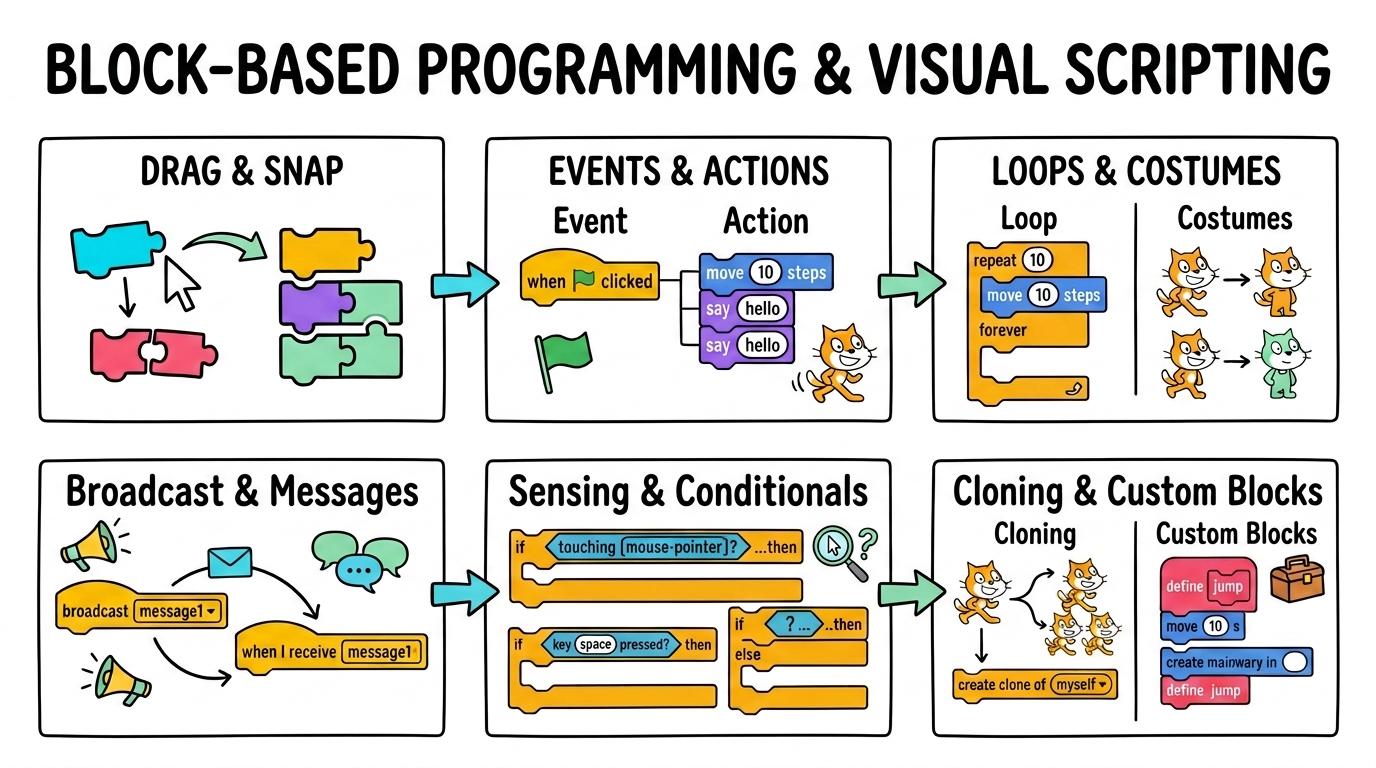
Block-Based Programming & Visual Scripting
1
2
3
4
5
6
Master visual programming by snapping together color-coded logic blocks in environments like ScratchJr and Scratch to create interactive stories, animations, and games.
Drag & Snap
Drag and connect visual code blocks to execute simple motion sequences.
Let's Go!
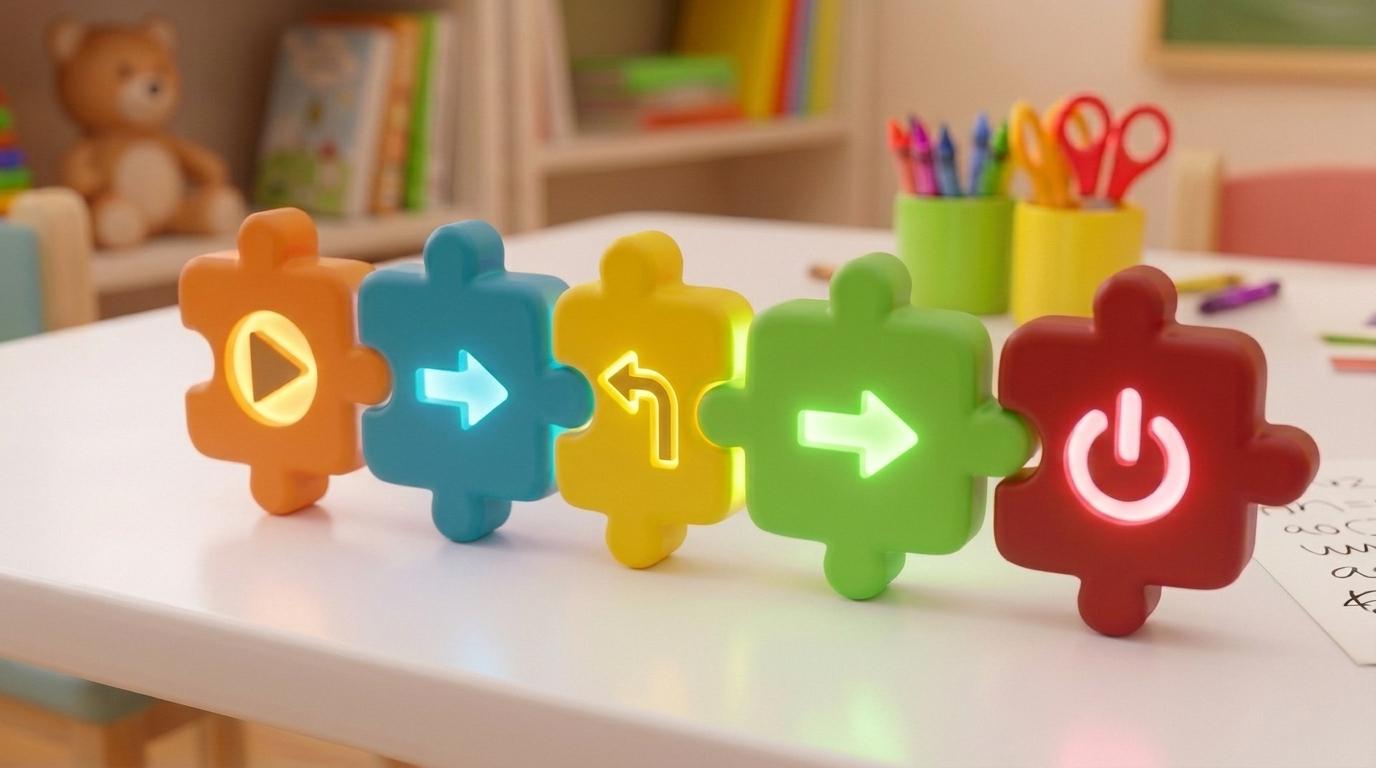
Routine: See Think Wonder
Look at these color-coded puzzle pieces. What happens when you snap two of them together?
Teacher note: Facilitate the See Think Wonder routine for 2–3 minutes. Encourage students to connect the prompt to Form (Digital code uses structured blocks to communicate instructions to sprites.).
Learn
In block-based programming environments like ScratchJr, instructions are shaped like visual puzzle pieces. Motion blocks move sprites across the screen, and trigger blocks start the action when tapped. In computing, digital code uses structured blocks to communicate instructions to sprites. As you explore the interactive Block Coding Simulator below, focus on how to independently snaps motion blocks in correct order and runs the script to move a character.
Script Workspace is Empty
Select blocks from the palette on the left to build your program stack.
AST StructureEmpty StackStack must initiate with an Event Hat block.
Execution FlowSequentialChecks linear vs iterative control branches.
Loop SafetySafeZero infinite loop hanging detected.
Clone Lifecycle0 ActiveClean garbage collection via delete-clone.
Block Tree Structure & GrammarValid Grammar
Assemble blocks in the Studio to inspect the syntax tree.
Runtime Trace Log & Performance60 FPS
| Step | Block Instruction | Sprite (X, Y) | Variables | Status |
|---|---|---|---|---|
| No script execution traces yet. Click 🚩 Go to record runtime data. | ||||
Apply Simulator Skills • Try it yourself
Connect Movement Blocks
🚀 Open a practice space
Or try locally: 🍓 Raspberry Pi Projects
🌟 Student Project GuideSuccess Criteria & WAGOLL (What A Good One Looks Like)
🎯 Task Success Criteria (Rubric)
Foundation
Recognises block shapes with teacher assistance.
Developing
Drags and snaps motion blocks together in a single script.
Secure (Goal)
Independently snaps motion blocks in correct order and runs the script to move a character.
Mastery
Explains how block order changes character movement and fixes detached blocks.
👀 What A Good One Looks Like (WAGOLL)
Exemplar of 2
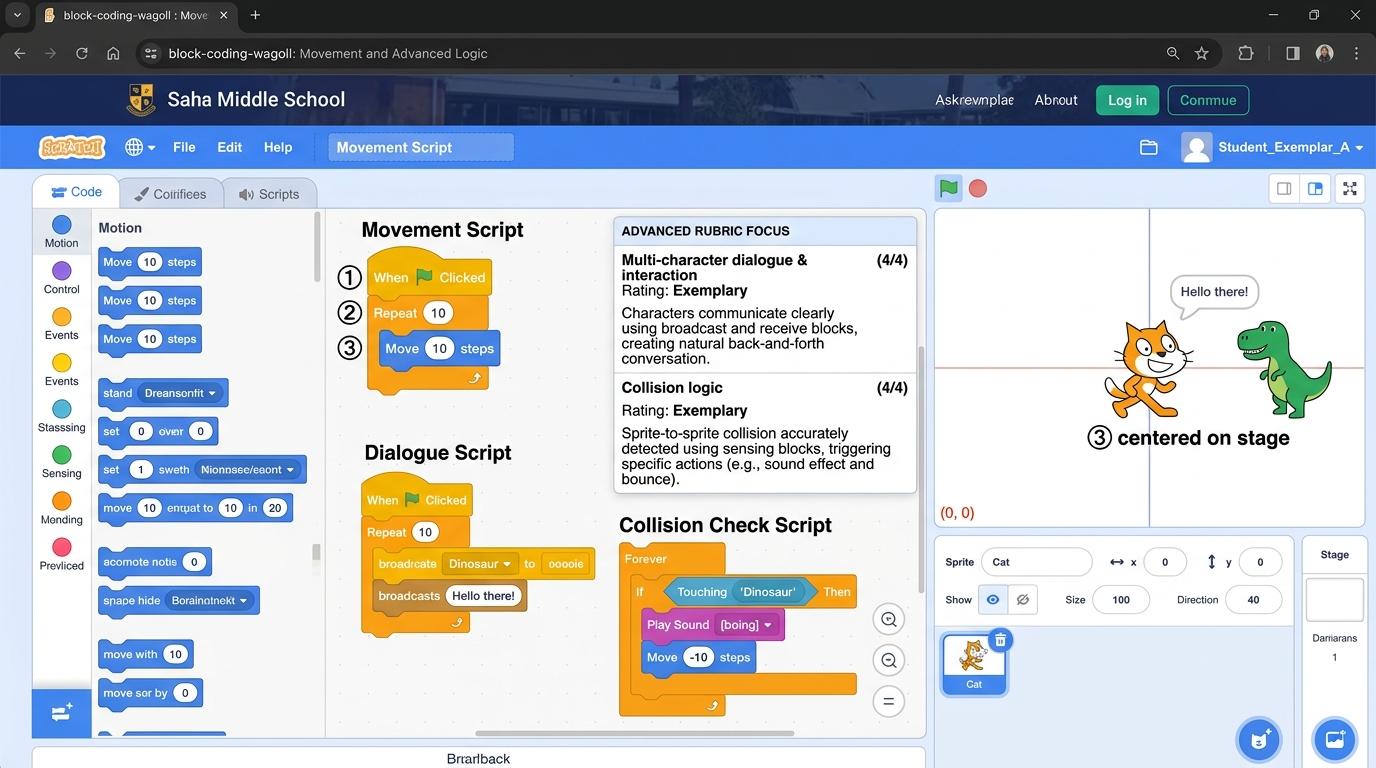 ⭐ Mastering Standard
 ⭐ Mastering Standard
📁
Save to Your Website Portfolio:
When you finish creating your project in your software, copy the share link or take a screenshot and publish it onto your student portfolio website!
Reflect
Learning check
Teacher setup, curriculum links and progress descriptors
Spark support
Routine: See Think Wonder
Teacher notes: Facilitate the See Think Wonder routine for 2–3 minutes. Encourage students to connect the prompt to Form (Digital code uses structured blocks to communicate instructions to sprites.).
Achievement pathway
- Foundation: Recognises block shapes with teacher assistance.
- Developing: Drags and snaps motion blocks together in a single script.
- Secure: Independently snaps motion blocks in correct order and runs the script to move a character.
- Mastering: Explains how block order changes character movement and fixes detached blocks.
Curriculum links
Curriculum strand: AP.01.B.1.1
Outcome: BLCK.01.B.1.1 — Drag and connect visual code blocks to execute simple motion sequences.
PYP: Form · Digital code uses structured blocks to communicate instructions to sprites.
Learner profile: Inquirer
Competency tags
Gate support
Accessibility alternative: Students may verbally explain or point to the correct answer for "What happens when you snap a Move Right block after a Green Flag block?" with a teacher or teaching assistant.
Teacher override: allow
Locked level
Level 2: Events & Actions
Complete the previous learning check to unlock this next level.
Events & Actions
Trigger sprite scripts using interactive event blocks like key presses and sprite clicks.
Learning objective
Learn how event blocks trigger specific scripts when keys are pressed or characters are clicked.
Let's Go!
Routine: Zoom In
Notice how event blocks have a rounded hat top. Why do you think no blocks can snap above them?
Teacher note: Facilitate the Zoom In routine for 2–3 minutes. Encourage students to connect the prompt to Function (Events allow digital programs to respond instantly to user interactions.).
Learn
Event blocks act as program starters. Because they trigger scripts based on user input—such as clicking a flag, pressing a key, or tapping a sprite—they always sit at the top of a block stack. In computing, events allow digital programs to respond instantly to user interactions. As you explore the interactive Block Coding Simulator below, focus on how to create interactive scripts using 'when space key pressed' and 'when this sprite clicked'.
Script Workspace is Empty
Select blocks from the palette on the left to build your program stack.
AST StructureEmpty StackStack must initiate with an Event Hat block.
Execution FlowSequentialChecks linear vs iterative control branches.
Loop SafetySafeZero infinite loop hanging detected.
Clone Lifecycle0 ActiveClean garbage collection via delete-clone.
Block Tree Structure & GrammarValid Grammar
Assemble blocks in the Studio to inspect the syntax tree.
Runtime Trace Log & Performance60 FPS
| Step | Block Instruction | Sprite (X, Y) | Variables | Status |
|---|---|---|---|---|
| No script execution traces yet. Click 🚩 Go to record runtime data. | ||||
Apply Simulator Skills • Try it yourself
Create Interactive Events
🚀 Open a practice space
Or try locally: 🍓 Raspberry Pi Projects
🌟 Student Project GuideSuccess Criteria & WAGOLL (What A Good One Looks Like)
🎯 Task Success Criteria (Rubric)
Foundation
Identifies event blocks by their curved top hat shape.
Developing
Connects event blocks to movement and sound actions.
Secure (Goal)
Creates interactive scripts using 'when space key pressed' and 'when this sprite clicked'.
Mastery
Designs an interactive scene where multiple keys control different character actions.
👀 What A Good One Looks Like (WAGOLL)
Exemplar of 2
⭐ Mastering Standard⭐ Mastering Standard📁
Save to Your Website Portfolio:
When you finish creating your project in your software, copy the share link or take a screenshot and publish it onto your student portfolio website!
Reflect
Learning check
Teacher setup, curriculum links and progress descriptors
Spark support
Routine: Zoom In
Teacher notes: Facilitate the Zoom In routine for 2–3 minutes. Encourage students to connect the prompt to Function (Events allow digital programs to respond instantly to user interactions.).
Achievement pathway
- Foundation: Identifies event blocks by their curved top hat shape.
- Developing: Connects event blocks to movement and sound actions.
- Secure: Creates interactive scripts using 'when space key pressed' and 'when this sprite clicked'.
- Mastering: Designs an interactive scene where multiple keys control different character actions.
Curriculum links
Curriculum strand: AP.01.B.1.1
Outcome: BLCK.02.B.1.2 — Trigger sprite scripts using interactive event blocks like key presses and sprite clicks.
PYP: Function · Events allow digital programs to respond instantly to user interactions.
Learner profile: Communicator
Competency tags
Gate support
Accessibility alternative: Students may verbally explain or point to the correct answer for "Which event block runs code when you press a button on your keyboard?" with a teacher or teaching assistant.
Teacher override: allow
Locked level
Level 3: Loops & Costumes
Complete the previous learning check to unlock this next level.
Loops & Costumes
Combine repeat loops with costume switches to animate walking and talking characters.
Learning objective
Use repeat loops and costume switching blocks to create smooth character walking animations.
Let's Go!
Routine: Before After Slider
Compare a sprite moving without costume changes versus one switching costumes inside a repeat loop.
Teacher note: Facilitate the Before After Slider routine for 2–3 minutes. Encourage students to connect the prompt to Change (Iteration and costume changes create realistic movement and animation cycles.).
Learn
To make a sprite look like it is walking, we switch between its costume poses inside a repeat loop. Adding a tiny 'wait' block prevents the animation from playing too fast for the human eye. In computing, iteration and costume changes create realistic movement and animation cycles. As you explore the interactive Block Coding Simulator below, focus on how to construct an animated walking script using 'repeat (10)', 'next costume', and 'wait (0.1) secs'.
Script Workspace is Empty
Select blocks from the palette on the left to build your program stack.
AST StructureEmpty StackStack must initiate with an Event Hat block.
Execution FlowSequentialChecks linear vs iterative control branches.
Loop SafetySafeZero infinite loop hanging detected.
Clone Lifecycle0 ActiveClean garbage collection via delete-clone.
Block Tree Structure & GrammarValid Grammar
Assemble blocks in the Studio to inspect the syntax tree.
Runtime Trace Log & Performance60 FPS
| Step | Block Instruction | Sprite (X, Y) | Variables | Status |
|---|---|---|---|---|
| No script execution traces yet. Click 🚩 Go to record runtime data. | ||||
Apply Simulator Skills • Try it yourself
Animate a Walking Sprite
🚀 Open a practice space
Or try locally: 🍓 Raspberry Pi Projects
🌟 Student Project GuideSuccess Criteria & WAGOLL (What A Good One Looks Like)
🎯 Task Success Criteria (Rubric)
Foundation
Recognises repeat C-blocks in Scratch.
Developing
Places costume switch blocks inside a repeat loop.
Secure (Goal)
Constructs an animated walking script using 'repeat (10)', 'next costume', and 'wait (0.1) secs'.
Mastery
Adjusts loop count and wait timing to optimize animation speed and smoothness.
👀 What A Good One Looks Like (WAGOLL)
Exemplar of 2
⭐ Mastering Standard⭐ Mastering Standard📁
Save to Your Website Portfolio:
When you finish creating your project in your software, copy the share link or take a screenshot and publish it onto your student portfolio website!
Reflect
Learning check
Teacher setup, curriculum links and progress descriptors
Spark support
Routine: Before After Slider
Teacher notes: Facilitate the Before After Slider routine for 2–3 minutes. Encourage students to connect the prompt to Change (Iteration and costume changes create realistic movement and animation cycles.).
Achievement pathway
- Foundation: Recognises repeat C-blocks in Scratch.
- Developing: Places costume switch blocks inside a repeat loop.
- Secure: Constructs an animated walking script using 'repeat (10)', 'next costume', and 'wait (0.1) secs'.
- Mastering: Adjusts loop count and wait timing to optimize animation speed and smoothness.
Curriculum links
Curriculum strand: AP.02.B.1.1
Outcome: BLCK.03.B.1.3 — Combine repeat loops with costume switches to animate walking and talking characters.
PYP: Change · Iteration and costume changes create realistic movement and animation cycles.
Learner profile: Thinker
Competency tags
Gate support
Accessibility alternative: Students may verbally explain or point to the correct answer for "Which block combination creates a repeating walking animation?" with a teacher or teaching assistant.
Teacher override: allow
Locked level
Level 4: Broadcast & Messages
Complete the previous learning check to unlock this next level.
Broadcast & Messages
Synchronize multi-character conversations and scene transitions using broadcast messaging.
Learning objective
Understand how 'broadcast message' and 'when I receive message' blocks coordinate actions across multiple sprites.
Let's Go!
Routine: Chalk Talk
How do actors on a stage know when it's their turn to speak?
How do Scratch sprites do the same?
Teacher note: Facilitate the Chalk Talk routine for 2–3 minutes. Encourage students to connect the prompt to Connection (Inter-sprite communication enables synchronized storytelling and scene changes.).
Learn
Broadcast blocks send invisible signal messages across a Scratch project. When Sprite A sends 'broadcast [message1]', Sprite B hears it via its 'when I receive [message1]' event block and starts its response. In computing, inter-sprite communication enables synchronized storytelling and scene changes. As you explore the interactive Block Coding Simulator below, focus on how to build a synchronized two-character dialogue story using broadcast messages.
Script Workspace is Empty
Select blocks from the palette on the left to build your program stack.
AST StructureEmpty StackStack must initiate with an Event Hat block.
Execution FlowSequentialChecks linear vs iterative control branches.
Loop SafetySafeZero infinite loop hanging detected.
Clone Lifecycle0 ActiveClean garbage collection via delete-clone.
Block Tree Structure & GrammarValid Grammar
Assemble blocks in the Studio to inspect the syntax tree.
Runtime Trace Log & Performance60 FPS
| Step | Block Instruction | Sprite (X, Y) | Variables | Status |
|---|---|---|---|---|
| No script execution traces yet. Click 🚩 Go to record runtime data. | ||||
Apply Simulator Skills • Try it yourself
Create a Synchronized Dialogue
🚀 Open a practice space
Or try locally: 🍓 Raspberry Pi Projects
🌟 Student Project GuideSuccess Criteria & WAGOLL (What A Good One Looks Like)
🎯 Task Success Criteria (Rubric)
Foundation
Identifies broadcast blocks in the Events category.
Developing
Sends a broadcast message from one sprite to another.
Secure (Goal)
Builds a synchronized two-character dialogue story using broadcast messages.
Mastery
Debugs message timing errors when multiple broadcasts conflict during complex stories.
👀 What A Good One Looks Like (WAGOLL)
Exemplar of 2
⭐ Mastering Standard⭐ Mastering Standard📁
Save to Your Website Portfolio:
When you finish creating your project in your software, copy the share link or take a screenshot and publish it onto your student portfolio website!
Reflect
Learning check
Teacher setup, curriculum links and progress descriptors
Spark support
Routine: Chalk Talk
Teacher notes: Facilitate the Chalk Talk routine for 2–3 minutes. Encourage students to connect the prompt to Connection (Inter-sprite communication enables synchronized storytelling and scene changes.).
Achievement pathway
- Foundation: Identifies broadcast blocks in the Events category.
- Developing: Sends a broadcast message from one sprite to another.
- Secure: Builds a synchronized two-character dialogue story using broadcast messages.
- Mastering: Debugs message timing errors when multiple broadcasts conflict during complex stories.
Curriculum links
Curriculum strand: AP.02.B.1.1
Outcome: BLCK.04.B.1.4 — Synchronize multi-character conversations and scene transitions using broadcast messaging.
PYP: Connection · Inter-sprite communication enables synchronized storytelling and scene changes.
Learner profile: Principled
Competency tags
Gate support
Accessibility alternative: Students may verbally explain or point to the correct answer for "Which block allows Sprite A to trigger a script on Sprite B?" with a teacher or teaching assistant.
Teacher override: allow
Locked level
Level 5: Sensing & Conditionals
Complete the previous learning check to unlock this next level.
Sensing & Conditionals
Build interactive games using 'if-then' conditional blocks combined with color/sprite sensing.
Learning objective
Apply 'if-then' blocks and sensing blocks ('touching sprite?', 'key pressed?') to detect game collisions.
Let's Go!
Routine: See Think Wonder
Look at this maze game script. What happens the moment the sprite touches the red wall color?
Teacher note: Facilitate the See Think Wonder routine for 2–3 minutes. Encourage students to connect the prompt to Perspective (Conditional sensing enables games to detect collisions, boundaries, and scores.).
Learn
Sensing blocks return TRUE or FALSE answers. When placed inside an 'if-then' C-block inside a 'forever' loop, the program constantly checks for conditions—like touching a goal, hitting an obstacle, or pressing a key. In computing, conditional sensing enables games to detect collisions, boundaries, and scores. As you explore the interactive Block Coding Simulator below, focus on how to program a maze game where touching a wall restarts the character at the beginning.
Script Workspace is Empty
Select blocks from the palette on the left to build your program stack.
AST StructureEmpty StackStack must initiate with an Event Hat block.
Execution FlowSequentialChecks linear vs iterative control branches.
Loop SafetySafeZero infinite loop hanging detected.
Clone Lifecycle0 ActiveClean garbage collection via delete-clone.
Block Tree Structure & GrammarValid Grammar
Assemble blocks in the Studio to inspect the syntax tree.
Runtime Trace Log & Performance60 FPS
| Step | Block Instruction | Sprite (X, Y) | Variables | Status |
|---|---|---|---|---|
| No script execution traces yet. Click 🚩 Go to record runtime data. | ||||
Apply Simulator Skills • Try it yourself
Program Maze Collision Logic
🚀 Open a practice space
Or try locally: 🍓 Raspberry Pi Projects
🌟 Student Project GuideSuccess Criteria & WAGOLL (What A Good One Looks Like)
🎯 Task Success Criteria (Rubric)
Foundation
Recognises hexagonal Sensing blocks fitting into IF conditional slots.
Developing
Inserts a 'touching color?' sensing block inside an 'if-then' statement.
Secure (Goal)
Programs a maze game where touching a wall restarts the character at the beginning.
Mastery
Combines 'forever' loops with multiple conditional sensing blocks for score keeping.
👀 What A Good One Looks Like (WAGOLL)
Exemplar of 2
⭐ Mastering Standard⭐ Mastering Standard📁
Save to Your Website Portfolio:
When you finish creating your project in your software, copy the share link or take a screenshot and publish it onto your student portfolio website!
Reflect
Learning check
Teacher setup, curriculum links and progress descriptors
Spark support
Routine: See Think Wonder
Teacher notes: Facilitate the See Think Wonder routine for 2–3 minutes. Encourage students to connect the prompt to Perspective (Conditional sensing enables games to detect collisions, boundaries, and scores.).
Achievement pathway
- Foundation: Recognises hexagonal Sensing blocks fitting into IF conditional slots.
- Developing: Inserts a 'touching color?' sensing block inside an 'if-then' statement.
- Secure: Programs a maze game where touching a wall restarts the character at the beginning.
- Mastering: Combines 'forever' loops with multiple conditional sensing blocks for score keeping.
Curriculum links
Curriculum strand: AP.03.B.1.1
Outcome: BLCK.05.B.1.5 — Build interactive games using 'if-then' conditional blocks combined with color/sprite sensing.
PYP: Perspective · Conditional sensing enables games to detect collisions, boundaries, and scores.
Learner profile: Knowledgeable
Competency tags
Gate support
Accessibility alternative: Students may verbally explain or point to the correct answer for "Which sensing block detects when two sprites bump into each other?" with a teacher or teaching assistant.
Teacher override: allow
Locked level
Level 6: Cloning & Custom Blocks
Complete the previous learning check to unlock this next level.
Cloning & Custom Blocks
Optimize complex Scratch projects using sprite cloning and reusable custom 'My Blocks'.
Learning objective
Create custom 'My Blocks' (procedures) and manage dynamic sprite cloning for advanced game mechanics.
Let's Go!
Routine: Deconstruct
Examine a rain simulation in Scratch. How can one sprite produce hundreds of falling raindrops?
Teacher note: Facilitate the Deconstruct routine for 2–3 minutes. Encourage students to connect the prompt to Reflection (Cloning and procedural abstraction allow scalable game engines and modular code.).
Learn
Cloning allows a single master sprite to spawn multiple independent copies on demand during gameplay. Custom 'My Blocks' allow developers to group repetitive scripts into clean, reusable custom blocks with parameters. In computing, cloning and procedural abstraction allow scalable game engines and modular code. As you explore the interactive Block Coding Simulator below, focus on how to define a custom 'My Block' procedure to modularize repetitive jump or particle physics code.
Script Workspace is Empty
Select blocks from the palette on the left to build your program stack.
AST StructureEmpty StackStack must initiate with an Event Hat block.
Execution FlowSequentialChecks linear vs iterative control branches.
Loop SafetySafeZero infinite loop hanging detected.
Clone Lifecycle0 ActiveClean garbage collection via delete-clone.
Block Tree Structure & GrammarValid Grammar
Assemble blocks in the Studio to inspect the syntax tree.
Runtime Trace Log & Performance60 FPS
| Step | Block Instruction | Sprite (X, Y) | Variables | Status |
|---|---|---|---|---|
| No script execution traces yet. Click 🚩 Go to record runtime data. | ||||
Apply Simulator Skills • Try it yourself
Build a Particle / Obstacle Spawner
🚀 Open a practice space
Or try locally: 🍓 Raspberry Pi Projects
🌟 Student Project GuideSuccess Criteria & WAGOLL (What A Good One Looks Like)
🎯 Task Success Criteria (Rubric)
Foundation
Understands that cloning duplicates sprites dynamically during execution.
Developing
Uses 'create clone of myself' and 'when I start as a clone' blocks.
Secure (Goal)
Defines a custom 'My Block' procedure to modularize repetitive jump or particle physics code.
Mastery
Evaluates project performance and cleans up unused clones using 'delete this clone'.
👀 What A Good One Looks Like (WAGOLL)
Exemplar of 2
⭐ Mastering Standard⭐ Mastering Standard📁
Save to Your Website Portfolio:
When you finish creating your project in your software, copy the share link or take a screenshot and publish it onto your student portfolio website!
Reflect
Learning check
Teacher setup, curriculum links and progress descriptors
Spark support
Routine: Deconstruct
Teacher notes: Facilitate the Deconstruct routine for 2–3 minutes. Encourage students to connect the prompt to Reflection (Cloning and procedural abstraction allow scalable game engines and modular code.).
Achievement pathway
- Foundation: Understands that cloning duplicates sprites dynamically during execution.
- Developing: Uses 'create clone of myself' and 'when I start as a clone' blocks.
- Secure: Defines a custom 'My Block' procedure to modularize repetitive jump or particle physics code.
- Mastering: Evaluates project performance and cleans up unused clones using 'delete this clone'.
Curriculum links
Curriculum strand: AP.03.B.1.1
Outcome: BLCK.06.B.1.6 — Optimize complex Scratch projects using sprite cloning and reusable custom 'My Blocks'.
PYP: Reflection · Cloning and procedural abstraction allow scalable game engines and modular code.
Learner profile: Reflective
Competency tags
Gate support
Accessibility alternative: Students may verbally explain or point to the correct answer for "What block allows you to create reusable custom procedure blocks in Scratch?" with a teacher or teaching assistant.
Teacher override: allow