
Learning objective
Software UI & Tools
General Software Operations
1
2
3
4
5
6
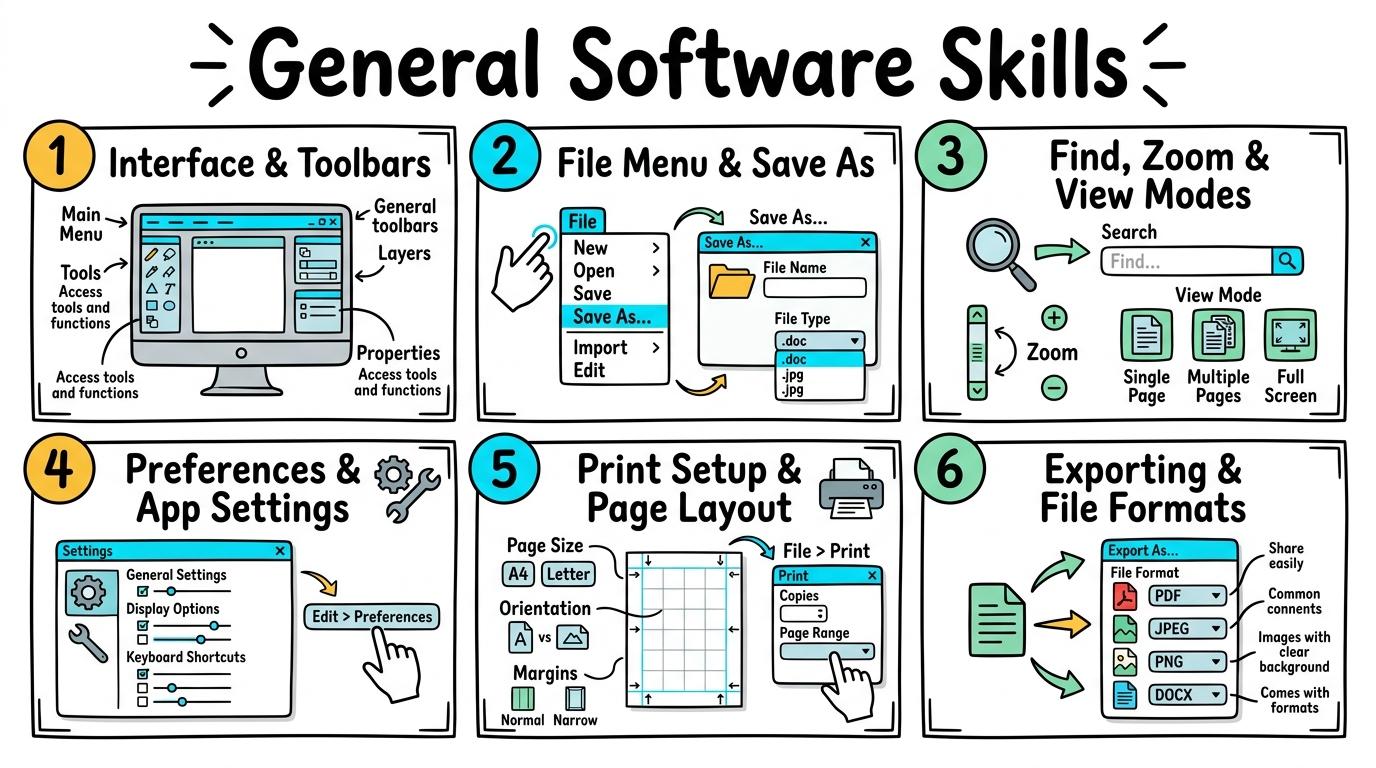
Mastering essential software interfaces: navigating menu bars, toolbar settings, view modes, printing options, and exporting files across desktop and web applications.
UI & Toolbars
Identifying standard software interface elements.
Let's Go!
Routine: See, Think, Wonder
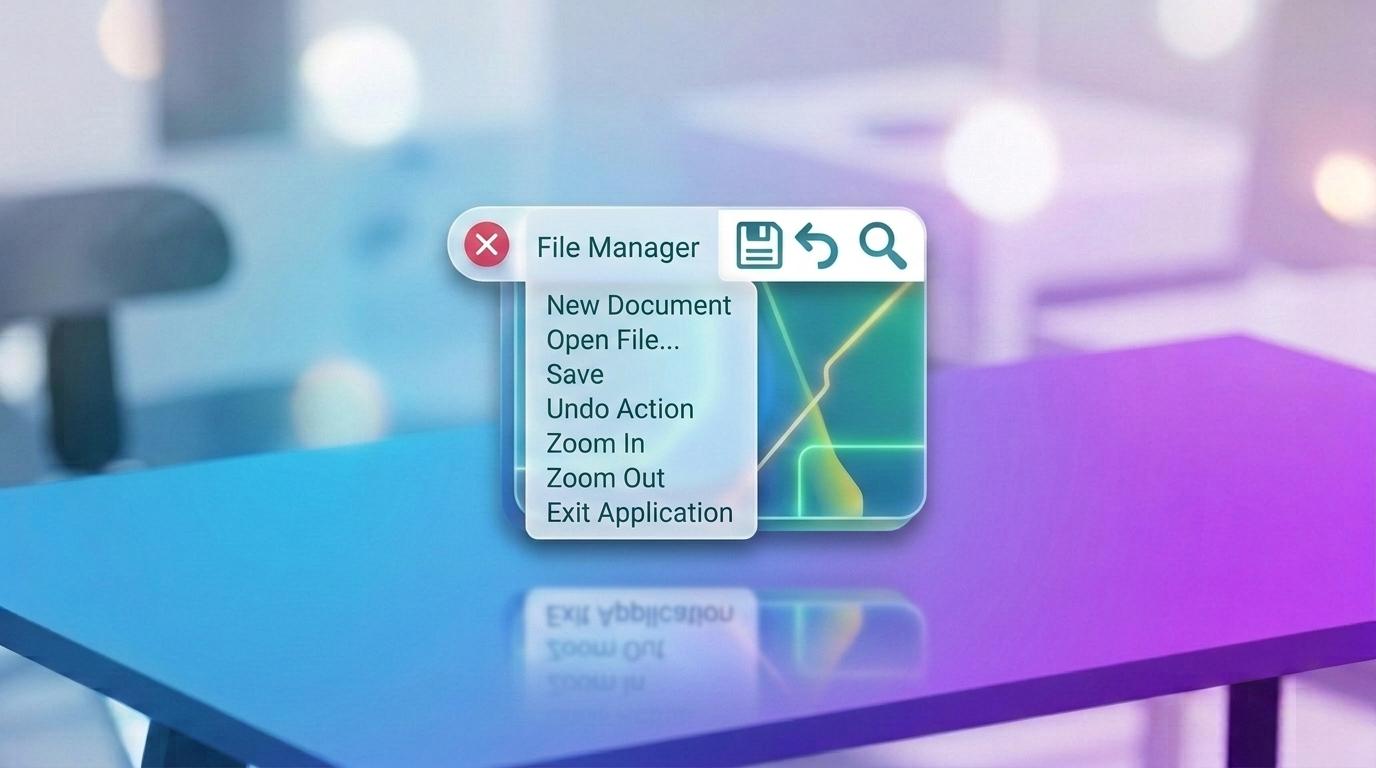
Look at these three different apps (a word processor, painting tool, and browser). What buttons look identical in all three?
Teacher note: Facilitate the See, Think, Wonder routine for 2–3 minutes. Encourage students to connect the prompt to Form (Digital tools feature consistent interface patterns to help us navigate.).
Learn
Most software uses a consistent design pattern. At the top of the window, you will find the Title Bar, Menu Bar (File, Edit, View), and Toolbars filled with action buttons. Learning these universal patterns means you can open almost any new program and instantly know how to use it!
Temperate rainforests receive over 200 centimeters of rainfall annually. Giant coniferous trees support thousands of plant and animal species in an intricate canopy food web.
Figure 1.1: Multi-tier Forest Biome Diagram
Apply Simulator Skills • Try it yourself
Identify Common UI Controls
🚀 Open a practice space
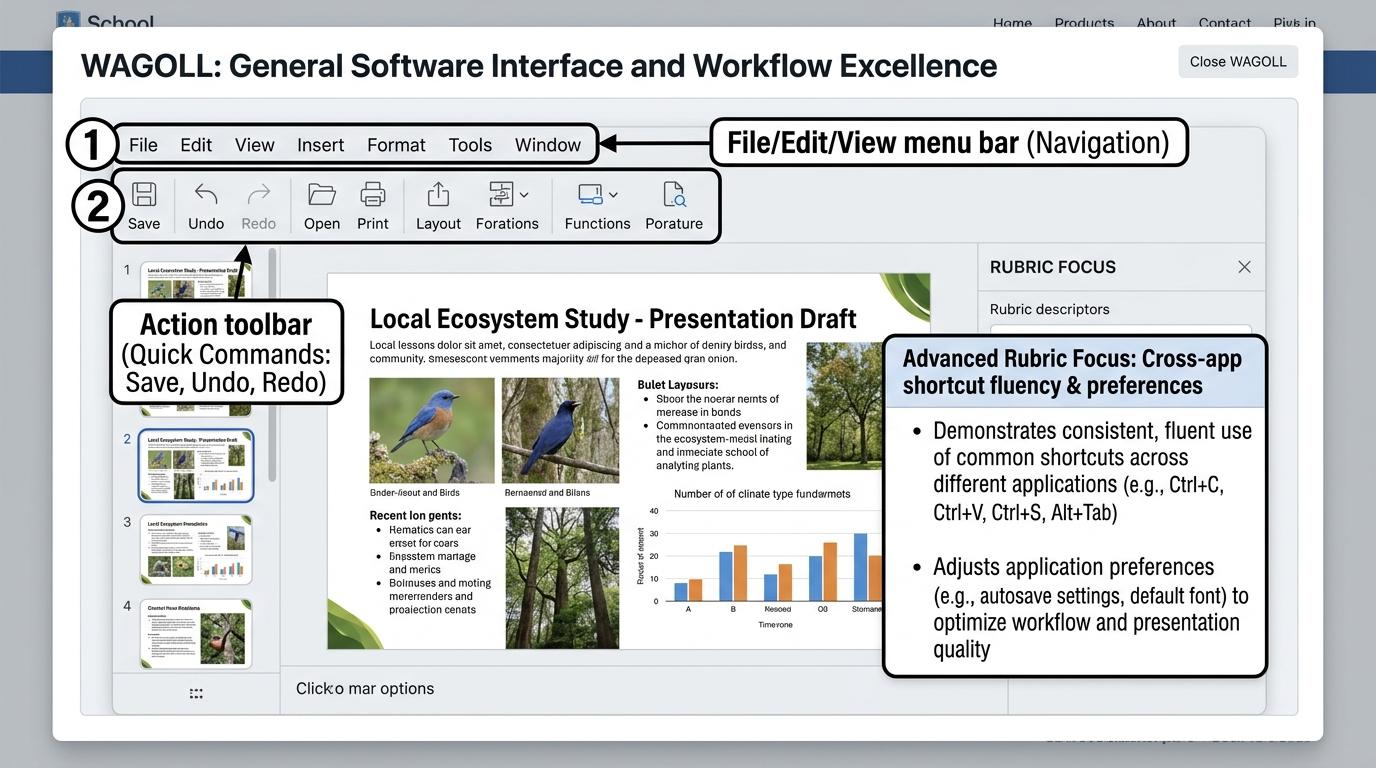
🌟 Student Project GuideSuccess Criteria & WAGOLL (What A Good One Looks Like)
🎯 Task Success Criteria (Rubric)
Foundation
Recognise the main window and close button.
Developing
Identify toolbar icons for common actions.
Secure (Goal)
Locate menu bars, toolbars, and status bars accurately.
Mastery
Explain how common icons (save, print, undo) work across different apps.
👀 What A Good One Looks Like (WAGOLL)
Exemplar of 2
 ⭐ Mastering Standard
 ⭐ Mastering Standard
📁
Save to Your Website Portfolio:
When you finish creating your project in your software, copy the share link or take a screenshot and publish it onto your student portfolio website!
Reflect
Learning check
Teacher setup, curriculum links and progress descriptors
Spark support
Routine: See, Think, Wonder
Teacher notes: Facilitate the See, Think, Wonder routine for 2–3 minutes. Encourage students to connect the prompt to Form (Digital tools feature consistent interface patterns to help us navigate.).
Achievement pathway
- Foundation: Recognise the main window and close button.
- Developing: Identify toolbar icons for common actions.
- Secure: Locate menu bars, toolbars, and status bars accurately.
- Mastering: Explain how common icons (save, print, undo) work across different apps.
Curriculum links
Curriculum strand: CM.01.B.1.1
Outcome: SOFT-O-01 — Identifying standard software interface elements.
PYP: Form · Digital tools feature consistent interface patterns to help us navigate.
Learner profile: Inquirer
Competency tags
Gate support
Accessibility alternative: Students may verbally explain or point to the correct answer for "Which part of a software window usually contains commands like File, Edit, and View?" with a teacher or teaching assistant.
Teacher override: allow
Locked level
Level 2: File Menu & Storage
Complete the previous learning check to unlock this next level.
File Menu & Storage
Executing essential File menu operations.
Learning objective
Learning About: File Menu. Learning To: Execute New, Open, Save, and Save As. Learning To Be: Principled.
Let's Go!
Routine: Think, Puzzle, Explore
What is the difference between clicking 'Save' and clicking 'Save As'?
When would you need to use 'Save As'?
Teacher note: Facilitate the Think, Puzzle, Explore routine for 2–3 minutes. Encourage students to connect the prompt to Function (Managing project states prevents work loss and supports revision.).
Learn
The File menu is your command center for document life cycles. 'New' creates a fresh blank document, 'Open' loads an existing project, 'Save' updates your current file, and 'Save As' lets you save a brand new copy with a different file name or location. In computing, managing project states prevents work loss and supports revision. As you explore the interactive Software Simulator below, focus on how to use the File menu confidently to create, open, and save files.
Temperate rainforests receive over 200 centimeters of rainfall annually. Giant coniferous trees support thousands of plant and animal species in an intricate canopy food web.
Figure 1.1: Multi-tier Forest Biome Diagram
Apply Simulator Skills • Try it yourself
Practice Document Lifecycle Operations
🚀 Open a practice space
🌟 Student Project GuideSuccess Criteria & WAGOLL (What A Good One Looks Like)
🎯 Task Success Criteria (Rubric)
Foundation
Click Save when prompted.
Developing
Differentiate between Save and Save As.
Secure (Goal)
Use the File menu confidently to create, open, and save files.
Mastery
Explain when to use 'Save As' to create a new version without overwriting the original.
👀 What A Good One Looks Like (WAGOLL)
Exemplar of 2
⭐ Mastering Standard⭐ Mastering Standard📁
Save to Your Website Portfolio:
When you finish creating your project in your software, copy the share link or take a screenshot and publish it onto your student portfolio website!
Reflect
Learning check
Teacher setup, curriculum links and progress descriptors
Spark support
Routine: Think, Puzzle, Explore
Teacher notes: Facilitate the Think, Puzzle, Explore routine for 2–3 minutes. Encourage students to connect the prompt to Function (Managing project states prevents work loss and supports revision.).
Achievement pathway
- Foundation: Click Save when prompted.
- Developing: Differentiate between Save and Save As.
- Secure: Use the File menu confidently to create, open, and save files.
- Mastering: Explain when to use 'Save As' to create a new version without overwriting the original.
Curriculum links
Curriculum strand: CM.01.B.1.2
Outcome: SOFT-O-02 — Executing essential File menu operations.
PYP: Function · Managing project states prevents work loss and supports revision.
Learner profile: Principled
Competency tags
Gate support
Accessibility alternative: Students may verbally explain or point to the correct answer for "You want to save a copy of your document under a NEW filename without changing the original file. Which command should you choose?" with a teacher or teaching assistant.
Teacher override: allow
Locked level
Level 3: Edit & View Menus
Complete the previous learning check to unlock this next level.
Edit & View Menus
Navigating Edit commands, Find tools, and View modes.
Learning objective
Learning About: Edit & View. Learning To: Use Find/Replace, Zoom, and View Modes. Learning To Be: Thinker.
Let's Go!
Routine: Zoom In
Look at this cluttered screen. How can changing the View mode or Zoom level help you focus on editing?
Teacher note: Facilitate the Zoom In routine for 2–3 minutes. Encourage students to connect the prompt to Change (Customizing workspace views and search tools increases productivity.).
Learn
The Edit menu gives you power tools like Find & Replace (Ctrl+F / Ctrl+H) to instantly locate or swap words across giant documents. The View menu lets you control your workspace display—toggle rulers, enable gridlines, zoom in for detailed work, or enter Full Screen mode for presentations.
Volcanoes: Earth's Fiery Chimneys!
Melted subterranean rock called magma rises through vents. When it erupts onto the surface, it becomes glowing red lava!
🌋🔥
My Study Notes
Apply Simulator Skills • Try it yourself
Master View Controls & Find Tool
🚀 Open a practice space
🌟 Student Project GuideSuccess Criteria & WAGOLL (What A Good One Looks Like)
🎯 Task Success Criteria (Rubric)
Foundation
Adjust the zoom level on screen.
Developing
Use Find (Ctrl+F) to locate a specific word.
Secure (Goal)
Navigate View modes (Full Screen, Gridlines) and use Find & Replace efficiently.
Mastery
Optimize interface view modes for different tasks like drafting, proofreading, and presenting.
👀 What A Good One Looks Like (WAGOLL)
Exemplar of 2
⭐ Mastering Standard⭐ Mastering Standard📁
Save to Your Website Portfolio:
When you finish creating your project in your software, copy the share link or take a screenshot and publish it onto your student portfolio website!
Reflect
Learning check
Teacher setup, curriculum links and progress descriptors
Spark support
Routine: Zoom In
Teacher notes: Facilitate the Zoom In routine for 2–3 minutes. Encourage students to connect the prompt to Change (Customizing workspace views and search tools increases productivity.).
Achievement pathway
- Foundation: Adjust the zoom level on screen.
- Developing: Use Find (Ctrl+F) to locate a specific word.
- Secure: Navigate View modes (Full Screen, Gridlines) and use Find & Replace efficiently.
- Mastering: Optimize interface view modes for different tasks like drafting, proofreading, and presenting.
Curriculum links
Curriculum strand: CM.02.B.1.1
Outcome: SOFT-O-03 — Navigating Edit commands, Find tools, and View modes.
PYP: Change · Customizing workspace views and search tools increases productivity.
Learner profile: Thinker
Competency tags
Gate support
Accessibility alternative: Students may verbally explain or point to the correct answer for "What keyboard shortcut or menu tool allows you to search for a specific word inside a large document instantly?" with a teacher or teaching assistant.
Teacher override: allow
Locked level
Level 4: Preferences & Settings
Complete the previous learning check to unlock this next level.
Preferences & Settings
Configuring application preferences and options.
Learning objective
Learning About: App Preferences. Learning To: Adjust themes, defaults, and auto-save. Learning To Be: Balanced.
Let's Go!
Routine: Compass Points
Needs: What app settings do you need to comfortably read text on screen?
Suggestions: How can settings prevent lost work?
Teacher note: Facilitate the Compass Points routine for 2–3 minutes. Encourage students to connect the prompt to Responsibility (Personalizing system preferences optimizes accessibility and efficiency.).
Learn
Every major application has an Options or Preferences panel (often found under the File menu, Gear icon ⚙️, or App Name menu). Here you can configure Auto-Save intervals so you never lose work during crashes, adjust Dark/Light appearance themes, set default file saving locations, and customize accessibility settings.
🔌 Physical Rear Ports & Peripheral Cables
EDTECH PRO-VISION 24"
Technician Diagnostic Actions & Triage Tools
Select the correct diagnostic action below:Apply Simulator Skills • Try it yourself
Configure App Options & Auto-Save
🚀 Open a practice space
🌟 Student Project GuideSuccess Criteria & WAGOLL (What A Good One Looks Like)
🎯 Task Success Criteria (Rubric)
Foundation
Locate the Settings / Options cog icon.
Developing
Toggle visual themes (Light / Dark mode).
Secure (Goal)
Configure software preferences (auto-recovery interval, default save folder, font sizes).
Mastery
Evaluate accessibility settings (high contrast, text-to-speech, font scaling) for inclusive design.
👀 What A Good One Looks Like (WAGOLL)
Exemplar of 2
⭐ Mastering Standard⭐ Mastering Standard📁
Save to Your Website Portfolio:
When you finish creating your project in your software, copy the share link or take a screenshot and publish it onto your student portfolio website!
Reflect
Learning check
Teacher setup, curriculum links and progress descriptors
Spark support
Routine: Compass Points
Teacher notes: Facilitate the Compass Points routine for 2–3 minutes. Encourage students to connect the prompt to Responsibility (Personalizing system preferences optimizes accessibility and efficiency.).
Achievement pathway
- Foundation: Locate the Settings / Options cog icon.
- Developing: Toggle visual themes (Light / Dark mode).
- Secure: Configure software preferences (auto-recovery interval, default save folder, font sizes).
- Mastering: Evaluate accessibility settings (high contrast, text-to-speech, font scaling) for inclusive design.
Curriculum links
Curriculum strand: CM.02.B.1.2
Outcome: SOFT-O-04 — Configuring application preferences and options.
PYP: Responsibility · Personalizing system preferences optimizes accessibility and efficiency.
Learner profile: Balanced
Competency tags
Gate support
Accessibility alternative: Students may verbally explain or point to the correct answer for "Where in an application would you go to change the default font or turn on Dark Mode?" with a teacher or teaching assistant.
Teacher override: allow
Locked level
Level 5: Print Setup & Layout
Complete the previous learning check to unlock this next level.
Print Setup & Layout
Configuring print settings, margins, and print preview.
Learning objective
Learning About: Print Operations. Learning To: Configure orientation, margins, and Print to PDF. Learning To Be: Reflective.
Let's Go!
Routine: I used to think...
I used to think clicking 'Print' immediately outputs paper... Now I think checking Print Preview first saves paper because...
Teacher note: Facilitate the I used to think... routine for 2–3 minutes. Encourage students to connect the prompt to Causation (Preparing documents for physical output requires environmental and layout formatting.).
Learn
Before sending any document to a printer, ALWAYS check Print Preview! In the Print dialog (Ctrl+P), you can choose your target printer, select page orientation (Portrait = tall, Landscape = wide), set margins, choose specific page ranges, and scale content to fit onto 1 page. You can also select 'Microsoft Print to PDF' or 'Save as PDF' to create a digital proof without wasting paper.
Apply Simulator Skills • Try it yourself
Configure Print Settings & Digital PDF Proof
🚀 Open a practice space
🌟 Student Project GuideSuccess Criteria & WAGOLL (What A Good One Looks Like)
🎯 Task Success Criteria (Rubric)
Foundation
Locate the Print button and preview window.
Developing
Switch page orientation between Portrait and Landscape.
Secure (Goal)
Adjust print scale, page range, double-sided settings, and export via 'Print to PDF'.
Mastery
Audit print jobs before sending to prevent wasted paper, ink, and misaligned layouts.
👀 What A Good One Looks Like (WAGOLL)
Exemplar of 2
⭐ Mastering Standard⭐ Mastering Standard📁
Save to Your Website Portfolio:
When you finish creating your project in your software, copy the share link or take a screenshot and publish it onto your student portfolio website!
Reflect
Learning check
Teacher setup, curriculum links and progress descriptors
Spark support
Routine: I used to think...
Teacher notes: Facilitate the I used to think... routine for 2–3 minutes. Encourage students to connect the prompt to Causation (Preparing documents for physical output requires environmental and layout formatting.).
Achievement pathway
- Foundation: Locate the Print button and preview window.
- Developing: Switch page orientation between Portrait and Landscape.
- Secure: Adjust print scale, page range, double-sided settings, and export via 'Print to PDF'.
- Mastering: Audit print jobs before sending to prevent wasted paper, ink, and misaligned layouts.
Curriculum links
Curriculum strand: CM.03.B.1.1
Outcome: SOFT-O-05 — Configuring print settings, margins, and print preview.
PYP: Causation · Preparing documents for physical output requires environmental and layout formatting.
Learner profile: Reflective
Competency tags
Gate support
Accessibility alternative: Students may verbally explain or point to the correct answer for "Which page orientation should you choose when printing a wide table or horizontal presentation slide?" with a teacher or teaching assistant.
Teacher override: allow
Locked level
Level 6: Export & Conversion
Complete the previous learning check to unlock this next level.
Export & Conversion
Exporting projects across formats for interoperability.
Learning objective
Learning About: Exporting. Learning To: Convert files to PDF, PNG, CSV, or MP4 formats. Learning To Be: Knowledgeable.
Let's Go!
Routine: Step Inside
Imagine you are sending your homework project to a teacher who uses a tablet without your design app. Why is exporting as a PDF or PNG better than sending the raw project file?
Teacher note: Facilitate the Step Inside routine for 2–3 minutes. Encourage students to connect the prompt to Connection (Exporting files into standardized formats ensures compatibility across devices and audiences.).
Learn
Working project files (like .docx, .psd, or .sb3) retain all your editable layers and code blocks, but require specific software to open. When you are ready to share your final work, use File > Export or Download! Exporting turns your project into universal, flattened formats—PDF for read-only reports, PNG/JPG for images, CSV for raw data tables, and MP4 for animated videos.
Homework.docx
Puppy.jpg
Story_Chapter1.txt
Class_Anthem.mp3
Field_Trip.png
Apply Simulator Skills • Try it yourself
Export Project into Universal Formats
🚀 Open a practice space
🌟 Student Project GuideSuccess Criteria & WAGOLL (What A Good One Looks Like)
🎯 Task Success Criteria (Rubric)
Foundation
Identify file format extension options when saving.
Developing
Export a document as a read-only PDF file.
Secure (Goal)
Choose appropriate export formats (PDF for documents, PNG/JPG for graphics, CSV for data, MP4 for video) based on destination.
Mastery
Explain the difference between native editable project files (.psd, .docx, .sb3) and exported flattened distribution formats (.png, .pdf).
👀 What A Good One Looks Like (WAGOLL)
Exemplar of 2
⭐ Mastering Standard⭐ Mastering Standard📁
Save to Your Website Portfolio:
When you finish creating your project in your software, copy the share link or take a screenshot and publish it onto your student portfolio website!
Reflect
Learning check
Teacher setup, curriculum links and progress descriptors
Spark support
Routine: Step Inside
Teacher notes: Facilitate the Step Inside routine for 2–3 minutes. Encourage students to connect the prompt to Connection (Exporting files into standardized formats ensures compatibility across devices and audiences.).
Achievement pathway
- Foundation: Identify file format extension options when saving.
- Developing: Export a document as a read-only PDF file.
- Secure: Choose appropriate export formats (PDF for documents, PNG/JPG for graphics, CSV for data, MP4 for video) based on destination.
- Mastering: Explain the difference between native editable project files (.psd, .docx, .sb3) and exported flattened distribution formats (.png, .pdf).
Curriculum links
Curriculum strand: CM.03.B.1.2
Outcome: SOFT-O-06 — Exporting projects across formats for interoperability.
PYP: Connection · Exporting files into standardized formats ensures compatibility across devices and audiences.
Learner profile: Knowledgeable
Competency tags
Gate support
Accessibility alternative: Students may verbally explain or point to the correct answer for "You want to share a final project report with someone so that the formatting looks identical on ANY device and cannot be easily edited. Which format should you export to?" with a teacher or teaching assistant.
Teacher override: allow