
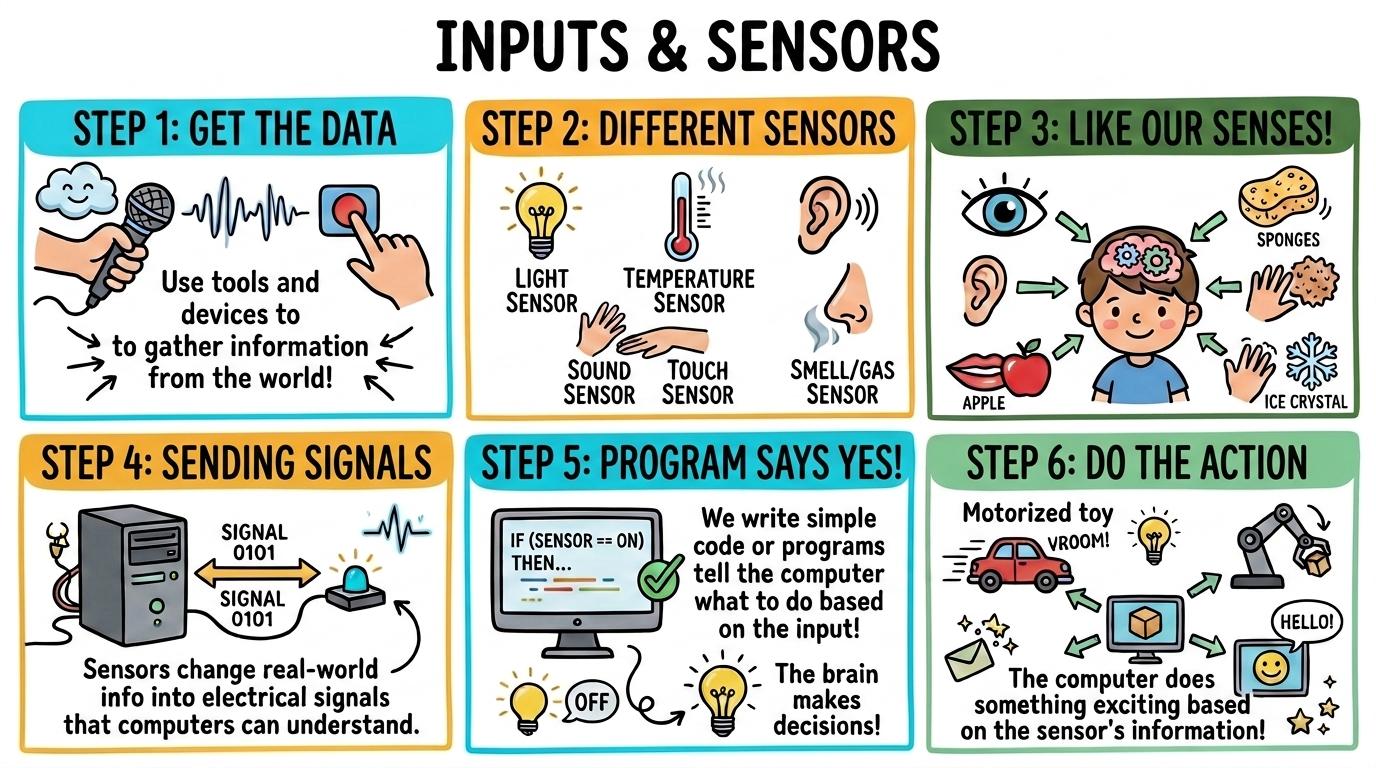
Learning objective
Inputs & Sensors
Inputs & Sensors
1
2
3
4
5
6
Explore how digital systems collect data from human users and physical environments using buttons, keyboards, touchscreens, microcontrollers, and environmental sensors to trigger computational actions.
Step 1 (Y1)
Identify and use simple physical input devices (buttons, keys, touchscreens) to trigger digital responses.
Let's Go!

Routine: See-Think-Wonder
What happens inside a controller or device when you press a button?
Teacher note: Facilitate the See-Think-Wonder routine for 2–3 minutes. Encourage students to connect the prompt to Form (Digital devices respond to human physical inputs.).
Learn
An input is how humans give instructions or data to a computer. When you press a keyboard key, tap a touchscreen, or click a mouse button, you create an input signal that tells the device what to do. In computing, digital devices respond to human physical inputs. As you explore the interactive Keyboard Mouse Simulator below, focus on how to explain that pressing a physical button sends an input signal to the computer.
🎯 Click Me!
Bubbles Popped: 0 / 3
Q
W
E
R
T
Y
U
I
O
P
A
S
D
F
G
H
J
K
L
Enter ↵
Shift ⇧
Z
X
C
V
B
N
M
⌫ Del
Tab ⇥
Spacebar
Apply Simulator Skills • Try it yourself
Interactive Input Hunt
🚀 Open a practice space
Or try locally: 🍓 Raspberry Pi micro:bit
🌟 Student Project GuideSuccess Criteria & WAGOLL (What A Good One Looks Like)
🎯 Task Success Criteria (Rubric)
Foundation
Identifies a button or key on a device.
Developing
Presses specific buttons or keys to trigger intended digital actions.
Secure (Goal)
Explains that pressing a physical button sends an input signal to the computer.
Mastery
Compares different input methods (mouse click vs touchscreen tap vs keyboard press) for controlling simple software.
👀 What A Good One Looks Like (WAGOLL)
Exemplar of 2
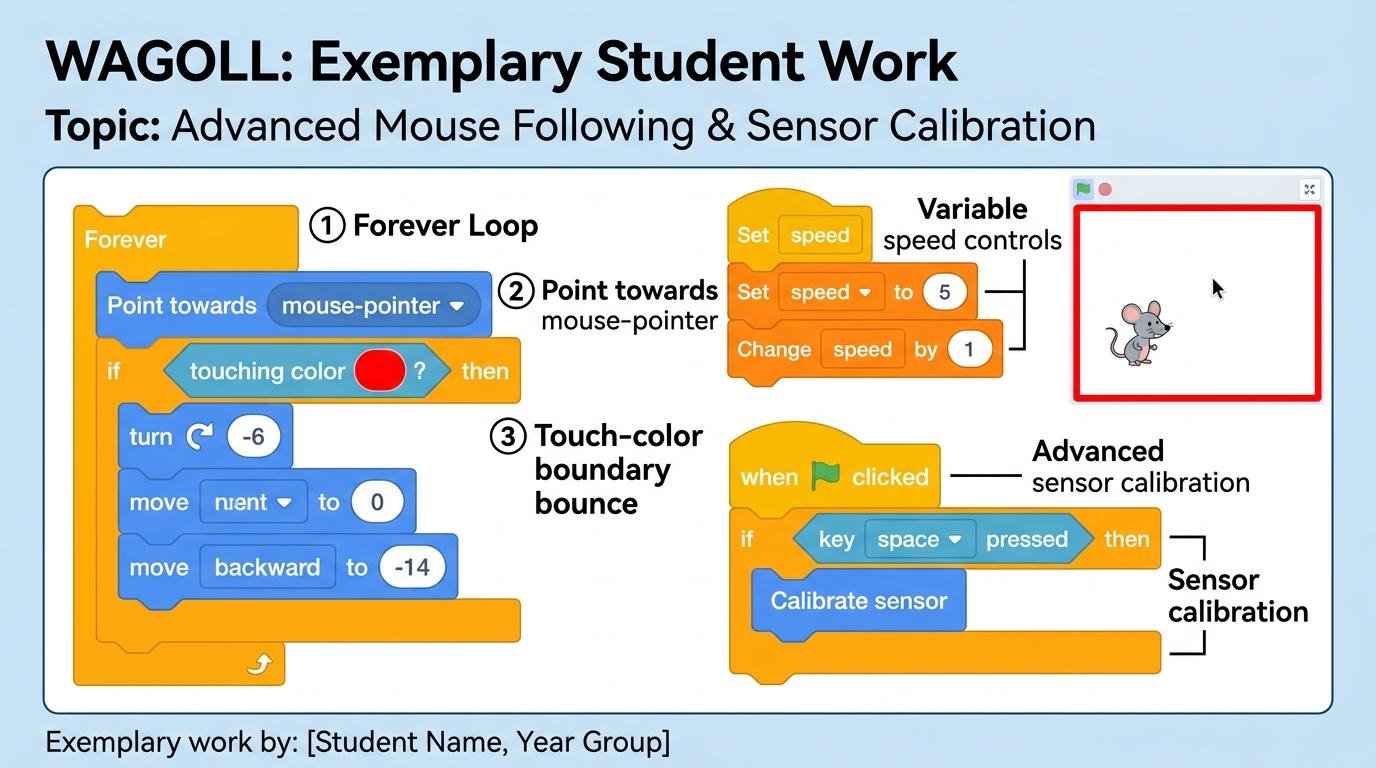 ⭐ Mastering Standard
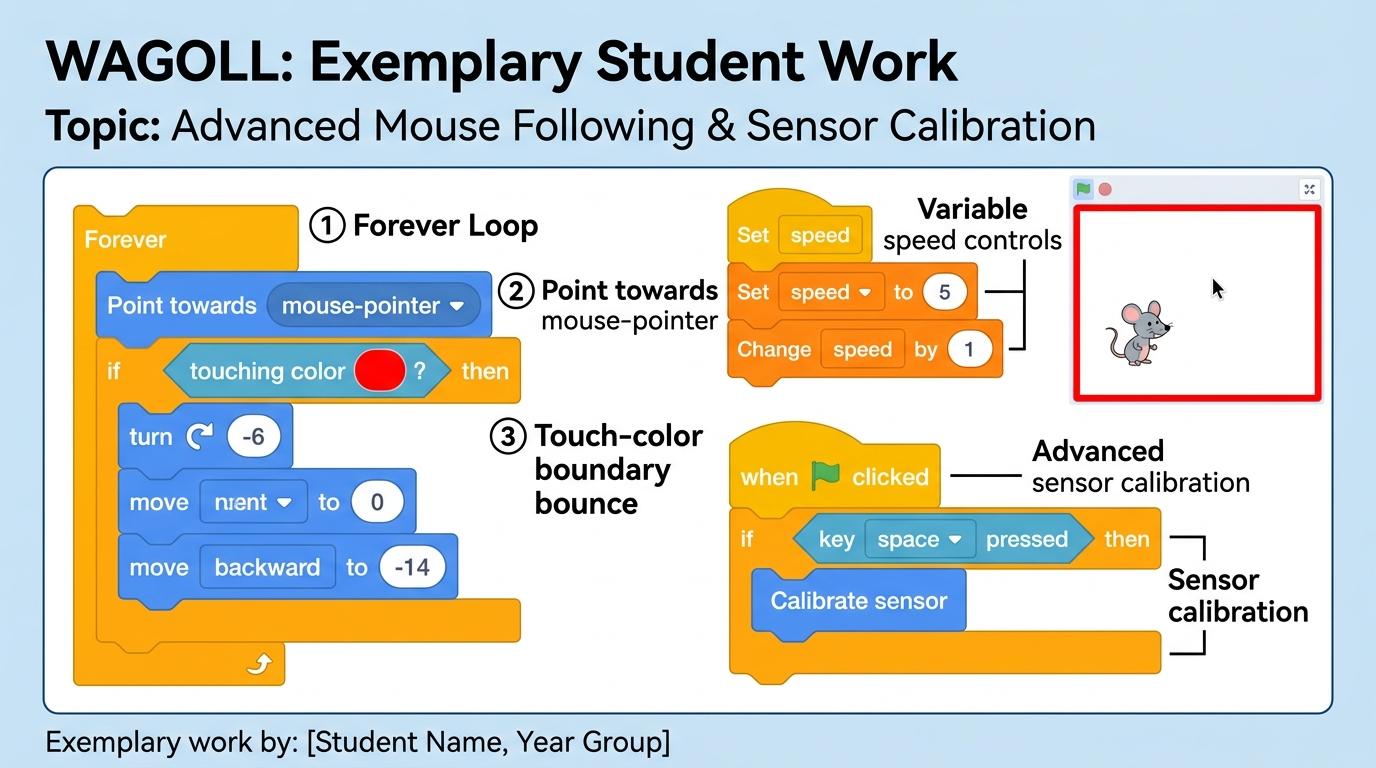 ⭐ Mastering Standard
📁
Save to Your Website Portfolio:
When you finish creating your project in your software, copy the share link or take a screenshot and publish it onto your student portfolio website!
Reflect
Learning check
Teacher setup, curriculum links and progress descriptors
Spark support
Routine: See-Think-Wonder
Teacher notes: Facilitate the See-Think-Wonder routine for 2–3 minutes. Encourage students to connect the prompt to Form (Digital devices respond to human physical inputs.).
Achievement pathway
- Foundation: Identifies a button or key on a device.
- Developing: Presses specific buttons or keys to trigger intended digital actions.
- Secure: Explains that pressing a physical button sends an input signal to the computer.
- Mastering: Compares different input methods (mouse click vs touchscreen tap vs keyboard press) for controlling simple software.
Curriculum links
Curriculum strand: Algorithms and Programming
Outcome: INPT.01.B.1.1 — Identify and use simple physical input devices (buttons, keys, touchscreens) to trigger digital responses.
PYP: Form · Digital devices respond to human physical inputs.
Learner profile: Inquirer
Competency tags
Gate support
Accessibility alternative: Students may verbally explain or point to the correct answer for "What is a computer input?" with a teacher or teaching assistant.
Teacher override: allow
Locked level
Level 2: Step 2 (Y2)
Complete the previous learning check to unlock this next level.
Step 2 (Y2)
Program software scripts to respond to specific keyboard key presses and mouse click coordinates.
Learning objective
Students will program visual block code scripts that respond to arrow keys, spacebar presses, and mouse-pointer coordinates.
Let's Go!
Routine: Think-Pair-Share
How does a video game know which arrow key you pressed on the keyboard?
Teacher note: Facilitate the Think-Pair-Share routine for 2–3 minutes. Encourage students to connect the prompt to Function (Interactive software relies on structured user input events.).
Learn
Computers continuously check for user input events. In block coding, 'When Key Pressed' or 'When Sprite Clicked' blocks act as listeners that run your code only when the matching input occurs. In computing, interactive software relies on structured user input events. As you explore the interactive Microcontroller Simulator below, focus on how to program scripts that combine mouse position tracking with click events.
micro:bit
📡 RF
0
1
2
3V
GND
Buzzer:Silent
Actuator:Centered (90°)
Radio Packet:Ch: 1 (Idle)
GPIO Logic Voltage3.3 V LogicEdge pin logic level reference.
PWM Duty Cycle50.0% (1.5ms)Servo Pulse Width Modulation.
Circuit SafetySafe / NormalZero short circuits between 3V and GND.
RF 2.4GHz BandConnectedBroadcast packet telemetry stream.
Sensor Raw ADC & I2C Telemetry10-Bit ADC
| Sensor Input | Bus Type | Raw Digital | Converted Unit |
|---|---|---|---|
| ☀️ Photocell (Light) | Internal Matrix | 128 | 50% Lux |
| 🌡️ Thermistor (Temp) | I2C Subsystem | 490 | 24°C |
| 📳 Accelerometer (X,Y,Z) | LSM303AGR I2C | (0, 0, 1024) | 1.0g Flat |
| 🔌 GPIO Pin 0 | Edge Connector | 0 | 0.0V (Low) |
Oscilloscope Signal Waveform50 Hz PWM
CH1: GPIO Pin 0 (PWM Servo) | 20ms/div | 3.3V pk-pk
Apply Simulator Skills • Try it yourself
Build an Input Controller
🚀 Open a practice space
Or try locally: 🍓 Raspberry Pi micro:bit
🌟 Student Project GuideSuccess Criteria & WAGOLL (What A Good One Looks Like)
🎯 Task Success Criteria (Rubric)
Foundation
Attaches a green flag event hat block to a sprite script.
Developing
Uses arrow key event blocks to move a sprite up, down, left, and right.
Secure (Goal)
Programs scripts that combine mouse position tracking with click events.
Mastery
Builds an interactive sketcher game where sprite movement dynamically follows the mouse pointer.
👀 What A Good One Looks Like (WAGOLL)
Exemplar of 2
⭐ Mastering Standard⭐ Mastering Standard📁
Save to Your Website Portfolio:
When you finish creating your project in your software, copy the share link or take a screenshot and publish it onto your student portfolio website!
Reflect
Learning check
Teacher setup, curriculum links and progress descriptors
Spark support
Routine: Think-Pair-Share
Teacher notes: Facilitate the Think-Pair-Share routine for 2–3 minutes. Encourage students to connect the prompt to Function (Interactive software relies on structured user input events.).
Achievement pathway
- Foundation: Attaches a green flag event hat block to a sprite script.
- Developing: Uses arrow key event blocks to move a sprite up, down, left, and right.
- Secure: Programs scripts that combine mouse position tracking with click events.
- Mastering: Builds an interactive sketcher game where sprite movement dynamically follows the mouse pointer.
Curriculum links
Curriculum strand: Algorithms and Programming
Outcome: INPT.02.B.1.2 — Program software scripts to respond to specific keyboard key presses and mouse click coordinates.
PYP: Function · Interactive software relies on structured user input events.
Learner profile: Communicator
Competency tags
Gate support
Accessibility alternative: Students may verbally explain or point to the correct answer for "Which block detects when a user presses the spacebar?" with a teacher or teaching assistant.
Teacher override: allow
Locked level
Level 3: Step 3 (Y3)
Complete the previous learning check to unlock this next level.
Step 3 (Y3)
Use software sensing blocks to detect sprite collisions, touch colors, and distance to pointer.
Learning objective
Students will use sensing blocks (touching color, touching sprite, distance to pointer) within conditional loops to trigger software events.
Let's Go!
Routine: Connect-Extend-Challenge
How does a maze game know when your character bumps into a wall?
Teacher note: Facilitate the Connect-Extend-Challenge routine for 2–3 minutes. Encourage students to connect the prompt to Connection (Digital characters react dynamically when sensing their environment.).
Learn
Sensing blocks act like the digital senses of your code. They return boolean true/false values (like 'touching wall?') or numerical values (like 'distance to mouse') that your code evaluates continuously inside loops. In computing, digital characters react dynamically when sensing their environment. As you explore the interactive Hardware Simulator below, focus on how to program collision detection where touching a specific color resets a sprite position.
CPU Core Frequency3.8 GHz8 Cores / 16 Threads Active
Motherboard Bus SpeedPCIe 4.0 x1631.5 GB/s Direct CPU Link
Thermal Dissipation42°C (Optimal)Fan curve: 1,200 RPM active
E-Waste & Modularity9.5 / 10Right-to-Repair modular slots
Data Bus Traffic & Signal PipelineHigh-Speed Bus
⌨️ Input (Keyboard)
⬇️ USB Controller Bus
🧠 CPU (Instruction Fetch & Decode)
⬇️ Memory Bus (DDR5 Dual Channel)
📦 RAM (Workbench Buffer)
⬇️ PCIe x16 Direct Bus
🎨 GPU -> 🖥️ HDMI Display Output
Component Specification MatrixHardware Spec
| Component | Bus Interface | Bandwidth | Function |
|---|---|---|---|
| CPU | AM5 / LGA1700 | Direct Fabric | Executes calculations and OS kernel |
| RAM | DDR5 DIMM | 51.2 GB/s | Fast volatile working memory |
| NVMe SSD | M.2 PCIe 4.0 | 7,000 MB/s | Non-volatile persistent storage |
| GPU | PCIe 4.0 x16 | 31.5 GB/s | 3D Graphics rasterization & shaders |
| USB-C | Type-C 3.2 Gen2 | 10 Gbps | External high-speed data & 100W PD |
Apply Simulator Skills • Try it yourself
Build a Maze Runner
🚀 Open a practice space
Or try locally: 🍓 Raspberry Pi micro:bit
🌟 Student Project GuideSuccess Criteria & WAGOLL (What A Good One Looks Like)
🎯 Task Success Criteria (Rubric)
Foundation
Identifies sensing blocks in the coding menu.
Developing
Inserts a 'touching edge' sensing block into an IF-THEN statement.
Secure (Goal)
Programs collision detection where touching a specific color resets a sprite position.
Mastery
Uses 'distance to mouse-pointer' sensing values to calculate variable speeds or sound volume.
👀 What A Good One Looks Like (WAGOLL)
Exemplar of 2
⭐ Mastering Standard⭐ Mastering Standard📁
Save to Your Website Portfolio:
When you finish creating your project in your software, copy the share link or take a screenshot and publish it onto your student portfolio website!
Reflect
Learning check
Teacher setup, curriculum links and progress descriptors
Spark support
Routine: Connect-Extend-Challenge
Teacher notes: Facilitate the Connect-Extend-Challenge routine for 2–3 minutes. Encourage students to connect the prompt to Connection (Digital characters react dynamically when sensing their environment.).
Achievement pathway
- Foundation: Identifies sensing blocks in the coding menu.
- Developing: Inserts a 'touching edge' sensing block into an IF-THEN statement.
- Secure: Programs collision detection where touching a specific color resets a sprite position.
- Mastering: Uses 'distance to mouse-pointer' sensing values to calculate variable speeds or sound volume.
Curriculum links
Curriculum strand: Algorithms and Programming
Outcome: INPT.03.B.1.3 — Use software sensing blocks to detect sprite collisions, touch colors, and distance to pointer.
PYP: Connection · Digital characters react dynamically when sensing their environment.
Learner profile: Thinker
Competency tags
Gate support
Accessibility alternative: Students may verbally explain or point to the correct answer for "What type of value does the touching [sprite]? sensing block return?" with a teacher or teaching assistant.
Teacher override: allow
Locked level
Level 4: Step 4 (Y4)
Complete the previous learning check to unlock this next level.
Step 4 (Y4)
Connect microcontrollers (micro:bit / Makey Makey) and program buttons, tilt sensors, and light sensors.
Learning objective
Students will read and process physical sensor inputs (accelerometer tilt, ambient light, button A/B) on microcontrollers.
Let's Go!
Routine: I Used to Think... Now I Think...
How can a small electronic board sense when you shake it or tilt it?
Teacher note: Facilitate the I Used to Think... Now I Think... routine for 2–3 minutes. Encourage students to connect the prompt to Responsibility (External hardware sensors collect real-world physical data for digital systems.).
Learn
Microcontrollers like the BBC micro:bit contain built-in physical sensors: accelerometers detect motion and tilt, light sensors measure brightness, and thermistors measure temperature. They convert physical energy into digital numbers. In computing, external hardware sensors collect real-world physical data for digital systems. As you explore the interactive Microcontroller Simulator below, focus on how to use accelerometer tilt sensor inputs (tilt left/right/up/down) to control game movement.
micro:bit
📡 RF
0
1
2
3V
GND
Buzzer:Silent
Actuator:Centered (90°)
Radio Packet:Ch: 1 (Idle)
GPIO Logic Voltage3.3 V LogicEdge pin logic level reference.
PWM Duty Cycle50.0% (1.5ms)Servo Pulse Width Modulation.
Circuit SafetySafe / NormalZero short circuits between 3V and GND.
RF 2.4GHz BandConnectedBroadcast packet telemetry stream.
Sensor Raw ADC & I2C Telemetry10-Bit ADC
| Sensor Input | Bus Type | Raw Digital | Converted Unit |
|---|---|---|---|
| ☀️ Photocell (Light) | Internal Matrix | 128 | 50% Lux |
| 🌡️ Thermistor (Temp) | I2C Subsystem | 490 | 24°C |
| 📳 Accelerometer (X,Y,Z) | LSM303AGR I2C | (0, 0, 1024) | 1.0g Flat |
| 🔌 GPIO Pin 0 | Edge Connector | 0 | 0.0V (Low) |
Oscilloscope Signal Waveform50 Hz PWM
CH1: GPIO Pin 0 (PWM Servo) | 20ms/div | 3.3V pk-pk
Apply Simulator Skills • Try it yourself
Program a Digital Compass & Alarm
🚀 Open a practice space
Or try locally: 🍓 Raspberry Pi micro:bit
🌟 Student Project GuideSuccess Criteria & WAGOLL (What A Good One Looks Like)
🎯 Task Success Criteria (Rubric)
Foundation
Connects a micro:bit via USB and identifies Button A and Button B.
Developing
Programs micro:bit LED displays to respond when Button A or B is pressed.
Secure (Goal)
Uses accelerometer tilt sensor inputs (tilt left/right/up/down) to control game movement.
Mastery
Constructs a physical nightlight project using ambient light level sensor thresholds.
👀 What A Good One Looks Like (WAGOLL)
Exemplar of 2
⭐ Mastering Standard⭐ Mastering Standard📁
Save to Your Website Portfolio:
When you finish creating your project in your software, copy the share link or take a screenshot and publish it onto your student portfolio website!
Reflect
Learning check
Teacher setup, curriculum links and progress descriptors
Spark support
Routine: I Used to Think... Now I Think...
Teacher notes: Facilitate the I Used to Think... Now I Think... routine for 2–3 minutes. Encourage students to connect the prompt to Responsibility (External hardware sensors collect real-world physical data for digital systems.).
Achievement pathway
- Foundation: Connects a micro:bit via USB and identifies Button A and Button B.
- Developing: Programs micro:bit LED displays to respond when Button A or B is pressed.
- Secure: Uses accelerometer tilt sensor inputs (tilt left/right/up/down) to control game movement.
- Mastering: Constructs a physical nightlight project using ambient light level sensor thresholds.
Curriculum links
Curriculum strand: Algorithms and Programming
Outcome: INPT.04.B.1.4 — Connect microcontrollers (micro:bit / Makey Makey) and program buttons, tilt sensors, and light sensors.
PYP: Responsibility · External hardware sensors collect real-world physical data for digital systems.
Learner profile: Principled
Competency tags
Gate support
Accessibility alternative: Students may verbally explain or point to the correct answer for "Which sensor on a micro:bit detects when the board is shaken or tilted?" with a teacher or teaching assistant.
Teacher override: allow
Locked level
Level 5: Step 5 (Y5)
Complete the previous learning check to unlock this next level.
Step 5 (Y5)
Calibrate analog environmental sensors (temperature, moisture, sound) and set conditional threshold triggers.
Learning objective
Students will collect continuous analog sensor values (0-1023 / 0-255), calibrate baseline thresholds, and trigger automated outputs.
Let's Go!
Routine: 4 Cs (Connections, Concepts, Changes, Challenges)
How do automatic streetlights know exactly when to turn on at sunset?
Teacher note: Facilitate the 4 Cs (Connections, Concepts, Changes, Challenges) routine for 2–3 minutes. Encourage students to connect the prompt to Perspective (Environmental sensors enable automated monitoring and sustainable interventions.).
Learn
Unlike digital inputs (which are on or off), analog sensors provide a continuous range of numbers. Programmers define 'threshold values'—specific cut-off numbers—that trigger automated responses when environmental conditions change. In computing, environmental sensors enable automated monitoring and sustainable interventions. As you explore the interactive Microcontroller Simulator below, focus on how to program threshold logic (e.g. IF moisture < 300 THEN turn on water pump motor).
micro:bit
📡 RF
0
1
2
3V
GND
Buzzer:Silent
Actuator:Centered (90°)
Radio Packet:Ch: 1 (Idle)
GPIO Logic Voltage3.3 V LogicEdge pin logic level reference.
PWM Duty Cycle50.0% (1.5ms)Servo Pulse Width Modulation.
Circuit SafetySafe / NormalZero short circuits between 3V and GND.
RF 2.4GHz BandConnectedBroadcast packet telemetry stream.
Sensor Raw ADC & I2C Telemetry10-Bit ADC
| Sensor Input | Bus Type | Raw Digital | Converted Unit |
|---|---|---|---|
| ☀️ Photocell (Light) | Internal Matrix | 128 | 50% Lux |
| 🌡️ Thermistor (Temp) | I2C Subsystem | 490 | 24°C |
| 📳 Accelerometer (X,Y,Z) | LSM303AGR I2C | (0, 0, 1024) | 1.0g Flat |
| 🔌 GPIO Pin 0 | Edge Connector | 0 | 0.0V (Low) |
Oscilloscope Signal Waveform50 Hz PWM
CH1: GPIO Pin 0 (PWM Servo) | 20ms/div | 3.3V pk-pk
Apply Simulator Skills • Try it yourself
Build a Smart Weather Station
🚀 Open a practice space
Or try locally: 🍓 Raspberry Pi micro:bit
🌟 Student Project GuideSuccess Criteria & WAGOLL (What A Good One Looks Like)
🎯 Task Success Criteria (Rubric)
Foundation
Reads live sensor value printouts on a digital screen console.
Developing
Maps raw sensor readings to meaningful units (e.g. sound level decibels, temperature degrees).
Secure (Goal)
Programs threshold logic (e.g. IF moisture < 300 THEN turn on water pump motor).
Mastery
Calibrates dual-sensor automation systems (e.g. smart greenhouse regulating temperature and light).
👀 What A Good One Looks Like (WAGOLL)
Exemplar of 2
⭐ Mastering Standard⭐ Mastering Standard📁
Save to Your Website Portfolio:
When you finish creating your project in your software, copy the share link or take a screenshot and publish it onto your student portfolio website!
Reflect
Learning check
Teacher setup, curriculum links and progress descriptors
Spark support
Routine: 4 Cs (Connections, Concepts, Changes, Challenges)
Teacher notes: Facilitate the 4 Cs (Connections, Concepts, Changes, Challenges) routine for 2–3 minutes. Encourage students to connect the prompt to Perspective (Environmental sensors enable automated monitoring and sustainable interventions.).
Achievement pathway
- Foundation: Reads live sensor value printouts on a digital screen console.
- Developing: Maps raw sensor readings to meaningful units (e.g. sound level decibels, temperature degrees).
- Secure: Programs threshold logic (e.g. IF moisture < 300 THEN turn on water pump motor).
- Mastering: Calibrates dual-sensor automation systems (e.g. smart greenhouse regulating temperature and light).
Curriculum links
Curriculum strand: Algorithms and Programming
Outcome: INPT.05.B.1.5 — Calibrate analog environmental sensors (temperature, moisture, sound) and set conditional threshold triggers.
PYP: Perspective · Environmental sensors enable automated monitoring and sustainable interventions.
Learner profile: Knowledgeable
Competency tags
Gate support
Accessibility alternative: Students may verbally explain or point to the correct answer for "What is a 'threshold value' in sensor programming?" with a teacher or teaching assistant.
Teacher override: allow
Locked level
Level 6: Step 6 (Y6)
Complete the previous learning check to unlock this next level.
Step 6 (Y6)
Design Internet of Things (IoT) systems that log environmental sensor data over time and transmit telemetry.
Learning objective
Students will build IoT data-logging pipelines that record sensor streams at timed intervals, store dataset tables, and analyze trends.
Let's Go!
Routine: PMI (Plus, Minus, Interesting)
How do modern smart cities monitor traffic, air quality, and flood risks in real time?
Teacher note: Facilitate the PMI (Plus, Minus, Interesting) routine for 2–3 minutes. Encourage students to connect the prompt to Reflection (Connected sensor networks transform raw physical environmental data into actionable insights.).
Learn
The Internet of Things (IoT) connects physical sensors to cloud networks. Automated sensors gather environmental data continuously, log historical trends, and allow remote monitoring and automated decision-making across global infrastructure. In computing, connected sensor networks transform raw physical environmental data into actionable insights. As you explore the interactive Python Console Simulator below, focus on how to export logged sensor datasets to CSV format and generates trend graphs.
main.pyClean
1
Interactive Python REPL (v3.12.2)
Python 3.12.2 (tags/v3.12.2:5acc80f, Feb 6 2024, 01:22:40) [MSC v.1938 64 bit (AMD64)]
Type "help", "copyright", "credits" or "license" for more information.
>>> Ready to execute scripts.
AST Root NodeModuleAbstract Syntax Tree representation.
Symbol Scope0 IdentifiersGlobal variable memory allocations.
Linter & PEP 8CleanZero syntax or indentation warnings.
Complexity & LoopsO(1)Bounded iteration & recursion safety.
Python Abstract Syntax Tree (AST)Valid AST
Type Python code in the IDE to view real-time AST node tree parsing.
Runtime Variable Symbol TableStack Memory
| Identifier | Type | Value | Scope |
|---|---|---|---|
| No active variables in memory. Assign variables (e.g. score = 100) to inspect. | |||
Apply Simulator Skills • Try it yourself
Design an Environmental IoT Logger
🚀 Open a practice space
Or try locally: 🍓 Raspberry Pi micro:bit
🌟 Student Project GuideSuccess Criteria & WAGOLL (What A Good One Looks Like)
🎯 Task Success Criteria (Rubric)
Foundation
Logs sensor readings manually into a spreadsheet table.
Developing
Programs automated code to sample and log sensor values every 5 seconds.
Secure (Goal)
Exports logged sensor datasets to CSV format and generates trend graphs.
Mastery
Evaluates sensor data accuracy, identifies noise/outliers, and designs automated IoT alert systems.
👀 What A Good One Looks Like (WAGOLL)
Exemplar of 2
⭐ Mastering Standard⭐ Mastering Standard📁
Save to Your Website Portfolio:
When you finish creating your project in your software, copy the share link or take a screenshot and publish it onto your student portfolio website!
Reflect
Learning check
Teacher setup, curriculum links and progress descriptors
Spark support
Routine: PMI (Plus, Minus, Interesting)
Teacher notes: Facilitate the PMI (Plus, Minus, Interesting) routine for 2–3 minutes. Encourage students to connect the prompt to Reflection (Connected sensor networks transform raw physical environmental data into actionable insights.).
Achievement pathway
- Foundation: Logs sensor readings manually into a spreadsheet table.
- Developing: Programs automated code to sample and log sensor values every 5 seconds.
- Secure: Exports logged sensor datasets to CSV format and generates trend graphs.
- Mastering: Evaluates sensor data accuracy, identifies noise/outliers, and designs automated IoT alert systems.
Curriculum links
Curriculum strand: Algorithms and Programming
Outcome: INPT.06.B.1.6 — Design Internet of Things (IoT) systems that log environmental sensor data over time and transmit telemetry.
PYP: Reflection · Connected sensor networks transform raw physical environmental data into actionable insights.
Learner profile: Reflective
Competency tags
Gate support
Accessibility alternative: Students may verbally explain or point to the correct answer for "What is the primary function of an IoT data logger?" with a teacher or teaching assistant.
Teacher override: allow