Welcome to Layout & Design! In this strand, you will master arranging text, images, and visual elements on screen and print to create clean, readable, and impactful documents and digital media.
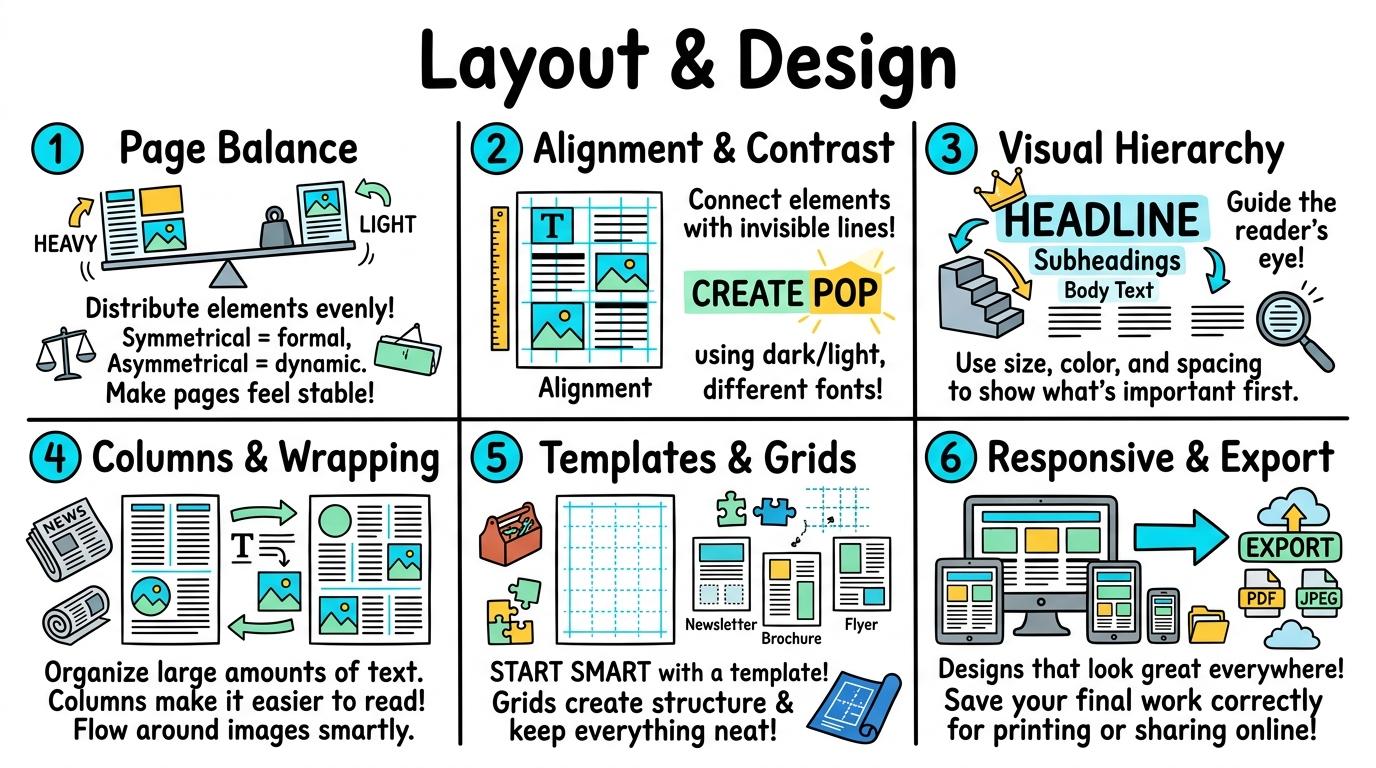
Congratulations on mastering Levels 1 to 6! Here is your one-page visual synthesis of every key concept learned:
▶View All 6 Level Key Concepts & Standards6 Levels Summarised
📌
Level 1🚀
Page Balance
Arranging text and visual elements cleanly on a page.
Key Takeaway:A clean layout gives every element 'breathing room'! When text and images overlap or touch the page edge, readers get confused.
#page-layout#text-placement#visual-balance
✓ Mastered
📌
Level 2🛡️
Alignment & Contrast
Using alignment grids and high-contrast text styling.
Key Takeaway:Two rules transform a design: Alignment and Contrast! Left-aligning body text along a straight vertical grid line makes scanning easy.
#alignment#contrast#readability
✓ Mastered
📌
Level 3🔑
Visual Hierarchy
Creating font size hierarchy and grouping related content.
Key Takeaway:Visual Hierarchy tells the reader's brain what to read first! The Main Title should be largest and boldest, Subheadings should be medium size, and Body Text smallest.
#visual-hierarchy#font-sizes#headings
✓ Mastered
📌
Level 4💻
Columns & Wrapping
Structuring multi-column layouts and text wrapping around media.
Key Takeaway:When writing news reports or multi-page articles, single long lines of text across a wide page are hard to read.
#text-wrapping#multi-column#column-gutters
✓ Mastered
📌
Level 5🔐
Templates & Grids
Utilizing grid systems, master templates, and cohesive color palettes.
Key Takeaway:Professional designers rely on Grid Systems! A 12-column grid provides invisible vertical lines to align pictures, headers, and text blocks across every page.
#grid-systems#master-pages#color-palettes
✓ Mastered
📌
Level 6🏆
Responsive & Export
Designing responsive layouts for screen vs print and publishing digital assets.
Key Takeaway:Publishing is multi-platform! Screen layouts must be responsive (stacking columns vertically on mobile phones).
#responsive-design#print-vs-screen#pdf-export
✓ Mastered
✨
SECRET MASTERY UNLOCK
Stage Mastery Quest Challenge
You've unlocked the secret final review dungeon! Can you solve every checkpoint gate and escape the maze?
🕹️📐 Creative Director
Layout & Design
Hearts❤️❤️❤️
StageL1: Remember
XP Score0 PTS
1Page Balance
2Alignment & Contrast
3Visual Hierarchy
4Columns & Wrapping
5Templates & Grids
6Responsive & Export
Chapter 1: The Incident
🧙♂️
Loading narrative situation...
What is your next action?
🚨 Roadblock Encountered! -1 Heart! Hint: Check the core standard.
TERMINAL://EDTECH-ROOT/NODE-EXEC● LIVE LINK
// SYSTEM DIAGNOSTIC INITIALIZED...
>Select verification command:
🚨 SYNTAX CRASH! -1 Heart & Buffer Overflow!
⌨️ Arrows/WASD to Move & Jump • Land on Question Beacon to Elevate!
⌨️ Left/Right to Steer • Space to Fire Tractor Beam at Correct Capsule!
⌨️ Space to Launch Spark • A/D or Left/Right to Trigger Flipper Gates!
Level 1 Checkpoint⌨️ Press [1]–[3]
Question Prompt goes here?
🚨 INCORRECT CHOICE! -100 PTS & -1 Heart!
💡 Mastery Insight Verified (+200 PTS):
🏆✨
STRAND MASTERY ACHIEVED!
You conquered all 6 levels and demonstrated digital mastery!
Final XP Score: 0 PTS
🔑SECRET AREA BOSS KEY DISCOVERED!
Use this secret PIN to unlock the Studio Tycoon: Creative Agency in the Area Capstone Vault:
Congratulations on completing all 6 levels of Layout & Design! To unlock the Studio Tycoon: Creative Agency, you must collect all 8 Key Shards across the Create & Design strands. Here is your cipher fragment for Slot #3:
Arranging text and visual elements cleanly on a page.
Learning objective
Learning About: Page Space. Learning To: Position text & graphics. Learning To Be: Inquirer.
Let's Go!
Routine: See, Think, Wonder
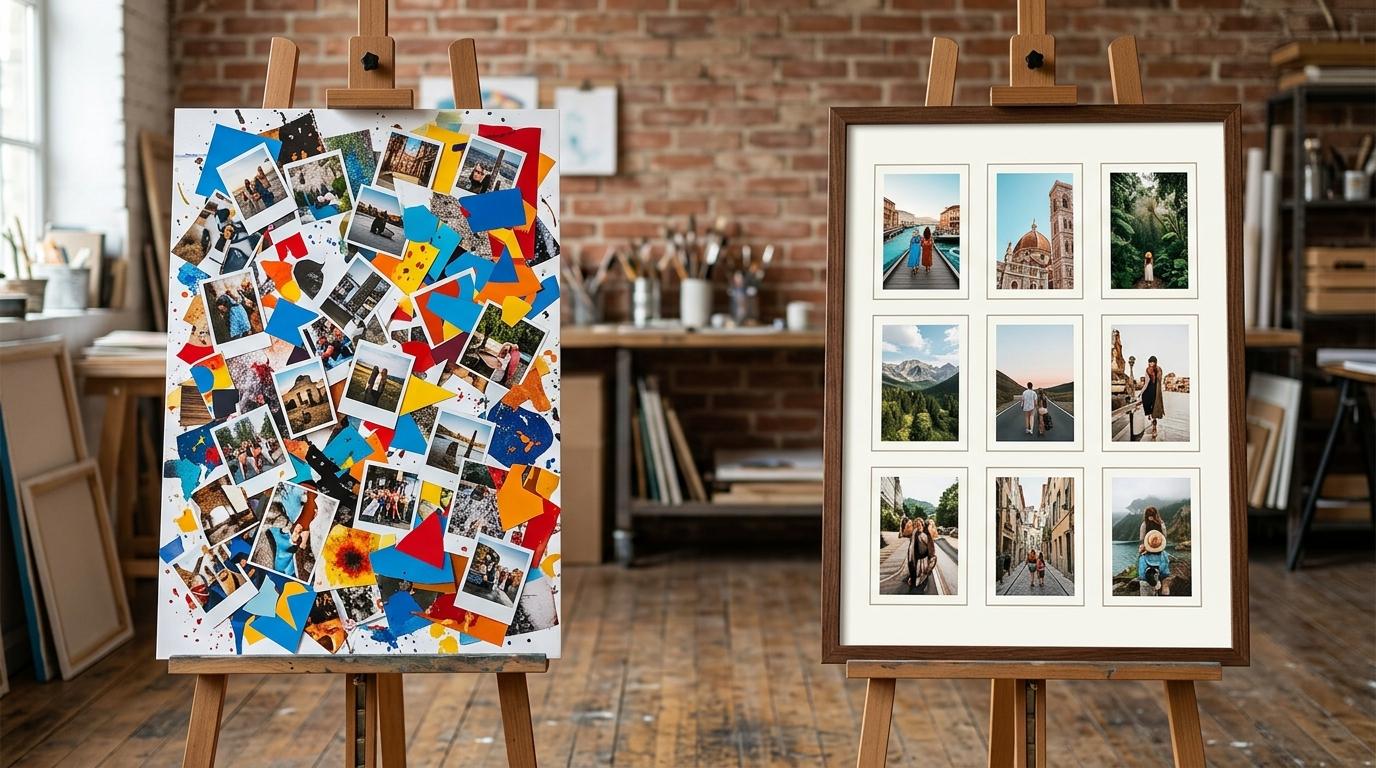
Look closely at these two poster pages. One is cluttered and overlapping, while the other has neat margins. What do you see?
Teacher note: Facilitate the See, Think, Wonder routine for 2–3 minutes. Encourage students to connect the prompt to Form (Arranging text and images clearly helps others understand our ideas.).
Learn
A clean layout gives every element 'breathing room'! When text and images overlap or touch the page edge, readers get confused. Keeping clear space around pictures makes your work look neat and professional. In computing, arranging text and images clearly helps others understand our ideas. As you explore the interactive Drawing Layers Simulator below, focus on how to arrange a balanced layout with clear margins around elements.
🌟 Student Project GuideSuccess Criteria & WAGOLL (What A Good One Looks Like)▾
🎯 Task Success Criteria (Rubric)
Foundation
Place text and one image on a digital page.
Developing
Position text and graphics without overlapping.
Secure (Goal)
Arrange a balanced layout with clear margins around elements.
Mastery
Explain how page space makes text easier to read. Typing: 5 WPM.
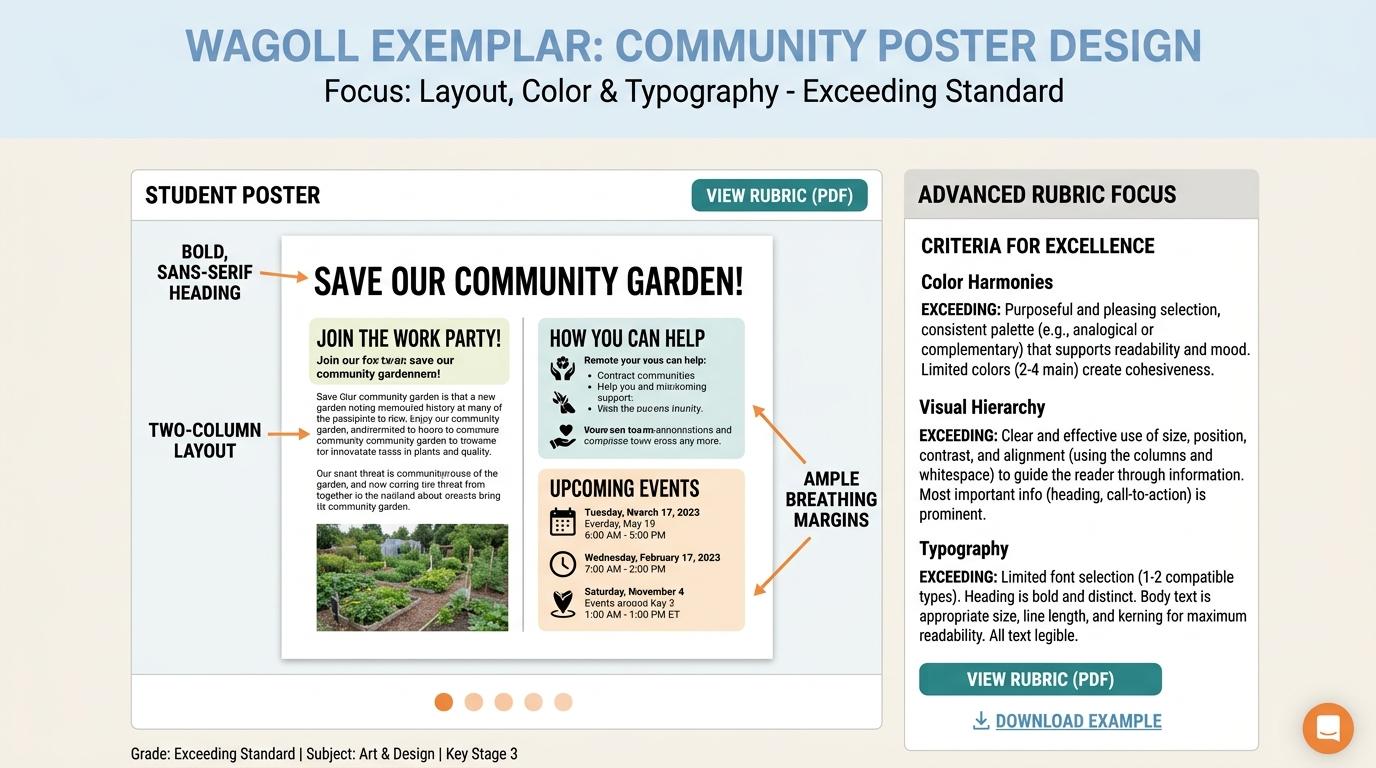
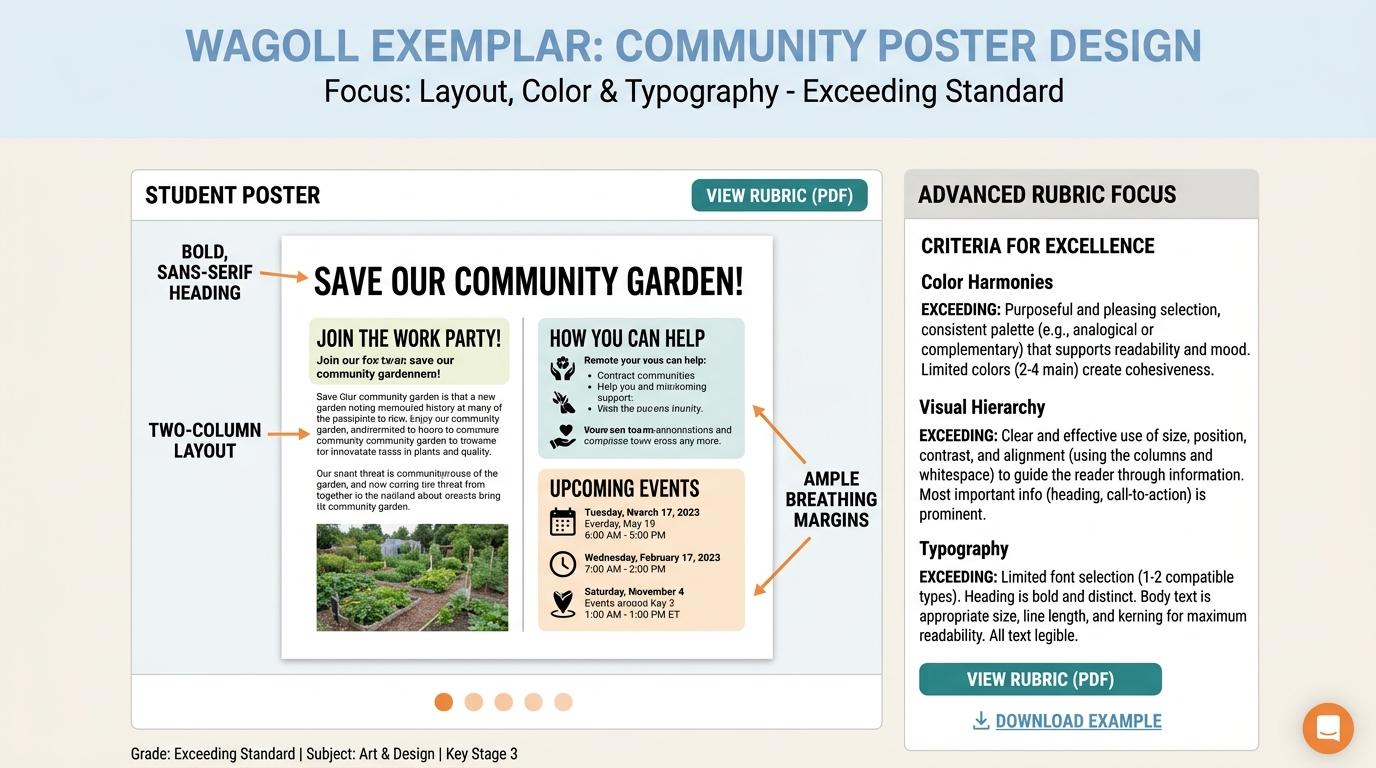
👀 What A Good One Looks Like (WAGOLL)
Exemplar 1 of 2
⭐ Mastering Standard
Visual Publishing & Layout Exemplar: Demonstration of mastering quality standards for Page Balance.
⭐ Mastering Standard
Visual Publishing & Layout Exemplar: Demonstration of mastering quality standards for Page Balance.
📁
Save to Your Website Portfolio:
When you finish creating your project in your software, copy the share link or take a screenshot and publish it onto your student portfolio website!
Reflect
🎯
Self-Assessment & Reflection
How well were you able to keep space around your text and image?
🟢Secure Level
Arrange a balanced layout with clear margins around elements.
Learning check
Learning Check
Which page layout looks clean and easy to read?
Select the matching icon or option below:
Hint 1: Look for the page where text and images have neat space around them.
Hint 2: Clue: Clear margins and balanced space make pages easy to read.
Answer correctly to unlock the next level.
Excellent! Clear margins and balanced space make pages easy to read.Look for the page where text and images have neat space around them.
Teacher setup, curriculum links and progress descriptors
Spark support
Routine: See, Think, Wonder
Teacher notes: Facilitate the See, Think, Wonder routine for 2–3 minutes. Encourage students to connect the prompt to Form (Arranging text and images clearly helps others understand our ideas.).
Achievement pathway
Foundation: Place text and one image on a digital page.
Developing: Position text and graphics without overlapping.
Secure: Arrange a balanced layout with clear margins around elements.
Mastering: Explain how page space makes text easier to read. Typing: 5 WPM.
Curriculum links
Curriculum strand: CM.01.B.1.2
Outcome: LD-O-01 — Arranging text and visual elements cleanly on a page.
PYP: Form · Arranging text and images clearly helps others understand our ideas.
Learner profile: Inquirer
Competency tags
page-layout
text-placement
visual-balance
document-design
Gate support
Accessibility alternative: Students may verbally explain or point to the correct answer for "Which page layout looks clean and easy to read?" with a teacher or teaching assistant.
Complete the previous learning check to unlock this next level.
Level 2
Alignment & Contrast
Using alignment grids and high-contrast text styling.
Learning objective
Learning About: Alignment & Contrast. Learning To: Align & style text. Learning To Be: Communicator.
Let's Go!
Routine: Zoom In
Look closely at this yellow text on a light white background. Is it easy to read? What happens when we change it to dark blue?
Teacher note: Facilitate the Zoom In routine for 2–3 minutes. Encourage students to connect the prompt to Function (Visual structure and contrast make communication effective.).
Learn
Two rules transform a design: Alignment and Contrast! Left-aligning body text along a straight vertical grid line makes scanning easy. High contrast (like dark text on light backgrounds) ensures everyone can read your message without straining. In computing, visual structure and contrast make communication effective. As you explore the interactive Drawing Layers Simulator below, focus on how to use high-contrast text colors and snap elements to an alignment grid.
🌟 Student Project GuideSuccess Criteria & WAGOLL (What A Good One Looks Like)▾
🎯 Task Success Criteria (Rubric)
Foundation
Change font colors on a colored background.
Developing
Align text to left, center, or right alignments.
Secure (Goal)
Use high-contrast text colors and snap elements to an alignment grid.
Mastery
Identify low-contrast legibility errors in designs. Typing: 10 WPM.
👀 What A Good One Looks Like (WAGOLL)
Exemplar 1 of 2
⭐ Mastering Standard
Visual Publishing & Layout Exemplar: Demonstration of mastering quality standards for Alignment & Contrast.
⭐ Mastering Standard
Visual Publishing & Layout Exemplar: Demonstration of mastering quality standards for Alignment & Contrast.
📁
Save to Your Website Portfolio:
When you finish creating your project in your software, copy the share link or take a screenshot and publish it onto your student portfolio website!
Reflect
🎯
Self-Assessment & Reflection
Was your text easy to read from across the room today?
🟢Secure Level
Use high-contrast text colors and snap elements to an alignment grid.
Learning check
Learning Check
Which font and background combination provides the HIGHEST contrast for easy reading?
Select the best design choice from the options below.
Hint 1: Think about which combination creates the strongest difference between text and background.
Hint 2: Clue: Dark text on a light background provides crisp, high contrast!
Answer correctly to unlock the next level.
Spot on! Dark text on a light background provides crisp, high contrast!Think about which combination creates the strongest difference between text and background.
Teacher setup, curriculum links and progress descriptors
Spark support
Routine: Zoom In
Teacher notes: Facilitate the Zoom In routine for 2–3 minutes. Encourage students to connect the prompt to Function (Visual structure and contrast make communication effective.).
Achievement pathway
Foundation: Change font colors on a colored background.
Developing: Align text to left, center, or right alignments.
Secure: Use high-contrast text colors and snap elements to an alignment grid.
Mastering: Identify low-contrast legibility errors in designs. Typing: 10 WPM.
Curriculum links
Curriculum strand: CM.01.B.1.2
Outcome: LD-O-02 — Using alignment grids and high-contrast text styling.
PYP: Function · Visual structure and contrast make communication effective.
Learner profile: Communicator
Competency tags
alignment
contrast
readability
grid-basics
Gate support
Accessibility alternative: Students may verbally explain or point to the correct answer for "Which font and background combination provides the HIGHEST contrast for easy reading?" with a teacher or teaching assistant.
Complete the previous learning check to unlock this next level.
Level 3
Visual Hierarchy
Creating font size hierarchy and grouping related content.
Learning objective
Learning About: Visual Hierarchy. Learning To: Format headings & subheadings. Learning To Be: Thinker.
Let's Go!
Routine: Think, Puzzle, Explore
When you look at a newspaper or webpage, what does your eye look at first? Why doesn't all the text look identical?
Teacher note: Facilitate the Think, Puzzle, Explore routine for 2–3 minutes. Encourage students to connect the prompt to Connection (Organizing information by importance guides the reader's journey.).
Learn
Visual Hierarchy tells the reader's brain what to read first! The Main Title should be largest and boldest, Subheadings should be medium size, and Body Text smallest. Grouping related photos near their matching text is called Proximity. In computing, organizing information by importance guides the reader's journey. As you explore the interactive Drawing Layers Simulator below, focus on how to construct a clear 3-level visual hierarchy (Title, Subheading, Body) and group related items.
🌟 Student Project GuideSuccess Criteria & WAGOLL (What A Good One Looks Like)▾
🎯 Task Success Criteria (Rubric)
Foundation
Make titles larger than body text.
Developing
Apply Title, Heading, and Body text styles in a document.
Secure (Goal)
Construct a clear 3-level visual hierarchy (Title, Subheading, Body) and group related items.
Mastery
Explain how proximity and font size guide a reader's eyes. Typing: 15 WPM.
👀 What A Good One Looks Like (WAGOLL)
Exemplar 1 of 2
⭐ Mastering Standard
Visual Publishing & Layout Exemplar: Demonstration of mastering quality standards for Visual Hierarchy.
⭐ Mastering Standard
Visual Publishing & Layout Exemplar: Demonstration of mastering quality standards for Visual Hierarchy.
📁
Save to Your Website Portfolio:
When you finish creating your project in your software, copy the share link or take a screenshot and publish it onto your student portfolio website!
Reflect
🎯
Self-Assessment & Reflection
Can someone scan your page and instantly tell what the main topic is?
🟢Secure Level
Construct a clear 3-level visual hierarchy (Title, Subheading, Body) and group related items.
Learning check
Learning Check
Why do we make document Titles much larger than paragraph text?
Choose the correct design principle.
Hint 1: Think about how font size guides your eyes when scanning a page.
Hint 2: Clue: Size hierarchy instantly signals the most important headline!
Answer correctly to unlock the next level.
Correct! Size hierarchy instantly signals the most important headline!Think about how font size guides your eyes when scanning a page.
Teacher setup, curriculum links and progress descriptors
Spark support
Routine: Think, Puzzle, Explore
Teacher notes: Facilitate the Think, Puzzle, Explore routine for 2–3 minutes. Encourage students to connect the prompt to Connection (Organizing information by importance guides the reader's journey.).
Achievement pathway
Foundation: Make titles larger than body text.
Developing: Apply Title, Heading, and Body text styles in a document.
Secure: Construct a clear 3-level visual hierarchy (Title, Subheading, Body) and group related items.
Mastering: Explain how proximity and font size guide a reader's eyes. Typing: 15 WPM.
Curriculum links
Curriculum strand: CM.02.B.1.1
Outcome: LD-O-03 — Creating font size hierarchy and grouping related content.
PYP: Connection · Organizing information by importance guides the reader's journey.
Learner profile: Thinker
Competency tags
visual-hierarchy
font-sizes
headings
proximity
Gate support
Accessibility alternative: Students may verbally explain or point to the correct answer for "Why do we make document Titles much larger than paragraph text?" with a teacher or teaching assistant.
Complete the previous learning check to unlock this next level.
Level 4
Columns & Wrapping
Structuring multi-column layouts and text wrapping around media.
Learning objective
Learning About: Multi-Column Media. Learning To: Wrap text & set columns. Learning To Be: Principled.
Let's Go!
Routine: See, Think, Wonder
Look at this magazine page. Notice how the text flows neatly around the circular photo and splits into two neat columns. How do you think that was set up?
Teacher note: Facilitate the See, Think, Wonder routine for 2–3 minutes. Encourage students to connect the prompt to Responsibility (Media column layouts allow complex stories to fit neatly into shared spaces.).
Learn
When writing news reports or multi-page articles, single long lines of text across a wide page are hard to read. Splitting text into two columns and setting 'Wrap Text' around images creates newspaper-style layouts! In computing, media column layouts allow complex stories to fit neatly into shared spaces. As you explore the interactive Drawing Layers Simulator below, focus on how to design a 2-column newsletter layout with custom margins, gutters, and wrapped images.
🌟 Student Project GuideSuccess Criteria & WAGOLL (What A Good One Looks Like)▾
🎯 Task Success Criteria (Rubric)
Foundation
Place an image in the middle of a text page.
Developing
Set image wrapping to 'Square' or 'Tight' so text flows around it.
Secure (Goal)
Design a 2-column newsletter layout with custom margins, gutters, and wrapped images.
Mastery
Troubleshoot awkwardly split text or narrow column gaps. Typing: 20 WPM.
👀 What A Good One Looks Like (WAGOLL)
Exemplar 1 of 2
⭐ Mastering Standard
Visual Publishing & Layout Exemplar: Demonstration of mastering quality standards for Columns & Wrapping.
⭐ Mastering Standard
Visual Publishing & Layout Exemplar: Demonstration of mastering quality standards for Columns & Wrapping.
📁
Save to Your Website Portfolio:
When you finish creating your project in your software, copy the share link or take a screenshot and publish it onto your student portfolio website!
Reflect
🎯
Self-Assessment & Reflection
How neatly does your text flow around your inserted image?
🟢Secure Level
Design a 2-column newsletter layout with custom margins, gutters, and wrapped images.
Learning check
Learning Check
Which text wrapping setting allows paragraph text to flow neatly around all sides of a picture?
Choose the best setting option.
Hint 1: Think about which setting lets text curve around picture edges.
Hint 2: Clue: Square and Tight wrapping flow paragraph text smoothly around image borders!
Answer correctly to unlock the next level.
Spot on! Square and Tight wrapping flow paragraph text smoothly around image borders!Think about which setting lets text curve around picture edges.
Teacher setup, curriculum links and progress descriptors
Spark support
Routine: See, Think, Wonder
Teacher notes: Facilitate the See, Think, Wonder routine for 2–3 minutes. Encourage students to connect the prompt to Responsibility (Media column layouts allow complex stories to fit neatly into shared spaces.).
Achievement pathway
Foundation: Place an image in the middle of a text page.
Developing: Set image wrapping to 'Square' or 'Tight' so text flows around it.
Secure: Design a 2-column newsletter layout with custom margins, gutters, and wrapped images.
Mastering: Troubleshoot awkwardly split text or narrow column gaps. Typing: 20 WPM.
Curriculum links
Curriculum strand: CM.02.B.1.1
Outcome: LD-O-04 — Structuring multi-column layouts and text wrapping around media.
PYP: Responsibility · Media column layouts allow complex stories to fit neatly into shared spaces.
Learner profile: Principled
Competency tags
text-wrapping
multi-column
column-gutters
margins
Gate support
Accessibility alternative: Students may verbally explain or point to the correct answer for "Which text wrapping setting allows paragraph text to flow neatly around all sides of a picture?" with a teacher or teaching assistant.
Complete the previous learning check to unlock this next level.
Level 5
Templates & Grids
Utilizing grid systems, master templates, and cohesive color palettes.
Learning objective
Learning About: Grid Systems. Learning To: Apply master templates & grids. Learning To Be: Knowledgeable.
Let's Go!
Routine: I used to think...
I used to think graphic designers just placed items randomly on a blank page... Now I know they use underlying grid systems and color rules!
Teacher note: Facilitate the I used to think... routine for 2–3 minutes. Encourage students to connect the prompt to Perspective (Consistent grid systems and color rules give publications professional identity.).
Learn
Professional designers rely on Grid Systems! A 12-column grid provides invisible vertical lines to align pictures, headers, and text blocks across every page. Pair your grid with a 3-color palette (Primary, Secondary, Accent) for brand consistency. In computing, consistent grid systems and color rules give publications professional identity. As you explore the interactive Drawing Layers Simulator below, focus on how to construct a multi-page publication using a 12-column alignment grid and a cohesive 3-color palette.
🌟 Student Project GuideSuccess Criteria & WAGOLL (What A Good One Looks Like)▾
🎯 Task Success Criteria (Rubric)
Foundation
Use a pre-made document template.
Developing
Customize colors and fonts within a document template.
Secure (Goal)
Construct a multi-page publication using a 12-column alignment grid and a cohesive 3-color palette.
Mastery
Evaluate publication consistency across multiple pages. Typing: 25 WPM.
👀 What A Good One Looks Like (WAGOLL)
Exemplar 1 of 2
⭐ Mastering Standard
Visual Publishing & Layout Exemplar: Demonstration of mastering quality standards for Templates & Grids.
⭐ Mastering Standard
Visual Publishing & Layout Exemplar: Demonstration of mastering quality standards for Templates & Grids.
📁
Save to Your Website Portfolio:
When you finish creating your project in your software, copy the share link or take a screenshot and publish it onto your student portfolio website!
Reflect
🎯
Self-Assessment & Reflection
Does every page in your multi-page project feel like it belongs to the same family?
🟢Secure Level
Construct a multi-page publication using a 12-column alignment grid and a cohesive 3-color palette.
Learning check
Learning Check
What is the main benefit of aligning all elements to an underlying grid system in a multi-page booklet?
Select the correct design principle.
Hint 1: Think about how invisible grid lines connect elements across different pages.
Hint 2: Clue: Mastered! Grid alignment creates structural unity across multi-page publications!
Answer correctly to unlock the next level.
Mastered! Grid alignment creates structural unity across multi-page publications!Think about how invisible grid lines connect elements across different pages.
Teacher setup, curriculum links and progress descriptors
Spark support
Routine: I used to think...
Teacher notes: Facilitate the I used to think... routine for 2–3 minutes. Encourage students to connect the prompt to Perspective (Consistent grid systems and color rules give publications professional identity.).
Achievement pathway
Foundation: Use a pre-made document template.
Developing: Customize colors and fonts within a document template.
Secure: Construct a multi-page publication using a 12-column alignment grid and a cohesive 3-color palette.
Mastering: Evaluate publication consistency across multiple pages. Typing: 25 WPM.
Curriculum links
Curriculum strand: CM.03.B.1.1
Outcome: LD-O-05 — Utilizing grid systems, master templates, and cohesive color palettes.
PYP: Perspective · Consistent grid systems and color rules give publications professional identity.
Learner profile: Knowledgeable
Competency tags
grid-systems
master-pages
color-palettes
publication-design
Gate support
Accessibility alternative: Students may verbally explain or point to the correct answer for "What is the main benefit of aligning all elements to an underlying grid system in a multi-page booklet?" with a teacher or teaching assistant.
Complete the previous learning check to unlock this next level.
Level 6
Responsive & Export
Designing responsive layouts for screen vs print and publishing digital assets.
Learning objective
Learning About: Responsive Publishing. Learning To: Export & adapt layouts. Learning To Be: Reflective.
Let's Go!
Routine: Step Inside
Imagine your school website layout viewed on a desktop monitor, a tablet, and a mobile phone screen. How must the layout flex so nothing gets cut off?
Teacher note: Facilitate the Step Inside routine for 2–3 minutes. Encourage students to connect the prompt to Reflection (Publishing work across global web and print platforms requires technical mastery.).
Learn
Publishing is multi-platform! Screen layouts must be responsive (stacking columns vertically on mobile phones). Print layouts require high-resolution assets (300 DPI) and Bleed margins so colors print right to the edge of cut paper. In computing, publishing work across global web and print platforms requires technical mastery. As you explore the interactive Drawing Layers Simulator below, focus on how to design responsive layout variations for desktop vs mobile screens and export print-ready PDFs with bleed/crop marks.
Hint 1: Think about how you hold a smartphone vertically vs a wide computer monitor.
Hint 2: Clue: Heroic! Stacking content vertically creates responsive, readable mobile experiences!
Answer correctly to complete this strand.
Heroic! Stacking content vertically creates responsive, readable mobile experiences!Think about how you hold a smartphone vertically vs a wide computer monitor.
Teacher setup, curriculum links and progress descriptors
Spark support
Routine: Step Inside
Teacher notes: Facilitate the Step Inside routine for 2–3 minutes. Encourage students to connect the prompt to Reflection (Publishing work across global web and print platforms requires technical mastery.).
Achievement pathway
Foundation: Export a completed layout as a PDF.
Developing: Distinguish between screen display (72 DPI / RGB) and print quality (300 DPI / CMYK).
Secure: Design responsive layout variations for desktop vs mobile screens and export print-ready PDFs with bleed/crop marks.
Mastering: Audit digital layouts across different screen sizes for readability. Typing: 30+ WPM.
Curriculum links
Curriculum strand: CM.03.B.1.1
Outcome: LD-O-06 — Designing responsive layouts for screen vs print and publishing digital assets.
PYP: Reflection · Publishing work across global web and print platforms requires technical mastery.
Learner profile: Reflective
Competency tags
responsive-design
print-vs-screen
pdf-export
dpi-resolution
Gate support
Accessibility alternative: Students may verbally explain or point to the correct answer for "Why must a layout be adapted into a single vertical column when viewed on a mobile smartphone screen?" with a teacher or teaching assistant.
We use local browser storage to save your learning progress and optional analytics cookies (Google Analytics 4 with IP masking and zero advertising signals) to help us improve our free computing lessons. Read our Cookie Policy and Privacy Policy.