
Learning objective
Slide Decks & Visual Pitching
Presentations
1
2
3
4
5
6
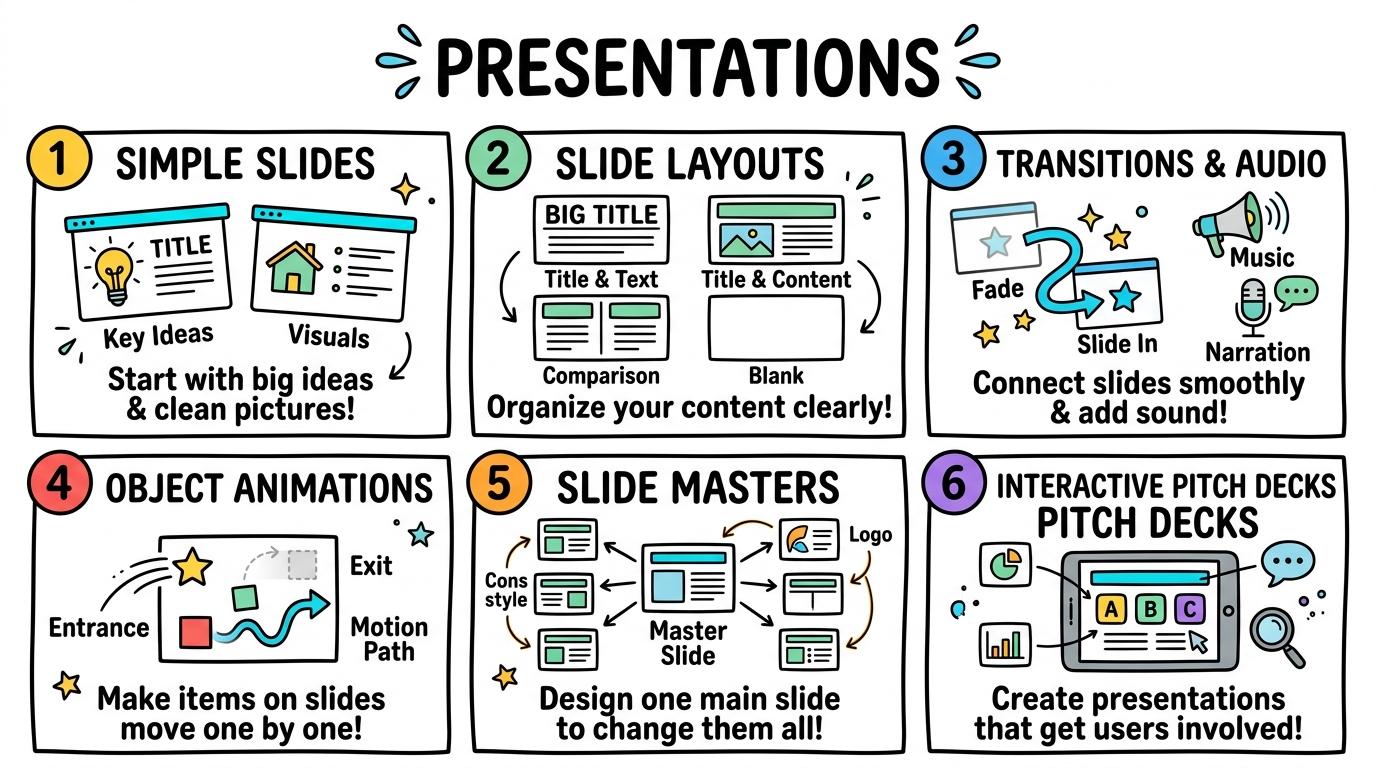
Welcome to Presentations! In this strand, you will learn to structure slide decks, present ideas clearly with visual support, create smooth transitions and animations, and deliver persuasive multimedia pitches.
Simple Slides
Creating single slides with text and images.
Let's Go!
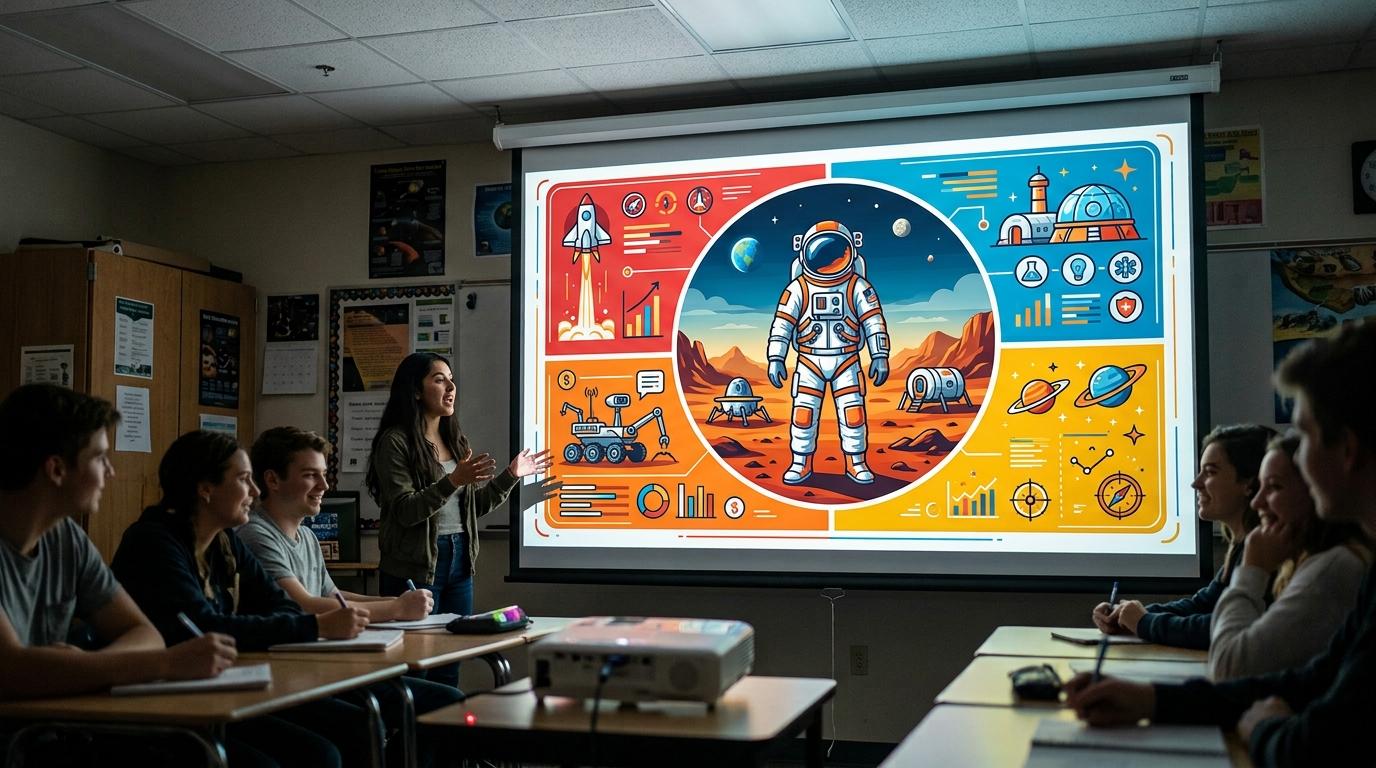
Routine: See, Think, Wonder
Look closely at this slide. What makes the title stand out?
What do you think the picture adds?
Teacher note: Facilitate the See, Think, Wonder routine for 2–3 minutes. Encourage students to connect the prompt to Form (Presenting ideas helps us connect with others.).
Learn
A presentation is like a digital storybook! Each slide holds one main idea. Adding a clear title and a supporting picture helps your audience understand your message immediately. In computing, presenting ideas helps us connect with others. As you explore the interactive Presentation Simulator below, focus on how to create a 3-slide presentation with titles and pictures on each slide.
Apply Simulator Skills • Try it yourself
Build your first 3-slide deck!
🚀 Open a practice space
Or try locally: 💻 LibreOffice Impress (free)
🌟 Student Project GuideSuccess Criteria & WAGOLL (What A Good One Looks Like)
🎯 Task Success Criteria (Rubric)
Foundation
Open a presentation tool and select a slide template.
Developing
Add a title text box and insert one image onto a slide.
Secure (Goal)
Create a 3-slide presentation with titles and pictures on each slide.
Mastery
Present slides full-screen using Slide Show mode. Typing: 5 WPM.
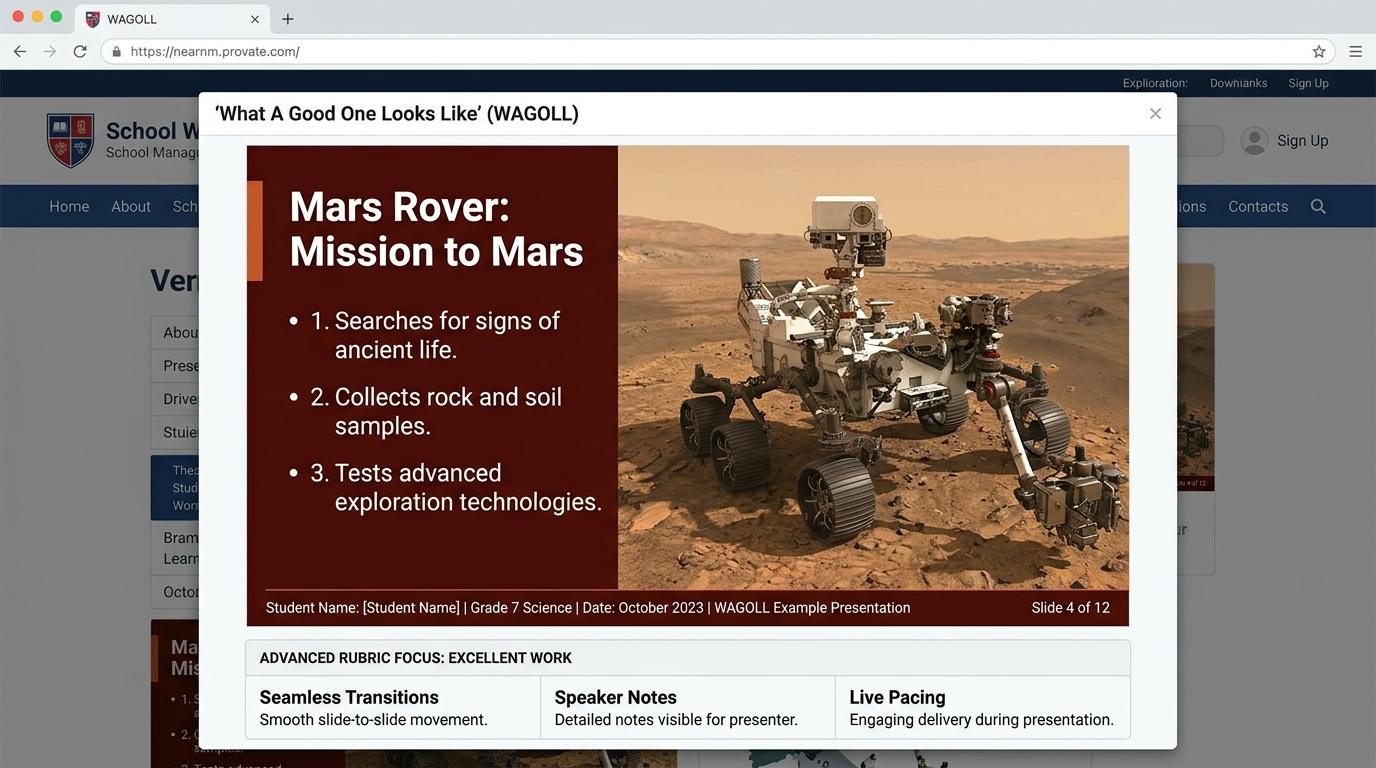
👀 What A Good One Looks Like (WAGOLL)
Exemplar of 2
 ⭐ Mastering Standard
 ⭐ Mastering Standard
📁
Save to Your Website Portfolio:
When you finish creating your project in your software, copy the share link or take a screenshot and publish it onto your student portfolio website!
Reflect
Learning check
Teacher setup, curriculum links and progress descriptors
Spark support
Routine: See, Think, Wonder
Teacher notes: Facilitate the See, Think, Wonder routine for 2–3 minutes. Encourage students to connect the prompt to Form (Presenting ideas helps us connect with others.).
Achievement pathway
- Foundation: Open a presentation tool and select a slide template.
- Developing: Add a title text box and insert one image onto a slide.
- Secure: Create a 3-slide presentation with titles and pictures on each slide.
- Mastering: Present slides full-screen using Slide Show mode. Typing: 5 WPM.
Curriculum links
Curriculum strand: CM.01.B.1.2
Outcome: PRES-O-01 — Creating single slides with text and images.
PYP: Form · Presenting ideas helps us connect with others.
Learner profile: Communicator
Competency tags
Gate support
Accessibility alternative: Students may verbally explain or point to the correct answer for "Which button starts the full-screen Slide Show mode?" with a teacher or teaching assistant.
Teacher override: allow
Locked level
Level 2: Slide Layouts
Complete the previous learning check to unlock this next level.
Slide Layouts
Selecting slide layouts and formatting text for readability.
Learning objective
Learning About: Layout Selection. Learning To: Format slides for clarity. Learning To Be: Inquirer.
Let's Go!
Routine: Zoom In
Look at this slide zoomed in. Is the text easy to read from the back of the classroom?
Why or why not?
Teacher note: Facilitate the Zoom In routine for 2–3 minutes. Encourage students to connect the prompt to Function (Structured layouts help audiences read information easily.).
Learn
Crowding slides with huge paragraphs confuses your audience! Using bullet points and high-contrast font colors lets your audience read key points quickly while listening to you speak. In computing, structured layouts help audiences read information easily. As you explore the interactive Presentation Simulator below, focus on how to maintain consistent font styles and high contrast across a 5-slide deck.
Apply Simulator Skills • Try it yourself
Clean up a cluttered slide deck!
🚀 Open a practice space
Or try locally: 💻 LibreOffice Impress (free)
🌟 Student Project GuideSuccess Criteria & WAGOLL (What A Good One Looks Like)
🎯 Task Success Criteria (Rubric)
Foundation
Choose pre-made slide layouts (Title & Content).
Developing
Format body text using bullet points for readability.
Secure (Goal)
Maintain consistent font styles and high contrast across a 5-slide deck.
Mastery
Explain why cluttering a slide with too much text harms presentation impact. Typing: 10 WPM.
👀 What A Good One Looks Like (WAGOLL)
Exemplar of 2
⭐ Mastering Standard⭐ Mastering Standard📁
Save to Your Website Portfolio:
When you finish creating your project in your software, copy the share link or take a screenshot and publish it onto your student portfolio website!
Reflect
Learning check
Teacher setup, curriculum links and progress descriptors
Spark support
Routine: Zoom In
Teacher notes: Facilitate the Zoom In routine for 2–3 minutes. Encourage students to connect the prompt to Function (Structured layouts help audiences read information easily.).
Achievement pathway
- Foundation: Choose pre-made slide layouts (Title & Content).
- Developing: Format body text using bullet points for readability.
- Secure: Maintain consistent font styles and high contrast across a 5-slide deck.
- Mastering: Explain why cluttering a slide with too much text harms presentation impact. Typing: 10 WPM.
Curriculum links
Curriculum strand: CM.01.B.1.2
Outcome: PRES-O-02 — Selecting slide layouts and formatting text for readability.
PYP: Function · Structured layouts help audiences read information easily.
Learner profile: Inquirer
Competency tags
Gate support
Accessibility alternative: Students may verbally explain or point to the correct answer for "What is the best way to present main points on a slide?" with a teacher or teaching assistant.
Teacher override: allow
Locked level
Level 3: Transitions & Audio
Complete the previous learning check to unlock this next level.
Transitions & Audio
Applying slide transitions and embedding audio recordings.
Learning objective
Learning About: Visual Flow. Learning To: Add transitions & audio. Learning To Be: Thinker.
Let's Go!
Routine: Think, Puzzle, Explore
What happens when every slide has a wild, different transition?
What puzzles you about keeping transitions subtle?
Teacher note: Facilitate the Think, Puzzle, Explore routine for 2–3 minutes. Encourage students to connect the prompt to Connection (Transitions and media create engaging narratives.).
Learn
Transitions control how one slide changes to the next. Subtle transitions like Fade keep your deck feeling professional, while embedded audio clips allow your presentation to explain itself automatically! In computing, transitions and media create engaging narratives. As you explore the interactive Presentation Simulator below, focus on how to apply uniform subtle transitions (e.g. Fade) across an entire presentation.
Apply Simulator Skills • Try it yourself
Add transitions and voice narration!
🚀 Open a practice space
Or try locally: 💻 LibreOffice Impress (free)
🌟 Student Project GuideSuccess Criteria & WAGOLL (What A Good One Looks Like)
🎯 Task Success Criteria (Rubric)
Foundation
Apply a basic transition effect between slides.
Developing
Record and embed a short voiceover narration on a slide.
Secure (Goal)
Apply uniform subtle transitions (e.g. Fade) across an entire presentation.
Mastery
Evaluate when slide transitions enhance vs distract from the content. Typing: 15 WPM.
👀 What A Good One Looks Like (WAGOLL)
Exemplar of 2
⭐ Mastering Standard⭐ Mastering Standard📁
Save to Your Website Portfolio:
When you finish creating your project in your software, copy the share link or take a screenshot and publish it onto your student portfolio website!
Reflect
Learning check
Teacher setup, curriculum links and progress descriptors
Spark support
Routine: Think, Puzzle, Explore
Teacher notes: Facilitate the Think, Puzzle, Explore routine for 2–3 minutes. Encourage students to connect the prompt to Connection (Transitions and media create engaging narratives.).
Achievement pathway
- Foundation: Apply a basic transition effect between slides.
- Developing: Record and embed a short voiceover narration on a slide.
- Secure: Apply uniform subtle transitions (e.g. Fade) across an entire presentation.
- Mastering: Evaluate when slide transitions enhance vs distract from the content. Typing: 15 WPM.
Curriculum links
Curriculum strand: CM.02.B.1.1
Outcome: PRES-O-03 — Applying slide transitions and embedding audio recordings.
PYP: Connection · Transitions and media create engaging narratives.
Learner profile: Thinker
Competency tags
Gate support
Accessibility alternative: Students may verbally explain or point to the correct answer for "Why should you use the same subtle transition (like Fade) across all slides?" with a teacher or teaching assistant.
Teacher override: allow
Locked level
Level 4: Object Animations
Complete the previous learning check to unlock this next level.
Object Animations
Animating individual elements with entrance and emphasis effects.
Learning objective
Learning About: Object Sequencing. Learning To: Animate elements on click. Learning To Be: Principled.
Let's Go!
Routine: See, Think, Wonder
Watch these bullet points appear one at a time. How does this help the speaker control the audience's focus?
Teacher note: Facilitate the See, Think, Wonder routine for 2–3 minutes. Encourage students to connect the prompt to Responsibility (Sequencing visual elements guides audience focus.).
Learn
If all information appears at once, the audience reads ahead instead of listening to you! Animating bullet points to appear 'On Click' keeps your audience synchronized with your voice. In computing, sequencing visual elements guides audience focus. As you explore the interactive Presentation Simulator below, focus on how to animate bullet points to appear one by one 'On Click' to pace oral delivery.
Apply Simulator Skills • Try it yourself
Pace your bullet points with animation!
🚀 Open a practice space
Or try locally: 💻 LibreOffice Impress (free)
🌟 Student Project GuideSuccess Criteria & WAGOLL (What A Good One Looks Like)
🎯 Task Success Criteria (Rubric)
Foundation
Apply an Entrance animation (Fade/Fly In) to a single object.
Developing
Use the Animation Pane to reorder object entrance sequences.
Secure (Goal)
Animate bullet points to appear one by one 'On Click' to pace oral delivery.
Mastery
Troubleshoot animation order errors and set automatic 'After Previous' timings. Typing: 20 WPM.
👀 What A Good One Looks Like (WAGOLL)
Exemplar of 2
⭐ Mastering Standard⭐ Mastering Standard📁
Save to Your Website Portfolio:
When you finish creating your project in your software, copy the share link or take a screenshot and publish it onto your student portfolio website!
Reflect
Learning check
Teacher setup, curriculum links and progress descriptors
Spark support
Routine: See, Think, Wonder
Teacher notes: Facilitate the See, Think, Wonder routine for 2–3 minutes. Encourage students to connect the prompt to Responsibility (Sequencing visual elements guides audience focus.).
Achievement pathway
- Foundation: Apply an Entrance animation (Fade/Fly In) to a single object.
- Developing: Use the Animation Pane to reorder object entrance sequences.
- Secure: Animate bullet points to appear one by one 'On Click' to pace oral delivery.
- Mastering: Troubleshoot animation order errors and set automatic 'After Previous' timings. Typing: 20 WPM.
Curriculum links
Curriculum strand: CM.02.B.1.1
Outcome: PRES-O-04 — Animating individual elements with entrance and emphasis effects.
PYP: Responsibility · Sequencing visual elements guides audience focus.
Learner profile: Principled
Competency tags
Gate support
Accessibility alternative: Students may verbally explain or point to the correct answer for "What is the main benefit of revealing bullet points one by one during a talk?" with a teacher or teaching assistant.
Teacher override: allow
Locked level
Level 5: Slide Masters
Complete the previous learning check to unlock this next level.
Slide Masters
Designing custom templates using Slide Master view.
Learning objective
Learning About: Design Systems. Learning To: Build master templates. Learning To Be: Knowledgeable.
Let's Go!
Routine: I used to think...
I used to think you had to format every single slide individually... Now I know that editing the Slide Master changes all slides at once!
Teacher note: Facilitate the I used to think... routine for 2–3 minutes. Encourage students to connect the prompt to Perspective (Consistent master design establishes professional branding.).
Learn
Editing 20 slides one-by-one takes forever! Modifying the Slide Master lets you update logos, background colors, and font styles across every slide in your deck instantly. In computing, consistent master design establishes professional branding. As you explore the interactive Presentation Simulator below, focus on how to design a cohesive 3-color palette and custom typography hierarchy across master layouts.
Apply Simulator Skills • Try it yourself
Create a Master Theme for your class!
🚀 Open a practice space
Or try locally: 💻 LibreOffice Impress (free)
🌟 Student Project GuideSuccess Criteria & WAGOLL (What A Good One Looks Like)
🎯 Task Success Criteria (Rubric)
Foundation
Access Slide Master / Theme Builder view in presentation software.
Developing
Customize logo placement, footers, and page numbers on the Master slide.
Secure (Goal)
Design a cohesive 3-color palette and custom typography hierarchy across master layouts.
Mastery
Export custom presentation templates (.potx/gslides) for team reuse. Typing: 25 WPM.
👀 What A Good One Looks Like (WAGOLL)
Exemplar of 2
⭐ Mastering Standard⭐ Mastering Standard📁
Save to Your Website Portfolio:
When you finish creating your project in your software, copy the share link or take a screenshot and publish it onto your student portfolio website!
Reflect
Learning check
Teacher setup, curriculum links and progress descriptors
Spark support
Routine: I used to think...
Teacher notes: Facilitate the I used to think... routine for 2–3 minutes. Encourage students to connect the prompt to Perspective (Consistent master design establishes professional branding.).
Achievement pathway
- Foundation: Access Slide Master / Theme Builder view in presentation software.
- Developing: Customize logo placement, footers, and page numbers on the Master slide.
- Secure: Design a cohesive 3-color palette and custom typography hierarchy across master layouts.
- Mastering: Export custom presentation templates (.potx/gslides) for team reuse. Typing: 25 WPM.
Curriculum links
Curriculum strand: CM.03.B.1.1
Outcome: PRES-O-05 — Designing custom templates using Slide Master view.
PYP: Perspective · Consistent master design establishes professional branding.
Learner profile: Knowledgeable
Competency tags
Gate support
Accessibility alternative: Students may verbally explain or point to the correct answer for "If you want to add a school logo to the corner of all 50 slides in a deck at once, where should you place it?" with a teacher or teaching assistant.
Teacher override: allow
Locked level
Level 6: Interactive Pitch Decks
Complete the previous learning check to unlock this next level.
Interactive Pitch Decks
Creating non-linear interactive pitch decks with hyperlinks and action buttons.
Learning objective
Learning About: Interactive Pitching. Learning To: Build hyperlinked decks. Learning To Be: Reflective.
Let's Go!
Routine: Step Inside
Imagine you are an investor being pitched a new eco-friendly invention. What makes an interactive, choice-driven presentation more persuasive than a linear deck?
Teacher note: Facilitate the Step Inside routine for 2–3 minutes. Encourage students to connect the prompt to Reflection (Interactive navigation and persuasive pitching empower audience agency.).
Learn
Linear decks force you to click through slides in exact order. Hyperlinks and Action Buttons turn your slide deck into a non-linear interactive hub, allowing you to jump straight to any topic your audience asks about! In computing, interactive navigation and persuasive pitching empower audience agency. As you explore the interactive Presentation Simulator below, focus on how to deliver a live 3-minute persuasive pitch using non-linear slide navigation based on audience questions.
Apply Simulator Skills • Try it yourself
Build a non-linear interactive pitch deck!
🚀 Open a practice space
Or try locally: 💻 LibreOffice Impress (free)
🌟 Student Project GuideSuccess Criteria & WAGOLL (What A Good One Looks Like)
🎯 Task Success Criteria (Rubric)
Foundation
Insert hyperlinks on text or shapes linking to specific slide numbers.
Developing
Build an interactive Table of Contents menu with return 'Home' buttons.
Secure (Goal)
Deliver a live 3-minute persuasive pitch using non-linear slide navigation based on audience questions.
Mastery
Critically reflect on audience engagement analytics and pitch effectiveness. Typing: 30+ WPM.
👀 What A Good One Looks Like (WAGOLL)
Exemplar of 2
⭐ Mastering Standard⭐ Mastering Standard📁
Save to Your Website Portfolio:
When you finish creating your project in your software, copy the share link or take a screenshot and publish it onto your student portfolio website!
Reflect
Learning check
Teacher setup, curriculum links and progress descriptors
Spark support
Routine: Step Inside
Teacher notes: Facilitate the Step Inside routine for 2–3 minutes. Encourage students to connect the prompt to Reflection (Interactive navigation and persuasive pitching empower audience agency.).
Achievement pathway
- Foundation: Insert hyperlinks on text or shapes linking to specific slide numbers.
- Developing: Build an interactive Table of Contents menu with return 'Home' buttons.
- Secure: Deliver a live 3-minute persuasive pitch using non-linear slide navigation based on audience questions.
- Mastering: Critically reflect on audience engagement analytics and pitch effectiveness. Typing: 30+ WPM.
Curriculum links
Curriculum strand: CM.03.B.1.1
Outcome: PRES-O-06 — Creating non-linear interactive pitch decks with hyperlinks and action buttons.
PYP: Reflection · Interactive navigation and persuasive pitching empower audience agency.
Learner profile: Reflective
Competency tags
Gate support
Accessibility alternative: Students may verbally explain or point to the correct answer for "What component allows a presenter to jump directly from slide 2 to slide 15 during a live audience Q&A?" with a teacher or teaching assistant.
Teacher override: allow