
Learning objective
E-Publishing & Portfolios
Publishing Work
1
2
3
4
5
6
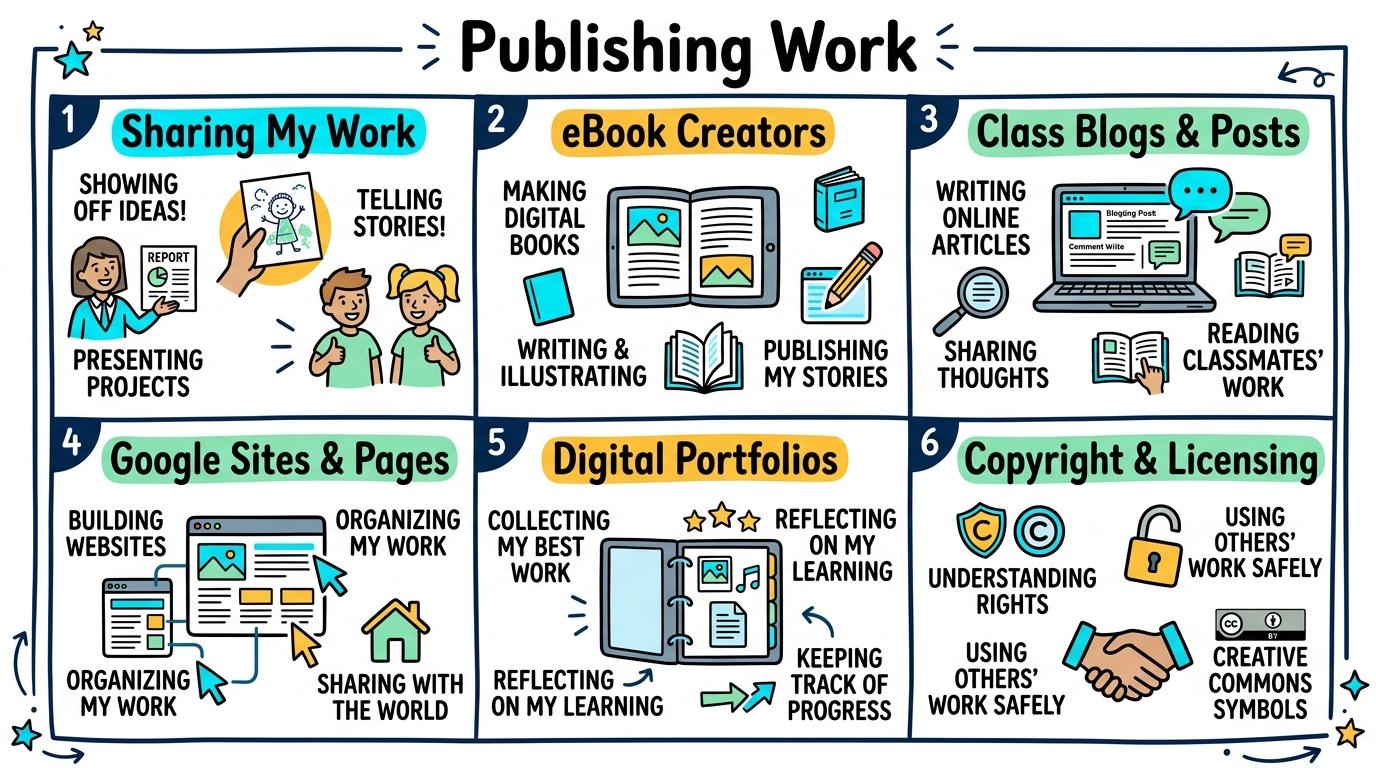
Welcome to Publishing Work! In this strand, you will learn how to turn your writing, art, and digital media into published eBooks, websites, blog posts, and interactive portfolios for real audiences.
Sharing My Work
Basic digital sharing and audience awareness.
Let's Go!
Routine: See, Think, Wonder
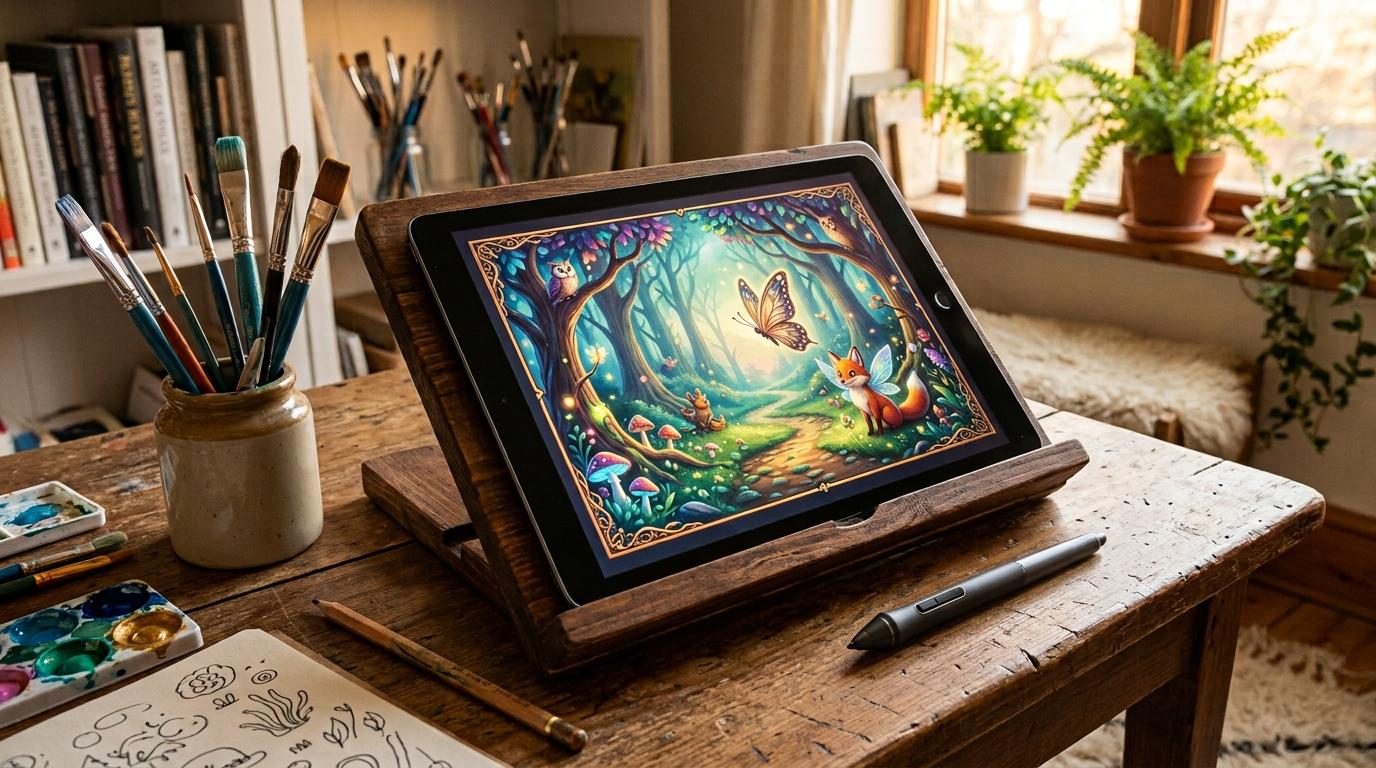
Look at this digital storybook on screen. What do you see?
Who do you think created it, and who is reading it?
Teacher note: Facilitate the See, Think, Wonder routine for 2–3 minutes. Encourage students to connect the prompt to Form (Sharing our digital creations allows us to express our identity and ideas.).
Learn
Publishing means taking your finished work and making it available for other people to read, see, or listen to! When you publish a digital story or ebook, your ideas can inspire your classmates and family. In computing, sharing our digital creations allows us to express our identity and ideas. As you explore the interactive Formatting Toolbar Simulator below, focus on how to share a digital story with peers or family in a class ebook gallery.
Apply Simulator Skills • Try it yourself
Publish your first mini digital story!
🚀 Open a practice space
🌟 Student Project GuideSuccess Criteria & WAGOLL (What A Good One Looks Like)
🎯 Task Success Criteria (Rubric)
Foundation
Identify a completed digital drawing or sentence ready to share.
Developing
Export or print a digital creation with teacher support.
Secure (Goal)
Share a digital story with peers or family in a class ebook gallery.
Mastery
Explain who the intended audience is for a published drawing or story. Typing: 5 WPM.
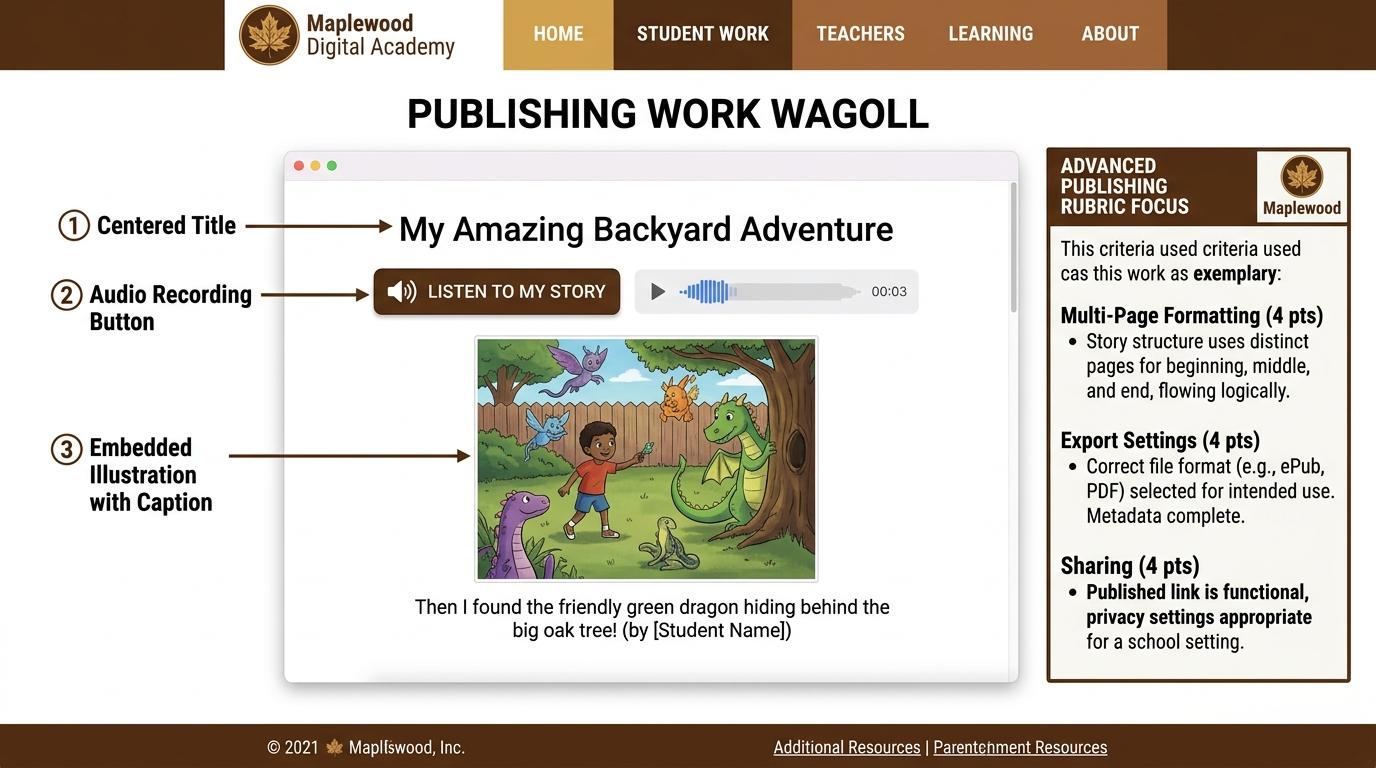
👀 What A Good One Looks Like (WAGOLL)
Exemplar of 2
 ⭐ Mastering Standard
 ⭐ Mastering Standard
📁
Save to Your Website Portfolio:
When you finish creating your project in your software, copy the share link or take a screenshot and publish it onto your student portfolio website!
Reflect
Learning check
Teacher setup, curriculum links and progress descriptors
Spark support
Routine: See, Think, Wonder
Teacher notes: Facilitate the See, Think, Wonder routine for 2–3 minutes. Encourage students to connect the prompt to Form (Sharing our digital creations allows us to express our identity and ideas.).
Achievement pathway
- Foundation: Identify a completed digital drawing or sentence ready to share.
- Developing: Export or print a digital creation with teacher support.
- Secure: Share a digital story with peers or family in a class ebook gallery.
- Mastering: Explain who the intended audience is for a published drawing or story. Typing: 5 WPM.
Curriculum links
Curriculum strand: CM.01.B.1.2
Outcome: PUB-O-01 — Basic digital sharing and audience awareness.
PYP: Form · Sharing our digital creations allows us to express our identity and ideas.
Learner profile: Communicator
Competency tags
Gate support
Accessibility alternative: Students may verbally explain or point to the correct answer for "Which icon represents a published book or eBook ready to read?" with a teacher or teaching assistant.
Teacher override: allow
Locked level
Level 2: eBook Creators
Complete the previous learning check to unlock this next level.
eBook Creators
Multi-page eBook layout and audio recordings.
Learning objective
Learning About: eBook Layout. Learning To: Combine text and audio. Learning To Be: Inquirer.
Let's Go!
Routine: Zoom In
Look at this small play button on the eBook page. What do you think will happen when you click it?
Teacher note: Facilitate the Zoom In routine for 2–3 minutes. Encourage students to connect the prompt to Function (E-publishing combines text, art, and voice to enrich storytelling.).
Learn
Digital publishing lets you do things paper books cannot! You can add audio voice recordings to every page so readers can listen to you tell your story while turning the pages. In computing, e-publishing combines text, art, and voice to enrich storytelling. As you explore the interactive Save Dialog Simulator below, focus on how to combine multi-page text, images, and embedded audio voice recordings into an eBook.
Apply Simulator Skills • Try it yourself
Create a 3-page interactive eBook!
🚀 Open a practice space
🌟 Student Project GuideSuccess Criteria & WAGOLL (What A Good One Looks Like)
🎯 Task Success Criteria (Rubric)
Foundation
Add pages to a digital book template.
Developing
Place images and typed captions on consecutive book pages.
Secure (Goal)
Combine multi-page text, images, and embedded audio voice recordings into an eBook.
Mastery
Explain how voice narration helps young readers understand the book. Typing: 10 WPM.
👀 What A Good One Looks Like (WAGOLL)
Exemplar of 2
⭐ Mastering Standard⭐ Mastering Standard📁
Save to Your Website Portfolio:
When you finish creating your project in your software, copy the share link or take a screenshot and publish it onto your student portfolio website!
Reflect
Learning check
Teacher setup, curriculum links and progress descriptors
Spark support
Routine: Zoom In
Teacher notes: Facilitate the Zoom In routine for 2–3 minutes. Encourage students to connect the prompt to Function (E-publishing combines text, art, and voice to enrich storytelling.).
Achievement pathway
- Foundation: Add pages to a digital book template.
- Developing: Place images and typed captions on consecutive book pages.
- Secure: Combine multi-page text, images, and embedded audio voice recordings into an eBook.
- Mastering: Explain how voice narration helps young readers understand the book. Typing: 10 WPM.
Curriculum links
Curriculum strand: CM.01.B.1.2
Outcome: PUB-O-02 — Multi-page eBook layout and audio recordings.
PYP: Function · E-publishing combines text, art, and voice to enrich storytelling.
Learner profile: Inquirer
Competency tags
Gate support
Accessibility alternative: Students may verbally explain or point to the correct answer for "What feature makes a digital eBook different and more interactive than a printed paper book?" with a teacher or teaching assistant.
Teacher override: allow
Locked level
Level 3: Class Blogs & Posts
Complete the previous learning check to unlock this next level.
Class Blogs & Posts
Digital blogging, moderation, and constructive commenting.
Learning objective
Learning About: Digital Blogging. Learning To: Post and comment. Learning To Be: Reflective.
Let's Go!
Routine: Think, Puzzle, Explore
What do you think happens after you submit a blog post to a teacher-moderated site?
What puzzles you about leaving online comments?
Teacher note: Facilitate the Think, Puzzle, Explore routine for 2–3 minutes. Encourage students to connect the prompt to Connection (Online blogs connect learning communities through peer feedback.).
Learn
Blogging is a great way to publish reflections on your learning. Before a post goes public on a class blog, a teacher moderates it to ensure it is safe, kind, and accurate. When commenting on others' posts, always be encouraging and constructive! In computing, online blogs connect learning communities through peer feedback. As you explore the interactive File Extension Simulator below, focus on how to publish a blog post with a cover image and write constructive, kind peer comments.
Extension (.ext)
MATCH
File Purpose & Icon
Apply Simulator Skills • Try it yourself
Write a blog reflection & leave 2 comments!
🚀 Open a practice space
🌟 Student Project GuideSuccess Criteria & WAGOLL (What A Good One Looks Like)
🎯 Task Success Criteria (Rubric)
Foundation
Read a post on a moderated class blog.
Developing
Write and submit a short blog post draft for teacher approval.
Secure (Goal)
Publish a blog post with a cover image and write constructive, kind peer comments.
Mastery
Apply the 'TAG' feedback method (Tell something good, Ask a question, Give a suggestion). Typing: 15 WPM.
👀 What A Good One Looks Like (WAGOLL)
Exemplar of 2
⭐ Mastering Standard⭐ Mastering Standard📁
Save to Your Website Portfolio:
When you finish creating your project in your software, copy the share link or take a screenshot and publish it onto your student portfolio website!
Reflect
Learning check
Teacher setup, curriculum links and progress descriptors
Spark support
Routine: Think, Puzzle, Explore
Teacher notes: Facilitate the Think, Puzzle, Explore routine for 2–3 minutes. Encourage students to connect the prompt to Connection (Online blogs connect learning communities through peer feedback.).
Achievement pathway
- Foundation: Read a post on a moderated class blog.
- Developing: Write and submit a short blog post draft for teacher approval.
- Secure: Publish a blog post with a cover image and write constructive, kind peer comments.
- Mastering: Apply the 'TAG' feedback method (Tell something good, Ask a question, Give a suggestion). Typing: 15 WPM.
Curriculum links
Curriculum strand: CM.02.B.1.1
Outcome: PUB-O-03 — Digital blogging, moderation, and constructive commenting.
PYP: Connection · Online blogs connect learning communities through peer feedback.
Learner profile: Reflective
Competency tags
Gate support
Accessibility alternative: Students may verbally explain or point to the correct answer for "What does 'moderation' mean on a school class blog?" with a teacher or teaching assistant.
Teacher override: allow
Locked level
Level 4: Google Sites & Pages
Complete the previous learning check to unlock this next level.
Google Sites & Pages
Webpage structure, layout banners, and embedded media.
Learning objective
Learning About: Web Publishing. Learning To: Build a site. Learning To Be: Knowledgeable.
Let's Go!
Routine: See, Think, Wonder
Look closely at this website header and navigation bar. How does the menu help visitors find different topics?
Teacher note: Facilitate the See, Think, Wonder routine for 2–3 minutes. Encourage students to connect the prompt to Responsibility (Web design organizes information across navigation subpages.).
Learn
Building a webpage allows you to publish multi-media content in one organized hub. Google Sites lets you drag and drop text, header banners, image carousels, and embedded documents across multiple subpages! In computing, web design organizes information across navigation subpages. As you explore the interactive Website Builder Simulator below, focus on how to build a 2-page website with navigation menu and embedded Google Docs/Slides.
Eco-School Hub
Welcome to Our Digital Space!
Designed to share student ideas, projects, and community action with the world.
Feature Project Banner Image
🎯 Purpose & Goals
Empowering students to publish creative writing, artwork, and research studies for global peers.
Empowering students to publish creative writing, artwork, and research studies for global peers.
👥 Target Audience
Tailored for classmates, teachers, families, and partner schools worldwide.
Tailored for classmates, teachers, families, and partner schools worldwide.
Apply Simulator Skills • Try it yourself
Build a 2-page Inquiry Website!
🚀 Open a practice space
🌟 Student Project GuideSuccess Criteria & WAGOLL (What A Good One Looks Like)
🎯 Task Success Criteria (Rubric)
Foundation
Open Google Sites and select a site header template.
Developing
Create a homepage with header banner, title, and body text.
Secure (Goal)
Build a 2-page website with navigation menu and embedded Google Docs/Slides.
Mastery
Configure permissions (view vs edit) and publish with a custom URL slug. Typing: 20 WPM.
👀 What A Good One Looks Like (WAGOLL)
Exemplar of 2
⭐ Mastering Standard⭐ Mastering Standard📁
Save to Your Website Portfolio:
When you finish creating your project in your software, copy the share link or take a screenshot and publish it onto your student portfolio website!
Reflect
Learning check
Teacher setup, curriculum links and progress descriptors
Spark support
Routine: See, Think, Wonder
Teacher notes: Facilitate the See, Think, Wonder routine for 2–3 minutes. Encourage students to connect the prompt to Responsibility (Web design organizes information across navigation subpages.).
Achievement pathway
- Foundation: Open Google Sites and select a site header template.
- Developing: Create a homepage with header banner, title, and body text.
- Secure: Build a 2-page website with navigation menu and embedded Google Docs/Slides.
- Mastering: Configure permissions (view vs edit) and publish with a custom URL slug. Typing: 20 WPM.
Curriculum links
Curriculum strand: CM.02.B.1.1
Outcome: PUB-O-04 — Webpage structure, layout banners, and embedded media.
PYP: Responsibility · Web design organizes information across navigation subpages.
Learner profile: Knowledgeable
Competency tags
Gate support
Accessibility alternative: Students may verbally explain or point to the correct answer for "What must you do in Google Sites so that others can view your finished website via a web link?" with a teacher or teaching assistant.
Teacher override: allow
Locked level
Level 5: Digital Portfolios
Complete the previous learning check to unlock this next level.
Digital Portfolios
Curating growth, reflection, and multi-year digital portfolios.
Learning objective
Learning About: Portfolio Curation. Learning To: Curate & reflect. Learning To Be: Reflective.
Let's Go!
Routine: I used to think...
I used to think a portfolio was just a folder of finished work... Now I know it is a reflective journey showing how my thinking grew over time!
Teacher note: Facilitate the I used to think... routine for 2–3 minutes. Encourage students to connect the prompt to Perspective (Digital portfolios curate evidence of personal growth and learning over time.).
Learn
A digital portfolio is not just a collection of good grades—it is a story of your growth! By publishing 'before and after' work samples alongside reflective audio or written journal entries, you demonstrate how you overcome challenges and improve as a learner.
My Computer
⇄ Idle
Cloud Drive
Online
📁 Classroom Shared FolderStorage: 1.2 GB of 15 GB used
Science_Project.docx
Field_Trip_Photo.jpg
School_Play_Video.mp4
Apply Simulator Skills • Try it yourself
Curate a PYP Unit Portfolio Entry!
🚀 Open a practice space
🌟 Student Project GuideSuccess Criteria & WAGOLL (What A Good One Looks Like)
🎯 Task Success Criteria (Rubric)
Foundation
Upload a piece of schoolwork into a portfolio folder.
Developing
Categorize portfolio entries by subject or PYP unit theme.
Secure (Goal)
Curate best work samples with written reflections explaining why each item was selected.
Mastery
Organize a multi-unit digital portfolio showcasing growth from early drafts to final products. Typing: 25 WPM.
👀 What A Good One Looks Like (WAGOLL)
Exemplar of 2
⭐ Mastering Standard⭐ Mastering Standard📁
Save to Your Website Portfolio:
When you finish creating your project in your software, copy the share link or take a screenshot and publish it onto your student portfolio website!
Reflect
Learning check
Teacher setup, curriculum links and progress descriptors
Spark support
Routine: I used to think...
Teacher notes: Facilitate the I used to think... routine for 2–3 minutes. Encourage students to connect the prompt to Perspective (Digital portfolios curate evidence of personal growth and learning over time.).
Achievement pathway
- Foundation: Upload a piece of schoolwork into a portfolio folder.
- Developing: Categorize portfolio entries by subject or PYP unit theme.
- Secure: Curate best work samples with written reflections explaining why each item was selected.
- Mastering: Organize a multi-unit digital portfolio showcasing growth from early drafts to final products. Typing: 25 WPM.
Curriculum links
Curriculum strand: CM.03.B.1.1
Outcome: PUB-O-05 — Curating growth, reflection, and multi-year digital portfolios.
PYP: Perspective · Digital portfolios curate evidence of personal growth and learning over time.
Learner profile: Reflective
Competency tags
Gate support
Accessibility alternative: Students may verbally explain or point to the correct answer for "Why is including written reflections alongside work samples essential in a digital portfolio?" with a teacher or teaching assistant.
Teacher override: allow
Locked level
Level 6: Copyright & Licensing
Complete the previous learning check to unlock this next level.
Copyright & Licensing
Creative Commons licensing, open-source publishing, and attribution.
Learning objective
Learning About: Digital Ethics. Learning To: Attribute & license. Learning To Be: Principled.
Let's Go!
Routine: Step Inside
Step inside the shoes of a photographer or artist. How would you feel if someone used your artwork in their published book without giving you credit?
Teacher note: Facilitate the Step Inside routine for 2–3 minutes. Encourage students to connect the prompt to Reflection (Responsible publishing requires respecting intellectual property and digital rights.).
Learn
As a digital author and creator, you must respect intellectual property! Copyright protects original works. When publishing, search for Creative Commons (CC) or Public Domain media, provide proper attribution (TASL: Title, Author, Source, License), and choose how others can re-use your own published creations!
Cybersecurity & Scam Defense Audit Engine
Master Security Audits, Threat Analysis & Defense-in-Depth
LEVEL 1 • BRONZEOS6 • Free Gift Traps
Deceptive Reward Screen Detection
Review the incoming web element. Identify signs of fraudulent "Free Prize" lures before taking action.
🛡️ Security Inspector & Triage
THREAT LEVEL: UNRATED📋 NIST Cybersecurity Framework Mapping
CSF v2.0IDIdentifyAsset & Threat Identification
PRProtectSafeguards & MFA
DEDetectAnomalies & Phishing
RSRespondContainment Protocol
RCRecoverRestoration & Backups
📡 Live Telemetry & Threat Vector Indicators
LIVE TELEMETRY| Metric / Indicator | Observed Value | Risk Factor |
|---|---|---|
| TLS Certificate | Self-Signed / Untrusted | HIGH |
| Sender Domain Entropy | 0.89 (Spoofed DMARC) | CRITICAL |
| Urgency Emotion Vector | Active Countdown Detected | ELEVATED |
💻 SOC Incident Event Stream & Telemetry Log
[SOC-INIT] Defense telemetry daemon active. Port 443 TLS 1.3 inspector online.
[AUDIT-READY] Simulator initialized. Select a step to commence security audit.
Apply Simulator Skills • Try it yourself
Publish an Open Project with CC License!
🚀 Open a practice space
🌟 Student Project GuideSuccess Criteria & WAGOLL (What A Good One Looks Like)
🎯 Task Success Criteria (Rubric)
Foundation
Identify copyright symbols (©) on published websites.
Developing
Cite the author, title, and source URL for online images used in published work.
Secure (Goal)
Differentiate between Copyright, Public Domain, and Creative Commons (CC) licenses.
Mastery
Apply a Creative Commons license (BY, SA, NC, ND) to personal published creations and explain re-use rights. Typing: 30+ WPM.
👀 What A Good One Looks Like (WAGOLL)
Exemplar of 2
⭐ Mastering Standard⭐ Mastering Standard📁
Save to Your Website Portfolio:
When you finish creating your project in your software, copy the share link or take a screenshot and publish it onto your student portfolio website!
Reflect
Learning check
Teacher setup, curriculum links and progress descriptors
Spark support
Routine: Step Inside
Teacher notes: Facilitate the Step Inside routine for 2–3 minutes. Encourage students to connect the prompt to Reflection (Responsible publishing requires respecting intellectual property and digital rights.).
Achievement pathway
- Foundation: Identify copyright symbols (©) on published websites.
- Developing: Cite the author, title, and source URL for online images used in published work.
- Secure: Differentiate between Copyright, Public Domain, and Creative Commons (CC) licenses.
- Mastering: Apply a Creative Commons license (BY, SA, NC, ND) to personal published creations and explain re-use rights. Typing: 30+ WPM.
Curriculum links
Curriculum strand: CM.03.B.1.1
Outcome: PUB-O-06 — Creative Commons licensing, open-source publishing, and attribution.
PYP: Reflection · Responsible publishing requires respecting intellectual property and digital rights.
Learner profile: Principled
Competency tags
Gate support
Accessibility alternative: Students may verbally explain or point to the correct answer for "What does a Creative Commons BY (Attribution) license require someone to do if they use your work?" with a teacher or teaching assistant.
Teacher override: allow
"Great explanation! Suggest adding a bulleted list of astronaut equipment here for clarity."