Welcome to 3D & VR Spatial Design! In this strand, you will progress from understanding 3D coordinates and spatial layouts to building fully interactive virtual environments and immersive VR experiences using free-tier tools.
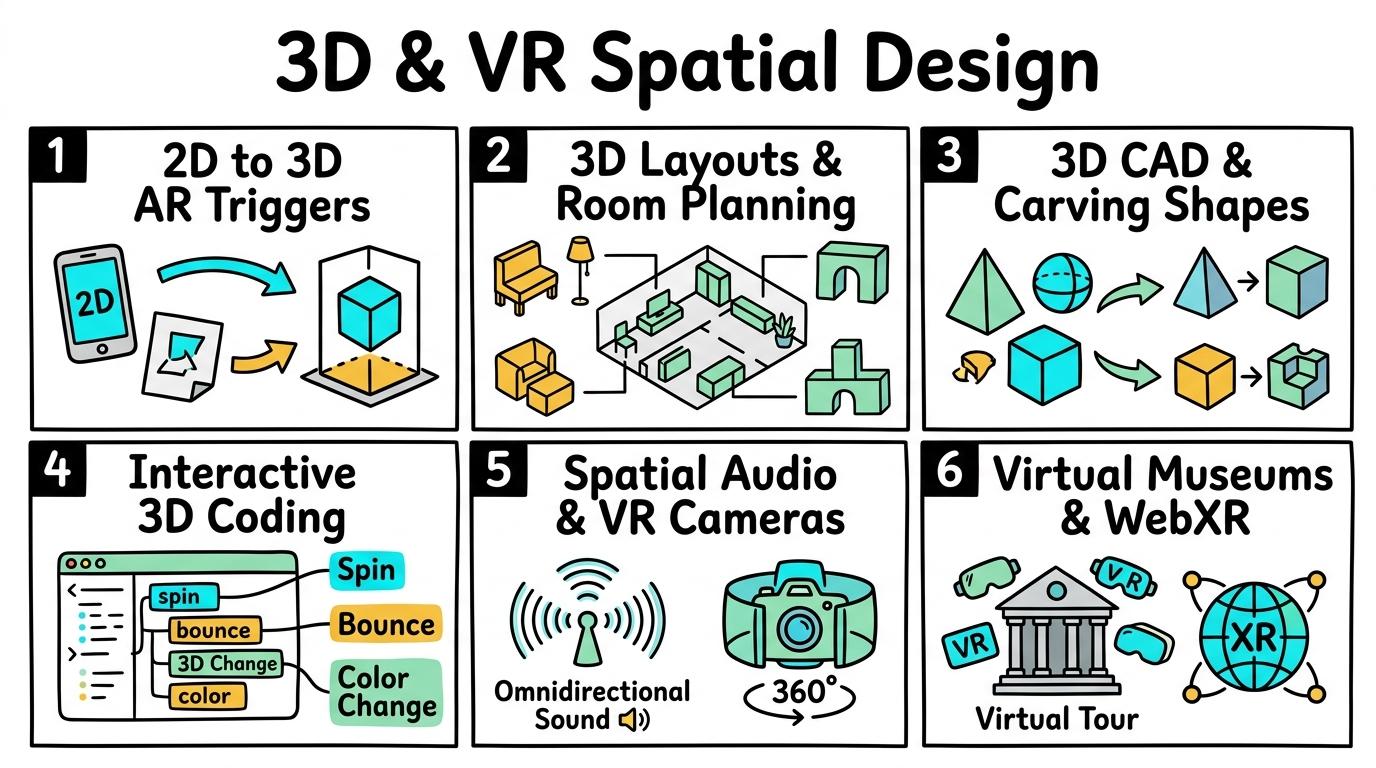
Congratulations on mastering Levels 1 to 6! Here is your one-page visual synthesis of every key concept learned:
▶View All 6 Level Key Concepts & Standards6 Levels Summarised
📌
Level 1🚀
2D to 3D AR
Understanding 2D to 3D transformation and AR markers.
Key Takeaway:In the physical world, objects have three dimensions: Width (X), Height (Y), and Depth (Z).
#augmented-reality#3d-shapes#spatial-awareness
✓ Mastered
📌
Level 2🛡️
3D Layouts
Spatial planning, scaling, and architectural layout.
Key Takeaway:Architects and interior designers use 3D tools like HomeDesigner and Tinkercad to plan spaces before building them.
#3d-modeling#floorplans#spatial-planning
✓ Mastered
📌
Level 3🔑
3D Structures
Combining 3D primitives and CAD tools for architectural modeling.
Key Takeaway:Complex 3D models are built using Constructive Solid Geometry (CSG).
#cad#3d-primitives#sketchup
✓ Mastered
📌
Level 4💻
CoSpaces Intro
Building interactive 3D scenes and block coding motion.
Key Takeaway:In CoSpaces Free Tier, you can build 3D virtual scenes and use CoBlocks (block-based code) to control your 3D objects.
#cospaces#3d-coding#coblocks
✓ Mastered
📌
Level 5🔐
VR Audio & Camera
Spatial audio, camera paths, and VR head-tracking navigation.
Key Takeaway:Virtual Reality (VR) tricks your brain into feeling present in a digital world.
#spatial-audio#vr-camera#head-tracking
✓ Mastered
📌
Level 6🏆
VR Exhibition
Designing and publishing an interactive Virtual Museum or Exhibition.
Key Takeaway:A Virtual Exhibition combines everything you have learned: 3D architectural design, coded interactive triggers, spatial audio, and information plaques.
#vr-museum#pyp-exhibition#virtual-tours
✓ Mastered
✨
SECRET MASTERY UNLOCK
Stage Mastery Quest Challenge
You've unlocked the secret final review dungeon! Can you solve every checkpoint gate and escape the maze?
🕹️🥽 Spatial Worldsmith
3D & VR Spatial Design
Hearts❤️❤️❤️
StageL1: Remember
XP Score0 PTS
12D to 3D AR
23D Layouts
33D Structures
4CoSpaces Intro
5VR Audio & Camera
6VR Exhibition
Chapter 1: The Incident
🧙♂️
Loading narrative situation...
What is your next action?
🚨 Roadblock Encountered! -1 Heart! Hint: Check the core standard.
TERMINAL://EDTECH-ROOT/NODE-EXEC● LIVE LINK
// SYSTEM DIAGNOSTIC INITIALIZED...
>Select verification command:
🚨 SYNTAX CRASH! -1 Heart & Buffer Overflow!
⌨️ Arrows/WASD to Move & Jump • Land on Question Beacon to Elevate!
⌨️ Left/Right to Steer • Space to Fire Tractor Beam at Correct Capsule!
⌨️ Space to Launch Spark • A/D or Left/Right to Trigger Flipper Gates!
Level 1 Checkpoint⌨️ Press [1]–[3]
Question Prompt goes here?
🚨 INCORRECT CHOICE! -100 PTS & -1 Heart!
💡 Mastery Insight Verified (+200 PTS):
🏆✨
STRAND MASTERY ACHIEVED!
You conquered all 6 levels and demonstrated digital mastery!
Final XP Score: 0 PTS
🔑SECRET AREA BOSS KEY DISCOVERED!
Use this secret PIN to unlock the Studio Tycoon: Creative Agency in the Area Capstone Vault:
Congratulations on completing all 6 levels of 3D & VR Spatial Design! To unlock the Studio Tycoon: Creative Agency, you must collect all 8 Key Shards across the Create & Design strands. Here is your cipher fragment for Slot #8:
Understanding 2D to 3D transformation and AR markers.
Learning objective
Learning About: 3D Spaces. Learning To: Use AR triggers. Learning To Be: Inquirer.
Let's Go!
Routine: See, Think, Wonder
Look at this flat drawing on paper. What happens when we view it through an AR camera? What do you wonder about 3D space?
Teacher note: Facilitate the See, Think, Wonder routine for 2–3 minutes. Encourage students to connect the prompt to Form (Technology helps us transform flat designs into spatial objects.).
Learn
In the physical world, objects have three dimensions: Width (X), Height (Y), and Depth (Z). Augmented Reality (AR) uses your device's camera to place 3D virtual models right on your desk! In computing, technology helps us transform flat designs into spatial objects. As you explore the interactive Three DViewer Simulator below, focus on how to explain how x, y, and z axes define 3D height, width, and depth.
Interactive Simulator Sandbox
Spatial Curriculum:Step 1 • Bronze Tier
🧊
Step 1 • Bronze (Level 1): 2D to 3D AR - Dimension Identification
Identify 2D flat drawings vs 3D objects with depth. Inspect the interactive 3D model in the viewport.
In Progress
🚀 VR MUSEUM LIVEhttps://vr-space.edtechhub.org/galleries/curated-3d-museum-v1
3D Primitives:
Camera Angle:
AR ANCHOR: [0.00, 1.25, 0.00]
Front
Back
Right
Left
Top
Bottom
🔺 Roof Attached
🕳️ HOLE CUT [Carved]
X: Width
Y: Height
Z: Depth
🛋️ 3D Floor Grid & Room Layout Builder
Place furniture and artifact models onto the 10m × 8m architectural floor grid. Balance accessibility paths with floor area efficiency.
💡 Click on any grid tile to place your selected furniture item. Create a spacious, navigable layout.
🎭 CoSpaces Character Events & VR Tour Director
Program interactive event triggers on 3D avatar characters and direct the guided VR camera path with directional spatial audio.
👥 3D Avatar & Trigger Block
Select an event and action to preview interactive trigger code.
🎥 Guided VR Camera & Spatial Audio
VR Rig Standby: Camera at Origin
📐 CAD Coordinate Mesh & VR Spatial Audit
Audit 3D geometry printability, manifold wall thickness, VR motion comfort metrics, and spatial accessibility compliance.
🧊
1. 3D Manifold Geometry & Printability
Watertight solid mesh without non-manifold edges. Wall thickness exceeds minimum 1.5mm threshold for additive manufacturing.
100% Watertight (Manifold)
🥽
2. VR Motion Comfort & Frame Rate
Camera motion smoothing maintains stable 90 FPS rendering without sudden acceleration or narrow field-of-view disorientation.
Zero Discomfort Flagged
♿
3. Spatial Accessibility & Clear Paths
Room aisles maintain at least 1.2 meters clearance width for wheelchair navigation and comfortable virtual avatar movement.
ADA Clearance Met
💾
4. Standardized Mesh Export (.OBJ / .STL)
Export ready for Cura slicing software, WebGL scene loaders, or AR Core/ARKit mobile projection.
STL/OBJ Calibrated
📋 Spatial Engineering Verification Checklist
Apply Simulator Skills • Try it yourself
Project your first AR model!
🔄Direct Simulator Transfer: Step 1 Tasks 1, 2 & 3
Now that you've practiced the virtual mechanics in the simulator above, apply those exact skills in your real computer environment:
🎉
Simulator Tasks 1–3 Mastered!Step 1 Verified
Great job mastering the interactive simulation! Now complete the real-world transfer checklist below and save your work into your digital portfolio.
🌟 Student Project GuideSuccess Criteria & WAGOLL (What A Good One Looks Like)▾
🎯 Task Success Criteria (Rubric)
Foundation
Identify 2D drawings vs 3D objects.
Developing
Use AR marker apps to project 3D models.
Secure (Goal)
Explain how x, y, and z axes define 3D height, width, and depth.
Mastery
Design custom AR trigger markers and explain spatial anchoring. Typing: 5 WPM.
👀 What A Good One Looks Like (WAGOLL)
Exemplar 1 of 2
⭐ Mastering Standard
Spatial Design & VR Exemplar: Demonstration of mastering quality standards for 2D to 3D AR.
⭐ Mastering Standard
Spatial Design & VR Exemplar: Demonstration of mastering quality standards for 2D to 3D AR.
📁
Save to Your Website Portfolio:
When you finish creating your project in your software, copy the share link or take a screenshot and publish it onto your student portfolio website!
Reflect
🎯
Self-Assessment & Reflection
How did seeing the model in 3D help you understand its shape better than a flat picture?
🟢Secure Level
Explain how x, y, and z axes define 3D height, width, and depth.
Learning check
Learning Check
Which axis gives a 3D object its 'depth' coming towards or away from you?
Choose the correct answer.
Hint 1: Remember: X = left/right, Y = up/down, Z = depth!
Hint 2: Clue: X is width, Y is height, and Z is depth!
Answer correctly to unlock the next level.
Correct! X is width, Y is height, and Z is depth!Not quite. Remember: X = left/right, Y = up/down, Z = depth!
Teacher setup, curriculum links and progress descriptors
Spark support
Routine: See, Think, Wonder
Teacher notes: Facilitate the See, Think, Wonder routine for 2–3 minutes. Encourage students to connect the prompt to Form (Technology helps us transform flat designs into spatial objects.).
Achievement pathway
Foundation: Identify 2D drawings vs 3D objects.
Developing: Use AR marker apps to project 3D models.
Secure: Explain how x, y, and z axes define 3D height, width, and depth.
Mastering: Design custom AR trigger markers and explain spatial anchoring. Typing: 5 WPM.
Curriculum links
Curriculum strand: CD.01.B.1.1
Outcome: SPAT-O-01 — Understanding 2D to 3D transformation and AR markers.
PYP: Form · Technology helps us transform flat designs into spatial objects.
Learner profile: Inquirer
Competency tags
augmented-reality
3d-shapes
spatial-awareness
Gate support
Accessibility alternative: Students may verbally explain or point to the correct answer for "Which axis gives a 3D object its 'depth' coming towards or away from you?" with a teacher or teaching assistant.
Complete the previous learning check to unlock this next level.
Level 2
3D Layouts
Spatial planning, scaling, and architectural layout.
Learning objective
Learning About: Layouts. Learning To: Arrange 3D rooms. Learning To Be: Communicator.
Let's Go!
Routine: Zoom In
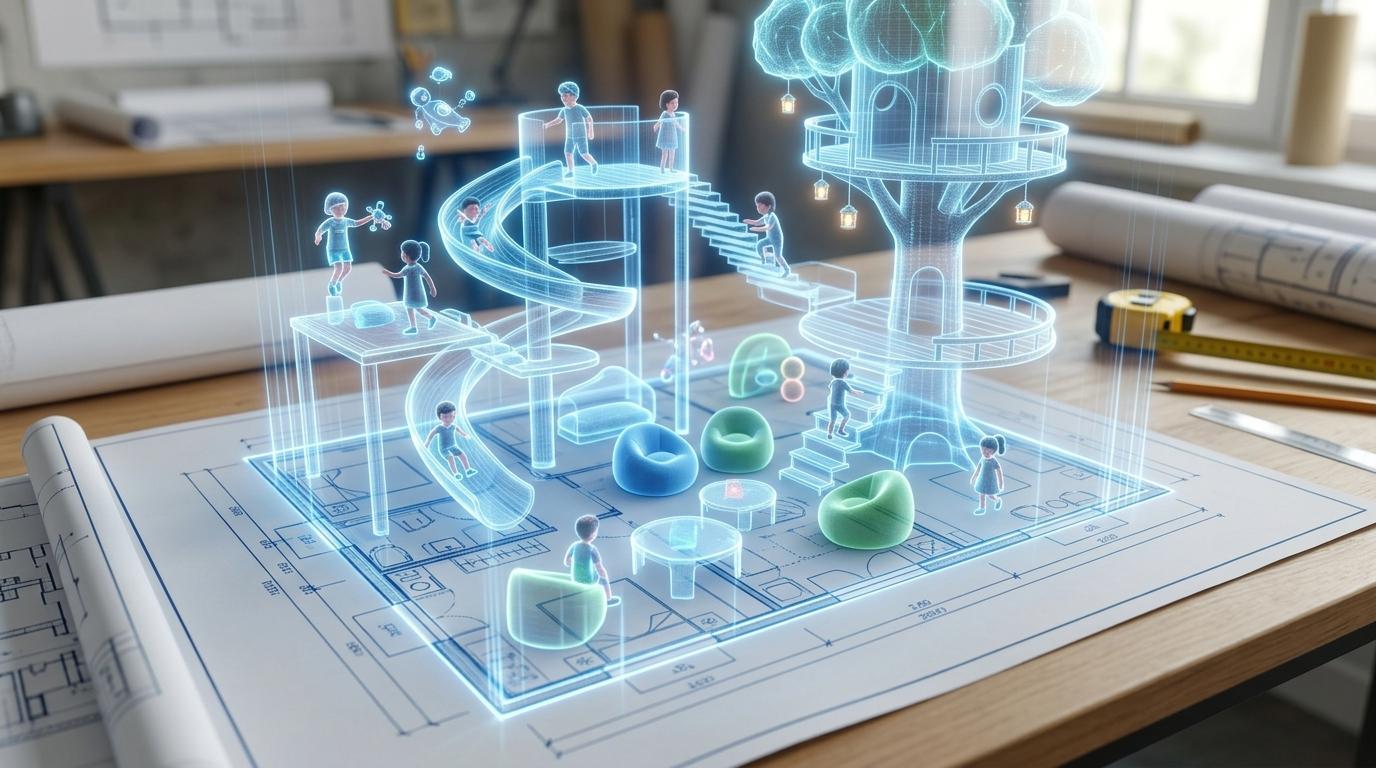
Look closely at this top-down floorplan. How does changing to a 3D perspective help us see if the room works well?
Teacher note: Facilitate the Zoom In routine for 2–3 minutes. Encourage students to connect the prompt to Function (Spatial layouts organize environments for human movement.).
Learn
Architects and interior designers use 3D tools like HomeDesigner and Tinkercad to plan spaces before building them. Arranging walls, doors, and furniture in 3D ensures people can walk through rooms comfortably. In computing, spatial layouts organize environments for human movement. As you explore the interactive Three DViewer Simulator below, focus on how to design a 3D room floorplan balancing space and accessibility.
Interactive Simulator Sandbox
Spatial Curriculum:Step 2 • Bronze Tier
🧊
Step 1 • Bronze (Level 1): 2D to 3D AR - Dimension Identification
Identify 2D flat drawings vs 3D objects with depth. Inspect the interactive 3D model in the viewport.
In Progress
🚀 VR MUSEUM LIVEhttps://vr-space.edtechhub.org/galleries/curated-3d-museum-v1
3D Primitives:
Camera Angle:
AR ANCHOR: [0.00, 1.25, 0.00]
Front
Back
Right
Left
Top
Bottom
🔺 Roof Attached
🕳️ HOLE CUT [Carved]
X: Width
Y: Height
Z: Depth
🛋️ 3D Floor Grid & Room Layout Builder
Place furniture and artifact models onto the 10m × 8m architectural floor grid. Balance accessibility paths with floor area efficiency.
💡 Click on any grid tile to place your selected furniture item. Create a spacious, navigable layout.
🎭 CoSpaces Character Events & VR Tour Director
Program interactive event triggers on 3D avatar characters and direct the guided VR camera path with directional spatial audio.
👥 3D Avatar & Trigger Block
Select an event and action to preview interactive trigger code.
🎥 Guided VR Camera & Spatial Audio
VR Rig Standby: Camera at Origin
📐 CAD Coordinate Mesh & VR Spatial Audit
Audit 3D geometry printability, manifold wall thickness, VR motion comfort metrics, and spatial accessibility compliance.
🧊
1. 3D Manifold Geometry & Printability
Watertight solid mesh without non-manifold edges. Wall thickness exceeds minimum 1.5mm threshold for additive manufacturing.
100% Watertight (Manifold)
🥽
2. VR Motion Comfort & Frame Rate
Camera motion smoothing maintains stable 90 FPS rendering without sudden acceleration or narrow field-of-view disorientation.
Zero Discomfort Flagged
♿
3. Spatial Accessibility & Clear Paths
Room aisles maintain at least 1.2 meters clearance width for wheelchair navigation and comfortable virtual avatar movement.
ADA Clearance Met
💾
4. Standardized Mesh Export (.OBJ / .STL)
Export ready for Cura slicing software, WebGL scene loaders, or AR Core/ARKit mobile projection.
STL/OBJ Calibrated
📋 Spatial Engineering Verification Checklist
Apply Simulator Skills • Try it yourself
Design a 3D classroom layout!
🔄Direct Simulator Transfer: Step 2 Tasks 4, 5 & 6
Now that you've practiced the virtual mechanics in the simulator above, apply those exact skills in your real computer environment:
🎉
Simulator Tasks 4–6 Mastered!Step 2 Verified
Great job mastering the interactive simulation! Now complete the real-world transfer checklist below and save your work into your digital portfolio.
🌟 Student Project GuideSuccess Criteria & WAGOLL (What A Good One Looks Like)▾
🎯 Task Success Criteria (Rubric)
Foundation
Place 3D furniture models on a floor grid.
Developing
Scale and rotate 3D objects to fit a room plan.
Secure (Goal)
Design a 3D room floorplan balancing space and accessibility.
Mastery
Calculate room floor areas and optimize furniture placement for navigation. Typing: 10 WPM.
👀 What A Good One Looks Like (WAGOLL)
Exemplar 1 of 2
⭐ Mastering Standard
Spatial Design & VR Exemplar: Demonstration of mastering quality standards for 3D Layouts.
⭐ Mastering Standard
Spatial Design & VR Exemplar: Demonstration of mastering quality standards for 3D Layouts.
📁
Save to Your Website Portfolio:
When you finish creating your project in your software, copy the share link or take a screenshot and publish it onto your student portfolio website!
Reflect
🎯
Self-Assessment & Reflection
Why is it important to rotate 3D objects to check them from all angles?
🟢Secure Level
Design a 3D room floorplan balancing space and accessibility.
Learning check
Learning Check
What happens if you place a 3D door object overlapping with a solid wall object without cutting an opening?
Select the best option.
Hint 1: Think about what happens when two solid objects occupy the same physical space!
Hint 2: Clue: In 3D design, object bounding boxes must not overlap awkwardly.
Answer correctly to unlock the next level.
Correct! In 3D design, object bounding boxes must not overlap awkwardly.Think about what happens when two solid objects occupy the same physical space!
Teacher setup, curriculum links and progress descriptors
Spark support
Routine: Zoom In
Teacher notes: Facilitate the Zoom In routine for 2–3 minutes. Encourage students to connect the prompt to Function (Spatial layouts organize environments for human movement.).
Achievement pathway
Foundation: Place 3D furniture models on a floor grid.
Developing: Scale and rotate 3D objects to fit a room plan.
Secure: Design a 3D room floorplan balancing space and accessibility.
Mastering: Calculate room floor areas and optimize furniture placement for navigation. Typing: 10 WPM.
Curriculum links
Curriculum strand: CD.01.B.1.2
Outcome: SPAT-O-02 — Spatial planning, scaling, and architectural layout.
PYP: Function · Spatial layouts organize environments for human movement.
Learner profile: Communicator
Competency tags
3d-modeling
floorplans
spatial-planning
Gate support
Accessibility alternative: Students may verbally explain or point to the correct answer for "What happens if you place a 3D door object overlapping with a solid wall object without cutting an opening?" with a teacher or teaching assistant.
Complete the previous learning check to unlock this next level.
Level 3
3D Structures
Combining 3D primitives and CAD tools for architectural modeling.
Learning objective
Learning About: CAD. Learning To: Group 3D primitives. Learning To Be: Thinker.
Let's Go!
Routine: Think, Puzzle, Explore
Look at a complex castle or skyscraper. How can it be broken down into basic cubes, cones, and cylinders?
Teacher note: Facilitate the Think, Puzzle, Explore routine for 2–3 minutes. Encourage students to connect the prompt to Connection (Engineers construct complex structures by grouping simple geometric shapes.).
Learn
Complex 3D models are built using Constructive Solid Geometry (CSG). By adding basic shapes together (grouping) or subtracting shapes (using 'hole' tools), you can construct anything from a simple chair to a futuristic space station! In computing, engineers construct complex structures by grouping simple geometric shapes. As you explore the interactive Three DViewer Simulator below, focus on how to model a multi-room building or monument using grouping and hole cuts.
Interactive Simulator Sandbox
Spatial Curriculum:Step 3 • Bronze Tier
🧊
Step 1 • Bronze (Level 1): 2D to 3D AR - Dimension Identification
Identify 2D flat drawings vs 3D objects with depth. Inspect the interactive 3D model in the viewport.
In Progress
🚀 VR MUSEUM LIVEhttps://vr-space.edtechhub.org/galleries/curated-3d-museum-v1
3D Primitives:
Camera Angle:
AR ANCHOR: [0.00, 1.25, 0.00]
Front
Back
Right
Left
Top
Bottom
🔺 Roof Attached
🕳️ HOLE CUT [Carved]
X: Width
Y: Height
Z: Depth
🛋️ 3D Floor Grid & Room Layout Builder
Place furniture and artifact models onto the 10m × 8m architectural floor grid. Balance accessibility paths with floor area efficiency.
💡 Click on any grid tile to place your selected furniture item. Create a spacious, navigable layout.
🎭 CoSpaces Character Events & VR Tour Director
Program interactive event triggers on 3D avatar characters and direct the guided VR camera path with directional spatial audio.
👥 3D Avatar & Trigger Block
Select an event and action to preview interactive trigger code.
🎥 Guided VR Camera & Spatial Audio
VR Rig Standby: Camera at Origin
📐 CAD Coordinate Mesh & VR Spatial Audit
Audit 3D geometry printability, manifold wall thickness, VR motion comfort metrics, and spatial accessibility compliance.
🧊
1. 3D Manifold Geometry & Printability
Watertight solid mesh without non-manifold edges. Wall thickness exceeds minimum 1.5mm threshold for additive manufacturing.
100% Watertight (Manifold)
🥽
2. VR Motion Comfort & Frame Rate
Camera motion smoothing maintains stable 90 FPS rendering without sudden acceleration or narrow field-of-view disorientation.
Zero Discomfort Flagged
♿
3. Spatial Accessibility & Clear Paths
Room aisles maintain at least 1.2 meters clearance width for wheelchair navigation and comfortable virtual avatar movement.
ADA Clearance Met
💾
4. Standardized Mesh Export (.OBJ / .STL)
Export ready for Cura slicing software, WebGL scene loaders, or AR Core/ARKit mobile projection.
STL/OBJ Calibrated
📋 Spatial Engineering Verification Checklist
Apply Simulator Skills • Try it yourself
Build a 3D architectural structure!
🔄Direct Simulator Transfer: Step 3 Tasks 7, 8 & 9
Now that you've practiced the virtual mechanics in the simulator above, apply those exact skills in your real computer environment:
🎉
Simulator Tasks 7–9 Mastered!Step 3 Verified
Great job mastering the interactive simulation! Now complete the real-world transfer checklist below and save your work into your digital portfolio.
🌟 Student Project GuideSuccess Criteria & WAGOLL (What A Good One Looks Like)▾
🎯 Task Success Criteria (Rubric)
Foundation
Combine two 3D primitive shapes (cubes, cylinders).
Developing
Use alignment and grouping tools in CAD (Tinkercad / SketchUp).
Secure (Goal)
Model a multi-room building or monument using grouping and hole cuts.
Mastery
Export 3D models into standardized .OBJ or .STL files for VR environments. Typing: 15 WPM.
👀 What A Good One Looks Like (WAGOLL)
Exemplar 1 of 2
⭐ Mastering Standard
Spatial Design & VR Exemplar: Demonstration of mastering quality standards for 3D Structures.
⭐ Mastering Standard
Spatial Design & VR Exemplar: Demonstration of mastering quality standards for 3D Structures.
📁
Save to Your Website Portfolio:
When you finish creating your project in your software, copy the share link or take a screenshot and publish it onto your student portfolio website!
Reflect
🎯
Self-Assessment & Reflection
How did grouping individual shapes make moving your whole 3D building easier?
🟢Secure Level
Model a multi-room building or monument using grouping and hole cuts.
Learning check
Learning Check
If you want to cut a round window hole through a flat 3D wall block in CAD, what tool combination do you use?
Choose the best option.
Hint 1: Remember CSG logic: Solid + Hole grouped together = Carved Shape!
Hint 2: Clue: Grouping a solid shape with a 'hole' shape carves out the opening!
Answer correctly to unlock the next level.
Correct! Grouping a solid shape with a 'hole' shape carves out the opening!Remember CSG logic: Solid + Hole grouped together = Carved Shape!
Teacher setup, curriculum links and progress descriptors
Spark support
Routine: Think, Puzzle, Explore
Teacher notes: Facilitate the Think, Puzzle, Explore routine for 2–3 minutes. Encourage students to connect the prompt to Connection (Engineers construct complex structures by grouping simple geometric shapes.).
Achievement pathway
Foundation: Combine two 3D primitive shapes (cubes, cylinders).
Developing: Use alignment and grouping tools in CAD (Tinkercad / SketchUp).
Secure: Model a multi-room building or monument using grouping and hole cuts.
Mastering: Export 3D models into standardized .OBJ or .STL files for VR environments. Typing: 15 WPM.
Curriculum links
Curriculum strand: CD.02.B.1.1
Outcome: SPAT-O-03 — Combining 3D primitives and CAD tools for architectural modeling.
Accessibility alternative: Students may verbally explain or point to the correct answer for "If you want to cut a round window hole through a flat 3D wall block in CAD, what tool combination do you use?" with a teacher or teaching assistant.
Complete the previous learning check to unlock this next level.
Level 4
CoSpaces Intro
Building interactive 3D scenes and block coding motion.
Learning objective
Learning About: 3D Coding. Learning To: Animate 3D objects. Learning To Be: Principled.
Let's Go!
Routine: See, Think, Wonder
Watch this 3D character walk when clicked. How does code turn a static 3D model into an interactive character?
Teacher note: Facilitate the See, Think, Wonder routine for 2–3 minutes. Encourage students to connect the prompt to Responsibility (Coding allows virtual worlds to react dynamically to user actions.).
Learn
In CoSpaces Free Tier, you can build 3D virtual scenes and use CoBlocks (block-based code) to control your 3D objects. You must first right-click an object and toggle 'Use in CoBlocks' before your scripts can control it! In computing, coding allows virtual worlds to react dynamically to user actions. As you explore the interactive Three DViewer Simulator below, focus on how to code event triggers ('when object clicked') to trigger speech bubbles or movement.
Interactive Simulator Sandbox
Spatial Curriculum:Step 4 • Bronze Tier
🧊
Step 1 • Bronze (Level 1): 2D to 3D AR - Dimension Identification
Identify 2D flat drawings vs 3D objects with depth. Inspect the interactive 3D model in the viewport.
In Progress
🚀 VR MUSEUM LIVEhttps://vr-space.edtechhub.org/galleries/curated-3d-museum-v1
3D Primitives:
Camera Angle:
AR ANCHOR: [0.00, 1.25, 0.00]
Front
Back
Right
Left
Top
Bottom
🔺 Roof Attached
🕳️ HOLE CUT [Carved]
X: Width
Y: Height
Z: Depth
🛋️ 3D Floor Grid & Room Layout Builder
Place furniture and artifact models onto the 10m × 8m architectural floor grid. Balance accessibility paths with floor area efficiency.
💡 Click on any grid tile to place your selected furniture item. Create a spacious, navigable layout.
🎭 CoSpaces Character Events & VR Tour Director
Program interactive event triggers on 3D avatar characters and direct the guided VR camera path with directional spatial audio.
👥 3D Avatar & Trigger Block
Select an event and action to preview interactive trigger code.
🎥 Guided VR Camera & Spatial Audio
VR Rig Standby: Camera at Origin
📐 CAD Coordinate Mesh & VR Spatial Audit
Audit 3D geometry printability, manifold wall thickness, VR motion comfort metrics, and spatial accessibility compliance.
🧊
1. 3D Manifold Geometry & Printability
Watertight solid mesh without non-manifold edges. Wall thickness exceeds minimum 1.5mm threshold for additive manufacturing.
100% Watertight (Manifold)
🥽
2. VR Motion Comfort & Frame Rate
Camera motion smoothing maintains stable 90 FPS rendering without sudden acceleration or narrow field-of-view disorientation.
Zero Discomfort Flagged
♿
3. Spatial Accessibility & Clear Paths
Room aisles maintain at least 1.2 meters clearance width for wheelchair navigation and comfortable virtual avatar movement.
ADA Clearance Met
💾
4. Standardized Mesh Export (.OBJ / .STL)
Export ready for Cura slicing software, WebGL scene loaders, or AR Core/ARKit mobile projection.
🌟 Student Project GuideSuccess Criteria & WAGOLL (What A Good One Looks Like)▾
🎯 Task Success Criteria (Rubric)
Foundation
Place characters in a CoSpaces 3D scene.
Developing
Enable CoBlocks for 3D items and program simple movement.
Secure (Goal)
Code event triggers ('when object clicked') to trigger speech bubbles or movement.
Mastery
Program parallel speech and animation loops across multiple 3D characters. Typing: 20 WPM.
👀 What A Good One Looks Like (WAGOLL)
Exemplar 1 of 2
⭐ Mastering Standard
Spatial Design & VR Exemplar: Demonstration of mastering quality standards for CoSpaces Intro.
⭐ Mastering Standard
Spatial Design & VR Exemplar: Demonstration of mastering quality standards for CoSpaces Intro.
📁
Save to Your Website Portfolio:
When you finish creating your project in your software, copy the share link or take a screenshot and publish it onto your student portfolio website!
Reflect
🎯
Self-Assessment & Reflection
What happens if you forget to enable 'Use in CoBlocks' on a 3D object?
🟢Secure Level
Code event triggers ('when object clicked') to trigger speech bubbles or movement.
Learning check
Learning Check
Why wouldn't a character block appear in your CoBlocks script workspace?
Select the correct answer.
Hint 1: Check the object properties menu! Did you turn on 'Use in CoBlocks'?
Hint 2: Clue: Toggling 'Use in CoBlocks' tells the engine to register the object for scripting!
Answer correctly to unlock the next level.
Spot on! Toggling 'Use in CoBlocks' tells the engine to register the object for scripting!Check the object properties menu! Did you turn on 'Use in CoBlocks'?
Teacher setup, curriculum links and progress descriptors
Spark support
Routine: See, Think, Wonder
Teacher notes: Facilitate the See, Think, Wonder routine for 2–3 minutes. Encourage students to connect the prompt to Responsibility (Coding allows virtual worlds to react dynamically to user actions.).
Achievement pathway
Foundation: Place characters in a CoSpaces 3D scene.
Developing: Enable CoBlocks for 3D items and program simple movement.
Secure: Code event triggers ('when object clicked') to trigger speech bubbles or movement.
Mastering: Program parallel speech and animation loops across multiple 3D characters. Typing: 20 WPM.
Curriculum links
Curriculum strand: CD.02.B.1.2
Outcome: SPAT-O-04 — Building interactive 3D scenes and block coding motion.
PYP: Responsibility · Coding allows virtual worlds to react dynamically to user actions.
Learner profile: Principled
Competency tags
cospaces
3d-coding
coblocks
event-triggers
Gate support
Accessibility alternative: Students may verbally explain or point to the correct answer for "Why wouldn't a character block appear in your CoBlocks script workspace?" with a teacher or teaching assistant.
Complete the previous learning check to unlock this next level.
Level 5
VR Audio & Camera
Spatial audio, camera paths, and VR head-tracking navigation.
Learning objective
Learning About: VR Immersion. Learning To: Set spatial audio. Learning To Be: Knowledgeable.
Let's Go!
Routine: I used to think...
I used to think sound in games was just background music... Now I think spatial 3D audio works because...
Teacher note: Facilitate the I used to think... routine for 2–3 minutes. Encourage students to connect the prompt to Perspective (Immersive environments engage human senses through camera perspective and spatial audio.).
Learn
Virtual Reality (VR) tricks your brain into feeling present in a digital world. By attaching 'Spatial Sound' to 3D objects, the sound gets louder as your camera moves closer, mimicking real-life acoustics! In computing, immersive environments engage human senses through camera perspective and spatial audio. As you explore the interactive Three DViewer Simulator below, focus on how to build a guided VR tour with path-following camera movement and directional sound.
Interactive Simulator Sandbox
Spatial Curriculum:Step 5 • Bronze Tier
🧊
Step 1 • Bronze (Level 1): 2D to 3D AR - Dimension Identification
Identify 2D flat drawings vs 3D objects with depth. Inspect the interactive 3D model in the viewport.
In Progress
🚀 VR MUSEUM LIVEhttps://vr-space.edtechhub.org/galleries/curated-3d-museum-v1
3D Primitives:
Camera Angle:
AR ANCHOR: [0.00, 1.25, 0.00]
Front
Back
Right
Left
Top
Bottom
🔺 Roof Attached
🕳️ HOLE CUT [Carved]
X: Width
Y: Height
Z: Depth
🛋️ 3D Floor Grid & Room Layout Builder
Place furniture and artifact models onto the 10m × 8m architectural floor grid. Balance accessibility paths with floor area efficiency.
💡 Click on any grid tile to place your selected furniture item. Create a spacious, navigable layout.
🎭 CoSpaces Character Events & VR Tour Director
Program interactive event triggers on 3D avatar characters and direct the guided VR camera path with directional spatial audio.
👥 3D Avatar & Trigger Block
Select an event and action to preview interactive trigger code.
🎥 Guided VR Camera & Spatial Audio
VR Rig Standby: Camera at Origin
📐 CAD Coordinate Mesh & VR Spatial Audit
Audit 3D geometry printability, manifold wall thickness, VR motion comfort metrics, and spatial accessibility compliance.
🧊
1. 3D Manifold Geometry & Printability
Watertight solid mesh without non-manifold edges. Wall thickness exceeds minimum 1.5mm threshold for additive manufacturing.
100% Watertight (Manifold)
🥽
2. VR Motion Comfort & Frame Rate
Camera motion smoothing maintains stable 90 FPS rendering without sudden acceleration or narrow field-of-view disorientation.
Zero Discomfort Flagged
♿
3. Spatial Accessibility & Clear Paths
Room aisles maintain at least 1.2 meters clearance width for wheelchair navigation and comfortable virtual avatar movement.
ADA Clearance Met
💾
4. Standardized Mesh Export (.OBJ / .STL)
Export ready for Cura slicing software, WebGL scene loaders, or AR Core/ARKit mobile projection.
🌟 Student Project GuideSuccess Criteria & WAGOLL (What A Good One Looks Like)▾
🎯 Task Success Criteria (Rubric)
Foundation
Set the VR camera starting position in a 3D space.
Developing
Attach spatial audio sounds to 3D objects that grow louder as you approach.
Secure (Goal)
Build a guided VR tour with path-following camera movement and directional sound.
Mastery
Optimize 3D scene lighting and spatial audio range to prevent VR motion discomfort. Typing: 25 WPM.
👀 What A Good One Looks Like (WAGOLL)
Exemplar 1 of 2
⭐ Mastering Standard
Spatial Design & VR Exemplar: Demonstration of mastering quality standards for VR Audio & Camera.
⭐ Mastering Standard
Spatial Design & VR Exemplar: Demonstration of mastering quality standards for VR Audio & Camera.
📁
Save to Your Website Portfolio:
When you finish creating your project in your software, copy the share link or take a screenshot and publish it onto your student portfolio website!
Reflect
🎯
Self-Assessment & Reflection
How does spatial audio change when you walk away from a sound source in VR?
🟢Secure Level
Build a guided VR tour with path-following camera movement and directional sound.
Learning check
Learning Check
What is the main difference between standard stereo background audio and VR Spatial Audio?
Choose the best answer.
Hint 1: Think about how sound changes when you walk towards a speaker vs across the room!
Hint 2: Clue: Spatial audio adjusts automatically depending on where the user stands in 3D space!
Answer correctly to unlock the next level.
Correct! Spatial audio adjusts automatically depending on where the user stands in 3D space!Think about how sound changes when you walk towards a speaker vs across the room!
Teacher setup, curriculum links and progress descriptors
Spark support
Routine: I used to think...
Teacher notes: Facilitate the I used to think... routine for 2–3 minutes. Encourage students to connect the prompt to Perspective (Immersive environments engage human senses through camera perspective and spatial audio.).
Achievement pathway
Foundation: Set the VR camera starting position in a 3D space.
Developing: Attach spatial audio sounds to 3D objects that grow louder as you approach.
Secure: Build a guided VR tour with path-following camera movement and directional sound.
Mastering: Optimize 3D scene lighting and spatial audio range to prevent VR motion discomfort. Typing: 25 WPM.
Curriculum links
Curriculum strand: CD.03.B.1.1
Outcome: SPAT-O-05 — Spatial audio, camera paths, and VR head-tracking navigation.
PYP: Perspective · Immersive environments engage human senses through camera perspective and spatial audio.
Learner profile: Knowledgeable
Competency tags
spatial-audio
vr-camera
head-tracking
immersion
Gate support
Accessibility alternative: Students may verbally explain or point to the correct answer for "What is the main difference between standard stereo background audio and VR Spatial Audio?" with a teacher or teaching assistant.
Complete the previous learning check to unlock this next level.
Level 6
VR Exhibition
Designing and publishing an interactive Virtual Museum or Exhibition.
Learning objective
Learning About: VR Showcase. Learning To: Build a 3D exhibition. Learning To Be: Reflective.
Let's Go!
Routine: Step Inside
Imagine being a visitor wearing a VR headset entering your 3D Virtual Museum. What story does your space tell?
Teacher note: Facilitate the Step Inside routine for 2–3 minutes. Encourage students to connect the prompt to Reflection (Shared virtual spaces allow global audiences to explore culture and ideas.).
Learn
A Virtual Exhibition combines everything you have learned: 3D architectural design, coded interactive triggers, spatial audio, and information plaques. Users anywhere in the world can explore your project using a browser, tablet, or VR headset! In computing, shared virtual spaces allow global audiences to explore culture and ideas. As you explore the interactive Three DViewer Simulator below, focus on how to publish a complete VR Museum featuring interactive audio guides, 3D artifacts, and quizzes.
Interactive Simulator Sandbox
Spatial Curriculum:Step 6 • Bronze Tier
🧊
Step 1 • Bronze (Level 1): 2D to 3D AR - Dimension Identification
Identify 2D flat drawings vs 3D objects with depth. Inspect the interactive 3D model in the viewport.
In Progress
🚀 VR MUSEUM LIVEhttps://vr-space.edtechhub.org/galleries/curated-3d-museum-v1
3D Primitives:
Camera Angle:
AR ANCHOR: [0.00, 1.25, 0.00]
Front
Back
Right
Left
Top
Bottom
🔺 Roof Attached
🕳️ HOLE CUT [Carved]
X: Width
Y: Height
Z: Depth
🛋️ 3D Floor Grid & Room Layout Builder
Place furniture and artifact models onto the 10m × 8m architectural floor grid. Balance accessibility paths with floor area efficiency.
💡 Click on any grid tile to place your selected furniture item. Create a spacious, navigable layout.
🎭 CoSpaces Character Events & VR Tour Director
Program interactive event triggers on 3D avatar characters and direct the guided VR camera path with directional spatial audio.
👥 3D Avatar & Trigger Block
Select an event and action to preview interactive trigger code.
🎥 Guided VR Camera & Spatial Audio
VR Rig Standby: Camera at Origin
📐 CAD Coordinate Mesh & VR Spatial Audit
Audit 3D geometry printability, manifold wall thickness, VR motion comfort metrics, and spatial accessibility compliance.
🧊
1. 3D Manifold Geometry & Printability
Watertight solid mesh without non-manifold edges. Wall thickness exceeds minimum 1.5mm threshold for additive manufacturing.
100% Watertight (Manifold)
🥽
2. VR Motion Comfort & Frame Rate
Camera motion smoothing maintains stable 90 FPS rendering without sudden acceleration or narrow field-of-view disorientation.
Zero Discomfort Flagged
♿
3. Spatial Accessibility & Clear Paths
Room aisles maintain at least 1.2 meters clearance width for wheelchair navigation and comfortable virtual avatar movement.
ADA Clearance Met
💾
4. Standardized Mesh Export (.OBJ / .STL)
Export ready for Cura slicing software, WebGL scene loaders, or AR Core/ARKit mobile projection.
Hint 1: Think about how users move instantly across large virtual worlds!
Hint 2: Clue: Teleport portals seamless connect different virtual 3D spaces!
Answer correctly to complete this strand.
Excellent! Teleport portals seamless connect different virtual 3D spaces!Think about how users move instantly across large virtual worlds!
Teacher setup, curriculum links and progress descriptors
Spark support
Routine: Step Inside
Teacher notes: Facilitate the Step Inside routine for 2–3 minutes. Encourage students to connect the prompt to Reflection (Shared virtual spaces allow global audiences to explore culture and ideas.).
Achievement pathway
Foundation: Place exhibit items and text plaques inside a 3D virtual gallery.
Developing: Code teleportation portals between different exhibition rooms.
Secure: Publish a complete VR Museum featuring interactive audio guides, 3D artifacts, and quizzes.
Mastering: Conduct user experience (UX) testing for VR accessibility, performance, and clear navigation. Typing: 30+ WPM.
Curriculum links
Curriculum strand: CD.03.B.1.2
Outcome: SPAT-O-06 — Designing and publishing an interactive Virtual Museum or Exhibition.
PYP: Reflection · Shared virtual spaces allow global audiences to explore culture and ideas.
Learner profile: Reflective
Competency tags
vr-museum
pyp-exhibition
virtual-tours
webxr
Gate support
Accessibility alternative: Students may verbally explain or point to the correct answer for "What feature allows visitors in a 3D virtual museum to jump instantly from the Egyptian Room to the Space Station Room?" with a teacher or teaching assistant.
We use local browser storage to save your learning progress and optional analytics cookies (Google Analytics 4 with IP masking and zero advertising signals) to help us improve our free computing lessons. Read our Cookie Policy and Privacy Policy.

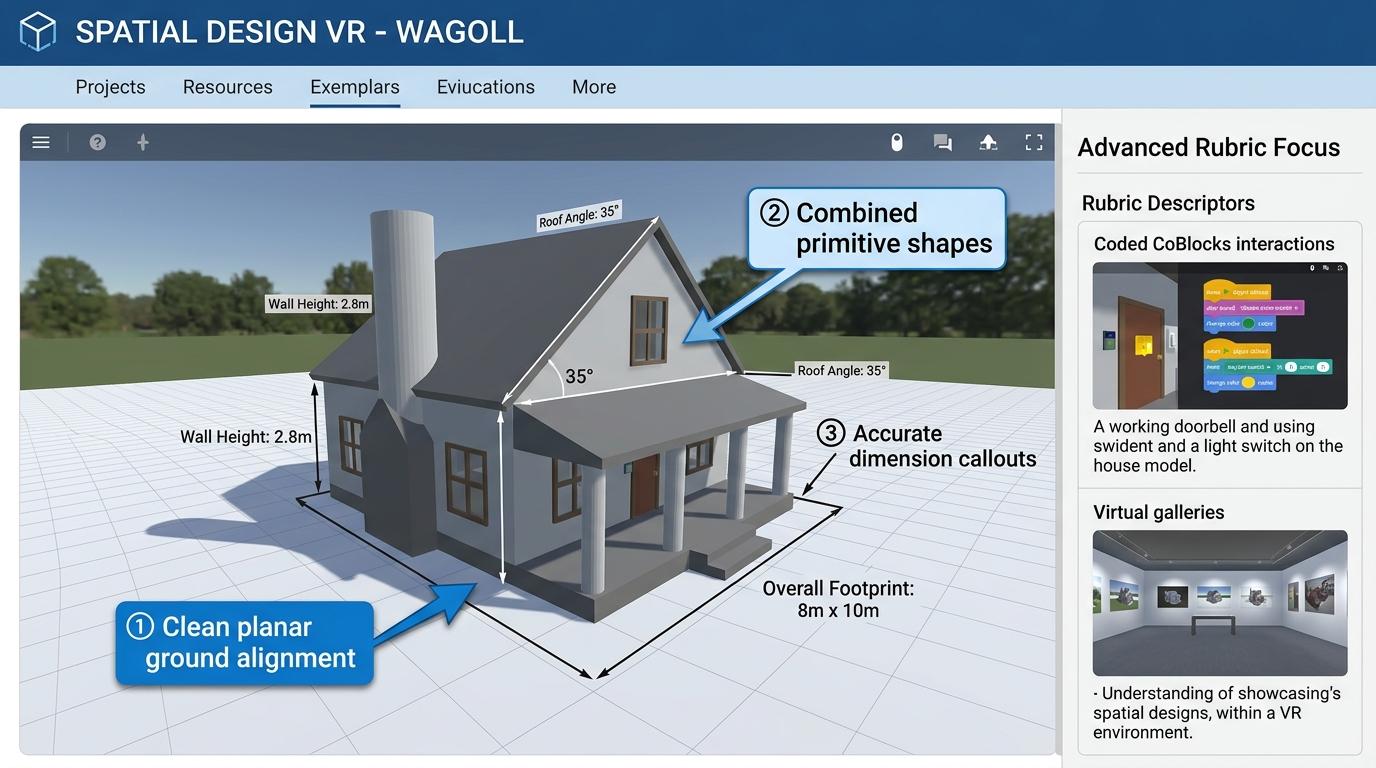 ⭐ Mastering Standard
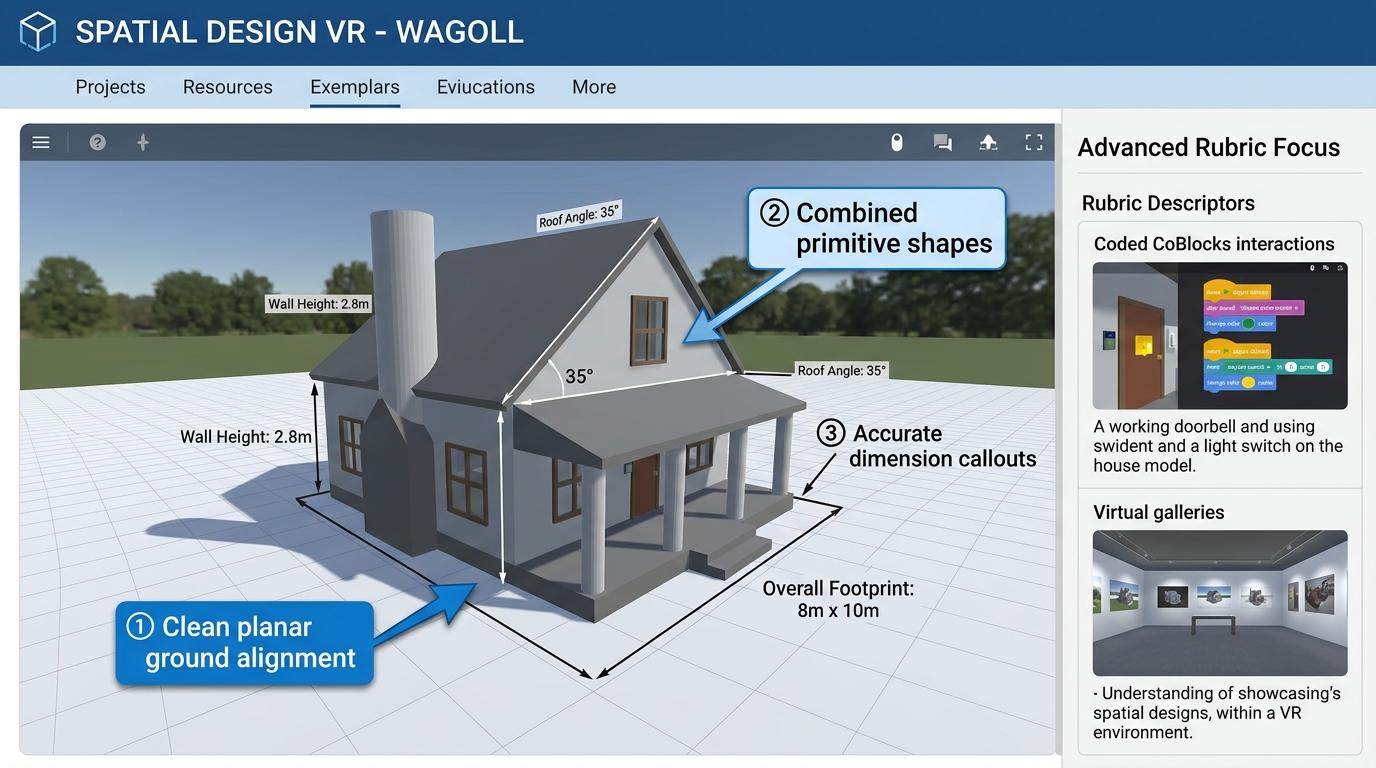 ⭐ Mastering Standard