
Learning objective
Managing Files & Projects
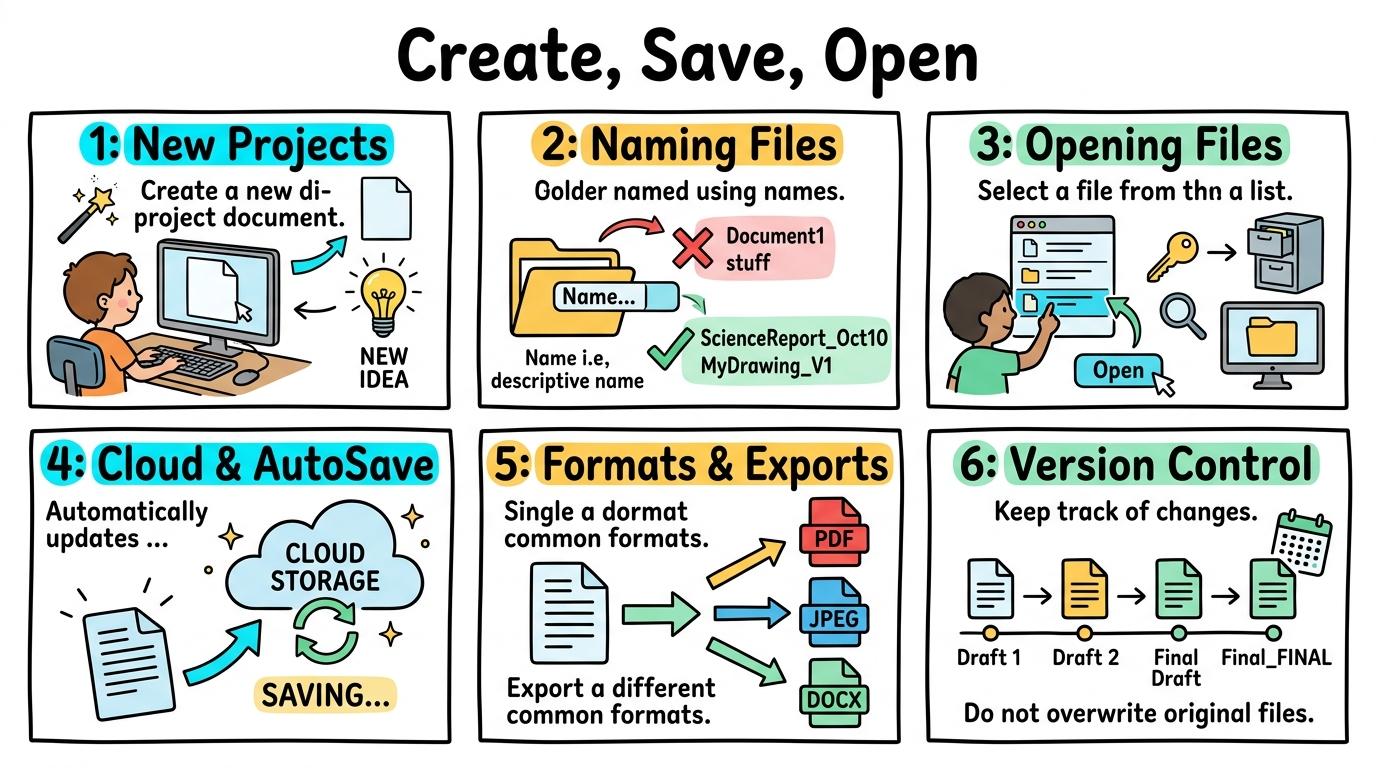
Create, Save, Open
1
2
3
4
5
6
Welcome to Create, Save, Open! In this strand, you will master starting new digital projects, saving your work securely with clear file names, and locating and opening your saved files whenever you need them.
New Projects
Opening apps and creating new projects.
Let's Go!

Routine: See, Think, Wonder
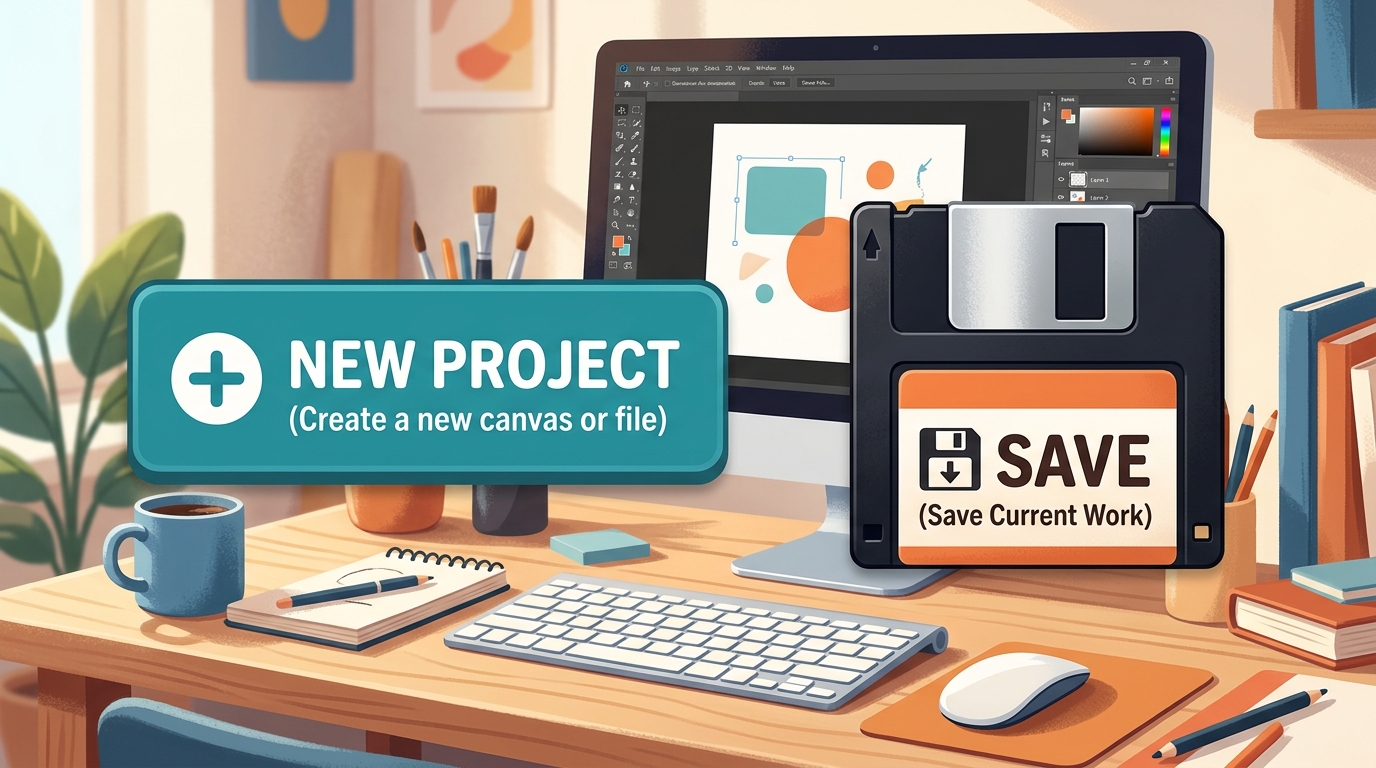
Look at these two buttons on the screen: 'New' and 'Save'. What do you think happens when you click each one?
Teacher note: Facilitate the See, Think, Wonder routine for 2–3 minutes. Encourage students to connect the prompt to Form (Creating digital work allows us to express our ideas.).
Learn
Whenever you start something new on a computer, you click 'New File' or '+'. To make sure your hard work doesn't disappear when you turn off the computer, you must click 'Save'! In computing, creating digital work allows us to express our ideas. As you explore the interactive Formatting Toolbar Simulator below, focus on how to click 'Save' and type a simple file name with teacher guidance.
Apply Simulator Skills • Try it yourself
Create and save your first file!
🚀 Open a practice space
🌟 Student Project GuideSuccess Criteria & WAGOLL (What A Good One Looks Like)
🎯 Task Success Criteria (Rubric)
Foundation
Open an app and start a blank project.
Developing
Type or draw content into a new project.
Secure (Goal)
Click 'Save' and type a simple file name with teacher guidance.
Mastery
Locate the save icon and save independently. Typing: 5 WPM.
👀 What A Good One Looks Like (WAGOLL)
Exemplar of 3
 ⭐ Secure Standard
 ⭐ Mastering Standard
 ⭐ Mastering Standard
📁
Save to Your Website Portfolio:
When you finish creating your project in your software, copy the share link or take a screenshot and publish it onto your student portfolio website!
Reflect
Learning check
Teacher setup, curriculum links and progress descriptors
Spark support
Routine: See, Think, Wonder
Teacher notes: Facilitate the See, Think, Wonder routine for 2–3 minutes. Encourage students to connect the prompt to Form (Creating digital work allows us to express our ideas.).
Achievement pathway
- Foundation: Open an app and start a blank project.
- Developing: Type or draw content into a new project.
- Secure: Click 'Save' and type a simple file name with teacher guidance.
- Mastering: Locate the save icon and save independently. Typing: 5 WPM.
Curriculum links
Curriculum strand: CM.01.B.1.2
Outcome: CSO-O-01 — Opening apps and creating new projects.
PYP: Form · Creating digital work allows us to express our ideas.
Learner profile: Inquirer
Competency tags
Gate support
Accessibility alternative: Students may verbally explain or point to the correct answer for "Which icon is used to save your file on a computer?" with a teacher or teaching assistant.
Teacher override: allow
Locked level
Level 2: Naming Files
Complete the previous learning check to unlock this next level.
Naming Files
Descriptive file naming and folder organization.
Learning objective
Learning About: Clear File Names. Learning To: Save to a folder. Learning To Be: Communicator.
Let's Go!

Routine: Zoom In
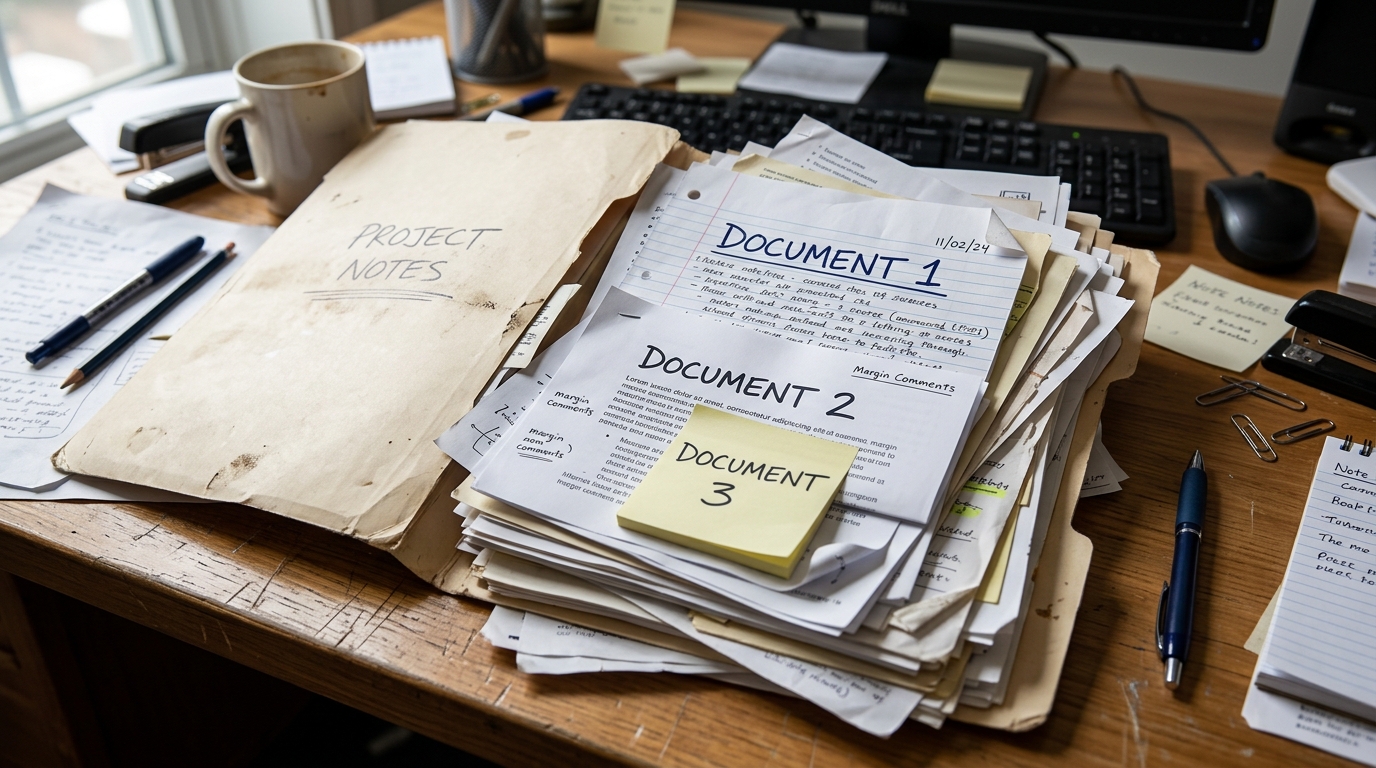
Look at this messy folder full of files called 'Doc1' and 'Doc2'. Can you guess what is inside any of them?
Teacher note: Facilitate the Zoom In routine for 2–3 minutes. Encourage students to connect the prompt to Function (Clear labels and logical organization make information easy to find.).
Learn
Leaving a file named 'Untitled' makes it impossible to find later! Always give your file a meaningful name that describes what is inside, like 'Year2_Science_Plant'. In computing, clear labels and logical organization make information easy to find. As you explore the interactive Save Dialog Simulator below, focus on how to save a file directly into a specified class folder.
Apply Simulator Skills • Try it yourself
Name and save properly!
🚀 Open a practice space
🌟 Student Project GuideSuccess Criteria & WAGOLL (What A Good One Looks Like)
🎯 Task Success Criteria (Rubric)
Foundation
Understand that files need names to be identified.
Developing
Replace default names like 'Untitled' with a descriptive word.
Secure (Goal)
Save a file directly into a specified class folder.
Mastery
Explain why names like 'Doc1' cause confusion. Typing: 10 WPM.
👀 What A Good One Looks Like (WAGOLL)
Exemplar of 3
 ⭐ Secure Standard⭐ Mastering Standard⭐ Mastering Standard
📁
Save to Your Website Portfolio:
When you finish creating your project in your software, copy the share link or take a screenshot and publish it onto your student portfolio website!
Reflect
Learning check
Teacher setup, curriculum links and progress descriptors
Spark support
Routine: Zoom In
Teacher notes: Facilitate the Zoom In routine for 2–3 minutes. Encourage students to connect the prompt to Function (Clear labels and logical organization make information easy to find.).
Achievement pathway
- Foundation: Understand that files need names to be identified.
- Developing: Replace default names like 'Untitled' with a descriptive word.
- Secure: Save a file directly into a specified class folder.
- Mastering: Explain why names like 'Doc1' cause confusion. Typing: 10 WPM.
Curriculum links
Curriculum strand: CM.01.B.1.2
Outcome: CSO-O-02 — Descriptive file naming and folder organization.
PYP: Function · Clear labels and logical organization make information easy to find.
Learner profile: Communicator
Competency tags
Gate support
Accessibility alternative: Students may verbally explain or point to the correct answer for "Which of these is the BEST file name for a Year 2 poster about dinosaurs?" with a teacher or teaching assistant.
Teacher override: allow
Locked level
Level 3: Opening Files
Complete the previous learning check to unlock this next level.
Opening Files
Locating and opening existing files for editing.
Learning objective
Learning About: Retrieval. Learning To: Open & edit files. Learning To Be: Reflective.
Let's Go!

Routine: Think, Puzzle, Explore
What is the difference between clicking 'Save' and clicking 'Save As'?
What puzzles you about re-opening yesterday's work?
Teacher note: Facilitate the Think, Puzzle, Explore routine for 2–3 minutes. Encourage students to connect the prompt to Change (Iterative processes allow us to improve and build upon past work.).
Learn
When you return to continue yesterday's project, you don't start from scratch! You use 'File > Open', browse to your folder, select your file, and keep working. In computing, iterative processes allow us to improve and build upon past work. As you explore the interactive File Extension Simulator below, focus on how to open an existing file and make improvements.
Extension (.ext)
MATCH
File Purpose & Icon
Apply Simulator Skills • Try it yourself
Re-open update and save!
🚀 Open a practice space
🌟 Student Project GuideSuccess Criteria & WAGOLL (What A Good One Looks Like)
🎯 Task Success Criteria (Rubric)
Foundation
Find the 'Open' command inside an application.
Developing
Browse to a shared folder to find a saved document.
Secure (Goal)
Open an existing file and make improvements.
Mastery
Use 'Save As' to create a new copy without overwriting the original. Typing: 15 WPM.
👀 What A Good One Looks Like (WAGOLL)
Exemplar of 3
 ⭐ Secure Standard⭐ Mastering Standard⭐ Mastering Standard
📁
Save to Your Website Portfolio:
When you finish creating your project in your software, copy the share link or take a screenshot and publish it onto your student portfolio website!
Reflect
Learning check
Teacher setup, curriculum links and progress descriptors
Spark support
Routine: Think, Puzzle, Explore
Teacher notes: Facilitate the Think, Puzzle, Explore routine for 2–3 minutes. Encourage students to connect the prompt to Change (Iterative processes allow us to improve and build upon past work.).
Achievement pathway
- Foundation: Find the 'Open' command inside an application.
- Developing: Browse to a shared folder to find a saved document.
- Secure: Open an existing file and make improvements.
- Mastering: Use 'Save As' to create a new copy without overwriting the original. Typing: 15 WPM.
Curriculum links
Curriculum strand: CM.02.B.1.1
Outcome: CSO-O-03 — Locating and opening existing files for editing.
PYP: Change · Iterative processes allow us to improve and build upon past work.
Learner profile: Reflective
Competency tags
Gate support
Accessibility alternative: Students may verbally explain or point to the correct answer for "You want to open a document you worked on yesterday. What menu option should you click first?" with a teacher or teaching assistant.
Teacher override: allow
Locked level
Level 4: Cloud & AutoSave
Complete the previous learning check to unlock this next level.
Cloud & AutoSave
Cloud drives and automatic cloud saving.
Learning objective
Learning About: Cloud Drives. Learning To: Store in cloud. Learning To Be: Principled.
Let's Go!

Routine: See, Think, Wonder
You start a document on a school computer and finish it on a tablet at home without a USB drive. How is that possible?
Teacher note: Facilitate the See, Think, Wonder routine for 2–3 minutes. Encourage students to connect the prompt to Connection (Digital networks connect our work across places and devices.).
Learn
Cloud storage (like Google Drive) saves your files automatically on secure servers over the internet. You can open, edit, and save your work from any computer or tablet everywhere! In computing, digital networks connect our work across places and devices. As you explore the interactive Folder Tree Simulator below, focus on how to create a document directly in cloud storage using Auto-Save.
Homework.docx
Puppy.jpg
Story_Chapter1.txt
Class_Anthem.mp3
Field_Trip.png
Apply Simulator Skills • Try it yourself
Create and store in the Cloud!
🚀 Open a practice space
🌟 Student Project GuideSuccess Criteria & WAGOLL (What A Good One Looks Like)
🎯 Task Success Criteria (Rubric)
Foundation
Recognise the difference between saving locally vs saving to the cloud.
Developing
Log into Google Drive or cloud storage to access files.
Secure (Goal)
Create a document directly in cloud storage using Auto-Save.
Mastery
Explain how cloud saving allows access from any device. Typing: 20 WPM.
👀 What A Good One Looks Like (WAGOLL)
Exemplar of 3
 ⭐ Secure Standard⭐ Mastering Standard⭐ Mastering Standard
📁
Save to Your Website Portfolio:
When you finish creating your project in your software, copy the share link or take a screenshot and publish it onto your student portfolio website!
Reflect
Learning check
Teacher setup, curriculum links and progress descriptors
Spark support
Routine: See, Think, Wonder
Teacher notes: Facilitate the See, Think, Wonder routine for 2–3 minutes. Encourage students to connect the prompt to Connection (Digital networks connect our work across places and devices.).
Achievement pathway
- Foundation: Recognise the difference between saving locally vs saving to the cloud.
- Developing: Log into Google Drive or cloud storage to access files.
- Secure: Create a document directly in cloud storage using Auto-Save.
- Mastering: Explain how cloud saving allows access from any device. Typing: 20 WPM.
Curriculum links
Curriculum strand: CM.02.B.1.1
Outcome: CSO-O-04 — Cloud drives and automatic cloud saving.
PYP: Connection · Digital networks connect our work across places and devices.
Learner profile: Principled
Competency tags
Gate support
Accessibility alternative: Students may verbally explain or point to the correct answer for "Where are your files stored when you use Google Drive or cloud storage?" with a teacher or teaching assistant.
Teacher override: allow
Locked level
Level 5: Formats & Exports
Complete the previous learning check to unlock this next level.
Formats & Exports
Understanding file extensions and exporting documents.
Learning objective
Learning About: File Formats. Learning To: Export & backup. Learning To Be: Knowledgeable.
Let's Go!

Routine: I used to think...
I used to think every saved file was the same... Now I know that file extensions like .pdf and .docx do completely different jobs!
Teacher note: Facilitate the I used to think... routine for 2–3 minutes. Encourage students to connect the prompt to Perspective (Choosing appropriate formats ensures information is accessible to all.).
Learn
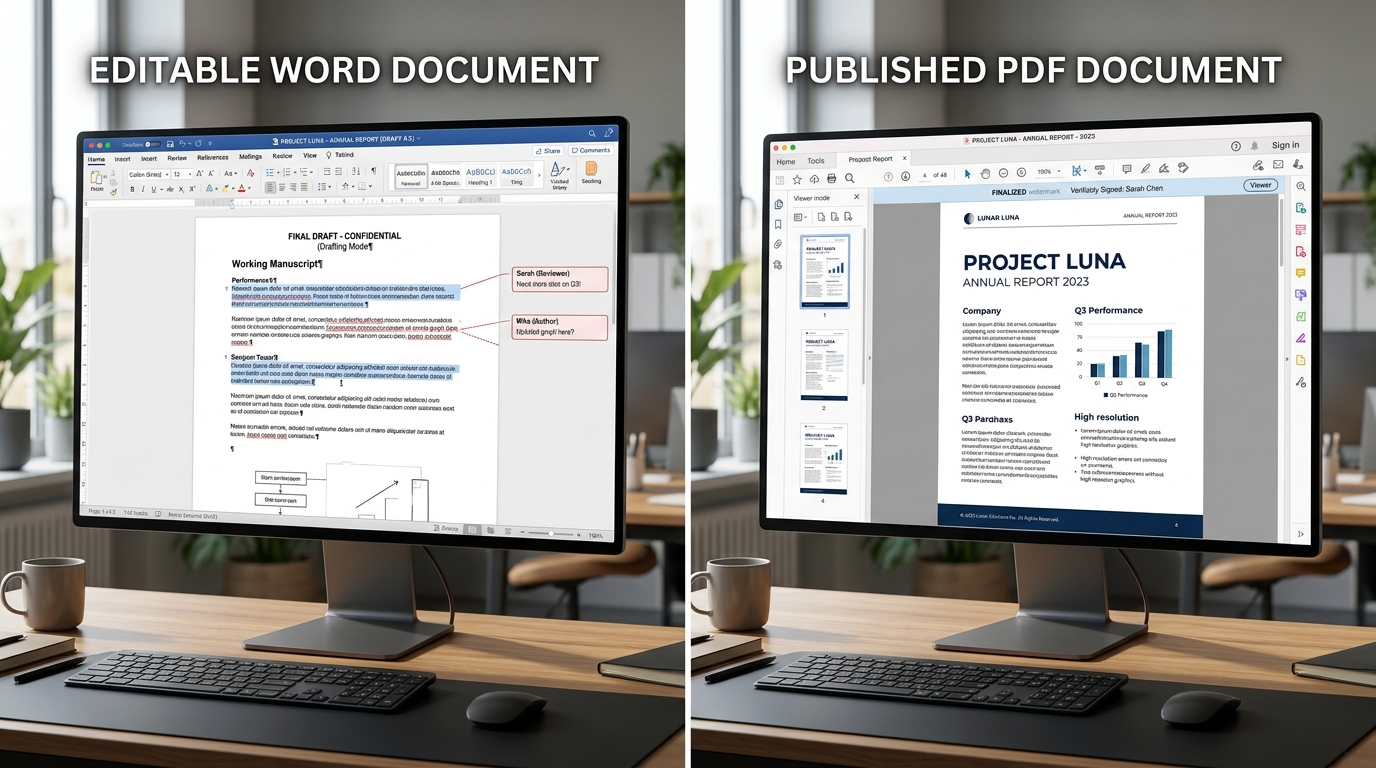
Working files (like editable Google Docs or Word files) let you change text. Exported files (like PDFs or PNG images) lock the layout so anyone can view or print your work perfectly! In computing, choosing appropriate formats ensures information is accessible to all. As you explore the interactive Upload Download Simulator below, focus on how to select the correct file format when saving work for a specific purpose.
My Computer
⇄ Idle
Cloud Drive
Online
📁 Classroom Shared FolderStorage: 1.2 GB of 15 GB used
Science_Project.docx
Field_Trip_Photo.jpg
School_Play_Video.mp4
Apply Simulator Skills • Try it yourself
Export your work as PDF!
🚀 Open a practice space
🌟 Student Project GuideSuccess Criteria & WAGOLL (What A Good One Looks Like)
🎯 Task Success Criteria (Rubric)
Foundation
Identify common file extensions (.pdf, .jpg, .docx).
Developing
Export a document as a PDF so anyone can view it.
Secure (Goal)
Select the correct file format when saving work for a specific purpose.
Mastery
Explain why editable working files differ from published exports (.pdf/.png). Typing: 25 WPM.
👀 What A Good One Looks Like (WAGOLL)
Exemplar of 3
 ⭐ Secure Standard⭐ Mastering Standard⭐ Mastering Standard
📁
Save to Your Website Portfolio:
When you finish creating your project in your software, copy the share link or take a screenshot and publish it onto your student portfolio website!
Reflect
Learning check
Teacher setup, curriculum links and progress descriptors
Spark support
Routine: I used to think...
Teacher notes: Facilitate the I used to think... routine for 2–3 minutes. Encourage students to connect the prompt to Perspective (Choosing appropriate formats ensures information is accessible to all.).
Achievement pathway
- Foundation: Identify common file extensions (.pdf, .jpg, .docx).
- Developing: Export a document as a PDF so anyone can view it.
- Secure: Select the correct file format when saving work for a specific purpose.
- Mastering: Explain why editable working files differ from published exports (.pdf/.png). Typing: 25 WPM.
Curriculum links
Curriculum strand: CM.03.B.1.1
Outcome: CSO-O-05 — Understanding file extensions and exporting documents.
PYP: Perspective · Choosing appropriate formats ensures information is accessible to all.
Learner profile: Knowledgeable
Competency tags
Gate support
Accessibility alternative: Students may verbally explain or point to the correct answer for "You want to send a final project to your teacher so the formatting cannot be changed or messed up. What file format should you export it as?" with a teacher or teaching assistant.
Teacher override: allow
Locked level
Level 6: Version Control
Complete the previous learning check to unlock this next level.
Version Control
Version history and archiving multi-part projects.
Learning objective
Learning About: Version Control. Learning To: Archive & restore. Learning To Be: Reflective.
Let's Go!

Routine: Step Inside
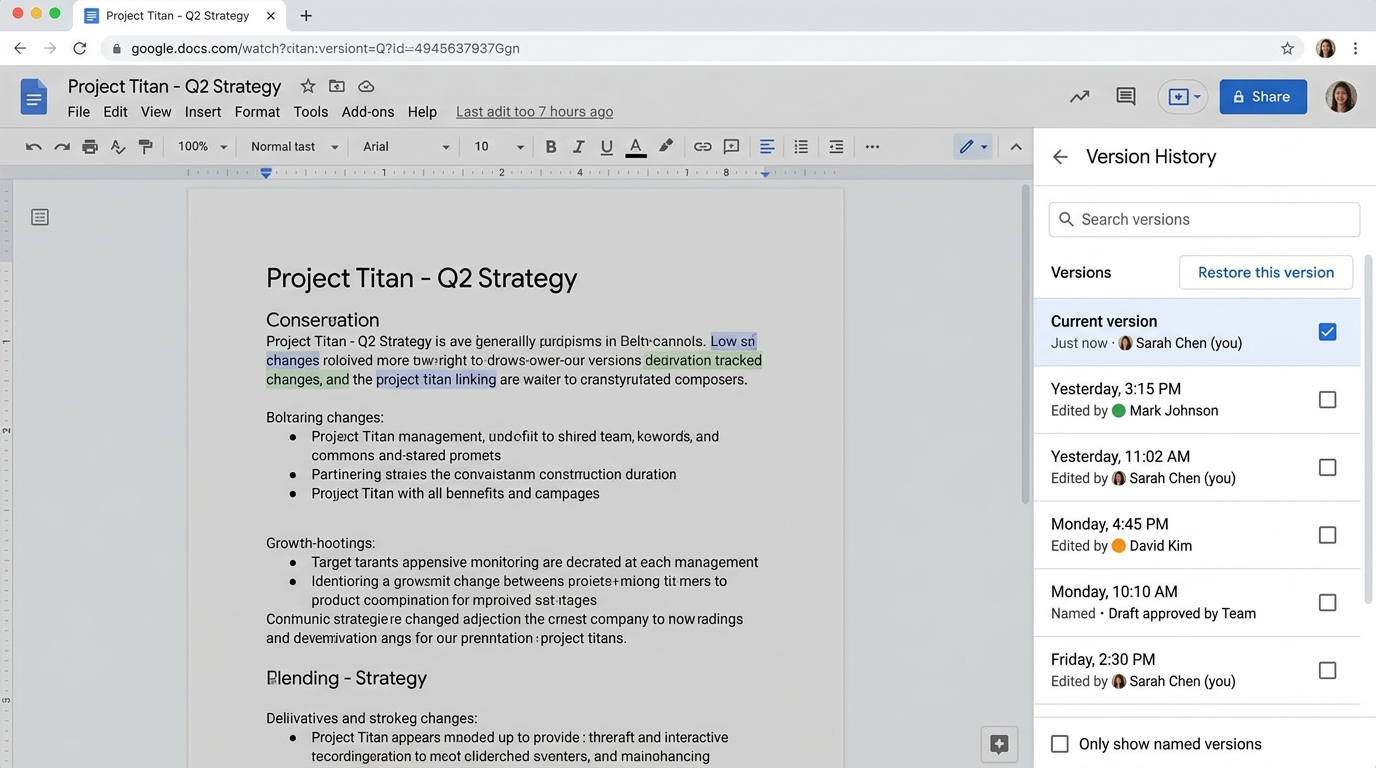
Imagine you spent 3 weeks on your Exhibition project and accidentally deleted two pages. How does Version History save the day?
Teacher note: Facilitate the Step Inside routine for 2–3 minutes. Encourage students to connect the prompt to Reflection (Managing digital archives reflects our growth as creators and researchers.).
Learn
Professional creators never lose work! Using Version History lets you time-travel back to any saved version of your document. Combined with naming conventions like '_v1' and '_FINAL', your work stays 100% safe. In computing, managing digital archives reflects our growth as creators and researchers. As you explore the interactive Shortcut Simulator below, focus on how to use explicit version naming (v1, v2, v_FINAL) and create structured archives.
💡 Click or press keys on your physical keyboard:
📁 Source Document (Research Notes)
➔
📋 Destination Notebook (Clean Summary)
Apply Simulator Skills • Try it yourself
Manage Version History & Archives!
🚀 Open a practice space
🌟 Student Project GuideSuccess Criteria & WAGOLL (What A Good One Looks Like)
🎯 Task Success Criteria (Rubric)
Foundation
Locate Version History / Revision History in Google Docs or Word.
Developing
Restore an earlier version of a document after making an error.
Secure (Goal)
Use explicit version naming (v1, v2, v_FINAL) and create structured archives.
Mastery
Design an automated backup and archiving strategy for a portfolio. Typing: 30+ WPM.
👀 What A Good One Looks Like (WAGOLL)
Exemplar of 3
 ⭐ Secure Standard⭐ Mastering Standard⭐ Mastering Standard
📁
Save to Your Website Portfolio:
When you finish creating your project in your software, copy the share link or take a screenshot and publish it onto your student portfolio website!
Reflect
Learning check
Teacher setup, curriculum links and progress descriptors
Spark support
Routine: Step Inside
Teacher notes: Facilitate the Step Inside routine for 2–3 minutes. Encourage students to connect the prompt to Reflection (Managing digital archives reflects our growth as creators and researchers.).
Achievement pathway
- Foundation: Locate Version History / Revision History in Google Docs or Word.
- Developing: Restore an earlier version of a document after making an error.
- Secure: Use explicit version naming (v1, v2, v_FINAL) and create structured archives.
- Mastering: Design an automated backup and archiving strategy for a portfolio. Typing: 30+ WPM.
Curriculum links
Curriculum strand: CM.03.B.1.1
Outcome: CSO-O-06 — Version history and archiving multi-part projects.
PYP: Reflection · Managing digital archives reflects our growth as creators and researchers.
Learner profile: Reflective
Competency tags
Gate support
Accessibility alternative: Students may verbally explain or point to the correct answer for "You are working on a multi-week group project. What is the safest way to save major revisions?" with a teacher or teaching assistant.
Teacher override: allow
"Great explanation! Suggest adding a bulleted list of astronaut equipment here for clarity."