
Learning objective
Logins & Identity
Logging In & Passwords
1
2
3
4
5
6
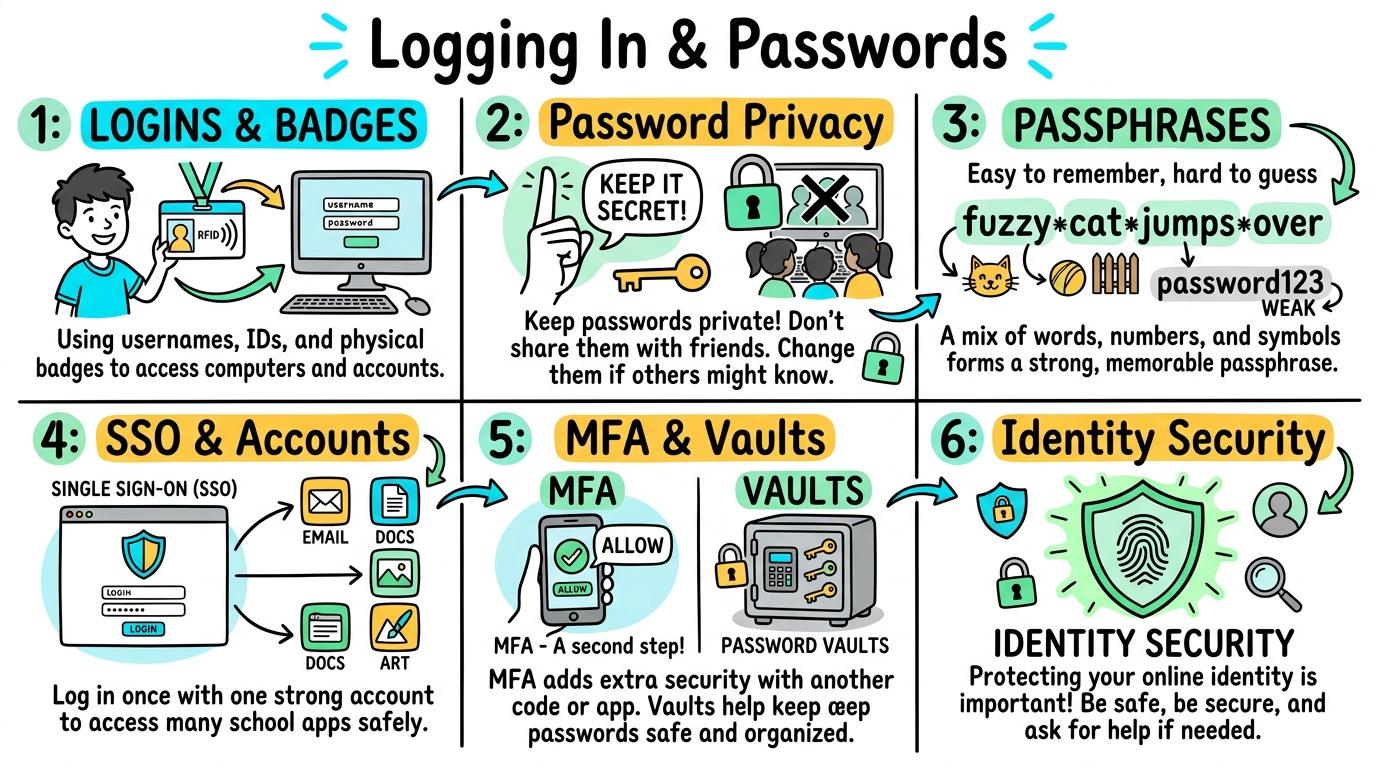
Welcome to Logging In & Passwords! In this strand, you will master securely accessing school accounts, managing personal login credentials, creating strong passwords, and protecting your digital identity across all devices.
Logins & Badges
Basic account access and username/password recognition.
Let's Go!
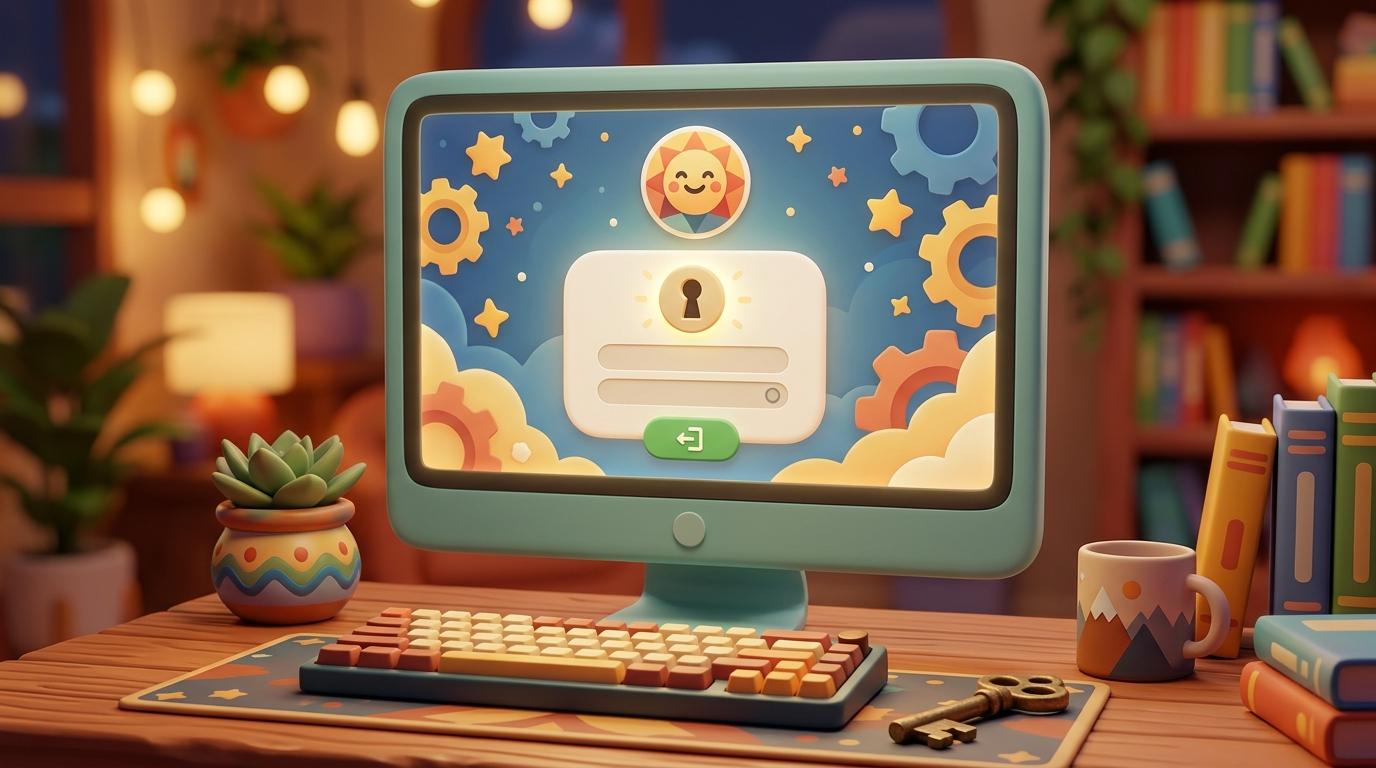
Routine: See, Think, Wonder
Look at this login screen with a username and password box. What do you see?
Why do computers ask who you are?
Teacher note: Facilitate the See, Think, Wonder routine for 2–3 minutes. Encourage students to connect the prompt to Function (Digital identity helps us access tools and connect safely.).
Learn
Your school login is like your digital locker key. Your username tells the computer who you are, and your secret password makes sure only YOU can see your work! In computing, digital identity helps us access tools and connect safely. As you explore the interactive Login Screen Simulator below, focus on how to type your secret password or use a QR badge to log in.
Oakridge Elementary
Student Cloud Portal • Step 1
Secure School Network
Select a student profile or type your credentials:
💡 Rule to remember: Never share your secret password with friends or classmates!
Hold your student badge in front of the classroom camera:
🦊
Sammy K.Year 4 • Oakridge
Camera awaiting badge...
💡 Quick Fact: QR Badges let younger students log in quickly without typing long passwords.
Scratch Lab
Project ReadyGoogle Docs
English EssayMathletics
3 ChallengesDigital Art Hub
Saved DraftApply Simulator Skills • Try it yourself
Practice Logging In!
🚀 Open a practice space
🌟 Student Project GuideSuccess Criteria & WAGOLL (What A Good One Looks Like)
🎯 Task Success Criteria (Rubric)
Foundation
Recognise the login screen on a device.
Developing
Locate and enter your username accurately.
Secure (Goal)
Type your secret password or use a QR badge to log in.
Mastery
Log in independently and lock screen when finished. Typing: 5 WPM.
👀 What A Good One Looks Like (WAGOLL)
Exemplar of 2
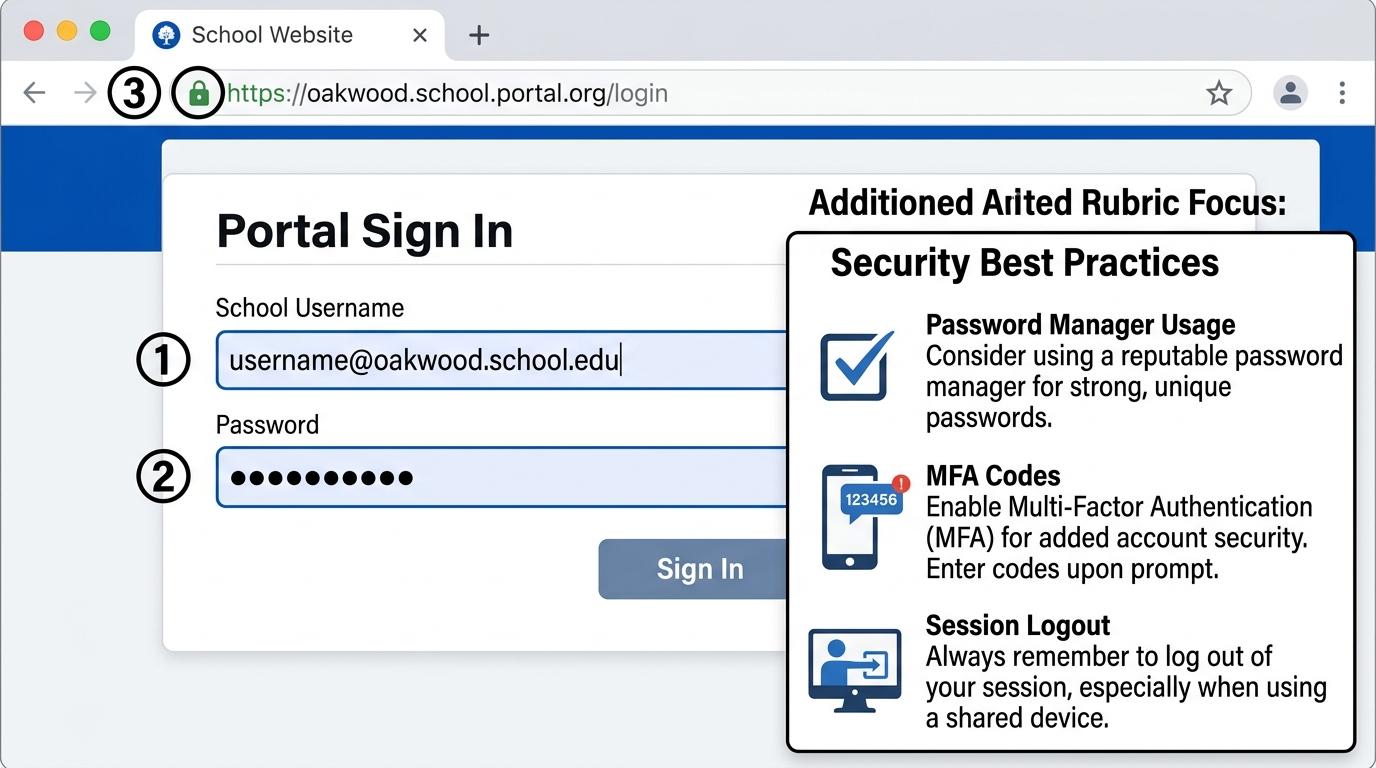 ⭐ Mastering Standard
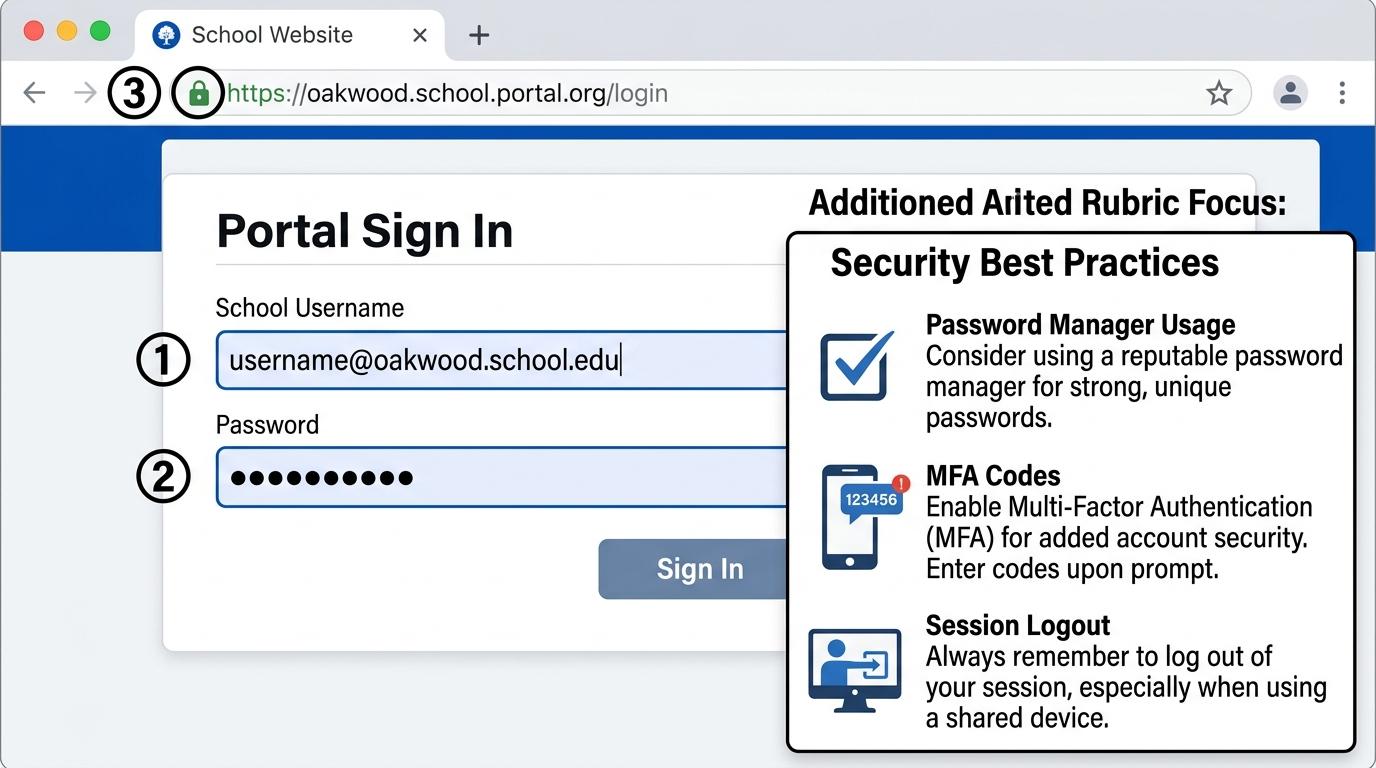 ⭐ Mastering Standard
📁
Save to Your Website Portfolio:
When you finish creating your project in your software, copy the share link or take a screenshot and publish it onto your student portfolio website!
Reflect
Learning check
Teacher setup, curriculum links and progress descriptors
Spark support
Routine: See, Think, Wonder
Teacher notes: Facilitate the See, Think, Wonder routine for 2–3 minutes. Encourage students to connect the prompt to Function (Digital identity helps us access tools and connect safely.).
Achievement pathway
- Foundation: Recognise the login screen on a device.
- Developing: Locate and enter your username accurately.
- Secure: Type your secret password or use a QR badge to log in.
- Mastering: Log in independently and lock screen when finished. Typing: 5 WPM.
Curriculum links
Curriculum strand: CM.01.B.1.2
Outcome: LIP-O-01 — Basic account access and username/password recognition.
PYP: Function · Digital identity helps us access tools and connect safely.
Learner profile: Inquirer
Competency tags
Gate support
Accessibility alternative: Students may verbally explain or point to the correct answer for "Which box do you type your secret credentials into to access your account?" with a teacher or teaching assistant.
Teacher override: allow
Locked level
Level 2: Password Privacy
Complete the previous learning check to unlock this next level.
Password Privacy
Password secrecy, privacy, and simple PIN management.
Learning objective
Learning About: Credentials. Learning To: Keep private. Learning To Be: Principled.
Let's Go!
Routine: Zoom In
Look closely at these dots on the screen (••••••). Why does the computer hide the letters when you type a password?
Teacher note: Facilitate the Zoom In routine for 2–3 minutes. Encourage students to connect the prompt to Form (Keeping secrets safe protects our work and personal space.).
Learn
When you type your password, the screen shows black dots or stars so no one looking over your shoulder can see it! Never write your password on a sticky note attached to your screen. In computing, keeping secrets safe protects our work and personal space. As you explore the interactive Password Masking Simulator below, focus on how to type a PIN or password without showing classmates.
Password Privacy & Shoulder-Surfing Lab
Step 2: Learn why computers hide your characters with dots (••••)
Peeking Eyes Nearby
"I'm standing behind you in line... what are you typing?"
👀🧑🤝🧑
Quick tests:
Masking Protected!
Your password is obscured as dots (••••••••). Anyone looking over your shoulder only sees blank circles.
Common Mistake: The Desk Sticky Note!
Do you write passwords on paper and stick them to your monitor or desk?
📌
Password: SchoolLover2026
Apply Simulator Skills • Try it yourself
Keep Your Password Secret!
🚀 Open a practice space
🌟 Student Project GuideSuccess Criteria & WAGOLL (What A Good One Looks Like)
🎯 Task Success Criteria (Rubric)
Foundation
Understand that passwords must be kept secret.
Developing
Identify who is safe to share passwords with (parents/teachers only).
Secure (Goal)
Type a PIN or password without showing classmates.
Mastery
Explain why sharing passwords with friends causes problems. Typing: 10 WPM.
👀 What A Good One Looks Like (WAGOLL)
Exemplar of 2
⭐ Mastering Standard⭐ Mastering Standard📁
Save to Your Website Portfolio:
When you finish creating your project in your software, copy the share link or take a screenshot and publish it onto your student portfolio website!
Reflect
Learning check
Teacher setup, curriculum links and progress descriptors
Spark support
Routine: Zoom In
Teacher notes: Facilitate the Zoom In routine for 2–3 minutes. Encourage students to connect the prompt to Form (Keeping secrets safe protects our work and personal space.).
Achievement pathway
- Foundation: Understand that passwords must be kept secret.
- Developing: Identify who is safe to share passwords with (parents/teachers only).
- Secure: Type a PIN or password without showing classmates.
- Mastering: Explain why sharing passwords with friends causes problems. Typing: 10 WPM.
Curriculum links
Curriculum strand: CM.01.B.1.2
Outcome: LIP-O-02 — Password secrecy, privacy, and simple PIN management.
PYP: Form · Keeping secrets safe protects our work and personal space.
Learner profile: Principled
Competency tags
Gate support
Accessibility alternative: Students may verbally explain or point to the correct answer for "Who is the ONLY person you should ever share your school password with?" with a teacher or teaching assistant.
Teacher override: allow
Locked level
Level 3: Passphrases
Complete the previous learning check to unlock this next level.
Passphrases
Building memorable, strong passphrases with random words.
Learning objective
Learning About: Password Strength. Learning To: Build passphrases. Learning To Be: Thinker.
Let's Go!
Routine: Think, Puzzle, Explore
Which is stronger: 'cat123' or 'BlueRiverJumping7!'?
What makes one much harder for a computer to guess?
Teacher note: Facilitate the Think, Puzzle, Explore routine for 2–3 minutes. Encourage students to connect the prompt to Connection (Combining simple elements creates strong defensive tools.).
Learn
Short passwords like '123456' can be guessed by computers in less than 1 second! Passphrases made of 3 or 4 random words (like 'BluePencilFalcon9!') are super long, easy for you to remember, and almost impossible to hack. In computing, combining simple elements creates strong defensive tools. As you explore the interactive Login Screen Simulator below, focus on how to add numbers and special characters (!, #, $) to strengthen a passphrase.
Oakridge Elementary
Student Cloud Portal • Step 3
Secure School Network
Select a student profile or type your credentials:
💡 Rule to remember: Never share your secret password with friends or classmates!
Hold your student badge in front of the classroom camera:
🦊
Sammy K.Year 4 • Oakridge
Camera awaiting badge...
💡 Quick Fact: QR Badges let younger students log in quickly without typing long passwords.
Scratch Lab
Project ReadyGoogle Docs
English EssayMathletics
3 ChallengesDigital Art Hub
Saved DraftApply Simulator Skills • Try it yourself
Build a Super Passphrase!
🚀 Open a practice space
🌟 Student Project GuideSuccess Criteria & WAGOLL (What A Good One Looks Like)
🎯 Task Success Criteria (Rubric)
Foundation
Recognise the difference between a weak and strong password.
Developing
Combine 3 random words to create a passphrase.
Secure (Goal)
Add numbers and special characters (!, #, $) to strengthen a passphrase.
Mastery
Explain why 'password123' is dangerous and easily guessed. Typing: 15 WPM.
👀 What A Good One Looks Like (WAGOLL)
Exemplar of 2
⭐ Mastering Standard⭐ Mastering Standard📁
Save to Your Website Portfolio:
When you finish creating your project in your software, copy the share link or take a screenshot and publish it onto your student portfolio website!
Reflect
Learning check
Teacher setup, curriculum links and progress descriptors
Spark support
Routine: Think, Puzzle, Explore
Teacher notes: Facilitate the Think, Puzzle, Explore routine for 2–3 minutes. Encourage students to connect the prompt to Connection (Combining simple elements creates strong defensive tools.).
Achievement pathway
- Foundation: Recognise the difference between a weak and strong password.
- Developing: Combine 3 random words to create a passphrase.
- Secure: Add numbers and special characters (!, #, $) to strengthen a passphrase.
- Mastering: Explain why 'password123' is dangerous and easily guessed. Typing: 15 WPM.
Curriculum links
Curriculum strand: CM.02.B.1.4
Outcome: LIP-O-03 — Building memorable, strong passphrases with random words.
PYP: Connection · Combining simple elements creates strong defensive tools.
Learner profile: Thinker
Competency tags
Gate support
Accessibility alternative: Students may verbally explain or point to the correct answer for "Which of these is the STRONGEST passphrase?" with a teacher or teaching assistant.
Teacher override: allow
Locked level
Level 4: SSO & Accounts
Complete the previous learning check to unlock this next level.
SSO & Accounts
Single Sign-On (SSO) and safe session logging out.
Learning objective
Learning About: SSO & Accounts. Learning To: Manage sessions. Learning To Be: Principled.
Let's Go!
Routine: See, Think, Wonder
Look at the 'Sign in with Google' button. How does one main account unlock Khan Academy, Canva, and Google Docs all at once?
Teacher note: Facilitate the See, Think, Wonder routine for 2–3 minutes. Encourage students to connect the prompt to Responsibility (Connected systems simplify access while requiring individual responsibility.).
Learn
Single Sign-On (SSO) lets you use your school account to log into many apps safely without creating 10 different passwords. But remember: if you don't log out when using a shared computer, someone else can access ALL your apps! In computing, connected systems simplify access while requiring individual responsibility. As you explore the interactive SSO Simulator below, focus on how to consistently log out of school accounts on shared hardware.
SSO
Single Sign-On (SSO) & Session Security
Step 4: One school key unlocks all tools — but logging out protects them all!
🖥️ Shared Lab Device
🎨
Creative Studio for Schools
To access your school projects, sign in with your school account:
💡 What is SSO? Instead of remembering 15 passwords, SSO uses your one trusted school ID to unlock approved learning tools safely.
🔒Google Accounts — Choose an account
to continue to Creative Studio
Canva ArtUnlocked
Google DriveUnlocked
Scratch CodingUnlocked
Student MailUnlocked
School Bell Rings! The computer lab session is over!
You need to pack your backpack and line up for lunch. What do you do with this computer?
Danger! Account Left Vulnerable
Because you didn't sign out, the next person can open all your files!
Apply Simulator Skills • Try it yourself
Master SSO and Log Out!
🚀 Open a practice space
🌟 Student Project GuideSuccess Criteria & WAGOLL (What A Good One Looks Like)
🎯 Task Success Criteria (Rubric)
Foundation
Recognise 'Sign in with Google / Microsoft' buttons.
Developing
Use Single Sign-On (SSO) to log into educational apps.
Secure (Goal)
Consistently log out of school accounts on shared hardware.
Mastery
Explain how leaving an SSO account logged in exposes all linked apps. Typing: 20 WPM.
👀 What A Good One Looks Like (WAGOLL)
Exemplar of 2
⭐ Mastering Standard⭐ Mastering Standard📁
Save to Your Website Portfolio:
When you finish creating your project in your software, copy the share link or take a screenshot and publish it onto your student portfolio website!
Reflect
Learning check
Teacher setup, curriculum links and progress descriptors
Spark support
Routine: See, Think, Wonder
Teacher notes: Facilitate the See, Think, Wonder routine for 2–3 minutes. Encourage students to connect the prompt to Responsibility (Connected systems simplify access while requiring individual responsibility.).
Achievement pathway
- Foundation: Recognise 'Sign in with Google / Microsoft' buttons.
- Developing: Use Single Sign-On (SSO) to log into educational apps.
- Secure: Consistently log out of school accounts on shared hardware.
- Mastering: Explain how leaving an SSO account logged in exposes all linked apps. Typing: 20 WPM.
Curriculum links
Curriculum strand: CM.02.B.1.4
Outcome: LIP-O-04 — Single Sign-On (SSO) and safe session logging out.
PYP: Responsibility · Connected systems simplify access while requiring individual responsibility.
Learner profile: Principled
Competency tags
Gate support
Accessibility alternative: Students may verbally explain or point to the correct answer for "You finish your work on a shared computer in the lab. What must you do before standing up?" with a teacher or teaching assistant.
Teacher override: allow
Locked level
Level 5: MFA & Vaults
Complete the previous learning check to unlock this next level.
MFA & Vaults
Multi-Factor Authentication (2FA/MFA) and Password Managers.
Learning objective
Learning About: MFA & Vaults. Learning To: Evaluate security. Learning To Be: Knowledgeable.
Let's Go!
Routine: I used to think...
I used to think a password was enough to protect an account... Now I think two layers of defense are needed because...
Teacher note: Facilitate the I used to think... routine for 2–3 minutes. Encourage students to connect the prompt to Perspective (Multi-layered security prevents unauthorised access to personal data.).
Learn
Multi-Factor Authentication (MFA) adds a second lock to your door. Even if a hacker guesses your password (something you know), they still can't log in without your phone or security code (something you have)! In computing, multi-layered security prevents unauthorised access to personal data. As you explore the interactive MFA Simulator below, focus on how to explain how a Password Manager or Digital Vault securely stores complex passwords.
2FA
Two-Factor Authentication (MFA) & Digital Vault
Step 5: Two locks on one door — Something You Know + Something You Have
Double Armor Active
Factor 1: Something You Know
Enter Master Password
Factor 2: Something You Have
Enter 6-Digit Phone Code
A temporary code was sent to your trusted device.
-
Vault Access Granted!
Identity confirmed with 2 independent security factors.
10:42 AM
Authenticator AppJust now
Your one-time school sign-in code:
482 195
⏱️ Expires in 30 seconds📱
Trusted Device Standby
Awaiting security prompts...Test the "Hacker Scenario":
What happens if a bad actor steals your password from a website breach?
🛑 HACKER BLOCKED BY MFA!
The hacker entered your correct password (Factor 1), but they do not have your physical phone in their hands to read the 6-digit code (Factor 2). Your account remains 100% safe!
Apply Simulator Skills • Try it yourself
Explore 2FA & Password Vaults!
🚀 Open a practice space
🌟 Student Project GuideSuccess Criteria & WAGOLL (What A Good One Looks Like)
🎯 Task Success Criteria (Rubric)
Foundation
Understand what 2-Factor Authentication (2FA/MFA) means.
Developing
Identify different authentication factors (something you know vs something you have).
Secure (Goal)
Explain how a Password Manager or Digital Vault securely stores complex passwords.
Mastery
Evaluate account security setups and recommend MFA for critical accounts. Typing: 25 WPM.
👀 What A Good One Looks Like (WAGOLL)
Exemplar of 2
⭐ Mastering Standard⭐ Mastering Standard📁
Save to Your Website Portfolio:
When you finish creating your project in your software, copy the share link or take a screenshot and publish it onto your student portfolio website!
Reflect
Learning check
Teacher setup, curriculum links and progress descriptors
Spark support
Routine: I used to think...
Teacher notes: Facilitate the I used to think... routine for 2–3 minutes. Encourage students to connect the prompt to Perspective (Multi-layered security prevents unauthorised access to personal data.).
Achievement pathway
- Foundation: Understand what 2-Factor Authentication (2FA/MFA) means.
- Developing: Identify different authentication factors (something you know vs something you have).
- Secure: Explain how a Password Manager or Digital Vault securely stores complex passwords.
- Mastering: Evaluate account security setups and recommend MFA for critical accounts. Typing: 25 WPM.
Curriculum links
Curriculum strand: CM.03.B.1.5
Outcome: LIP-O-05 — Multi-Factor Authentication (2FA/MFA) and Password Managers.
PYP: Perspective · Multi-layered security prevents unauthorised access to personal data.
Learner profile: Knowledgeable
Competency tags
Gate support
Accessibility alternative: Students may verbally explain or point to the correct answer for "What does Multi-Factor Authentication (MFA) require when logging into an account?" with a teacher or teaching assistant.
Teacher override: allow
Locked level
Level 6: Identity Security
Complete the previous learning check to unlock this next level.
Identity Security
Data breaches, credential stuffing, phishing defense, and identity audits.
Learning objective
Learning About: Identity Security. Learning To: Audit security. Learning To Be: Reflective.
Let's Go!
Routine: Step Inside
Imagine a website you use suffers a data breach and hackers get your password. What happens if you used that EXACT same password for your email and school account?
Teacher note: Facilitate the Step Inside routine for 2–3 minutes. Encourage students to connect the prompt to Reflection (Maintaining digital identity integrity requires vigilance and ethical practices.).
Learn
Hackers use automated programs for 'credential stuffing' — testing stolen passwords on hundreds of popular websites. If you re-use passwords, one breach compromises everything! Using unique passphrases for every site isolates and protects your identity. In computing, maintaining digital identity integrity requires vigilance and ethical practices. As you explore the interactive Security Audit Simulator below, focus on how to conduct a security audit of online accounts to check for breached passwords.
Cybersecurity & Scam Defense Audit Engine
Master Security Audits, Threat Analysis & Defense-in-Depth
LEVEL 1 • BRONZEOS6 • Free Gift Traps
Deceptive Reward Screen Detection
Review the incoming web element. Identify signs of fraudulent "Free Prize" lures before taking action.
🛡️ Security Inspector & Triage
THREAT LEVEL: UNRATED📋 NIST Cybersecurity Framework Mapping
CSF v2.0IDIdentifyAsset & Threat Identification
PRProtectSafeguards & MFA
DEDetectAnomalies & Phishing
RSRespondContainment Protocol
RCRecoverRestoration & Backups
📡 Live Telemetry & Threat Vector Indicators
LIVE TELEMETRY| Metric / Indicator | Observed Value | Risk Factor |
|---|---|---|
| TLS Certificate | Self-Signed / Untrusted | HIGH |
| Sender Domain Entropy | 0.89 (Spoofed DMARC) | CRITICAL |
| Urgency Emotion Vector | Active Countdown Detected | ELEVATED |
💻 SOC Incident Event Stream & Telemetry Log
[SOC-INIT] Defense telemetry daemon active. Port 443 TLS 1.3 inspector online.
[AUDIT-READY] Simulator initialized. Select a step to commence security audit.
Apply Simulator Skills • Try it yourself
Audit Account Security!
🚀 Open a practice space
🌟 Student Project GuideSuccess Criteria & WAGOLL (What A Good One Looks Like)
🎯 Task Success Criteria (Rubric)
Foundation
Recognise that reusing the same password across multiple websites is dangerous.
Developing
Identify fake login screens designed to steal credentials (phishing).
Secure (Goal)
Conduct a security audit of online accounts to check for breached passwords.
Mastery
Design an enterprise security protocol for a school network. Typing: 30+ WPM.
👀 What A Good One Looks Like (WAGOLL)
Exemplar of 2
⭐ Mastering Standard⭐ Mastering Standard📁
Save to Your Website Portfolio:
When you finish creating your project in your software, copy the share link or take a screenshot and publish it onto your student portfolio website!
Reflect
Learning check
Teacher setup, curriculum links and progress descriptors
Spark support
Routine: Step Inside
Teacher notes: Facilitate the Step Inside routine for 2–3 minutes. Encourage students to connect the prompt to Reflection (Maintaining digital identity integrity requires vigilance and ethical practices.).
Achievement pathway
- Foundation: Recognise that reusing the same password across multiple websites is dangerous.
- Developing: Identify fake login screens designed to steal credentials (phishing).
- Secure: Conduct a security audit of online accounts to check for breached passwords.
- Mastering: Design an enterprise security protocol for a school network. Typing: 30+ WPM.
Curriculum links
Curriculum strand: CM.03.B.1.5
Outcome: LIP-O-06 — Data breaches, credential stuffing, phishing defense, and identity audits.
PYP: Reflection · Maintaining digital identity integrity requires vigilance and ethical practices.
Learner profile: Reflective
Competency tags
Gate support
Accessibility alternative: Students may verbally explain or point to the correct answer for "Why is it dangerous to use the EXACT same password for every website you join?" with a teacher or teaching assistant.
Teacher override: allow