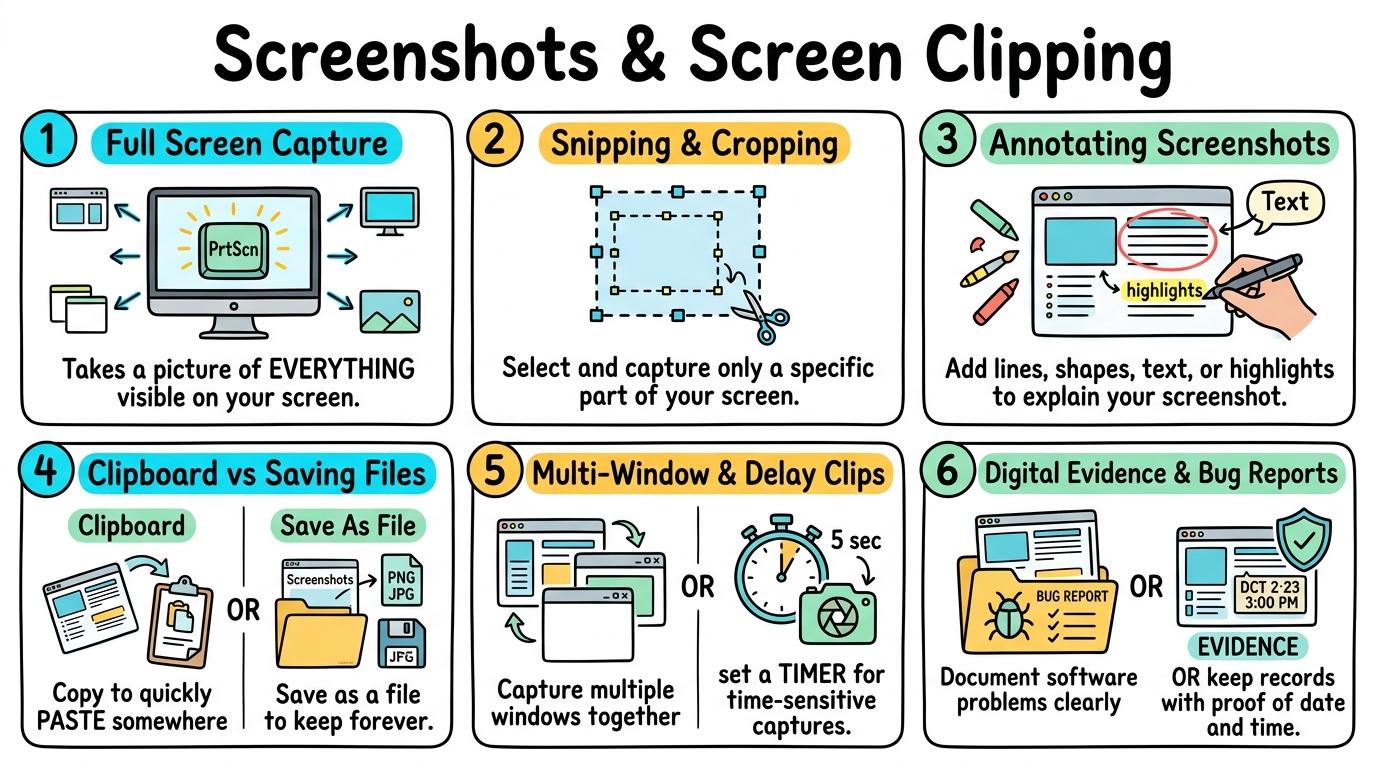





Screenshots

Screenshots & Screen Clipping

1
2
3
4
5
6

Master the art of capturing, cropping, annotating, and documenting digital information using screenshots and screen clipping tools.

Level 1

Full Screen Capture

Capture the entire screen using the Print Screen key or dedicated capture button.

Learning objective

Learning About: Full Screen Capture. Learning To: Press PrtScn / Screen capture key. Learning To Be: Inquirer.

Let's Go!

Step media

Learn

A screenshot takes an instant picture of whatever is showing on your computer monitor! Pressing the Print Screen (PrtScn) key or using the screen capture button takes a photo of your whole screen and saves it to your clipboard. In computing, digital tools allow us to capture and document our learning moments in real time. As you explore the interactive Screenshot Simulator below, focus on how to capture the full screen and pastes it into a blank document or slide.

Visual guide for Full Screen Capture
Interactive Simulator Sandbox
Curriculum:Step 1 โ€ข Bronze Tier
๐Ÿ“ธ
Step 1 โ€ข Bronze (Level 1): Locate Print Screen Key

Locate the PrtScn / Print Screen key on the virtual keyboard to capture everything currently shown on display.

Capture Mode:Fullscreen Snip
โŒจ๏ธ Shortcut: PrtScn or Win + Shift + S
Ready to Capture
Markup Tools:
๐Ÿ“Science Project
๐ŸŒSchool Browser
๐Ÿ—‘๏ธRecycle Bin
๐Ÿถ Pet Explorer - Golden Retriever Profile
๐Ÿ•Educational Resource

Golden Retriever Puppy

Loyal, gentle family dog known for intelligence and playful temperament.

Owner ID: Sarah_Smith_Room12 (Confidential Data)
๐Ÿ“„ Student Science Report (Pastepad)
Click 'Ctrl+V Paste Snip' or press Ctrl+V to attach captured screenshot into your document.

Apply Simulator Skills โ€ข Try it yourself

Take Your First Screenshot

๐Ÿ”„Direct Simulator Transfer: Step 1 Tasks 1, 2 & 3

Now that you've practiced the virtual mechanics in the simulator above, apply those exact skills in your real computer environment:

๐ŸŒŸ Student Project GuideSuccess Criteria & WAGOLL (What A Good One Looks Like)โ–พ

๐ŸŽฏ Task Success Criteria (Rubric)

Foundation

Locates the Print Screen key on a keyboard.

Developing

Captures a full-screen image using the shortcut key.

Secure (Goal)

Captures the full screen and pastes it into a blank document or slide.

Mastery

Explains when a full-screen capture is better than a cropped capture.

๐Ÿ‘€ What A Good One Looks Like (WAGOLL)

๐Ÿ“
Save to Your Website Portfolio:

When you finish creating your project in your software, copy the share link or take a screenshot and publish it onto your student portfolio website!

Reflect

๐ŸŽฏ

Self-Assessment & Reflection

How easy was it to capture your whole screen using the keyboard shortcut?

๐ŸŸขSecure Level

Captures the full screen and pastes it into a blank document or slide.

Learning check

Learning Check

Which key takes a picture of your entire computer screen?

Choose the best option:

Answer correctly to unlock the next level.

Correct! PrtScn takes an instant snapshot of your entire display.Try again โ€” look for the key labeled PrtScn or Print Screen on the top row of your keyboard.
Teacher setup, curriculum links and progress descriptors

Spark support

Routine: See, Think, Wonder

Teacher notes: Facilitate the See, Think, Wonder routine for 2โ€“3 minutes. Encourage students to connect the prompt to Form (Digital tools allow us to capture and document our learning moments in real time.).

Achievement pathway

  • Foundation: Locates the Print Screen key on a keyboard.
  • Developing: Captures a full-screen image using the shortcut key.
  • Secure: Captures the full screen and pastes it into a blank document or slide.
  • Mastering: Explains when a full-screen capture is better than a cropped capture.

Curriculum links

Curriculum strand: Everyday Digital Skills

Outcome: SHOT.01.B.1.1 โ€” Capture the entire screen using the Print Screen key or dedicated capture button.

PYP: Form ยท Digital tools allow us to capture and document our learning moments in real time.

Learner profile: Inquirer

Competency tags

  • screenshots
  • full-screen
  • print-screen
  • capture

Gate support

Accessibility alternative: Students may verbally explain or point to the correct answer for "Which key takes a picture of your entire computer screen?" with a teacher or teaching assistant.

Teacher override: allow

Back to top

Locked level

Level 2: Snipping & Cropping

Complete the previous learning check to unlock this next level.

Level 2

Snipping & Cropping

Use a snipping tool to drag and capture a specific region of the screen.

Learning objective

Learning About: Snipping Tool. Learning To: Select and drag a region to capture. Learning To Be: Communicator.

Let's Go!

Step media

Learn

Instead of capturing your whole screen with all your desktop clutter, the Snipping Tool (or Win+Shift+S / Cmd+Shift+4) lets you draw a box around just the part you need! This keeps your work neat and focused. In computing, selecting specific details helps communicate key information clearly. As you explore the interactive Drawing Layers Simulator below, focus on how to capture a cropped screenshot containing only the required information.

Visual guide for Snipping & Cropping
Interactive Simulator Sandbox
Curriculum:Step 2 โ€ข Bronze Tier
๐Ÿ“„
Step 1 โ€ข Bronze (Level 1): Page Balance - Text & Image Placement

Place text and one image on a digital page without overlapping elements.

In Progress

ECO-GUARDIANS NEWSLETTER

Issue 4: Protecting Urban Biodiversity

Urban biodiversity creates resilient community ecosystems. Local parks provide vital stopping points for migratory birds and pollinating native bees.

๐Ÿ๐ŸŒธ
Native Honeybee on Clover

Planting micro-gardens with perennial wildflowers restores nectar corridors along city streets.

Layers & Stacking Order

4 Elements
100%
๐Ÿท๏ธTitle Hierarchy (H1)
๐Ÿ–ผ๏ธPollinator Graphic Image
๐Ÿ“ฐ2-Column Body Article
๐Ÿ’กCallout Box & Footer
Design Pro-Tip:

Maintain comfortable breathing space (margins) so eye movement flows naturally across the headline.

Apply Simulator Skills โ€ข Try it yourself

Snip a Specific Picture

๐Ÿ”„Direct Simulator Transfer: Step 2 Tasks 4, 5 & 6

Now that you've practiced the virtual mechanics in the simulator above, apply those exact skills in your real computer environment:

๐ŸŒŸ Student Project GuideSuccess Criteria & WAGOLL (What A Good One Looks Like)โ–พ

๐ŸŽฏ Task Success Criteria (Rubric)

Foundation

Opens the Snipping Tool or screen capture utility.

Developing

Drags a rectangular box around a specific image on screen.

Secure (Goal)

Captures a cropped screenshot containing only the required information.

Mastery

Demonstrates how cropping unwanted screen clutter makes work look cleaner.

๐Ÿ‘€ What A Good One Looks Like (WAGOLL)

๐Ÿ“
Save to Your Website Portfolio:

When you finish creating your project in your software, copy the share link or take a screenshot and publish it onto your student portfolio website!

Reflect

๐ŸŽฏ

Self-Assessment & Reflection

Why is a cropped snippet better than a full-screen image for showing a game high score?

๐ŸŸขSecure Level

Captures a cropped screenshot containing only the required information.

Learning check

Learning Check

What shortcut opens the region snipping tool on Windows/Mac?

Choose the best option:

Answer correctly to unlock the next level.

Spot on! That shortcut lets you drag a box around any part of the screen.Remember: Win+Shift+S or Cmd+Shift+4 opens the region cropping selector.
Teacher setup, curriculum links and progress descriptors

Spark support

Routine: Zoom In

Teacher notes: Facilitate the Zoom In routine for 2โ€“3 minutes. Encourage students to connect the prompt to Function (Selecting specific details helps communicate key information clearly.).

Achievement pathway

  • Foundation: Opens the Snipping Tool or screen capture utility.
  • Developing: Drags a rectangular box around a specific image on screen.
  • Secure: Captures a cropped screenshot containing only the required information.
  • Mastering: Demonstrates how cropping unwanted screen clutter makes work look cleaner.

Curriculum links

Curriculum strand: Everyday Digital Skills

Outcome: SHOT.01.B.1.2 โ€” Use a snipping tool to drag and capture a specific region of the screen.

PYP: Function ยท Selecting specific details helps communicate key information clearly.

Learner profile: Communicator

Competency tags

  • snipping-tool
  • crop
  • area-capture
  • precision

Gate support

Accessibility alternative: Students may verbally explain or point to the correct answer for "What shortcut opens the region snipping tool on Windows/Mac?" with a teacher or teaching assistant.

Teacher override: allow

Back to top

Locked level

Level 3: Annotating Screenshots

Complete the previous learning check to unlock this next level.

Level 3

Annotating Screenshots

Add arrows, text labels, and highlights to screenshots to explain information.

Learning objective

Learning About: Annotations. Learning To: Draw arrows and highlight text on screenshots. Learning To Be: Thinker.

Let's Go!

Step media

Learn

Once you take a screenshot, you can mark it up! Using red arrows, text boxes, and yellow highlighters helps your audience immediately see important buttons, errors, or answers without getting lost. In computing, visual annotations clarify technical details and guide audience understanding. As you explore the interactive Shortcut Simulator below, focus on how to add a text box annotation and bright highlight to explain a step clearly.

Visual guide for Annotating Screenshots
Interactive Simulator Sandbox
Curriculum:Step 3 โ€ข Bronze Tier
๐Ÿฅท
Step 1 โ€ข Bronze (Level 1): Select All & Delete - Locate Ctrl & A

Locate the Ctrl (Cmd) and A keys on the virtual keyboard to target entire documents instantly.

Target Shortcut:Ctrl + A
โœจ Mission Ready
๐Ÿ’ก Click or press keys on your physical keyboard:
๐Ÿ“„ Notes & Research Editor
๐Ÿ“ Source Document (Research Notes)
โž”
๐Ÿ“‹ Destination Notebook (Clean Summary)

Apply Simulator Skills โ€ข Try it yourself

Annotate a Screen Guide

๐Ÿ”„Direct Simulator Transfer: Step 3 Tasks 7, 8 & 9

Now that you've practiced the virtual mechanics in the simulator above, apply those exact skills in your real computer environment:

๐ŸŒŸ Student Project GuideSuccess Criteria & WAGOLL (What A Good One Looks Like)โ–พ

๐ŸŽฏ Task Success Criteria (Rubric)

Foundation

Selects a pen or highlighter tool inside the screenshot editor.

Developing

Draws a circle or arrow pointing to a specific feature on a screenshot.

Secure (Goal)

Adds a text box annotation and bright highlight to explain a step clearly.

Mastery

Creates a fully annotated visual diagram using multiple markup tools.

๐Ÿ‘€ What A Good One Looks Like (WAGOLL)

๐Ÿ“
Save to Your Website Portfolio:

When you finish creating your project in your software, copy the share link or take a screenshot and publish it onto your student portfolio website!

Reflect

๐ŸŽฏ

Self-Assessment & Reflection

How do arrows and highlighters help someone reading your instructions?

๐ŸŸขSecure Level

Adds a text box annotation and bright highlight to explain a step clearly.

Learning check

Learning Check

Which annotation tool is best for drawing attention to a small icon on a screenshot?

Choose the best option:

Answer correctly to unlock the next level.

Great job! Red arrows point directly to the exact button you want people to notice.Think about it: Arrows and circles guide the viewer's eye straight to key details.
Teacher setup, curriculum links and progress descriptors

Spark support

Routine: Think, Pair, Share

Teacher notes: Facilitate the Think, Pair, Share routine for 2โ€“3 minutes. Encourage students to connect the prompt to Connection (Visual annotations clarify technical details and guide audience understanding.).

Achievement pathway

  • Foundation: Selects a pen or highlighter tool inside the screenshot editor.
  • Developing: Draws a circle or arrow pointing to a specific feature on a screenshot.
  • Secure: Adds a text box annotation and bright highlight to explain a step clearly.
  • Mastering: Creates a fully annotated visual diagram using multiple markup tools.

Curriculum links

Curriculum strand: Everyday Digital Skills

Outcome: SHOT.02.B.1.1 โ€” Add arrows, text labels, and highlights to screenshots to explain information.

PYP: Connection ยท Visual annotations clarify technical details and guide audience understanding.

Learner profile: Thinker

Competency tags

  • annotations
  • arrows
  • highlighter
  • text-labels

Gate support

Accessibility alternative: Students may verbally explain or point to the correct answer for "Which annotation tool is best for drawing attention to a small icon on a screenshot?" with a teacher or teaching assistant.

Teacher override: allow

Back to top

Locked level

Level 4: Clipboard vs Saving Files

Complete the previous learning check to unlock this next level.

Level 4

Clipboard vs Saving Files

Distinguish between pasting from clipboard memory and saving screenshots as image files.

Learning objective

Learning About: Image Storage. Learning To: Save screenshots as PNG/JPG files. Learning To Be: Knowledgeable.

Let's Go!

Step media

Learn

When you take a screenshot, it goes into your computer's temporary Clipboard memory. If you paste (Ctrl+V) right away, it appears in your doc. But if you want to keep the image for later, click 'Save As' and save it as a PNG file in your project folder! In computing, understanding storage formats ensures our digital assets remain accessible. As you explore the interactive Save Dialog Simulator below, focus on how to save a screenshot as a named PNG file in a specific project folder.

Visual guide for Clipboard vs Saving Files
Interactive Simulator Sandbox
Curriculum:Step 4 โ€ข Bronze Tier
๐Ÿ’พ
Step 1 โ€ข Bronze (Level 1): New Projects & First Save

Type a clear name in the "File name" box and click Save to store it on the Desktop.

๐Ÿ’พSave As...
โš ๏ธ Type a file name

Apply Simulator Skills โ€ข Try it yourself

Save a Screenshot as an Image File

๐Ÿ”„Direct Simulator Transfer: Step 4 Tasks 10, 11 & 12

Now that you've practiced the virtual mechanics in the simulator above, apply those exact skills in your real computer environment:

๐ŸŒŸ Student Project GuideSuccess Criteria & WAGOLL (What A Good One Looks Like)โ–พ

๐ŸŽฏ Task Success Criteria (Rubric)

Foundation

Pastes a screenshot directly into a document using Ctrl+V.

Developing

Explains that clipboard memory disappears when a new item is copied.

Secure (Goal)

Saves a screenshot as a named PNG file in a specific project folder.

Mastery

Evaluates when to paste from clipboard vs when to save permanent file archives.

๐Ÿ‘€ What A Good One Looks Like (WAGOLL)

๐Ÿ“
Save to Your Website Portfolio:

When you finish creating your project in your software, copy the share link or take a screenshot and publish it onto your student portfolio website!

Reflect

๐ŸŽฏ

Self-Assessment & Reflection

Why is saving a screenshot as a PNG file safer than relying only on the clipboard?

๐ŸŸขSecure Level

Saves a screenshot as a named PNG file in a specific project folder.

Learning check

Learning Check

Where should you save a screenshot if you need to upload it to a website tomorrow?

Choose the best option:

Answer correctly to unlock the next level.

Correct! Saving as a file ensures your picture is permanently stored and ready to upload anytime.Remember: The clipboard is temporary memory. Save as a file to keep it permanently.
Teacher setup, curriculum links and progress descriptors

Spark support

Routine: Parts-Purposes-Complexities

Teacher notes: Facilitate the Parts-Purposes-Complexities routine for 2โ€“3 minutes. Encourage students to connect the prompt to Responsibility (Understanding storage formats ensures our digital assets remain accessible.).

Achievement pathway

  • Foundation: Pastes a screenshot directly into a document using Ctrl+V.
  • Developing: Explains that clipboard memory disappears when a new item is copied.
  • Secure: Saves a screenshot as a named PNG file in a specific project folder.
  • Mastering: Evaluates when to paste from clipboard vs when to save permanent file archives.

Curriculum links

Curriculum strand: Everyday Digital Skills

Outcome: SHOT.02.B.1.2 โ€” Distinguish between pasting from clipboard memory and saving screenshots as image files.

PYP: Responsibility ยท Understanding storage formats ensures our digital assets remain accessible.

Learner profile: Knowledgeable

Competency tags

  • clipboard
  • image-files
  • png
  • jpg
  • file-saving

Gate support

Accessibility alternative: Students may verbally explain or point to the correct answer for "Where should you save a screenshot if you need to upload it to a website tomorrow?" with a teacher or teaching assistant.

Teacher override: allow

Back to top

Locked level

Level 5: Multi-Window & Delay Clips

Complete the previous learning check to unlock this next level.

Level 5

Multi-Window & Delay Clips

Capture drop-down menus and timed pop-ups using delayed screenshot timers.

Learning objective

Learning About: Timed Snipping. Learning To: Set a 3-second delay to capture open menus. Learning To Be: Open-minded.

Let's Go!

Step media

Learn

Some menus disappear as soon as you click a screenshot button! To capture these 'tricky' pop-ups, set a 3-second or 5-second Delay Timer in your snipping app. Click the delay button, open your menu, and wait for the screen to freeze! In computing, advanced tools allow us to capture transient digital events and complex layouts. As you explore the interactive File Extension Simulator below, focus on how to open a drop-down menu during the 3-second delay and captures it successfully.

Visual guide for Multi-Window & Delay Clips
Interactive Simulator Sandbox
Curriculum:Step 5 โ€ข Bronze Tier
๐Ÿงฉ
Step 1 โ€ข Bronze (Level 1): Text & Pictures

Match each file extension on the left with its correct media category on the right.

Extension (.ext)

MATCH

File Purpose & Icon

Apply Simulator Skills โ€ข Try it yourself

Capture a Disappearing Menu

๐Ÿ”„Direct Simulator Transfer: Step 5 Tasks 13, 14 & 15

Now that you've practiced the virtual mechanics in the simulator above, apply those exact skills in your real computer environment:

๐ŸŒŸ Student Project GuideSuccess Criteria & WAGOLL (What A Good One Looks Like)โ–พ

๐ŸŽฏ Task Success Criteria (Rubric)

Foundation

Identifies the Timer / Delay clock button in Snipping Tool.

Developing

Sets a 3-second delay timer before taking a capture.

Secure (Goal)

Opens a drop-down menu during the 3-second delay and captures it successfully.

Mastery

Teaches peers how to capture disappearing tooltips and pop-up menus.

๐Ÿ‘€ What A Good One Looks Like (WAGOLL)

๐Ÿ“
Save to Your Website Portfolio:

When you finish creating your project in your software, copy the share link or take a screenshot and publish it onto your student portfolio website!

Reflect

๐ŸŽฏ

Self-Assessment & Reflection

How did the delay timer help you capture menus that usually close automatically?

๐ŸŸขSecure Level

Opens a drop-down menu during the 3-second delay and captures it successfully.

Learning check

Learning Check

Why would you use a 3-second delay timer when taking a screenshot?

Choose the best option:

Answer correctly to unlock the next level.

Spot on! Delay timers give you precious seconds to open menus before the snapshot is taken.Think about it: Delay timers give you time to open menus before the screen freezes.
Teacher setup, curriculum links and progress descriptors

Spark support

Routine: Connect-Extend-Challenge

Teacher notes: Facilitate the Connect-Extend-Challenge routine for 2โ€“3 minutes. Encourage students to connect the prompt to Change (Advanced tools allow us to capture transient digital events and complex layouts.).

Achievement pathway

  • Foundation: Identifies the Timer / Delay clock button in Snipping Tool.
  • Developing: Sets a 3-second delay timer before taking a capture.
  • Secure: Opens a drop-down menu during the 3-second delay and captures it successfully.
  • Mastering: Teaches peers how to capture disappearing tooltips and pop-up menus.

Curriculum links

Curriculum strand: Everyday Digital Skills

Outcome: SHOT.03.B.1.1 โ€” Capture drop-down menus and timed pop-ups using delayed screenshot timers.

PYP: Change ยท Advanced tools allow us to capture transient digital events and complex layouts.

Learner profile: Open-minded

Competency tags

  • delay-timer
  • dropdown-capture
  • popups
  • multi-window

Gate support

Accessibility alternative: Students may verbally explain or point to the correct answer for "Why would you use a 3-second delay timer when taking a screenshot?" with a teacher or teaching assistant.

Teacher override: allow

Back to top

Locked level

Level 6: Digital Evidence & Bug Reports

Complete the previous learning check to unlock this next level.

Level 6

Digital Evidence & Bug Reports

Construct step-by-step visual bug reports and documentation guides using annotated screenshots.

Learning objective

Learning About: Bug Reports. Learning To: Create a step-by-step visual guide using screenshots. Learning To Be: Reflective.

Let's Go!

Step media

Learn

Software developers and tech support teams rely on visual bug reports! By compiling annotated screenshots showing 'Step 1', 'Step 2', and the 'Error Message', you create crystal-clear evidence that helps others fix problems quickly. In computing, documenting digital evidence accurately helps resolve technical issues and support collaborators. As you explore the interactive Upload Download Simulator below, focus on how to create a complete visual bug report showing expected vs actual results with clear annotations.

Visual guide for Digital Evidence & Bug Reports
Interactive Simulator Sandbox
Curriculum:Step 6 โ€ข Bronze Tier
โ˜๏ธ
Step 6 โ€ข Bronze (Task 16)

Identify images on a webpage and click Download to pull them to your local device.

๐Ÿ’ปMy Computer
โ‡„ Idle
โ˜๏ธCloud Drive
Online
๐Ÿ“ Classroom Shared FolderStorage: 1.2 GB of 15 GB used
๐Ÿ“„
Science_Project.docx
25 KB โ€ข Word Doc
๐Ÿ–ผ๏ธ
Field_Trip_Photo.jpg
4 MB โ€ข JPEG Image
๐ŸŽฌ
School_Play_Video.mp4
250 MB โ€ข MP4 Video

Apply Simulator Skills โ€ข Try it yourself

Build a Visual Bug Report

๐Ÿ”„Direct Simulator Transfer: Step 6 Tasks 16, 17 & 18

Now that you've practiced the virtual mechanics in the simulator above, apply those exact skills in your real computer environment:

๐ŸŒŸ Student Project GuideSuccess Criteria & WAGOLL (What A Good One Looks Like)โ–พ

๐ŸŽฏ Task Success Criteria (Rubric)

Foundation

Takes screenshots of two sequential steps in a task.

Developing

Arranges screenshots in order with numbered step labels.

Secure (Goal)

Creates a complete visual bug report showing expected vs actual results with clear annotations.

Mastery

Publishes a comprehensive digital troubleshooting guide for school computing support.

๐Ÿ‘€ What A Good One Looks Like (WAGOLL)

๐Ÿ“
Save to Your Website Portfolio:

When you finish creating your project in your software, copy the share link or take a screenshot and publish it onto your student portfolio website!

Reflect

๐ŸŽฏ

Self-Assessment & Reflection

How does combining screenshots with short captions create better documentation than text alone?

๐ŸŸขSecure Level

Creates a complete visual bug report showing expected vs actual results with clear annotations.

Learning check

Learning Check

What makes a visual bug report effective when asking for tech support?

Choose the best option:

Answer correctly to complete this strand.

Outstanding! Clear annotated screenshots give IT teams the exact evidence they need to fix issues.Remember: Highlighting exact error messages and numbered steps makes bug reports actionable.
Teacher setup, curriculum links and progress descriptors

Spark support

Routine: I used to think...

Teacher notes: Facilitate the I used to think... routine for 2โ€“3 minutes. Encourage students to connect the prompt to Perspective (Documenting digital evidence accurately helps resolve technical issues and support collaborators.).

Achievement pathway

  • Foundation: Takes screenshots of two sequential steps in a task.
  • Developing: Arranges screenshots in order with numbered step labels.
  • Secure: Creates a complete visual bug report showing expected vs actual results with clear annotations.
  • Mastering: Publishes a comprehensive digital troubleshooting guide for school computing support.

Curriculum links

Curriculum strand: Everyday Digital Skills

Outcome: SHOT.03.B.1.2 โ€” Construct step-by-step visual bug reports and documentation guides using annotated screenshots.

PYP: Perspective ยท Documenting digital evidence accurately helps resolve technical issues and support collaborators.

Learner profile: Reflective

Competency tags

  • bug-report
  • documentation
  • visual-evidence
  • tutorials

Gate support

Accessibility alternative: Students may verbally explain or point to the correct answer for "What makes a visual bug report effective when asking for tech support?" with a teacher or teaching assistant.

Teacher override: allow

๐ŸŽ’ Students Home โ†’

Install App for Classroom

One-click fullscreen learning for Chromebooks, iPads & PCs

๐Ÿ–ฅ๏ธ
Distraction-FreeFullscreen window without browser tabs or search clutter.
โšก
1-Tap LaunchPin directly to the Chromebook shelf, iPad dock, or Windows taskbar.
๐Ÿ“ถ
Classroom SpeedInstant cached loads for lessons and simulators even on school Wi-Fi.
๐Ÿ”’
Safe & Ad-Free100% free, private, and no app store logins or passwords needed.
  1. 1
    Click the Install button

    In your browser, look at the right end of the top web address bar for the ๐Ÿ’ป Install or โค“ icon.

  2. 2
    Confirm "Install"

    A popup will ask if you want to install "Ed Tech Hub". Click Install.

  3. 3
    Pin to your Shelf

    Right-click (or two-finger tap) the app icon in your Chromebook bottom shelf and select "Pin"!