
Learning objective
Information Retrieval & Search Skills
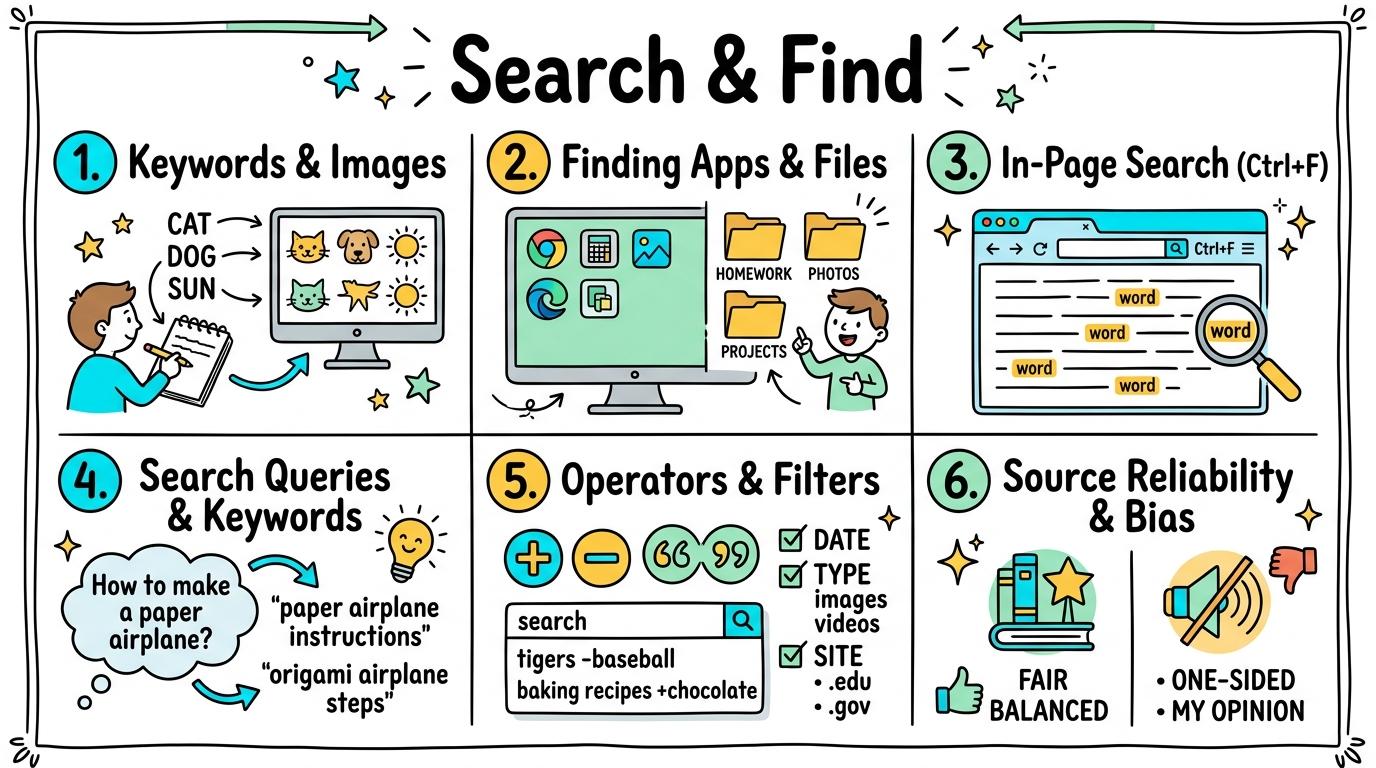
Search & Find
1
2
3
4
5
6
Welcome to Search & Find! In this strand, you will master finding information, files, and text quickly using search engines, system search tools, keyboard shortcuts like Ctrl+F, and advanced query filters.
Keywords & Images
Basic search terms and visual search.
Let's Go!

Routine: See, Think, Wonder
Look at this magnifying glass search icon. What happens when you type a word into the search box next to it?
Teacher note: Facilitate the See, Think, Wonder routine for 2–3 minutes. Encourage students to connect the prompt to Function (Technology connects us to information and answers.).
Learn
Search bars let you ask the computer to find information! Typing a simple, clear keyword like 'cat' or 'dinosaur' brings up matching pictures and facts instantly. In computing, technology connects us to information and answers. As you explore the interactive Search Browser Simulator below, focus on how to select relevant image results from a search.
Apply Simulator Skills • Try it yourself
Search for a picture!
🚀 Open a practice space
🌟 Student Project GuideSuccess Criteria & WAGOLL (What A Good One Looks Like)
🎯 Task Success Criteria (Rubric)
Foundation
Identify a search bar on a webpage or browser.
Developing
Type a single keyword to find matching pictures.
Secure (Goal)
Select relevant image results from a search.
Mastery
Refine a search word if initial results are not helpful. Typing: 5 WPM.
👀 What A Good One Looks Like (WAGOLL)
Exemplar of 2
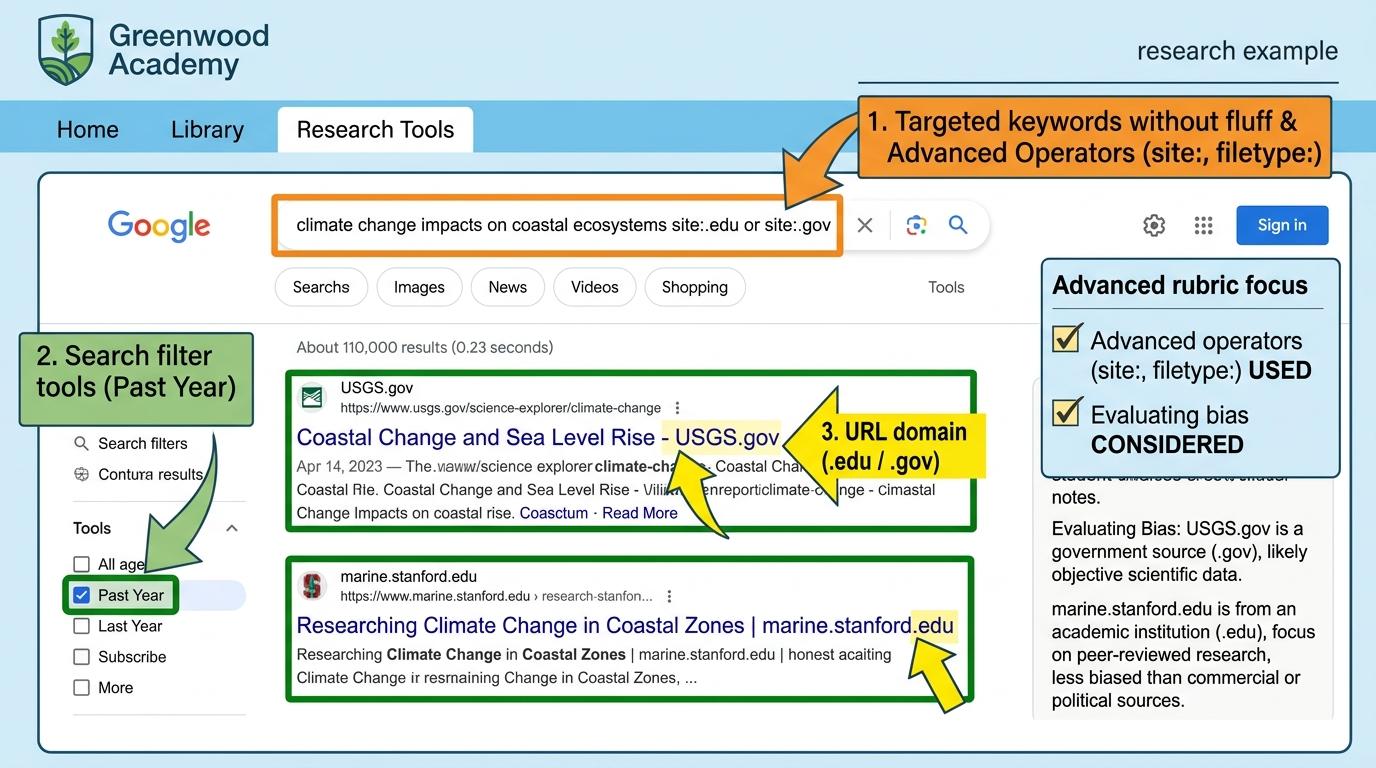 ⭐ Mastering Standard
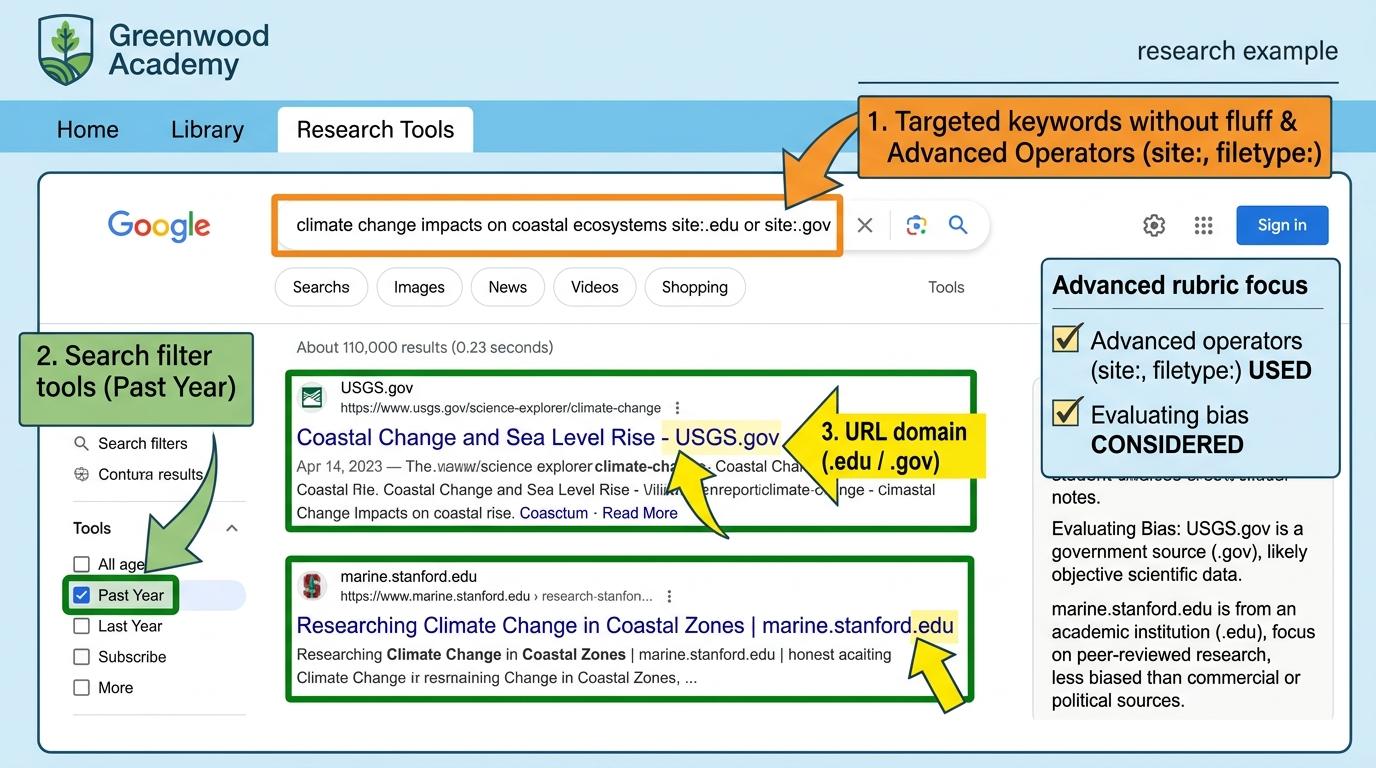 ⭐ Mastering Standard
📁
Save to Your Website Portfolio:
When you finish creating your project in your software, copy the share link or take a screenshot and publish it onto your student portfolio website!
Reflect
Learning check
Teacher setup, curriculum links and progress descriptors
Spark support
Routine: See, Think, Wonder
Teacher notes: Facilitate the See, Think, Wonder routine for 2–3 minutes. Encourage students to connect the prompt to Function (Technology connects us to information and answers.).
Achievement pathway
- Foundation: Identify a search bar on a webpage or browser.
- Developing: Type a single keyword to find matching pictures.
- Secure: Select relevant image results from a search.
- Mastering: Refine a search word if initial results are not helpful. Typing: 5 WPM.
Curriculum links
Curriculum strand: CM.01.B.1.2
Outcome: SF-O-01 — Basic search terms and visual search.
PYP: Function · Technology connects us to information and answers.
Learner profile: Inquirer
Competency tags
Gate support
Accessibility alternative: Students may verbally explain or point to the correct answer for "Which icon represents the search tool on a computer or webpage?" with a teacher or teaching assistant.
Teacher override: allow
Locked level
Level 2: Finding Apps & Files
Complete the previous learning check to unlock this next level.
Finding Apps & Files
System search for applications and saved files.
Learning objective
Learning About: System Search. Learning To: Find apps & files. Learning To Be: Communicator.
Let's Go!
Routine: Zoom In
Look at this small search box on the desktop taskbar. What app or file do you think is hiding behind this word?
Teacher note: Facilitate the Zoom In routine for 2–3 minutes. Encourage students to connect the prompt to Form (Organization helps us locate tools and work quickly.).
Learn
Don't waste time looking through dozens of desktop icons! Use the desktop or Start menu search box to type the app or file name and open it instantly. In computing, organization helps us locate tools and work quickly. As you explore the interactive Shortcut Simulator below, focus on how to search for a specific document filename in File Explorer.
💡 Click or press keys on your physical keyboard:
📁 Source Document (Research Notes)
➔
📋 Destination Notebook (Clean Summary)
Apply Simulator Skills • Try it yourself
Find and launch an app!
🚀 Open a practice space
🌟 Student Project GuideSuccess Criteria & WAGOLL (What A Good One Looks Like)
🎯 Task Success Criteria (Rubric)
Foundation
Locate the system search bar on the desktop or taskbar.
Developing
Type an app name to open it from system search.
Secure (Goal)
Search for a specific document filename in File Explorer.
Mastery
Explain why system search is faster than hunting through desktop icons. Typing: 10 WPM.
👀 What A Good One Looks Like (WAGOLL)
Exemplar of 2
⭐ Mastering Standard⭐ Mastering Standard📁
Save to Your Website Portfolio:
When you finish creating your project in your software, copy the share link or take a screenshot and publish it onto your student portfolio website!
Reflect
Learning check
Teacher setup, curriculum links and progress descriptors
Spark support
Routine: Zoom In
Teacher notes: Facilitate the Zoom In routine for 2–3 minutes. Encourage students to connect the prompt to Form (Organization helps us locate tools and work quickly.).
Achievement pathway
- Foundation: Locate the system search bar on the desktop or taskbar.
- Developing: Type an app name to open it from system search.
- Secure: Search for a specific document filename in File Explorer.
- Mastering: Explain why system search is faster than hunting through desktop icons. Typing: 10 WPM.
Curriculum links
Curriculum strand: CM.01.B.1.2
Outcome: SF-O-02 — System search for applications and saved files.
PYP: Form · Organization helps us locate tools and work quickly.
Learner profile: Communicator
Competency tags
Gate support
Accessibility alternative: Students may verbally explain or point to the correct answer for "What is the fastest way to open an app when you cannot see its icon on the desktop?" with a teacher or teaching assistant.
Teacher override: allow
Locked level
Level 3: In-Page Search (Ctrl+F)
Complete the previous learning check to unlock this next level.
In-Page Search (Ctrl+F)
Keyboard shortcut Ctrl+F for locating text on pages.
Learning objective
Learning About: Ctrl+F. Learning To: Locate page text. Learning To Be: Thinker.
Let's Go!
Routine: Think, Puzzle, Explore
You are looking at a 10-page article for ONE word: 'Volcano'. How can you find it in 2 seconds without reading every line?
Teacher note: Facilitate the Think, Puzzle, Explore routine for 2–3 minutes. Encourage students to connect the prompt to Connection (Shortcuts increase our speed and focus when analyzing text.).
Learn
Pressing Ctrl+F (or Cmd+F on Mac) opens the Find tool. Type any word, and the computer highlights every spot where that word appears on the webpage or document! In computing, shortcuts increase our speed and focus when analyzing text. As you explore the interactive Safety Shield Simulator below, focus on how to navigate between multiple highlighted search results using arrows.
✋ 5-Finger Trusted Adults Network Hand
Identify 5 distinct trusted people in your personal safety network:
ThumbEmpty
IndexEmpty
MiddleEmpty
RingEmpty
PinkyEmpty
📞 Official Child Support & Helplines
Childline (UK & International)Free, 24/7 confidential advice for any child under 19. Call 0800 1111.
CEOP Safety CentreOfficial Police Online Safety Reporting for inappropriate contact.
Internet Watch Foundation (IWF)Confidential anonymous reporting of criminal or disturbing online imagery.
Apply Simulator Skills • Try it yourself
Use Ctrl+F to find secret words!
🚀 Open a practice space
🌟 Student Project GuideSuccess Criteria & WAGOLL (What A Good One Looks Like)
🎯 Task Success Criteria (Rubric)
Foundation
Press Ctrl+F or Cmd+F to open the Find bar.
Developing
Type a specific word to highlight matches on a page.
Secure (Goal)
Navigate between multiple highlighted search results using arrows.
Mastery
Use Ctrl+F to answer research questions from a long article. Typing: 15 WPM.
👀 What A Good One Looks Like (WAGOLL)
Exemplar of 2
⭐ Mastering Standard⭐ Mastering Standard📁
Save to Your Website Portfolio:
When you finish creating your project in your software, copy the share link or take a screenshot and publish it onto your student portfolio website!
Reflect
Learning check
Teacher setup, curriculum links and progress descriptors
Spark support
Routine: Think, Puzzle, Explore
Teacher notes: Facilitate the Think, Puzzle, Explore routine for 2–3 minutes. Encourage students to connect the prompt to Connection (Shortcuts increase our speed and focus when analyzing text.).
Achievement pathway
- Foundation: Press Ctrl+F or Cmd+F to open the Find bar.
- Developing: Type a specific word to highlight matches on a page.
- Secure: Navigate between multiple highlighted search results using arrows.
- Mastering: Use Ctrl+F to answer research questions from a long article. Typing: 15 WPM.
Curriculum links
Curriculum strand: CM.02.B.1.1
Outcome: SF-O-03 — Keyboard shortcut Ctrl+F for locating text on pages.
PYP: Connection · Shortcuts increase our speed and focus when analyzing text.
Learner profile: Thinker
Competency tags
Gate support
Accessibility alternative: Students may verbally explain or point to the correct answer for "Which keyboard shortcut opens the Find box to search for text inside a document or webpage?" with a teacher or teaching assistant.
Teacher override: allow
Locked level
Level 4: Search Queries & Keywords
Complete the previous learning check to unlock this next level.
Search Queries & Keywords
Formulating specific search queries and evaluating results.
Learning objective
Learning About: Search Queries. Learning To: Refine keywords. Learning To Be: Principled.
Let's Go!
Routine: See, Think, Wonder
Look at these two searches: 'Why is the sky blue?
' vs 'sky blue Rayleigh scattering'. Which query gives better scientific sources?
Teacher note: Facilitate the See, Think, Wonder routine for 2–3 minutes. Encourage students to connect the prompt to Responsibility (Asking specific questions leads to clearer digital answers.).
Learn
Search engines don't need full conversational sentences! Focus on 2 to 4 essential keywords (e.g. 'Roman roads construction materials') for exact, high-quality results. In computing, asking specific questions leads to clearer digital answers. As you explore the interactive Spreadsheet Simulator below, focus on how to evaluate search result titles and snippets before clicking.
| A | B | C | |
|---|---|---|---|
| 1 | Item | Amount | |
| 2 | Apples | 5 | |
| 3 | Bananas | 3 | |
| 4 | Carrots | 2 | |
| 5 | Total |
📊
Data Visualization Chart
Apply Simulator Skills • Try it yourself
Master query building!
🚀 Open a practice space
🌟 Student Project GuideSuccess Criteria & WAGOLL (What A Good One Looks Like)
🎯 Task Success Criteria (Rubric)
Foundation
Distinguish between a full conversational question and core search terms.
Developing
Formulate 2-3 word search queries for specific research.
Secure (Goal)
Evaluate search result titles and snippets before clicking.
Mastery
Modify query terms when initial results are irrelevant. Typing: 20 WPM.
👀 What A Good One Looks Like (WAGOLL)
Exemplar of 2
⭐ Mastering Standard⭐ Mastering Standard📁
Save to Your Website Portfolio:
When you finish creating your project in your software, copy the share link or take a screenshot and publish it onto your student portfolio website!
Reflect
Learning check
Teacher setup, curriculum links and progress descriptors
Spark support
Routine: See, Think, Wonder
Teacher notes: Facilitate the See, Think, Wonder routine for 2–3 minutes. Encourage students to connect the prompt to Responsibility (Asking specific questions leads to clearer digital answers.).
Achievement pathway
- Foundation: Distinguish between a full conversational question and core search terms.
- Developing: Formulate 2-3 word search queries for specific research.
- Secure: Evaluate search result titles and snippets before clicking.
- Mastering: Modify query terms when initial results are irrelevant. Typing: 20 WPM.
Curriculum links
Curriculum strand: CM.02.B.1.1
Outcome: SF-O-04 — Formulating specific search queries and evaluating results.
PYP: Responsibility · Asking specific questions leads to clearer digital answers.
Learner profile: Principled
Competency tags
Gate support
Accessibility alternative: Students may verbally explain or point to the correct answer for "Which search query is the most effective way to find facts about how tall Mount Everest is?" with a teacher or teaching assistant.
Teacher override: allow
Locked level
Level 5: Operators & Filters
Complete the previous learning check to unlock this next level.
Operators & Filters
Using search operators ("", -, site:, filetype:) and filters.
Learning objective
Learning About: Advanced Search. Learning To: Use operators & filters. Learning To Be: Knowledgeable.
Let's Go!
Routine: I used to think...
I used to think search engines just guessed what I wanted... Now I know search operators give me exact control!
Teacher note: Facilitate the I used to think... routine for 2–3 minutes. Encourage students to connect the prompt to Perspective (Filtering search results gives us precise, reliable evidence.).
Learn
Search operators are power tools! Wrapping words in quotes ("climate change") searches for that exact phrase. Adding site:.org restricts results to trusted non-profit organizations. In computing, filtering search results gives us precise, reliable evidence. As you explore the interactive Folder Tree Simulator below, focus on how to filter searches by site domain (e.g. site:.gov or site:.org) or filetype (filetype:pdf).
Homework.docx
Puppy.jpg
Story_Chapter1.txt
Class_Anthem.mp3
Field_Trip.png
Apply Simulator Skills • Try it yourself
Execute an advanced search mission!
🚀 Open a practice space
🌟 Student Project GuideSuccess Criteria & WAGOLL (What A Good One Looks Like)
🎯 Task Success Criteria (Rubric)
Foundation
Use quotation marks (" ") for exact phrase matching.
Developing
Use the minus sign (-) to exclude unwanted terms.
Secure (Goal)
Filter searches by site domain (e.g. site:.gov or site:.org) or filetype (filetype:pdf).
Mastery
Combine multiple operators for advanced research tasks. Typing: 25 WPM.
👀 What A Good One Looks Like (WAGOLL)
Exemplar of 2
⭐ Mastering Standard⭐ Mastering Standard📁
Save to Your Website Portfolio:
When you finish creating your project in your software, copy the share link or take a screenshot and publish it onto your student portfolio website!
Reflect
Learning check
Teacher setup, curriculum links and progress descriptors
Spark support
Routine: I used to think...
Teacher notes: Facilitate the I used to think... routine for 2–3 minutes. Encourage students to connect the prompt to Perspective (Filtering search results gives us precise, reliable evidence.).
Achievement pathway
- Foundation: Use quotation marks (" ") for exact phrase matching.
- Developing: Use the minus sign (-) to exclude unwanted terms.
- Secure: Filter searches by site domain (e.g. site:.gov or site:.org) or filetype (filetype:pdf).
- Mastering: Combine multiple operators for advanced research tasks. Typing: 25 WPM.
Curriculum links
Curriculum strand: CM.03.B.1.1
Outcome: SF-O-05 — Using search operators ("", -, site:, filetype:) and filters.
PYP: Perspective · Filtering search results gives us precise, reliable evidence.
Learner profile: Knowledgeable
Competency tags
Gate support
Accessibility alternative: Students may verbally explain or point to the correct answer for "How do you search for an EXACT phrase without breaking the words apart?" with a teacher or teaching assistant.
Teacher override: allow
Locked level
Level 6: Source Reliability & Bias
Complete the previous learning check to unlock this next level.
Source Reliability & Bias
Fact-checking, lateral reading, identifying bias, and verifying sources.
Learning objective
Learning About: Source Evaluation. Learning To: Fact-check & detect bias. Learning To Be: Reflective.
Let's Go!
Routine: Step Inside
Imagine you are a fact-checker for a major news platform. How do you verify an astonishing online headline before publishing it?
Teacher note: Facilitate the Step Inside routine for 2–3 minutes. Encourage students to connect the prompt to Reflection (Critical evaluation of online sources protects truth and integrity.).
Learn
Never trust the first result blindly! Professional researchers use lateral reading—opening new tabs to check what OTHER independent sources say about the author, website, and claim. In computing, critical evaluation of online sources protects truth and integrity. As you explore the interactive Formatting Toolbar Simulator below, focus on how to identify author credentials, publication dates, and domain authority (.com vs .edu).
Apply Simulator Skills • Try it yourself
Fact-check a claim!
🚀 Open a practice space
🌟 Student Project GuideSuccess Criteria & WAGOLL (What A Good One Looks Like)
🎯 Task Success Criteria (Rubric)
Foundation
Recognize that not all search results contain true or accurate information.
Developing
Practice lateral reading by opening multiple tabs to cross-check claims.
Secure (Goal)
Identify author credentials, publication dates, and domain authority (.com vs .edu).
Mastery
Conduct thorough source verification and create an annotated bibliography. Typing: 30+ WPM.
👀 What A Good One Looks Like (WAGOLL)
Exemplar of 2
⭐ Mastering Standard⭐ Mastering Standard📁
Save to Your Website Portfolio:
When you finish creating your project in your software, copy the share link or take a screenshot and publish it onto your student portfolio website!
Reflect
Learning check
Teacher setup, curriculum links and progress descriptors
Spark support
Routine: Step Inside
Teacher notes: Facilitate the Step Inside routine for 2–3 minutes. Encourage students to connect the prompt to Reflection (Critical evaluation of online sources protects truth and integrity.).
Achievement pathway
- Foundation: Recognize that not all search results contain true or accurate information.
- Developing: Practice lateral reading by opening multiple tabs to cross-check claims.
- Secure: Identify author credentials, publication dates, and domain authority (.com vs .edu).
- Mastering: Conduct thorough source verification and create an annotated bibliography. Typing: 30+ WPM.
Curriculum links
Curriculum strand: CM.03.B.1.1
Outcome: SF-O-06 — Fact-checking, lateral reading, identifying bias, and verifying sources.
PYP: Reflection · Critical evaluation of online sources protects truth and integrity.
Learner profile: Reflective
Competency tags
Gate support
Accessibility alternative: Students may verbally explain or point to the correct answer for "What is 'lateral reading' when checking if an online source is reliable?" with a teacher or teaching assistant.
Teacher override: allow
"Great explanation! Suggest adding a bulleted list of astronaut equipment here for clarity."