
Learning objective
Copy & Paste
Copy, Paste & Undo
1
2
3
4
5
6
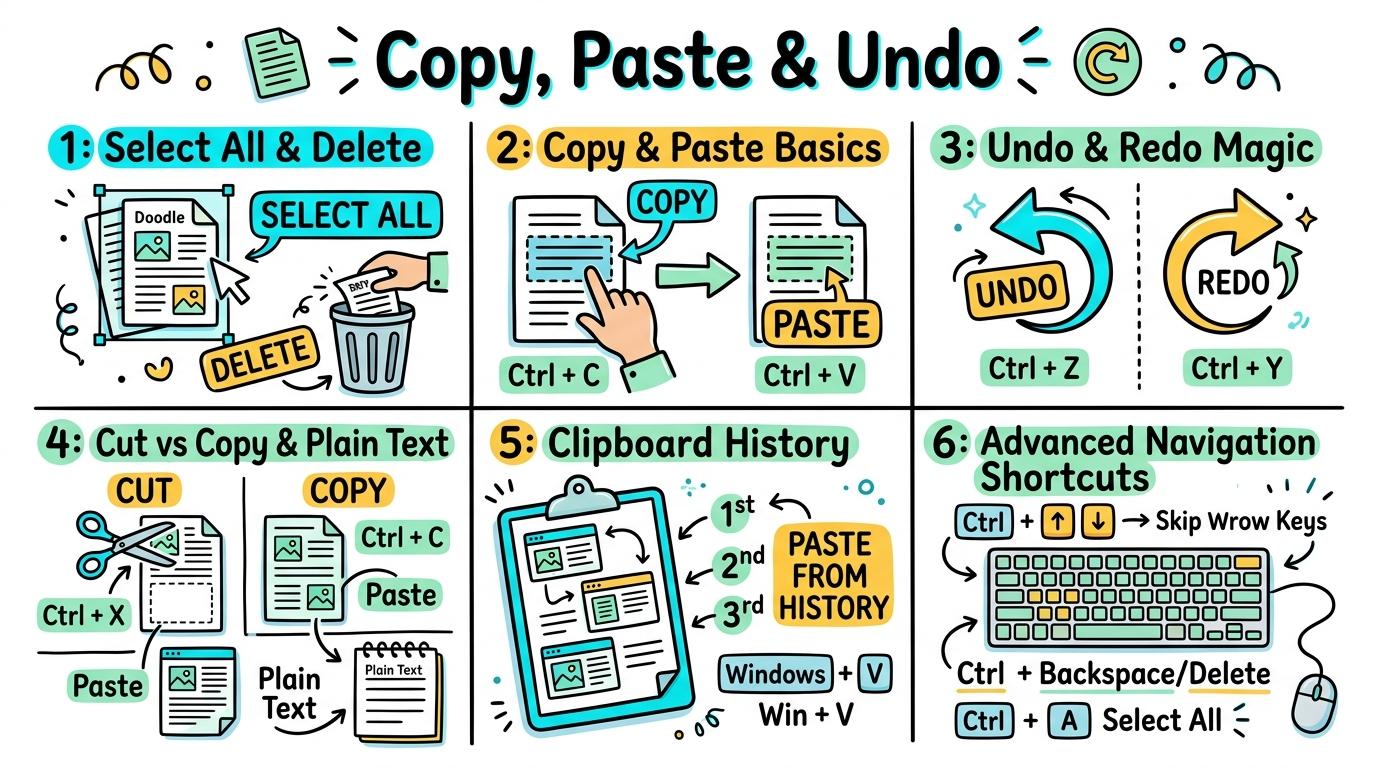
Master essential keyboard shortcuts for selecting, copying, pasting, cutting, undoing, and managing clipboard history across all applications.
Select All & Delete
Use Ctrl+A (Cmd+A) to select all text or items instantly and Backspace/Delete to clear selection.
Let's Go!

Routine: See, Think, Wonder
You have 5 pages of text to delete. Is dragging your mouse down 5 pages the fastest way?
What secret key shortcut selects everything in 1 second?
Teacher note: Facilitate the See, Think, Wonder routine for 2–3 minutes. Encourage students to connect the prompt to Form (Keyboard shortcuts simplify screen management and editing efficiency.).
Learn
Instead of dragging your mouse across a long screen, press Ctrl+A (or Cmd+A on Mac)! 'A' stands for 'All'. It highlights every piece of text, picture, or file in your window instantly. In computing, keyboard shortcuts simplify screen management and editing efficiency. As you explore the interactive Shortcut Simulator below, focus on how to use Ctrl+A to select everything and Delete to clear a page quickly.

💡 Click or press keys on your physical keyboard:
📁 Source Document (Research Notes)
➔
📋 Destination Notebook (Clean Summary)
Apply Simulator Skills • Try it yourself
Select All Speed Test
🚀 Open a practice space
🌟 Student Project GuideSuccess Criteria & WAGOLL (What A Good One Looks Like)
🎯 Task Success Criteria (Rubric)
Foundation
Locates the Ctrl (or Cmd) and A keys on the keyboard.
Developing
Uses Ctrl+A to highlight a whole sentence instead of dragging with a mouse.
Secure (Goal)
Uses Ctrl+A to select everything and Delete to clear a page quickly.
Mastery
Explains why Ctrl+A is faster than dragging a mouse across long documents.
👀 What A Good One Looks Like (WAGOLL)
 ⭐ Secure Standard
📁
Save to Your Website Portfolio:
When you finish creating your project in your software, copy the share link or take a screenshot and publish it onto your student portfolio website!
Reflect
Learning check
Teacher setup, curriculum links and progress descriptors
Spark support
Routine: See, Think, Wonder
Teacher notes: Facilitate the See, Think, Wonder routine for 2–3 minutes. Encourage students to connect the prompt to Form (Keyboard shortcuts simplify screen management and editing efficiency.).
Achievement pathway
- Foundation: Locates the Ctrl (or Cmd) and A keys on the keyboard.
- Developing: Uses Ctrl+A to highlight a whole sentence instead of dragging with a mouse.
- Secure: Uses Ctrl+A to select everything and Delete to clear a page quickly.
- Mastering: Explains why Ctrl+A is faster than dragging a mouse across long documents.
Curriculum links
Curriculum strand: Everyday Digital Skills
Outcome: COPY.01.B.1.1 — Use Ctrl+A (Cmd+A) to select all text or items instantly and Backspace/Delete to clear selection.
PYP: Form · Keyboard shortcuts simplify screen management and editing efficiency.
Learner profile: Inquirer
Competency tags
Gate support
Accessibility alternative: Students may verbally explain or point to the correct answer for "Which keyboard shortcut highlights EVERYTHING in your current document or window?" with a teacher or teaching assistant.
Teacher override: allow
Locked level
Level 2: Copy & Paste Basics
Complete the previous learning check to unlock this next level.
Copy & Paste Basics
Duplicate text and images using Ctrl+C (Copy) and Ctrl+V (Paste).
Learning objective
Learning About: Copy & Paste. Learning To: Duplicate content using Ctrl+C and Ctrl+V. Learning To Be: Communicator.
Let's Go!

Routine: Zoom In
Look at these two identical sentences. Did the author retype every letter twice, or use a magical 2-step keyboard trick?
Teacher note: Facilitate the Zoom In routine for 2–3 minutes. Encourage students to connect the prompt to Function (Duplicating digital assets speeds up creative production and layout design.).
Learn
Copy (Ctrl+C) creates an exact duplicate of whatever you highlighted and stores it in memory. Paste (Ctrl+V) places that duplicate wherever your blinking cursor is pointing! 'C' stands for Copy, and 'V' stands for Velcro (sticking it down!). In computing, duplicating digital assets speeds up creative production and layout design. As you explore the interactive Formatting Toolbar Simulator below, focus on how to copies and pastes text and images smoothly between two different apps.

Apply Simulator Skills • Try it yourself
Copy & Paste Duplication Challenge
🚀 Open a practice space
🌟 Student Project GuideSuccess Criteria & WAGOLL (What A Good One Looks Like)
🎯 Task Success Criteria (Rubric)
Foundation
Highlights a word and presses Ctrl+C.
Developing
Moves cursor to a new spot and presses Ctrl+V to paste.
Secure (Goal)
Copies and pastes text and images smoothly between two different apps.
Mastery
Teaches peers how Ctrl+C / Ctrl+V saves retyping identical information.
👀 What A Good One Looks Like (WAGOLL)
 ⭐ Secure Standard
📁
Save to Your Website Portfolio:
When you finish creating your project in your software, copy the share link or take a screenshot and publish it onto your student portfolio website!
Reflect
Learning check
Teacher setup, curriculum links and progress descriptors
Spark support
Routine: Zoom In
Teacher notes: Facilitate the Zoom In routine for 2–3 minutes. Encourage students to connect the prompt to Function (Duplicating digital assets speeds up creative production and layout design.).
Achievement pathway
- Foundation: Highlights a word and presses Ctrl+C.
- Developing: Moves cursor to a new spot and presses Ctrl+V to paste.
- Secure: Copies and pastes text and images smoothly between two different apps.
- Mastering: Teaches peers how Ctrl+C / Ctrl+V saves retyping identical information.
Curriculum links
Curriculum strand: Everyday Digital Skills
Outcome: COPY.01.B.1.2 — Duplicate text and images using Ctrl+C (Copy) and Ctrl+V (Paste).
PYP: Function · Duplicating digital assets speeds up creative production and layout design.
Learner profile: Communicator
Competency tags
Gate support
Accessibility alternative: Students may verbally explain or point to the correct answer for "Which pair of shortcuts copies highlighted text and pastes it in a new location?" with a teacher or teaching assistant.
Teacher override: allow
Locked level
Level 3: Undo & Redo Magic
Complete the previous learning check to unlock this next level.
Undo & Redo Magic
Reverse accidental mistakes instantly using Ctrl+Z (Undo) and re-apply with Ctrl+Y (Redo).
Learning objective
Learning About: Undo & Redo. Learning To: Reverse mistakes using Ctrl+Z and Ctrl+Y. Learning To Be: Thinker.
Let's Go!

Routine: Think, Pair, Share
You accidentally deleted your entire paragraph! Before you panic or cry, what 2-key shortcut acts like a time machine to bring it back?
Teacher note: Facilitate the Think, Pair, Share routine for 2–3 minutes. Encourage students to connect the prompt to Connection (Digital systems allow non-destructive editing and instant error recovery.).
Learn
Ctrl+Z is the ultimate digital eraser and time machine! Pressing Ctrl+Z (Undo) steps back in time to reverse your last mistake. If you undo too far, press Ctrl+Y (Redo) to step forward again! In computing, digital systems allow non-destructive editing and instant error recovery. As you explore the interactive Split Screen Simulator below, focus on how to use Ctrl+Z multiple times to step backwards and Ctrl+Y to redo steps.

Volcanoes: Earth's Fiery Chimneys!
Melted subterranean rock called magma rises through vents. When it erupts onto the surface, it becomes glowing red lava!
🌋🔥
My Study Notes
Apply Simulator Skills • Try it yourself
Undo Time Machine Test
🚀 Open a practice space
🌟 Student Project GuideSuccess Criteria & WAGOLL (What A Good One Looks Like)
🎯 Task Success Criteria (Rubric)
Foundation
Locates the Undo back-arrow button on a software toolbar.
Developing
Uses Ctrl+Z to restore accidentally deleted text instantly.
Secure (Goal)
Uses Ctrl+Z multiple times to step backwards and Ctrl+Y to redo steps.
Mastery
Demonstrates confident risk-taking in design knowing Ctrl+Z can fix any mistake.
👀 What A Good One Looks Like (WAGOLL)
 ⭐ Secure Standard
📁
Save to Your Website Portfolio:
When you finish creating your project in your software, copy the share link or take a screenshot and publish it onto your student portfolio website!
Reflect
Learning check
Teacher setup, curriculum links and progress descriptors
Spark support
Routine: Think, Pair, Share
Teacher notes: Facilitate the Think, Pair, Share routine for 2–3 minutes. Encourage students to connect the prompt to Connection (Digital systems allow non-destructive editing and instant error recovery.).
Achievement pathway
- Foundation: Locates the Undo back-arrow button on a software toolbar.
- Developing: Uses Ctrl+Z to restore accidentally deleted text instantly.
- Secure: Uses Ctrl+Z multiple times to step backwards and Ctrl+Y to redo steps.
- Mastering: Demonstrates confident risk-taking in design knowing Ctrl+Z can fix any mistake.
Curriculum links
Curriculum strand: Everyday Digital Skills
Outcome: COPY.02.B.1.1 — Reverse accidental mistakes instantly using Ctrl+Z (Undo) and re-apply with Ctrl+Y (Redo).
PYP: Connection · Digital systems allow non-destructive editing and instant error recovery.
Learner profile: Thinker
Competency tags
Gate support
Accessibility alternative: Students may verbally explain or point to the correct answer for "What does the keyboard shortcut Ctrl+Z do when you make a mistake?" with a teacher or teaching assistant.
Teacher override: allow
Locked level
Level 4: Cut vs Copy & Plain Text
Complete the previous learning check to unlock this next level.
Cut vs Copy & Plain Text
Move text with Ctrl+X (Cut) and paste without unwanted styling using Ctrl+Shift+V.
Learning objective
Learning About: Cut & Plain Paste. Learning To: Move text with Ctrl+X and paste plain text with Ctrl+Shift+V. Learning To Be: Knowledgeable.
Let's Go!

Routine: Parts-Purposes-Complexities
When you copy text from a website, it often brings ugly fonts and dark background colors with it. How can you paste ONLY the words without the formatting?
Teacher note: Facilitate the Parts-Purposes-Complexities routine for 2–3 minutes. Encourage students to connect the prompt to Responsibility (Moving data and stripping formatting streamlines document structure.).
Learn
Ctrl+X (Cut) snips out text like a pair of scissors ('X' looks like scissors!), removing it from the original spot so you can move it. When pasting text from websites, use Ctrl+Shift+V (Paste as Plain Text) to strip away messy fonts and match your document style!

Apply Simulator Skills • Try it yourself
Cut and Clean Paste Drill
🚀 Open a practice space
🌟 Student Project GuideSuccess Criteria & WAGOLL (What A Good One Looks Like)
🎯 Task Success Criteria (Rubric)
Foundation
Explains the difference between Copy (duplicating) and Cut (moving).
Developing
Uses Ctrl+X to remove a sentence from one spot and Ctrl+V to move it elsewhere.
Secure (Goal)
Uses Ctrl+Shift+V to paste copied website text without ugly background colors or giant fonts.
Mastery
Reorganizes messy research notes efficiently using Cut, Copy, and Plain Text Paste.
👀 What A Good One Looks Like (WAGOLL)
 ⭐ Secure Standard
📁
Save to Your Website Portfolio:
When you finish creating your project in your software, copy the share link or take a screenshot and publish it onto your student portfolio website!
Reflect
Learning check
Teacher setup, curriculum links and progress descriptors
Spark support
Routine: Parts-Purposes-Complexities
Teacher notes: Facilitate the Parts-Purposes-Complexities routine for 2–3 minutes. Encourage students to connect the prompt to Responsibility (Moving data and stripping formatting streamlines document structure.).
Achievement pathway
- Foundation: Explains the difference between Copy (duplicating) and Cut (moving).
- Developing: Uses Ctrl+X to remove a sentence from one spot and Ctrl+V to move it elsewhere.
- Secure: Uses Ctrl+Shift+V to paste copied website text without ugly background colors or giant fonts.
- Mastering: Reorganizes messy research notes efficiently using Cut, Copy, and Plain Text Paste.
Curriculum links
Curriculum strand: Everyday Digital Skills
Outcome: COPY.02.B.1.2 — Move text with Ctrl+X (Cut) and paste without unwanted styling using Ctrl+Shift+V.
PYP: Responsibility · Moving data and stripping formatting streamlines document structure.
Learner profile: Knowledgeable
Competency tags
Gate support
Accessibility alternative: Students may verbally explain or point to the correct answer for "Which shortcut removes selected text from its original place so you can MOVE it elsewhere?" with a teacher or teaching assistant.
Teacher override: allow
Locked level
Level 5: Clipboard History
Complete the previous learning check to unlock this next level.
Clipboard History
Access and manage multiple saved clipboard items using the Clipboard History tool (Win+V).
Learning objective
Learning About: Clipboard History. Learning To: Open Win+V to access multiple copied snippets. Learning To Be: Open-minded.
Let's Go!

Routine: Connect-Extend-Challenge
Normally, copying a second item overwrites the first! What if your computer could remember the last 10 things you copied all at once?
Teacher note: Facilitate the Connect-Extend-Challenge routine for 2–3 minutes. Encourage students to connect the prompt to Change (Multi-item memory stores enhance multitasking productivity during research.).
Learn
Windows Clipboard History (Win+V) gives your computer a multi-item memory bank! Instead of copying and pasting items one-by-one, you can copy several pictures and sentences, press Win+V, and choose which one to paste from a popup menu! In computing, multi-item memory stores enhance multitasking productivity during research. As you explore the interactive Save Dialog Simulator below, focus on how to open Clipboard History (Win+V) and selects which item to paste into a document.

Apply Simulator Skills • Try it yourself
Multi-Item Copy & Paste
🚀 Open a practice space
🌟 Student Project GuideSuccess Criteria & WAGOLL (What A Good One Looks Like)
🎯 Task Success Criteria (Rubric)
Foundation
Enables Clipboard History in system settings.
Developing
Copies 3 separate items in a row before pasting.
Secure (Goal)
Opens Clipboard History (Win+V) and selects which item to paste into a document.
Mastery
Pins frequently used links or text snippets inside Clipboard History for daily use.
👀 What A Good One Looks Like (WAGOLL)
 ⭐ Secure Standard
📁
Save to Your Website Portfolio:
When you finish creating your project in your software, copy the share link or take a screenshot and publish it onto your student portfolio website!
Reflect
Learning check
Teacher setup, curriculum links and progress descriptors
Spark support
Routine: Connect-Extend-Challenge
Teacher notes: Facilitate the Connect-Extend-Challenge routine for 2–3 minutes. Encourage students to connect the prompt to Change (Multi-item memory stores enhance multitasking productivity during research.).
Achievement pathway
- Foundation: Enables Clipboard History in system settings.
- Developing: Copies 3 separate items in a row before pasting.
- Secure: Opens Clipboard History (Win+V) and selects which item to paste into a document.
- Mastering: Pins frequently used links or text snippets inside Clipboard History for daily use.
Curriculum links
Curriculum strand: Everyday Digital Skills
Outcome: COPY.03.B.1.1 — Access and manage multiple saved clipboard items using the Clipboard History tool (Win+V).
PYP: Change · Multi-item memory stores enhance multitasking productivity during research.
Learner profile: Open-minded
Competency tags
Gate support
Accessibility alternative: Students may verbally explain or point to the correct answer for "Which shortcut opens the Clipboard History menu to see multiple recently copied items?" with a teacher or teaching assistant.
Teacher override: allow
Locked level
Level 6: Advanced Navigation Shortcuts
Complete the previous learning check to unlock this next level.
Advanced Navigation Shortcuts
Utilize advanced search (Ctrl+F), window switching (Alt+Tab), and command shortcuts fluently.
Learning objective
Learning About: Navigation Shortcuts. Learning To: Find text with Ctrl+F and switch apps with Alt+Tab. Learning To Be: Reflective.
Let's Go!

Routine: I used to think...
I used to think reading a 20-page document line-by-line was the only way to find a word... Now I know Ctrl+F finds any word instantly...
Teacher note: Facilitate the I used to think... routine for 2–3 minutes. Encourage students to connect the prompt to Perspective (Keyboard fluency transforms how efficiently we navigate complex information environments.).
Learn
Mastering navigation shortcuts makes you a power user! Ctrl+F (Find) opens a search bar to highlight any word on a long webpage instantly. Alt+Tab (Switch App) lets you flip between your research browser and your document in a fraction of a second! In computing, keyboard fluency transforms how efficiently we navigate complex information environments. As you explore the interactive Keyboard Mouse Simulator below, focus on how to use Alt+Tab to switch back and forth between research and document apps effortlessly.

🎯 Click Me!
Bubbles Popped: 0 / 3
Q
W
E
R
T
Y
U
I
O
P
A
S
D
F
G
H
J
K
L
Enter ↵
Shift ⇧
Z
X
C
V
B
N
M
⌫ Del
Tab ⇥
Spacebar
Apply Simulator Skills • Try it yourself
Power User Search & Switch Drill
🚀 Open a practice space
🌟 Student Project GuideSuccess Criteria & WAGOLL (What A Good One Looks Like)
🎯 Task Success Criteria (Rubric)
Foundation
Uses Ctrl+F to open the search box on a long web page.
Developing
Types a keyword into Ctrl+F to jump straight to the required word.
Secure (Goal)
Uses Alt+Tab to switch back and forth between research and document apps effortlessly.
Mastery
Demonstrates a complete hands-on-keyboard workflow combining Ctrl+F, Ctrl+C, Alt+Tab, and Ctrl+V.
👀 What A Good One Looks Like (WAGOLL)
 ⭐ Secure Standard
📁
Save to Your Website Portfolio:
When you finish creating your project in your software, copy the share link or take a screenshot and publish it onto your student portfolio website!
Reflect
Learning check
Teacher setup, curriculum links and progress descriptors
Spark support
Routine: I used to think...
Teacher notes: Facilitate the I used to think... routine for 2–3 minutes. Encourage students to connect the prompt to Perspective (Keyboard fluency transforms how efficiently we navigate complex information environments.).
Achievement pathway
- Foundation: Uses Ctrl+F to open the search box on a long web page.
- Developing: Types a keyword into Ctrl+F to jump straight to the required word.
- Secure: Uses Alt+Tab to switch back and forth between research and document apps effortlessly.
- Mastering: Demonstrates a complete hands-on-keyboard workflow combining Ctrl+F, Ctrl+C, Alt+Tab, and Ctrl+V.
Curriculum links
Curriculum strand: Everyday Digital Skills
Outcome: COPY.03.B.1.2 — Utilize advanced search (Ctrl+F), window switching (Alt+Tab), and command shortcuts fluently.
PYP: Perspective · Keyboard fluency transforms how efficiently we navigate complex information environments.
Learner profile: Reflective
Competency tags
Gate support
Accessibility alternative: Students may verbally explain or point to the correct answer for "Which keyboard shortcut opens a search box to find a specific word on a webpage?" with a teacher or teaching assistant.
Teacher override: allow
"Great explanation! Suggest adding a bulleted list of astronaut equipment here for clarity."