
Learning objective
Typing Skills
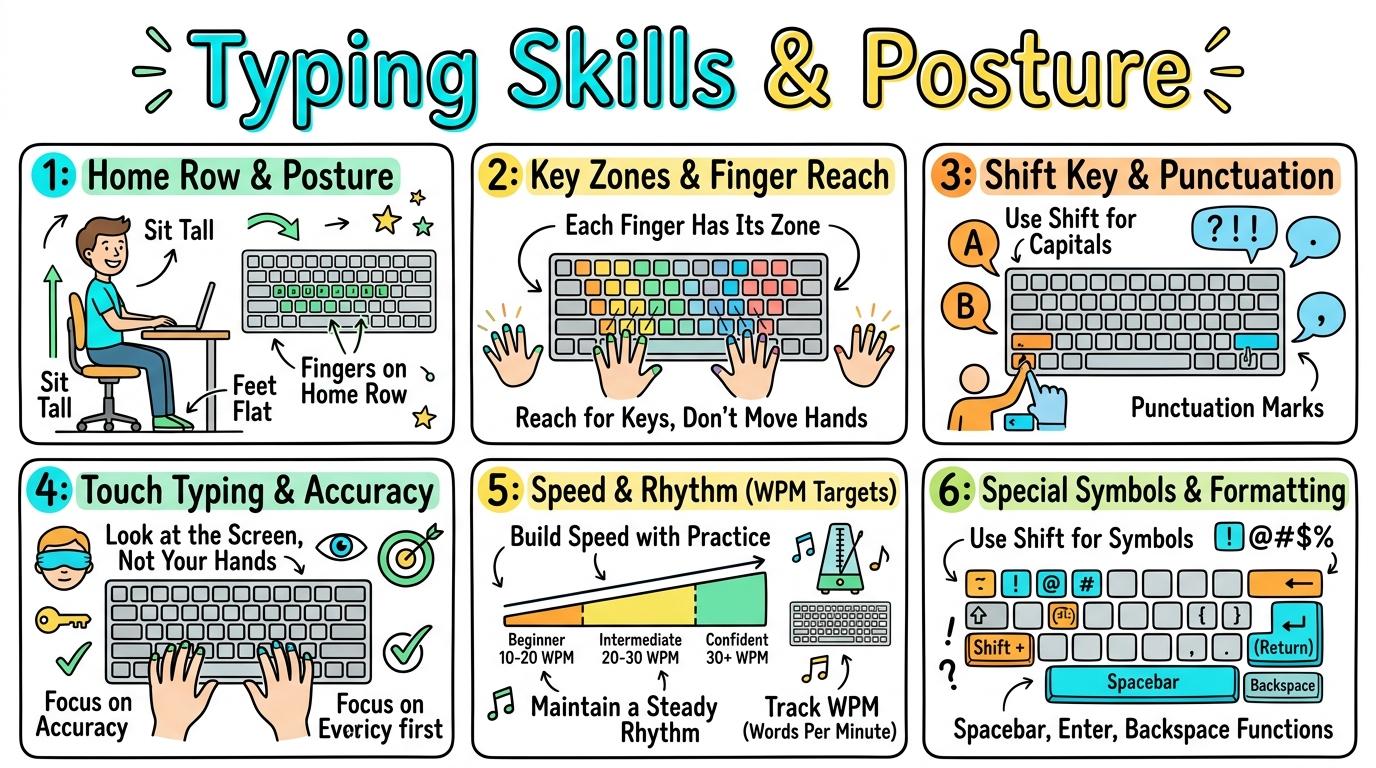
Typing Skills & Posture
1
2
3
4
5
6
Develop fluent touch typing skills, ergonomic hand posture, key zone mastery, and typing speed accuracy across primary school stages.
Home Row & Posture
Establish proper ergonomic seating posture and place index fingers on the home row tactile bumps (F & J).
Let's Go!

Routine: See, Think, Wonder
Feel the F and J keys on your keyboard with your index fingers. What small raised feature do you feel?
Why is it there?
Teacher note: Facilitate the See, Think, Wonder routine for 2–3 minutes. Encourage students to connect the prompt to Form (Maintaining proper body posture and hand placement supports physical health during digital tasks.).
Learn
Your keyboard has two tiny raised bumps on the F and J keys! These are anchor points for your index fingers. Resting your hands on the Home Row (A-S-D-F for left hand, J-K-L-; for right hand) lets you reach every key smoothly without moving your wrists. In computing, maintaining proper body posture and hand placement supports physical health during digital tasks. As you explore the interactive Keyboard Mouse Simulator below, focus on how to rests all eight fingers on the Home Row (ASDF JKL;) automatically.

🎯 Click Me!
Bubbles Popped: 0 / 3
Q
W
E
R
T
Y
U
I
O
P
A
S
D
F
G
H
J
K
L
Enter ↵
Shift ⇧
Z
X
C
V
B
N
M
⌫ Del
Tab ⇥
Spacebar
Apply Simulator Skills • Try it yourself
Home Row Posture Check
🚀 Open a practice space
🌟 Student Project GuideSuccess Criteria & WAGOLL (What A Good One Looks Like)
🎯 Task Success Criteria (Rubric)
Foundation
Sits upright with feet flat on the floor in front of the keyboard.
Developing
Finds the tactile bumps on F and J using index fingers without looking.
Secure (Goal)
Rests all eight fingers on the Home Row (ASDF JKL;) automatically.
Mastery
Teaches peers proper ergonomic elbow angles and Home Row finger positioning.
👀 What A Good One Looks Like (WAGOLL)
 ⭐ Secure Standard
📁
Save to Your Website Portfolio:
When you finish creating your project in your software, copy the share link or take a screenshot and publish it onto your student portfolio website!
Reflect
Learning check
Teacher setup, curriculum links and progress descriptors
Spark support
Routine: See, Think, Wonder
Teacher notes: Facilitate the See, Think, Wonder routine for 2–3 minutes. Encourage students to connect the prompt to Form (Maintaining proper body posture and hand placement supports physical health during digital tasks.).
Achievement pathway
- Foundation: Sits upright with feet flat on the floor in front of the keyboard.
- Developing: Finds the tactile bumps on F and J using index fingers without looking.
- Secure: Rests all eight fingers on the Home Row (ASDF JKL;) automatically.
- Mastering: Teaches peers proper ergonomic elbow angles and Home Row finger positioning.
Curriculum links
Curriculum strand: Everyday Digital Skills
Outcome: TYPE.01.B.1.1 — Establish proper ergonomic seating posture and place index fingers on the home row tactile bumps (F & J).
PYP: Form · Maintaining proper body posture and hand placement supports physical health during digital tasks.
Learner profile: Inquirer
Competency tags
Gate support
Accessibility alternative: Students may verbally explain or point to the correct answer for "Which two keys on the keyboard have tactile bumps to guide your index fingers?" with a teacher or teaching assistant.
Teacher override: allow
Locked level
Level 2: Key Zones & Finger Reach
Complete the previous learning check to unlock this next level.
Key Zones & Finger Reach
Map specific fingers to their assigned keyboard columns above and below the home row.
Learning objective
Learning About: Key Reaches. Learning To: Reach top and bottom row keys from Home Row. Learning To Be: Communicator.
Let's Go!

Routine: Zoom In
Look at this color-coded keyboard map. Why is each vertical column painted a different color?
Teacher note: Facilitate the Zoom In routine for 2–3 minutes. Encourage students to connect the prompt to Function (Structured finger movement increases physical coordination and input efficiency.).
Learn
Each of your 10 fingers has its own assigned 'zone' of keys! Your left pinky handles Q, A, Z. Your right index finger handles U, J, M and Y, H, N. By reaching up or down from Home Row and snapping back, you type much faster! In computing, structured finger movement increases physical coordination and input efficiency. As you explore the interactive Formatting Toolbar Simulator below, focus on how to reaches bottom row keys (ZXCVBN) correctly without crossing fingers across zones.

Apply Simulator Skills • Try it yourself
Key Zone Reach Drill
🚀 Open a practice space
🌟 Student Project GuideSuccess Criteria & WAGOLL (What A Good One Looks Like)
🎯 Task Success Criteria (Rubric)
Foundation
Identifies which hand controls the left vs right side of the keyboard.
Developing
Reaches top row keys (QWERTY) using assigned fingers before returning to Home Row.
Secure (Goal)
Reaches bottom row keys (ZXCVBN) correctly without crossing fingers across zones.
Mastery
Maintains fluid finger return-to-home movement across all three letter rows.
👀 What A Good One Looks Like (WAGOLL)
 ⭐ Secure Standard
📁
Save to Your Website Portfolio:
When you finish creating your project in your software, copy the share link or take a screenshot and publish it onto your student portfolio website!
Reflect
Learning check
Teacher setup, curriculum links and progress descriptors
Spark support
Routine: Zoom In
Teacher notes: Facilitate the Zoom In routine for 2–3 minutes. Encourage students to connect the prompt to Function (Structured finger movement increases physical coordination and input efficiency.).
Achievement pathway
- Foundation: Identifies which hand controls the left vs right side of the keyboard.
- Developing: Reaches top row keys (QWERTY) using assigned fingers before returning to Home Row.
- Secure: Reaches bottom row keys (ZXCVBN) correctly without crossing fingers across zones.
- Mastering: Maintains fluid finger return-to-home movement across all three letter rows.
Curriculum links
Curriculum strand: Everyday Digital Skills
Outcome: TYPE.01.B.1.2 — Map specific fingers to their assigned keyboard columns above and below the home row.
PYP: Function · Structured finger movement increases physical coordination and input efficiency.
Learner profile: Communicator
Competency tags
Gate support
Accessibility alternative: Students may verbally explain or point to the correct answer for "After reaching up or down to press a key, where should your finger immediately return?" with a teacher or teaching assistant.
Teacher override: allow
Locked level
Level 3: Shift Key & Punctuation
Complete the previous learning check to unlock this next level.
Shift Key & Punctuation
Use opposite-hand Shift key technique to type capital letters and punctuation marks.
Learning objective
Learning About: Shift & Punctuation. Learning To: Hold Shift with opposite hand for capital letters. Learning To Be: Thinker.
Let's Go!

Routine: Think, Pair, Share
Why is using the Shift key better for a single capital letter than turning Caps Lock on and off?
Teacher note: Facilitate the Think, Pair, Share routine for 2–3 minutes. Encourage students to connect the prompt to Connection (Punctuation and capitalization mechanics structure written digital communication.).
Learn
To make a capital letter, hold Shift with the OPPOSITE hand while tapping the letter! If you want a capital 'A' (left hand), hold the right Shift key. Use your thumb for the Spacebar, and tap '.' or ',' with your right hand fingers. In computing, punctuation and capitalization mechanics structure written digital communication. As you explore the interactive Shortcut Simulator below, focus on how to use the opposite-hand Shift rule (left Shift for right-hand keys, right Shift for left-hand keys).

💡 Click or press keys on your physical keyboard:
📁 Source Document (Research Notes)
➔
📋 Destination Notebook (Clean Summary)
Apply Simulator Skills • Try it yourself
Capital & Sentence Practice
🚀 Open a practice space
🌟 Student Project GuideSuccess Criteria & WAGOLL (What A Good One Looks Like)
🎯 Task Success Criteria (Rubric)
Foundation
Locates left and right Shift keys and the Spacebar.
Developing
Types capital letters using the Shift key instead of Caps Lock.
Secure (Goal)
Uses the opposite-hand Shift rule (left Shift for right-hand keys, right Shift for left-hand keys).
Mastery
Types full sentences with correct capitalization, commas, full stops, and single spaces.
👀 What A Good One Looks Like (WAGOLL)
 ⭐ Secure Standard
📁
Save to Your Website Portfolio:
When you finish creating your project in your software, copy the share link or take a screenshot and publish it onto your student portfolio website!
Reflect
Learning check
Teacher setup, curriculum links and progress descriptors
Spark support
Routine: Think, Pair, Share
Teacher notes: Facilitate the Think, Pair, Share routine for 2–3 minutes. Encourage students to connect the prompt to Connection (Punctuation and capitalization mechanics structure written digital communication.).
Achievement pathway
- Foundation: Locates left and right Shift keys and the Spacebar.
- Developing: Types capital letters using the Shift key instead of Caps Lock.
- Secure: Uses the opposite-hand Shift rule (left Shift for right-hand keys, right Shift for left-hand keys).
- Mastering: Types full sentences with correct capitalization, commas, full stops, and single spaces.
Curriculum links
Curriculum strand: Everyday Digital Skills
Outcome: TYPE.02.B.1.1 — Use opposite-hand Shift key technique to type capital letters and punctuation marks.
PYP: Connection · Punctuation and capitalization mechanics structure written digital communication.
Learner profile: Thinker
Competency tags
Gate support
Accessibility alternative: Students may verbally explain or point to the correct answer for "If you want to type a capital letter with your RIGHT hand (like 'P'), which Shift key should you hold?" with a teacher or teaching assistant.
Teacher override: allow
Locked level
Level 4: Touch Typing & Accuracy
Complete the previous learning check to unlock this next level.
Touch Typing & Accuracy
Type short paragraphs without looking down at the keyboard, prioritizing accuracy over speed.
Learning objective
Learning About: Touch Typing. Learning To: Type without looking at keys with 90%+ accuracy. Learning To Be: Knowledgeable.
Let's Go!

Routine: Parts-Purposes-Complexities
What happens to your brain's focus if you constantly look down at your keys, then up at the screen, then down again?
Teacher note: Facilitate the Parts-Purposes-Complexities routine for 2–3 minutes. Encourage students to connect the prompt to Responsibility (Muscle memory development requires consistent practice and accuracy focus.).
Learn
Touch typing means trusting your fingers to find the keys using muscle memory! When you keep your eyes on the screen instead of looking down at your hands, you spot mistakes instantly and double your writing speed. In computing, muscle memory development requires consistent practice and accuracy focus. As you explore the interactive Search Browser Simulator below, focus on how to type without looking down at the keys, achieving 90%+ accuracy at 15 WPM.

Apply Simulator Skills • Try it yourself
1-Minute Eyes-On-Screen Test
🚀 Open a practice space
🌟 Student Project GuideSuccess Criteria & WAGOLL (What A Good One Looks Like)
🎯 Task Success Criteria (Rubric)
Foundation
Keeps eyes on the screen for 5 consecutive words.
Developing
Maintains 85% typing accuracy during a 1-minute typing drill.
Secure (Goal)
Types without looking down at the keys, achieving 90%+ accuracy at 15 WPM.
Mastery
Self-corrects errors smoothly using Backspace without breaking touch-typing rhythm.
👀 What A Good One Looks Like (WAGOLL)
 ⭐ Secure Standard
📁
Save to Your Website Portfolio:
When you finish creating your project in your software, copy the share link or take a screenshot and publish it onto your student portfolio website!
Reflect
Learning check
Teacher setup, curriculum links and progress descriptors
Spark support
Routine: Parts-Purposes-Complexities
Teacher notes: Facilitate the Parts-Purposes-Complexities routine for 2–3 minutes. Encourage students to connect the prompt to Responsibility (Muscle memory development requires consistent practice and accuracy focus.).
Achievement pathway
- Foundation: Keeps eyes on the screen for 5 consecutive words.
- Developing: Maintains 85% typing accuracy during a 1-minute typing drill.
- Secure: Types without looking down at the keys, achieving 90%+ accuracy at 15 WPM.
- Mastering: Self-corrects errors smoothly using Backspace without breaking touch-typing rhythm.
Curriculum links
Curriculum strand: Everyday Digital Skills
Outcome: TYPE.02.B.1.2 — Type short paragraphs without looking down at the keyboard, prioritizing accuracy over speed.
PYP: Responsibility · Muscle memory development requires consistent practice and accuracy focus.
Learner profile: Knowledgeable
Competency tags
Gate support
Accessibility alternative: Students may verbally explain or point to the correct answer for "Why should you prioritize typing ACCURACY over typing SPEED when learning to touch type?" with a teacher or teaching assistant.
Teacher override: allow
Locked level
Level 5: Speed & Rhythm (WPM Targets)
Complete the previous learning check to unlock this next level.
Speed & Rhythm (WPM Targets)
Increase typing speed to 20-25 WPM while maintaining fluid rhythm and low error rates.
Learning objective
Learning About: Typing Speed. Learning To: Achieve 20+ WPM with steady rhythm. Learning To Be: Open-minded.
Let's Go!

Routine: Connect-Extend-Challenge
How does fast, effortless typing help you write longer, richer stories in English class?
Teacher note: Facilitate the Connect-Extend-Challenge routine for 2–3 minutes. Encourage students to connect the prompt to Change (Fluency in digital transcription frees cognitive capacity for higher-level thinking.).
Learn
Words Per Minute (WPM) measures how fast you transcribe text. As your touch typing becomes automatic (20-25 WPM), your brain no longer wastes energy finding letters. You can focus 100% on expressing brilliant ideas! In computing, fluency in digital transcription frees cognitive capacity for higher-level thinking. As you explore the interactive Python Console Simulator below, focus on how to achieves 20-25 WPM with 92%+ accuracy across multi-paragraph text.

main.pyClean
1
Interactive Python REPL (v3.12.2)
Python 3.12.2 (tags/v3.12.2:5acc80f, Feb 6 2024, 01:22:40) [MSC v.1938 64 bit (AMD64)]
Type "help", "copyright", "credits" or "license" for more information.
>>> Ready to execute scripts.
AST Root NodeModuleAbstract Syntax Tree representation.
Symbol Scope0 IdentifiersGlobal variable memory allocations.
Linter & PEP 8CleanZero syntax or indentation warnings.
Complexity & LoopsO(1)Bounded iteration & recursion safety.
Python Abstract Syntax Tree (AST)Valid AST
Type Python code in the IDE to view real-time AST node tree parsing.
Runtime Variable Symbol TableStack Memory
| Identifier | Type | Value | Scope |
|---|---|---|---|
| No active variables in memory. Assign variables (e.g. score = 100) to inspect. | |||
Apply Simulator Skills • Try it yourself
WPM Benchmark Challenge
🚀 Open a practice space
🌟 Student Project GuideSuccess Criteria & WAGOLL (What A Good One Looks Like)
🎯 Task Success Criteria (Rubric)
Foundation
Achieves 10-15 Words Per Minute (WPM) on a standardized test.
Developing
Achieves 15-20 WPM with steady rhythmic keystrokes.
Secure (Goal)
Achieves 20-25 WPM with 92%+ accuracy across multi-paragraph text.
Mastery
Exceeds 30 WPM and uses touch typing effortlessly in daily creative writing.
👀 What A Good One Looks Like (WAGOLL)
 ⭐ Secure Standard
📁
Save to Your Website Portfolio:
When you finish creating your project in your software, copy the share link or take a screenshot and publish it onto your student portfolio website!
Reflect
Learning check
Teacher setup, curriculum links and progress descriptors
Spark support
Routine: Connect-Extend-Challenge
Teacher notes: Facilitate the Connect-Extend-Challenge routine for 2–3 minutes. Encourage students to connect the prompt to Change (Fluency in digital transcription frees cognitive capacity for higher-level thinking.).
Achievement pathway
- Foundation: Achieves 10-15 Words Per Minute (WPM) on a standardized test.
- Developing: Achieves 15-20 WPM with steady rhythmic keystrokes.
- Secure: Achieves 20-25 WPM with 92%+ accuracy across multi-paragraph text.
- Mastering: Exceeds 30 WPM and uses touch typing effortlessly in daily creative writing.
Curriculum links
Curriculum strand: Everyday Digital Skills
Outcome: TYPE.03.B.1.1 — Increase typing speed to 20-25 WPM while maintaining fluid rhythm and low error rates.
PYP: Change · Fluency in digital transcription frees cognitive capacity for higher-level thinking.
Learner profile: Open-minded
Competency tags
Gate support
Accessibility alternative: Students may verbally explain or point to the correct answer for "What does 'WPM' stand for in typing skill benchmarks?" with a teacher or teaching assistant.
Teacher override: allow
Locked level
Level 6: Special Symbols & Formatting
Complete the previous learning check to unlock this next level.
Special Symbols & Formatting
Type numbers, mathematical symbols, special characters, and formatting shortcuts rapidly.
Learning objective
Learning About: Special Symbols. Learning To: Type symbols (!@#$%^&*()_+) and brackets smoothly. Learning To Be: Reflective.
Let's Go!

Routine: I used to think...
I used to think the top number row was only for math... Now I realize holding Shift unlocks essential symbols like '!' '@' '#' and '$'...
Teacher note: Facilitate the I used to think... routine for 2–3 minutes. Encourage students to connect the prompt to Perspective (Mastery over complex keyboard symbols enables technical publishing and coding.).
Learn
When coding or formatting documents, you need special symbols! The top number row holds symbols accessed with Shift (! @ # $ % ^ & * ( ) _ +). Quotes ("), brackets ({ } [ ]), and slashes (/ \) are essential tools for programmers and publishers. In computing, mastery over complex keyboard symbols enables technical publishing and coding. As you explore the interactive Security Audit Simulator below, focus on how to type coding brackets ({ }, [ ], < >), quotation marks, and special symbols efficiently.

Cybersecurity & Scam Defense Audit Engine
Master Security Audits, Threat Analysis & Defense-in-Depth
LEVEL 1 • BRONZEOS6 • Free Gift Traps
Deceptive Reward Screen Detection
Review the incoming web element. Identify signs of fraudulent "Free Prize" lures before taking action.
🛡️ Security Inspector & Triage
THREAT LEVEL: UNRATED📋 NIST Cybersecurity Framework Mapping
CSF v2.0IDIdentifyAsset & Threat Identification
PRProtectSafeguards & MFA
DEDetectAnomalies & Phishing
RSRespondContainment Protocol
RCRecoverRestoration & Backups
📡 Live Telemetry & Threat Vector Indicators
LIVE TELEMETRY| Metric / Indicator | Observed Value | Risk Factor |
|---|---|---|
| TLS Certificate | Self-Signed / Untrusted | HIGH |
| Sender Domain Entropy | 0.89 (Spoofed DMARC) | CRITICAL |
| Urgency Emotion Vector | Active Countdown Detected | ELEVATED |
💻 SOC Incident Event Stream & Telemetry Log
[SOC-INIT] Defense telemetry daemon active. Port 443 TLS 1.3 inspector online.
[AUDIT-READY] Simulator initialized. Select a step to commence security audit.
Apply Simulator Skills • Try it yourself
Special Character Code Sprint
🚀 Open a practice space
🌟 Student Project GuideSuccess Criteria & WAGOLL (What A Good One Looks Like)
🎯 Task Success Criteria (Rubric)
Foundation
Locates numbers on the top number row.
Developing
Types mathematical symbols (+, -, =, /) using Shift and number keys.
Secure (Goal)
Types coding brackets ({ }, [ ], < >), quotation marks, and special symbols efficiently.
Mastery
Transcribes complex coding blocks and formatted mathematical expressions without pausing.
👀 What A Good One Looks Like (WAGOLL)
 ⭐ Secure Standard
📁
Save to Your Website Portfolio:
When you finish creating your project in your software, copy the share link or take a screenshot and publish it onto your student portfolio website!
Reflect
Learning check
Teacher setup, curriculum links and progress descriptors
Spark support
Routine: I used to think...
Teacher notes: Facilitate the I used to think... routine for 2–3 minutes. Encourage students to connect the prompt to Perspective (Mastery over complex keyboard symbols enables technical publishing and coding.).
Achievement pathway
- Foundation: Locates numbers on the top number row.
- Developing: Types mathematical symbols (+, -, =, /) using Shift and number keys.
- Secure: Types coding brackets ({ }, [ ], < >), quotation marks, and special symbols efficiently.
- Mastering: Transcribes complex coding blocks and formatted mathematical expressions without pausing.
Curriculum links
Curriculum strand: Everyday Digital Skills
Outcome: TYPE.03.B.1.2 — Type numbers, mathematical symbols, special characters, and formatting shortcuts rapidly.
PYP: Perspective · Mastery over complex keyboard symbols enables technical publishing and coding.
Learner profile: Reflective
Competency tags
Gate support
Accessibility alternative: Students may verbally explain or point to the correct answer for "Which combination types the exclamatory symbol '!' on a standard keyboard?" with a teacher or teaching assistant.
Teacher override: allow
"Great explanation! Suggest adding a bulleted list of astronaut equipment here for clarity."