
📊
Learning objective
Filtering Data
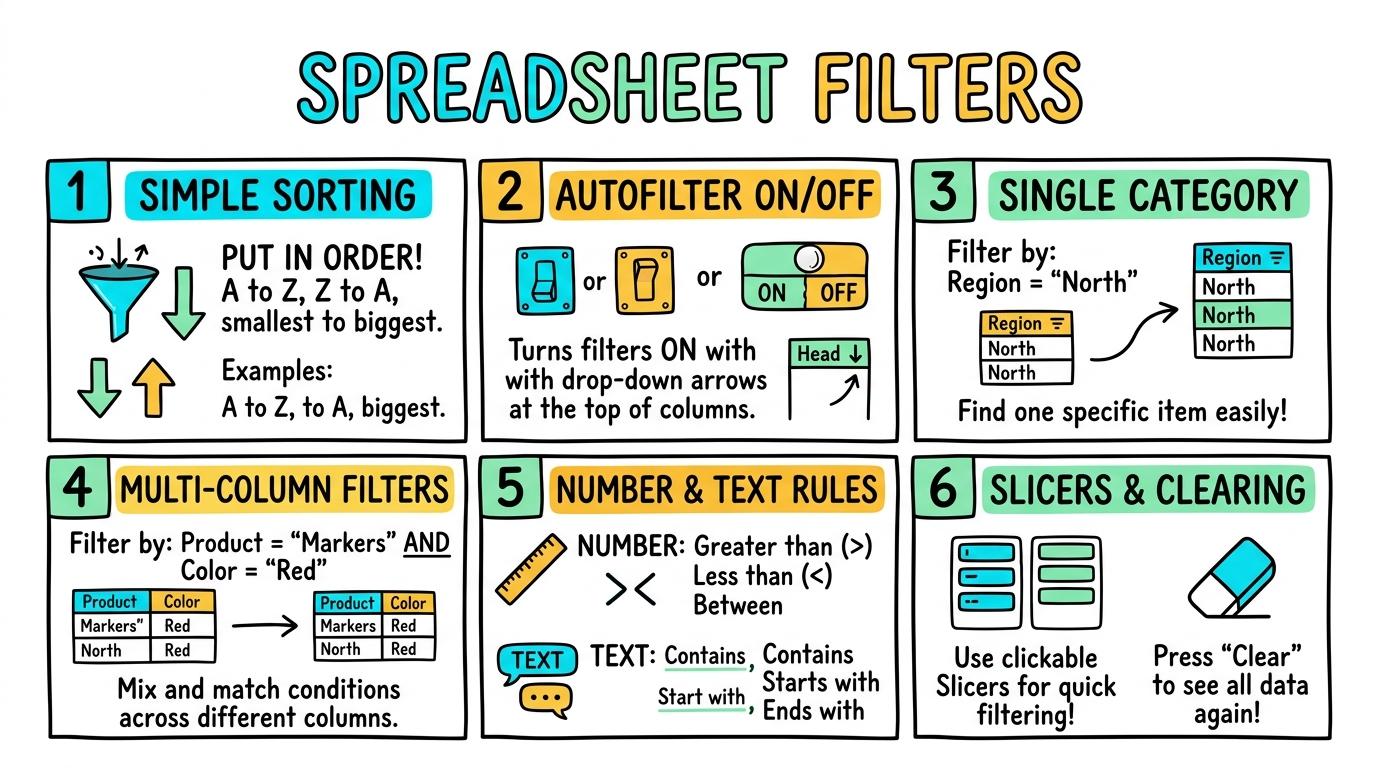
Welcome to Spreadsheet Filters! In this strand, you will learn how to turn raw spreadsheet data into clear answers by sorting, filtering by single and multiple criteria, and using advanced search conditions.
Sorting table rows A-Z and numerical order.
Learning objective
Let's Go!

Routine: See, Think, Wonder
Look at this mixed list of names. What happens to the list when we click the 'Sort A-Z' button?
Teacher note: Facilitate the See, Think, Wonder routine for 2–3 minutes. Encourage students to connect the prompt to Form (Organising data helps us see patterns and find information quickly.).
Learn
Sorting rearranges rows into alphabetical or numerical order. When you sort a column from A to Z or smallest to largest, the computer keeps all the details in that row together so your information stays accurate! In computing, organising data helps us see patterns and find information quickly. As you explore the interactive Spreadsheet Simulator below, focus on how to sort data rows without scrambling adjacent columns.
| A | B | C | |
|---|---|---|---|
| 1 | Item | Amount | |
| 2 | Apples | 5 | |
| 3 | Bananas | 3 | |
| 4 | Carrots | 2 | |
| 5 | Total |
Apply Simulator Skills • Try it yourself
🚀 Open a practice space
Or try locally: 💻 LibreOffice Calc (free)
Identify a table header row in a spreadsheet.
Sort a single column from A to Z using toolbar buttons.
Sort data rows without scrambling adjacent columns.
Explain why header rows must be frozen when sorting. Typing: 5 WPM.
 ⭐ Mastering Standard
 ⭐ Mastering Standard
When you finish creating your project in your software, copy the share link or take a screenshot and publish it onto your student portfolio website!
Reflect
Learning check
Routine: See, Think, Wonder
Teacher notes: Facilitate the See, Think, Wonder routine for 2–3 minutes. Encourage students to connect the prompt to Form (Organising data helps us see patterns and find information quickly.).
Curriculum strand: MAT.01.C.1.4
Outcome: SPF-O-01 — Sorting table rows A-Z and numerical order.
PYP: Form · Organising data helps us see patterns and find information quickly.
Learner profile: Inquirer
Accessibility alternative: Students may verbally explain or point to the correct answer for "Which button symbol is used to sort a table column from A to Z?" with a teacher or teaching assistant.
Teacher override: allow
Locked level
Complete the previous learning check to unlock this next level.
Enabling AutoFilter buttons on table headers.
Learning objective
Let's Go!
Routine: Zoom In
Look at these small drop-down funnel icons added to the top row. What tool was just turned on?
Teacher note: Facilitate the Zoom In routine for 2–3 minutes. Encourage students to connect the prompt to Function (Filters help us focus on specific information without deleting other data.).
Learn
AutoFilter adds small drop-down arrows to every column header. Clicking the Filter icon acts like a toggle switch—turning it on lets you isolate data, and turning it off shows everything again! In computing, filters help us focus on specific information without deleting other data. As you explore the interactive Diagram Builder Simulator below, focus on how to turn AutoFilter off to restore the full unfiltered dataset.
Apply Simulator Skills • Try it yourself
🚀 Open a practice space
Or try locally: 💻 LibreOffice Calc (free)
Locate the Filter button on the spreadsheet toolbar.
Turn AutoFilter on to reveal drop-down arrows on headers.
Turn AutoFilter off to restore the full unfiltered dataset.
Explain that filtering hides rows without deleting them. Typing: 10 WPM.
⭐ Mastering Standard⭐ Mastering StandardWhen you finish creating your project in your software, copy the share link or take a screenshot and publish it onto your student portfolio website!
Reflect
Learning check
Routine: Zoom In
Teacher notes: Facilitate the Zoom In routine for 2–3 minutes. Encourage students to connect the prompt to Function (Filters help us focus on specific information without deleting other data.).
Curriculum strand: MAT.02.C.1.4
Outcome: SPF-O-02 — Enabling AutoFilter buttons on table headers.
PYP: Function · Filters help us focus on specific information without deleting other data.
Learner profile: Communicator
Accessibility alternative: Students may verbally explain or point to the correct answer for "What happens to your hidden rows when you turn off the AutoFilter tool?" with a teacher or teaching assistant.
Teacher override: allow
Locked level
Complete the previous learning check to unlock this next level.
Filtering a column by selecting a single category.
Learning objective
Let's Go!
Routine: Think, Puzzle, Explore
You have a list of 100 animals. How can you show ONLY the mammals in less than 3 clicks?
Teacher note: Facilitate the Think, Puzzle, Explore routine for 2–3 minutes. Encourage students to connect the prompt to Connection (Isolating variables reveals specific patterns within large datasets.).
Learn
Filtering by category lets you select exactly what you want to see. By clicking the drop-down arrow, unchecking 'Select All', and checking just one box (like 'Mammal'), all other rows disappear from view! In computing, isolating variables reveals specific patterns within large datasets. As you explore the interactive Shortcut Simulator below, focus on how to filter a dataset to show only rows matching one category (e.g., 'Grade 3').
Apply Simulator Skills • Try it yourself
🚀 Open a practice space
Or try locally: 💻 LibreOffice Calc (free)
Open a column filter drop-down menu.
Uncheck 'Select All' and select a single item checkbox.
Filter a dataset to show only rows matching one category (e.g., 'Grade 3').
Count filtered items using the status bar count. Typing: 15 WPM.
⭐ Mastering Standard⭐ Mastering StandardWhen you finish creating your project in your software, copy the share link or take a screenshot and publish it onto your student portfolio website!
Reflect
Learning check
Routine: Think, Puzzle, Explore
Teacher notes: Facilitate the Think, Puzzle, Explore routine for 2–3 minutes. Encourage students to connect the prompt to Connection (Isolating variables reveals specific patterns within large datasets.).
Curriculum strand: CM.02.B.1.1
Outcome: SPF-O-03 — Filtering a column by selecting a single category.
PYP: Connection · Isolating variables reveals specific patterns within large datasets.
Learner profile: Thinker
Accessibility alternative: Students may verbally explain or point to the correct answer for "What is the first step when you want to filter a column for only 'Green' items?" with a teacher or teaching assistant.
Teacher override: allow
Locked level
Complete the previous learning check to unlock this next level.
Applying simultaneous filters across multiple columns.
Learning objective
Let's Go!
Routine: See, Think, Wonder
Look at these header icons. Why do Column B and Column D have tiny funnel icons, but Column C does not?
Teacher note: Facilitate the See, Think, Wonder routine for 2–3 minutes. Encourage students to connect the prompt to Responsibility (Combining multiple criteria allows precise and targeted data analysis.).
Learn
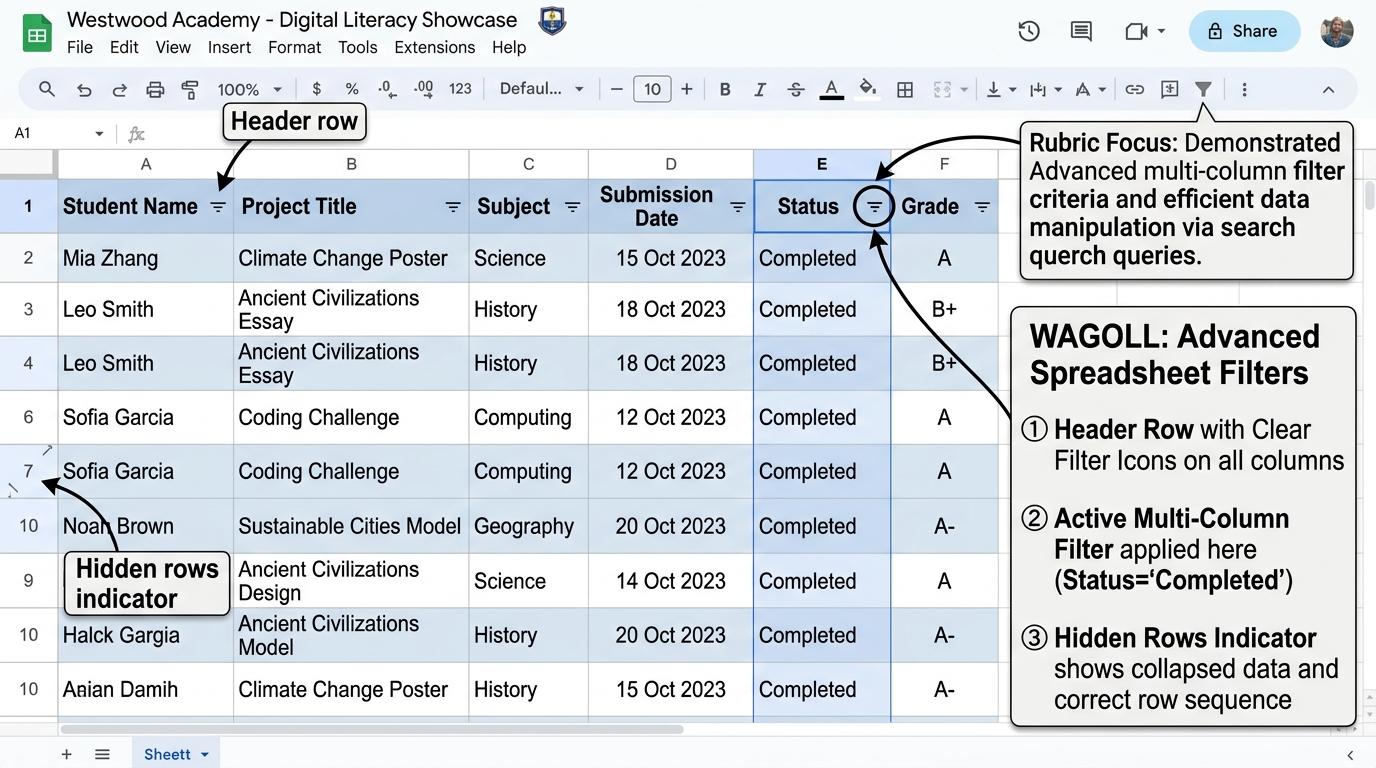
Combining filters narrows your data using AND logic! When you filter Category='Fruit' AND Status='In Stock', the computer shows ONLY rows that satisfy both conditions at the exact same time. In computing, combining multiple criteria allows precise and targeted data analysis. As you explore the interactive Spreadsheet Simulator below, focus on how to answer targeted queries requiring two criteria (e.g., 'Fruit' AND 'In Stock').
| A | B | C | |
|---|---|---|---|
| 1 | Item | Amount | |
| 2 | Apples | 5 | |
| 3 | Bananas | 3 | |
| 4 | Carrots | 2 | |
| 5 | Total |
Apply Simulator Skills • Try it yourself
🚀 Open a practice space
Or try locally: 💻 LibreOffice Calc (free)
Understand that filtering column A affects what is visible in column B.
Apply a filter on Column A, then apply a second filter on Column B.
Answer targeted queries requiring two criteria (e.g., 'Fruit' AND 'In Stock').
Identify which columns have active filters by inspecting header funnel icons. Typing: 20 WPM.
⭐ Mastering Standard⭐ Mastering StandardWhen you finish creating your project in your software, copy the share link or take a screenshot and publish it onto your student portfolio website!
Reflect
Learning check
Routine: See, Think, Wonder
Teacher notes: Facilitate the See, Think, Wonder routine for 2–3 minutes. Encourage students to connect the prompt to Responsibility (Combining multiple criteria allows precise and targeted data analysis.).
Curriculum strand: CM.02.B.1.1
Outcome: SPF-O-04 — Applying simultaneous filters across multiple columns.
PYP: Responsibility · Combining multiple criteria allows precise and targeted data analysis.
Learner profile: Principled
Accessibility alternative: Students may verbally explain or point to the correct answer for "How can you tell if a specific column currently has an active filter applied to it?" with a teacher or teaching assistant.
Teacher override: allow
Locked level
Complete the previous learning check to unlock this next level.
Filtering using numerical rules and text conditions.
Learning objective
Let's Go!
Routine: I used to think...
I used to think you had to check 50 individual numbers manually... Now I know Number Filters do it in one click!
Teacher note: Facilitate the I used to think... routine for 2–3 minutes. Encourage students to connect the prompt to Perspective (Numerical thresholds and text conditions help us extract strategic evidence.).
Learn
Number and Text Filters let you set rules instead of clicking checkboxes! You can ask the spreadsheet to show rows where 'Score > 80' or 'Name Contains 'Smith'', saving huge amounts of time. In computing, numerical thresholds and text conditions help us extract strategic evidence. As you explore the interactive Formatting Toolbar Simulator below, focus on how to use text conditions like 'Contains' or 'Begins With' to filter unstructured text.
Apply Simulator Skills • Try it yourself
🚀 Open a practice space
Or try locally: 💻 LibreOffice Calc (free)
Access 'Number Filters' and 'Text Filters' sub-menus.
Apply number conditions such as 'Greater Than', 'Less Than', or 'Between'.
Use text conditions like 'Contains' or 'Begins With' to filter unstructured text.
Combine numerical thresholds with text rules to solve complex scenarios. Typing: 25 WPM.
⭐ Mastering Standard⭐ Mastering StandardWhen you finish creating your project in your software, copy the share link or take a screenshot and publish it onto your student portfolio website!
Reflect
Learning check
Routine: I used to think...
Teacher notes: Facilitate the I used to think... routine for 2–3 minutes. Encourage students to connect the prompt to Perspective (Numerical thresholds and text conditions help us extract strategic evidence.).
Curriculum strand: CM.03.B.1.3
Outcome: SPF-O-05 — Filtering using numerical rules and text conditions.
PYP: Perspective · Numerical thresholds and text conditions help us extract strategic evidence.
Learner profile: Knowledgeable
Accessibility alternative: Students may verbally explain or point to the correct answer for "Which Number Filter condition would you use to find all items priced over $100?" with a teacher or teaching assistant.
Teacher override: allow
Locked level
Complete the previous learning check to unlock this next level.
Using visual Slicers and managing clear filter safety.
Learning objective
Let's Go!
Routine: Step Inside
Imagine you are presenting data to your principal. How do visual Slicers make your report interactive?
Teacher note: Facilitate the Step Inside routine for 2–3 minutes. Encourage students to connect the prompt to Reflection (Transparent data filtering and clear resets ensure accurate conclusions.).
Learn
Slicers are user-friendly visual buttons that filter tables with a single tap! Always remember to click 'Clear Filter' when you finish your analysis so hidden rows don't distort your calculations. In computing, transparent data filtering and clear resets ensure accurate conclusions. As you explore the interactive Python Console Simulator below, focus on how to design an interactive mini-dashboard with multiple linked Slicers.
Type Python code in the IDE to view real-time AST node tree parsing.
| Identifier | Type | Value | Scope |
|---|---|---|---|
| No active variables in memory. Assign variables (e.g. score = 100) to inspect. | |||
Apply Simulator Skills • Try it yourself
🚀 Open a practice space
Or try locally: 💻 LibreOffice Calc (free)
Locate the 'Clear Filter' command to reset a column.
Insert interactive visual Slicers for one-touch category filtering.
Design an interactive mini-dashboard with multiple linked Slicers.
Audit filtered spreadsheets to prevent hidden-data errors in formulas. Typing: 30+ WPM.
⭐ Mastering Standard⭐ Mastering StandardWhen you finish creating your project in your software, copy the share link or take a screenshot and publish it onto your student portfolio website!
Reflect
Learning check
Routine: Step Inside
Teacher notes: Facilitate the Step Inside routine for 2–3 minutes. Encourage students to connect the prompt to Reflection (Transparent data filtering and clear resets ensure accurate conclusions.).
Curriculum strand: MAT.03.E.1.6
Outcome: SPF-O-06 — Using visual Slicers and managing clear filter safety.
PYP: Reflection · Transparent data filtering and clear resets ensure accurate conclusions.
Learner profile: Reflective
Accessibility alternative: Students may verbally explain or point to the correct answer for "Why is it important to click 'Clear Filter' before calculating grand totals across a raw dataset?" with a teacher or teaching assistant.
Teacher override: allow
"Great explanation! Suggest adding a bulleted list of astronaut equipment here for clarity."