
📊
Learning objective
Formulas & Math
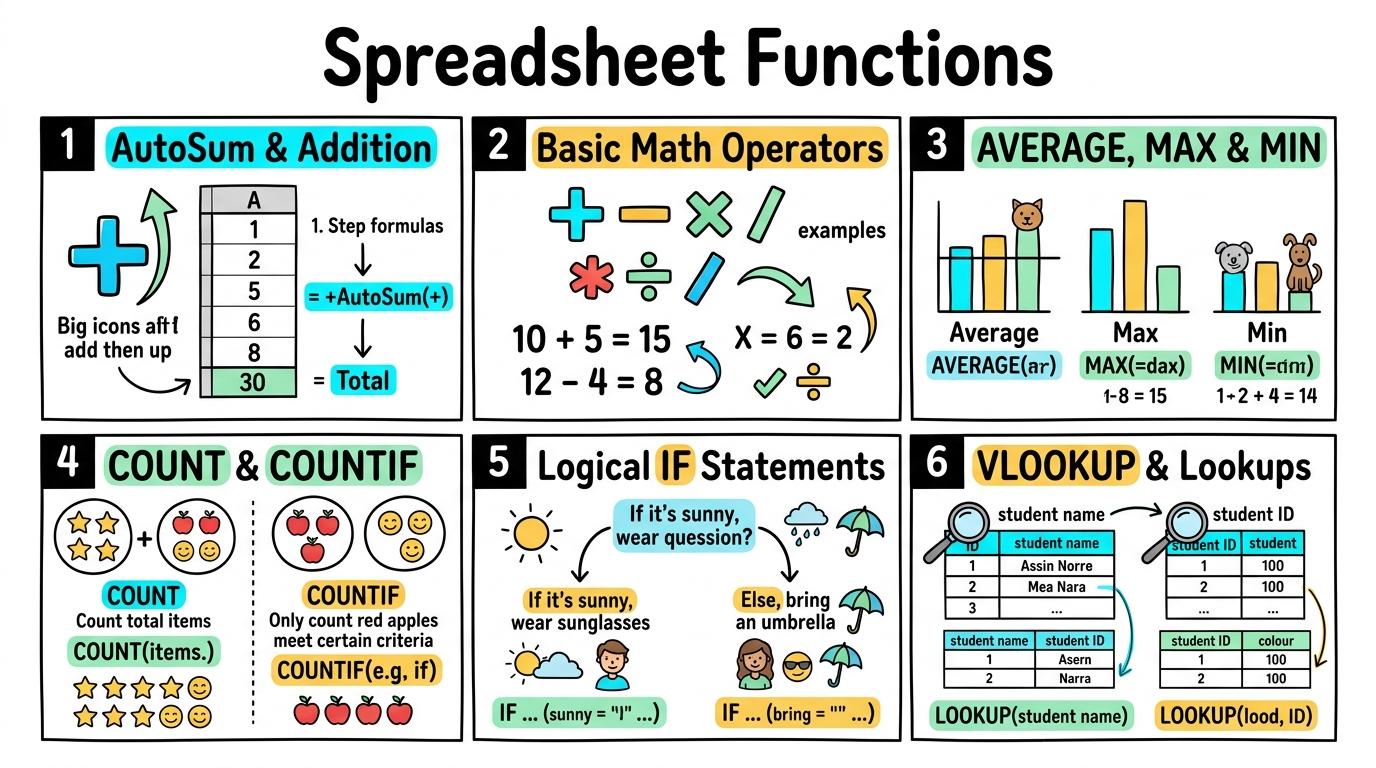
Welcome to Spreadsheet Functions! In this strand, you will master using built-in formulas, mathematical operators, statistical averages, conditional logic (IF), and lookups to transform raw data into powerful automated insights.
Using AutoSum and simple addition formulas.
Learning objective
Let's Go!

Routine: See, Think, Wonder
Look at this column of numbers. What happens when you change 5 to 10?
What does the total at the bottom do?
Teacher note: Facilitate the See, Think, Wonder routine for 2–3 minutes. Encourage students to connect the prompt to Form (Mathematical tools allow us to combine and count items efficiently.).
Learn
Instead of adding numbers on paper, spreadsheets do the math for you! By using the SUM formula, the computer adds up entire columns instantly and updates the answer if any number changes. In computing, mathematical tools allow us to combine and count items efficiently. As you explore the interactive Spreadsheet Simulator below, focus on how to type a basic SUM formula (=SUM(A1:A5)) to calculate totals automatically.
| A | B | C | |
|---|---|---|---|
| 1 | Item | Amount | |
| 2 | Apples | 5 | |
| 3 | Bananas | 3 | |
| 4 | Carrots | 2 | |
| 5 | Total |
Apply Simulator Skills • Try it yourself
🚀 Open a practice space
Or try locally: 💻 LibreOffice Calc (free)
Identify numbers arranged in a spreadsheet column.
Locate and click the AutoSum button (Σ) to add a column.
Type a basic SUM formula (=SUM(A1:A5)) to calculate totals automatically.
Explain how changing a cell value automatically updates the SUM total.
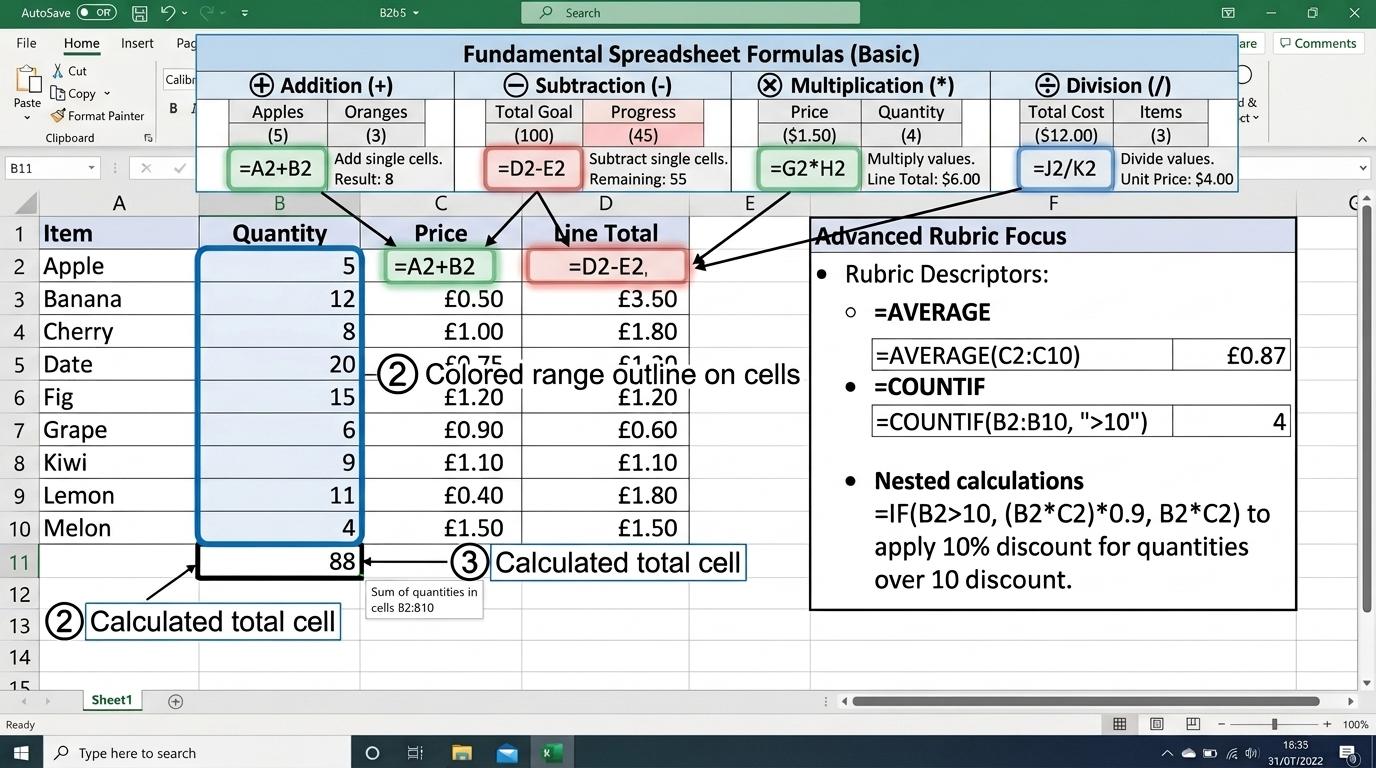 ⭐ Mastering Standard
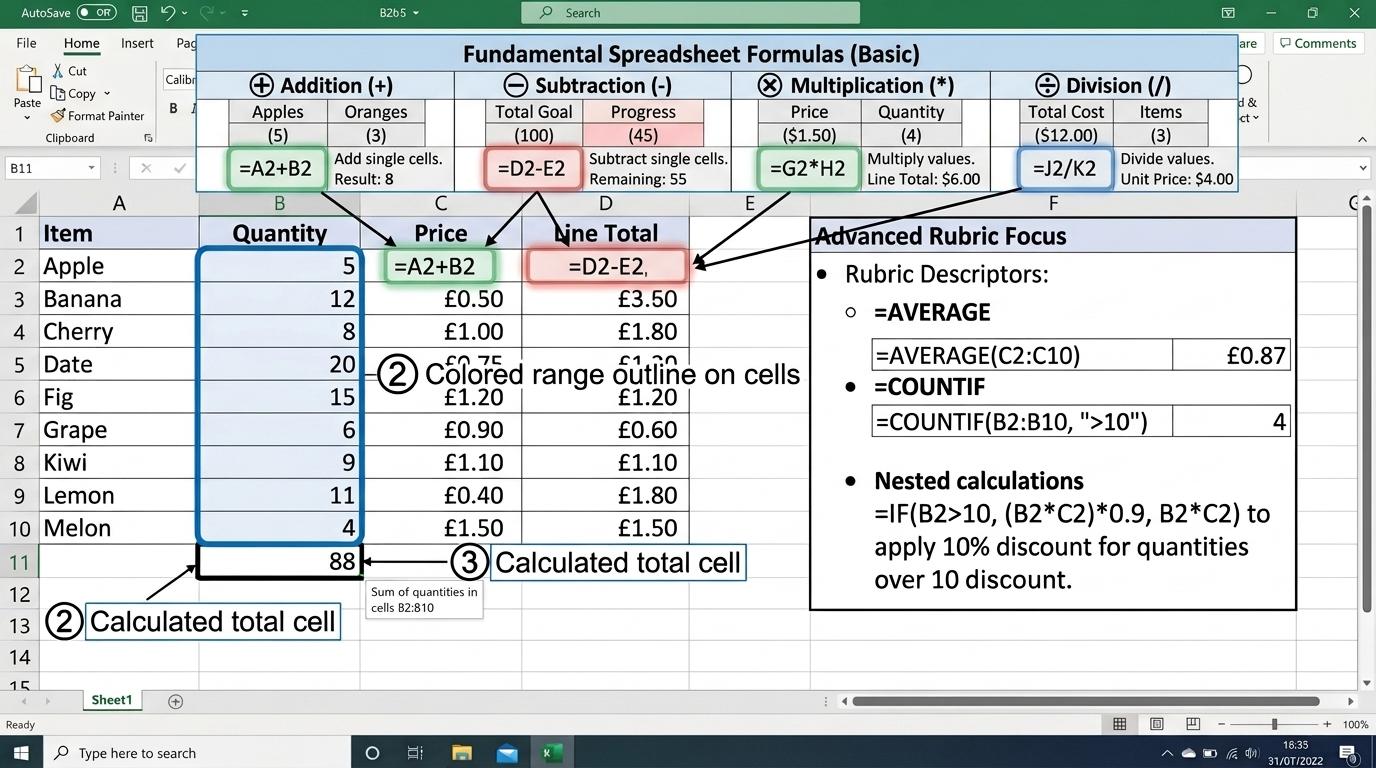 ⭐ Mastering Standard
When you finish creating your project in your software, copy the share link or take a screenshot and publish it onto your student portfolio website!
Reflect
Learning check
Routine: See, Think, Wonder
Teacher notes: Facilitate the See, Think, Wonder routine for 2–3 minutes. Encourage students to connect the prompt to Form (Mathematical tools allow us to combine and count items efficiently.).
Curriculum strand: MAT.01.C.1.4
Outcome: SPFN-O-01 — Using AutoSum and simple addition formulas.
PYP: Form · Mathematical tools allow us to combine and count items efficiently.
Learner profile: Inquirer
Accessibility alternative: Students may verbally explain or point to the correct answer for "Which symbol must EVERY formula or function in a spreadsheet start with?" with a teacher or teaching assistant.
Teacher override: allow
Locked level
Complete the previous learning check to unlock this next level.
Using standard operators (+, -, *, /) for calculations.
Learning objective
Let's Go!
Routine: Zoom In
Look at these math symbols: + - * /. Why does a computer use * for multiplication and / for division?
Teacher note: Facilitate the Zoom In routine for 2–3 minutes. Encourage students to connect the prompt to Function (Calculations give us precise insights to solve real-world problems.).
Learn
Computers use special key symbols for math: asterisk (*) means multiply, and forward slash (/) means divide. By referencing cell names like =A2*B2, you can build dynamic budget calculators! In computing, calculations give us precise insights to solve real-world problems. As you explore the interactive Python Console Simulator below, focus on how to calculate total costs by multiplying Quantity by Price (=A2*B2).
Type Python code in the IDE to view real-time AST node tree parsing.
| Identifier | Type | Value | Scope |
|---|---|---|---|
| No active variables in memory. Assign variables (e.g. score = 100) to inspect. | |||
Apply Simulator Skills • Try it yourself
🚀 Open a practice space
Or try locally: 💻 LibreOffice Calc (free)
Recognise the operators +, -, *, and / in spreadsheets.
Write formulas using cell references like =A1*B1 or =A1-B1.
Calculate total costs by multiplying Quantity by Price (=A2*B2).
Troubleshoot formula errors like #VALUE! caused by text in number cells.
⭐ Mastering Standard⭐ Mastering StandardWhen you finish creating your project in your software, copy the share link or take a screenshot and publish it onto your student portfolio website!
Reflect
Learning check
Routine: Zoom In
Teacher notes: Facilitate the Zoom In routine for 2–3 minutes. Encourage students to connect the prompt to Function (Calculations give us precise insights to solve real-world problems.).
Curriculum strand: MAT.02.C.1.4
Outcome: SPFN-O-02 — Using standard operators (+, -, *, /) for calculations.
PYP: Function · Calculations give us precise insights to solve real-world problems.
Learner profile: Communicator
Accessibility alternative: Students may verbally explain or point to the correct answer for "Which symbol does a spreadsheet use to MULTIPLY two cell values together?" with a teacher or teaching assistant.
Teacher override: allow
Locked level
Complete the previous learning check to unlock this next level.
Using statistical summary functions.
Learning objective
Let's Go!
Routine: Think, Puzzle, Explore
If a weather station records temperatures all week, how does =AVERAGE help us understand the general climate better than looking at 20 raw numbers?
Teacher note: Facilitate the Think, Puzzle, Explore routine for 2–3 minutes. Encourage students to connect the prompt to Connection (Data summarisation helps us compare sets and identify extremes.).
Learn
Scanning hundreds of rows to find the highest or lowest number takes time. Statistical functions like =AVERAGE(), =MAX(), and =MIN() instantly summarize massive datasets into key insights! In computing, data summarisation helps us compare sets and identify extremes. As you explore the interactive Diagram Builder Simulator below, focus on how to find the highest (=MAX) and lowest (=MIN) test scores or temperatures in a dataset.
Apply Simulator Skills • Try it yourself
🚀 Open a practice space
Or try locally: 💻 LibreOffice Calc (free)
Explain what AVERAGE, MAX, and MIN functions calculate.
Enter =AVERAGE(range) to calculate the mean of a set of scores.
Find the highest (=MAX) and lowest (=MIN) test scores or temperatures in a dataset.
Compare averages between two different groups to draw conclusions.
⭐ Mastering Standard⭐ Mastering StandardWhen you finish creating your project in your software, copy the share link or take a screenshot and publish it onto your student portfolio website!
Reflect
Learning check
Routine: Think, Puzzle, Explore
Teacher notes: Facilitate the Think, Puzzle, Explore routine for 2–3 minutes. Encourage students to connect the prompt to Connection (Data summarisation helps us compare sets and identify extremes.).
Curriculum strand: MAT.02.D.4.1
Outcome: SPFN-O-03 — Using statistical summary functions.
PYP: Connection · Data summarisation helps us compare sets and identify extremes.
Learner profile: Thinker
Accessibility alternative: Students may verbally explain or point to the correct answer for "Which formula should you use to find the HIGHEST score in the cell range A1 to A20?" with a teacher or teaching assistant.
Teacher override: allow
Locked level
Complete the previous learning check to unlock this next level.
Counting items conditionally with COUNTIF.
Learning objective
Let's Go!
Routine: See, Think, Wonder
Look at a survey result sheet with 100 entries. How can we count how many people voted 'Pizza' without manually counting every row?
Teacher note: Facilitate the See, Think, Wonder routine for 2–3 minutes. Encourage students to connect the prompt to Responsibility (Categorising and counting data items helps us understand community trends.).
Learn
Manual counting leads to human mistakes! The =COUNTIF(range, "criteria") function scans your data automatically and counts only the cells that match your exact condition. In computing, categorising and counting data items helps us understand community trends. As you explore the interactive Microcontroller Simulator below, focus on how to analyze survey results by counting how many students chose each option.
| Sensor Input | Bus Type | Raw Digital | Converted Unit |
|---|---|---|---|
| ☀️ Photocell (Light) | Internal Matrix | 128 | 50% Lux |
| 🌡️ Thermistor (Temp) | I2C Subsystem | 490 | 24°C |
| 📳 Accelerometer (X,Y,Z) | LSM303AGR I2C | (0, 0, 1024) | 1.0g Flat |
| 🔌 GPIO Pin 0 | Edge Connector | 0 | 0.0V (Low) |
Apply Simulator Skills • Try it yourself
🚀 Open a practice space
Or try locally: 💻 LibreOffice Calc (free)
Differentiate between COUNT (numbers) and COUNTA (text/all entries).
Use =COUNTIF(range, criteria) to count cells that match a specific word (e.g., 'Yes').
Analyze survey results by counting how many students chose each option.
Explain how COUNTIF differs from SUMIF when processing sales data.
⭐ Mastering Standard⭐ Mastering StandardWhen you finish creating your project in your software, copy the share link or take a screenshot and publish it onto your student portfolio website!
Reflect
Learning check
Routine: See, Think, Wonder
Teacher notes: Facilitate the See, Think, Wonder routine for 2–3 minutes. Encourage students to connect the prompt to Responsibility (Categorising and counting data items helps us understand community trends.).
Curriculum strand: CM.02.B.1.1
Outcome: SPFN-O-04 — Counting items conditionally with COUNTIF.
PYP: Responsibility · Categorising and counting data items helps us understand community trends.
Learner profile: Principled
Accessibility alternative: Students may verbally explain or point to the correct answer for "What formula correctly counts how many cells in range A1:A30 contain the word 'Pass'?" with a teacher or teaching assistant.
Teacher override: allow
Locked level
Complete the previous learning check to unlock this next level.
Automating decisions using IF logic.
Learning objective
Let's Go!
Routine: I used to think...
I used to think spreadsheets only did math... Now I know they can make logical decisions and give custom feedback based on test scores!
Teacher note: Facilitate the I used to think... routine for 2–3 minutes. Encourage students to connect the prompt to Perspective (Automated logic enables systems to evaluate criteria and flag exceptions.).
Learn
The =IF(logical_test, value_if_true, value_if_false) statement allows the spreadsheet to think! If a student's score is 50 or higher, it outputs 'Pass'; otherwise, it outputs 'Needs Retake'. In computing, automated logic enables systems to evaluate criteria and flag exceptions. As you explore the interactive Formatting Toolbar Simulator below, focus on how to combine IF with comparison operators (>, <, >=, <=, <>).
Apply Simulator Skills • Try it yourself
🚀 Open a practice space
Or try locally: 💻 LibreOffice Calc (free)
Explain the 3 parts of an IF function: Logical Test, Value If True, Value If False.
Write simple IF statements like =IF(A2>=50, "Pass", "Fail").
Combine IF with comparison operators (>, <, >=, <=, <>).
Nest simple IF statements or use AND/OR to evaluate complex grading systems.
⭐ Mastering Standard⭐ Mastering StandardWhen you finish creating your project in your software, copy the share link or take a screenshot and publish it onto your student portfolio website!
Reflect
Learning check
Routine: I used to think...
Teacher notes: Facilitate the I used to think... routine for 2–3 minutes. Encourage students to connect the prompt to Perspective (Automated logic enables systems to evaluate criteria and flag exceptions.).
Curriculum strand: CM.03.B.1.3
Outcome: SPFN-O-05 — Automating decisions using IF logic.
PYP: Perspective · Automated logic enables systems to evaluate criteria and flag exceptions.
Learner profile: Knowledgeable
Accessibility alternative: Students may verbally explain or point to the correct answer for "Which formula outputs 'Yes' if cell A1 is greater than 100, and 'No' if it is not?" with a teacher or teaching assistant.
Teacher override: allow
Locked level
Complete the previous learning check to unlock this next level.
Connecting relational data using VLOOKUP/XLOOKUP.
Learning objective
Let's Go!
Routine: Step Inside
Imagine managing an online store with 5,000 products. Why is VLOOKUP better than typing product names and prices into every order by hand?
Teacher note: Facilitate the Step Inside routine for 2–3 minutes. Encourage students to connect the prompt to Reflection (Relational data structures allow organisations to manage interconnected information efficiently.).
Learn
In real-world databases, tables are linked together! VLOOKUP searches a key (like a Student ID or Barcode) in a master table and automatically pulls back the correct name or price into your active sheet. In computing, relational data structures allow organisations to manage interconnected information efficiently. As you explore the interactive Block Coding Simulator below, focus on how to implement exact match lookups (FALSE / 0) and handle #N/A errors using IFERROR.
Select blocks from the palette on the left to build your program stack.
Assemble blocks in the Studio to inspect the syntax tree.
| Step | Block Instruction | Sprite (X, Y) | Variables | Status |
|---|---|---|---|---|
| No script execution traces yet. Click 🚩 Go to record runtime data. | ||||
Apply Simulator Skills • Try it yourself
🚀 Open a practice space
Or try locally: 💻 LibreOffice Calc (free)
Explain why looking up data across separate tables prevents duplicate data entry.
Use =VLOOKUP(lookup_value, table_array, col_index, FALSE) to fetch student IDs or prices.
Implement exact match lookups (FALSE / 0) and handle #N/A errors using IFERROR.
Compare VLOOKUP vs XLOOKUP for flexible multi-directional searching.
⭐ Mastering Standard⭐ Mastering StandardWhen you finish creating your project in your software, copy the share link or take a screenshot and publish it onto your student portfolio website!
Reflect
Learning check
Routine: Step Inside
Teacher notes: Facilitate the Step Inside routine for 2–3 minutes. Encourage students to connect the prompt to Reflection (Relational data structures allow organisations to manage interconnected information efficiently.).
Curriculum strand: MAT.03.E.1.6
Outcome: SPFN-O-06 — Connecting relational data using VLOOKUP/XLOOKUP.
PYP: Reflection · Relational data structures allow organisations to manage interconnected information efficiently.
Learner profile: Reflective
Accessibility alternative: Students may verbally explain or point to the correct answer for "What should the final parameter (range_lookup) in a VLOOKUP formula be set to when searching for an EXACT ID match?" with a teacher or teaching assistant.
Teacher override: allow
"Great explanation! Suggest adding a bulleted list of astronaut equipment here for clarity."