
📊
Learning objective
Charts & Visualisations
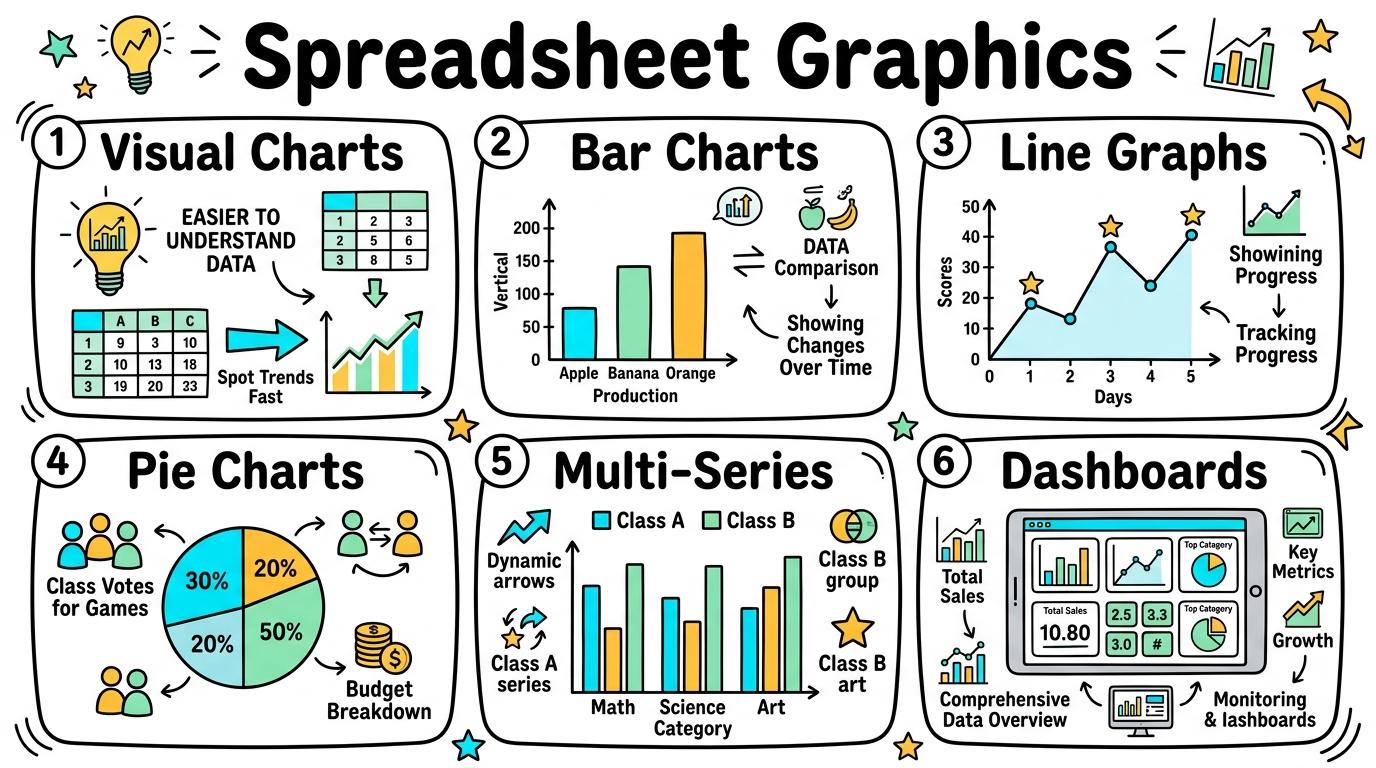
Welcome to Spreadsheet Graphics! In this strand, you will master turning raw data tables into clear, visually compelling charts and graphs, choosing the right chart type to represent trends, comparisons, and proportions accurately.
Selecting data and creating simple 1-to-1 visual charts.
Learning objective
Let's Go!
Routine: See, Think, Wonder
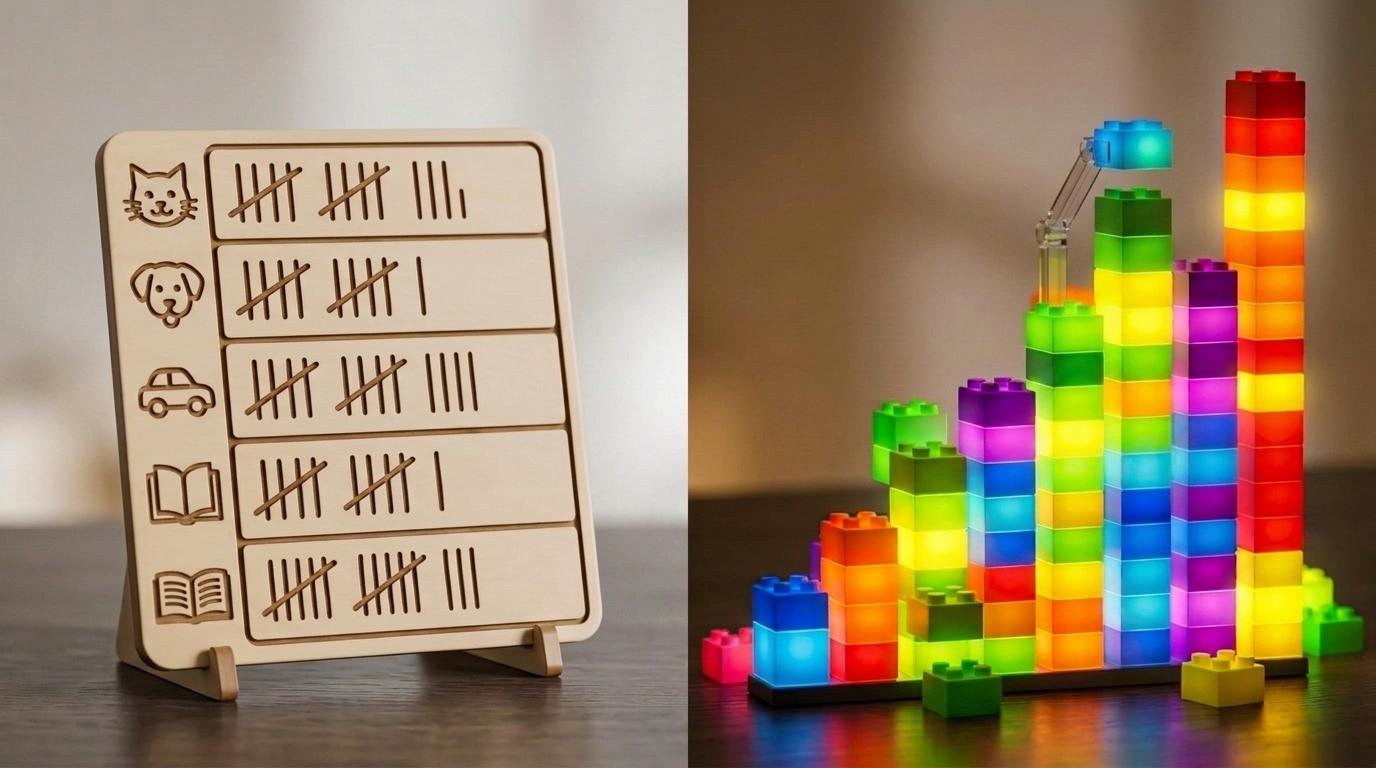
Look at this table of numbers vs this colorful pictogram. Which one tells the story faster?
Teacher note: Facilitate the See, Think, Wonder routine for 2–3 minutes. Encourage students to connect the prompt to Form (Visual charts help us compare quantities easily.).
Learn
Charts convert walls of numbers into instant visual pictures. Selecting your data table and choosing a simple chart type helps everyone understand your findings instantly! In computing, visual charts help us compare quantities easily. As you explore the interactive Spreadsheet Simulator below, focus on how to create a 1-to-1 visual chart from a 2-column table.
| A | B | C | |
|---|---|---|---|
| 1 | Item | Amount | |
| 2 | Apples | 5 | |
| 3 | Bananas | 3 | |
| 4 | Carrots | 2 | |
| 5 | Total |
Apply Simulator Skills • Try it yourself
🚀 Open a practice space
Or try locally: 💻 LibreOffice Calc (free)
Identify pictures representing counts.
Select a simple table and click 'Insert Chart'.
Create a 1-to-1 visual chart from a 2-column table.
Explain what each symbol represents. Typing: 5 WPM.
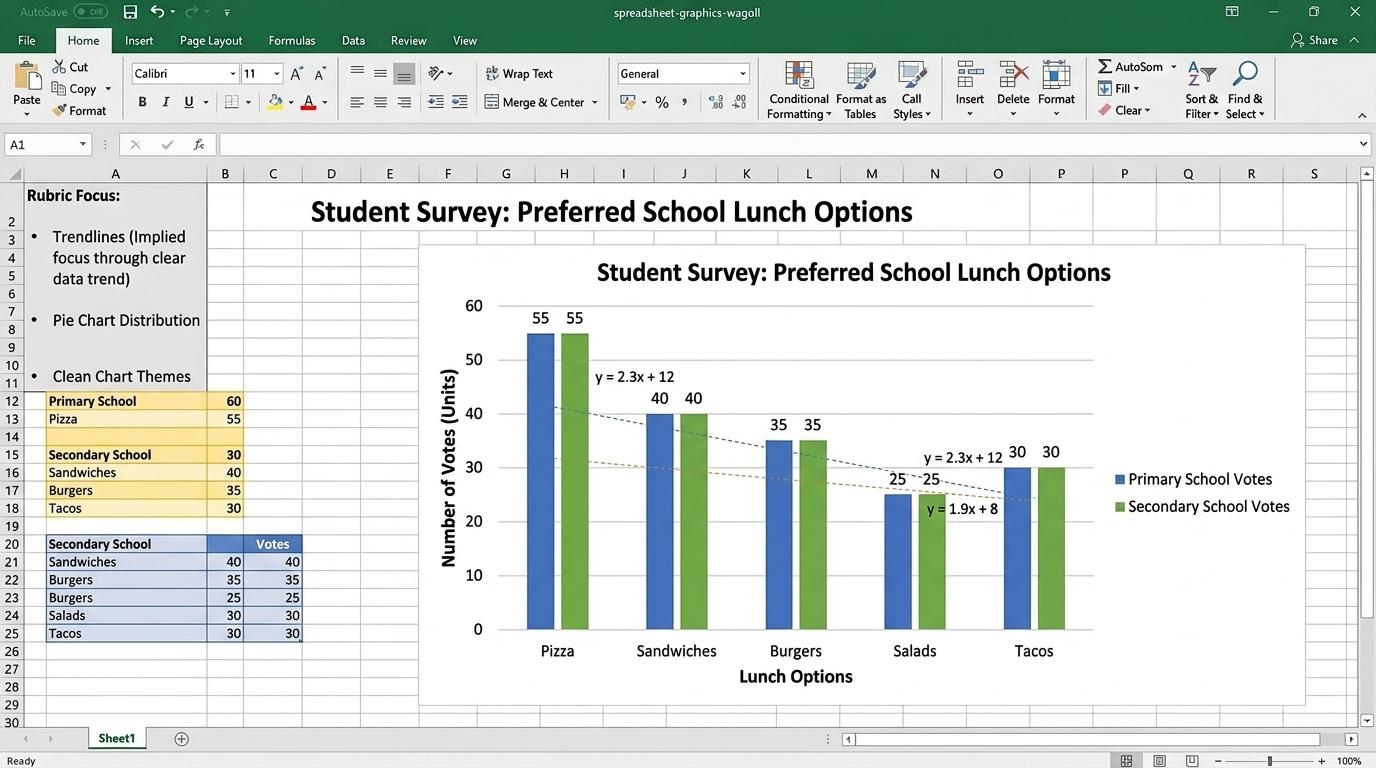 ⭐ Mastering Standard
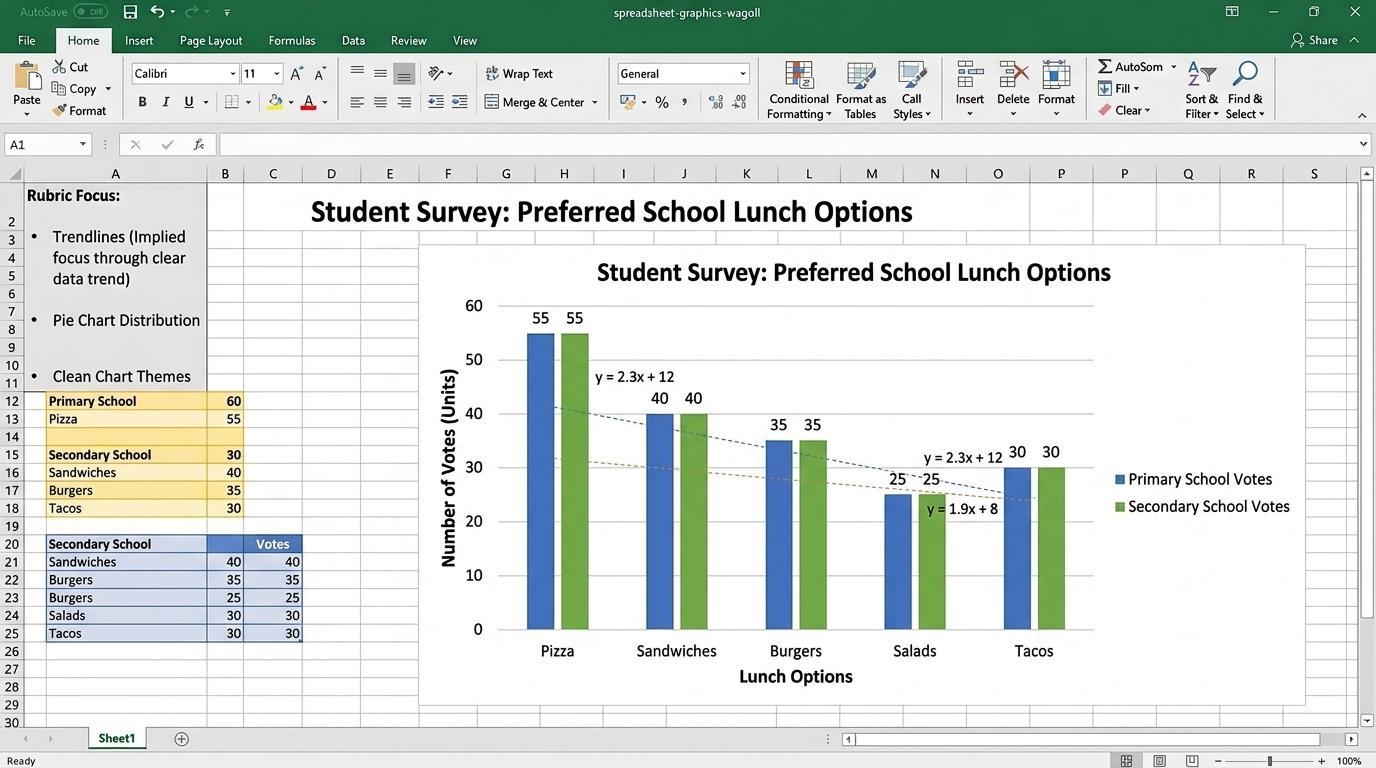 ⭐ Mastering Standard
When you finish creating your project in your software, copy the share link or take a screenshot and publish it onto your student portfolio website!
Reflect
Learning check
Routine: See, Think, Wonder
Teacher notes: Facilitate the See, Think, Wonder routine for 2–3 minutes. Encourage students to connect the prompt to Form (Visual charts help us compare quantities easily.).
Curriculum strand: MAT.01.C.1.4
Outcome: SPG-O-01 — Selecting data and creating simple 1-to-1 visual charts.
PYP: Form · Visual charts help us compare quantities easily.
Learner profile: Inquirer
Accessibility alternative: Students may verbally explain or point to the correct answer for "Which button in a spreadsheet inserts a visual graph or chart?" with a teacher or teaching assistant.
Teacher override: allow
Locked level
Complete the previous learning check to unlock this next level.
Building column and bar charts with axes and labels.
Learning objective
Let's Go!
Routine: Zoom In
Look at these colored bars. Which category is the tallest?
What does the height represent?
Teacher note: Facilitate the Zoom In routine for 2–3 minutes. Encourage students to connect the prompt to Function (Bar charts allow side-by-side category comparisons.).
Learn
Bar charts compare different categories side-by-side using vertical or horizontal bars. Always label your axes so readers know what each bar measures! In computing, bar charts allow side-by-side category comparisons. As you explore the interactive Drawing Layers Simulator below, focus on how to add custom axis titles and chart headers.
Maintain comfortable breathing space (margins) so eye movement flows naturally across the headline.
Apply Simulator Skills • Try it yourself
🚀 Open a practice space
Or try locally: 💻 LibreOffice Calc (free)
Distinguish vertical column charts from horizontal bar charts.
Select category and value columns to generate a bar chart.
Add custom axis titles and chart headers.
Explain why category order matters in bar charts. Typing: 10 WPM.
⭐ Mastering Standard⭐ Mastering StandardWhen you finish creating your project in your software, copy the share link or take a screenshot and publish it onto your student portfolio website!
Reflect
Learning check
Routine: Zoom In
Teacher notes: Facilitate the Zoom In routine for 2–3 minutes. Encourage students to connect the prompt to Function (Bar charts allow side-by-side category comparisons.).
Curriculum strand: MAT.02.C.1.4
Outcome: SPG-O-02 — Building column and bar charts with axes and labels.
PYP: Function · Bar charts allow side-by-side category comparisons.
Learner profile: Communicator
Accessibility alternative: Students may verbally explain or point to the correct answer for "You want to compare the favourite pets of 25 students. Which chart type is best for comparing discrete categories?" with a teacher or teaching assistant.
Teacher override: allow
Locked level
Complete the previous learning check to unlock this next level.
Plotting continuous time-series data using line graphs.
Learning objective
Let's Go!
Routine: Think, Puzzle, Explore
Look at this line going up and down over 7 days. What happened on Wednesday when the line dropped?
Teacher note: Facilitate the Think, Puzzle, Explore routine for 2–3 minutes. Encourage students to connect the prompt to Change (Line graphs show how continuous variables change over time.).
Learn
Line graphs connect data points across time (hours, days, months). They reveal patterns, spikes, and drops that show how something changes over continuous time! In computing, line graphs show how continuous variables change over time. As you explore the interactive Presentation Simulator below, focus on how to identify upward, downward, and flat trendlines.
Apply Simulator Skills • Try it yourself
🚀 Open a practice space
Or try locally: 💻 LibreOffice Calc (free)
Recognize that line graphs connect data points across time.
Plot a time-series table (Days vs Temperature) into a Line Graph.
Identify upward, downward, and flat trendlines.
Predict future data points by extending line trends. Typing: 15 WPM.
⭐ Mastering Standard⭐ Mastering StandardWhen you finish creating your project in your software, copy the share link or take a screenshot and publish it onto your student portfolio website!
Reflect
Learning check
Routine: Think, Puzzle, Explore
Teacher notes: Facilitate the Think, Puzzle, Explore routine for 2–3 minutes. Encourage students to connect the prompt to Change (Line graphs show how continuous variables change over time.).
Curriculum strand: CM.02.B.1.1
Outcome: SPG-O-03 — Plotting continuous time-series data using line graphs.
PYP: Change · Line graphs show how continuous variables change over time.
Learner profile: Thinker
Accessibility alternative: Students may verbally explain or point to the correct answer for "Which chart type is best for showing how plant growth changes over 4 weeks?" with a teacher or teaching assistant.
Teacher override: allow
Locked level
Complete the previous learning check to unlock this next level.
Displaying parts of a whole using pie charts and percentages.
Learning objective
Let's Go!
Routine: See, Think, Wonder
Imagine cutting a pizza into slices. How does the size of each slice show its share of the whole?
Teacher note: Facilitate the See, Think, Wonder routine for 2–3 minutes. Encourage students to connect the prompt to Perspective (Pie charts illustrate proportions and parts of a 100% whole.).
Learn
Pie charts show how a total amount (100%) is divided into parts. Each slice represents a percentage of the total. Keep slices under 6 so the chart remains easy to read! In computing, pie charts illustrate proportions and parts of a 100% whole. As you explore the interactive Spreadsheet Simulator below, focus on how to add data labels with percentages to pie slices.
| A | B | C | |
|---|---|---|---|
| 1 | Item | Amount | |
| 2 | Apples | 5 | |
| 3 | Bananas | 3 | |
| 4 | Carrots | 2 | |
| 5 | Total |
Apply Simulator Skills • Try it yourself
🚀 Open a practice space
Or try locally: 💻 LibreOffice Calc (free)
Recognize that a pie chart represents 100% of a dataset.
Generate a pie chart from a budget or survey table.
Add data labels with percentages to pie slices.
Evaluate when pie charts become unreadable (too many slices). Typing: 20 WPM.
⭐ Mastering Standard⭐ Mastering StandardWhen you finish creating your project in your software, copy the share link or take a screenshot and publish it onto your student portfolio website!
Reflect
Learning check
Routine: See, Think, Wonder
Teacher notes: Facilitate the See, Think, Wonder routine for 2–3 minutes. Encourage students to connect the prompt to Perspective (Pie charts illustrate proportions and parts of a 100% whole.).
Curriculum strand: CM.02.B.1.1
Outcome: SPG-O-04 — Displaying parts of a whole using pie charts and percentages.
PYP: Perspective · Pie charts illustrate proportions and parts of a 100% whole.
Learner profile: Principled
Accessibility alternative: Students may verbally explain or point to the correct answer for "What must all slices of a pie chart add up to?" with a teacher or teaching assistant.
Teacher override: allow
Locked level
Complete the previous learning check to unlock this next level.
Comparing multiple data series and combo charts.
Learning objective
Let's Go!
Routine: I used to think...
I used to think a chart could only show one set of numbers... Now I know we can compare two years on the same graph!
Teacher note: Facilitate the I used to think... routine for 2–3 minutes. Encourage students to connect the prompt to Connection (Combining data series provides deeper comparative analysis.).
Learn
Multi-series charts compare two or more related sets of data on the same axes (like Boys vs Girls sports scores, or Rainfall vs Temperature). Combo charts mix columns and lines for dual insights! In computing, combining data series provides deeper comparative analysis. As you explore the interactive Screenshot Simulator below, focus on how to create a Combo Chart combining columns (Rainfall) and a line (Temperature).
Loyal, gentle family dog known for intelligence and playful temperament.
Apply Simulator Skills • Try it yourself
🚀 Open a practice space
Or try locally: 💻 LibreOffice Calc (free)
Identify a chart legend showing multiple colored series.
Plot two data series (e.g. Sales 2024 vs Sales 2025) on one bar chart.
Create a Combo Chart combining columns (Rainfall) and a line (Temperature).
Format a secondary Y-axis for different measurement scales. Typing: 25 WPM.
⭐ Mastering Standard⭐ Mastering StandardWhen you finish creating your project in your software, copy the share link or take a screenshot and publish it onto your student portfolio website!
Reflect
Learning check
Routine: I used to think...
Teacher notes: Facilitate the I used to think... routine for 2–3 minutes. Encourage students to connect the prompt to Connection (Combining data series provides deeper comparative analysis.).
Curriculum strand: CM.03.B.1.3
Outcome: SPG-O-05 — Comparing multiple data series and combo charts.
PYP: Connection · Combining data series provides deeper comparative analysis.
Learner profile: Knowledgeable
Accessibility alternative: Students may verbally explain or point to the correct answer for "What feature on a multi-series chart explains what each color or line represents?" with a teacher or teaching assistant.
Teacher override: allow
Locked level
Complete the previous learning check to unlock this next level.
Building dynamic charts linked to formulas and interactive slicers.
Learning objective
Let's Go!
Routine: Step Inside
Imagine you are an executive presenting sales data. How does an interactive dashboard help your audience explore the facts?
Teacher note: Facilitate the Step Inside routine for 2–3 minutes. Encourage students to connect the prompt to Reflection (Interactive dashboards synthesize complex data for decision-making.).
Learn
Professional dashboards combine multiple dynamic charts on a clean page. When source data or formula values update, your charts update instantly. Adding interactive slicers lets users filter charts live! In computing, interactive dashboards synthesize complex data for decision-making. As you explore the interactive Spreadsheet Simulator below, focus on how to assemble a 3-chart interactive dashboard with connected Slicers.
| A | B | C | |
|---|---|---|---|
| 1 | Item | Amount | |
| 2 | Apples | 5 | |
| 3 | Bananas | 3 | |
| 4 | Carrots | 2 | |
| 5 | Total |
Apply Simulator Skills • Try it yourself
🚀 Open a practice space
Or try locally: 💻 LibreOffice Calc (free)
Format custom chart colors, fonts, and data callouts.
Link chart data dynamically to summary formula cells (SUM/AVERAGE).
Assemble a 3-chart interactive dashboard with connected Slicers.
Critically evaluate chart formatting to avoid misleading visual distortion. Typing: 30+ WPM.
⭐ Mastering Standard⭐ Mastering StandardWhen you finish creating your project in your software, copy the share link or take a screenshot and publish it onto your student portfolio website!
Reflect
Learning check
Routine: Step Inside
Teacher notes: Facilitate the Step Inside routine for 2–3 minutes. Encourage students to connect the prompt to Reflection (Interactive dashboards synthesize complex data for decision-making.).
Curriculum strand: MAT.03.E.1.6
Outcome: SPG-O-06 — Building dynamic charts linked to formulas and interactive slicers.
PYP: Reflection · Interactive dashboards synthesize complex data for decision-making.
Learner profile: Reflective
Accessibility alternative: Students may verbally explain or point to the correct answer for "Why is truncating the Y-axis (not starting at zero) on a bar chart often considered misleading?" with a teacher or teaching assistant.
Teacher override: allow