
📊
Learning objective
Formatting Options
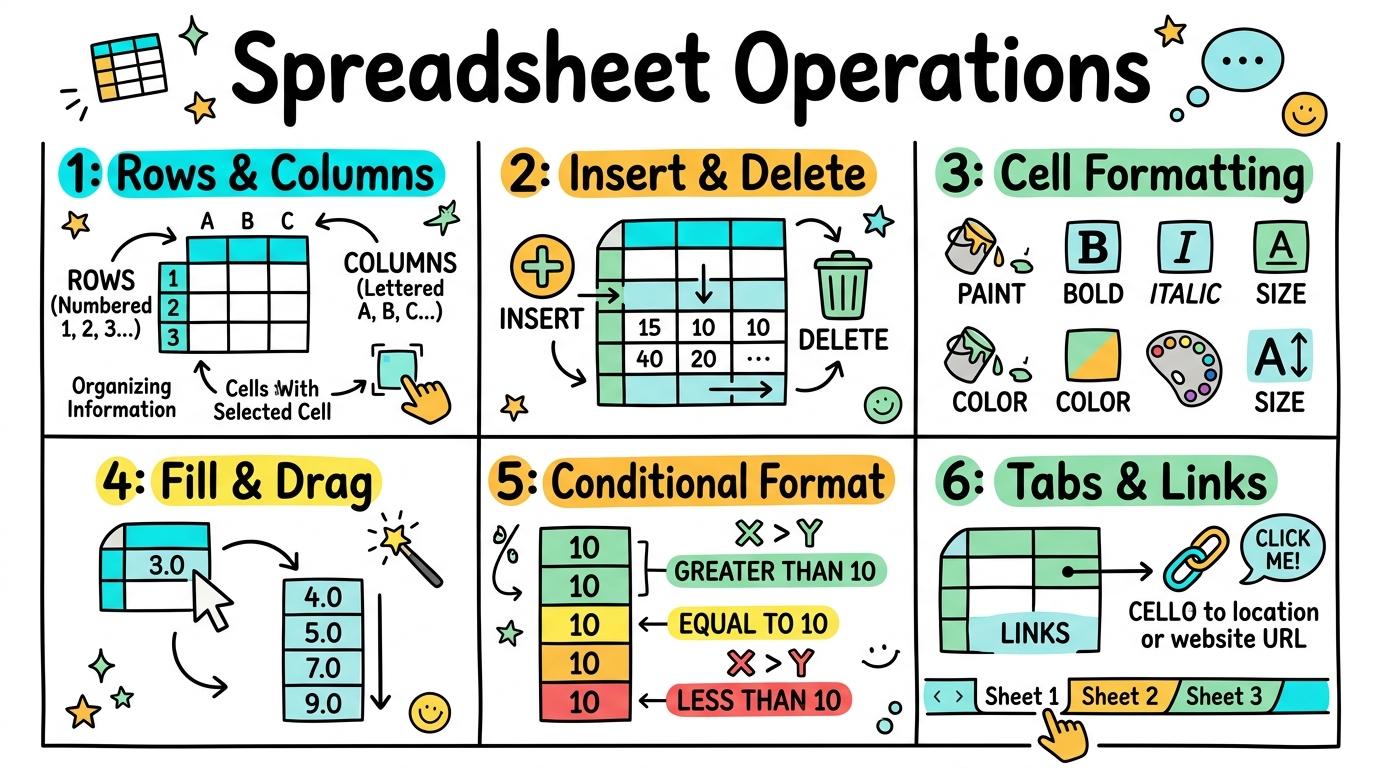
Welcome to Spreadsheet Formatting Options! In this strand, you will master cell styling, row and column adjustments, number formatting, auto-fill, and conditional formatting rules to make data clear and professional.
Grid navigation, row/column selection, and cell entry.
Learning objective
Let's Go!
Routine: See, Think, Wonder
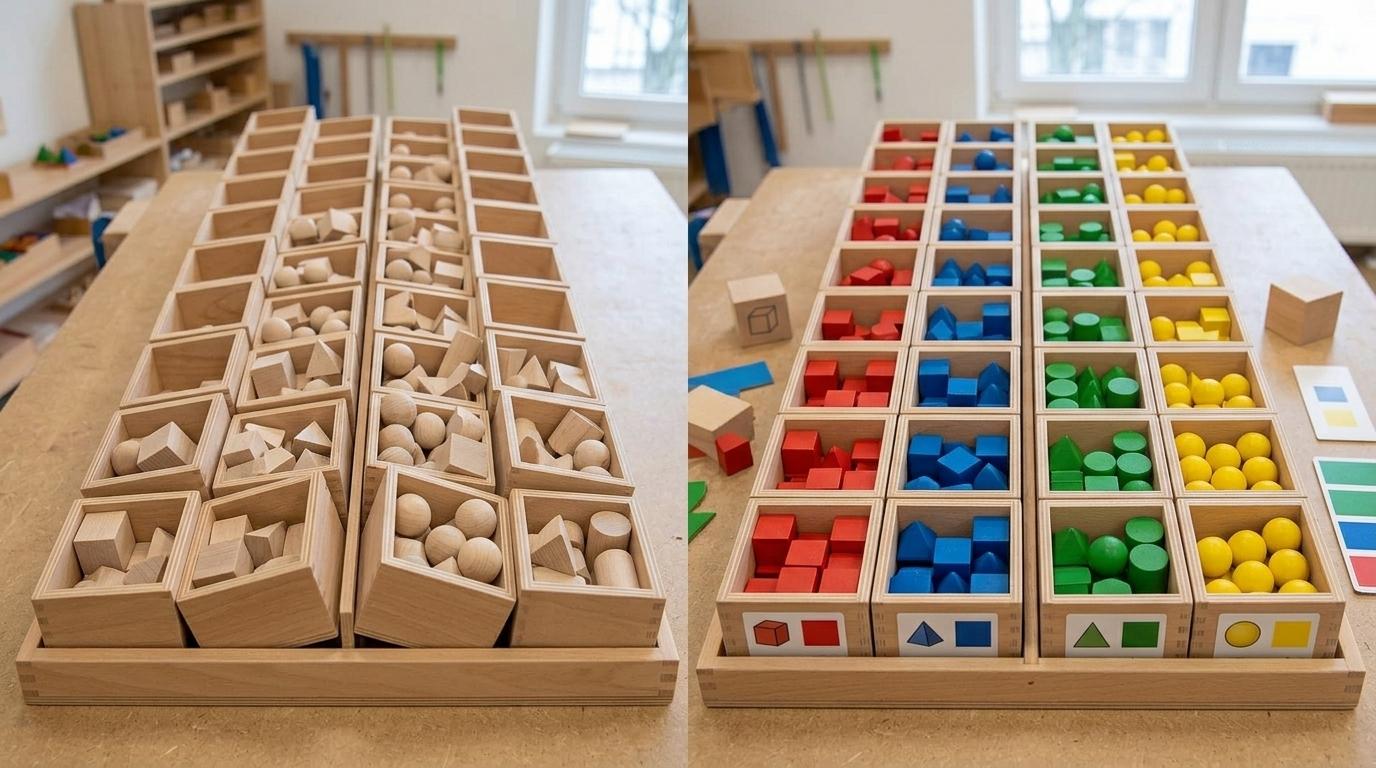
Look at this table where some text is cut off by the cell boundary. What do you see?
Why did that happen?
Teacher note: Facilitate the See, Think, Wonder routine for 2–3 minutes. Encourage students to connect the prompt to Form (Grids and tables help us structure and locate information.).
Learn
A spreadsheet grid is made of vertical Columns (labeled with letters A, B, C) and horizontal Rows (labeled with numbers 1, 2, 3). Clicking a column letter selects the whole column! In computing, grids and tables help us structure and locate information. As you explore the interactive Spreadsheet Simulator below, focus on how to select entire rows and columns and enter text.
| A | B | C | |
|---|---|---|---|
| 1 | Item | Amount | |
| 2 | Apples | 5 | |
| 3 | Bananas | 3 | |
| 4 | Carrots | 2 | |
| 5 | Total |
Apply Simulator Skills • Try it yourself
🚀 Open a practice space
Or try locally: 💻 LibreOffice Calc (free)
Identify grid letters and numbers.
Select specific cells by reference (e.g. B3).
Select entire rows and columns and enter text.
Resize column widths to fit long text. Typing: 5 WPM.
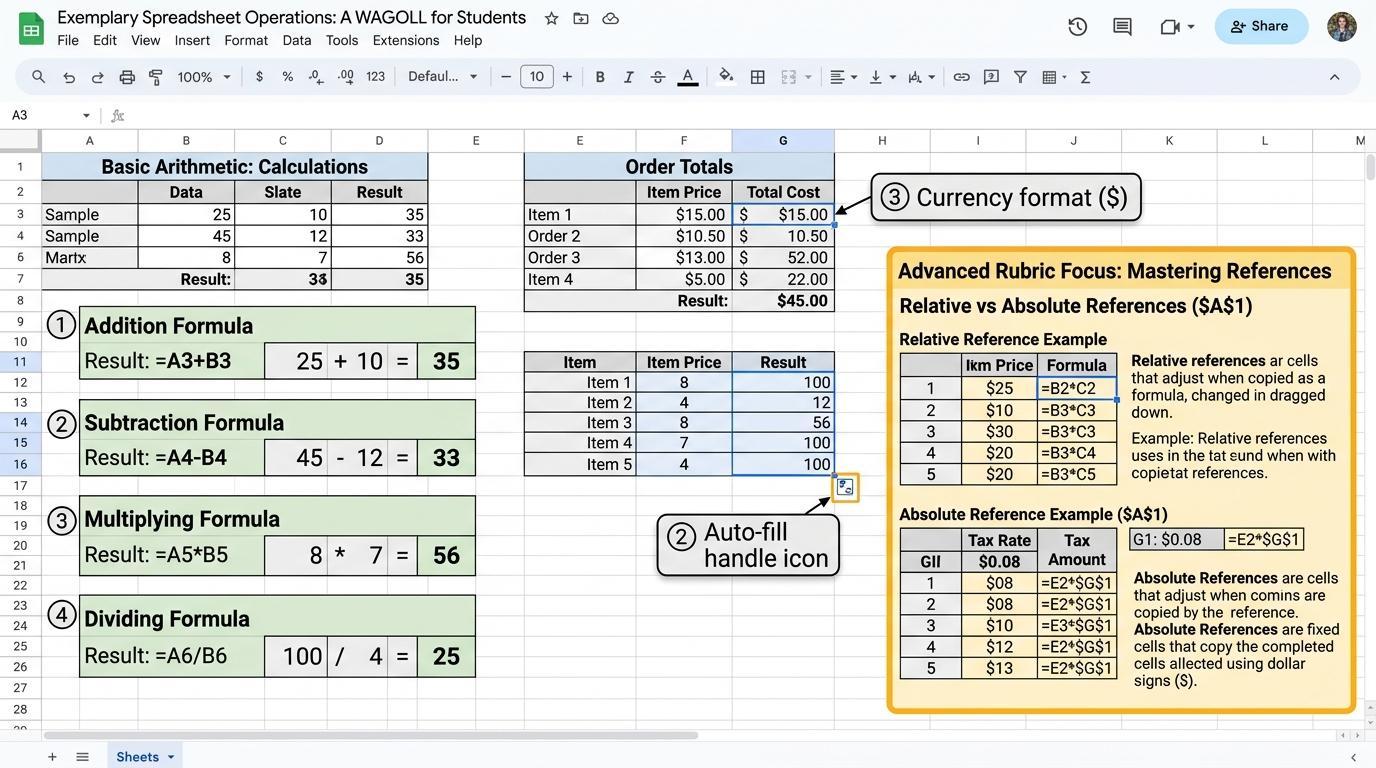 ⭐ Mastering Standard
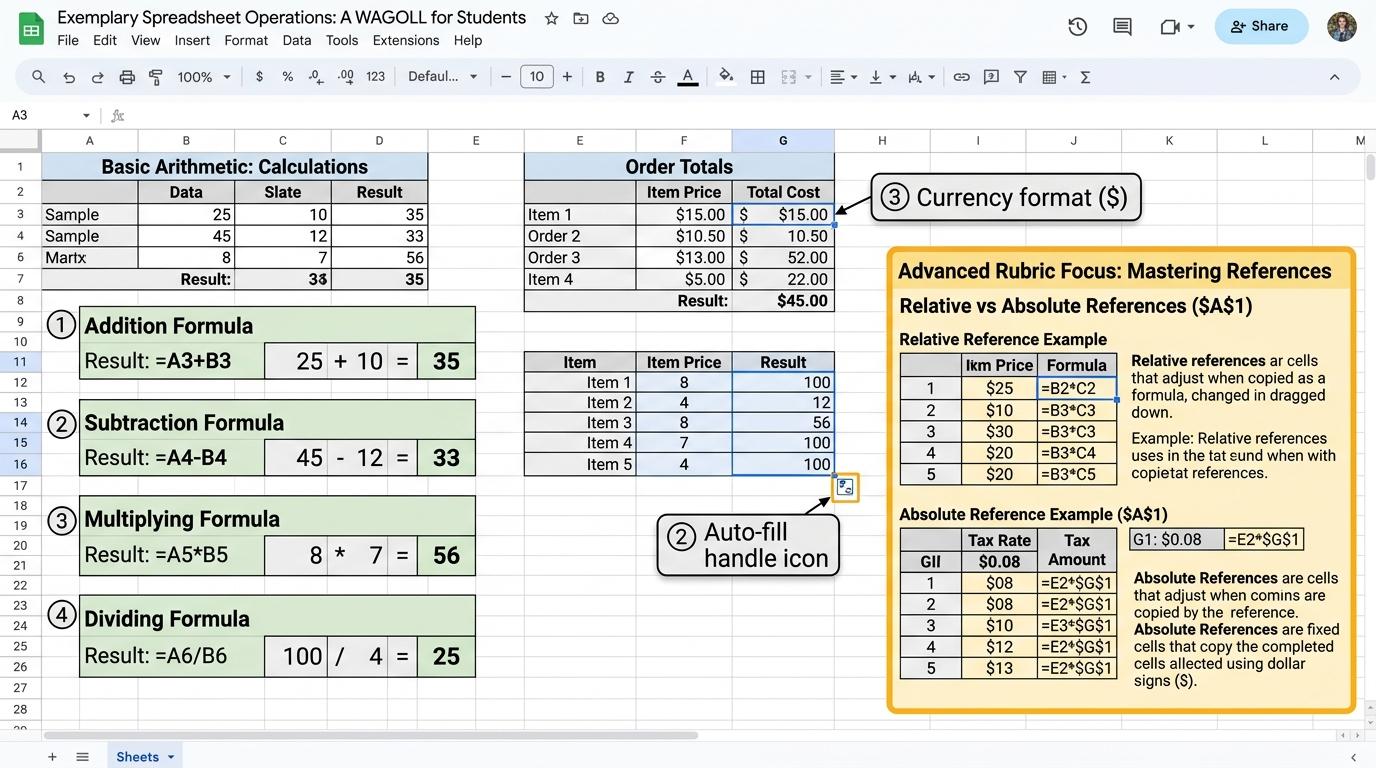 ⭐ Mastering Standard
When you finish creating your project in your software, copy the share link or take a screenshot and publish it onto your student portfolio website!
Reflect
Learning check
Routine: See, Think, Wonder
Teacher notes: Facilitate the See, Think, Wonder routine for 2–3 minutes. Encourage students to connect the prompt to Form (Grids and tables help us structure and locate information.).
Curriculum strand: MAT.01.C.1.4
Outcome: SPO-O-01 — Grid navigation, row/column selection, and cell entry.
PYP: Form · Grids and tables help us structure and locate information.
Learner profile: Inquirer
Accessibility alternative: Students may verbally explain or point to the correct answer for "Which cell address is highlighted when Column B and Row 3 intersect?" with a teacher or teaching assistant.
Teacher override: allow
Locked level
Complete the previous learning check to unlock this next level.
Inserting/deleting rows, columns, and clearing contents.
Learning objective
Let's Go!
Routine: Zoom In
Look closely at this table missing a student's name between Row 3 and Row 4. How can we add them without retyping everything?
Teacher note: Facilitate the Zoom In routine for 2–3 minutes. Encourage students to connect the prompt to Function (Updating tables keeps our datasets complete and accurate.).
Learn
When you forget to include an item in your table, you don't need to restart! Right-click any row number or column header and select 'Insert' to add a blank row or column right where you need it. In computing, updating tables keeps our datasets complete and accurate. As you explore the interactive Shortcut Simulator below, focus on how to insert new blank rows and columns into an existing table.
Apply Simulator Skills • Try it yourself
🚀 Open a practice space
Or try locally: 💻 LibreOffice Calc (free)
Use Delete/Backspace to clear text in a cell.
Right-click a row number to open the context menu.
Insert new blank rows and columns into an existing table.
Explain the difference between clearing content and deleting a row.
⭐ Mastering Standard⭐ Mastering StandardWhen you finish creating your project in your software, copy the share link or take a screenshot and publish it onto your student portfolio website!
Reflect
Learning check
Routine: Zoom In
Teacher notes: Facilitate the Zoom In routine for 2–3 minutes. Encourage students to connect the prompt to Function (Updating tables keeps our datasets complete and accurate.).
Curriculum strand: MAT.02.C.1.4
Outcome: SPO-O-02 — Inserting/deleting rows, columns, and clearing contents.
PYP: Function · Updating tables keeps our datasets complete and accurate.
Learner profile: Communicator
Accessibility alternative: Students may verbally explain or point to the correct answer for "You want to add a new student between Row 4 and Row 5. What should you right-click?" with a teacher or teaching assistant.
Teacher override: allow
Locked level
Complete the previous learning check to unlock this next level.
Formatting data types (Currency, Percentage, Date, Text).
Learning objective
Let's Go!
Routine: Think, Puzzle, Explore
Why does typing '0.5' in a cell turn into '50%' when you click the percentage button?
What puzzles you about number formatting?
Teacher note: Facilitate the Think, Puzzle, Explore routine for 2–3 minutes. Encourage students to connect the prompt to Connection (Formatting numbers properly conveys exact meaning and context.).
Learn
Raw numbers like '12.5' can be confusing. Is it $12.50? 12.5%? Or 12.5 kg? Number formatting tells the computer how to present the value clearly without changing the underlying mathematical data! In computing, formatting numbers properly conveys exact meaning and context. As you explore the interactive Formatting Toolbar Simulator below, focus on how to format cells correctly as Percentage (%), Currency, or Short Date.
Apply Simulator Skills • Try it yourself
🚀 Open a practice space
Or try locally: 💻 LibreOffice Calc (free)
Recognise that numbers can represent money, dates, or percentages.
Format numbers as Currency (£/$/€) using toolbar buttons.
Format cells correctly as Percentage (%), Currency, or Short Date.
Adjust decimal places (increase/decrease decimals) appropriately.
⭐ Mastering Standard⭐ Mastering StandardWhen you finish creating your project in your software, copy the share link or take a screenshot and publish it onto your student portfolio website!
Reflect
Learning check
Routine: Think, Puzzle, Explore
Teacher notes: Facilitate the Think, Puzzle, Explore routine for 2–3 minutes. Encourage students to connect the prompt to Connection (Formatting numbers properly conveys exact meaning and context.).
Curriculum strand: CM.02.B.1.1
Outcome: SPO-O-03 — Formatting data types (Currency, Percentage, Date, Text).
PYP: Connection · Formatting numbers properly conveys exact meaning and context.
Learner profile: Thinker
Accessibility alternative: Students may verbally explain or point to the correct answer for "You have a column showing test scores out of 100 expressed as decimals (0.85). Which format should you apply to display it clearly?" with a teacher or teaching assistant.
Teacher override: allow
Locked level
Complete the previous learning check to unlock this next level.
Using the Fill Handle for series generation and copying formulas.
Learning objective
Let's Go!
Routine: I used to think...
I used to think I had to re-type '=A2*B2' for all 50 rows in a table... Now I know there's a 1-second secret tool!
Teacher note: Facilitate the I used to think... routine for 2–3 minutes. Encourage students to connect the prompt to Responsibility (Pattern replication tools speed up workflow and reduce errors.).
Learn
The Fill Handle (the little black square at the bottom right corner of a cell selection) is your biggest productivity helper! Dragging it copies formulas down a column while automatically updating row references. In computing, pattern replication tools speed up workflow and reduce errors. As you explore the interactive Save Dialog Simulator below, focus on how to drag Fill Handle down a column to copy a calculation formula across rows.
Apply Simulator Skills • Try it yourself
🚀 Open a practice space
Or try locally: 💻 LibreOffice Calc (free)
Locate the small square Fill Handle in the bottom-right of a selected cell.
Drag Fill Handle to auto-complete days of the week or month series.
Drag Fill Handle down a column to copy a calculation formula across rows.
Explain how relative cell references automatically shift when filled down.
⭐ Mastering Standard⭐ Mastering StandardWhen you finish creating your project in your software, copy the share link or take a screenshot and publish it onto your student portfolio website!
Reflect
Learning check
Routine: I used to think...
Teacher notes: Facilitate the I used to think... routine for 2–3 minutes. Encourage students to connect the prompt to Responsibility (Pattern replication tools speed up workflow and reduce errors.).
Curriculum strand: CM.02.B.1.1
Outcome: SPO-O-04 — Using the Fill Handle for series generation and copying formulas.
PYP: Responsibility · Pattern replication tools speed up workflow and reduce errors.
Learner profile: Principled
Accessibility alternative: Students may verbally explain or point to the correct answer for "When you drag the formula '=B2+C2' down from row 2 to row 3 using the Fill Handle, what does the formula in row 3 become?" with a teacher or teaching assistant.
Teacher override: allow
Locked level
Complete the previous learning check to unlock this next level.
Highlight rules, data bars, and color scales for automatic visualization.
Learning objective
Let's Go!
Routine: See, Think, Wonder
Look at this temperature log where hot days automatically turn bright red and cold days turn blue. What rules do you think were created?
Teacher note: Facilitate the See, Think, Wonder routine for 2–3 minutes. Encourage students to connect the prompt to Perspective (Automated rules bring key data insights to light instantly.).
Learn
Conditional Formatting changes a cell's appearance (fill color, text color, borders) automatically whenever its value meets a specific rule you defined—like highlighting low inventory in red! In computing, automated rules bring key data insights to light instantly. As you explore the interactive Spreadsheet Simulator below, focus on how to set up multi-rule formatting (e.g. Red for <50, Green for >=80).
| A | B | C | |
|---|---|---|---|
| 1 | Item | Amount | |
| 2 | Apples | 5 | |
| 3 | Bananas | 3 | |
| 4 | Carrots | 2 | |
| 5 | Total |
Apply Simulator Skills • Try it yourself
🚀 Open a practice space
Or try locally: 💻 LibreOffice Calc (free)
Understand that cell colors can change automatically based on cell value.
Apply 'Highlight Cell Rules > Greater Than' to flag numbers.
Set up multi-rule formatting (e.g. Red for <50, Green for >=80).
Apply Data Bars or Color Scales to visually compare dataset ranges.
⭐ Mastering Standard⭐ Mastering StandardWhen you finish creating your project in your software, copy the share link or take a screenshot and publish it onto your student portfolio website!
Reflect
Learning check
Routine: See, Think, Wonder
Teacher notes: Facilitate the See, Think, Wonder routine for 2–3 minutes. Encourage students to connect the prompt to Perspective (Automated rules bring key data insights to light instantly.).
Curriculum strand: CM.03.B.1.3
Outcome: SPO-O-05 — Highlight rules, data bars, and color scales for automatic visualization.
PYP: Perspective · Automated rules bring key data insights to light instantly.
Learner profile: Knowledgeable
Accessibility alternative: Students may verbally explain or point to the correct answer for "You want your spreadsheet to automatically turn red whenever stock falls below 10 items. Which rule should you set?" with a teacher or teaching assistant.
Teacher override: allow
Locked level
Complete the previous learning check to unlock this next level.
Multi-tab workbooks, 3D cross-sheet references, and Freeze Panes.
Learning objective
Let's Go!
Routine: Step Inside
Imagine you are managing a school event with 4 separate team budgets. How does organizing them into separate tabs keep the workbook clean?
Teacher note: Facilitate the Step Inside routine for 2–3 minutes. Encourage students to connect the prompt to Reflection (Structured multi-sheet systems organise complex interconnected projects.).
Learn
A workbook can contain multiple worksheets (tabs)! You can link values between tabs by typing '=' and clicking a cell on another tab. Freezing top rows ensures headers stay visible during scrolling. In computing, structured multi-sheet systems organise complex interconnected projects. As you explore the interactive File Extension Simulator below, focus on how to link formulas across tabs using 3D references (e.g. '=Summary!B5').
Apply Simulator Skills • Try it yourself
🚀 Open a practice space
Or try locally: 💻 LibreOffice Calc (free)
Add, rename, and color-code new worksheet tabs at the bottom of a workbook.
Freeze top row headers so column titles stay visible when scrolling.
Link formulas across tabs using 3D references (e.g. '=Summary!B5').
Design an executive summary dashboard sheet that pulls totals from 4 quarterly tabs.
⭐ Mastering Standard⭐ Mastering StandardWhen you finish creating your project in your software, copy the share link or take a screenshot and publish it onto your student portfolio website!
Reflect
Learning check
Routine: Step Inside
Teacher notes: Facilitate the Step Inside routine for 2–3 minutes. Encourage students to connect the prompt to Reflection (Structured multi-sheet systems organise complex interconnected projects.).
Curriculum strand: MAT.03.E.1.6
Outcome: SPO-O-06 — Multi-tab workbooks, 3D cross-sheet references, and Freeze Panes.
PYP: Reflection · Structured multi-sheet systems organise complex interconnected projects.
Learner profile: Reflective
Accessibility alternative: Students may verbally explain or point to the correct answer for "What is the correct formula syntax to reference cell B5 located on a worksheet named 'Sales'?" with a teacher or teaching assistant.
Teacher override: allow
"Great explanation! Suggest adding a bulleted list of astronaut equipment here for clarity."