
📊
Learning objective
Surveys & Data Collection
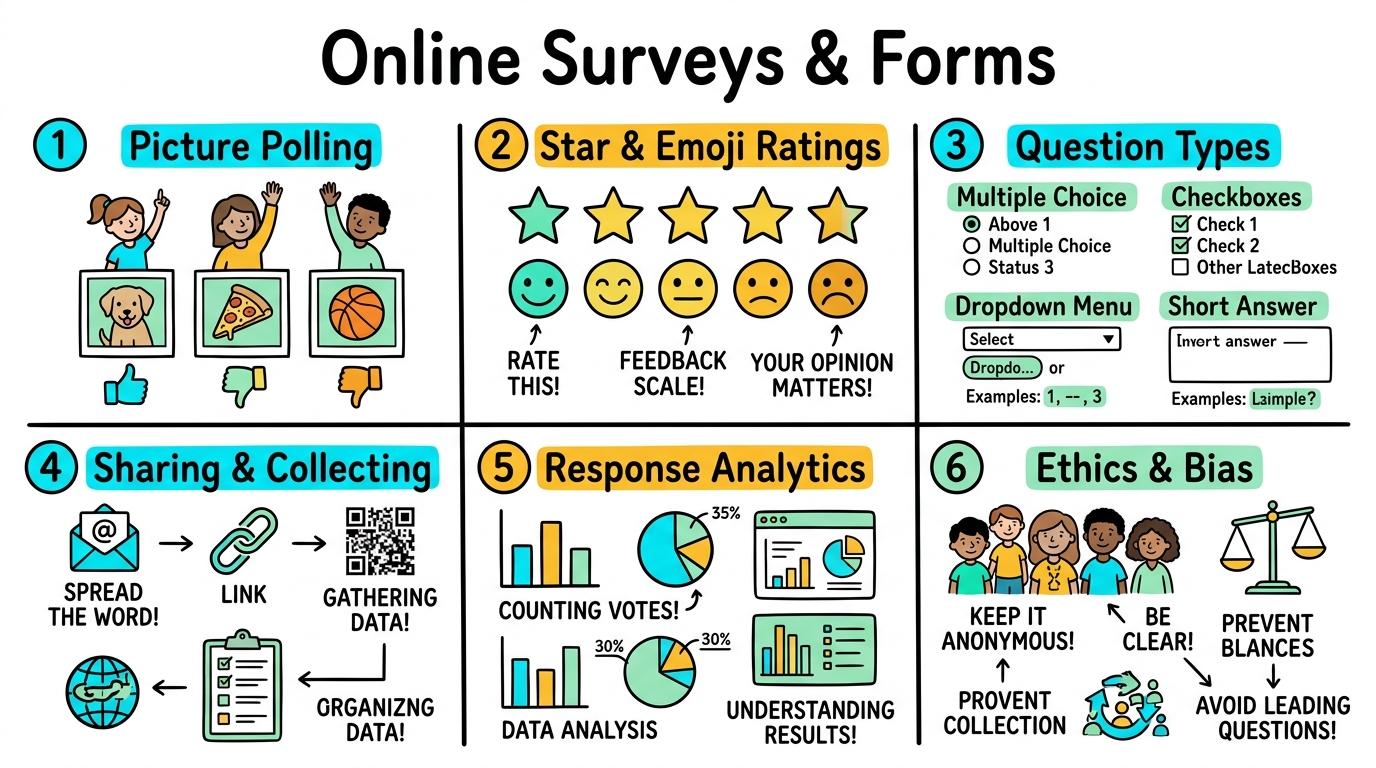
Welcome to Online Surveys & Forms! In this strand, you will master designing digital questionnaires, collecting audience feedback, analyzing survey response data, and maintaining ethical data privacy standards.
Digital voting and picture polling.
Learning objective
Let's Go!
Routine: See, Think, Wonder
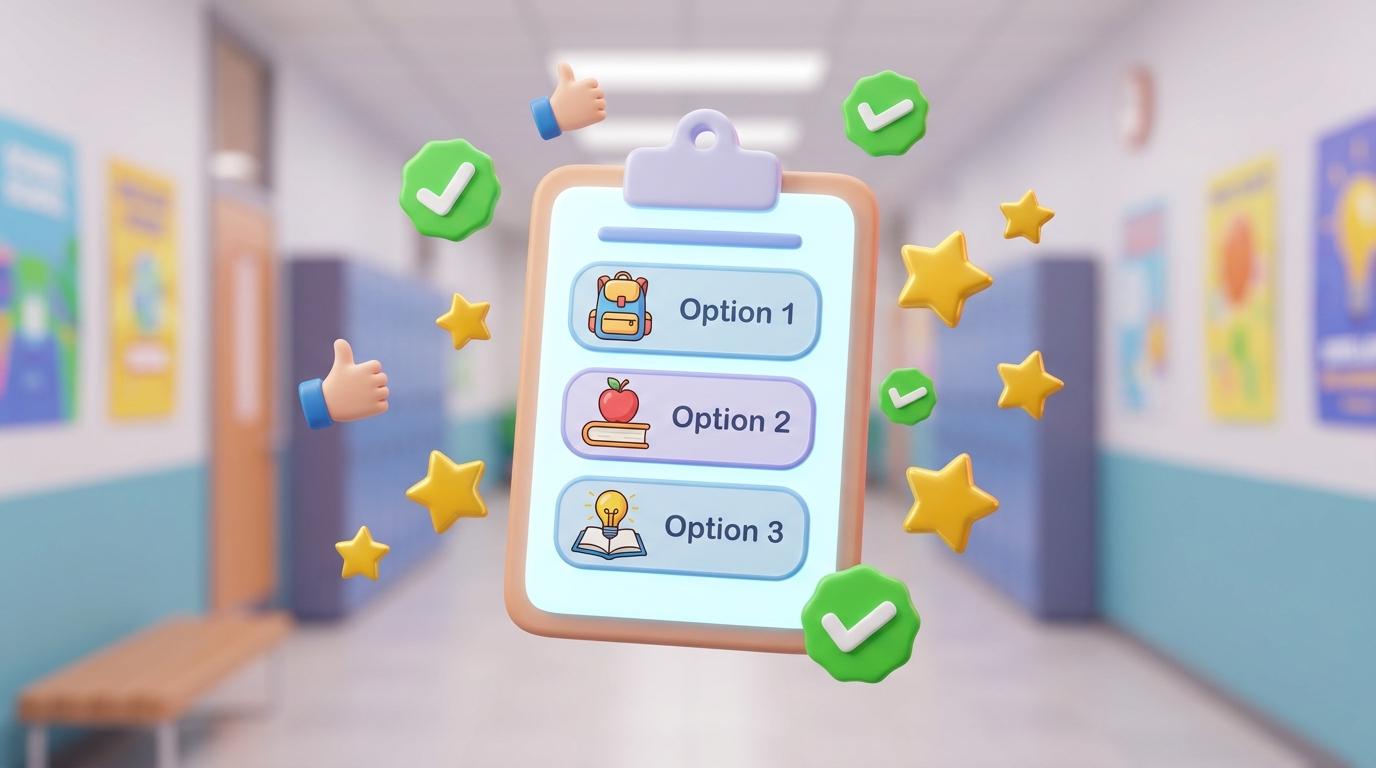
Look at this digital poll on screen. What do you see?
Which picture option has the most votes?
Teacher note: Facilitate the See, Think, Wonder routine for 2–3 minutes. Encourage students to connect the prompt to Form (Gathering choices helps us understand community preferences.).
Learn
Digital polling lets us quickly collect everyone's choice! Instead of raising hands, tapping an icon on screen counts your vote instantly and creates a class total. In computing, gathering choices helps us understand community preferences. As you explore the interactive Spreadsheet Simulator below, focus on how to explain what a digital poll shows about class choices.
| A | B | C | |
|---|---|---|---|
| 1 | Item | Amount | |
| 2 | Apples | 5 | |
| 3 | Bananas | 3 | |
| 4 | Carrots | 2 | |
| 5 | Total |
Apply Simulator Skills • Try it yourself
🚀 Open a practice space
Select an option on a simple 2-choice picture poll.
Cast a vote independently and count total class responses.
Explain what a digital poll shows about class choices.
Design a 2-choice picture poll with teacher guidance. Typing: 5 WPM.
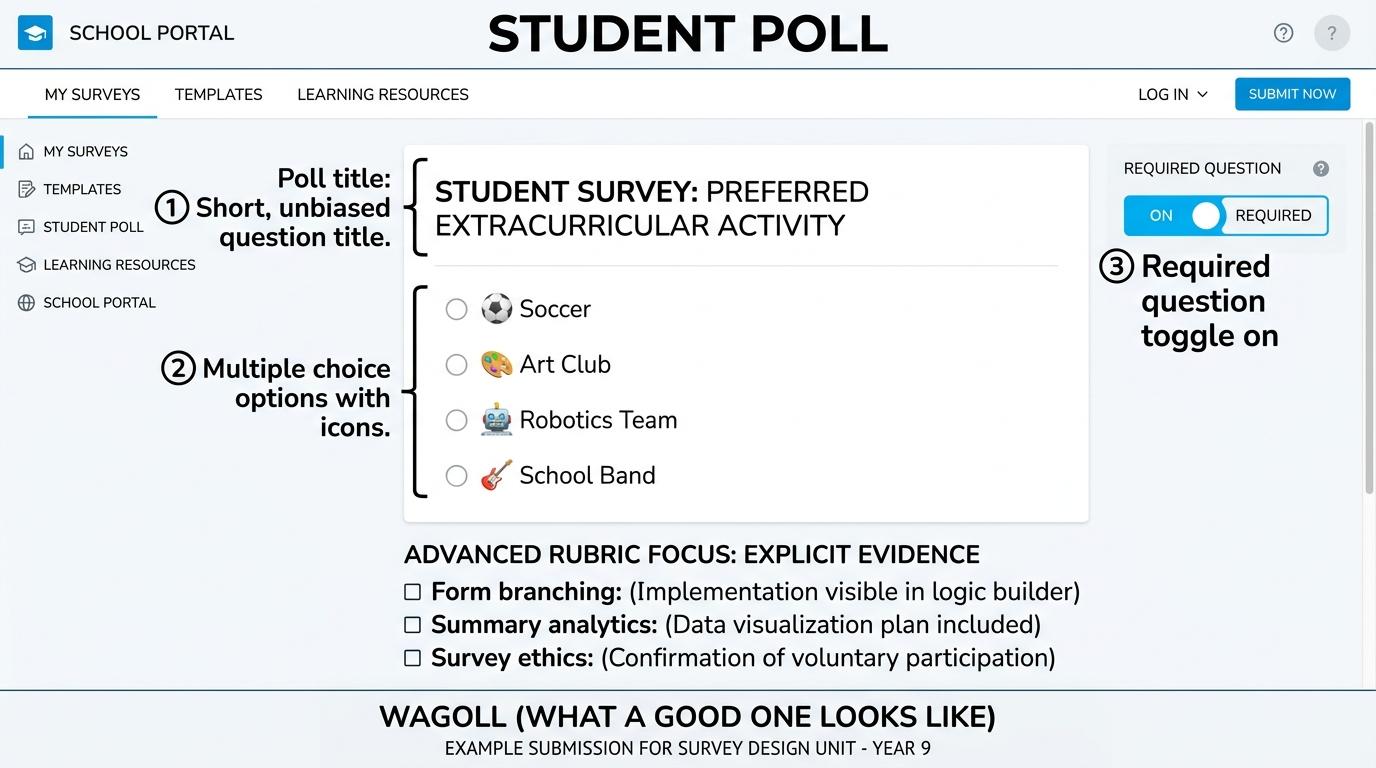 ⭐ Mastering Standard
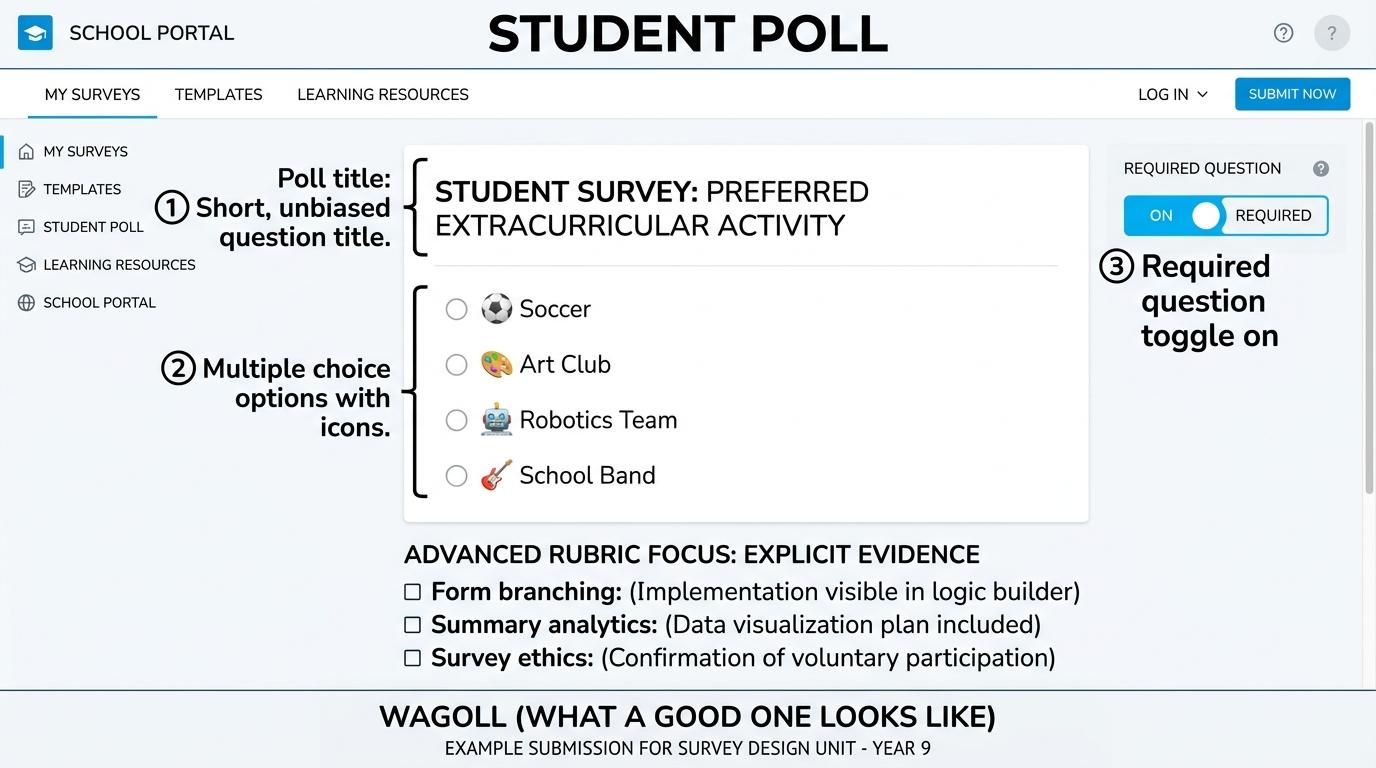 ⭐ Mastering Standard
When you finish creating your project in your software, copy the share link or take a screenshot and publish it onto your student portfolio website!
Reflect
Learning check
Routine: See, Think, Wonder
Teacher notes: Facilitate the See, Think, Wonder routine for 2–3 minutes. Encourage students to connect the prompt to Form (Gathering choices helps us understand community preferences.).
Curriculum strand: MAT.01.C.1.4
Outcome: SURV-O-01 — Digital voting and picture polling.
PYP: Form · Gathering choices helps us understand community preferences.
Learner profile: Inquirer
Accessibility alternative: Students may verbally explain or point to the correct answer for "Which icon represents a digital voting poll on screen?" with a teacher or teaching assistant.
Teacher override: allow
Locked level
Complete the previous learning check to unlock this next level.
Star ratings, emoji feedback, and simple survey scales.
Learning objective
Let's Go!
Routine: Zoom In
Look at these 5 star icons. What does 1 star mean compared to 5 stars?
Teacher note: Facilitate the Zoom In routine for 2–3 minutes. Encourage students to connect the prompt to Function (Feedback scales help us measure feelings and opinions.).
Learn
Simple Yes/No polls don't show HOW MUCH people like something. Using star ratings (1 to 5) or emoji scales allows people to give detailed feedback about books, school lunches, or games! In computing, feedback scales help us measure feelings and opinions. As you explore the interactive Website Builder Simulator below, focus on how to compare average star ratings across two different storybooks.
Designed to share student ideas, projects, and community action with the world.
Apply Simulator Skills • Try it yourself
🚀 Open a practice space
Identify 1 to 5 star rating options.
Submit a rating scale response to express an opinion.
Compare average star ratings across two different storybooks.
Explain why star scales give more detail than yes/no votes. Typing: 10 WPM.
⭐ Mastering Standard⭐ Mastering StandardWhen you finish creating your project in your software, copy the share link or take a screenshot and publish it onto your student portfolio website!
Reflect
Learning check
Routine: Zoom In
Teacher notes: Facilitate the Zoom In routine for 2–3 minutes. Encourage students to connect the prompt to Function (Feedback scales help us measure feelings and opinions.).
Curriculum strand: MAT.02.C.1.4
Outcome: SURV-O-02 — Star ratings, emoji feedback, and simple survey scales.
PYP: Function · Feedback scales help us measure feelings and opinions.
Learner profile: Communicator
Accessibility alternative: Students may verbally explain or point to the correct answer for "If you loved a class presentation and thought it was perfect, how many stars should you give it on a 1-to-5 scale?" with a teacher or teaching assistant.
Teacher override: allow
Locked level
Complete the previous learning check to unlock this next level.
Multiple choice, checkbox, and short answer questions.
Learning objective
Let's Go!
Routine: Think, Puzzle, Explore
Why do round radio buttons only let you pick ONE answer, while square checkboxes let you pick MULTIPLE answers?
Teacher note: Facilitate the Think, Puzzle, Explore routine for 2–3 minutes. Encourage students to connect the prompt to Connection (Designing clear question types improves response accuracy.).
Learn
Good survey design depends on choosing the right tool for the job! Use Radio Buttons when respondents must pick exactly ONE option, Checkboxes when they can pick MULTIPLE options, and Short Text for typed answers. In computing, designing clear question types improves response accuracy. As you explore the interactive Social Privacy Simulator below, focus on how to choose the correct question type (radio = 1 choice, checkbox = multiple choices).
Apply Simulator Skills • Try it yourself
🚀 Open a practice space
Distinguish between multiple choice (radio buttons) and checkboxes.
Create a 3-question form using a digital form builder (Google Forms/Microsoft Forms).
Choose the correct question type (radio = 1 choice, checkbox = multiple choices).
Test form navigation and fix unclear question options. Typing: 15 WPM.
⭐ Mastering Standard⭐ Mastering StandardWhen you finish creating your project in your software, copy the share link or take a screenshot and publish it onto your student portfolio website!
Reflect
Learning check
Routine: Think, Puzzle, Explore
Teacher notes: Facilitate the Think, Puzzle, Explore routine for 2–3 minutes. Encourage students to connect the prompt to Connection (Designing clear question types improves response accuracy.).
Curriculum strand: CM.02.B.1.1
Outcome: SURV-O-03 — Multiple choice, checkbox, and short answer questions.
PYP: Connection · Designing clear question types improves response accuracy.
Learner profile: Thinker
Accessibility alternative: Students may verbally explain or point to the correct answer for "You are asking classmates: "Which of these 3 sports do you play? (Select all that apply)". Which question type should you use?" with a teacher or teaching assistant.
Teacher override: allow
Locked level
Complete the previous learning check to unlock this next level.
Sharing forms via links/QR codes and managing response data.
Learning objective
Let's Go!
Routine: See, Think, Wonder
Look at this QR code and short link. How do these tools help 30 people open your survey at the exact same time?
Teacher note: Facilitate the See, Think, Wonder routine for 2–3 minutes. Encourage students to connect the prompt to Responsibility (Collecting organized data connects community opinions.).
Learn
Once your survey is built, you need to share it! Generating a QR code or short link lets your audience open the form on any tablet or computer instantly. You can watch responses appear in real-time on your dashboard. In computing, collecting organized data connects community opinions. As you explore the interactive Search Browser Simulator below, focus on how to configure form settings (Require login / One response per person).
Apply Simulator Skills • Try it yourself
🚀 Open a practice space
Generate a shareable link or QR code for a digital form.
Share a survey link with classmates and verify responses are arriving.
Configure form settings (Require login / One response per person).
Explain how anonymous responses protect user privacy. Typing: 20 WPM.
⭐ Mastering Standard⭐ Mastering StandardWhen you finish creating your project in your software, copy the share link or take a screenshot and publish it onto your student portfolio website!
Reflect
Learning check
Routine: See, Think, Wonder
Teacher notes: Facilitate the See, Think, Wonder routine for 2–3 minutes. Encourage students to connect the prompt to Responsibility (Collecting organized data connects community opinions.).
Curriculum strand: CM.02.B.1.1
Outcome: SURV-O-04 — Sharing forms via links/QR codes and managing response data.
PYP: Responsibility · Collecting organized data connects community opinions.
Learner profile: Principled
Accessibility alternative: Students may verbally explain or point to the correct answer for "What form setting prevents one person from submitting the same survey 10 times and ruining your results?" with a teacher or teaching assistant.
Teacher override: allow
Locked level
Complete the previous learning check to unlock this next level.
Exporting survey responses to spreadsheets and generating charts.
Learning objective
Let's Go!
Routine: I used to think...
I used to think survey forms only showed pie charts... Now I know you can export raw data into spreadsheets for deep analysis!
Teacher note: Facilitate the I used to think... routine for 2–3 minutes. Encourage students to connect the prompt to Perspective (Analyzing survey data transforms raw opinions into actionable insights.).
Learn
Form builders automatically create summary pie charts and bar graphs. But exporting raw responses to a spreadsheet allows you to sort data, run filters, calculate percentages, and cross-tabulate answers for deeper insights! In computing, analyzing survey data transforms raw opinions into actionable insights. As you explore the interactive Presentation Simulator below, focus on how to filter survey responses in a spreadsheet to compare subgroup opinions (e.g., Year 5 vs Year 6).
Apply Simulator Skills • Try it yourself
🚀 Open a practice space
View summary charts auto-generated by the form builder.
Export raw survey responses into a linked Google Sheets / Excel spreadsheet.
Filter survey responses in a spreadsheet to compare subgroup opinions (e.g., Year 5 vs Year 6).
Write a 3-point summary report based on survey chart findings. Typing: 25 WPM.
⭐ Mastering Standard⭐ Mastering StandardWhen you finish creating your project in your software, copy the share link or take a screenshot and publish it onto your student portfolio website!
Reflect
Learning check
Routine: I used to think...
Teacher notes: Facilitate the I used to think... routine for 2–3 minutes. Encourage students to connect the prompt to Perspective (Analyzing survey data transforms raw opinions into actionable insights.).
Curriculum strand: CM.03.B.1.3
Outcome: SURV-O-05 — Exporting survey responses to spreadsheets and generating charts.
PYP: Perspective · Analyzing survey data transforms raw opinions into actionable insights.
Learner profile: Knowledgeable
Accessibility alternative: Students may verbally explain or point to the correct answer for "Why is exporting survey data to a spreadsheet better than looking at automatic summary pie charts alone?" with a teacher or teaching assistant.
Teacher override: allow
Locked level
Complete the previous learning check to unlock this next level.
Identifying leading questions, sampling bias, and GDPR/privacy ethics.
Learning objective
Let's Go!
Routine: Step Inside
Imagine taking a survey that asks: "Don't you agree that our school lunch is amazing?
" How does this leading question push you toward a specific answer?
Teacher note: Facilitate the Step Inside routine for 2–3 minutes. Encourage students to connect the prompt to Reflection (Ethical survey design requires unbiased questions and responsible privacy protection.).
Learn
Responsible researchers avoid bias and protect user privacy! A 'leading question' tricks people into answering a certain way. Ethical surveys use neutral language, collect only necessary data, keep responses anonymous, and protect personal info under privacy laws.
Master Security Audits, Threat Analysis & Defense-in-Depth
Review the incoming web element. Identify signs of fraudulent "Free Prize" lures before taking action.
| Metric / Indicator | Observed Value | Risk Factor |
|---|---|---|
| TLS Certificate | Self-Signed / Untrusted | HIGH |
| Sender Domain Entropy | 0.89 (Spoofed DMARC) | CRITICAL |
| Urgency Emotion Vector | Active Countdown Detected | ELEVATED |
[SOC-INIT] Defense telemetry daemon active. Port 443 TLS 1.3 inspector online.
[AUDIT-READY] Simulator initialized. Select a step to commence security audit.
Apply Simulator Skills • Try it yourself
🚀 Open a practice space
Identify leading or biased question wording.
Rewrite biased survey questions into neutral, objective choices.
Explain representative sampling and avoid biased sample groups.
Conduct a complete ethical audit of a survey regarding personal data collection (GDPR/privacy). Typing: 30+ WPM.
⭐ Mastering Standard⭐ Mastering StandardWhen you finish creating your project in your software, copy the share link or take a screenshot and publish it onto your student portfolio website!
Reflect
Learning check
Routine: Step Inside
Teacher notes: Facilitate the Step Inside routine for 2–3 minutes. Encourage students to connect the prompt to Reflection (Ethical survey design requires unbiased questions and responsible privacy protection.).
Curriculum strand: MAT.03.E.1.6
Outcome: SURV-O-06 — Identifying leading questions, sampling bias, and GDPR/privacy ethics.
PYP: Reflection · Ethical survey design requires unbiased questions and responsible privacy protection.
Learner profile: Reflective
Accessibility alternative: Students may verbally explain or point to the correct answer for "Which of the following is a NEUTRAL, UNBIASED survey question?" with a teacher or teaching assistant.
Teacher override: allow
Classify 6 items into 'Private PII' (secret) versus 'Safe to Share' (hobbies/favorites) to protect identity.
Learning code, creating digital art & gaming! 🚀
Classify each piece of information. Protect sensitive Personally Identifiable Information (PII):
This draft photo leaks 3 pieces of private data! Click each sensitive area to censor it before publishing:
Analyze the statement and choose the true reality of digital content persistence:
Choose an illustrated avatar and assemble a private handle without real names:
Identify which usernames leak personal details and which is 100% safe:
Audit your public profile bio. Remove sensitive security-question answers:
"Hi! I'm in Year 5 at Oakridge Primary. My dog Buster is my best friend! Born in July 2015 🐶"
An educational quiz app asks for registration. Mark which fields should be filled vs left blank:
A viral quiz promises to calculate "Your Secret Pirate Name":
Only approve the post that is 100% safe to display on a public billboard:
"We are flying to Spain for two weeks tomorrow morning! Our house will be empty!"
"Our science team finished our solar oven project! Here is our temperature chart."
Evaluate 3 app permission requests. Grant only what is functionally essential:
Harden these 3 tablet settings to restrict background data collection:
When a website displays a Cookie Banner, what is the safest configuration?
You receive an urgent direct message from an account with your friend Liam's photo:
Audit connected apps on your social account. Revoke access from sketchy third parties:
Enable all 3 master security gates to achieve 100% Armor Rating:
Match each legal clause to its real-world plain English meaning:
What does COPPA / GDPR require from apps targeting children under 13?
Select 3 high-quality learning artifacts to publish in your academic portfolio:
Understand the two ways information is stored about you online: