
Learning objective
Hardware Components
Computer Parts
1
2
3
4
5
6
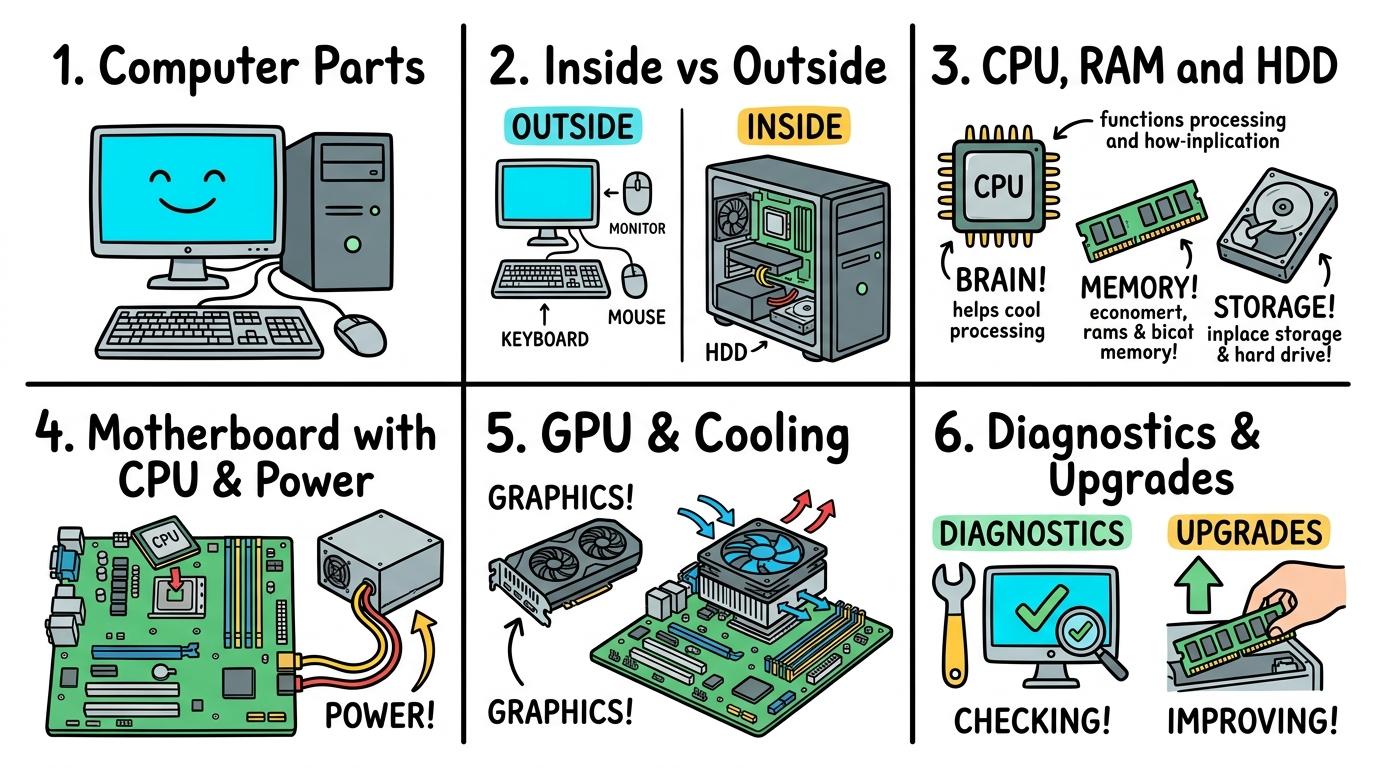
Welcome to Computer Parts! In this strand, you will explore the essential physical components that make up digital devices, learning how hardware elements work together to process, store, and display information.
Screen & Keys
Identifying basic external computer parts and buttons.
Let's Go!
Routine: See, Think, Wonder
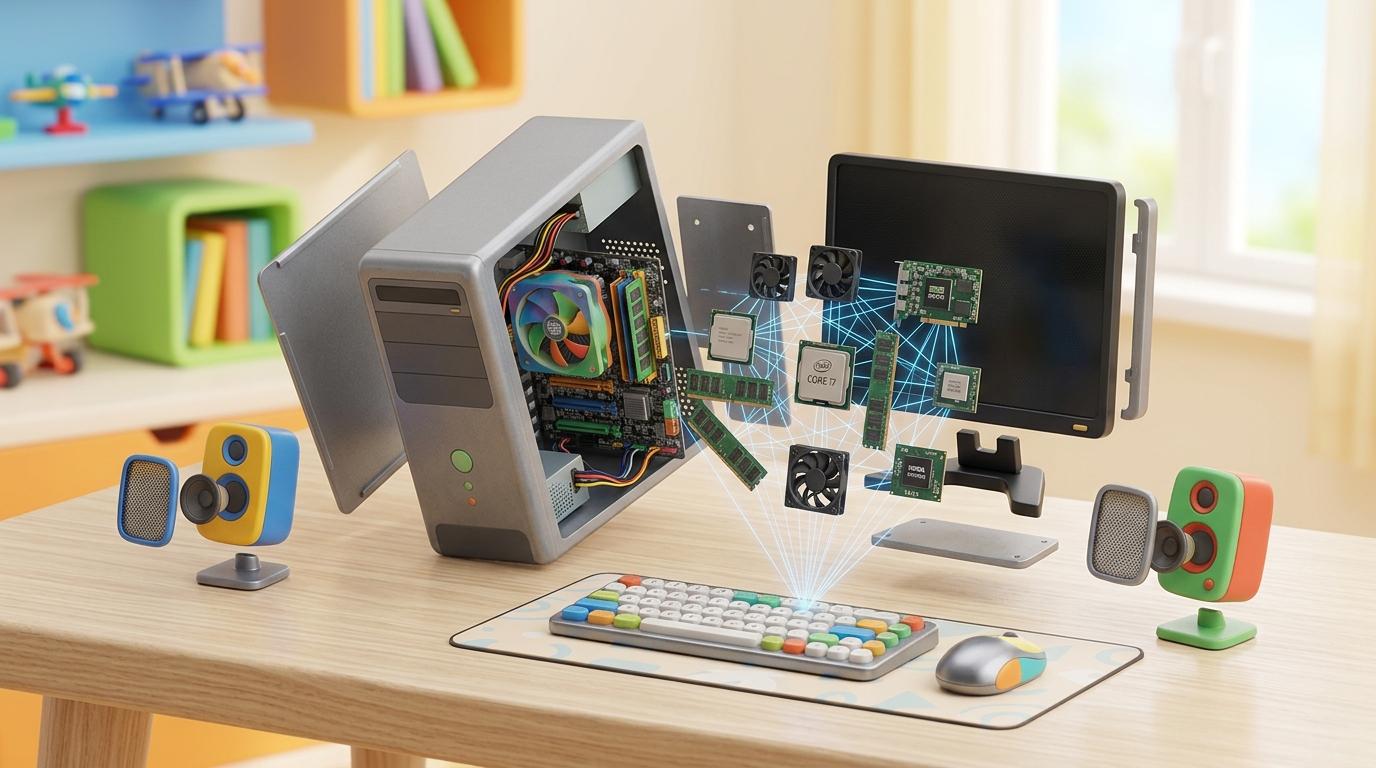
Look closely at a laptop or desktop computer. What physical parts can you touch?
What do you think each part does?
Teacher note: Facilitate the See, Think, Wonder routine for 2–3 minutes. Encourage students to connect the prompt to Form (Physical components work together to power digital tools.).
Learn
Computers are made of physical parts called hardware! The screen shows pictures and text, the keyboard lets you type, the mouse lets you point, and the power button turns it on. In computing, physical components work together to power digital tools. As you explore the interactive Hardware Simulator below, focus on how to label screen, keyboard, mouse, and power button on a diagram.
CPU Core Frequency3.8 GHz8 Cores / 16 Threads Active
Motherboard Bus SpeedPCIe 4.0 x1631.5 GB/s Direct CPU Link
Thermal Dissipation42°C (Optimal)Fan curve: 1,200 RPM active
E-Waste & Modularity9.5 / 10Right-to-Repair modular slots
Data Bus Traffic & Signal PipelineHigh-Speed Bus
⌨️ Input (Keyboard)
⬇️ USB Controller Bus
🧠 CPU (Instruction Fetch & Decode)
⬇️ Memory Bus (DDR5 Dual Channel)
📦 RAM (Workbench Buffer)
⬇️ PCIe x16 Direct Bus
🎨 GPU -> 🖥️ HDMI Display Output
Component Specification MatrixHardware Spec
| Component | Bus Interface | Bandwidth | Function |
|---|---|---|---|
| CPU | AM5 / LGA1700 | Direct Fabric | Executes calculations and OS kernel |
| RAM | DDR5 DIMM | 51.2 GB/s | Fast volatile working memory |
| NVMe SSD | M.2 PCIe 4.0 | 7,000 MB/s | Non-volatile persistent storage |
| GPU | PCIe 4.0 x16 | 31.5 GB/s | 3D Graphics rasterization & shaders |
| USB-C | Type-C 3.2 Gen2 | 10 Gbps | External high-speed data & 100W PD |
Apply Simulator Skills • Try it yourself
Identify External Parts!
🚀 Open a practice space
🌟 Student Project GuideSuccess Criteria & WAGOLL (What A Good One Looks Like)
🎯 Task Success Criteria (Rubric)
Foundation
Point to the screen and keyboard.
Developing
Identify the power button and mouse correctly.
Secure (Goal)
Label screen, keyboard, mouse, and power button on a diagram.
Mastery
Explain the purpose of the main external computer parts.
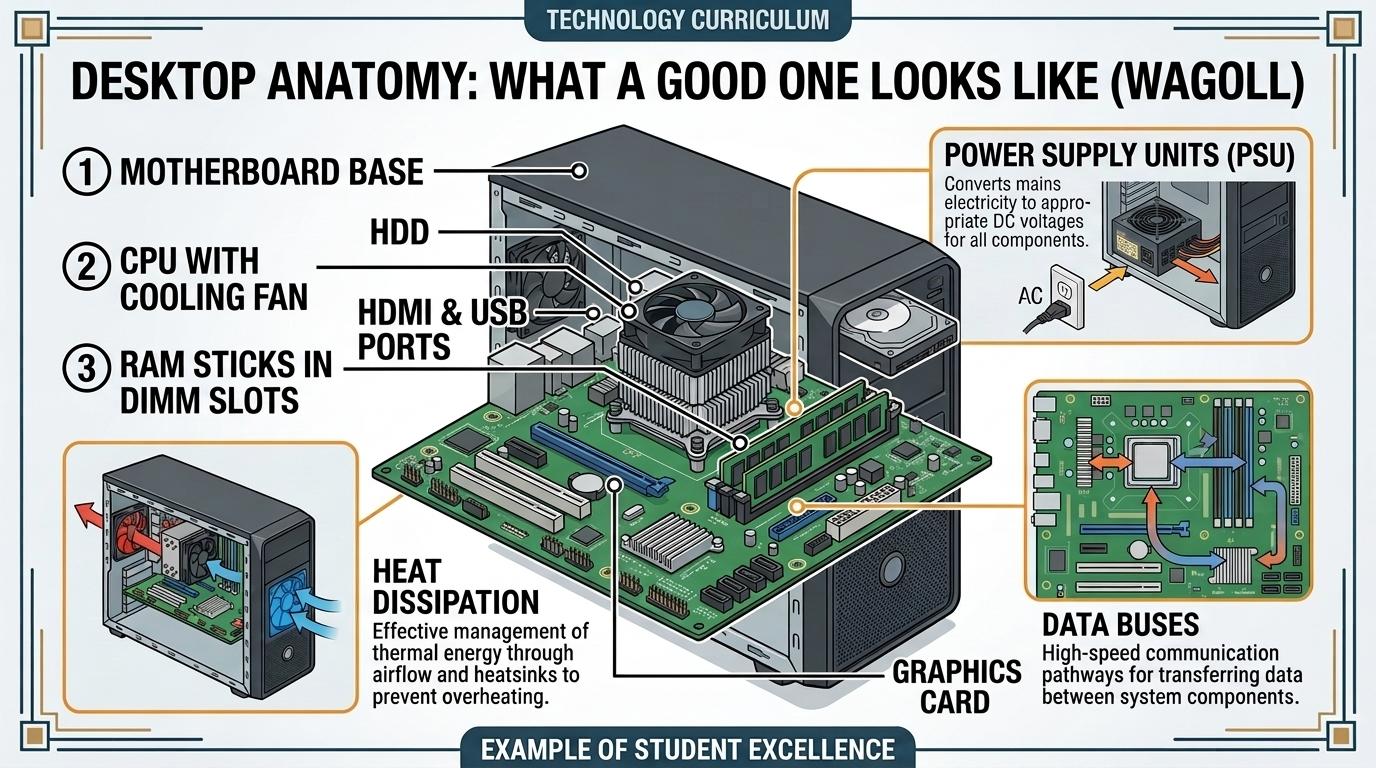
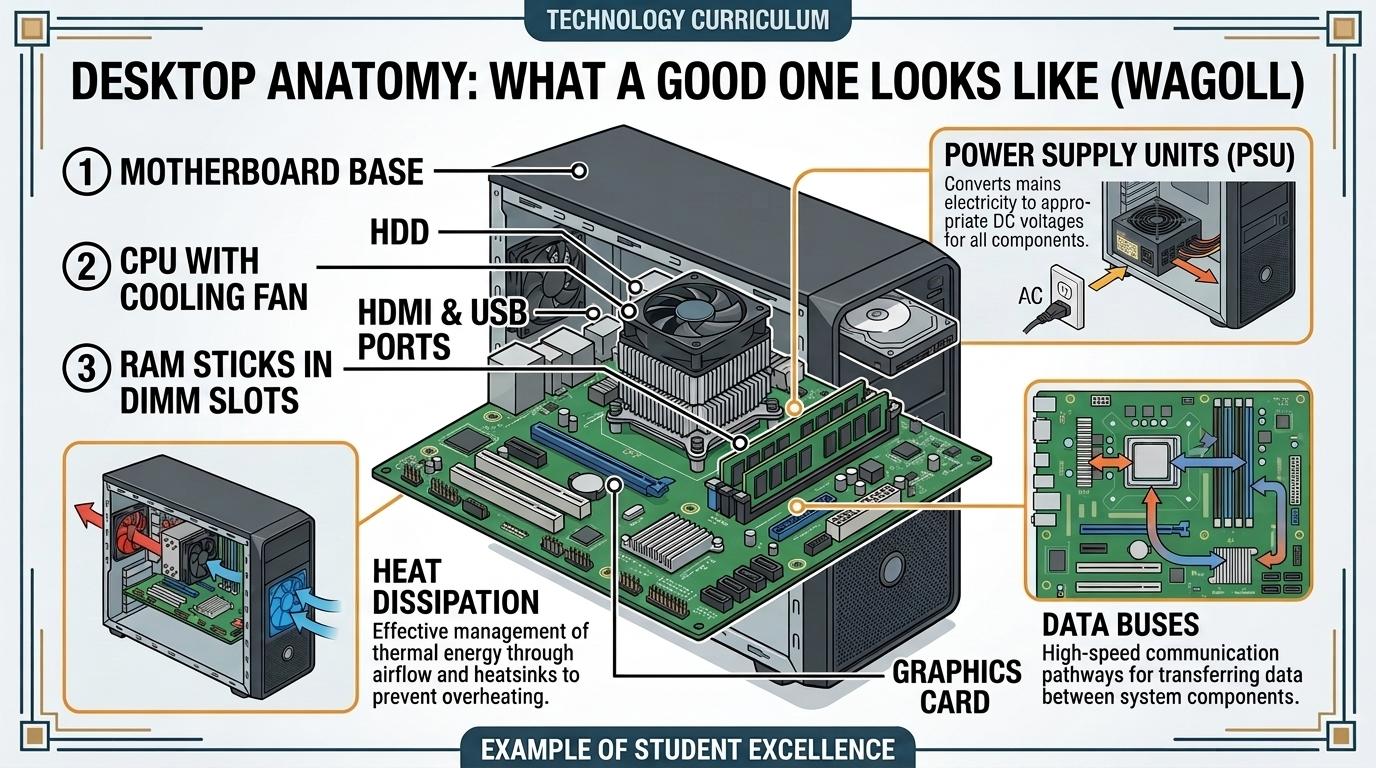
👀 What A Good One Looks Like (WAGOLL)
Exemplar of 2
 ⭐ Mastering Standard
 ⭐ Mastering Standard
📁
Save to Your Website Portfolio:
When you finish creating your project in your software, copy the share link or take a screenshot and publish it onto your student portfolio website!
Reflect
Learning check
Teacher setup, curriculum links and progress descriptors
Spark support
Routine: See, Think, Wonder
Teacher notes: Facilitate the See, Think, Wonder routine for 2–3 minutes. Encourage students to connect the prompt to Form (Physical components work together to power digital tools.).
Achievement pathway
- Foundation: Point to the screen and keyboard.
- Developing: Identify the power button and mouse correctly.
- Secure: Label screen, keyboard, mouse, and power button on a diagram.
- Mastering: Explain the purpose of the main external computer parts.
Curriculum links
Curriculum strand: CM.01.B.1.1
Outcome: CP-O-01 — Identifying basic external computer parts and buttons.
PYP: Form · Physical components work together to power digital tools.
Learner profile: Inquirer
Competency tags
Gate support
Accessibility alternative: Students may verbally explain or point to the correct answer for "Which part of the computer displays pictures and text on the screen?" with a teacher or teaching assistant.
Teacher override: allow
Locked level
Level 2: Inside vs Outside
Complete the previous learning check to unlock this next level.
Inside vs Outside
Distinguishing internal components from external peripherals.
Learning objective
Learning About: Internal vs External. Learning To: Classify hardware parts. Learning To Be: Communicator.
Let's Go!
Routine: Zoom In
Look closely at this opened computer case. What hidden parts can you see inside that you don't usually notice?
Teacher note: Facilitate the Zoom In routine for 2–3 minutes. Encourage students to connect the prompt to Function (External controls interact with hidden internal hardware.).
Learn
While external peripherals (like keyboards and monitors) let us interact with the computer, internal components (like the motherboard and battery) stay safe inside the protective case to process data. In computing, external controls interact with hidden internal hardware. As you explore the interactive Hardware Simulator below, focus on how to classify components into External Peripherals vs Internal Hardware.
CPU Core Frequency3.8 GHz8 Cores / 16 Threads Active
Motherboard Bus SpeedPCIe 4.0 x1631.5 GB/s Direct CPU Link
Thermal Dissipation42°C (Optimal)Fan curve: 1,200 RPM active
E-Waste & Modularity9.5 / 10Right-to-Repair modular slots
Data Bus Traffic & Signal PipelineHigh-Speed Bus
⌨️ Input (Keyboard)
⬇️ USB Controller Bus
🧠 CPU (Instruction Fetch & Decode)
⬇️ Memory Bus (DDR5 Dual Channel)
📦 RAM (Workbench Buffer)
⬇️ PCIe x16 Direct Bus
🎨 GPU -> 🖥️ HDMI Display Output
Component Specification MatrixHardware Spec
| Component | Bus Interface | Bandwidth | Function |
|---|---|---|---|
| CPU | AM5 / LGA1700 | Direct Fabric | Executes calculations and OS kernel |
| RAM | DDR5 DIMM | 51.2 GB/s | Fast volatile working memory |
| NVMe SSD | M.2 PCIe 4.0 | 7,000 MB/s | Non-volatile persistent storage |
| GPU | PCIe 4.0 x16 | 31.5 GB/s | 3D Graphics rasterization & shaders |
| USB-C | Type-C 3.2 Gen2 | 10 Gbps | External high-speed data & 100W PD |
Apply Simulator Skills • Try it yourself
Classify Inside vs Outside!
🚀 Open a practice space
🌟 Student Project GuideSuccess Criteria & WAGOLL (What A Good One Looks Like)
🎯 Task Success Criteria (Rubric)
Foundation
Identify external computer casing.
Developing
Distinguish between parts outside the case vs parts inside.
Secure (Goal)
Classify components into External Peripherals vs Internal Hardware.
Mastery
Explain why internal parts need protective outer casing.
👀 What A Good One Looks Like (WAGOLL)
Exemplar of 2
⭐ Mastering Standard⭐ Mastering Standard📁
Save to Your Website Portfolio:
When you finish creating your project in your software, copy the share link or take a screenshot and publish it onto your student portfolio website!
Reflect
Learning check
Teacher setup, curriculum links and progress descriptors
Spark support
Routine: Zoom In
Teacher notes: Facilitate the Zoom In routine for 2–3 minutes. Encourage students to connect the prompt to Function (External controls interact with hidden internal hardware.).
Achievement pathway
- Foundation: Identify external computer casing.
- Developing: Distinguish between parts outside the case vs parts inside.
- Secure: Classify components into External Peripherals vs Internal Hardware.
- Mastering: Explain why internal parts need protective outer casing.
Curriculum links
Curriculum strand: CM.01.B.1.1
Outcome: CP-O-02 — Distinguishing internal components from external peripherals.
PYP: Function · External controls interact with hidden internal hardware.
Learner profile: Communicator
Competency tags
Gate support
Accessibility alternative: Students may verbally explain or point to the correct answer for "Which of these computer parts lives INSIDE the protective case?" with a teacher or teaching assistant.
Teacher override: allow
Locked level
Level 3: CPU & Memory
Complete the previous learning check to unlock this next level.
CPU & Memory
Understanding the CPU as the brain and RAM as temporary memory.
Learning objective
Learning About: CPU & RAM. Learning To: Compare processing & memory. Learning To Be: Thinker.
Let's Go!
Routine: Think, Puzzle, Explore
Why is the CPU called the 'brain' of the computer?
What puzzles you about how RAM holds memory temporarily?
Teacher note: Facilitate the Think, Puzzle, Explore routine for 2–3 minutes. Encourage students to connect the prompt to Change (Processing units and memory chips process data at high speeds.).
Learn
The CPU (Central Processing Unit) calculates instructions like a brain. RAM (Random Access Memory) acts like a temporary workbench holding the apps and tabs you have open right now! In computing, processing units and memory chips process data at high speeds. As you explore the interactive Hardware Simulator below, focus on how to explain the roles of CPU (brain) vs RAM (workbench) in running apps.
CPU Core Frequency3.8 GHz8 Cores / 16 Threads Active
Motherboard Bus SpeedPCIe 4.0 x1631.5 GB/s Direct CPU Link
Thermal Dissipation42°C (Optimal)Fan curve: 1,200 RPM active
E-Waste & Modularity9.5 / 10Right-to-Repair modular slots
Data Bus Traffic & Signal PipelineHigh-Speed Bus
⌨️ Input (Keyboard)
⬇️ USB Controller Bus
🧠 CPU (Instruction Fetch & Decode)
⬇️ Memory Bus (DDR5 Dual Channel)
📦 RAM (Workbench Buffer)
⬇️ PCIe x16 Direct Bus
🎨 GPU -> 🖥️ HDMI Display Output
Component Specification MatrixHardware Spec
| Component | Bus Interface | Bandwidth | Function |
|---|---|---|---|
| CPU | AM5 / LGA1700 | Direct Fabric | Executes calculations and OS kernel |
| RAM | DDR5 DIMM | 51.2 GB/s | Fast volatile working memory |
| NVMe SSD | M.2 PCIe 4.0 | 7,000 MB/s | Non-volatile persistent storage |
| GPU | PCIe 4.0 x16 | 31.5 GB/s | 3D Graphics rasterization & shaders |
| USB-C | Type-C 3.2 Gen2 | 10 Gbps | External high-speed data & 100W PD |
Apply Simulator Skills • Try it yourself
Explore CPU & RAM Roles!
🚀 Open a practice space
🌟 Student Project GuideSuccess Criteria & WAGOLL (What A Good One Looks Like)
🎯 Task Success Criteria (Rubric)
Foundation
Identify the CPU as the computer's processor.
Developing
Describe RAM as temporary working memory.
Secure (Goal)
Explain the roles of CPU (brain) vs RAM (workbench) in running apps.
Mastery
Predict what happens when RAM fills up during heavy multitasking.
👀 What A Good One Looks Like (WAGOLL)
Exemplar of 2
⭐ Mastering Standard⭐ Mastering Standard📁
Save to Your Website Portfolio:
When you finish creating your project in your software, copy the share link or take a screenshot and publish it onto your student portfolio website!
Reflect
Learning check
Teacher setup, curriculum links and progress descriptors
Spark support
Routine: Think, Puzzle, Explore
Teacher notes: Facilitate the Think, Puzzle, Explore routine for 2–3 minutes. Encourage students to connect the prompt to Change (Processing units and memory chips process data at high speeds.).
Achievement pathway
- Foundation: Identify the CPU as the computer's processor.
- Developing: Describe RAM as temporary working memory.
- Secure: Explain the roles of CPU (brain) vs RAM (workbench) in running apps.
- Mastering: Predict what happens when RAM fills up during heavy multitasking.
Curriculum links
Curriculum strand: CM.02.B.1.1
Outcome: CP-O-03 — Understanding the CPU as the brain and RAM as temporary memory.
PYP: Change · Processing units and memory chips process data at high speeds.
Learner profile: Thinker
Competency tags
Gate support
Accessibility alternative: Students may verbally explain or point to the correct answer for "Which component acts as the 'brain' of the computer, executing instructions and calculations?" with a teacher or teaching assistant.
Teacher override: allow
Locked level
Level 4: Motherboard & Power
Complete the previous learning check to unlock this next level.
Motherboard & Power
Exploring the motherboard circuit highway and power supply unit (PSU).
Learning objective
Learning About: Motherboard & Power. Learning To: Connect system components. Learning To Be: Principled.
Let's Go!
Routine: See, Think, Wonder
Look at the lines printed on a green circuit board. What do you think those copper lines do?
How does electricity travel?
Teacher note: Facilitate the See, Think, Wonder routine for 2–3 minutes. Encourage students to connect the prompt to Connection (Electrical circuits connect components and distribute regulated power.).
Learn
The Motherboard is the master circuit board that connects every part together! The Power Supply Unit (PSU) transforms wall electricity into safe, regulated power for every component. In computing, electrical circuits connect components and distribute regulated power. As you explore the interactive Hardware Simulator below, focus on how to trace how signals travel along motherboard buses between CPU, RAM, and Storage.
CPU Core Frequency3.8 GHz8 Cores / 16 Threads Active
Motherboard Bus SpeedPCIe 4.0 x1631.5 GB/s Direct CPU Link
Thermal Dissipation42°C (Optimal)Fan curve: 1,200 RPM active
E-Waste & Modularity9.5 / 10Right-to-Repair modular slots
Data Bus Traffic & Signal PipelineHigh-Speed Bus
⌨️ Input (Keyboard)
⬇️ USB Controller Bus
🧠 CPU (Instruction Fetch & Decode)
⬇️ Memory Bus (DDR5 Dual Channel)
📦 RAM (Workbench Buffer)
⬇️ PCIe x16 Direct Bus
🎨 GPU -> 🖥️ HDMI Display Output
Component Specification MatrixHardware Spec
| Component | Bus Interface | Bandwidth | Function |
|---|---|---|---|
| CPU | AM5 / LGA1700 | Direct Fabric | Executes calculations and OS kernel |
| RAM | DDR5 DIMM | 51.2 GB/s | Fast volatile working memory |
| NVMe SSD | M.2 PCIe 4.0 | 7,000 MB/s | Non-volatile persistent storage |
| GPU | PCIe 4.0 x16 | 31.5 GB/s | 3D Graphics rasterization & shaders |
| USB-C | Type-C 3.2 Gen2 | 10 Gbps | External high-speed data & 100W PD |
Apply Simulator Skills • Try it yourself
Trace Motherboard Connections!
🚀 Open a practice space
🌟 Student Project GuideSuccess Criteria & WAGOLL (What A Good One Looks Like)
🎯 Task Success Criteria (Rubric)
Foundation
Identify the motherboard as the main printed circuit board.
Developing
Describe how the Power Supply Unit (PSU) delivers electricity.
Secure (Goal)
Trace how signals travel along motherboard buses between CPU, RAM, and Storage.
Mastery
Explain electrical safety precautions when handling power components.
👀 What A Good One Looks Like (WAGOLL)
Exemplar of 2
⭐ Mastering Standard⭐ Mastering Standard📁
Save to Your Website Portfolio:
When you finish creating your project in your software, copy the share link or take a screenshot and publish it onto your student portfolio website!
Reflect
Learning check
Teacher setup, curriculum links and progress descriptors
Spark support
Routine: See, Think, Wonder
Teacher notes: Facilitate the See, Think, Wonder routine for 2–3 minutes. Encourage students to connect the prompt to Connection (Electrical circuits connect components and distribute regulated power.).
Achievement pathway
- Foundation: Identify the motherboard as the main printed circuit board.
- Developing: Describe how the Power Supply Unit (PSU) delivers electricity.
- Secure: Trace how signals travel along motherboard buses between CPU, RAM, and Storage.
- Mastering: Explain electrical safety precautions when handling power components.
Curriculum links
Curriculum strand: CM.02.B.1.1
Outcome: CP-O-04 — Exploring the motherboard circuit highway and power supply unit (PSU).
PYP: Connection · Electrical circuits connect components and distribute regulated power.
Learner profile: Principled
Competency tags
Gate support
Accessibility alternative: Students may verbally explain or point to the correct answer for "What is the main printed circuit board that connects the CPU, memory, and expansion cards called?" with a teacher or teaching assistant.
Teacher override: allow
Locked level
Level 5: GPU & Cooling
Complete the previous learning check to unlock this next level.
GPU & Cooling
Graphics processing units (GPUs) and thermal management systems.
Learning objective
Learning About: GPU & Cooling. Learning To: Manage thermal performance. Learning To Be: Knowledgeable.
Let's Go!
Routine: I used to think...
I used to think computers only had one processor... Now I know GPUs handle 3D graphics while cooling fans prevent overheating!
Teacher note: Facilitate the I used to think... routine for 2–3 minutes. Encourage students to connect the prompt to Perspective (Specialized processors and cooling systems optimize hardware performance.).
Learn
GPUs contain thousands of mini-cores built specifically for rendering 3D graphics and video games. Because intense processing creates extreme heat, heat sinks and fans keep temperatures safe! In computing, specialized processors and cooling systems optimize hardware performance. As you explore the interactive Hardware Simulator below, focus on how to compare heat sinks, thermal paste, and cooling fans in heat dissipation.
CPU Core Frequency3.8 GHz8 Cores / 16 Threads Active
Motherboard Bus SpeedPCIe 4.0 x1631.5 GB/s Direct CPU Link
Thermal Dissipation42°C (Optimal)Fan curve: 1,200 RPM active
E-Waste & Modularity9.5 / 10Right-to-Repair modular slots
Data Bus Traffic & Signal PipelineHigh-Speed Bus
⌨️ Input (Keyboard)
⬇️ USB Controller Bus
🧠 CPU (Instruction Fetch & Decode)
⬇️ Memory Bus (DDR5 Dual Channel)
📦 RAM (Workbench Buffer)
⬇️ PCIe x16 Direct Bus
🎨 GPU -> 🖥️ HDMI Display Output
Component Specification MatrixHardware Spec
| Component | Bus Interface | Bandwidth | Function |
|---|---|---|---|
| CPU | AM5 / LGA1700 | Direct Fabric | Executes calculations and OS kernel |
| RAM | DDR5 DIMM | 51.2 GB/s | Fast volatile working memory |
| NVMe SSD | M.2 PCIe 4.0 | 7,000 MB/s | Non-volatile persistent storage |
| GPU | PCIe 4.0 x16 | 31.5 GB/s | 3D Graphics rasterization & shaders |
| USB-C | Type-C 3.2 Gen2 | 10 Gbps | External high-speed data & 100W PD |
Apply Simulator Skills • Try it yourself
Analyze Graphics & Thermal Control!
🚀 Open a practice space
🌟 Student Project GuideSuccess Criteria & WAGOLL (What A Good One Looks Like)
🎯 Task Success Criteria (Rubric)
Foundation
Identify dedicated Graphics Processing Units (GPUs).
Developing
Explain why high-performance chips generate heat.
Secure (Goal)
Compare heat sinks, thermal paste, and cooling fans in heat dissipation.
Mastery
Evaluate hardware choices for 3D gaming vs office productivity.
👀 What A Good One Looks Like (WAGOLL)
Exemplar of 2
⭐ Mastering Standard⭐ Mastering Standard📁
Save to Your Website Portfolio:
When you finish creating your project in your software, copy the share link or take a screenshot and publish it onto your student portfolio website!
Reflect
Learning check
Teacher setup, curriculum links and progress descriptors
Spark support
Routine: I used to think...
Teacher notes: Facilitate the I used to think... routine for 2–3 minutes. Encourage students to connect the prompt to Perspective (Specialized processors and cooling systems optimize hardware performance.).
Achievement pathway
- Foundation: Identify dedicated Graphics Processing Units (GPUs).
- Developing: Explain why high-performance chips generate heat.
- Secure: Compare heat sinks, thermal paste, and cooling fans in heat dissipation.
- Mastering: Evaluate hardware choices for 3D gaming vs office productivity.
Curriculum links
Curriculum strand: CM.03.B.1.1
Outcome: CP-O-05 — Graphics processing units (GPUs) and thermal management systems.
PYP: Perspective · Specialized processors and cooling systems optimize hardware performance.
Learner profile: Knowledgeable
Competency tags
Gate support
Accessibility alternative: Students may verbally explain or point to the correct answer for "Why do high-performance CPUs and GPUs require heat sinks and cooling fans?" with a teacher or teaching assistant.
Teacher override: allow
Locked level
Level 6: Diagnostics & Upgrades
Complete the previous learning check to unlock this next level.
Diagnostics & Upgrades
Hardware diagnostics, component upgrading, and sustainability.
Learning objective
Learning About: Diagnostics & Upgrades. Learning To: Upgrade hardware sustainably. Learning To Be: Reflective.
Let's Go!
Routine: Step Inside
Imagine taking on the role of an IT repair technician fixing an older school computer. How can replacing one part give it new life?
Teacher note: Facilitate the Step Inside routine for 2–3 minutes. Encourage students to connect the prompt to Reflection (Upgrading modular hardware extends device lifespan and reduces e-waste.).
Learn
Computers are modular! Instead of throwing away an entire machine when it slows down, replacing a slow hard drive with an SSD or adding more RAM extends its lifespan and dramatically reduces e-waste. In computing, upgrading modular hardware extends device lifespan and reduces e-waste. As you explore the interactive Hardware Simulator below, focus on how to plan a modular hardware upgrade path (adding RAM or SSD) to boost performance.
CPU Core Frequency3.8 GHz8 Cores / 16 Threads Active
Motherboard Bus SpeedPCIe 4.0 x1631.5 GB/s Direct CPU Link
Thermal Dissipation42°C (Optimal)Fan curve: 1,200 RPM active
E-Waste & Modularity9.5 / 10Right-to-Repair modular slots
Data Bus Traffic & Signal PipelineHigh-Speed Bus
⌨️ Input (Keyboard)
⬇️ USB Controller Bus
🧠 CPU (Instruction Fetch & Decode)
⬇️ Memory Bus (DDR5 Dual Channel)
📦 RAM (Workbench Buffer)
⬇️ PCIe x16 Direct Bus
🎨 GPU -> 🖥️ HDMI Display Output
Component Specification MatrixHardware Spec
| Component | Bus Interface | Bandwidth | Function |
|---|---|---|---|
| CPU | AM5 / LGA1700 | Direct Fabric | Executes calculations and OS kernel |
| RAM | DDR5 DIMM | 51.2 GB/s | Fast volatile working memory |
| NVMe SSD | M.2 PCIe 4.0 | 7,000 MB/s | Non-volatile persistent storage |
| GPU | PCIe 4.0 x16 | 31.5 GB/s | 3D Graphics rasterization & shaders |
| USB-C | Type-C 3.2 Gen2 | 10 Gbps | External high-speed data & 100W PD |
Apply Simulator Skills • Try it yourself
Plan a Hardware Upgrade!
🚀 Open a practice space
🌟 Student Project GuideSuccess Criteria & WAGOLL (What A Good One Looks Like)
🎯 Task Success Criteria (Rubric)
Foundation
Identify common hardware fault symptoms (e.g. RAM beep codes, overheating throttling).
Developing
Run diagnostic software to test RAM and storage health.
Secure (Goal)
Plan a modular hardware upgrade path (adding RAM or SSD) to boost performance.
Mastery
Evaluate the environmental and economic benefits of upgrading vs replacing hardware.
👀 What A Good One Looks Like (WAGOLL)
Exemplar of 2
⭐ Mastering Standard⭐ Mastering Standard📁
Save to Your Website Portfolio:
When you finish creating your project in your software, copy the share link or take a screenshot and publish it onto your student portfolio website!
Reflect
Learning check
Teacher setup, curriculum links and progress descriptors
Spark support
Routine: Step Inside
Teacher notes: Facilitate the Step Inside routine for 2–3 minutes. Encourage students to connect the prompt to Reflection (Upgrading modular hardware extends device lifespan and reduces e-waste.).
Achievement pathway
- Foundation: Identify common hardware fault symptoms (e.g. RAM beep codes, overheating throttling).
- Developing: Run diagnostic software to test RAM and storage health.
- Secure: Plan a modular hardware upgrade path (adding RAM or SSD) to boost performance.
- Mastering: Evaluate the environmental and economic benefits of upgrading vs replacing hardware.
Curriculum links
Curriculum strand: CM.03.B.1.1
Outcome: CP-O-06 — Hardware diagnostics, component upgrading, and sustainability.
PYP: Reflection · Upgrading modular hardware extends device lifespan and reduces e-waste.
Learner profile: Reflective
Competency tags
Gate support
Accessibility alternative: Students may verbally explain or point to the correct answer for "A school computer runs slowly when opening multiple tabs because its RAM is full. What is the most cost-effective and eco-friendly solution?" with a teacher or teaching assistant.
Teacher override: allow