
Learning objective
Hardware Basics & Peripherals
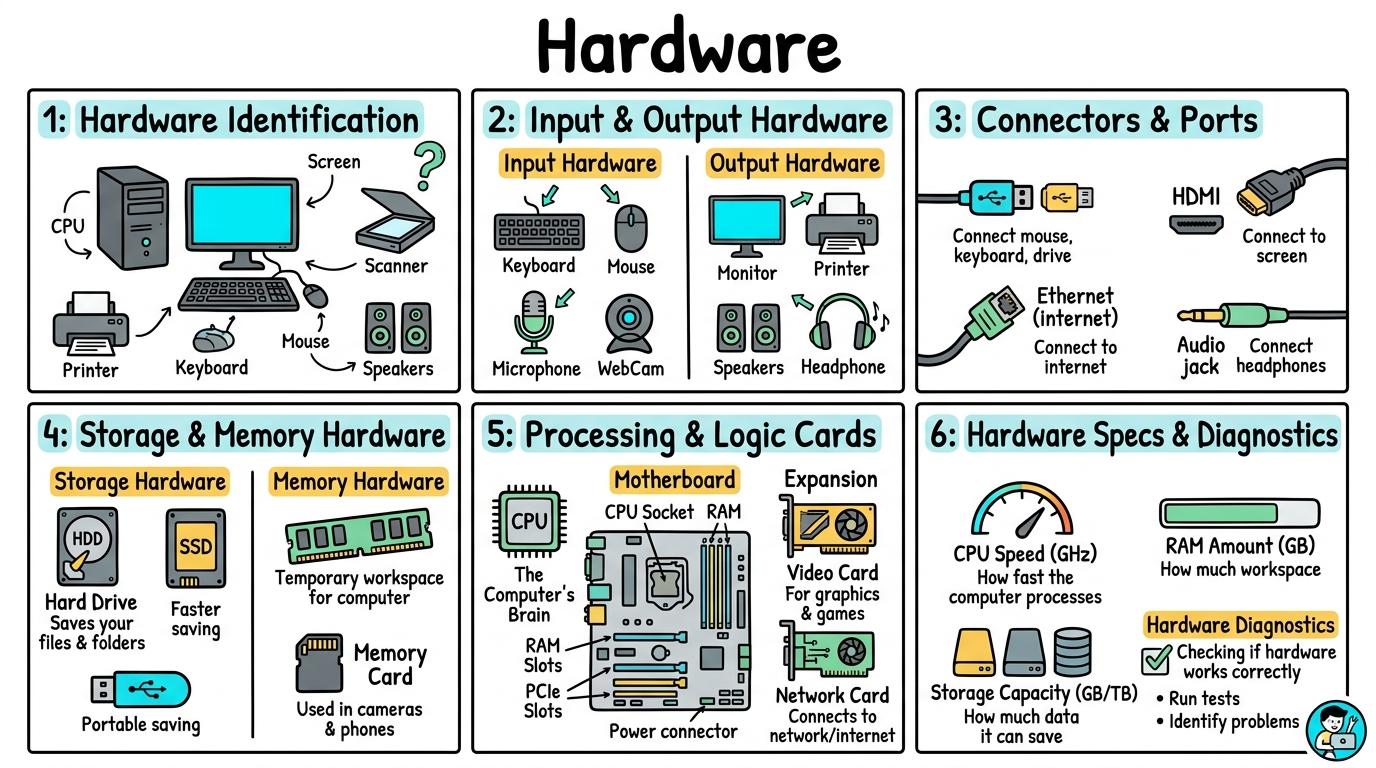
Hardware
1
2
3
4
5
6
Welcome to Hardware! In this strand, you will explore physical computing components, peripherals, input/output connections, and how digital devices process hardware signals.
Hardware Identification
Identifying physical tech devices vs non-tech objects, power buttons, and screens.
Let's Go!
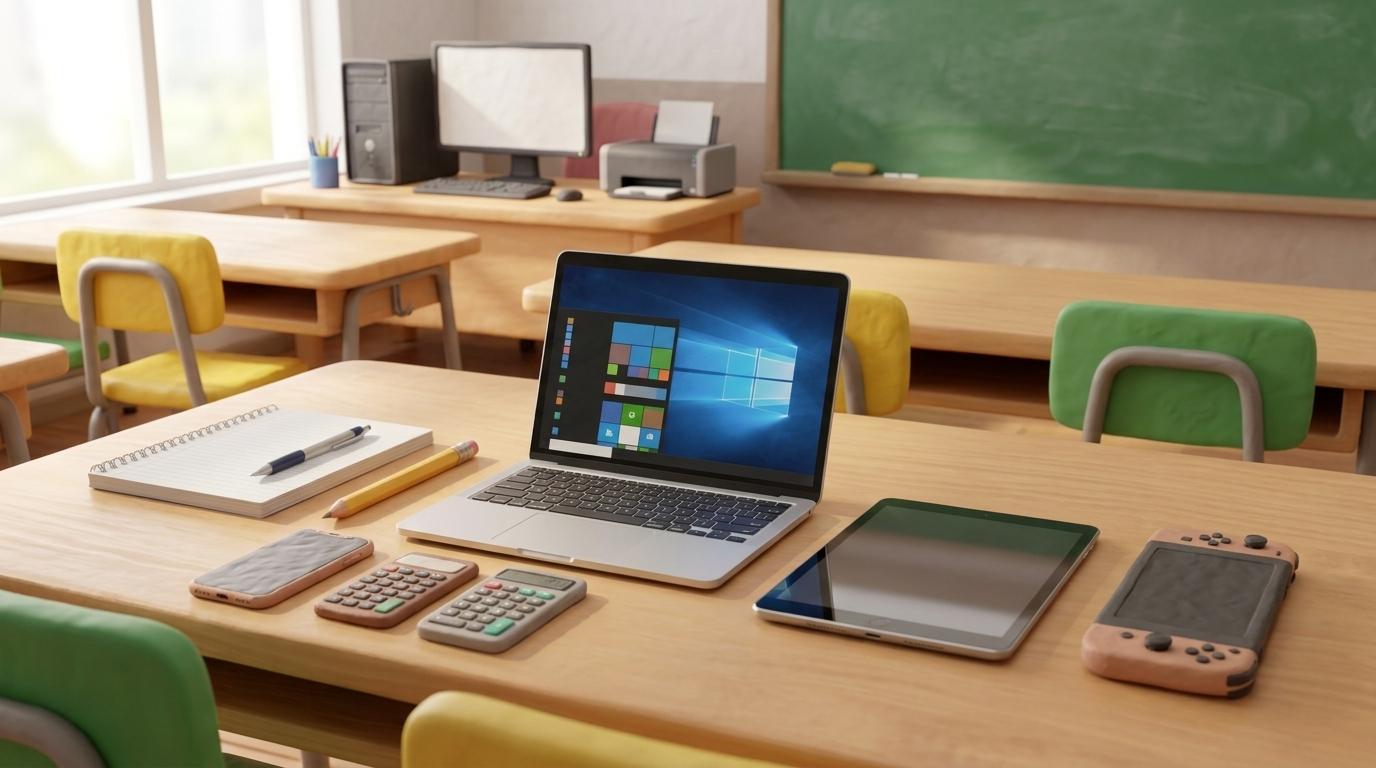
Routine: See, Think, Wonder
Look at these classroom items: a book, a pencil, a laptop, and a tablet. Which ones are physical hardware?
Teacher note: Facilitate the See, Think, Wonder routine for 2–3 minutes. Encourage students to connect the prompt to Form (Physical computing devices allow us to interact with digital tools.).
Learn
Hardware is any physical part of a computer system that you can touch and see, such as screens, keyboards, mice, cables, and power buttons! In computing, physical computing devices allow us to interact with digital tools. As you explore the interactive Hardware Simulator below, focus on how to distinguish between physical hardware and non-electronic classroom objects.
CPU Core Frequency3.8 GHz8 Cores / 16 Threads Active
Motherboard Bus SpeedPCIe 4.0 x1631.5 GB/s Direct CPU Link
Thermal Dissipation42°C (Optimal)Fan curve: 1,200 RPM active
E-Waste & Modularity9.5 / 10Right-to-Repair modular slots
Data Bus Traffic & Signal PipelineHigh-Speed Bus
⌨️ Input (Keyboard)
⬇️ USB Controller Bus
🧠 CPU (Instruction Fetch & Decode)
⬇️ Memory Bus (DDR5 Dual Channel)
📦 RAM (Workbench Buffer)
⬇️ PCIe x16 Direct Bus
🎨 GPU -> 🖥️ HDMI Display Output
Component Specification MatrixHardware Spec
| Component | Bus Interface | Bandwidth | Function |
|---|---|---|---|
| CPU | AM5 / LGA1700 | Direct Fabric | Executes calculations and OS kernel |
| RAM | DDR5 DIMM | 51.2 GB/s | Fast volatile working memory |
| NVMe SSD | M.2 PCIe 4.0 | 7,000 MB/s | Non-volatile persistent storage |
| GPU | PCIe 4.0 x16 | 31.5 GB/s | 3D Graphics rasterization & shaders |
| USB-C | Type-C 3.2 Gen2 | 10 Gbps | External high-speed data & 100W PD |
Apply Simulator Skills • Try it yourself
Identify and inspect classroom hardware!
🚀 Open a practice space
🌟 Student Project GuideSuccess Criteria & WAGOLL (What A Good One Looks Like)
🎯 Task Success Criteria (Rubric)
Foundation
Point to physical tech devices in the classroom (laptops, tablets).
Developing
Locate power buttons, touchscreens, and charging cables.
Secure (Goal)
Distinguish between physical hardware and non-electronic classroom objects.
Mastery
Explain that hardware includes all physical, touchable parts of a computer system.
👀 What A Good One Looks Like (WAGOLL)
Exemplar of 2
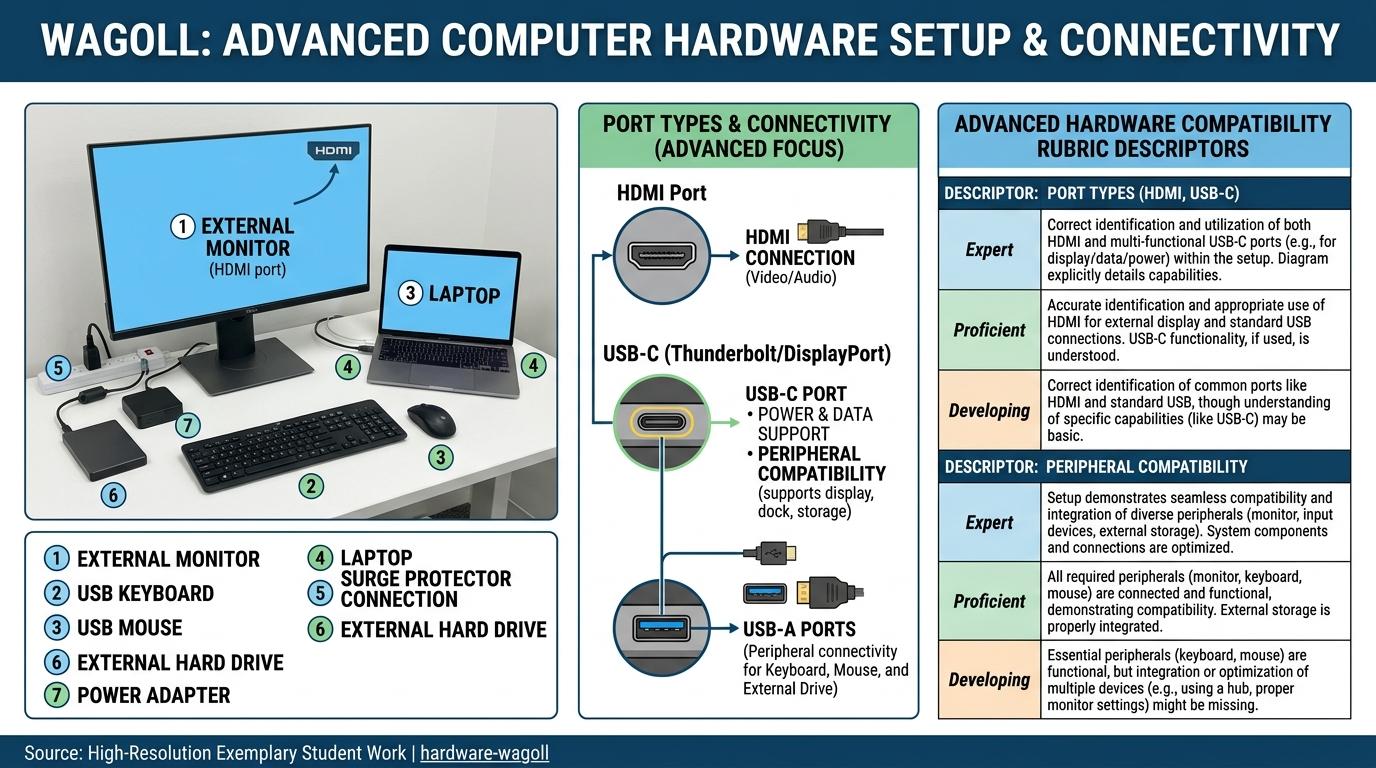 ⭐ Mastering Standard
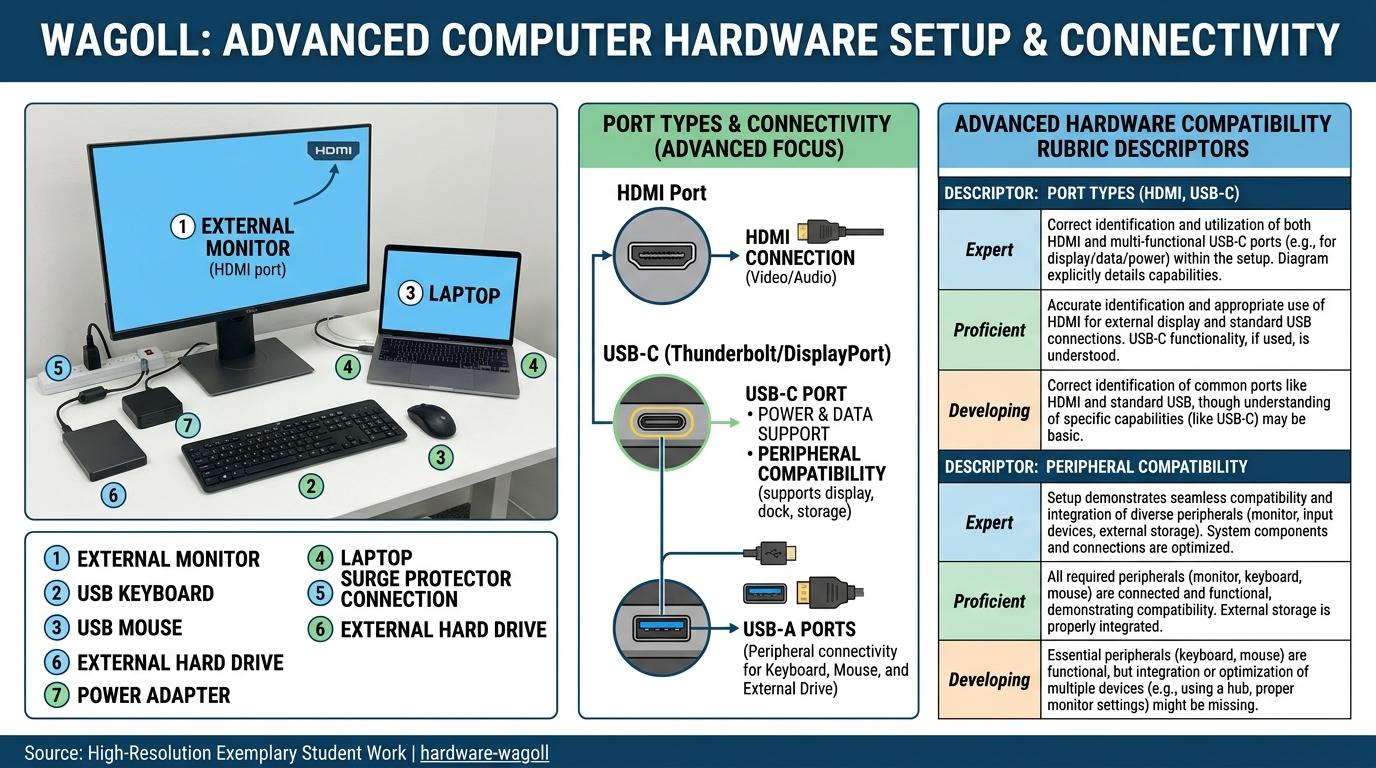 ⭐ Mastering Standard
📁
Save to Your Website Portfolio:
When you finish creating your project in your software, copy the share link or take a screenshot and publish it onto your student portfolio website!
Reflect
Learning check
Teacher setup, curriculum links and progress descriptors
Spark support
Routine: See, Think, Wonder
Teacher notes: Facilitate the See, Think, Wonder routine for 2–3 minutes. Encourage students to connect the prompt to Form (Physical computing devices allow us to interact with digital tools.).
Achievement pathway
- Foundation: Point to physical tech devices in the classroom (laptops, tablets).
- Developing: Locate power buttons, touchscreens, and charging cables.
- Secure: Distinguish between physical hardware and non-electronic classroom objects.
- Mastering: Explain that hardware includes all physical, touchable parts of a computer system.
Curriculum links
Curriculum strand: CM.01.B.1.1
Outcome: HDW-O-01 — Identifying physical tech devices vs non-tech objects, power buttons, and screens.
PYP: Form · Physical computing devices allow us to interact with digital tools.
Learner profile: Inquirer
Competency tags
Gate support
Accessibility alternative: Students may verbally explain or point to the correct answer for "Which of the following is a piece of physical computer hardware?" with a teacher or teaching assistant.
Teacher override: allow
Locked level
Level 2: Input & Output Hardware
Complete the previous learning check to unlock this next level.
Input & Output Hardware
Classifying hardware peripherals into Input vs Output devices.
Learning objective
Learning About: Input & Output. Learning To: Classify peripherals. Learning To Be: Communicator.
Let's Go!
Routine: Zoom In
Look closely at a keyboard and a computer monitor. Which one sends information IN, and which one shows information OUT?
Teacher note: Facilitate the Zoom In routine for 2–3 minutes. Encourage students to connect the prompt to Function (Different hardware peripherals perform specialized roles to send data in or show data out.).
Learn
Hardware peripherals are divided into Input and Output devices! Input devices (keyboards, mice, microphones) send data TO the computer. Output devices (monitors, speakers, printers) display or play results FROM the computer! In computing, different hardware peripherals perform specialized roles to send data in or show data out. As you explore the interactive Hardware Simulator below, focus on how to connect an input or output device to a computer correctly.
CPU Core Frequency3.8 GHz8 Cores / 16 Threads Active
Motherboard Bus SpeedPCIe 4.0 x1631.5 GB/s Direct CPU Link
Thermal Dissipation42°C (Optimal)Fan curve: 1,200 RPM active
E-Waste & Modularity9.5 / 10Right-to-Repair modular slots
Data Bus Traffic & Signal PipelineHigh-Speed Bus
⌨️ Input (Keyboard)
⬇️ USB Controller Bus
🧠 CPU (Instruction Fetch & Decode)
⬇️ Memory Bus (DDR5 Dual Channel)
📦 RAM (Workbench Buffer)
⬇️ PCIe x16 Direct Bus
🎨 GPU -> 🖥️ HDMI Display Output
Component Specification MatrixHardware Spec
| Component | Bus Interface | Bandwidth | Function |
|---|---|---|---|
| CPU | AM5 / LGA1700 | Direct Fabric | Executes calculations and OS kernel |
| RAM | DDR5 DIMM | 51.2 GB/s | Fast volatile working memory |
| NVMe SSD | M.2 PCIe 4.0 | 7,000 MB/s | Non-volatile persistent storage |
| GPU | PCIe 4.0 x16 | 31.5 GB/s | 3D Graphics rasterization & shaders |
| USB-C | Type-C 3.2 Gen2 | 10 Gbps | External high-speed data & 100W PD |
Apply Simulator Skills • Try it yourself
Classify Input and Output Hardware!
🚀 Open a practice space
🌟 Student Project GuideSuccess Criteria & WAGOLL (What A Good One Looks Like)
🎯 Task Success Criteria (Rubric)
Foundation
Recognise that hardware performs different tasks.
Developing
Sort peripherals into Input (data going in) and Output (data coming out).
Secure (Goal)
Connect an input or output device to a computer correctly.
Mastery
Explain how input hardware (keyboard) and output hardware (display) work together.
👀 What A Good One Looks Like (WAGOLL)
Exemplar of 2
⭐ Mastering Standard⭐ Mastering Standard📁
Save to Your Website Portfolio:
When you finish creating your project in your software, copy the share link or take a screenshot and publish it onto your student portfolio website!
Reflect
Learning check
Teacher setup, curriculum links and progress descriptors
Spark support
Routine: Zoom In
Teacher notes: Facilitate the Zoom In routine for 2–3 minutes. Encourage students to connect the prompt to Function (Different hardware peripherals perform specialized roles to send data in or show data out.).
Achievement pathway
- Foundation: Recognise that hardware performs different tasks.
- Developing: Sort peripherals into Input (data going in) and Output (data coming out).
- Secure: Connect an input or output device to a computer correctly.
- Mastering: Explain how input hardware (keyboard) and output hardware (display) work together.
Curriculum links
Curriculum strand: CM.01.B.1.1
Outcome: HDW-O-02 — Classifying hardware peripherals into Input vs Output devices.
PYP: Function · Different hardware peripherals perform specialized roles to send data in or show data out.
Learner profile: Communicator
Competency tags
Gate support
Accessibility alternative: Students may verbally explain or point to the correct answer for "Which hardware device is an OUTPUT device that lets you hear audio from your computer?" with a teacher or teaching assistant.
Teacher override: allow
Locked level
Level 3: Connectors & Ports
Complete the previous learning check to unlock this next level.
Connectors & Ports
Identifying physical ports, connectors, and safe hardware plug practices.
Learning objective
Learning About: Ports & Cables. Learning To: Connect hardware safely. Learning To Be: Thinker.
Let's Go!
Routine: Think, Puzzle, Explore
Why do computer cables have different shapes?
What happens if you try to force a plug into the wrong port?
Teacher note: Facilitate the Think, Puzzle, Explore routine for 2–3 minutes. Encourage students to connect the prompt to Connection (Standardized ports and cables allow modular hardware components to communicate.).
Learn
Hardware connectors match specific ports! USB ports connect mice, keyboards, and drives. HDMI ports send video and audio to external monitors or projectors. Always align connectors gently—never force a plug! In computing, standardized ports and cables allow modular hardware components to communicate. As you explore the interactive Hardware Simulator below, focus on how to safely plug in and eject external peripherals without damaging connectors.
CPU Core Frequency3.8 GHz8 Cores / 16 Threads Active
Motherboard Bus SpeedPCIe 4.0 x1631.5 GB/s Direct CPU Link
Thermal Dissipation42°C (Optimal)Fan curve: 1,200 RPM active
E-Waste & Modularity9.5 / 10Right-to-Repair modular slots
Data Bus Traffic & Signal PipelineHigh-Speed Bus
⌨️ Input (Keyboard)
⬇️ USB Controller Bus
🧠 CPU (Instruction Fetch & Decode)
⬇️ Memory Bus (DDR5 Dual Channel)
📦 RAM (Workbench Buffer)
⬇️ PCIe x16 Direct Bus
🎨 GPU -> 🖥️ HDMI Display Output
Component Specification MatrixHardware Spec
| Component | Bus Interface | Bandwidth | Function |
|---|---|---|---|
| CPU | AM5 / LGA1700 | Direct Fabric | Executes calculations and OS kernel |
| RAM | DDR5 DIMM | 51.2 GB/s | Fast volatile working memory |
| NVMe SSD | M.2 PCIe 4.0 | 7,000 MB/s | Non-volatile persistent storage |
| GPU | PCIe 4.0 x16 | 31.5 GB/s | 3D Graphics rasterization & shaders |
| USB-C | Type-C 3.2 Gen2 | 10 Gbps | External high-speed data & 100W PD |
Apply Simulator Skills • Try it yourself
Connect peripherals safely to correct ports!
🚀 Open a practice space
🌟 Student Project GuideSuccess Criteria & WAGOLL (What A Good One Looks Like)
🎯 Task Success Criteria (Rubric)
Foundation
Recognise common cable ends like USB and HDMI.
Developing
Locate USB-A, USB-C, HDMI, and audio ports on a desktop or laptop.
Secure (Goal)
Safely plug in and eject external peripherals without damaging connectors.
Mastery
Explain why USB-C is becoming the universal standard for power and data.
👀 What A Good One Looks Like (WAGOLL)
Exemplar of 2
⭐ Mastering Standard⭐ Mastering Standard📁
Save to Your Website Portfolio:
When you finish creating your project in your software, copy the share link or take a screenshot and publish it onto your student portfolio website!
Reflect
Learning check
Teacher setup, curriculum links and progress descriptors
Spark support
Routine: Think, Puzzle, Explore
Teacher notes: Facilitate the Think, Puzzle, Explore routine for 2–3 minutes. Encourage students to connect the prompt to Connection (Standardized ports and cables allow modular hardware components to communicate.).
Achievement pathway
- Foundation: Recognise common cable ends like USB and HDMI.
- Developing: Locate USB-A, USB-C, HDMI, and audio ports on a desktop or laptop.
- Secure: Safely plug in and eject external peripherals without damaging connectors.
- Mastering: Explain why USB-C is becoming the universal standard for power and data.
Curriculum links
Curriculum strand: CM.02.B.1.1
Outcome: HDW-O-03 — Identifying physical ports, connectors, and safe hardware plug practices.
PYP: Connection · Standardized ports and cables allow modular hardware components to communicate.
Learner profile: Thinker
Competency tags
Gate support
Accessibility alternative: Students may verbally explain or point to the correct answer for "Which modern reversible cable and port is widely used for high-speed data transfer and fast charging?" with a teacher or teaching assistant.
Teacher override: allow
Locked level
Level 4: Storage & Memory Hardware
Complete the previous learning check to unlock this next level.
Storage & Memory Hardware
Comparing magnetic HDDs, solid-state SSDs, RAM chips, and flash drives.
Learning objective
Learning About: Storage vs RAM. Learning To: Compare memory hardware. Learning To Be: Principled.
Let's Go!
Routine: See, Think, Wonder
When you turn off a computer, where do your files go?
Why doesn't the computer forget everything?
Teacher note: Facilitate the See, Think, Wonder routine for 2–3 minutes. Encourage students to connect the prompt to Responsibility (Hardware memory structures determine how much data a device can process and store permanently.).
Learn
Computers use two main types of memory hardware: RAM (Random Access Memory) is fast temporary workspace that clears when powered off, while SSDs/HDDs provide permanent long-term storage for all your saved files! In computing, hardware memory structures determine how much data a device can process and store permanently. As you explore the interactive Hardware Simulator below, focus on how to select appropriate storage hardware for transferring files vs long-term backup.
CPU Core Frequency3.8 GHz8 Cores / 16 Threads Active
Motherboard Bus SpeedPCIe 4.0 x1631.5 GB/s Direct CPU Link
Thermal Dissipation42°C (Optimal)Fan curve: 1,200 RPM active
E-Waste & Modularity9.5 / 10Right-to-Repair modular slots
Data Bus Traffic & Signal PipelineHigh-Speed Bus
⌨️ Input (Keyboard)
⬇️ USB Controller Bus
🧠 CPU (Instruction Fetch & Decode)
⬇️ Memory Bus (DDR5 Dual Channel)
📦 RAM (Workbench Buffer)
⬇️ PCIe x16 Direct Bus
🎨 GPU -> 🖥️ HDMI Display Output
Component Specification MatrixHardware Spec
| Component | Bus Interface | Bandwidth | Function |
|---|---|---|---|
| CPU | AM5 / LGA1700 | Direct Fabric | Executes calculations and OS kernel |
| RAM | DDR5 DIMM | 51.2 GB/s | Fast volatile working memory |
| NVMe SSD | M.2 PCIe 4.0 | 7,000 MB/s | Non-volatile persistent storage |
| GPU | PCIe 4.0 x16 | 31.5 GB/s | 3D Graphics rasterization & shaders |
| USB-C | Type-C 3.2 Gen2 | 10 Gbps | External high-speed data & 100W PD |
Apply Simulator Skills • Try it yourself
Compare RAM and Permanent Storage!
🚀 Open a practice space
🌟 Student Project GuideSuccess Criteria & WAGOLL (What A Good One Looks Like)
🎯 Task Success Criteria (Rubric)
Foundation
Identify physical storage devices like USB thumb drives and hard drives.
Developing
Distinguish between temporary RAM memory and permanent SSD/HDD storage.
Secure (Goal)
Select appropriate storage hardware for transferring files vs long-term backup.
Mastery
Explain why SSDs are faster and more durable than spinning magnetic HDDs.
👀 What A Good One Looks Like (WAGOLL)
Exemplar of 2
⭐ Mastering Standard⭐ Mastering Standard📁
Save to Your Website Portfolio:
When you finish creating your project in your software, copy the share link or take a screenshot and publish it onto your student portfolio website!
Reflect
Learning check
Teacher setup, curriculum links and progress descriptors
Spark support
Routine: See, Think, Wonder
Teacher notes: Facilitate the See, Think, Wonder routine for 2–3 minutes. Encourage students to connect the prompt to Responsibility (Hardware memory structures determine how much data a device can process and store permanently.).
Achievement pathway
- Foundation: Identify physical storage devices like USB thumb drives and hard drives.
- Developing: Distinguish between temporary RAM memory and permanent SSD/HDD storage.
- Secure: Select appropriate storage hardware for transferring files vs long-term backup.
- Mastering: Explain why SSDs are faster and more durable than spinning magnetic HDDs.
Curriculum links
Curriculum strand: CM.02.B.1.1
Outcome: HDW-O-04 — Comparing magnetic HDDs, solid-state SSDs, RAM chips, and flash drives.
PYP: Responsibility · Hardware memory structures determine how much data a device can process and store permanently.
Learner profile: Principled
Competency tags
Gate support
Accessibility alternative: Students may verbally explain or point to the correct answer for "Which hardware component provides fast temporary memory for open apps that gets cleared when the computer turns off?" with a teacher or teaching assistant.
Teacher override: allow
Locked level
Level 5: Processing & Logic Cards
Complete the previous learning check to unlock this next level.
Processing & Logic Cards
Exploring CPUs, GPUs, motherboards, expansion cards, and microcontrollers.
Learning objective
Learning About: Processors & Boards. Learning To: Examine logic cards. Learning To Be: Knowledgeable.
Let's Go!
Routine: I used to think...
I used to think a computer chip was just a tiny piece of plastic... Now I know it contains billions of microscopic transistors processing code instructions every second!
Teacher note: Facilitate the I used to think... routine for 2–3 minutes. Encourage students to connect the prompt to Perspective (Understanding microprocessors enables us to design physical computing and robotics systems.).
Learn
The Motherboard is the main circuit board connecting all internal hardware! The CPU (Central Processing Unit) executes code commands, the GPU handles graphics, and microcontrollers (like BBC micro:bit) bring physical hardware projects to life! In computing, understanding microprocessors enables us to design physical computing and robotics systems. As you explore the interactive Hardware Simulator below, focus on how to program an embedded microcontroller board (e.g. BBC micro:bit or Raspberry Pi).
CPU Core Frequency3.8 GHz8 Cores / 16 Threads Active
Motherboard Bus SpeedPCIe 4.0 x1631.5 GB/s Direct CPU Link
Thermal Dissipation42°C (Optimal)Fan curve: 1,200 RPM active
E-Waste & Modularity9.5 / 10Right-to-Repair modular slots
Data Bus Traffic & Signal PipelineHigh-Speed Bus
⌨️ Input (Keyboard)
⬇️ USB Controller Bus
🧠 CPU (Instruction Fetch & Decode)
⬇️ Memory Bus (DDR5 Dual Channel)
📦 RAM (Workbench Buffer)
⬇️ PCIe x16 Direct Bus
🎨 GPU -> 🖥️ HDMI Display Output
Component Specification MatrixHardware Spec
| Component | Bus Interface | Bandwidth | Function |
|---|---|---|---|
| CPU | AM5 / LGA1700 | Direct Fabric | Executes calculations and OS kernel |
| RAM | DDR5 DIMM | 51.2 GB/s | Fast volatile working memory |
| NVMe SSD | M.2 PCIe 4.0 | 7,000 MB/s | Non-volatile persistent storage |
| GPU | PCIe 4.0 x16 | 31.5 GB/s | 3D Graphics rasterization & shaders |
| USB-C | Type-C 3.2 Gen2 | 10 Gbps | External high-speed data & 100W PD |
Apply Simulator Skills • Try it yourself
Program a Microcontroller & Inspect Circuit Hardware!
🚀 Open a practice space
🌟 Student Project GuideSuccess Criteria & WAGOLL (What A Good One Looks Like)
🎯 Task Success Criteria (Rubric)
Foundation
Identify the CPU chip as the primary central processing unit.
Developing
Examine a motherboard and locate the CPU socket, RAM slots, and GPU expansion slots.
Secure (Goal)
Program an embedded microcontroller board (e.g. BBC micro:bit or Raspberry Pi).
Mastery
Explain how the CPU processes binary instructions and coordinates with other circuit cards.
👀 What A Good One Looks Like (WAGOLL)
Exemplar of 2
⭐ Mastering Standard⭐ Mastering Standard📁
Save to Your Website Portfolio:
When you finish creating your project in your software, copy the share link or take a screenshot and publish it onto your student portfolio website!
Reflect
Learning check
Teacher setup, curriculum links and progress descriptors
Spark support
Routine: I used to think...
Teacher notes: Facilitate the I used to think... routine for 2–3 minutes. Encourage students to connect the prompt to Perspective (Understanding microprocessors enables us to design physical computing and robotics systems.).
Achievement pathway
- Foundation: Identify the CPU chip as the primary central processing unit.
- Developing: Examine a motherboard and locate the CPU socket, RAM slots, and GPU expansion slots.
- Secure: Program an embedded microcontroller board (e.g. BBC micro:bit or Raspberry Pi).
- Mastering: Explain how the CPU processes binary instructions and coordinates with other circuit cards.
Curriculum links
Curriculum strand: CM.03.B.1.1
Outcome: HDW-O-05 — Exploring CPUs, GPUs, motherboards, expansion cards, and microcontrollers.
PYP: Perspective · Understanding microprocessors enables us to design physical computing and robotics systems.
Learner profile: Knowledgeable
Competency tags
Gate support
Accessibility alternative: Students may verbally explain or point to the correct answer for "Which central hardware chip is known as the 'brain' of the computer, executing calculations and software instructions?" with a teacher or teaching assistant.
Teacher override: allow
Locked level
Level 6: Hardware Specs & Diagnostics
Complete the previous learning check to unlock this next level.
Hardware Specs & Diagnostics
Reading hardware specifications, basic hardware troubleshooting, and e-waste awareness.
Learning objective
Learning About: Hardware Specs & Sustainability. Learning To: Audit & troubleshoot. Learning To Be: Reflective.
Let's Go!
Routine: Step Inside
Imagine a school computer runs slowly when opening video editing software. How can inspecting System Hardware Specs help you find the problem?
Teacher note: Facilitate the Step Inside routine for 2–3 minutes. Encourage students to connect the prompt to Reflection (Responsible hardware maintenance and recycling protects resources and extends tech lifespans.).
Learn
Hardware auditing allows you to identify system capabilities! Checking RAM, CPU clock speed, and storage space reveals performance bottlenecks. Practicing safe maintenance, repair, and e-waste recycling ensures technology remains sustainable! In computing, responsible hardware maintenance and recycling protects resources and extends tech lifespans. As you explore the interactive Hardware Simulator below, focus on how to troubleshoot common hardware issues (loose cables, unplugged power, peripheral driver resets).
CPU Core Frequency3.8 GHz8 Cores / 16 Threads Active
Motherboard Bus SpeedPCIe 4.0 x1631.5 GB/s Direct CPU Link
Thermal Dissipation42°C (Optimal)Fan curve: 1,200 RPM active
E-Waste & Modularity9.5 / 10Right-to-Repair modular slots
Data Bus Traffic & Signal PipelineHigh-Speed Bus
⌨️ Input (Keyboard)
⬇️ USB Controller Bus
🧠 CPU (Instruction Fetch & Decode)
⬇️ Memory Bus (DDR5 Dual Channel)
📦 RAM (Workbench Buffer)
⬇️ PCIe x16 Direct Bus
🎨 GPU -> 🖥️ HDMI Display Output
Component Specification MatrixHardware Spec
| Component | Bus Interface | Bandwidth | Function |
|---|---|---|---|
| CPU | AM5 / LGA1700 | Direct Fabric | Executes calculations and OS kernel |
| RAM | DDR5 DIMM | 51.2 GB/s | Fast volatile working memory |
| NVMe SSD | M.2 PCIe 4.0 | 7,000 MB/s | Non-volatile persistent storage |
| GPU | PCIe 4.0 x16 | 31.5 GB/s | 3D Graphics rasterization & shaders |
| USB-C | Type-C 3.2 Gen2 | 10 Gbps | External high-speed data & 100W PD |
Apply Simulator Skills • Try it yourself
Audit System Hardware & Troubleshoot Issues!
🚀 Open a practice space
🌟 Student Project GuideSuccess Criteria & WAGOLL (What A Good One Looks Like)
🎯 Task Success Criteria (Rubric)
Foundation
Open System Properties or Task Manager to view hardware specifications.
Developing
Read and compare device hardware specs (e.g., 16GB RAM, 512GB SSD, 2.5GHz CPU).
Secure (Goal)
Troubleshoot common hardware issues (loose cables, unplugged power, peripheral driver resets).
Mastery
Evaluate the environmental impact of e-waste and propose modular hardware repair strategies.
👀 What A Good One Looks Like (WAGOLL)
Exemplar of 2
⭐ Mastering Standard⭐ Mastering Standard📁
Save to Your Website Portfolio:
When you finish creating your project in your software, copy the share link or take a screenshot and publish it onto your student portfolio website!
Reflect
Learning check
Teacher setup, curriculum links and progress descriptors
Spark support
Routine: Step Inside
Teacher notes: Facilitate the Step Inside routine for 2–3 minutes. Encourage students to connect the prompt to Reflection (Responsible hardware maintenance and recycling protects resources and extends tech lifespans.).
Achievement pathway
- Foundation: Open System Properties or Task Manager to view hardware specifications.
- Developing: Read and compare device hardware specs (e.g., 16GB RAM, 512GB SSD, 2.5GHz CPU).
- Secure: Troubleshoot common hardware issues (loose cables, unplugged power, peripheral driver resets).
- Mastering: Evaluate the environmental impact of e-waste and propose modular hardware repair strategies.
Curriculum links
Curriculum strand: CM.03.B.1.1
Outcome: HDW-O-06 — Reading hardware specifications, basic hardware troubleshooting, and e-waste awareness.
PYP: Reflection · Responsible hardware maintenance and recycling protects resources and extends tech lifespans.
Learner profile: Reflective
Competency tags
Gate support
Accessibility alternative: Students may verbally explain or point to the correct answer for "What should you do first if an external mouse or keyboard suddenly stops responding?" with a teacher or teaching assistant.
Teacher override: allow