
Learning objective
Software
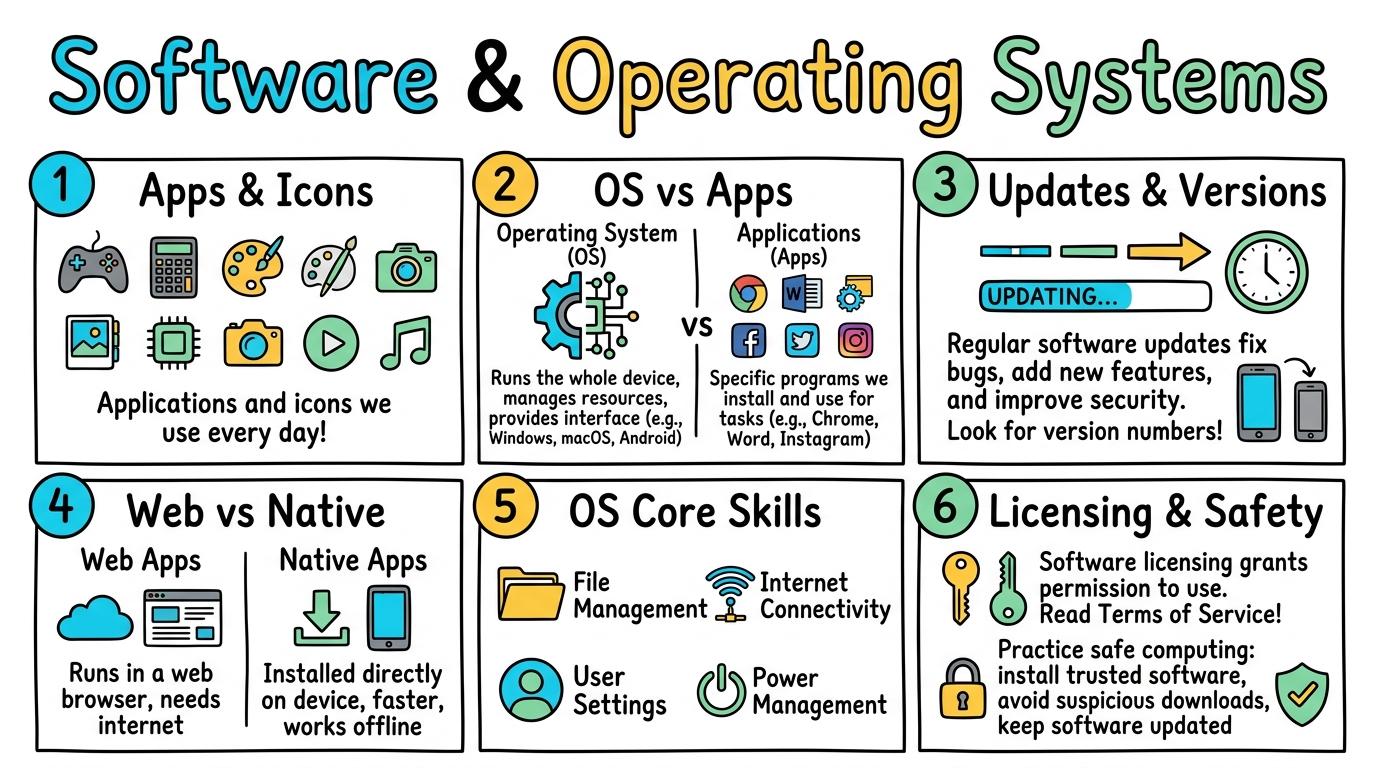
Software & Operating Systems
1
2
3
4
5
6
Understanding applications, operating systems, updates, web vs native apps, and software licensing.
Apps & Icons
Recognize application icons and open/close software safely.
Let's Go!
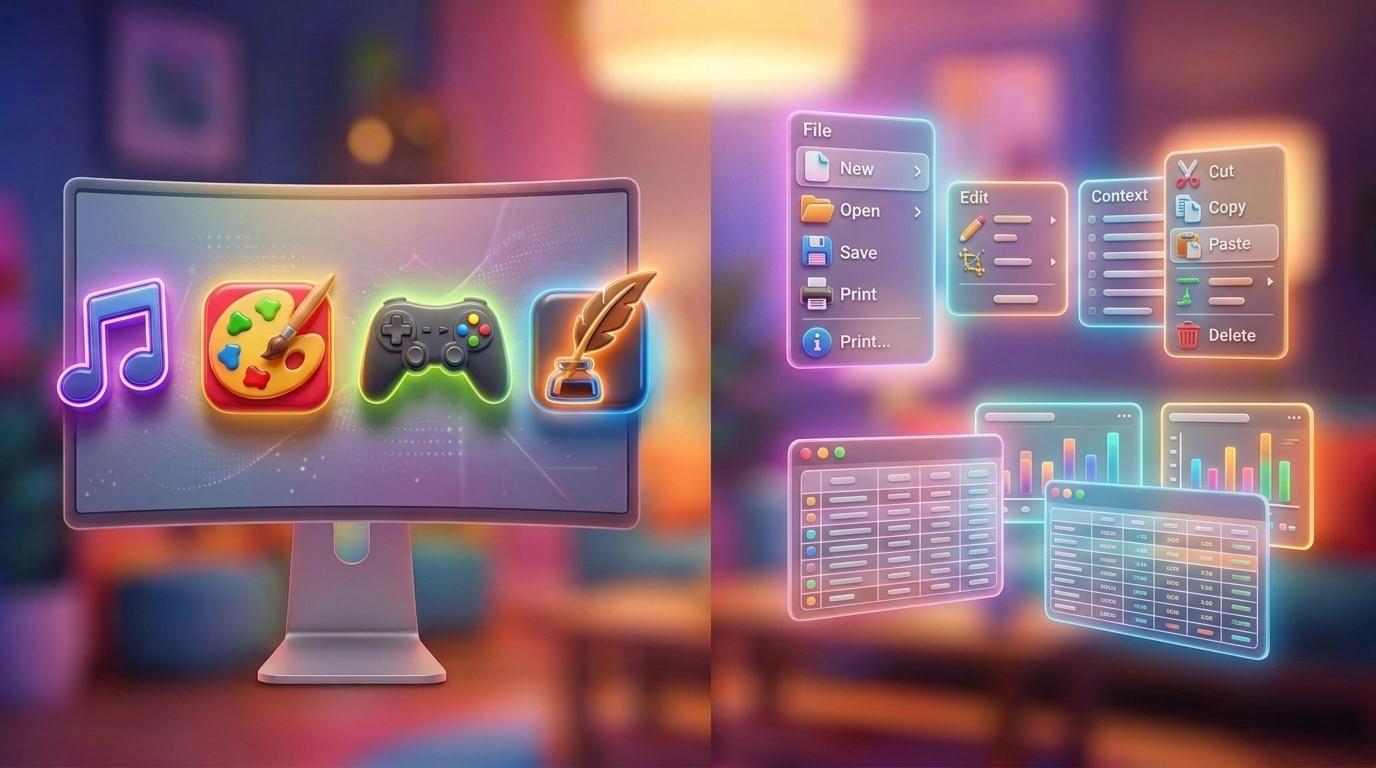
Routine: See Think Wonder
Look at these 4 colorful desktop icons. What do you think happens when you double-click each one?
Teacher note: Facilitate the See Think Wonder routine for 2–3 minutes. Encourage students to connect the prompt to Form (Software provides digital tools and instructions that enable hardware to perform specific tasks.).
Learn
Software is the set of programs and instructions that tell a computer what to do. Hardware is physical, while software is digital. We click app icons to open programs like drawing tools or web browsers. In computing, software provides digital tools and instructions that enable hardware to perform specific tasks. As you explore the interactive Software Simulator below, focus on how to independently identifies app icons, opens programs, and closes them safely.
Temperate rainforests receive over 200 centimeters of rainfall annually. Giant coniferous trees support thousands of plant and animal species in an intricate canopy food web.
Figure 1.1: Multi-tier Forest Biome Diagram
Apply Simulator Skills • Try it yourself
Launching & Closing Apps
🚀 Open a practice space
🌟 Student Project GuideSuccess Criteria & WAGOLL (What A Good One Looks Like)
🎯 Task Success Criteria (Rubric)
Foundation
Needs assistance locating app icons on the screen.
Developing
Identifies 2-3 main app icons and opens them with support.
Secure (Goal)
Independently identifies app icons, opens programs, and closes them safely.
Mastery
Explains that software contains invisible instructions guiding hardware actions.
👀 What A Good One Looks Like (WAGOLL)
Exemplar of 2
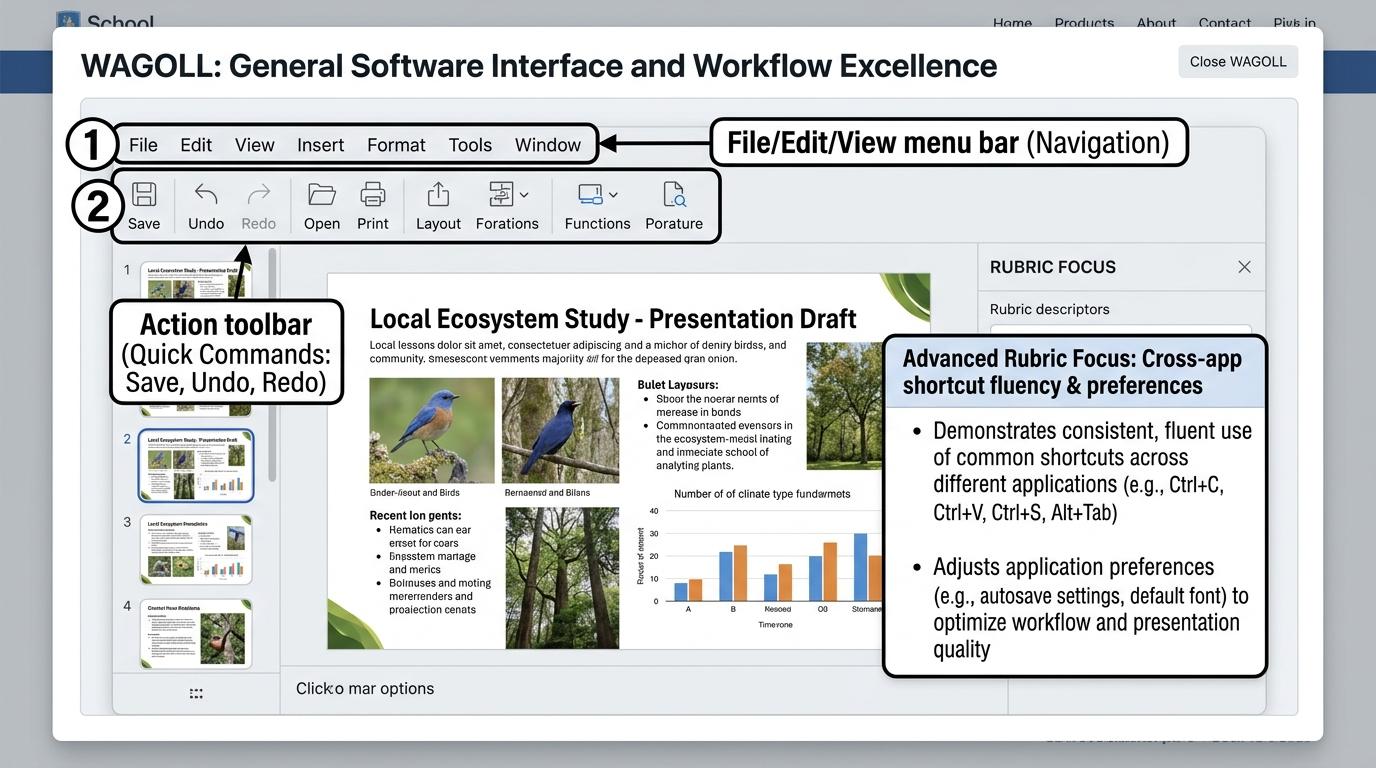 ⭐ Mastering Standard
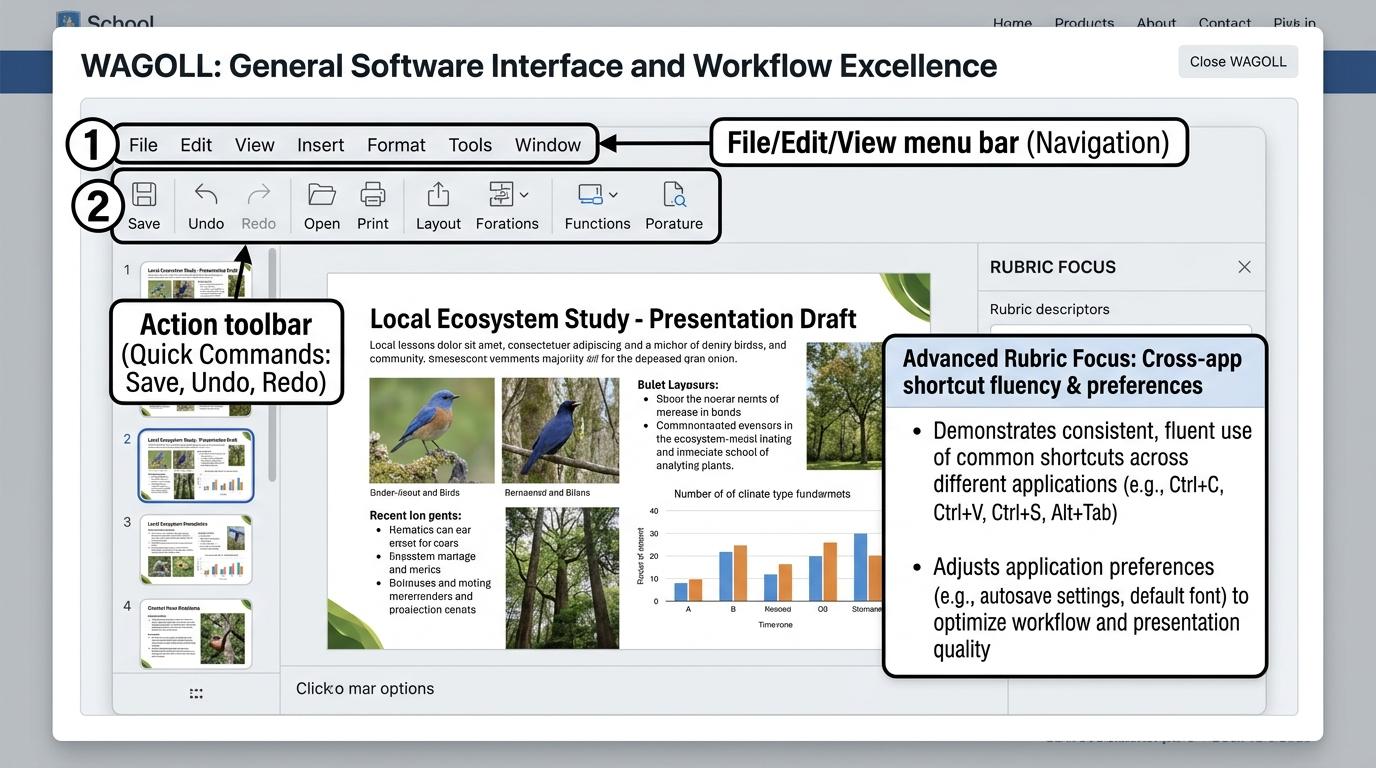 ⭐ Mastering Standard
📁
Save to Your Website Portfolio:
When you finish creating your project in your software, copy the share link or take a screenshot and publish it onto your student portfolio website!
Reflect
Learning check
Teacher setup, curriculum links and progress descriptors
Spark support
Routine: See Think Wonder
Teacher notes: Facilitate the See Think Wonder routine for 2–3 minutes. Encourage students to connect the prompt to Form (Software provides digital tools and instructions that enable hardware to perform specific tasks.).
Achievement pathway
- Foundation: Needs assistance locating app icons on the screen.
- Developing: Identifies 2-3 main app icons and opens them with support.
- Secure: Independently identifies app icons, opens programs, and closes them safely.
- Mastering: Explains that software contains invisible instructions guiding hardware actions.
Curriculum links
Curriculum strand: CM.01.B.1.1
Outcome: SWOS.01.B.1.1 — Recognize application icons and open/close software safely.
PYP: Form · Software provides digital tools and instructions that enable hardware to perform specific tasks.
Learner profile: Inquirer
Competency tags
Gate support
Accessibility alternative: Students may verbally explain or point to the correct answer for "Which of these is an example of software?" with a teacher or teaching assistant.
Teacher override: allow
Locked level
Level 2: OS vs Apps
Complete the previous learning check to unlock this next level.
OS vs Apps
Distinguish between the Operating System and user applications.
Learning objective
Differentiate between Operating System software (Windows, macOS, iOS) and Application software (Word, Scratch).
Let's Go!
Routine: Zoom In
Zoom in on this desktop interface. Is the background window frame part of an app or the Operating System?
Teacher note: Facilitate the Zoom In routine for 2–3 minutes. Encourage students to connect the prompt to Function (Operating Systems manage hardware resources so applications can run smoothly.).
Learn
The Operating System (OS) is the main boss software that controls the whole device (like Windows, macOS, ChromeOS, or iOS). Applications (Apps) are special tools built to do specific tasks, like playing a video or typing a story. In computing, operating Systems manage hardware resources so applications can run smoothly. As you explore the interactive Split Screen Simulator below, focus on how to categorize items as Operating Systems or Application programs.
Volcanoes: Earth's Fiery Chimneys!
Melted subterranean rock called magma rises through vents. When it erupts onto the surface, it becomes glowing red lava!
🌋🔥
My Study Notes
Apply Simulator Skills • Try it yourself
Sorting System vs App Software
🚀 Open a practice space
🌟 Student Project GuideSuccess Criteria & WAGOLL (What A Good One Looks Like)
🎯 Task Success Criteria (Rubric)
Foundation
Confuses the operating system background with individual app windows.
Developing
Names their device's operating system with teacher guidance.
Secure (Goal)
Accurately categorizes items as Operating Systems or Application programs.
Mastery
Describes how the OS acts as an essential bridge between hardware and user apps.
👀 What A Good One Looks Like (WAGOLL)
Exemplar of 2
⭐ Mastering Standard⭐ Mastering Standard📁
Save to Your Website Portfolio:
When you finish creating your project in your software, copy the share link or take a screenshot and publish it onto your student portfolio website!
Reflect
Learning check
Teacher setup, curriculum links and progress descriptors
Spark support
Routine: Zoom In
Teacher notes: Facilitate the Zoom In routine for 2–3 minutes. Encourage students to connect the prompt to Function (Operating Systems manage hardware resources so applications can run smoothly.).
Achievement pathway
- Foundation: Confuses the operating system background with individual app windows.
- Developing: Names their device's operating system with teacher guidance.
- Secure: Accurately categorizes items as Operating Systems or Application programs.
- Mastering: Describes how the OS acts as an essential bridge between hardware and user apps.
Curriculum links
Curriculum strand: CM.01.B.1.1
Outcome: SWOS.02.B.1.2 — Distinguish between the Operating System and user applications.
PYP: Function · Operating Systems manage hardware resources so applications can run smoothly.
Learner profile: Communicator
Competency tags
Gate support
Accessibility alternative: Students may verbally explain or point to the correct answer for "Which of the following is an Operating System?" with a teacher or teaching assistant.
Teacher override: allow
Locked level
Level 3: Updates & Versions
Complete the previous learning check to unlock this next level.
Updates & Versions
Understand software updates, security patches, and version numbers.
Learning objective
Explain why software requires regular updates and identify version numbers (e.g., v1.0 vs v2.0).
Let's Go!
Routine: Before After Slider
Slide to compare an un-updated app with a updated version. What bugs were fixed?
Teacher note: Facilitate the Before After Slider routine for 2–3 minutes. Encourage students to connect the prompt to Change (Continuous updates improve software functionality and protect systems from security risks.).
Learn
Software isn't fixed forever; developers update it to fix errors ('bugs'), add new features, and shield devices from cyber threats ('security patches'). Version numbers like v1.0, v2.0, or v2.1 show how major or minor the update is. In computing, continuous updates improve software functionality and protect systems from security risks. As you explore the interactive Folder Tree Simulator below, focus on how to explain that updates fix bugs, add features, and patch security vulnerabilities.
Homework.docx
Puppy.jpg
Story_Chapter1.txt
Class_Anthem.mp3
Field_Trip.png
Apply Simulator Skills • Try it yourself
Checking App Versions & Release Notes
🚀 Open a practice space
🌟 Student Project GuideSuccess Criteria & WAGOLL (What A Good One Looks Like)
🎯 Task Success Criteria (Rubric)
Foundation
Ignores update notifications without understanding their purpose.
Developing
Recognizes that updates change app features or fix glitches.
Secure (Goal)
Explains that updates fix bugs, add features, and patch security vulnerabilities.
Mastery
Interprets semantic versioning numbers (major vs minor update releases).
👀 What A Good One Looks Like (WAGOLL)
Exemplar of 2
⭐ Mastering Standard⭐ Mastering Standard📁
Save to Your Website Portfolio:
When you finish creating your project in your software, copy the share link or take a screenshot and publish it onto your student portfolio website!
Reflect
Learning check
Teacher setup, curriculum links and progress descriptors
Spark support
Routine: Before After Slider
Teacher notes: Facilitate the Before After Slider routine for 2–3 minutes. Encourage students to connect the prompt to Change (Continuous updates improve software functionality and protect systems from security risks.).
Achievement pathway
- Foundation: Ignores update notifications without understanding their purpose.
- Developing: Recognizes that updates change app features or fix glitches.
- Secure: Explains that updates fix bugs, add features, and patch security vulnerabilities.
- Mastering: Interprets semantic versioning numbers (major vs minor update releases).
Curriculum links
Curriculum strand: CM.02.B.1.1
Outcome: SWOS.03.B.1.3 — Understand software updates, security patches, and version numbers.
PYP: Change · Continuous updates improve software functionality and protect systems from security risks.
Learner profile: Thinker
Competency tags
Gate support
Accessibility alternative: Students may verbally explain or point to the correct answer for "Why do developers release software updates?" with a teacher or teaching assistant.
Teacher override: allow
Locked level
Level 4: Web vs Native
Complete the previous learning check to unlock this next level.
Web vs Native
Compare web-based cloud applications with installed native applications.
Learning objective
Compare native installed software (runs offline, uses local drive) with web applications (runs in browser, uses cloud servers).
Let's Go!
Routine: SplitScreenSimulator
Compare MS Word running on the desktop vs Google Docs running in a browser. What happens if Wi-Fi disconnects?
Teacher note: Facilitate the SplitScreenSimulator routine for 2–3 minutes. Encourage students to connect the prompt to Connection (Software execution model dictates offline availability, installation requirements, and cloud syncing.).
Learn
Native Apps are downloaded and installed onto local hard drives, working even without internet. Web Apps run inside a web browser over the internet, saving work automatically to cloud servers. In computing, software execution model dictates offline availability, installation requirements, and cloud syncing. As you explore the interactive Troubleshooting Simulator below, focus on how to contrasts native apps (offline, local storage) with web apps (online, cloud sync).
🔌 Physical Rear Ports & Peripheral Cables
EDTECH PRO-VISION 24"
Technician Diagnostic Actions & Triage Tools
Select the correct diagnostic action below:Apply Simulator Skills • Try it yourself
Comparing Native vs Web Apps
🚀 Open a practice space
🌟 Student Project GuideSuccess Criteria & WAGOLL (What A Good One Looks Like)
🎯 Task Success Criteria (Rubric)
Foundation
Believes all software needs an active internet connection to function.
Developing
Identifies web apps that run inside a web browser.
Secure (Goal)
Contrasts native apps (offline, local storage) with web apps (online, cloud sync).
Mastery
Evaluates trade-offs (storage space, internet dependency, processing speed) when selecting software.
👀 What A Good One Looks Like (WAGOLL)
Exemplar of 2
⭐ Mastering Standard⭐ Mastering Standard📁
Save to Your Website Portfolio:
When you finish creating your project in your software, copy the share link or take a screenshot and publish it onto your student portfolio website!
Reflect
Learning check
Teacher setup, curriculum links and progress descriptors
Spark support
Routine: SplitScreenSimulator
Teacher notes: Facilitate the SplitScreenSimulator routine for 2–3 minutes. Encourage students to connect the prompt to Connection (Software execution model dictates offline availability, installation requirements, and cloud syncing.).
Achievement pathway
- Foundation: Believes all software needs an active internet connection to function.
- Developing: Identifies web apps that run inside a web browser.
- Secure: Contrasts native apps (offline, local storage) with web apps (online, cloud sync).
- Mastering: Evaluates trade-offs (storage space, internet dependency, processing speed) when selecting software.
Curriculum links
Curriculum strand: CM.02.B.1.1
Outcome: SWOS.04.B.1.4 — Compare web-based cloud applications with installed native applications.
PYP: Connection · Software execution model dictates offline availability, installation requirements, and cloud syncing.
Learner profile: Principled
Competency tags
Gate support
Accessibility alternative: Students may verbally explain or point to the correct answer for "Which feature is typical of a Web Application?" with a teacher or teaching assistant.
Teacher override: allow
Locked level
Level 5: OS Core Skills
Complete the previous learning check to unlock this next level.
OS Core Skills
Examine how operating systems manage file systems, memory, drivers, and multitasking.
Learning objective
Describe core Operating System functions including file systems, memory allocation, device drivers, and multitasking.
Let's Go!
Routine: ShortcutSimulator
Use Alt+Tab / Cmd+Tab to switch rapidly between 3 running application windows. How does OS track each app?
Teacher note: Facilitate the ShortcutSimulator routine for 2–3 minutes. Encourage students to connect the prompt to Perspective (Operating systems allocate CPU cycles, RAM memory, and driver protocols to coordinate multiple processes.).
Learn
The Operating System performs four major jobs: 1) File Management (hierarchical folders), 2) Memory Allocation (sharing RAM), 3) Hardware Driver Coordination (translating commands for printers/webcams), and 4) Multitasking (running multiple apps concurrently).
Apply Simulator Skills • Try it yourself
Exploring OS Resource Manager
🚀 Open a practice space
🌟 Student Project GuideSuccess Criteria & WAGOLL (What A Good One Looks Like)
🎯 Task Success Criteria (Rubric)
Foundation
Struggles to manage multiple open application windows simultaneously.
Developing
Uses task switching (Alt+Tab) and understands that OS organizes files into folders.
Secure (Goal)
Explains the key roles of the OS: managing files, handling device drivers, and allocating RAM memory.
Mastery
Analyzes system resource usage in Task Manager to diagnose non-responding programs.
👀 What A Good One Looks Like (WAGOLL)
Exemplar of 2
⭐ Mastering Standard⭐ Mastering Standard📁
Save to Your Website Portfolio:
When you finish creating your project in your software, copy the share link or take a screenshot and publish it onto your student portfolio website!
Reflect
Learning check
Teacher setup, curriculum links and progress descriptors
Spark support
Routine: ShortcutSimulator
Teacher notes: Facilitate the ShortcutSimulator routine for 2–3 minutes. Encourage students to connect the prompt to Perspective (Operating systems allocate CPU cycles, RAM memory, and driver protocols to coordinate multiple processes.).
Achievement pathway
- Foundation: Struggles to manage multiple open application windows simultaneously.
- Developing: Uses task switching (Alt+Tab) and understands that OS organizes files into folders.
- Secure: Explains the key roles of the OS: managing files, handling device drivers, and allocating RAM memory.
- Mastering: Analyzes system resource usage in Task Manager to diagnose non-responding programs.
Curriculum links
Curriculum strand: CM.03.B.1.1
Outcome: SWOS.05.B.1.5 — Examine how operating systems manage file systems, memory, drivers, and multitasking.
PYP: Perspective · Operating systems allocate CPU cycles, RAM memory, and driver protocols to coordinate multiple processes.
Learner profile: Knowledgeable
Competency tags
Gate support
Accessibility alternative: Students may verbally explain or point to the correct answer for "What software component enables an Operating System to talk to a specific printer or camera?" with a teacher or teaching assistant.
Teacher override: allow
Locked level
Level 6: Licensing & Safety
Complete the previous learning check to unlock this next level.
Licensing & Safety
Evaluate software licensing types, open-source models, malware risks, and safe installation.
Learning objective
Differentiate between proprietary, open-source, and freemium software licensing models while assessing malware risks.
Let's Go!
Routine: See Think Wonder
Examine this 'Free Game Download' button on a shady website. What red flags indicate potential malware?
Teacher note: Facilitate the See Think Wonder routine for 2–3 minutes. Encourage students to connect the prompt to Reflection (Ethical digital citizenship requires respecting intellectual property licenses and protecting software against malware.).
Learn
Software has legal licenses: Proprietary (paid, closed source e.g. Photoshop), Open Source (free, community editable source code e.g. Blender/Linux), and Freemium. Downloading pirated software risks introducing Malware (viruses, ransomware, spyware) into systems.
Cybersecurity & Scam Defense Audit Engine
Master Security Audits, Threat Analysis & Defense-in-Depth
LEVEL 1 • BRONZEOS6 • Free Gift Traps
Deceptive Reward Screen Detection
Review the incoming web element. Identify signs of fraudulent "Free Prize" lures before taking action.
🛡️ Security Inspector & Triage
THREAT LEVEL: UNRATED📋 NIST Cybersecurity Framework Mapping
CSF v2.0IDIdentifyAsset & Threat Identification
PRProtectSafeguards & MFA
DEDetectAnomalies & Phishing
RSRespondContainment Protocol
RCRecoverRestoration & Backups
📡 Live Telemetry & Threat Vector Indicators
LIVE TELEMETRY| Metric / Indicator | Observed Value | Risk Factor |
|---|---|---|
| TLS Certificate | Self-Signed / Untrusted | HIGH |
| Sender Domain Entropy | 0.89 (Spoofed DMARC) | CRITICAL |
| Urgency Emotion Vector | Active Countdown Detected | ELEVATED |
💻 SOC Incident Event Stream & Telemetry Log
[SOC-INIT] Defense telemetry daemon active. Port 443 TLS 1.3 inspector online.
[AUDIT-READY] Simulator initialized. Select a step to commence security audit.
Apply Simulator Skills • Try it yourself
Software License & Security Audit
🚀 Open a practice space
🌟 Student Project GuideSuccess Criteria & WAGOLL (What A Good One Looks Like)
🎯 Task Success Criteria (Rubric)
Foundation
Attempts to download executable files from unverified pop-up advertisements.
Developing
Understands that downloading software requires permission and official source verification.
Secure (Goal)
Compares Proprietary vs. Open Source software (e.g., MS Office vs LibreOffice/GIMP) and identifies malware threats.
Mastery
Evaluates End User License Agreements (EULA) and designs safe software deployment protocols.
👀 What A Good One Looks Like (WAGOLL)
Exemplar of 2
⭐ Mastering Standard⭐ Mastering Standard📁
Save to Your Website Portfolio:
When you finish creating your project in your software, copy the share link or take a screenshot and publish it onto your student portfolio website!
Reflect
Learning check
Teacher setup, curriculum links and progress descriptors
Spark support
Routine: See Think Wonder
Teacher notes: Facilitate the See Think Wonder routine for 2–3 minutes. Encourage students to connect the prompt to Reflection (Ethical digital citizenship requires respecting intellectual property licenses and protecting software against malware.).
Achievement pathway
- Foundation: Attempts to download executable files from unverified pop-up advertisements.
- Developing: Understands that downloading software requires permission and official source verification.
- Secure: Compares Proprietary vs. Open Source software (e.g., MS Office vs LibreOffice/GIMP) and identifies malware threats.
- Mastering: Evaluates End User License Agreements (EULA) and designs safe software deployment protocols.
Curriculum links
Curriculum strand: CM.03.B.1.1
Outcome: SWOS.06.B.1.6 — Evaluate software licensing types, open-source models, malware risks, and safe installation.
PYP: Reflection · Ethical digital citizenship requires respecting intellectual property licenses and protecting software against malware.
Learner profile: Reflective
Competency tags
Gate support
Accessibility alternative: Students may verbally explain or point to the correct answer for "Which software license model makes source code freely available for anyone to inspect and modify?" with a teacher or teaching assistant.
Teacher override: allow