
Learning objective
Storage
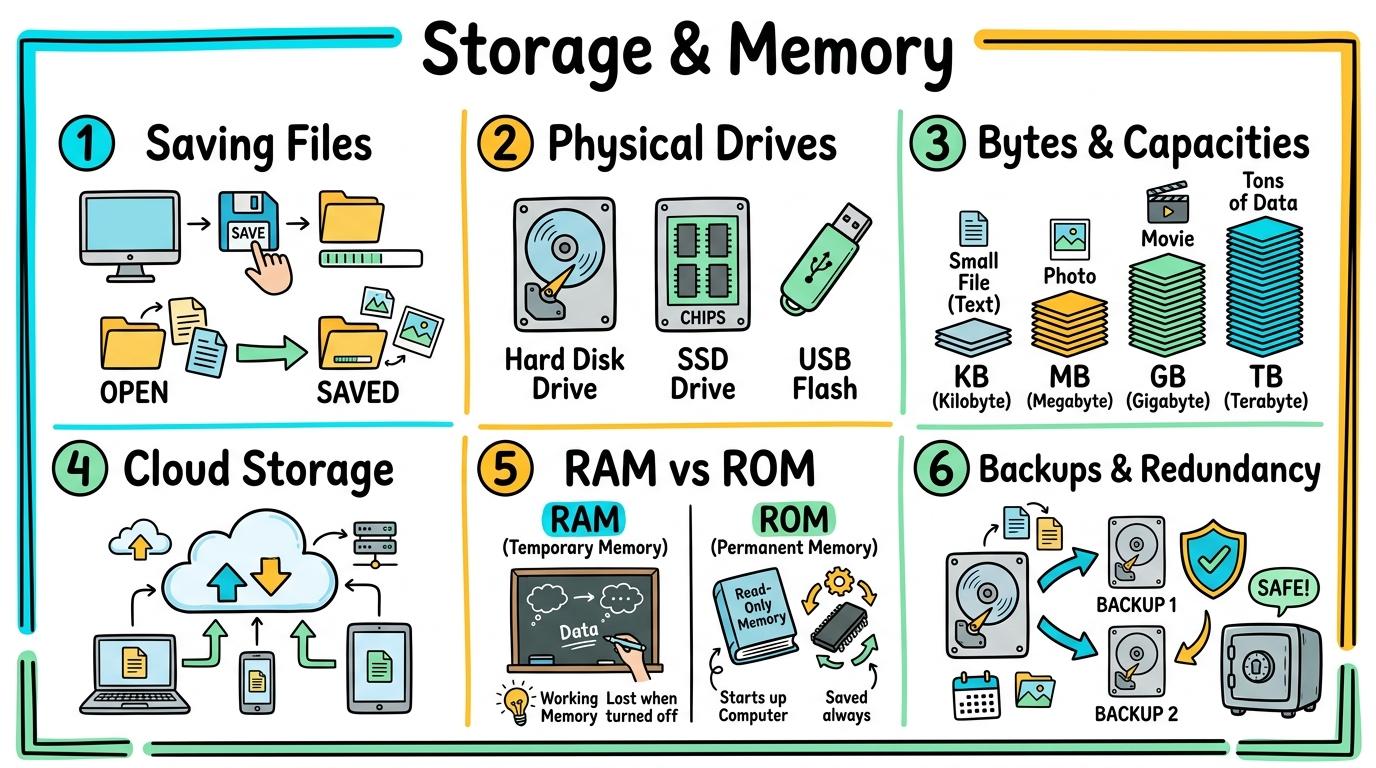
Storage & Memory
1
2
3
4
5
6
Explore how digital devices save, retain, and retrieve information across local physical hardware and remote cloud storage systems.
Saving Files
Understand that digital work must be saved to memory or disk so it does not vanish when the device is turned off.
Let's Go!
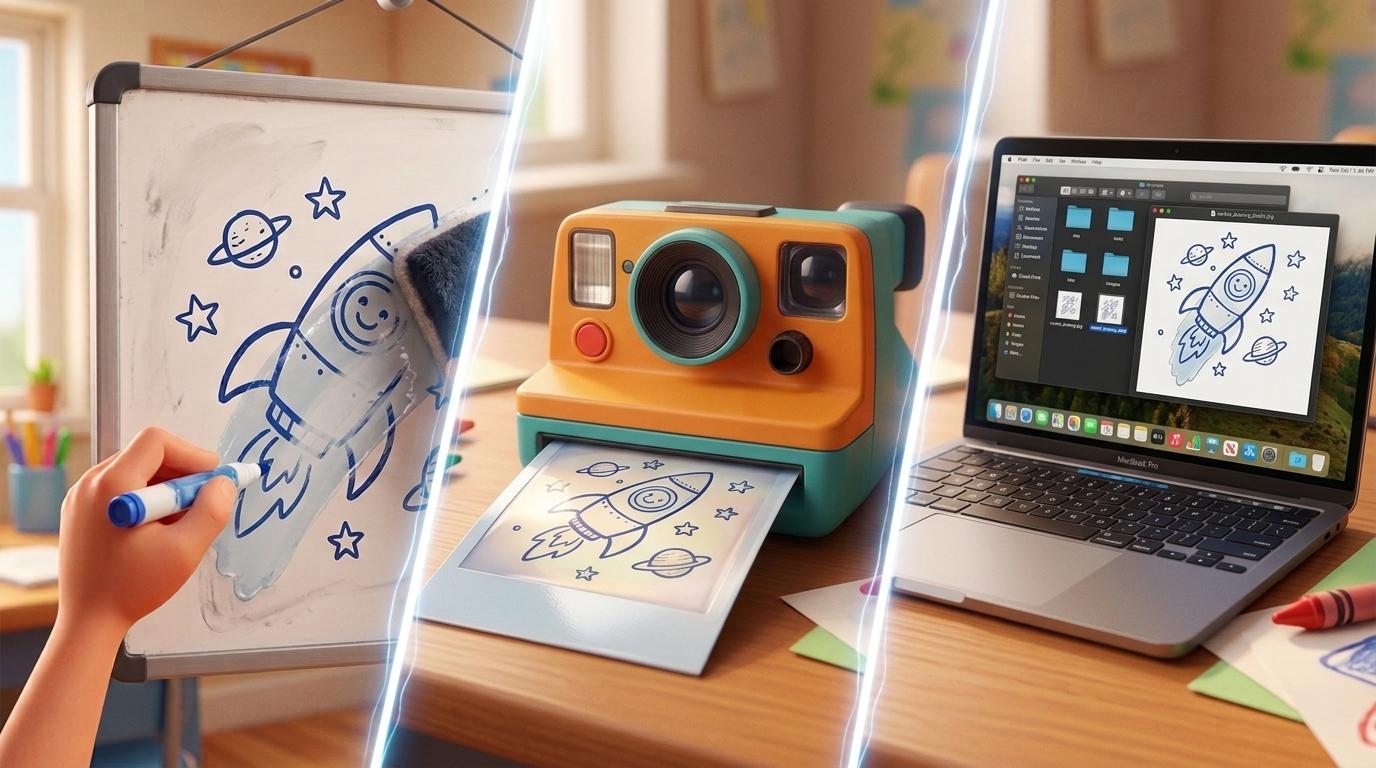
Routine: See Think Wonder
What happens to a drawing on a whiteboard when you wipe it versus taking a photo?
How is that like saving on a computer?
Teacher note: Facilitate the See Think Wonder routine for 2–3 minutes. Encourage students to connect the prompt to Form (Digital devices store information in memory so we can retrieve our work later.).
Learn
When you paint a picture or type a sentence, your computer holds it in temporary memory while you work. But if the computer turns off, temporary memory clears! Clicking Save writes your work onto a permanent storage disk inside the device so you can open it again tomorrow.
CPU Core Frequency3.8 GHz8 Cores / 16 Threads Active
Motherboard Bus SpeedPCIe 4.0 x1631.5 GB/s Direct CPU Link
Thermal Dissipation42°C (Optimal)Fan curve: 1,200 RPM active
E-Waste & Modularity9.5 / 10Right-to-Repair modular slots
Data Bus Traffic & Signal PipelineHigh-Speed Bus
⌨️ Input (Keyboard)
⬇️ USB Controller Bus
🧠 CPU (Instruction Fetch & Decode)
⬇️ Memory Bus (DDR5 Dual Channel)
📦 RAM (Workbench Buffer)
⬇️ PCIe x16 Direct Bus
🎨 GPU -> 🖥️ HDMI Display Output
Component Specification MatrixHardware Spec
| Component | Bus Interface | Bandwidth | Function |
|---|---|---|---|
| CPU | AM5 / LGA1700 | Direct Fabric | Executes calculations and OS kernel |
| RAM | DDR5 DIMM | 51.2 GB/s | Fast volatile working memory |
| NVMe SSD | M.2 PCIe 4.0 | 7,000 MB/s | Non-volatile persistent storage |
| GPU | PCIe 4.0 x16 | 31.5 GB/s | 3D Graphics rasterization & shaders |
| USB-C | Type-C 3.2 Gen2 | 10 Gbps | External high-speed data & 100W PD |
Apply Simulator Skills • Try it yourself
Save and Reload Mission
🚀 Open a practice space
🌟 Student Project GuideSuccess Criteria & WAGOLL (What A Good One Looks Like)
🎯 Task Success Criteria (Rubric)
Foundation
Needs help finding the Save button to store digital work.
Developing
Saves digital work with support but sometimes loses unsaved files.
Secure (Goal)
Independently saves work to local storage and reopens it after restarting.
Mastery
Explains clearly why saving to memory prevents work from disappearing when devices power down.
👀 What A Good One Looks Like (WAGOLL)
Exemplar of 2
 ⭐ Mastering Standard
 ⭐ Mastering Standard
📁
Save to Your Website Portfolio:
When you finish creating your project in your software, copy the share link or take a screenshot and publish it onto your student portfolio website!
Reflect
Learning check
Teacher setup, curriculum links and progress descriptors
Spark support
Routine: See Think Wonder
Teacher notes: Facilitate the See Think Wonder routine for 2–3 minutes. Encourage students to connect the prompt to Form (Digital devices store information in memory so we can retrieve our work later.).
Achievement pathway
- Foundation: Needs help finding the Save button to store digital work.
- Developing: Saves digital work with support but sometimes loses unsaved files.
- Secure: Independently saves work to local storage and reopens it after restarting.
- Mastering: Explains clearly why saving to memory prevents work from disappearing when devices power down.
Curriculum links
Curriculum strand: CM.01.B.1.1
Outcome: STOR.Y1.01 — Understand that digital work must be saved to memory or disk so it does not vanish when the device is turned off.
PYP: Form · Digital devices store information in memory so we can retrieve our work later.
Learner profile: Inquirer
Competency tags
Gate support
Accessibility alternative: Students may verbally explain or point to the correct answer for "What happens to unsaved work if a computer battery dies?" with a teacher or teaching assistant.
Teacher override: allow
Locked level
Level 2: Physical Drives
Complete the previous learning check to unlock this next level.
Physical Drives
Distinguish between built-in internal storage and removable external physical drives like USB flash drives.
Learning objective
Differentiate between internal computer hard drives/SSDs and removable external storage devices like USB flash drives.
Let's Go!
Routine: Think Pair Share
How did people carry photos or letters to a friend’s house before the internet existed?
Teacher note: Facilitate the Think Pair Share routine for 2–3 minutes. Encourage students to connect the prompt to Function (Physical storage devices hold digital data internally or portably on removable media.).
Learn
Inside every computer is a built-in storage drive (like an SSD or Hard Drive) that holds all your apps and files. When you want to take files with you, you can plug in a USB flash drive or external drive. The computer reads the external drive like a portable digital backpack!
Homework.docx
Puppy.jpg
Story_Chapter1.txt
Class_Anthem.mp3
Field_Trip.png
Apply Simulator Skills • Try it yourself
External Drive Transfer
🚀 Open a practice space
🌟 Student Project GuideSuccess Criteria & WAGOLL (What A Good One Looks Like)
🎯 Task Success Criteria (Rubric)
Foundation
Identifies a USB flash drive but cannot explain what it does.
Developing
Uses a USB drive to move a file with step-by-step guidance.
Secure (Goal)
Independently copies files between internal drive folders and an external USB memory stick.
Mastery
Explains how portable storage hardware allows files to be carried physically between non-networked computers.
👀 What A Good One Looks Like (WAGOLL)
Exemplar of 2
⭐ Mastering Standard⭐ Mastering Standard📁
Save to Your Website Portfolio:
When you finish creating your project in your software, copy the share link or take a screenshot and publish it onto your student portfolio website!
Reflect
Learning check
Teacher setup, curriculum links and progress descriptors
Spark support
Routine: Think Pair Share
Teacher notes: Facilitate the Think Pair Share routine for 2–3 minutes. Encourage students to connect the prompt to Function (Physical storage devices hold digital data internally or portably on removable media.).
Achievement pathway
- Foundation: Identifies a USB flash drive but cannot explain what it does.
- Developing: Uses a USB drive to move a file with step-by-step guidance.
- Secure: Independently copies files between internal drive folders and an external USB memory stick.
- Mastering: Explains how portable storage hardware allows files to be carried physically between non-networked computers.
Curriculum links
Curriculum strand: CM.01.B.1.1
Outcome: STOR.Y2.02 — Distinguish between built-in internal storage and removable external physical drives like USB flash drives.
PYP: Function · Physical storage devices hold digital data internally or portably on removable media.
Learner profile: Communicator
Competency tags
Gate support
Accessibility alternative: Students may verbally explain or point to the correct answer for "What is the main advantage of a USB flash drive?" with a teacher or teaching assistant.
Teacher override: allow
Locked level
Level 3: Bytes & Capacities
Complete the previous learning check to unlock this next level.
Bytes & Capacities
Understand units of digital measurement (Bytes, KB, MB, GB) and order file types by size.
Learning objective
Compare file sizes using metric units (Bytes, KB, MB, GB) and recognize that video files require far more storage than text files.
Let's Go!
Routine: Zoom In
Look at these three items: a text sentence, a photo, and a 10-minute video. Which takes up the most space on a drive?
Teacher note: Facilitate the Zoom In routine for 2–3 minutes. Encourage students to connect the prompt to Connection (Digital information is measured in bytes, determining how much storage space different files require.).
Learn
All digital files are made of tiny bits and bytes. A single letter of text is about 1 Byte. 1,000 Bytes make a Kilobyte (KB). 1,000 KB make a Megabyte (MB), which is typical for a photo. 1,000 MB make a Gigabyte (GB), which is needed for movies and large games!
Apply Simulator Skills • Try it yourself
File Size Inspector
🚀 Open a practice space
🌟 Student Project GuideSuccess Criteria & WAGOLL (What A Good One Looks Like)
🎯 Task Success Criteria (Rubric)
Foundation
Recognizes that larger numbers mean bigger files but struggles with unit names.
Developing
Orders KB, MB, and GB sequentially but misses how file content (text vs video) affects size.
Secure (Goal)
Accurately ranks text (KB), image (MB), and video (GB) file sizes and calculates capacity remaining.
Mastery
Explains file size conversions (1,000 MB ≈ 1 GB) and predicts storage needs for multimedia projects.
👀 What A Good One Looks Like (WAGOLL)
Exemplar of 2
⭐ Mastering Standard⭐ Mastering Standard📁
Save to Your Website Portfolio:
When you finish creating your project in your software, copy the share link or take a screenshot and publish it onto your student portfolio website!
Reflect
Learning check
Teacher setup, curriculum links and progress descriptors
Spark support
Routine: Zoom In
Teacher notes: Facilitate the Zoom In routine for 2–3 minutes. Encourage students to connect the prompt to Connection (Digital information is measured in bytes, determining how much storage space different files require.).
Achievement pathway
- Foundation: Recognizes that larger numbers mean bigger files but struggles with unit names.
- Developing: Orders KB, MB, and GB sequentially but misses how file content (text vs video) affects size.
- Secure: Accurately ranks text (KB), image (MB), and video (GB) file sizes and calculates capacity remaining.
- Mastering: Explains file size conversions (1,000 MB ≈ 1 GB) and predicts storage needs for multimedia projects.
Curriculum links
Curriculum strand: CM.02.B.1.1
Outcome: STOR.Y3.03 — Understand units of digital measurement (Bytes, KB, MB, GB) and order file types by size.
PYP: Connection · Digital information is measured in bytes, determining how much storage space different files require.
Learner profile: Thinker
Competency tags
Gate support
Accessibility alternative: Students may verbally explain or point to the correct answer for "Which of these storage capacities holds the most data?" with a teacher or teaching assistant.
Teacher override: allow
Locked level
Level 4: Cloud Storage
Complete the previous learning check to unlock this next level.
Cloud Storage
Understand cloud storage as files saved on secure remote servers accessible via internet connections.
Learning objective
Explain that "the cloud" refers to physical data centers connected to the internet, enabling device sync and remote access.
Let's Go!
Routine: Chalk Talk
If you type a document on a school Chromebook, how can you open it at home on a tablet?
Teacher note: Facilitate the Chalk Talk routine for 2–3 minutes. Encourage students to connect the prompt to Responsibility (Cloud storage allows files to be accessed securely from any connected device worldwide.).
Learn
The "Cloud" isn’t in the sky—it is a network of giant warehouse buildings full of powerful computers called servers! When you save to Google Drive or OneDrive, your file is sent over the internet to a cloud server. That means you can log in from any device anywhere in the world and pick up right where you left off!
My Computer
⇄ Idle
Cloud Drive
Online
📁 Classroom Shared FolderStorage: 1.2 GB of 15 GB used
Science_Project.docx
Field_Trip_Photo.jpg
School_Play_Video.mp4
Apply Simulator Skills • Try it yourself
Cloud Sync Test
🚀 Open a practice space
🌟 Student Project GuideSuccess Criteria & WAGOLL (What A Good One Looks Like)
🎯 Task Success Criteria (Rubric)
Foundation
Thinks "the cloud" means files are saved in the sky without physical computers.
Developing
Uses Google Drive or OneDrive to save files but struggles to explain where they are stored.
Secure (Goal)
Explains that cloud files live on secure server farms and access them across different school devices.
Mastery
Evaluates offline vs online file availability and explains automatic cloud syncing.
👀 What A Good One Looks Like (WAGOLL)
Exemplar of 2
⭐ Mastering Standard⭐ Mastering Standard📁
Save to Your Website Portfolio:
When you finish creating your project in your software, copy the share link or take a screenshot and publish it onto your student portfolio website!
Reflect
Learning check
Teacher setup, curriculum links and progress descriptors
Spark support
Routine: Chalk Talk
Teacher notes: Facilitate the Chalk Talk routine for 2–3 minutes. Encourage students to connect the prompt to Responsibility (Cloud storage allows files to be accessed securely from any connected device worldwide.).
Achievement pathway
- Foundation: Thinks "the cloud" means files are saved in the sky without physical computers.
- Developing: Uses Google Drive or OneDrive to save files but struggles to explain where they are stored.
- Secure: Explains that cloud files live on secure server farms and access them across different school devices.
- Mastering: Evaluates offline vs online file availability and explains automatic cloud syncing.
Curriculum links
Curriculum strand: CM.02.B.1.1
Outcome: STOR.Y4.04 — Understand cloud storage as files saved on secure remote servers accessible via internet connections.
PYP: Responsibility · Cloud storage allows files to be accessed securely from any connected device worldwide.
Learner profile: Principled
Competency tags
Gate support
Accessibility alternative: Students may verbally explain or point to the correct answer for "What is "the cloud" in computing?" with a teacher or teaching assistant.
Teacher override: allow
Locked level
Level 5: RAM vs ROM
Complete the previous learning check to unlock this next level.
RAM vs ROM
Differentiate between volatile temporary RAM and non-volatile persistent storage (ROM, SSD, HDD).
Learning objective
Differentiate between volatile memory (RAM) and non-volatile storage (ROM/SSD), explaining their distinct roles in speed vs data preservation.
Let's Go!
Routine: Connect Extend Challenge
Imagine your school desk versus your library archive box. How do they compare to RAM and storage?
Teacher note: Facilitate the Connect Extend Challenge routine for 2–3 minutes. Encourage students to connect the prompt to Perspective (Computer architecture relies on complementary volatile memory for speed and non-volatile storage for permanence.).
Learn
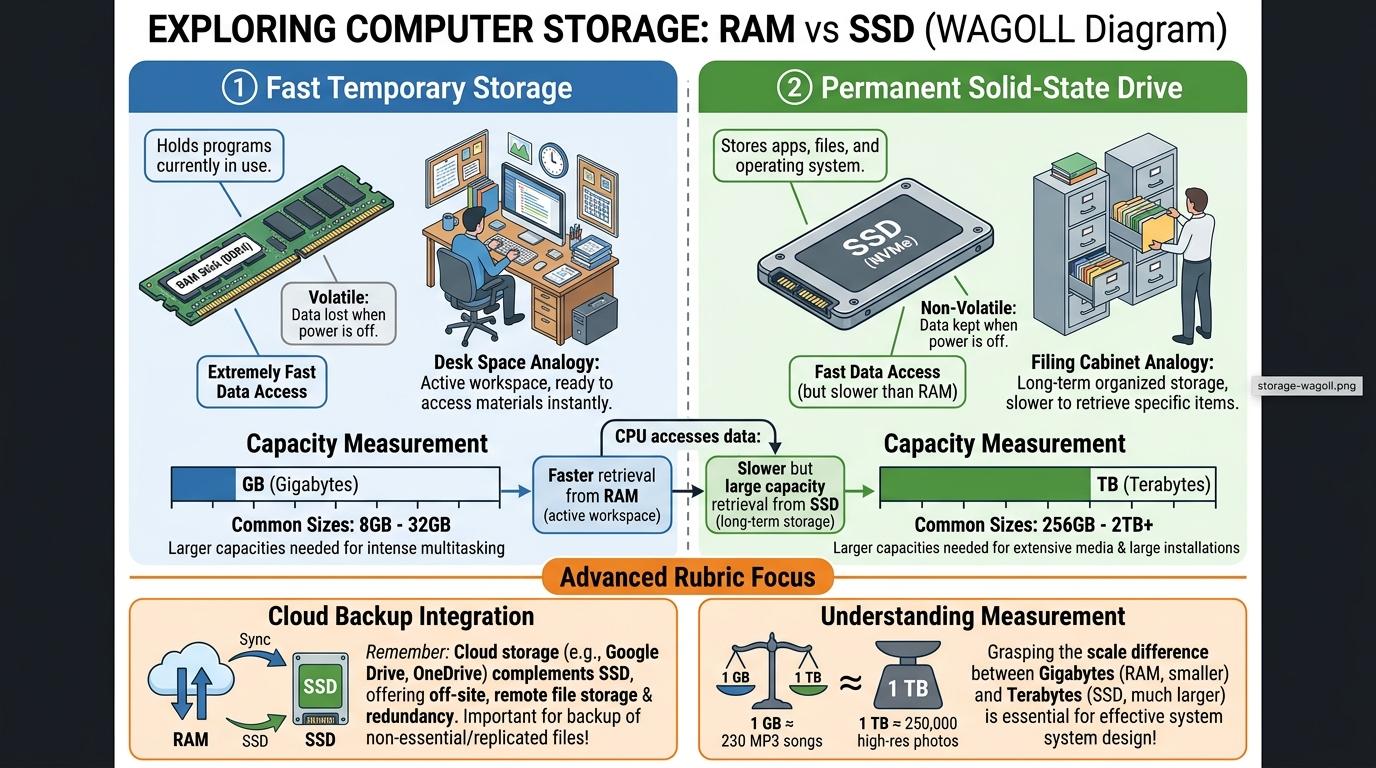
Computers use two main types of memory. RAM (Random Access Memory) is super-fast, volatile memory—like your active school desk where open apps sit. When power cuts, RAM clears completely! Persistent storage (SSD, HDD, ROM) is non-volatile—like a metal filing cabinet that holds your files permanently even when turned off.
Extension (.ext)
MATCH
File Purpose & Icon
Apply Simulator Skills • Try it yourself
Memory & Storage Audit
🚀 Open a practice space
🌟 Student Project GuideSuccess Criteria & WAGOLL (What A Good One Looks Like)
🎯 Task Success Criteria (Rubric)
Foundation
Confuses RAM capacity with hard drive storage space.
Developing
States that RAM is temporary and hard drives are permanent, but cannot explain volatility.
Secure (Goal)
Clearly contrasts volatile RAM (fast active desk) with non-volatile SSD/HDD (permanent filing cabinet).
Mastery
Analyzes how insufficient RAM leads to system lagging and page file swapping on persistent storage.
👀 What A Good One Looks Like (WAGOLL)
Exemplar of 2
⭐ Mastering Standard⭐ Mastering Standard📁
Save to Your Website Portfolio:
When you finish creating your project in your software, copy the share link or take a screenshot and publish it onto your student portfolio website!
Reflect
Learning check
Teacher setup, curriculum links and progress descriptors
Spark support
Routine: Connect Extend Challenge
Teacher notes: Facilitate the Connect Extend Challenge routine for 2–3 minutes. Encourage students to connect the prompt to Perspective (Computer architecture relies on complementary volatile memory for speed and non-volatile storage for permanence.).
Achievement pathway
- Foundation: Confuses RAM capacity with hard drive storage space.
- Developing: States that RAM is temporary and hard drives are permanent, but cannot explain volatility.
- Secure: Clearly contrasts volatile RAM (fast active desk) with non-volatile SSD/HDD (permanent filing cabinet).
- Mastering: Analyzes how insufficient RAM leads to system lagging and page file swapping on persistent storage.
Curriculum links
Curriculum strand: CM.03.B.1.1
Outcome: STOR.Y5.05 — Differentiate between volatile temporary RAM and non-volatile persistent storage (ROM, SSD, HDD).
PYP: Perspective · Computer architecture relies on complementary volatile memory for speed and non-volatile storage for permanence.
Learner profile: Knowledgeable
Competency tags
Gate support
Accessibility alternative: Students may verbally explain or point to the correct answer for "What makes RAM "volatile" memory?" with a teacher or teaching assistant.
Teacher override: allow
Locked level
Level 6: Backups & Redundancy
Complete the previous learning check to unlock this next level.
Backups & Redundancy
Design robust 3-2-1 backup strategies to protect critical digital work against hardware failure and data corruption.
Learning objective
Formulate and apply a 3-2-1 backup strategy (3 copies, 2 different media types, 1 offsite/cloud copy) to safeguard digital projects.
Let's Go!
Routine: 3-2-1 Bridge
If your laptop was dropped in a lake right now, where are your files saved?
How many survive?
Teacher note: Facilitate the 3-2-1 Bridge routine for 2–3 minutes. Encourage students to connect the prompt to Reflection (Data preservation requires planned backup redundancy and file integrity verification to prevent catastrophic loss.).
Learn
Hardware fails, devices get lost, and files can become corrupted. Professional computer users follow the 3-2-1 Backup Rule: Keep 3 total copies of important work, stored on 2 different media types (e.g. internal SSD + external drive), with 1 copy kept offsite in cloud storage. If one drive dies, your work is 100% safe!
Client PC
192.168.1.42
1 Gbps
Gateway Router
192.168.1.1
WAN Fiber
DNS Resolver
8.8.8.8
Cloud Web Server
104.22.45.9
Classroom Device Network Linking
Click the buttons below to establish network connections between classroom hardware:
📦 Wire-Level Packet Dissector
Inspect the protocol headers and data payload inside a captured network frame:
Ethernet II
Source MAC: 00:1A:2B:3C:4D:5E ➔ Dest MAC: 00:1A:2B:99:88:77Internet Protocol v4
Src IP: 192.168.1.42 ➔ Dst IP: 104.22.45.9 (TTL: 64)Transmission Control Protocol
Src Port: 52140 ➔ Dst Port: 443 (HTTPS), Seq: 1001, ACK: 1Encrypted TLS 1.3 Payload (1420 bytes):
7f a4 3c e8 91 2b 44 8a c9 e1 0f 42 88 bc 19 33
00 48 21 fb de ad be ef 12 34 56 78 9a bc de f0
[Encrypted Application Data Scrambled via AES-256-GCM]
🧭 Network Protocol Quick Reference
DNS (Port 53)Translates URLs (names) to numerical IP addresses.
HTTP vs HTTPS (Ports 80 / 443)HTTP is unencrypted plain text; HTTPS encrypts data with TLS certificates.
TCP vs UDPTCP guarantees packet delivery with ACKs; UDP sends faster without resending lost packets.
Apply Simulator Skills • Try it yourself
3-2-1 Backup Plan
🚀 Open a practice space
🌟 Student Project GuideSuccess Criteria & WAGOLL (What A Good One Looks Like)
🎯 Task Success Criteria (Rubric)
Foundation
Relies on a single file copy and risks data loss if the device breaks.
Developing
Creates manual duplicate files on a USB drive occasionally but lacks a structured schedule.
Secure (Goal)
Designs and executes a 3-2-1 backup plan with automated cloud backups and external drive snapshots.
Mastery
Tests file recovery procedures and verifies data integrity checksums to ensure backups are uncorrupted.
👀 What A Good One Looks Like (WAGOLL)
Exemplar of 2
⭐ Mastering Standard⭐ Mastering Standard📁
Save to Your Website Portfolio:
When you finish creating your project in your software, copy the share link or take a screenshot and publish it onto your student portfolio website!
Reflect
Learning check
Teacher setup, curriculum links and progress descriptors
Spark support
Routine: 3-2-1 Bridge
Teacher notes: Facilitate the 3-2-1 Bridge routine for 2–3 minutes. Encourage students to connect the prompt to Reflection (Data preservation requires planned backup redundancy and file integrity verification to prevent catastrophic loss.).
Achievement pathway
- Foundation: Relies on a single file copy and risks data loss if the device breaks.
- Developing: Creates manual duplicate files on a USB drive occasionally but lacks a structured schedule.
- Secure: Designs and executes a 3-2-1 backup plan with automated cloud backups and external drive snapshots.
- Mastering: Tests file recovery procedures and verifies data integrity checksums to ensure backups are uncorrupted.
Curriculum links
Curriculum strand: CM.03.B.1.1
Outcome: STOR.Y6.06 — Design robust 3-2-1 backup strategies to protect critical digital work against hardware failure and data corruption.
PYP: Reflection · Data preservation requires planned backup redundancy and file integrity verification to prevent catastrophic loss.
Learner profile: Reflective
Competency tags
Gate support
Accessibility alternative: Students may verbally explain or point to the correct answer for "In the 3-2-1 backup rule, what does the "1" represent?" with a teacher or teaching assistant.
Teacher override: allow