
Image creation & editing

Digital Images

1
2
3
4
5
6

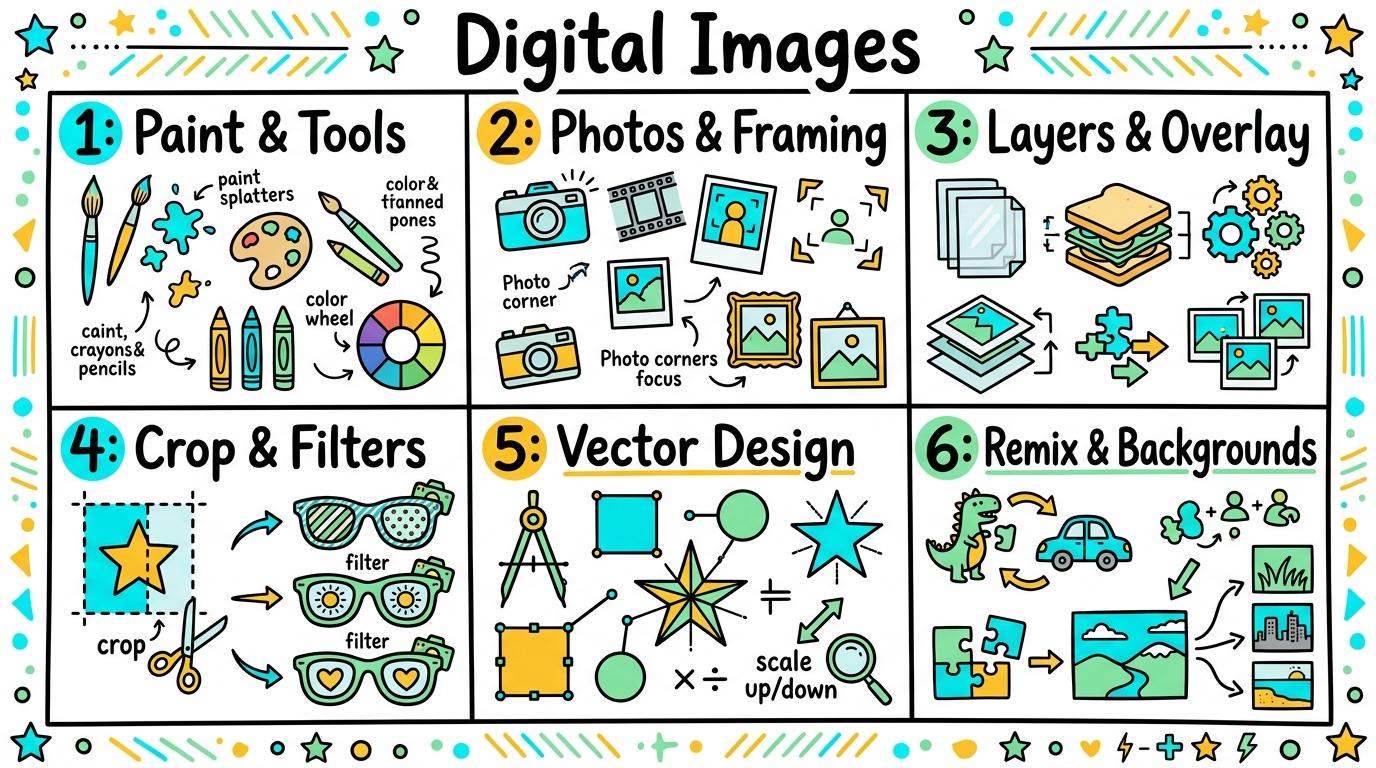
Welcome to Digital Images! In this strand, you will master creating digital art, capturing photos, using layers, editing pictures, designing vector graphics, and ethical media remixing.

Level 1

Paint & Tools

Digital painting and basic art tools.

Learning objective

Learning About: Painting. Learning To: Digital art. Learning To Be: Inquirer.

Let's Go!

Step media

Learn

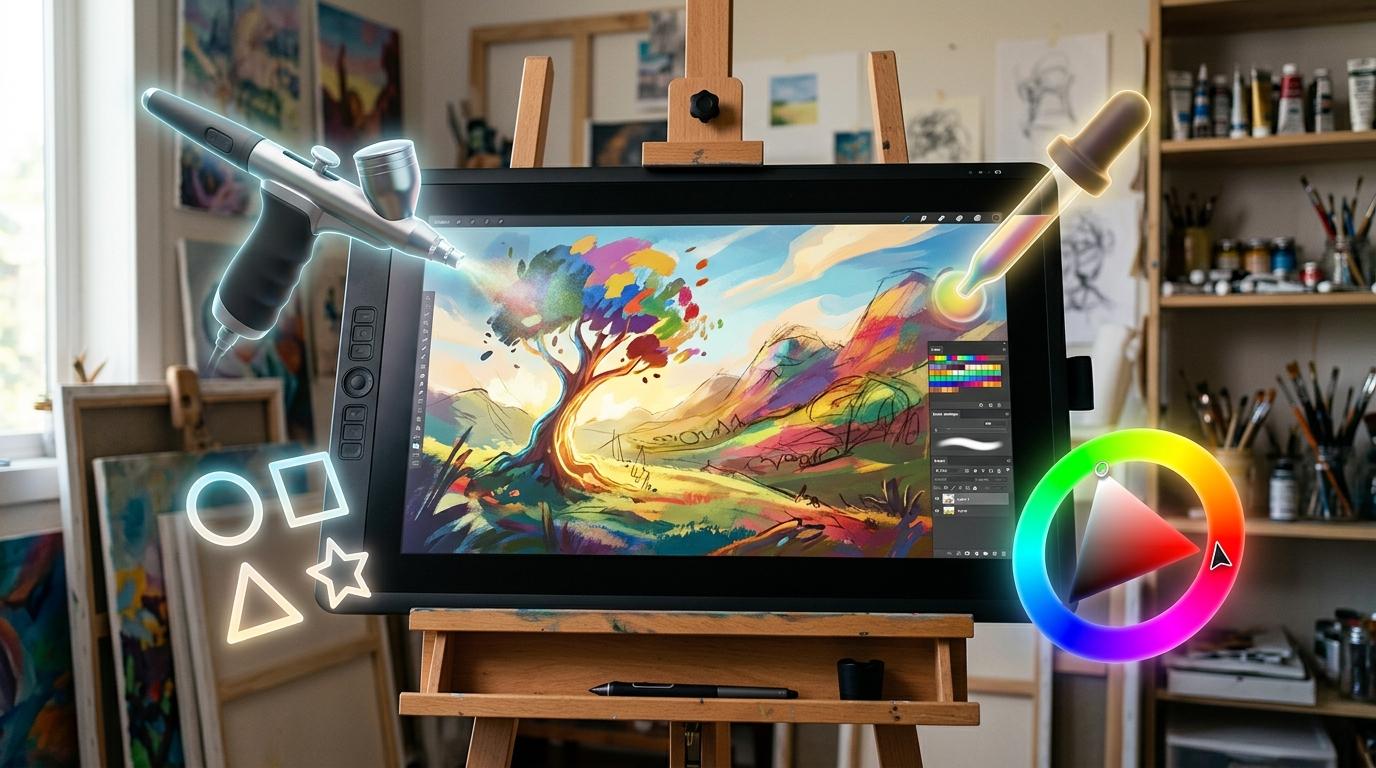
Digital painting software gives you an endless canvas! You can choose different brush textures, change colors instantly, and undo mistakes without wasting paper. In computing, expression takes many forms through creative technology. As you explore the interactive Drawing Layers Simulator below, focus on how to change art with a filter.

Interactive Simulator Sandbox
Curriculum:Step 1 โ€ข Bronze Tier
๐Ÿ“„
Step 1 โ€ข Bronze (Level 1): Page Balance - Text & Image Placement

Place text and one image on a digital page without overlapping elements.

In Progress

ECO-GUARDIANS NEWSLETTER

Issue 4: Protecting Urban Biodiversity

Urban biodiversity creates resilient community ecosystems. Local parks provide vital stopping points for migratory birds and pollinating native bees.

๐Ÿ๐ŸŒธ
Native Honeybee on Clover

Planting micro-gardens with perennial wildflowers restores nectar corridors along city streets.
Layers & Stacking Order

4 Elements
100%
๐Ÿท๏ธTitle Hierarchy (H1)
๐Ÿ–ผ๏ธPollinator Graphic Image
๐Ÿ“ฐ2-Column Body Article
๐Ÿ’กCallout Box & Footer
Design Pro-Tip:

Maintain comfortable breathing space (margins) so eye movement flows naturally across the headline.

Apply Simulator Skills โ€ข Try it yourself

Paint your first digital artwork

๐Ÿ”„Direct Simulator Transfer: Step 1 Tasks 1, 2 & 3

Now that you've practiced the virtual mechanics in the simulator above, apply those exact skills in your real computer environment:

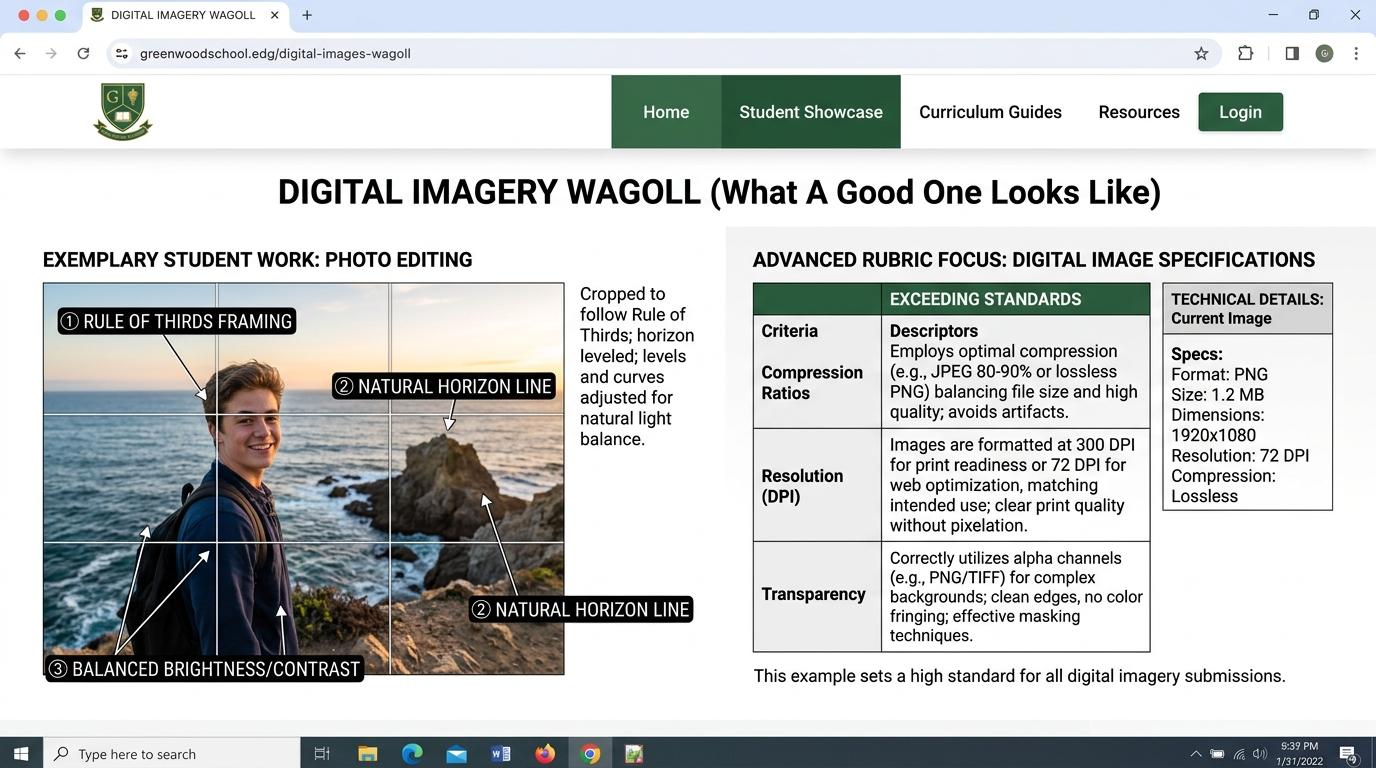
๐ŸŒŸ Student Project GuideSuccess Criteria & WAGOLL (What A Good One Looks Like)โ–พ

๐ŸŽฏ Task Success Criteria (Rubric)

Foundation

Use digital painting tool.

Developing

Select brush size/colour.

Secure (Goal)

Change art with a filter.

Mastery

Compare paper vs digital art.

๐Ÿ‘€ What A Good One Looks Like (WAGOLL)

๐Ÿ“
Save to Your Website Portfolio:

When you finish creating your project in your software, copy the share link or take a screenshot and publish it onto your student portfolio website!

Reflect

๐ŸŽฏ

Self-Assessment & Reflection

How did changing brush sizes and colors help you express your artistic ideas?

๐ŸŸขSecure Level

Change art with a filter.

Learning check

Learning Check

Which tool icon is used to fill a whole shape with color instantly in a paint app?

Select the matching icon or option below:

Answer correctly to unlock the next level.

Great โ€” the paint bucket fills enclosed shapes with color instantly!Look closely at the icons โ€” which one looks like a bucket of paint tipping over?
Teacher setup, curriculum links and progress descriptors

Spark support

Routine: See, Think, Wonder

Teacher notes: Facilitate the See, Think, Wonder routine for 2โ€“3 minutes. Encourage students to connect the prompt to Form (Expression takes many forms through creative technology.).

Achievement pathway

  • Foundation: Use digital painting tool.
  • Developing: Select brush size/colour.
  • Secure: Change art with a filter.
  • Mastering: Compare paper vs digital art.

Curriculum links

Curriculum strand: LC.01.B.3.6

Outcome: IMG-O-01 โ€” Digital painting and basic art tools.

PYP: Form ยท Expression takes many forms through creative technology.

Learner profile: Inquirer

Competency tags

  • digital-art
  • painting
  • creative-expression

Gate support

Accessibility alternative: Students may verbally explain or point to the correct answer for "Which tool icon is used to fill a whole shape with color instantly in a paint app?" with a teacher or teaching assistant.

Teacher override: allow

Back to top

Locked level

Level 2: Photos & Framing

Complete the previous learning check to unlock this next level.

Level 2

Photos & Framing

Digital photography and framing composition.

Learning objective

Learning About: Photography. Learning To: Frame shots. Learning To Be: Communicator.

Let's Go!

Step media

Learn

Taking great digital photos requires good framing and steady focus. Holding your camera steady, using natural light, and keeping subject in focus makes your pictures clear and engaging. In computing, visual images communicate messages across languages. As you explore the interactive Screenshot Simulator below, focus on how to create content for purpose.

Interactive Simulator Sandbox
Curriculum:Step 2 โ€ข Bronze Tier
๐Ÿ“ธ
Step 1 โ€ข Bronze (Level 1): Locate Print Screen Key

Locate the PrtScn / Print Screen key on the virtual keyboard to capture everything currently shown on display.

Capture Mode:Fullscreen Snip
โŒจ๏ธ Shortcut: PrtScn or Win + Shift + S
Ready to Capture
Markup Tools:
๐Ÿ“Science Project
๐ŸŒSchool Browser
๐Ÿ—‘๏ธRecycle Bin
๐Ÿถ Pet Explorer - Golden Retriever Profile
๐Ÿ•Educational Resource

Golden Retriever Puppy

Loyal, gentle family dog known for intelligence and playful temperament.

Owner ID: Sarah_Smith_Room12 (Confidential Data)
๐Ÿ“„ Student Science Report (Pastepad)
Click 'Ctrl+V Paste Snip' or press Ctrl+V to attach captured screenshot into your document.

Apply Simulator Skills โ€ข Try it yourself

Capture and insert a photo

๐Ÿ”„Direct Simulator Transfer: Step 2 Tasks 4, 5 & 6

Now that you've practiced the virtual mechanics in the simulator above, apply those exact skills in your real computer environment:

๐ŸŒŸ Student Project GuideSuccess Criteria & WAGOLL (What A Good One Looks Like)โ–พ

๐ŸŽฏ Task Success Criteria (Rubric)

Foundation

Take a digital photo.

Developing

Resize image in document.

Secure (Goal)

Create content for purpose.

Mastery

Evaluate image suitability.

๐Ÿ‘€ What A Good One Looks Like (WAGOLL)

๐Ÿ“
Save to Your Website Portfolio:

When you finish creating your project in your software, copy the share link or take a screenshot and publish it onto your student portfolio website!

Reflect

๐ŸŽฏ

Self-Assessment & Reflection

What made the biggest difference in making your photograph clear and well-framed?

๐ŸŸขSecure Level

Create content for purpose.

Learning check

Learning Check

What is the best way to avoid blurry photos when taking a digital picture?

Choose the correct answer below.

Answer correctly to unlock the next level.

Correct! Keeping the device steady and tapping the subject focuses the lens clearly.Think about what causes blurriness โ€” shaking or moving the camera while taking the shot!
Teacher setup, curriculum links and progress descriptors

Spark support

Routine: Zoom In

Teacher notes: Facilitate the Zoom In routine for 2โ€“3 minutes. Encourage students to connect the prompt to Function (Visual images communicate messages across languages.).

Achievement pathway

  • Foundation: Take a digital photo.
  • Developing: Resize image in document.
  • Secure: Create content for purpose.
  • Mastering: Evaluate image suitability.

Curriculum links

Curriculum strand: CM.01.B.1.2

Outcome: IMG-O-02 โ€” Digital photography and framing composition.

PYP: Function ยท Visual images communicate messages across languages.

Learner profile: Communicator

Competency tags

  • digital-photography
  • framing
  • camera-skills

Gate support

Accessibility alternative: Students may verbally explain or point to the correct answer for "What is the best way to avoid blurry photos when taking a digital picture?" with a teacher or teaching assistant.

Teacher override: allow

Back to top

Locked level

Level 3: Layers & Overlay

Complete the previous learning check to unlock this next level.

Level 3

Layers & Overlay

Layering, text overlay, and composite images.

Learning objective

Learning About: Layers. Learning To: Combine graphics. Learning To Be: Thinker.

Let's Go!

Step media

Learn

Layers work like transparent sheets stacked on top of each other! You can edit a background photo on Layer 1 while adding drawings or titles on Layer 2 without ruining the photo underneath. In computing, combining media layers creates richer visual storytelling. As you explore the interactive File Extension Simulator below, focus on how to create conceptual meme/poster.

Interactive Simulator Sandbox
Curriculum:Step 3 โ€ข Bronze Tier
๐Ÿงฉ
Step 1 โ€ข Bronze (Level 1): Text & Pictures

Match each file extension on the left with its correct media category on the right.

Extension (.ext)

MATCH

File Purpose & Icon

Apply Simulator Skills โ€ข Try it yourself

Build a multi-layer composite image

๐Ÿ”„Direct Simulator Transfer: Step 3 Tasks 7, 8 & 9

Now that you've practiced the virtual mechanics in the simulator above, apply those exact skills in your real computer environment:

๐ŸŒŸ Student Project GuideSuccess Criteria & WAGOLL (What A Good One Looks Like)โ–พ

๐ŸŽฏ Task Success Criteria (Rubric)

Foundation

Create simple Drawing.

Developing

Place text over image.

Secure (Goal)

Create conceptual meme/poster.

Mastery

Describe layer usage.

๐Ÿ‘€ What A Good One Looks Like (WAGOLL)

๐Ÿ“
Save to Your Website Portfolio:

When you finish creating your project in your software, copy the share link or take a screenshot and publish it onto your student portfolio website!

Reflect

๐ŸŽฏ

Self-Assessment & Reflection

Why is working with layers easier than drawing directly on top of a background photo?

๐ŸŸขSecure Level

Create conceptual meme/poster.

Learning check

Learning Check

If you want text to appear on top of a photo background in Google Drawings or Canva, which layer should the text be on?

Choose the best option.

Answer correctly to unlock the next level.

Correct! Layers on top stack over layers underneath, keeping text clearly visible.Think about stacked sheets of paper โ€” the sheet on top is what you see first!
Teacher setup, curriculum links and progress descriptors

Spark support

Routine: Think, Puzzle, Explore

Teacher notes: Facilitate the Think, Puzzle, Explore routine for 2โ€“3 minutes. Encourage students to connect the prompt to Connection (Combining media layers creates richer visual storytelling.).

Achievement pathway

  • Foundation: Create simple Drawing.
  • Developing: Place text over image.
  • Secure: Create conceptual meme/poster.
  • Mastering: Describe layer usage.

Curriculum links

Curriculum strand: LC.02.B.3.6

Outcome: IMG-O-03 โ€” Layering, text overlay, and composite images.

PYP: Connection ยท Combining media layers creates richer visual storytelling.

Learner profile: Thinker

Competency tags

  • layers
  • graphic-design
  • composite-images

Gate support

Accessibility alternative: Students may verbally explain or point to the correct answer for "If you want text to appear on top of a photo background in Google Drawings or Canva, which layer should the text be on?" with a teacher or teaching assistant.

Teacher override: allow

Back to top

Locked level

Level 4: Crop & Filters

Complete the previous learning check to unlock this next level.

Level 4

Crop & Filters

Cropping, aspect ratio, and non-destructive filtering.

Learning objective

Learning About: Image Editing. Learning To: Crop & filter. Learning To Be: Principled.

Let's Go!

Step media

Learn

Editing photos allows you to refine your message. Cropping removes unwanted background distractions, while adjusting brightness, contrast, or filters changes the mood and tone of your image. In computing, modifying digital artifacts changes their tone and message. As you explore the interactive Generative AI Simulator below, focus on how to edit based on feedback.

Interactive Simulator Sandbox
Curriculum:Step 4 โ€ข Bronze Tier
โœจ
Step 1 โ€ข Bronze (Level 1): AI vs Human Creativity - Automated Generation

Recognizes that computers can make pictures and text automatically.

In Progress
TOKEN COUNT0 TOKENS
DENOISING STEPS25 STEPS
SAMPLER MODEEULER-A
SYNTHESIS CONFIDENCE98.4%
๐ŸŽ›๏ธ Generative Controls RackSelect components below to configure generation:
SYSTEM STANDBY
๐ŸงชSynthesis & Inquiry Actions
Evaluate the output and choose the correct step:

Apply Simulator Skills โ€ข Try it yourself

Crop and filter a photo

๐Ÿ”„Direct Simulator Transfer: Step 4 Tasks 10, 11 & 12

Now that you've practiced the virtual mechanics in the simulator above, apply those exact skills in your real computer environment:

๐ŸŒŸ Student Project GuideSuccess Criteria & WAGOLL (What A Good One Looks Like)โ–พ

๐ŸŽฏ Task Success Criteria (Rubric)

Foundation

Crop an image.

Developing

Apply simple photo filters.

Secure (Goal)

Edit based on feedback.

Mastery

Use copyright-free pics.

๐Ÿ‘€ What A Good One Looks Like (WAGOLL)

๐Ÿ“
Save to Your Website Portfolio:

When you finish creating your project in your software, copy the share link or take a screenshot and publish it onto your student portfolio website!

Reflect

๐ŸŽฏ

Self-Assessment & Reflection

How did cropping the photo improve its focus and impact for the reader?

๐ŸŸขSecure Level

Edit based on feedback.

Learning check

Learning Check

What does the 'Crop' tool do to an image?

Select the correct definition.

Answer correctly to unlock the next level.

Correct! Cropping trims away outer edges to focus on the key subject.Think about taking a pair of digital scissors to trim around the main object!
Teacher setup, curriculum links and progress descriptors

Spark support

Routine: See, Think, Wonder

Teacher notes: Facilitate the See, Think, Wonder routine for 2โ€“3 minutes. Encourage students to connect the prompt to Change (Modifying digital artifacts changes their tone and message.).

Achievement pathway

  • Foundation: Crop an image.
  • Developing: Apply simple photo filters.
  • Secure: Edit based on feedback.
  • Mastering: Use copyright-free pics.

Curriculum links

Curriculum strand: CM.02.B.1.1

Outcome: IMG-O-04 โ€” Cropping, aspect ratio, and non-destructive filtering.

PYP: Change ยท Modifying digital artifacts changes their tone and message.

Learner profile: Principled

Competency tags

  • image-editing
  • cropping
  • photo-filters

Gate support

Accessibility alternative: Students may verbally explain or point to the correct answer for "What does the 'Crop' tool do to an image?" with a teacher or teaching assistant.

Teacher override: allow

Back to top

Locked level

Level 5: Vector Design

Complete the previous learning check to unlock this next level.

Level 5

Vector Design

Vector graphics, resizable paths, and object grouping.

Learning objective

Learning About: Vector Art. Learning To: Draw paths & shapes. Learning To Be: Knowledgeable.

Let's Go!

Step media

Learn

Vector design software uses shapes (rectangles, circles, curves) that can be grouped, reordered, aligned, and scaled endlessly without losing quality. In computing, vector shapes allow resolution-independent graphic design. As you explore the interactive Drawing Layers Simulator below, focus on how to create layered vector graphic.

Interactive Simulator Sandbox
Curriculum:Step 5 โ€ข Bronze Tier
๐Ÿ“„
Step 1 โ€ข Bronze (Level 1): Page Balance - Text & Image Placement

Place text and one image on a digital page without overlapping elements.

In Progress

ECO-GUARDIANS NEWSLETTER

Issue 4: Protecting Urban Biodiversity

Urban biodiversity creates resilient community ecosystems. Local parks provide vital stopping points for migratory birds and pollinating native bees.

๐Ÿ๐ŸŒธ
Native Honeybee on Clover

Planting micro-gardens with perennial wildflowers restores nectar corridors along city streets.
Layers & Stacking Order

4 Elements
100%
๐Ÿท๏ธTitle Hierarchy (H1)
๐Ÿ–ผ๏ธPollinator Graphic Image
๐Ÿ“ฐ2-Column Body Article
๐Ÿ’กCallout Box & Footer
Design Pro-Tip:

Maintain comfortable breathing space (margins) so eye movement flows naturally across the headline.

Apply Simulator Skills โ€ข Try it yourself

Design a multi-shape vector icon

๐Ÿ”„Direct Simulator Transfer: Step 5 Tasks 13, 14 & 15

Now that you've practiced the virtual mechanics in the simulator above, apply those exact skills in your real computer environment:

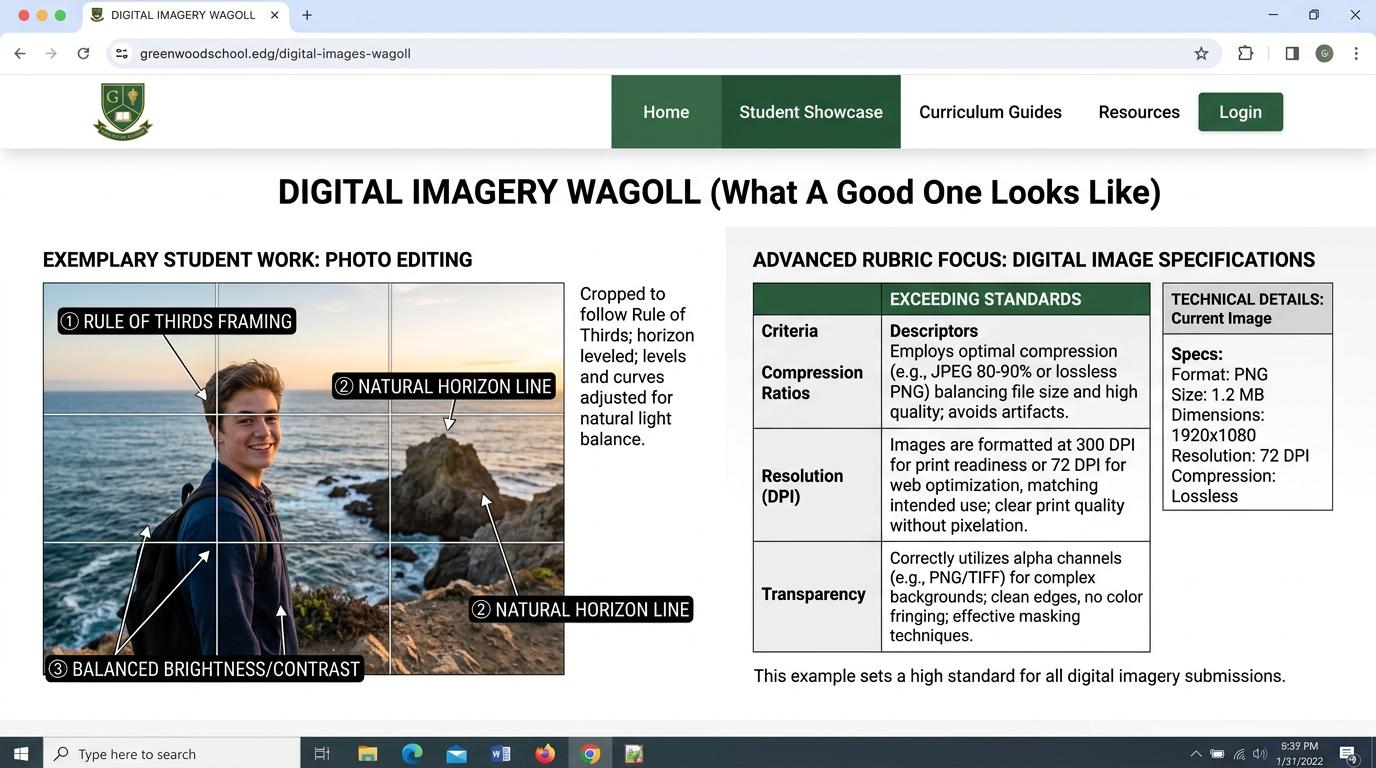
๐ŸŒŸ Student Project GuideSuccess Criteria & WAGOLL (What A Good One Looks Like)โ–พ

๐ŸŽฏ Task Success Criteria (Rubric)

Foundation

Use AutoDraw/vector icons.

Developing

Group multiple objects.

Secure (Goal)

Create layered vector graphic.

Mastery

Evaluate audience impact.

๐Ÿ‘€ What A Good One Looks Like (WAGOLL)

๐Ÿ“
Save to Your Website Portfolio:

When you finish creating your project in your software, copy the share link or take a screenshot and publish it onto your student portfolio website!

Reflect

๐ŸŽฏ

Self-Assessment & Reflection

What is the key advantage of vector graphics when scaling up an icon for a large poster?

๐ŸŸขSecure Level

Create layered vector graphic.

Learning check

Learning Check

Why do vector graphics stay sharp and clean even when enlarged to the size of a billboard?

Choose the best option.

Answer correctly to unlock the next level.

Correct! Vector math recalculates paths instantly so graphics never pixelate when enlarged.Think about the difference between a grid of tiny color squares vs exact mathematical geometric shapes!
Teacher setup, curriculum links and progress descriptors

Spark support

Routine: BeforeAfterSlider

Teacher notes: Facilitate the BeforeAfterSlider routine for 2โ€“3 minutes. Encourage students to connect the prompt to Perspective (Vector shapes allow resolution-independent graphic design.).

Achievement pathway

  • Foundation: Use AutoDraw/vector icons.
  • Developing: Group multiple objects.
  • Secure: Create layered vector graphic.
  • Mastering: Evaluate audience impact.

Curriculum links

Curriculum strand: CM.03.B.1.1

Outcome: IMG-O-05 โ€” Vector graphics, resizable paths, and object grouping.

PYP: Perspective ยท Vector shapes allow resolution-independent graphic design.

Learner profile: Knowledgeable

Competency tags

  • vector-graphics
  • shapes
  • autodraw
  • grouping

Gate support

Accessibility alternative: Students may verbally explain or point to the correct answer for "Why do vector graphics stay sharp and clean even when enlarged to the size of a billboard?" with a teacher or teaching assistant.

Teacher override: allow

Back to top

Locked level

Level 6: Remix & Backgrounds

Complete the previous learning check to unlock this next level.

Level 6

Remix & Backgrounds

Background removal, media remixing, and ethical attribution.

Learning objective

Learning About: Media Remix. Learning To: Remove backgrounds & blend. Learning To Be: Reflective.

Let's Go!

Step media

Learn

Modern AI tools can instantly erase image backgrounds. Combining subjects from different photos allows you to create imaginative original compositions โ€” while properly citing your sources! In computing, creative remixing requires technical skill and ethical respect for creators. As you explore the interactive Save Dialog Simulator below, focus on how to remix for original art.

Interactive Simulator Sandbox
Curriculum:Step 6 โ€ข Bronze Tier
๐Ÿ’พ
Step 1 โ€ข Bronze (Level 1): New Projects & First Save

Type a clear name in the "File name" box and click Save to store it on the Desktop.

๐Ÿ’พSave As...
โš ๏ธ Type a file name

Apply Simulator Skills โ€ข Try it yourself

Create an ethical media remix poster

๐Ÿ”„Direct Simulator Transfer: Step 6 Tasks 16, 17 & 18

Now that you've practiced the virtual mechanics in the simulator above, apply those exact skills in your real computer environment:

๐ŸŒŸ Student Project GuideSuccess Criteria & WAGOLL (What A Good One Looks Like)โ–พ

๐ŸŽฏ Task Success Criteria (Rubric)

Foundation

Remove photo background.

Developing

Use advanced removal tools.

Secure (Goal)

Remix for original art.

Mastery

Justify design choices & license.

๐Ÿ‘€ What A Good One Looks Like (WAGOLL)

๐Ÿ“
Save to Your Website Portfolio:

When you finish creating your project in your software, copy the share link or take a screenshot and publish it onto your student portfolio website!

Reflect

๐ŸŽฏ

Self-Assessment & Reflection

How did removing the background help you blend different image sources into a unified artwork?

๐ŸŸขSecure Level

Remix for original art.

Learning check

Learning Check

When you use a Creative Commons image in your digital artwork remix, what must you always include?

Select the ethical choice below.

Answer correctly to complete this strand.

Correct! Attribution honors the original creator's work and follows Creative Commons licensing rules.Think about digital citizenship โ€” giving credit where credit is due!
Teacher setup, curriculum links and progress descriptors

Spark support

Routine: Step Inside

Teacher notes: Facilitate the Step Inside routine for 2โ€“3 minutes. Encourage students to connect the prompt to Reflection (Creative remixing requires technical skill and ethical respect for creators.).

Achievement pathway

  • Foundation: Remove photo background.
  • Developing: Use advanced removal tools.
  • Secure: Remix for original art.
  • Mastering: Justify design choices & license.

Curriculum links

Curriculum strand: CM.03.B.1.1

Outcome: IMG-O-06 โ€” Background removal, media remixing, and ethical attribution.

PYP: Reflection ยท Creative remixing requires technical skill and ethical respect for creators.

Learner profile: Reflective

Competency tags

  • background-removal
  • media-remix
  • copyright
  • creative-commons

Gate support

Accessibility alternative: Students may verbally explain or point to the correct answer for "When you use a Creative Commons image in your digital artwork remix, what must you always include?" with a teacher or teaching assistant.

Teacher override: allow

๐ŸŽ’ Students Home โ†’

Install App for Classroom

One-click fullscreen learning for Chromebooks, iPads & PCs

๐Ÿ–ฅ๏ธ
Distraction-FreeFullscreen window without browser tabs or search clutter.
โšก
1-Tap LaunchPin directly to the Chromebook shelf, iPad dock, or Windows taskbar.
๐Ÿ“ถ
Classroom SpeedInstant cached loads for lessons and simulators even on school Wi-Fi.
๐Ÿ”’
Safe & Ad-Free100% free, private, and no app store logins or passwords needed.
  1. 1
    Click the Install button

    In your browser, look at the right end of the top web address bar for the ๐Ÿ’ป Install or โค“ icon.

  2. 2
    Confirm "Install"

    A popup will ask if you want to install "Ed Tech Hub". Click Install.

  3. 3
    Pin to your Shelf

    Right-click (or two-finger tap) the app icon in your Chromebook bottom shelf and select "Pin"!