
Learning objective
Digital Music
Digital Music
1
2
3
4
5
6
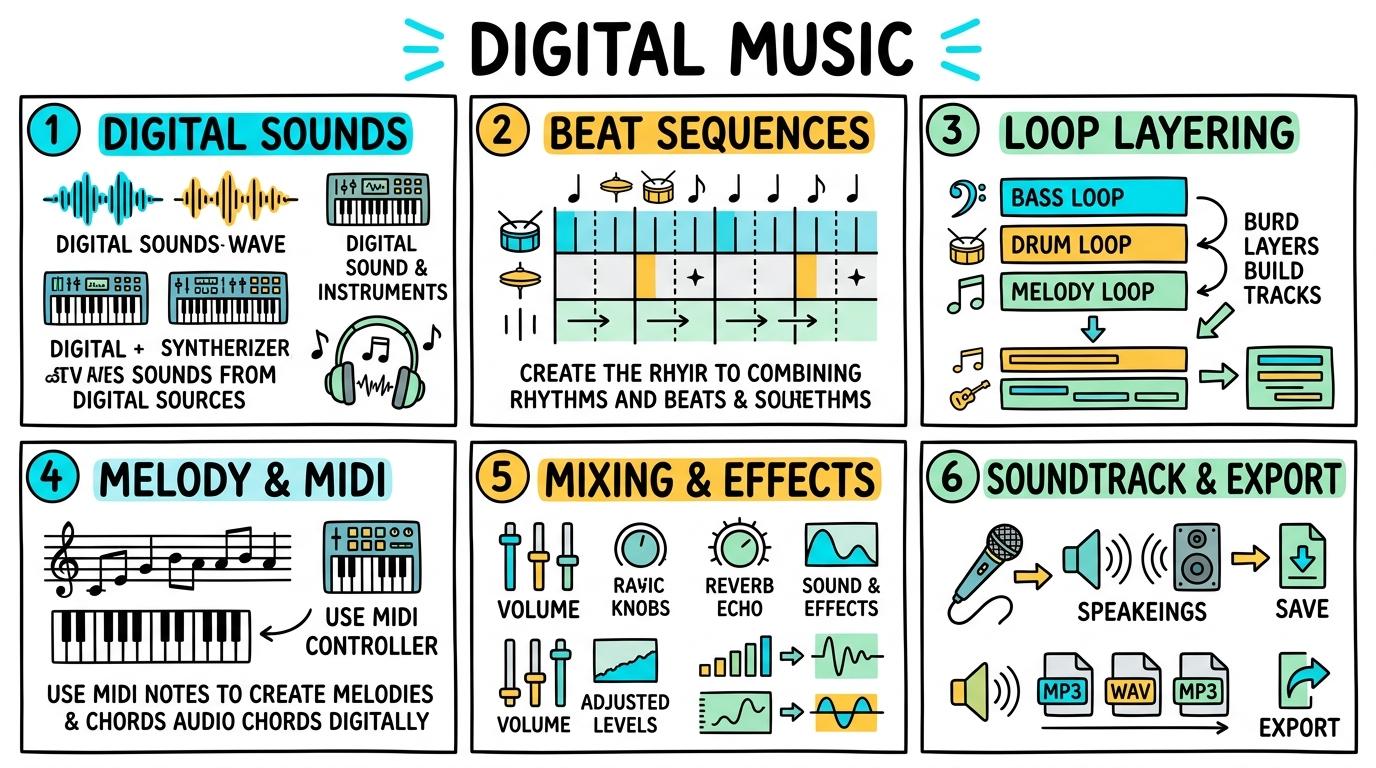
Explore digital audio creation, loop sequencing, virtual instruments, beat making, audio effects, and multi-track arrangement from Y1 to Y6.
Digital Sounds
Explore digital sound pads, virtual instruments, and sound playback.
Let's Go!
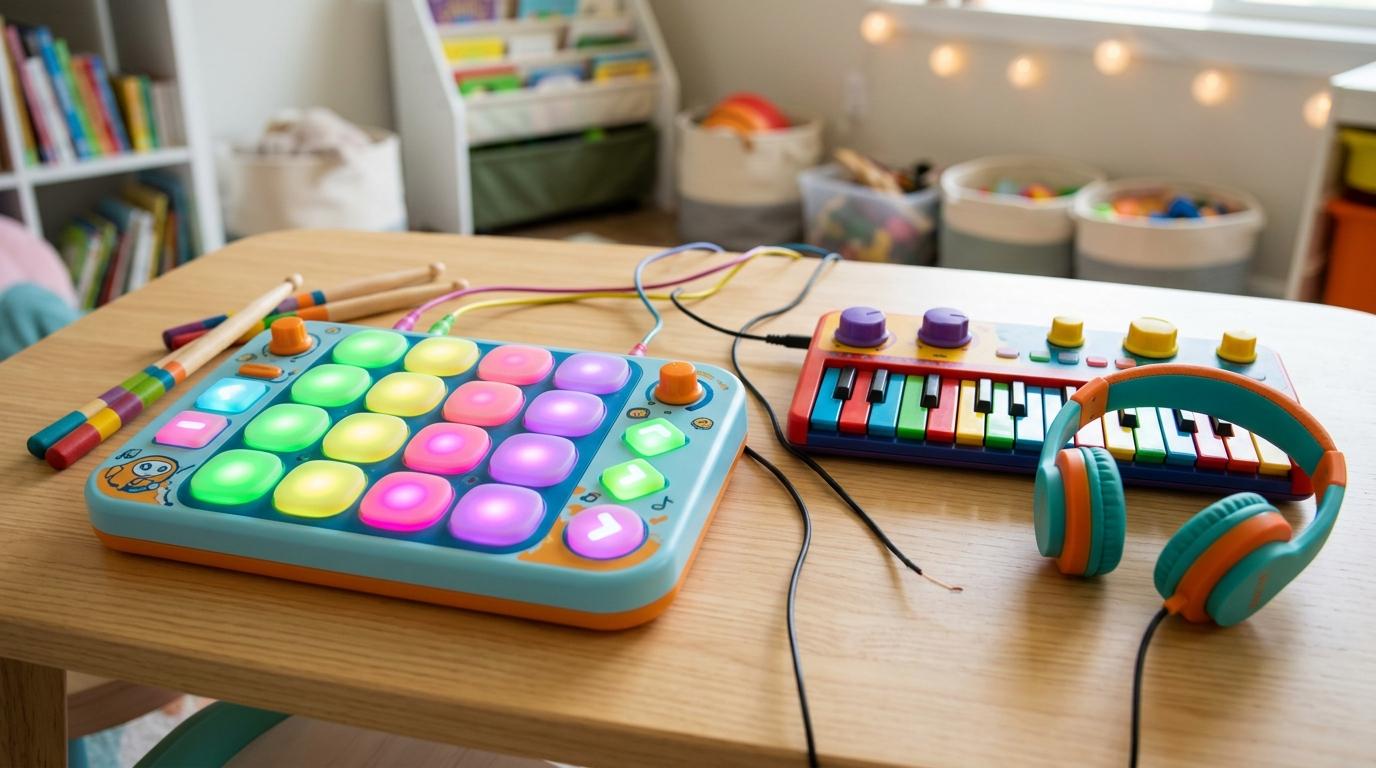
Routine: See Think Wonder
Tap the digital drum pad and piano key. How do digital sound controls differ from physical instruments?
Teacher note: Facilitate the See Think Wonder routine for 2–3 minutes. Encourage students to connect the prompt to Form (Digital technology provides creative tools to explore sound, rhythm, and expression.).
Learn
Digital music software lets us play virtual instruments on screens or keyboards. Tapping sound pads or keys triggers digital audio samples. In computing, digital technology provides creative tools to explore sound, rhythm, and expression. As you explore the interactive Audio Soundboard Simulator below, focus on how to taps digital sound pads and keys in rhythm to create simple sound sequences.
Track 1: Drums & 8-Beat GridKick, Snare, Hi-Hat
Vol: 80%
Pan: C
Track 2: Synth Bass LineLow-end Sub & Groove
Vol: 70%
Pan: C
Track 3: Melody & MIDI Piano RollChords, Arps & Quantize
🎹 Click keys above to record melody notes
Vol: 85%
Pan: R20
Track 4: Voice Note & Foley FXHost Narration & SFX Ambience
Mic Standby (15cm Distance Recommended)
Vol: 90%
Pan: L15
Apply Simulator Skills • Try it yourself
Explore Sound Pads
🚀 Open a practice space
Or try locally: 🎵 GarageBand (Mac/iPad)
🌟 Student Project GuideSuccess Criteria & WAGOLL (What A Good One Looks Like)
🎯 Task Success Criteria (Rubric)
Foundation
Identifies digital instruments with teacher assistance.
Developing
Triggers sound pads and identifies different instrument sounds.
Secure (Goal)
Taps digital sound pads and keys in rhythm to create simple sound sequences.
Mastery
Composes varied sound sequences and articulates differences between acoustic and digital sounds.
👀 What A Good One Looks Like (WAGOLL)
Exemplar of 2
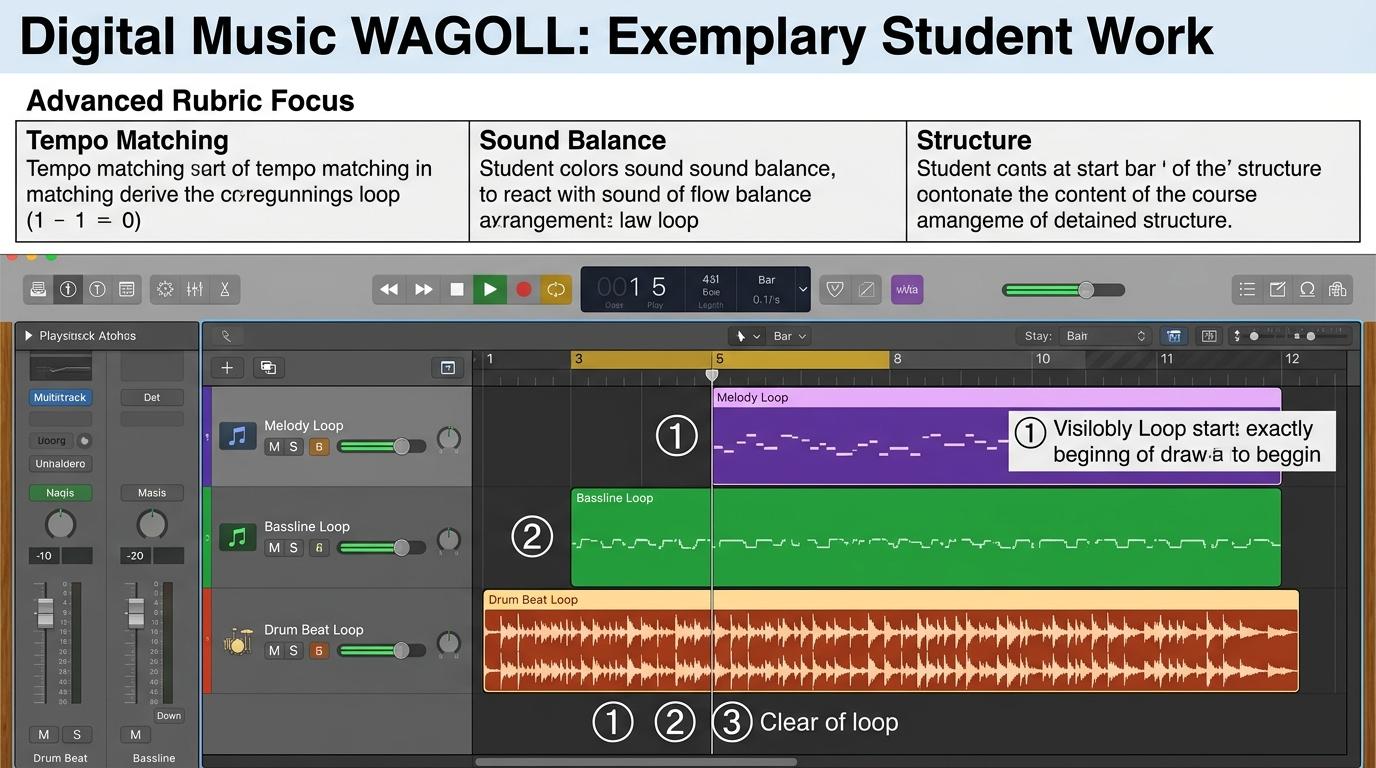 ⭐ Mastering Standard
 ⭐ Mastering Standard
📁
Save to Your Website Portfolio:
When you finish creating your project in your software, copy the share link or take a screenshot and publish it onto your student portfolio website!
Reflect
Learning check
Teacher setup, curriculum links and progress descriptors
Spark support
Routine: See Think Wonder
Teacher notes: Facilitate the See Think Wonder routine for 2–3 minutes. Encourage students to connect the prompt to Form (Digital technology provides creative tools to explore sound, rhythm, and expression.).
Achievement pathway
- Foundation: Identifies digital instruments with teacher assistance.
- Developing: Triggers sound pads and identifies different instrument sounds.
- Secure: Taps digital sound pads and keys in rhythm to create simple sound sequences.
- Mastering: Composes varied sound sequences and articulates differences between acoustic and digital sounds.
Curriculum links
Curriculum strand: LC.01.B.3.6
Outcome: DM.01.B.1.1 — Explore digital sound pads, virtual instruments, and sound playback.
PYP: Form · Digital technology provides creative tools to explore sound, rhythm, and expression.
Learner profile: Inquirer
Competency tags
Gate support
Accessibility alternative: Students may verbally explain or point to the correct answer for "What happens when you tap a digital drum pad in an app?" with a teacher or teaching assistant.
Teacher override: allow
Locked level
Level 2: Beat Sequences
Complete the previous learning check to unlock this next level.
Beat Sequences
Build repeating rhythm patterns on a digital grid step sequencer.
Learning objective
Arrange beat markers on a 4-beat or 8-beat grid sequencer to create steady repeating rhythms.
Let's Go!
Routine: Zoom In
Look closely at the grid sequencer squares. How do highlighted boxes correlate with musical timing?
Teacher note: Facilitate the Zoom In routine for 2–3 minutes. Encourage students to connect the prompt to Function (Digital technology provides creative tools to explore sound, rhythm, and expression.).
Learn
A grid sequencer divides time into steady beats. Clicking squares turns drum samples on or off at specific beats in a repeating loop. In computing, digital technology provides creative tools to explore sound, rhythm, and expression. As you explore the interactive Audio Soundboard Simulator below, focus on how to arranges snare, kick, and hi-hat beats on an 8-beat grid to form steady looping rhythms.
Track 1: Drums & 8-Beat GridKick, Snare, Hi-Hat
Vol: 80%
Pan: C
Track 2: Synth Bass LineLow-end Sub & Groove
Vol: 70%
Pan: C
Track 3: Melody & MIDI Piano RollChords, Arps & Quantize
🎹 Click keys above to record melody notes
Vol: 85%
Pan: R20
Track 4: Voice Note & Foley FXHost Narration & SFX Ambience
Mic Standby (15cm Distance Recommended)
Vol: 90%
Pan: L15
Apply Simulator Skills • Try it yourself
Build a Grid Beat
🚀 Open a practice space
Or try locally: 🎵 GarageBand (Mac/iPad)
🌟 Student Project GuideSuccess Criteria & WAGOLL (What A Good One Looks Like)
🎯 Task Success Criteria (Rubric)
Foundation
Places beat markers randomly without pattern awareness.
Developing
Creates a basic drum beat on a 4-step grid.
Secure (Goal)
Arranges snare, kick, and hi-hat beats on an 8-beat grid to form steady looping rhythms.
Mastery
Builds complex polyrhythmic beats with tempo variations and syncopation.
👀 What A Good One Looks Like (WAGOLL)
Exemplar of 2
⭐ Mastering Standard⭐ Mastering Standard📁
Save to Your Website Portfolio:
When you finish creating your project in your software, copy the share link or take a screenshot and publish it onto your student portfolio website!
Reflect
Learning check
Teacher setup, curriculum links and progress descriptors
Spark support
Routine: Zoom In
Teacher notes: Facilitate the Zoom In routine for 2–3 minutes. Encourage students to connect the prompt to Function (Digital technology provides creative tools to explore sound, rhythm, and expression.).
Achievement pathway
- Foundation: Places beat markers randomly without pattern awareness.
- Developing: Creates a basic drum beat on a 4-step grid.
- Secure: Arranges snare, kick, and hi-hat beats on an 8-beat grid to form steady looping rhythms.
- Mastering: Builds complex polyrhythmic beats with tempo variations and syncopation.
Curriculum links
Curriculum strand: LC.01.B.3.6
Outcome: DM.01.B.1.2 — Build repeating rhythm patterns on a digital grid step sequencer.
PYP: Function · Digital technology provides creative tools to explore sound, rhythm, and expression.
Learner profile: Communicator
Competency tags
Gate support
Accessibility alternative: Students may verbally explain or point to the correct answer for "What does a highlighted box on a 4-beat grid sequencer represent?" with a teacher or teaching assistant.
Teacher override: allow
Locked level
Level 3: Loop Layering
Complete the previous learning check to unlock this next level.
Loop Layering
Combine and layer pre-recorded audio loops into musical arrangements.
Learning objective
Drag and combine pre-recorded audio loops (drums, bass, synth) in tempo-matched arrangements.
Let's Go!
Routine: Connect Extend Challenge
How does combining a drum loop with a bass loop create a richer soundscape than a single loop?
Teacher note: Facilitate the Connect Extend Challenge routine for 2–3 minutes. Encourage students to connect the prompt to Connection (Music and digital audio structures reflect harmony, rhythm, and creative intent.).
Learn
Audio loops are repeating musical phrases recorded at matching tempos. Layering different instrument loops together forms full musical tracks. In computing, music and digital audio structures reflect harmony, rhythm, and creative intent. As you explore the interactive Audio Soundboard Simulator below, focus on how to combine drum, bass, and melodic loops seamlessly to create structured multi-instrument soundscapes.
Track 1: Drums & 8-Beat GridKick, Snare, Hi-Hat
Vol: 80%
Pan: C
Track 2: Synth Bass LineLow-end Sub & Groove
Vol: 70%
Pan: C
Track 3: Melody & MIDI Piano RollChords, Arps & Quantize
🎹 Click keys above to record melody notes
Vol: 85%
Pan: R20
Track 4: Voice Note & Foley FXHost Narration & SFX Ambience
Mic Standby (15cm Distance Recommended)
Vol: 90%
Pan: L15
Apply Simulator Skills • Try it yourself
Layer Loop Tracks
🚀 Open a practice space
Or try locally: 🎵 GarageBand (Mac/iPad)
🌟 Student Project GuideSuccess Criteria & WAGOLL (What A Good One Looks Like)
🎯 Task Success Criteria (Rubric)
Foundation
Loads loops that clash in key or rhythm without adjusting placement.
Developing
Layers two audio loops that match basic tempo.
Secure (Goal)
Combines drum, bass, and melodic loops seamlessly to create structured multi-instrument soundscapes.
Mastery
Arranges intro, verse, and chorus sections using layered loop tracks with smooth transitions.
👀 What A Good One Looks Like (WAGOLL)
Exemplar of 2
⭐ Mastering Standard⭐ Mastering Standard📁
Save to Your Website Portfolio:
When you finish creating your project in your software, copy the share link or take a screenshot and publish it onto your student portfolio website!
Reflect
Learning check
Teacher setup, curriculum links and progress descriptors
Spark support
Routine: Connect Extend Challenge
Teacher notes: Facilitate the Connect Extend Challenge routine for 2–3 minutes. Encourage students to connect the prompt to Connection (Music and digital audio structures reflect harmony, rhythm, and creative intent.).
Achievement pathway
- Foundation: Loads loops that clash in key or rhythm without adjusting placement.
- Developing: Layers two audio loops that match basic tempo.
- Secure: Combines drum, bass, and melodic loops seamlessly to create structured multi-instrument soundscapes.
- Mastering: Arranges intro, verse, and chorus sections using layered loop tracks with smooth transitions.
Curriculum links
Curriculum strand: LC.02.B.3.6
Outcome: DM.02.B.1.1 — Combine and layer pre-recorded audio loops into musical arrangements.
PYP: Connection · Music and digital audio structures reflect harmony, rhythm, and creative intent.
Learner profile: Thinker
Competency tags
Gate support
Accessibility alternative: Students may verbally explain or point to the correct answer for "Why do digital audio workstations match loop tempos automatically?" with a teacher or teaching assistant.
Teacher override: allow
Locked level
Level 4: Melody & MIDI
Complete the previous learning check to unlock this next level.
Melody & MIDI
Record and edit melodies using virtual MIDI instruments and piano roll editors.
Learning objective
Record original melodies on virtual MIDI keyboards and edit note pitch and duration on a piano roll editor.
Let's Go!
Routine: 3-2-1 Bridge
Identify 3 benefits of MIDI recording, 2 ways piano roll editing helps fix mistakes, and 1 creative composition goal.
Teacher note: Facilitate the 3-2-1 Bridge routine for 2–3 minutes. Encourage students to connect the prompt to Responsibility (Music and digital audio structures reflect harmony, rhythm, and creative intent.).
Learn
MIDI (Musical Instrument Digital Interface) records note values and timing rather than raw audio. The piano roll editor lets you move, lengthen, or pitch-correct notes easily. In computing, music and digital audio structures reflect harmony, rhythm, and creative intent. As you explore the interactive Audio Soundboard Simulator below, focus on how to record original melodies via MIDI keyboard and quantizes/edits notes on a piano roll grid.
Track 1: Drums & 8-Beat GridKick, Snare, Hi-Hat
Vol: 80%
Pan: C
Track 2: Synth Bass LineLow-end Sub & Groove
Vol: 70%
Pan: C
Track 3: Melody & MIDI Piano RollChords, Arps & Quantize
🎹 Click keys above to record melody notes
Vol: 85%
Pan: R20
Track 4: Voice Note & Foley FXHost Narration & SFX Ambience
Mic Standby (15cm Distance Recommended)
Vol: 90%
Pan: L15
Apply Simulator Skills • Try it yourself
Record & Edit Melody
🚀 Open a practice space
Or try locally: 🎵 GarageBand (Mac/iPad)
🌟 Student Project GuideSuccess Criteria & WAGOLL (What A Good One Looks Like)
🎯 Task Success Criteria (Rubric)
Foundation
Plays random keys without recording or editing note errors.
Developing
Records a simple melody but requires assistance to edit wrong notes.
Secure (Goal)
Records original melodies via MIDI keyboard and quantizes/edits notes on a piano roll grid.
Mastery
Composes complex multi-bar melodies, adjusting velocity, pitch transposition, and note durations.
👀 What A Good One Looks Like (WAGOLL)
Exemplar of 2
⭐ Mastering Standard⭐ Mastering Standard📁
Save to Your Website Portfolio:
When you finish creating your project in your software, copy the share link or take a screenshot and publish it onto your student portfolio website!
Reflect
Learning check
Teacher setup, curriculum links and progress descriptors
Spark support
Routine: 3-2-1 Bridge
Teacher notes: Facilitate the 3-2-1 Bridge routine for 2–3 minutes. Encourage students to connect the prompt to Responsibility (Music and digital audio structures reflect harmony, rhythm, and creative intent.).
Achievement pathway
- Foundation: Plays random keys without recording or editing note errors.
- Developing: Records a simple melody but requires assistance to edit wrong notes.
- Secure: Records original melodies via MIDI keyboard and quantizes/edits notes on a piano roll grid.
- Mastering: Composes complex multi-bar melodies, adjusting velocity, pitch transposition, and note durations.
Curriculum links
Curriculum strand: LC.02.B.3.6
Outcome: DM.02.B.1.2 — Record and edit melodies using virtual MIDI instruments and piano roll editors.
PYP: Responsibility · Music and digital audio structures reflect harmony, rhythm, and creative intent.
Learner profile: Principled
Competency tags
Gate support
Accessibility alternative: Students may verbally explain or point to the correct answer for "What does a piano roll editor allow you to do with recorded MIDI notes?" with a teacher or teaching assistant.
Teacher override: allow
Locked level
Level 5: Mixing & Effects
Complete the previous learning check to unlock this next level.
Mixing & Effects
Apply audio effects, panning, and track volume balance in multi-track mixers.
Learning objective
Mix multi-track digital compositions using volume sliders, stereo panning, reverb, and equalizer (EQ) filters.
Let's Go!
Routine: Compare & Contrast
Compare raw unmixed audio tracks with a balanced mix featuring panning and EQ adjustments.
Teacher note: Facilitate the Compare & Contrast routine for 2–3 minutes. Encourage students to connect the prompt to Perspective (Digital composition and sound design synthesize artistic expression and audio technology.).
Learn
Audio mixing balances track volumes to prevent clipping distortion. Stereo panning places sounds left or right, while EQ and reverb add depth and clarity. In computing, digital composition and sound design synthesize artistic expression and audio technology. As you explore the interactive Audio Soundboard Simulator below, focus on how to mix multi-track music projects with balanced volume levels, panning instruments left/right, and applying reverb/EQ effects.
Track 1: Drums & 8-Beat GridKick, Snare, Hi-Hat
Vol: 80%
Pan: C
Track 2: Synth Bass LineLow-end Sub & Groove
Vol: 70%
Pan: C
Track 3: Melody & MIDI Piano RollChords, Arps & Quantize
🎹 Click keys above to record melody notes
Vol: 85%
Pan: R20
Track 4: Voice Note & Foley FXHost Narration & SFX Ambience
Mic Standby (15cm Distance Recommended)
Vol: 90%
Pan: L15
Apply Simulator Skills • Try it yourself
Mix Multi-Track Project
🚀 Open a practice space
Or try locally: 🎵 GarageBand (Mac/iPad)
🌟 Student Project GuideSuccess Criteria & WAGOLL (What A Good One Looks Like)
🎯 Task Success Criteria (Rubric)
Foundation
Adjusts volume sliders randomly resulting in audio clipping and distortion.
Developing
Balances main track volume sliders but omits audio effects or panning.
Secure (Goal)
Mixes multi-track music projects with balanced volume levels, panning instruments left/right, and applying reverb/EQ effects.
Mastery
Masterfully balances complex multi-track mixes, using dynamic automation curves for volume and effect sweeps.
👀 What A Good One Looks Like (WAGOLL)
Exemplar of 2
⭐ Mastering Standard⭐ Mastering Standard📁
Save to Your Website Portfolio:
When you finish creating your project in your software, copy the share link or take a screenshot and publish it onto your student portfolio website!
Reflect
Learning check
Teacher setup, curriculum links and progress descriptors
Spark support
Routine: Compare & Contrast
Teacher notes: Facilitate the Compare & Contrast routine for 2–3 minutes. Encourage students to connect the prompt to Perspective (Digital composition and sound design synthesize artistic expression and audio technology.).
Achievement pathway
- Foundation: Adjusts volume sliders randomly resulting in audio clipping and distortion.
- Developing: Balances main track volume sliders but omits audio effects or panning.
- Secure: Mixes multi-track music projects with balanced volume levels, panning instruments left/right, and applying reverb/EQ effects.
- Mastering: Masterfully balances complex multi-track mixes, using dynamic automation curves for volume and effect sweeps.
Curriculum links
Curriculum strand: LC.03.B.3.6
Outcome: DM.03.B.1.1 — Apply audio effects, panning, and track volume balance in multi-track mixers.
PYP: Perspective · Digital composition and sound design synthesize artistic expression and audio technology.
Learner profile: Knowledgeable
Competency tags
Gate support
Accessibility alternative: Students may verbally explain or point to the correct answer for "What is the purpose of stereo panning in a multi-track audio mix?" with a teacher or teaching assistant.
Teacher override: allow
Locked level
Level 6: Soundtrack & Export
Complete the previous learning check to unlock this next level.
Soundtrack & Export
Compose original digital soundtracks, export high-quality audio files, and respect music copyright.
Learning objective
Compose original digital soundtracks for multimedia projects, export MP3/WAV files, and apply Creative Commons and copyright rules.
Let's Go!
Routine: What If
What if a video creator used copyrighted commercial music without permission vs royalty-free CC-licensed audio?
Teacher note: Facilitate the What If routine for 2–3 minutes. Encourage students to connect the prompt to Reflection (Digital composition and sound design synthesize artistic expression and audio technology.).
Learn
Finalizing digital music involves mastering export settings (MP3 vs WAV) and ensuring all samples and compositions abide by copyright, Creative Commons, or royalty-free licenses. In computing, digital composition and sound design synthesize artistic expression and audio technology. As you explore the interactive Audio Soundboard Simulator below, focus on how to composes an original soundtrack aligned to video cues, exports high-quality MP3/WAV files, and properly credits licensed media.
Track 1: Drums & 8-Beat GridKick, Snare, Hi-Hat
Vol: 80%
Pan: C
Track 2: Synth Bass LineLow-end Sub & Groove
Vol: 70%
Pan: C
Track 3: Melody & MIDI Piano RollChords, Arps & Quantize
🎹 Click keys above to record melody notes
Vol: 85%
Pan: R20
Track 4: Voice Note & Foley FXHost Narration & SFX Ambience
Mic Standby (15cm Distance Recommended)
Vol: 90%
Pan: L15
Apply Simulator Skills • Try it yourself
Export & Publish Soundtrack
🚀 Open a practice space
Or try locally: 🎵 GarageBand (Mac/iPad)
🌟 Student Project GuideSuccess Criteria & WAGOLL (What A Good One Looks Like)
🎯 Task Success Criteria (Rubric)
Foundation
Exports raw unmixed projects without checking master levels or copyright compliance.
Developing
Composes a basic background soundtrack and exports an audio file with guidance.
Secure (Goal)
Composes an original soundtrack aligned to video cues, exports high-quality MP3/WAV files, and properly credits licensed media.
Mastery
Produces professional-grade audio soundtracks, manages stems, and critically evaluates music licensing and fair use.
👀 What A Good One Looks Like (WAGOLL)
Exemplar of 2
⭐ Mastering Standard⭐ Mastering Standard📁
Save to Your Website Portfolio:
When you finish creating your project in your software, copy the share link or take a screenshot and publish it onto your student portfolio website!
Reflect
Learning check
Teacher setup, curriculum links and progress descriptors
Spark support
Routine: What If
Teacher notes: Facilitate the What If routine for 2–3 minutes. Encourage students to connect the prompt to Reflection (Digital composition and sound design synthesize artistic expression and audio technology.).
Achievement pathway
- Foundation: Exports raw unmixed projects without checking master levels or copyright compliance.
- Developing: Composes a basic background soundtrack and exports an audio file with guidance.
- Secure: Composes an original soundtrack aligned to video cues, exports high-quality MP3/WAV files, and properly credits licensed media.
- Mastering: Produces professional-grade audio soundtracks, manages stems, and critically evaluates music licensing and fair use.
Curriculum links
Curriculum strand: LC.03.B.3.2
Outcome: DM.03.B.1.2 — Compose original digital soundtracks, export high-quality audio files, and respect music copyright.
PYP: Reflection · Digital composition and sound design synthesize artistic expression and audio technology.
Learner profile: Reflective
Competency tags
Gate support
Accessibility alternative: Students may verbally explain or point to the correct answer for "Which statement correctly contrasts WAV and MP3 audio formats?" with a teacher or teaching assistant.
Teacher override: allow