Posters & Graphics

Posters & Infographics

1
2
3
4
5
6

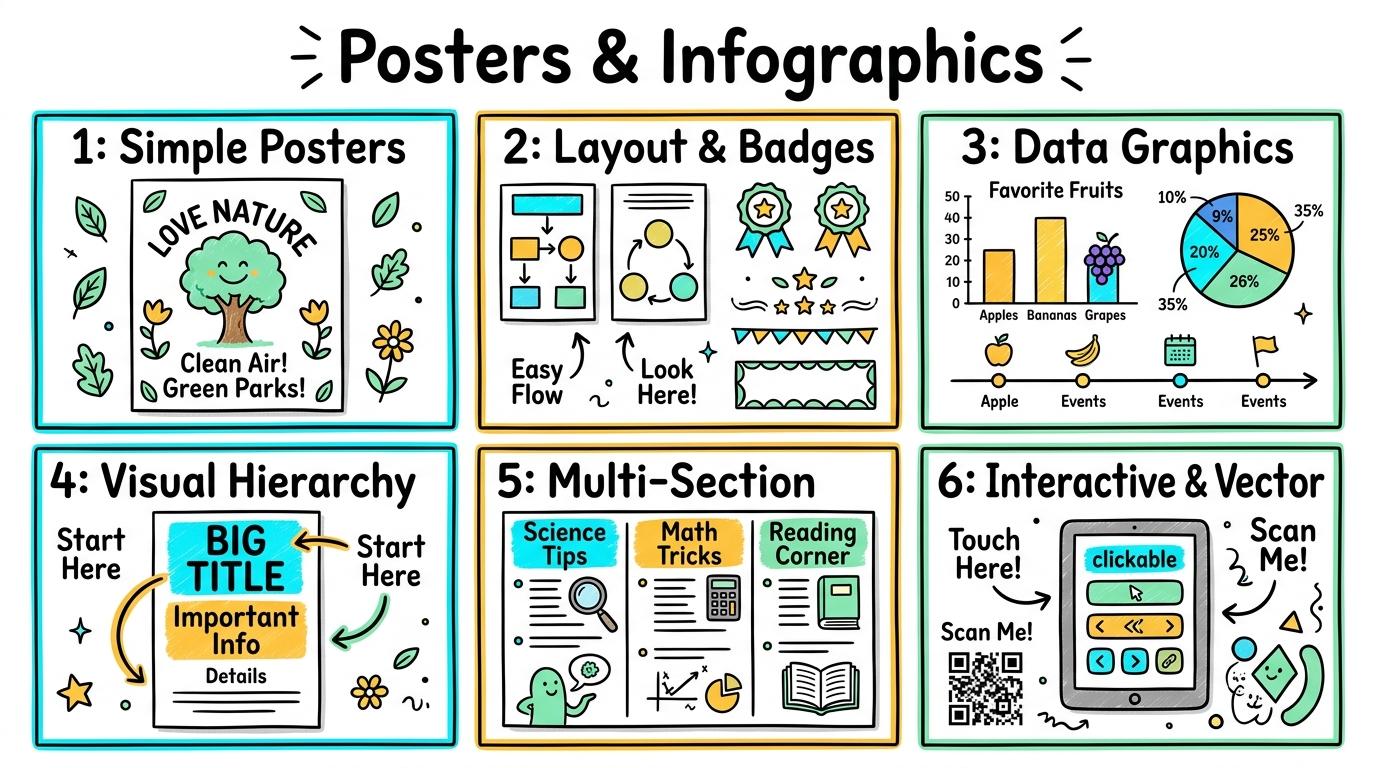
Design visually compelling posters and data-driven infographics using contrast, alignment, typography scales, and visual hierarchy.

Level 1

Simple Posters

Combine titles, images, and high-contrast backgrounds to create clear single-message posters.

Learning objective

Create a single-page digital poster combining a bold title, central focal image, and high-contrast background color.

Let's Go!

Step media

Learn

A great poster shares one big idea clearly! Use a bold title that catches attention, a large main image in the middle, and high contrast between your text and background so everyone can read it easily. In computing, visual messages help us share ideas and feelings clearly with others. As you explore the interactive Drawing Layers Simulator below, focus on how to combine a bold title, focal picture, and readable background color on a digital poster.

Interactive Simulator Sandbox
Curriculum:Step 1 โ€ข Bronze Tier
๐Ÿ“„
Step 1 โ€ข Bronze (Level 1): Page Balance - Text & Image Placement

Place text and one image on a digital page without overlapping elements.

In Progress

ECO-GUARDIANS NEWSLETTER

Issue 4: Protecting Urban Biodiversity

Urban biodiversity creates resilient community ecosystems. Local parks provide vital stopping points for migratory birds and pollinating native bees.

๐Ÿ๐ŸŒธ
Native Honeybee on Clover

Planting micro-gardens with perennial wildflowers restores nectar corridors along city streets.
Layers & Stacking Order

4 Elements
100%
๐Ÿท๏ธTitle Hierarchy (H1)
๐Ÿ–ผ๏ธPollinator Graphic Image
๐Ÿ“ฐ2-Column Body Article
๐Ÿ’กCallout Box & Footer
Design Pro-Tip:

Maintain comfortable breathing space (margins) so eye movement flows naturally across the headline.

Apply Simulator Skills โ€ข Try it yourself

Create a Class Rules Poster

๐Ÿ”„Direct Simulator Transfer: Step 1 Tasks 1, 2 & 3

Now that you've practiced the virtual mechanics in the simulator above, apply those exact skills in your real computer environment:

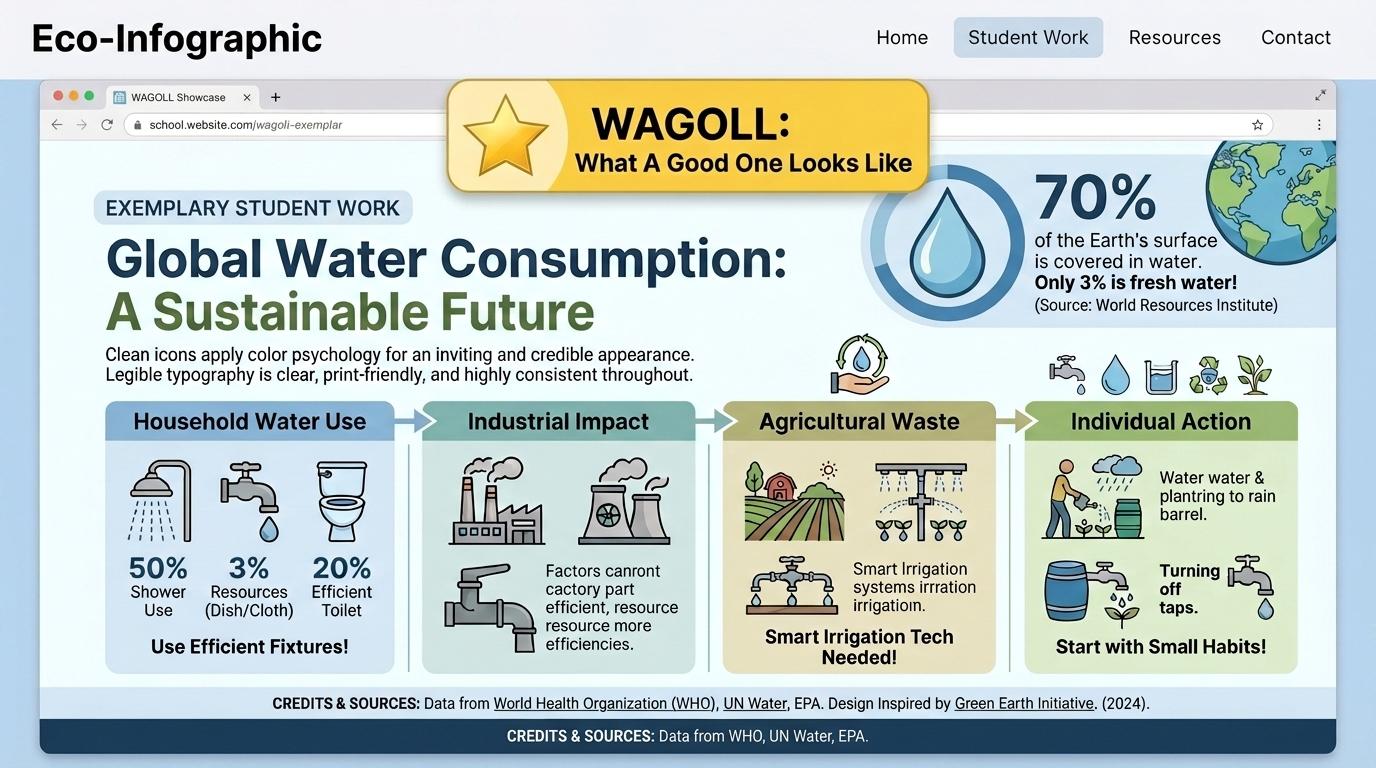
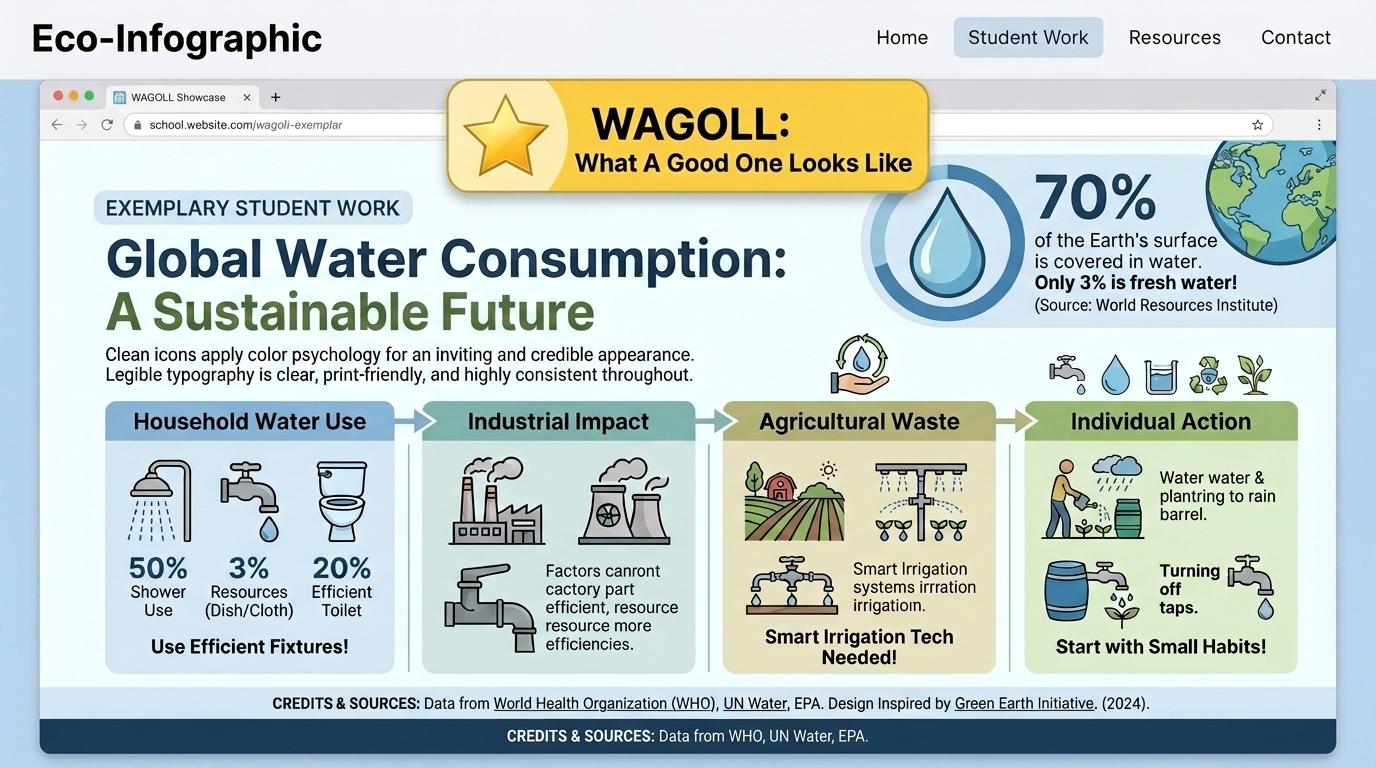
๐ŸŒŸ Student Project GuideSuccess Criteria & WAGOLL (What A Good One Looks Like)โ–พ

๐ŸŽฏ Task Success Criteria (Rubric)

Foundation

Identifies titles and picture elements on a poster canvas.

Developing

Places a title and picture onto a poster canvas with teacher guidance.

Secure (Goal)

Combines a bold title, focal picture, and readable background color on a digital poster.

Mastery

Adjusts text size and image placement to maximize visual impact and readability.

๐Ÿ‘€ What A Good One Looks Like (WAGOLL)

๐Ÿ“
Save to Your Website Portfolio:

When you finish creating your project in your software, copy the share link or take a screenshot and publish it onto your student portfolio website!

Reflect

๐ŸŽฏ

Self-Assessment & Reflection

How did high contrast help your title stand out on your poster?

๐ŸŸขSecure Level

Combines a bold title, focal picture, and readable background color on a digital poster.

Learning check

Learning Check

Which background color makes dark blue text easiest to read?

Choose the best poster design choice:

Answer correctly to unlock the next level.

Spot on! High contrast makes your text instantly readable!Try again! Choose a light background that contrasts with dark text.
Teacher setup, curriculum links and progress descriptors

Spark support

Routine: See Think Wonder

Teacher notes: Facilitate the See Think Wonder routine for 2โ€“3 minutes. Encourage students to connect the prompt to Form (Visual messages help us share ideas and feelings clearly with others.).

Achievement pathway

  • Foundation: Identifies titles and picture elements on a poster canvas.
  • Developing: Places a title and picture onto a poster canvas with teacher guidance.
  • Secure: Combines a bold title, focal picture, and readable background color on a digital poster.
  • Mastering: Adjusts text size and image placement to maximize visual impact and readability.

Curriculum links

Curriculum strand: Creation & Media

Outcome: PI.01.B.1.1 โ€” Combine titles, images, and high-contrast backgrounds to create clear single-message posters.

PYP: Form ยท Visual messages help us share ideas and feelings clearly with others.

Learner profile: Inquirer

Competency tags

  • posters
  • visual-design
  • layout
  • contrast

Gate support

Accessibility alternative: Students may verbally explain or point to the correct answer for "Which background color makes dark blue text easiest to read?" with a teacher or teaching assistant.

Teacher override: allow

Back to top

Locked level

Level 2: Layout & Badges

Complete the previous learning check to unlock this next level.

Level 2

Layout & Badges

Arrange visual poster elements along grid lines and incorporate decorative icon badges.

Learning objective

Arrange poster titles, text blocks, and icon badges neatly using visual alignment guides.

Let's Go!

Step media

Learn

Grid alignment keeps your poster looking organized! Align text boxes and graphics along invisible grid lines, leave breathing room (margins) around edges, and use icon badges to highlight key information. In computing, arranging graphics and symbols helps structure visual communication. As you explore the interactive Formatting Toolbar Simulator below, focus on how to arranges titles, images, and icon badges neatly along alignment grid lines.

Interactive Simulator Sandbox
Curriculum:Step 2 โ€ข Bronze Tier
โœ๏ธ
Step 1 โ€ข Bronze (Level 1): Letters & Words - Key Locating

Locate letter keys and type single words into the word processor document.

In Progress
Words: 0Characters: 0Estimated Speed: 0 WPM
๐Ÿ’พ All changes saved to Drive

Apply Simulator Skills โ€ข Try it yourself

Design a Healthy Habits Poster

๐Ÿ”„Direct Simulator Transfer: Step 2 Tasks 4, 5 & 6

Now that you've practiced the virtual mechanics in the simulator above, apply those exact skills in your real computer environment:

๐ŸŒŸ Student Project GuideSuccess Criteria & WAGOLL (What A Good One Looks Like)โ–พ

๐ŸŽฏ Task Success Criteria (Rubric)

Foundation

Places badges and graphics randomly on a poster canvas.

Developing

Aligns text blocks to page borders with assistance.

Secure (Goal)

Arranges titles, images, and icon badges neatly along alignment grid lines.

Mastery

Uses symmetry and consistent margins to balance complex poster layouts.

๐Ÿ‘€ What A Good One Looks Like (WAGOLL)

๐Ÿ“
Save to Your Website Portfolio:

When you finish creating your project in your software, copy the share link or take a screenshot and publish it onto your student portfolio website!

Reflect

๐ŸŽฏ

Self-Assessment & Reflection

Why is leaving blank space (margins) around the edge of a poster important?

๐ŸŸขSecure Level

Arranges titles, images, and icon badges neatly along alignment grid lines.

Learning check

Learning Check

What happens when you place graphics right up against the canvas edge?

Identify the best alignment practice:

Answer correctly to unlock the next level.

Correct! Keeping clean margins makes your layout look professional!Try again! Think about clean borders and cut-off risks.
Teacher setup, curriculum links and progress descriptors

Spark support

Routine: Zoom In

Teacher notes: Facilitate the Zoom In routine for 2โ€“3 minutes. Encourage students to connect the prompt to Function (Arranging graphics and symbols helps structure visual communication.).

Achievement pathway

  • Foundation: Places badges and graphics randomly on a poster canvas.
  • Developing: Aligns text blocks to page borders with assistance.
  • Secure: Arranges titles, images, and icon badges neatly along alignment grid lines.
  • Mastering: Uses symmetry and consistent margins to balance complex poster layouts.

Curriculum links

Curriculum strand: Creation & Media

Outcome: PI.02.B.1.2 โ€” Arrange visual poster elements along grid lines and incorporate decorative icon badges.

PYP: Function ยท Arranging graphics and symbols helps structure visual communication.

Learner profile: Communicator

Competency tags

  • layout
  • grid
  • badges
  • alignment

Gate support

Accessibility alternative: Students may verbally explain or point to the correct answer for "What happens when you place graphics right up against the canvas edge?" with a teacher or teaching assistant.

Teacher override: allow

Back to top

Locked level

Level 3: Data Graphics

Complete the previous learning check to unlock this next level.

Level 3

Data Graphics

Convert numerical survey data into visual icon callouts and simple pictograms.

Learning objective

Represent numerical data visually using icon arrays, stat callouts, and simple pictograms.

Let's Go!

Step media

Learn

Infographics transform numbers into visual stories! Use big bold number callouts (e.g. 75%) and repeated icon arrays (pictograms) so readers can understand data instantly without reading long paragraphs. In computing, visual graphics help us turn numbers into easy-to-understand stories. As you explore the interactive Spreadsheet Simulator below, focus on how to converts numerical survey data into visual icon callouts and simple pictograms.

Interactive Simulator Sandbox
๐Ÿ“Š
Spreadsheet StudioStep 3 โ€ข Bronze Tier
|
A1fx
ABC
1ItemAmount
2Apples5
3Bananas3
4Carrots2
5Total
Challenge: Click cell B5 to inspect how the AutoSum formula adds up column B!

Apply Simulator Skills โ€ข Try it yourself

Create a Class Recycling Infographic

๐Ÿ”„Direct Simulator Transfer: Step 3 Tasks 7, 8 & 9

Now that you've practiced the virtual mechanics in the simulator above, apply those exact skills in your real computer environment:

๐ŸŒŸ Student Project GuideSuccess Criteria & WAGOLL (What A Good One Looks Like)โ–พ

๐ŸŽฏ Task Success Criteria (Rubric)

Foundation

Reads numbers written in plain text on a poster.

Developing

Replaces individual words with icons in a sentence.

Secure (Goal)

Converts numerical survey data into visual icon callouts and simple pictograms.

Mastery

Selects optimal icon representations and scales for multi-category datasets.

๐Ÿ‘€ What A Good One Looks Like (WAGOLL)

๐Ÿ“
Save to Your Website Portfolio:

When you finish creating your project in your software, copy the share link or take a screenshot and publish it onto your student portfolio website!

Reflect

๐ŸŽฏ

Self-Assessment & Reflection

How do visual icons help readers understand survey statistics faster?

๐ŸŸขSecure Level

Converts numerical survey data into visual icon callouts and simple pictograms.

Learning check

Learning Check

What is a pictogram?

Choose the best visual representation:

Answer correctly to unlock the next level.

Awesome! Pictograms make counting and comparing data visual!Try again! Think about how icons represent numbers.
Teacher setup, curriculum links and progress descriptors

Spark support

Routine: Think Pair Share

Teacher notes: Facilitate the Think Pair Share routine for 2โ€“3 minutes. Encourage students to connect the prompt to Change (Visual graphics help us turn numbers into easy-to-understand stories.).

Achievement pathway

  • Foundation: Reads numbers written in plain text on a poster.
  • Developing: Replaces individual words with icons in a sentence.
  • Secure: Converts numerical survey data into visual icon callouts and simple pictograms.
  • Mastering: Selects optimal icon representations and scales for multi-category datasets.

Curriculum links

Curriculum strand: Creation & Media

Outcome: PI.03.B.1.3 โ€” Convert numerical survey data into visual icon callouts and simple pictograms.

PYP: Change ยท Visual graphics help us turn numbers into easy-to-understand stories.

Learner profile: Thinker

Competency tags

  • data-viz
  • pictograms
  • icons
  • infographics

Gate support

Accessibility alternative: Students may verbally explain or point to the correct answer for "What is a pictogram?" with a teacher or teaching assistant.

Teacher override: allow

Back to top

Locked level

Level 4: Visual Hierarchy

Complete the previous learning check to unlock this next level.

Level 4

Visual Hierarchy

Apply a 3-level typography hierarchy and strategic layout pathways to guide the reader's eye.

Learning objective

Establish a clear 3-level typography hierarchy (Title, Subhead, Body) and guide eye movement along F/Z reading patterns.

Let's Go!

Step media

Learn

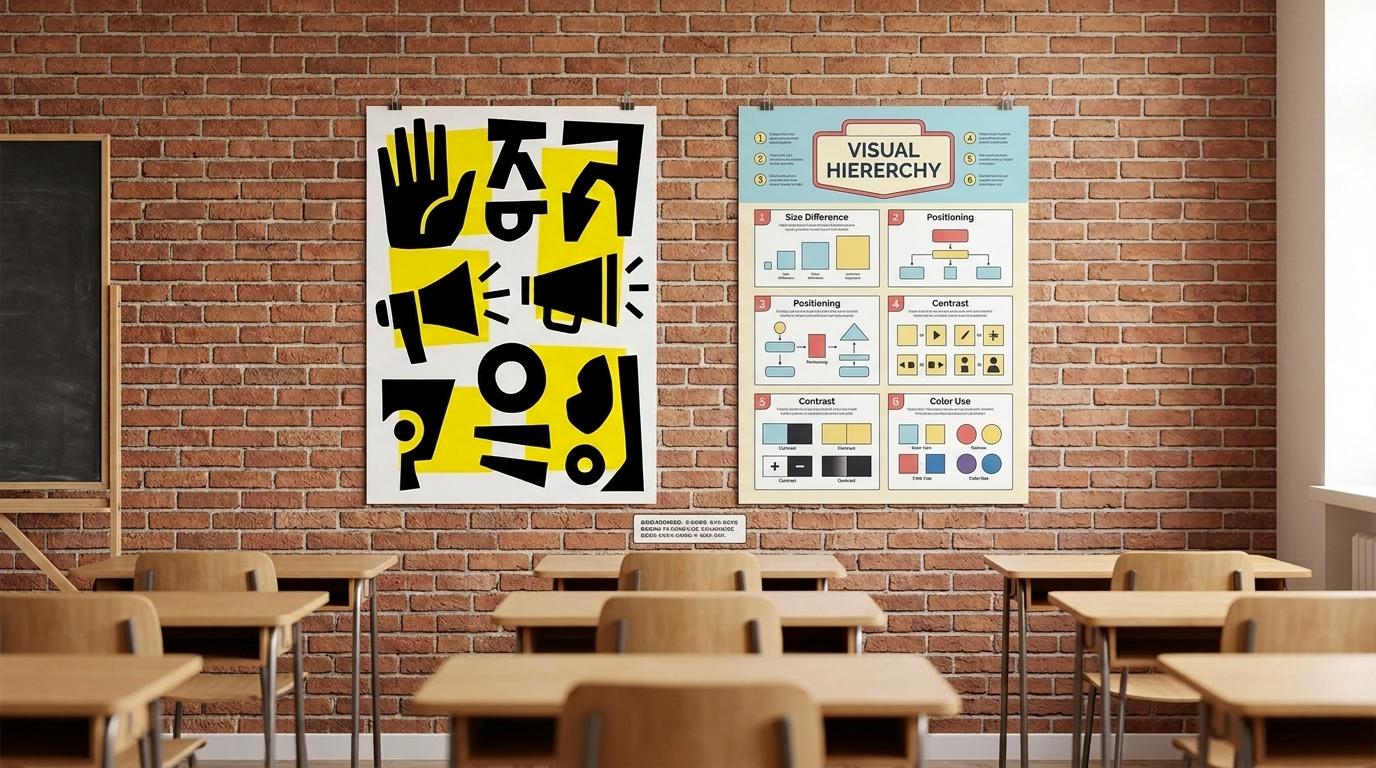
Visual hierarchy controls reading order! Use Level 1 (huge bold title), Level 2 (medium subheadings for sections), and Level 3 (clean body text). Arrange elements in an 'F' or 'Z' layout pattern following natural eye movement. In computing, visual structure directs how audiences navigate complex information. As you explore the interactive Diagram Builder Simulator below, focus on how to apply a consistent 3-level typography hierarchy and structures content along natural reading pathways.

Interactive Simulator Sandbox
Diagram Curriculum:Step 4 โ€ข Bronze Tier
๐Ÿท๏ธ
Step 1 โ€ข Bronze (Level 1): Shapes & Labels - Visual Node Placement

Drag or click picture nodes into labeled containers or boxes on screen to organize ideas visually.

In Progress

Apply Simulator Skills โ€ข Try it yourself

Design an Historical Event Infographic

๐Ÿ”„Direct Simulator Transfer: Step 4 Tasks 10, 11 & 12

Now that you've practiced the virtual mechanics in the simulator above, apply those exact skills in your real computer environment:

๐ŸŒŸ Student Project GuideSuccess Criteria & WAGOLL (What A Good One Looks Like)โ–พ

๐ŸŽฏ Task Success Criteria (Rubric)

Foundation

Uses the same font size for all text elements on a poster.

Developing

Makes the main title larger than body text.

Secure (Goal)

Applies a consistent 3-level typography hierarchy and structures content along natural reading pathways.

Mastery

Combines font weight, contrast, and spatial scaling to create intuitive visual pathways.

๐Ÿ‘€ What A Good One Looks Like (WAGOLL)

๐Ÿ“
Save to Your Website Portfolio:

When you finish creating your project in your software, copy the share link or take a screenshot and publish it onto your student portfolio website!

Reflect

๐ŸŽฏ

Self-Assessment & Reflection

How does setting different font sizes for headers and body text help readers?

๐ŸŸขSecure Level

Applies a consistent 3-level typography hierarchy and structures content along natural reading pathways.

Learning check

Learning Check

In a 3-level typography scale, which element should have the largest font size?

Select the correct hierarchy rule:

Answer correctly to unlock the next level.

Correct! The main title must be the largest to capture immediate focus!Try again! Think about which element needs the highest visual priority.
Teacher setup, curriculum links and progress descriptors

Spark support

Routine: See Think Wonder

Teacher notes: Facilitate the See Think Wonder routine for 2โ€“3 minutes. Encourage students to connect the prompt to Connection (Visual structure directs how audiences navigate complex information.).

Achievement pathway

  • Foundation: Uses the same font size for all text elements on a poster.
  • Developing: Makes the main title larger than body text.
  • Secure: Applies a consistent 3-level typography hierarchy and structures content along natural reading pathways.
  • Mastering: Combines font weight, contrast, and spatial scaling to create intuitive visual pathways.

Curriculum links

Curriculum strand: Creation & Media

Outcome: PI.04.B.1.4 โ€” Apply a 3-level typography hierarchy and strategic layout pathways to guide the reader's eye.

PYP: Connection ยท Visual structure directs how audiences navigate complex information.

Learner profile: Principled

Competency tags

  • typography
  • visual-hierarchy
  • font-sizes
  • navigation

Gate support

Accessibility alternative: Students may verbally explain or point to the correct answer for "In a 3-level typography scale, which element should have the largest font size?" with a teacher or teaching assistant.

Teacher override: allow

Back to top

Locked level

Level 5: Multi-Section

Complete the previous learning check to unlock this next level.

Level 5

Multi-Section

Design multi-section vertical infographics integrating charts, flow diagrams, and source citations.

Learning objective

Synthesize research data into a cohesive 3-section vertical infographic with integrated charts and citations.

Let's Go!

Step media

Learn

Multi-section infographics organize complex research! Divide your canvas into logical rows or columns (e.g., Problem, Data Analysis, Solution). Use consistent color palettes, integrate clear charts, and cite your data sources at the bottom. In computing, synthesizing diverse data into structured sections deepens public understanding of global issues. As you explore the interactive Presentation Simulator below, focus on how to synthesizes research into a 3-section vertical infographic featuring charts, process diagrams, and source citations.

Interactive Simulator Sandbox
Curriculum:Step 5 โ€ข Bronze Tier
๐Ÿ“ฝ๏ธ
Step 1 โ€ข Bronze (Level 1): Simple Slides - Template Selection

Open a presentation tool and select a slide template to start your deck.

In Progress

Expedition to Mars: Sol 42

A Student Scientific Research Pitch โ€ข By Grade 5 Planetary Scientists

๐ŸŽค Speaker Rehearsal Notes (Not shown to audience):Type oral cues and delivery pacing below

Apply Simulator Skills โ€ข Try it yourself

Build a Climate Change Action Infographic

๐Ÿ”„Direct Simulator Transfer: Step 5 Tasks 13, 14 & 15

Now that you've practiced the virtual mechanics in the simulator above, apply those exact skills in your real computer environment:

๐ŸŒŸ Student Project GuideSuccess Criteria & WAGOLL (What A Good One Looks Like)โ–พ

๐ŸŽฏ Task Success Criteria (Rubric)

Foundation

Pastes multiple charts onto a page without section dividers.

Developing

Divides a poster into sections using colored lines.

Secure (Goal)

Synthesizes research into a 3-section vertical infographic featuring charts, process diagrams, and source citations.

Mastery

Creates unified color themes and seamless visual transitions across multi-topic data blocks.

๐Ÿ‘€ What A Good One Looks Like (WAGOLL)

๐Ÿ“
Save to Your Website Portfolio:

When you finish creating your project in your software, copy the share link or take a screenshot and publish it onto your student portfolio website!

Reflect

๐ŸŽฏ

Self-Assessment & Reflection

Why are source citations essential when presenting data on an infographic?

๐ŸŸขSecure Level

Synthesizes research into a 3-section vertical infographic featuring charts, process diagrams, and source citations.

Learning check

Learning Check

Where should source citations be placed on a formal infographic?

Identify the correct research practice:

Answer correctly to unlock the next level.

Spot on! Footers credit your sources without cluttering the main graphics!Try again! Think about where source credits belong.
Teacher setup, curriculum links and progress descriptors

Spark support

Routine: 3-2-1 Bridge

Teacher notes: Facilitate the 3-2-1 Bridge routine for 2โ€“3 minutes. Encourage students to connect the prompt to Perspective (Synthesizing diverse data into structured sections deepens public understanding of global issues.).

Achievement pathway

  • Foundation: Pastes multiple charts onto a page without section dividers.
  • Developing: Divides a poster into sections using colored lines.
  • Secure: Synthesizes research into a 3-section vertical infographic featuring charts, process diagrams, and source citations.
  • Mastering: Creates unified color themes and seamless visual transitions across multi-topic data blocks.

Curriculum links

Curriculum strand: Creation & Media

Outcome: PI.05.B.1.5 โ€” Design multi-section vertical infographics integrating charts, flow diagrams, and source citations.

PYP: Perspective ยท Synthesizing diverse data into structured sections deepens public understanding of global issues.

Learner profile: Knowledgeable

Competency tags

  • infographics
  • data-synthesis
  • flowcharts
  • citations

Gate support

Accessibility alternative: Students may verbally explain or point to the correct answer for "Where should source citations be placed on a formal infographic?" with a teacher or teaching assistant.

Teacher override: allow

Back to top

Locked level

Level 6: Interactive & Vector

Complete the previous learning check to unlock this next level.

Level 6

Interactive & Vector

Create interactive web infographics with clickable hotspots and export scalable high-res vector graphics.

Learning objective

Develop an interactive digital infographic with clickable hotspots, embedded popups, and high-resolution export settings.

Let's Go!

Step media

Learn

Interactive infographics let readers explore data dynamically! Add clickable hotspots that reveal popup info cards or video clips. When publishing static versions, export as high-res PNG or vector PDF to maintain crisp text. In computing, interactive media empowers audiences to explore complex systems at their own pace. As you explore the interactive Save Dialog Simulator below, focus on how to build an interactive web infographic with clickable hotspots, popup data cards, and scalable vector export.

Interactive Simulator Sandbox
Curriculum:Step 6 โ€ข Bronze Tier
๐Ÿ’พ
Step 1 โ€ข Bronze (Level 1): New Projects & First Save

Type a clear name in the "File name" box and click Save to store it on the Desktop.

๐Ÿ’พSave As...
โš ๏ธ Type a file name

Apply Simulator Skills โ€ข Try it yourself

Develop an Interactive Smart City Map

๐Ÿ”„Direct Simulator Transfer: Step 6 Tasks 16, 17 & 18

Now that you've practiced the virtual mechanics in the simulator above, apply those exact skills in your real computer environment:

๐ŸŒŸ Student Project GuideSuccess Criteria & WAGOLL (What A Good One Looks Like)โ–พ

๐ŸŽฏ Task Success Criteria (Rubric)

Foundation

Saves an infographic as a low-resolution screenshot.

Developing

Adds hyperlinked text to a poster.

Secure (Goal)

Builds an interactive web infographic with clickable hotspots, popup data cards, and scalable vector export.

Mastery

Evaluates user interaction metrics and accessibility standards for published interactive graphics.

๐Ÿ‘€ What A Good One Looks Like (WAGOLL)

๐Ÿ“
Save to Your Website Portfolio:

When you finish creating your project in your software, copy the share link or take a screenshot and publish it onto your student portfolio website!

Reflect

๐ŸŽฏ

Self-Assessment & Reflection

What is the advantage of vector PDF graphics over low-res raster images for print infographics?

๐ŸŸขSecure Level

Builds an interactive web infographic with clickable hotspots, popup data cards, and scalable vector export.

Learning check

Learning Check

What does an interactive hotspot do on a digital infographic?

Choose the correct export property:

Answer correctly to complete this strand.

Excellent! Hotspots create engaging self-guided learning experiences!Try again! Think about how interactive elements respond to user clicks.
Teacher setup, curriculum links and progress descriptors

Spark support

Routine: Circle of Viewpoints

Teacher notes: Facilitate the Circle of Viewpoints routine for 2โ€“3 minutes. Encourage students to connect the prompt to Reflection (Interactive media empowers audiences to explore complex systems at their own pace.).

Achievement pathway

  • Foundation: Saves an infographic as a low-resolution screenshot.
  • Developing: Adds hyperlinked text to a poster.
  • Secure: Builds an interactive web infographic with clickable hotspots, popup data cards, and scalable vector export.
  • Mastering: Evaluates user interaction metrics and accessibility standards for published interactive graphics.

Curriculum links

Curriculum strand: Creation & Media

Outcome: PI.06.B.1.6 โ€” Create interactive web infographics with clickable hotspots and export scalable high-res vector graphics.

PYP: Reflection ยท Interactive media empowers audiences to explore complex systems at their own pace.

Learner profile: Reflective

Competency tags

  • interactive-graphics
  • hotspots
  • vector
  • export

Gate support

Accessibility alternative: Students may verbally explain or point to the correct answer for "What does an interactive hotspot do on a digital infographic?" with a teacher or teaching assistant.

Teacher override: allow

๐ŸŽ’ Students Home โ†’

Install App for Classroom

One-click fullscreen learning for Chromebooks, iPads & PCs

๐Ÿ–ฅ๏ธ
Distraction-FreeFullscreen window without browser tabs or search clutter.
โšก
1-Tap LaunchPin directly to the Chromebook shelf, iPad dock, or Windows taskbar.
๐Ÿ“ถ
Classroom SpeedInstant cached loads for lessons and simulators even on school Wi-Fi.
๐Ÿ”’
Safe & Ad-Free100% free, private, and no app store logins or passwords needed.
  1. 1
    Click the Install button

    In your browser, look at the right end of the top web address bar for the ๐Ÿ’ป Install or โค“ icon.

  2. 2
    Confirm "Install"

    A popup will ask if you want to install "Ed Tech Hub". Click Install.

  3. 3
    Pin to your Shelf

    Right-click (or two-finger tap) the app icon in your Chromebook bottom shelf and select "Pin"!