
Vector Graphics

Vector Graphics & Scalable Design

1
2
3
4
5
6

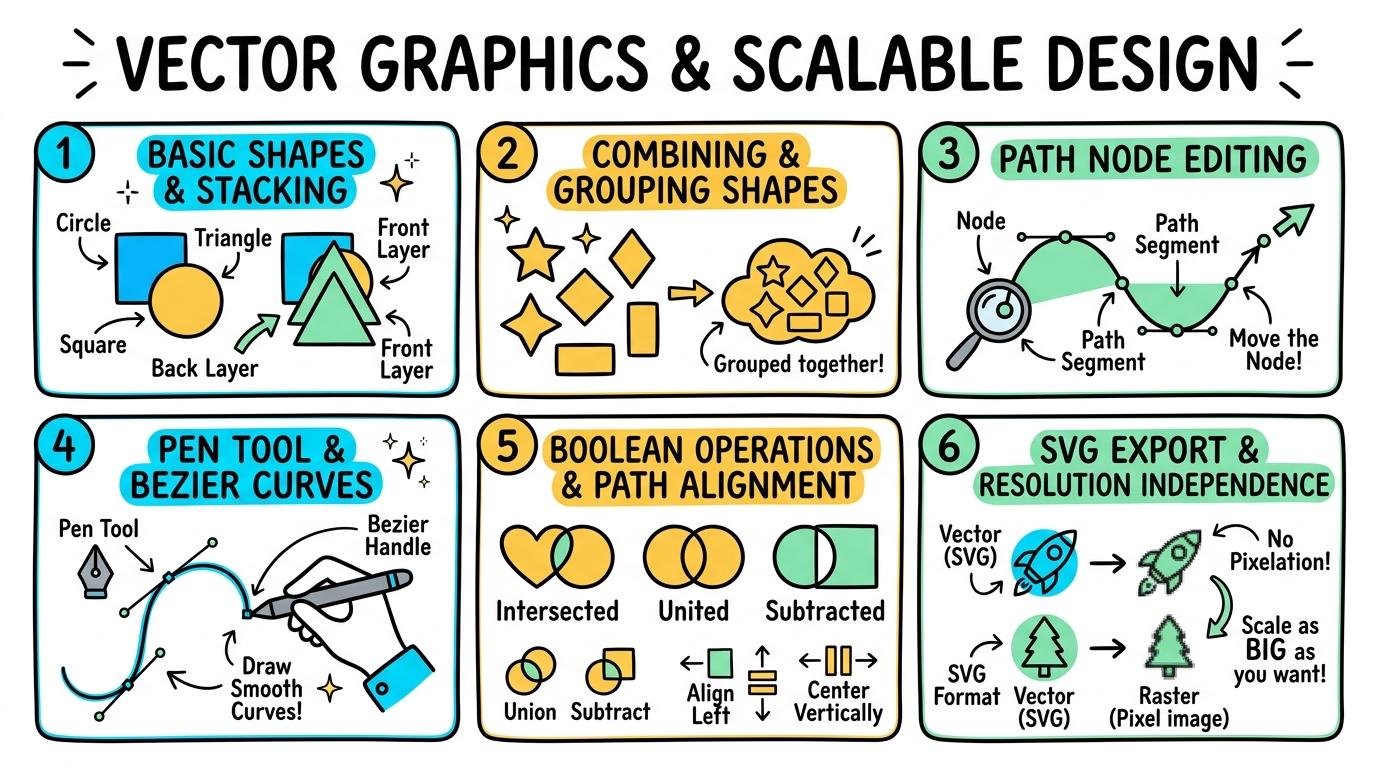
Learn to create resolution-independent graphics using scalable shapes, paths, nodes, Bezier curves, and Boolean vector operations.

Level 1

Basic Shapes & Stacking

Create simple vector graphics by adding geometric shapes, changing fill and stroke colors, and arranging stacking order.

Learning objective

Understand how to add geometric shapes, set fill/stroke properties, and arrange stacking order.

Let's Go!

Step media

Learn

Vector graphics are built from scalable shapes rather than pixels. Each shape has properties like fill color, outline stroke width, and stacking order. Moving a shape "Bring Forward" or "Send Backward" changes which shape sits on top. In computing, digital shapes allow us to construct visual representations using scalable mathematical objects. As you explore the interactive Drawing Layers Simulator below, focus on how to independently adds shapes, sets fill/stroke properties, and changes stacking order (Bring Forward/Send Backward).

Interactive Simulator Sandbox
Curriculum:Step 1 โ€ข Bronze Tier
๐Ÿ“„
Step 1 โ€ข Bronze (Level 1): Page Balance - Text & Image Placement

Place text and one image on a digital page without overlapping elements.

In Progress

ECO-GUARDIANS NEWSLETTER

Issue 4: Protecting Urban Biodiversity

Urban biodiversity creates resilient community ecosystems. Local parks provide vital stopping points for migratory birds and pollinating native bees.

๐Ÿ๐ŸŒธ
Native Honeybee on Clover

Planting micro-gardens with perennial wildflowers restores nectar corridors along city streets.
Layers & Stacking Order

4 Elements
100%
๐Ÿท๏ธTitle Hierarchy (H1)
๐Ÿ–ผ๏ธPollinator Graphic Image
๐Ÿ“ฐ2-Column Body Article
๐Ÿ’กCallout Box & Footer
Design Pro-Tip:

Maintain comfortable breathing space (margins) so eye movement flows naturally across the headline.

Apply Simulator Skills โ€ข Try it yourself

Build a Robot Face

๐Ÿ”„Direct Simulator Transfer: Step 1 Tasks 1, 2 & 3

Now that you've practiced the virtual mechanics in the simulator above, apply those exact skills in your real computer environment:

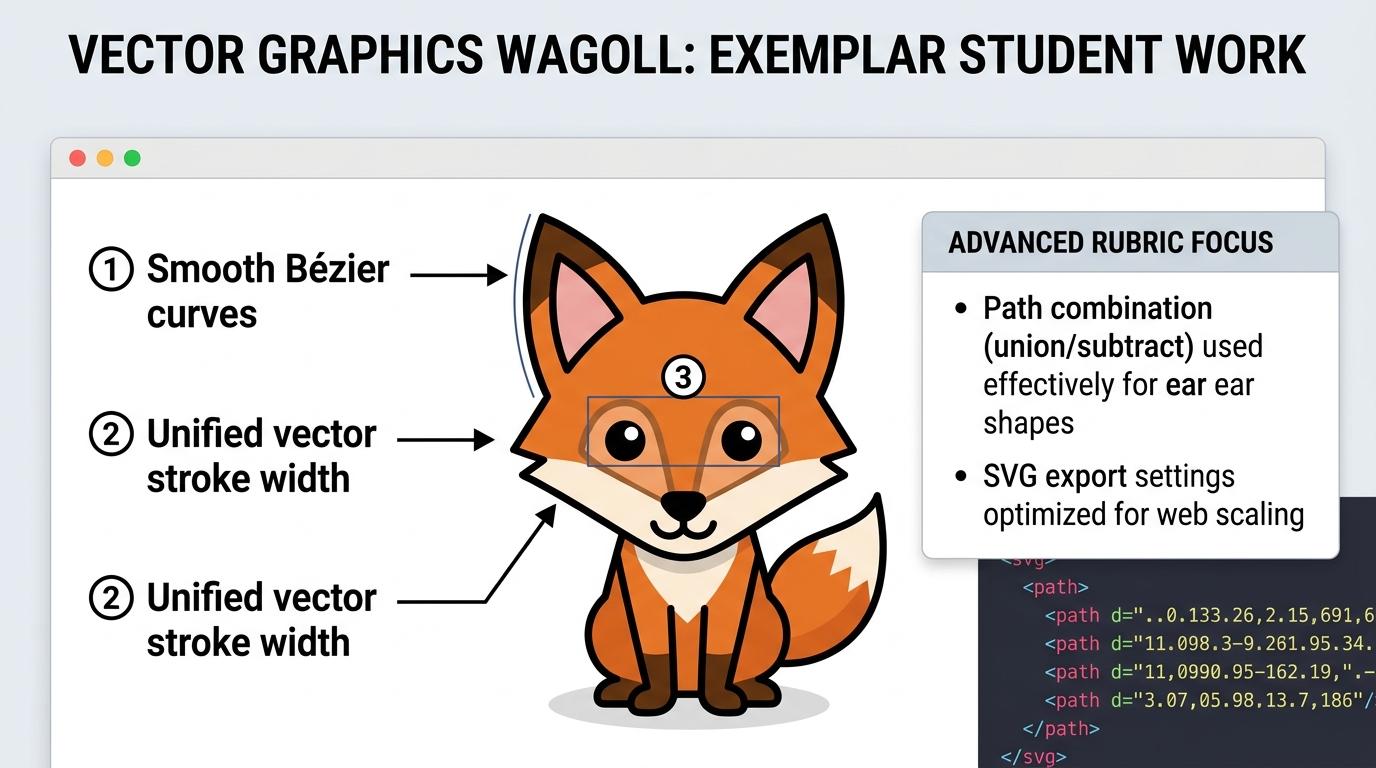
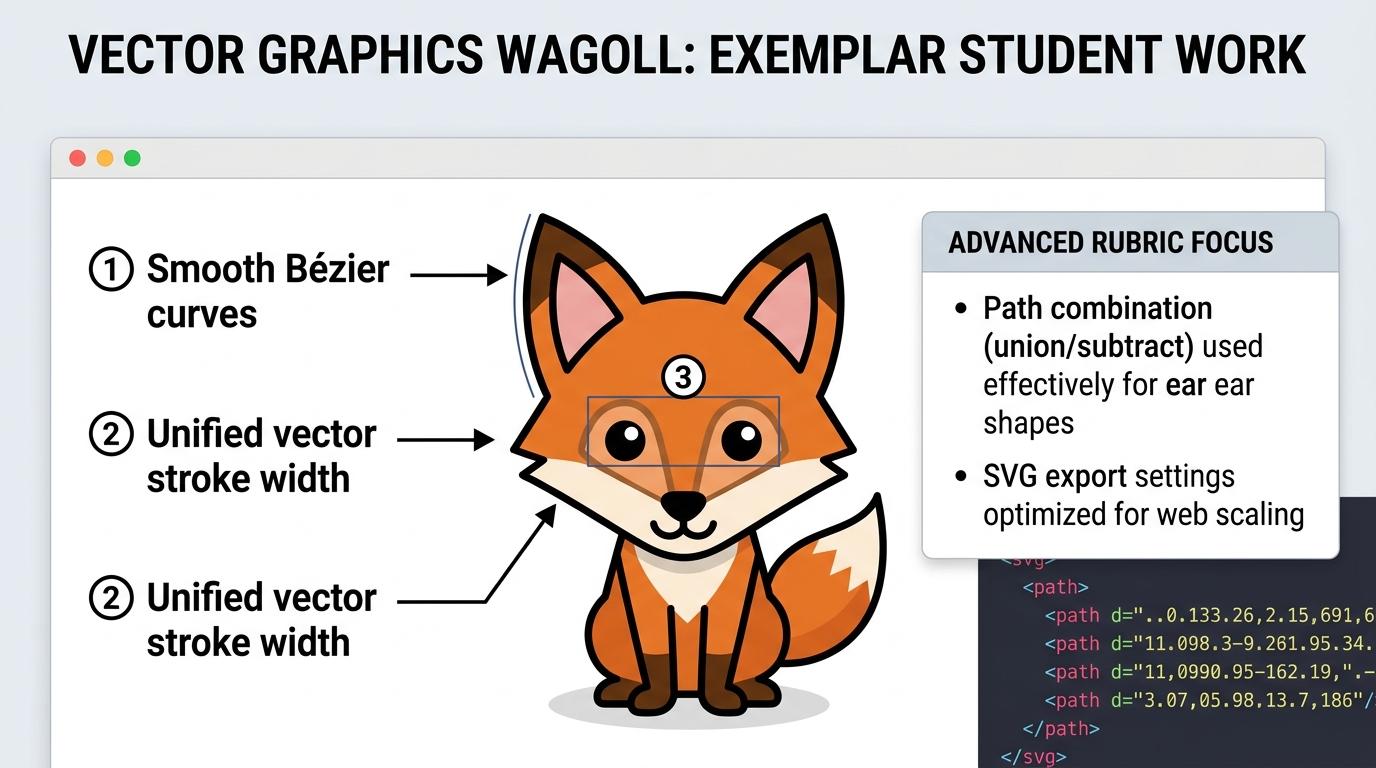
๐ŸŒŸ Student Project GuideSuccess Criteria & WAGOLL (What A Good One Looks Like)โ–พ

๐ŸŽฏ Task Success Criteria (Rubric)

Foundation

Identifies basic shape tools but struggles to change colors or arrangement.

Developing

Adds shapes and changes fill color with guidance.

Secure (Goal)

Independently adds shapes, sets fill/stroke properties, and changes stacking order (Bring Forward/Send Backward).

Mastery

Confidently creates composite designs using multiple stacked vector shapes.

๐Ÿ‘€ What A Good One Looks Like (WAGOLL)

๐Ÿ“
Save to Your Website Portfolio:

When you finish creating your project in your software, copy the share link or take a screenshot and publish it onto your student portfolio website!

Reflect

๐ŸŽฏ

Self-Assessment & Reflection

How confident are you changing shape order and colors?

๐ŸŸขSecure Level

Independently adds shapes, sets fill/stroke properties, and changes stacking order (Bring Forward/Send Backward).

Learning check

Learning Check

What setting changes the color inside a vector shape?

Select the correct vector property instruction.

Answer correctly to unlock the next level.

Correct! Fill color fills the inside of a shape, while stroke changes the outline.Incorrect. Fill color changes the inside color of a vector shape.
Teacher setup, curriculum links and progress descriptors

Spark support

Routine: See Think Wonder

Teacher notes: Facilitate the See Think Wonder routine for 2โ€“3 minutes. Encourage students to connect the prompt to Form (Digital shapes allow us to construct visual representations using scalable mathematical objects.).

Achievement pathway

  • Foundation: Identifies basic shape tools but struggles to change colors or arrangement.
  • Developing: Adds shapes and changes fill color with guidance.
  • Secure: Independently adds shapes, sets fill/stroke properties, and changes stacking order (Bring Forward/Send Backward).
  • Mastering: Confidently creates composite designs using multiple stacked vector shapes.

Curriculum links

Curriculum strand: LC.01.B.3.6

Outcome: VG.01.A.1 โ€” Create simple vector graphics by adding geometric shapes, changing fill and stroke colors, and arranging stacking order.

PYP: Form ยท Digital shapes allow us to construct visual representations using scalable mathematical objects.

Learner profile: Inquirer

Competency tags

  • vector-shapes
  • fill-stroke
  • object-ordering
  • visual-design

Gate support

Accessibility alternative: Students may verbally explain or point to the correct answer for "What setting changes the color inside a vector shape?" with a teacher or teaching assistant.

Teacher override: allow

Back to top

Locked level

Level 2: Combining & Grouping Shapes

Complete the previous learning check to unlock this next level.

Level 2

Combining & Grouping Shapes

Group multiple vector objects into single composite elements and use grid snapping for precise alignment.

Learning objective

Understand how to select multiple vector objects, group them together, and align them using grid snapping.

Let's Go!

Step media

Learn

When you build a complex object like a house or tree out of multiple shapes, grouping them links them into a single object. This means you can move, resize, or rotate the entire group together without messing up the relative positions of the individual parts. In computing, grouping simple shapes allows us to build complex, reusable visual icons. As you explore the interactive Website Builder Simulator below, focus on how to independently multi-selects vector shapes, groups them into single objects, and uses grid snapping for alignment.

Interactive Simulator Sandbox
Curriculum:Step 2 โ€ข Bronze Tier
๐ŸŒ
Step 1 โ€ข Bronze (Level 1): What is a Website? - Website Feature Identification

Name at least one essential feature of a website (e.g. navigation menu or homepage) with support.

In Progress
๐Ÿ  Page: Home4 blocks on this page

Welcome to Our Digital Space!

Designed to share student ideas, projects, and community action with the world.

๐ŸŒฑ๐Ÿ“ธFeature Project Banner Image
๐ŸŽฏ Purpose & Goals
Empowering students to publish creative writing, artwork, and research studies for global peers.
๐Ÿ‘ฅ Target Audience
Tailored for classmates, teachers, families, and partner schools worldwide.

Apply Simulator Skills โ€ข Try it yourself

Group a House Icon

๐Ÿ”„Direct Simulator Transfer: Step 2 Tasks 4, 5 & 6

Now that you've practiced the virtual mechanics in the simulator above, apply those exact skills in your real computer environment:

๐ŸŒŸ Student Project GuideSuccess Criteria & WAGOLL (What A Good One Looks Like)โ–พ

๐ŸŽฏ Task Success Criteria (Rubric)

Foundation

Selects single shapes but needs support to multi-select and group.

Developing

Selects multiple shapes and groups them with assistance.

Secure (Goal)

Independently multi-selects vector shapes, groups them into single objects, and uses grid snapping for alignment.

Mastery

Creates modular icon libraries by grouping and nesting shape collections efficiently.

๐Ÿ‘€ What A Good One Looks Like (WAGOLL)

๐Ÿ“
Save to Your Website Portfolio:

When you finish creating your project in your software, copy the share link or take a screenshot and publish it onto your student portfolio website!

Reflect

๐ŸŽฏ

Self-Assessment & Reflection

How easy was it to group shapes and snap them to the grid?

๐ŸŸขSecure Level

Independently multi-selects vector shapes, groups them into single objects, and uses grid snapping for alignment.

Learning check

Learning Check

Why would you group multiple vector shapes together?

Select the best reason to group vector objects.

Answer correctly to unlock the next level.

Correct! Grouping combines multiple shapes so they can be moved and scaled together.Incorrect. Grouping allows you to move and transform multiple shapes as one unit.
Teacher setup, curriculum links and progress descriptors

Spark support

Routine: Zoom In

Teacher notes: Facilitate the Zoom In routine for 2โ€“3 minutes. Encourage students to connect the prompt to Function (Grouping simple shapes allows us to build complex, reusable visual icons.).

Achievement pathway

  • Foundation: Selects single shapes but needs support to multi-select and group.
  • Developing: Selects multiple shapes and groups them with assistance.
  • Secure: Independently multi-selects vector shapes, groups them into single objects, and uses grid snapping for alignment.
  • Mastering: Creates modular icon libraries by grouping and nesting shape collections efficiently.

Curriculum links

Curriculum strand: LC.01.B.3.6

Outcome: VG.01.B.2 โ€” Group multiple vector objects into single composite elements and use grid snapping for precise alignment.

PYP: Function ยท Grouping simple shapes allows us to build complex, reusable visual icons.

Learner profile: Communicator

Competency tags

  • grouping
  • grid-snap
  • composite-objects
  • alignment

Gate support

Accessibility alternative: Students may verbally explain or point to the correct answer for "Why would you group multiple vector shapes together?" with a teacher or teaching assistant.

Teacher override: allow

Back to top

Locked level

Level 3: Path Node Editing

Complete the previous learning check to unlock this next level.

Level 3

Path Node Editing

Modify shape outlines by selecting, moving, adding, and deleting vector nodes/vertices.

Learning objective

Understand how to use the Direct Selection tool to edit path nodes and reshape vector objects.

Let's Go!

Step media

Learn

Every vector line or shape is defined by mathematical points called nodes (or vertices) connected by path segments. By switching to the Node / Direct Selection tool, you can grab individual nodes and drag them, or double-click a line to add new nodes, giving you complete control over the shape outline.

Interactive Simulator Sandbox
Curriculum:Step 3 โ€ข Bronze Tier
๐Ÿงฉ
Step 1 โ€ข Bronze (Level 1): Text & Pictures

Match each file extension on the left with its correct media category on the right.

Extension (.ext)

MATCH

File Purpose & Icon

Apply Simulator Skills โ€ข Try it yourself

Custom Leaf Vector

๐Ÿ”„Direct Simulator Transfer: Step 3 Tasks 7, 8 & 9

Now that you've practiced the virtual mechanics in the simulator above, apply those exact skills in your real computer environment:

๐ŸŒŸ Student Project GuideSuccess Criteria & WAGOLL (What A Good One Looks Like)โ–พ

๐ŸŽฏ Task Success Criteria (Rubric)

Foundation

Recognizes nodes on a path but struggles to move individual vertices.

Developing

Moves existing nodes with guidance to reshape objects.

Secure (Goal)

Independently uses the node editing tool to select, drag, add, and delete nodes to customize vector paths.

Mastery

Masterfully reshapes basic primitives into organic, detailed vector illustrations using node editing.

๐Ÿ‘€ What A Good One Looks Like (WAGOLL)

๐Ÿ“
Save to Your Website Portfolio:

When you finish creating your project in your software, copy the share link or take a screenshot and publish it onto your student portfolio website!

Reflect

๐ŸŽฏ

Self-Assessment & Reflection

How comfortable are you moving and adding nodes to reshape objects?

๐ŸŸขSecure Level

Independently uses the node editing tool to select, drag, add, and delete nodes to customize vector paths.

Learning check

Learning Check

What are the editable points called that define the shape of a vector path?

Identify what defines the corner points of a vector path.

Answer correctly to unlock the next level.

Correct! Nodes (vertices) are the anchor points that define vector path geometry.Incorrect. Nodes or vertices are the editable points along a vector path.
Teacher setup, curriculum links and progress descriptors

Spark support

Routine: Before After Slider

Teacher notes: Facilitate the Before After Slider routine for 2โ€“3 minutes. Encourage students to connect the prompt to Change (Vector shapes are defined by connected points called nodes that determine their geometric outline.).

Achievement pathway

  • Foundation: Recognizes nodes on a path but struggles to move individual vertices.
  • Developing: Moves existing nodes with guidance to reshape objects.
  • Secure: Independently uses the node editing tool to select, drag, add, and delete nodes to customize vector paths.
  • Mastering: Masterfully reshapes basic primitives into organic, detailed vector illustrations using node editing.

Curriculum links

Curriculum strand: LC.02.B.3.6

Outcome: VG.02.A.1 โ€” Modify shape outlines by selecting, moving, adding, and deleting vector nodes/vertices.

PYP: Change ยท Vector shapes are defined by connected points called nodes that determine their geometric outline.

Learner profile: Thinker

Competency tags

  • node-editing
  • path-nodes
  • vertices
  • shape-modification

Gate support

Accessibility alternative: Students may verbally explain or point to the correct answer for "What are the editable points called that define the shape of a vector path?" with a teacher or teaching assistant.

Teacher override: allow

Back to top

Locked level

Level 4: Pen Tool & Bezier Curves

Complete the previous learning check to unlock this next level.

Level 4

Pen Tool & Bezier Curves

Draw custom vector paths with the Pen tool and manipulate Bezier curve handles to create smooth curved lines.

Learning objective

Understand how to place anchor points and adjust Bezier control handles to create smooth curved paths.

Let's Go!

Step media

Learn

The Pen tool is the fundamental tool of professional vector graphics. Clicking creates straight anchor points, while clicking and dragging pulls out Bezier control handles. These handles dictate the direction and curvature of the path entering and leaving each node.

Interactive Simulator Sandbox
Spatial Curriculum:Step 4 โ€ข Bronze Tier
๐ŸงŠ
Step 1 โ€ข Bronze (Level 1): 2D to 3D AR - Dimension Identification

Identify 2D flat drawings vs 3D objects with depth. Inspect the interactive 3D model in the viewport.

In Progress
3D Primitives:
Camera Angle:
Front
Back
Right
Left
Top
Bottom
X: Width
Y: Height
Z: Depth

Apply Simulator Skills โ€ข Try it yourself

Trace a Guitar Silhouette

๐Ÿ”„Direct Simulator Transfer: Step 4 Tasks 10, 11 & 12

Now that you've practiced the virtual mechanics in the simulator above, apply those exact skills in your real computer environment:

๐ŸŒŸ Student Project GuideSuccess Criteria & WAGOLL (What A Good One Looks Like)โ–พ

๐ŸŽฏ Task Success Criteria (Rubric)

Foundation

Draws straight line segments with Pen tool but struggles with curved handles.

Developing

Creates curved paths with guidance on handle direction.

Secure (Goal)

Independently places anchor points and adjusts Bezier handles to construct smooth, accurate custom vector curves.

Mastery

Flawlessly traces complex logo outlines using minimal anchor points and balanced Bezier handles.

๐Ÿ‘€ What A Good One Looks Like (WAGOLL)

๐Ÿ“
Save to Your Website Portfolio:

When you finish creating your project in your software, copy the share link or take a screenshot and publish it onto your student portfolio website!

Reflect

๐ŸŽฏ

Self-Assessment & Reflection

How did you find controlling Bezier handles with the Pen tool?

๐ŸŸขSecure Level

Independently places anchor points and adjusts Bezier handles to construct smooth, accurate custom vector curves.

Learning check

Learning Check

What do Bezier control handles adjust on a vector path node?

Select the function of Bezier control handles.

Answer correctly to unlock the next level.

Correct! Bezier handles control the steepness and angle of curves connected to a node.Incorrect. Bezier handles determine the angle and curvature of path segments.
Teacher setup, curriculum links and progress descriptors

Spark support

Routine: Split Screen Simulator

Teacher notes: Facilitate the Split Screen Simulator routine for 2โ€“3 minutes. Encourage students to connect the prompt to Connection (Bezier curves use mathematical control handles to define smooth, continuous curved lines in space.).

Achievement pathway

  • Foundation: Draws straight line segments with Pen tool but struggles with curved handles.
  • Developing: Creates curved paths with guidance on handle direction.
  • Secure: Independently places anchor points and adjusts Bezier handles to construct smooth, accurate custom vector curves.
  • Mastering: Flawlessly traces complex logo outlines using minimal anchor points and balanced Bezier handles.

Curriculum links

Curriculum strand: LC.02.B.3.6

Outcome: VG.02.B.2 โ€” Draw custom vector paths with the Pen tool and manipulate Bezier curve handles to create smooth curved lines.

PYP: Connection ยท Bezier curves use mathematical control handles to define smooth, continuous curved lines in space.

Learner profile: Principled

Competency tags

  • pen-tool
  • bezier-curves
  • control-handles
  • custom-paths

Gate support

Accessibility alternative: Students may verbally explain or point to the correct answer for "What do Bezier control handles adjust on a vector path node?" with a teacher or teaching assistant.

Teacher override: allow

Back to top

Locked level

Level 5: Boolean Operations & Path Alignment

Complete the previous learning check to unlock this next level.

Level 5

Boolean Operations & Path Alignment

Combine overlapping vector shapes using Boolean path operations (Union, Difference, Intersection) and align paths precisely.

Learning objective

Understand how to apply Boolean operations (Union, Difference, Intersection) to combine overlapping vector paths.

Let's Go!

Step media

Learn

Boolean operations allow you to join or cut shapes using mathematical set logic: Union combines shapes into one; Difference subtracts the top shape from the bottom shape; Intersection keeps only where they overlap. This is much cleaner than erasing pixels! In computing, combining shapes through mathematical logic allows us to design complex graphic symbols efficiently. As you explore the interactive Shortcut Simulator below, focus on how to independently applies Union, Difference, Intersection, and Exclusion operations to craft custom composite shapes.

Interactive Simulator Sandbox
Curriculum:Step 5 โ€ข Bronze Tier
๐Ÿฅท
Step 1 โ€ข Bronze (Level 1): Select All & Delete - Locate Ctrl & A

Locate the Ctrl (Cmd) and A keys on the virtual keyboard to target entire documents instantly.

Target Shortcut:Ctrl + A
โœจ Mission Ready
๐Ÿ’ก Click or press keys on your physical keyboard:
๐Ÿ“„ Notes & Research Editor
๐Ÿ“ Source Document (Research Notes)
โž”
๐Ÿ“‹ Destination Notebook (Clean Summary)

Apply Simulator Skills โ€ข Try it yourself

Create a Crescent Moon & Keyhole

๐Ÿ”„Direct Simulator Transfer: Step 5 Tasks 13, 14 & 15

Now that you've practiced the virtual mechanics in the simulator above, apply those exact skills in your real computer environment:

๐ŸŒŸ Student Project GuideSuccess Criteria & WAGOLL (What A Good One Looks Like)โ–พ

๐ŸŽฏ Task Success Criteria (Rubric)

Foundation

Identifies Boolean tools but struggles to predict the resulting combined shape.

Developing

Applies Union or Difference operations with step-by-step guidance.

Secure (Goal)

Independently applies Union, Difference, Intersection, and Exclusion operations to craft custom composite shapes.

Mastery

Expertly designs intricate brand logos and icons using multi-step Boolean path construction.

๐Ÿ‘€ What A Good One Looks Like (WAGOLL)

๐Ÿ“
Save to Your Website Portfolio:

When you finish creating your project in your software, copy the share link or take a screenshot and publish it onto your student portfolio website!

Reflect

๐ŸŽฏ

Self-Assessment & Reflection

How well do you understand the difference between Union and Subtract/Difference?

๐ŸŸขSecure Level

Independently applies Union, Difference, Intersection, and Exclusion operations to craft custom composite shapes.

Learning check

Learning Check

Which Boolean operation subtracts the top shape from the bottom shape to cut a hole?

Identify the Boolean operation that cuts one shape out of another.

Answer correctly to unlock the next level.

Correct! Difference subtracts the overlapping top shape from the bottom shape.Incorrect. The Difference (Subtract) operation cuts the top shape out of the bottom shape.
Teacher setup, curriculum links and progress descriptors

Spark support

Routine: ClassroomWalkthrough

Teacher notes: Facilitate the ClassroomWalkthrough routine for 2โ€“3 minutes. Encourage students to connect the prompt to Perspective (Combining shapes through mathematical logic allows us to design complex graphic symbols efficiently.).

Achievement pathway

  • Foundation: Identifies Boolean tools but struggles to predict the resulting combined shape.
  • Developing: Applies Union or Difference operations with step-by-step guidance.
  • Secure: Independently applies Union, Difference, Intersection, and Exclusion operations to craft custom composite shapes.
  • Mastering: Expertly designs intricate brand logos and icons using multi-step Boolean path construction.

Curriculum links

Curriculum strand: LC.03.B.3.6

Outcome: VG.03.A.1 โ€” Combine overlapping vector shapes using Boolean path operations (Union, Difference, Intersection) and align paths precisely.

PYP: Perspective ยท Combining shapes through mathematical logic allows us to design complex graphic symbols efficiently.

Learner profile: Knowledgeable

Competency tags

  • boolean-operations
  • union-difference
  • pathfinder
  • alignment

Gate support

Accessibility alternative: Students may verbally explain or point to the correct answer for "Which Boolean operation subtracts the top shape from the bottom shape to cut a hole?" with a teacher or teaching assistant.

Teacher override: allow

Back to top

Locked level

Level 6: SVG Export & Resolution Independence

Complete the previous learning check to unlock this next level.

Level 6

SVG Export & Resolution Independence

Evaluate vector resolution independence across zoom levels, convert raster images to vectors via tracing, and export clean SVG/EPS files.

Learning objective

Understand vector resolution independence, perform image tracing on raster graphics, and export clean SVG/EPS files.

Let's Go!

Step media

Learn

Unlike pixel-based raster images (PNG, JPG) that become pixelated when enlarged, vector graphics (SVG, EPS) store mathematical equations for every path. This means a vector logo can be scaled to the size of a skyscraper with crystal-clear edges and small file sizes.

Interactive Simulator Sandbox
Curriculum:Step 6 โ€ข Bronze Tier
๐Ÿ’พ
Step 1 โ€ข Bronze (Level 1): New Projects & First Save

Type a clear name in the "File name" box and click Save to store it on the Desktop.

๐Ÿ’พSave As...
โš ๏ธ Type a file name

Apply Simulator Skills โ€ข Try it yourself

Vector Logo Export & Trace

๐Ÿ”„Direct Simulator Transfer: Step 6 Tasks 16, 17 & 18

Now that you've practiced the virtual mechanics in the simulator above, apply those exact skills in your real computer environment:

๐ŸŒŸ Student Project GuideSuccess Criteria & WAGOLL (What A Good One Looks Like)โ–พ

๐ŸŽฏ Task Success Criteria (Rubric)

Foundation

Understands vectors scale well but struggles to explain why or export proper file formats.

Developing

Traces raster images and exports SVG files with teacher support.

Secure (Goal)

Independently explains vector resolution independence, converts raster images to vectors using auto-trace, and exports optimized SVG files.

Mastery

Critically evaluates vector optimization, removes redundant nodes for lightweight SVG web deployment, and manages licensing.

๐Ÿ‘€ What A Good One Looks Like (WAGOLL)

๐Ÿ“
Save to Your Website Portfolio:

When you finish creating your project in your software, copy the share link or take a screenshot and publish it onto your student portfolio website!

Reflect

๐ŸŽฏ

Self-Assessment & Reflection

How confident are you explaining why SVG vector graphics never get blurry when scaled?

๐ŸŸขSecure Level

Independently explains vector resolution independence, converts raster images to vectors using auto-trace, and exports optimized SVG files.

Learning check

Learning Check

Why are SVG vector graphics preferred for company logos and web icons?

Select the key advantage of SVG vector graphics over raster images.

Answer correctly to complete this strand.

Correct! SVG vector graphics are resolution independent and stay sharp at any scale.Incorrect. Vector graphics can scale infinitely without pixelation or loss of crisp quality.
Teacher setup, curriculum links and progress descriptors

Spark support

Routine: Zoom In

Teacher notes: Facilitate the Zoom In routine for 2โ€“3 minutes. Encourage students to connect the prompt to Reflection (Resolution-independent vector files allow graphics to scale from smartwatch screens to stadium billboards without quality loss.).

Achievement pathway

  • Foundation: Understands vectors scale well but struggles to explain why or export proper file formats.
  • Developing: Traces raster images and exports SVG files with teacher support.
  • Secure: Independently explains vector resolution independence, converts raster images to vectors using auto-trace, and exports optimized SVG files.
  • Mastering: Critically evaluates vector optimization, removes redundant nodes for lightweight SVG web deployment, and manages licensing.

Curriculum links

Curriculum strand: LC.03.B.3.2

Outcome: VG.03.B.2 โ€” Evaluate vector resolution independence across zoom levels, convert raster images to vectors via tracing, and export clean SVG/EPS files.

PYP: Reflection ยท Resolution-independent vector files allow graphics to scale from smartwatch screens to stadium billboards without quality loss.

Learner profile: Reflective

Competency tags

  • svg-export
  • resolution-independence
  • vector-tracing
  • raster-vs-vector

Gate support

Accessibility alternative: Students may verbally explain or point to the correct answer for "Why are SVG vector graphics preferred for company logos and web icons?" with a teacher or teaching assistant.

Teacher override: allow

๐ŸŽ’ Students Home โ†’

Install App for Classroom

One-click fullscreen learning for Chromebooks, iPads & PCs

๐Ÿ–ฅ๏ธ
Distraction-FreeFullscreen window without browser tabs or search clutter.
โšก
1-Tap LaunchPin directly to the Chromebook shelf, iPad dock, or Windows taskbar.
๐Ÿ“ถ
Classroom SpeedInstant cached loads for lessons and simulators even on school Wi-Fi.
๐Ÿ”’
Safe & Ad-Free100% free, private, and no app store logins or passwords needed.
  1. 1
    Click the Install button

    In your browser, look at the right end of the top web address bar for the ๐Ÿ’ป Install or โค“ icon.

  2. 2
    Confirm "Install"

    A popup will ask if you want to install "Ed Tech Hub". Click Install.

  3. 3
    Pin to your Shelf

    Right-click (or two-finger tap) the app icon in your Chromebook bottom shelf and select "Pin"!